
ReactNative for OpenHarmony项目鸿蒙化三方库:react-native-keyboard-aware-scroll-view — 键盘自适应滚动组件
欢迎加入开源鸿蒙跨平台社区:https://openharmonycrossplatform.csdn.net📌:本文基于 React Native 0.72.90 版本进行开发适配。
欢迎加入开源鸿蒙跨平台社区:https://openharmonycrossplatform.csdn.net
📌 开发环境声明:本文基于 React Native 0.72.90 版本进行开发适配
🚀 一、开篇引言
在移动应用开发中,键盘遮挡输入框是一个常见且棘手的问题。当用户点击输入框时,软键盘弹出往往会遮挡住输入区域,导致用户体验不佳。react-native-keyboard-aware-scroll-view 是 React Native 社区中解决这一问题的经典方案,它能够自动调整滚动位置,确保当前输入框始终可见。本文将带你深入了解如何在 HarmonyOS 平台上集成和使用这个实用的键盘自适应组件。
1.1 你将学到什么?
- ✅ KeyboardAwareScrollView 的核心概念与工作原理
- ✅ HarmonyOS 平台的完整集成流程
- ✅ 键盘自适应滚动的配置与使用
- ✅ API 属性的深度解析
- ✅ 实际应用场景的最佳实践
1.2 适用人群
- 正在进行 React Native 鸿蒙化迁移的开发者
- 需要解决键盘遮挡问题的开发者
- 对跨平台表单交互开发感兴趣的技术爱好者
1.3 为什么选择 KeyboardAwareScrollView?
| 特点 | 说明 |
|---|---|
| 自动适配 | 键盘弹出时自动滚动到输入框位置 |
| 跨平台一致 | iOS、Android、HarmonyOS 表现一致 |
| 灵活配置 | 支持多种滚动偏移和动画配置 |
| 简单易用 | 无需额外代码,包裹即可使用 |
| 功能丰富 | 支持手动滚动、重置位置等高级功能 |
📦 二、库概览
2.1 基本信息
| 项目 | 内容 |
|---|---|
| 库名称 | @react-native-ohos/react-native-keyboard-aware-scroll-view |
| 原库名称 | react-native-keyboard-aware-scroll-view |
| 版本信息 | 0.9.5 (RN 0.72) / 0.10.0 (RN 0.77) |
| 官方仓库 | https://github.com/APSL/react-native-keyboard-aware-scroll-view |
| 鸿蒙仓库 | https://gitcode.com/openharmony-sig/rntpc_react-native-keyboard-aware-scroll-view |
| 开源协议 | MIT |
2.2 版本兼容性
| 三方库版本 | 支持RN版本 | 是否支持Autolink |
|---|---|---|
| 0.10.0 | 0.77 | Yes |
| 0.9.5 | 0.72 | Yes |
| <= 0.9.5@deprecated | 0.72 | Yes |
2.3 核心能力矩阵
| 能力项 | 描述 | HarmonyOS 支持 |
|---|---|---|
| 自动滚动适配 | 键盘弹出自动滚动 | ✅ 完全支持 |
| 手动滚动控制 | scrollToPosition/scrollToEnd | ✅ 完全支持 |
| 键盘事件监听 | onKeyboardDidShow/Hide | ✅ 部分支持 |
| 位置重置 | resetScrollToCoords | ✅ 完全支持 |
| 额外偏移配置 | extraHeight/extraScrollHeight | ✅ 完全支持 |
2.4 技术架构图
2.5 典型应用场景
| 场景 | 描述 | 示例 |
|---|---|---|
| 登录注册表单 | 多输入框表单页面 | 🔐 登录、注册、找回密码 |
| 个人信息编辑 | 长表单信息填写 | 👤 资料完善、地址填写 |
| 评论回复 | 底部输入框 | 💬 评论、聊天输入 |
| 搜索页面 | 搜索框+结果列表 | 🔍 商品搜索、内容搜索 |
📖 三、安装与配置
3.1 安装依赖
在项目根目录执行以下命令:
npm install @react-native-ohos/react-native-keyboard-aware-scroll-view@0.9.6-rc.1
或使用 yarn:
yarn add @react-native-ohos/react-native-keyboard-aware-scroll-view@0.9.6-rc.1
3.2 验证安装
安装完成后,检查 package.json 文件中是否包含以下依赖:
{
  "dependencies": {
    "@react-native-ohos/react-native-keyboard-aware-scroll-view": "^0.9.6-rc.1"
  }
}
3.3 基本导入
import { KeyboardAwareScrollView } from 'react-native-keyboard-aware-scroll-view';
📖 四、API 详解
4.1 KeyboardAwareScrollView 组件
核心组件,继承自 ScrollView,提供键盘自适应滚动功能。
基本用法:
import { KeyboardAwareScrollView } from 'react-native-keyboard-aware-scroll-view';

<KeyboardAwareScrollView
  style={styles.container}
  enableAutomaticScroll={true}
  extraHeight={100}
>
  {/* 表单内容 */}
</KeyboardAwareScrollView>
4.2 核心属性详解
resetScrollToCoords - 重置滚动坐标
当键盘隐藏时,滚动视图将重置到指定坐标位置。
类型: { x: number, y: number }
默认值: { x: 0, y: 0 }
<KeyboardAwareScrollView
  resetScrollToCoords={{ x: 0, y: 0 }}
>
  {/* 内容 */}
</KeyboardAwareScrollView>
enableAutomaticScroll - 启用自动滚动
当焦点在 TextInput 中时,自动滚动到可见位置。
类型: boolean
默认值: true
<KeyboardAwareScrollView
  enableAutomaticScroll={true}
>
  {/* 内容 */}
</KeyboardAwareScrollView>
extraHeight - 额外高度偏移
在计算滚动位置时添加额外偏移量,确保输入框与键盘之间有足够间距。
类型: number
默认值: 75
<KeyboardAwareScrollView
  extraHeight={100}
>
  {/* 内容 */}
</KeyboardAwareScrollView>
extraScrollHeight - 额外滚动高度
添加额外偏移到键盘高度计算中,适合在键盘上方放置固定元素。
类型: number
默认值: 0
<KeyboardAwareScrollView
  extraScrollHeight={50}
>
  {/* 内容 */}
</KeyboardAwareScrollView>
enableResetScrollToCoords - 启用位置重置
控制键盘隐藏时是否自动重置滚动位置。
类型: boolean
默认值: true
<KeyboardAwareScrollView
  enableResetScrollToCoords={true}
>
  {/* 内容 */}
</KeyboardAwareScrollView>
keyboardOpeningTime - 键盘打开延迟
设置滚动到新位置之前的延迟时间(毫秒)。
类型: number
默认值: 250
<KeyboardAwareScrollView
  keyboardOpeningTime={300}
>
  {/* 内容 */}
</KeyboardAwareScrollView>
4.3 键盘事件回调
onKeyboardDidShow - 键盘显示回调
键盘完全显示后触发。
类型: (event?) => void
<KeyboardAwareScrollView
  onKeyboardDidShow={(event) => {
    console.log('键盘高度:', event?.endCoordinates?.height);
  }}
>
  {/* 内容 */}
</KeyboardAwareScrollView>
onKeyboardDidHide - 键盘隐藏回调
键盘完全隐藏后触发。
类型: (event?) => void
<KeyboardAwareScrollView
  onKeyboardDidHide={() => {
    console.log('键盘已隐藏');
  }}
>
  {/* 内容 */}
</KeyboardAwareScrollView>
4.4 方法调用
通过 ref 可以调用以下方法:
scrollToPosition - 滚动到指定位置
签名: scrollToPosition(x: number, y: number, animated?: boolean) => void
const scrollRef = useRef<KeyboardAwareScrollView>(null);

scrollRef.current?.scrollToPosition(0, 200, true);
scrollToEnd - 滚动到底部
签名: scrollToEnd(animated?: boolean) => void
scrollRef.current?.scrollToEnd(true);
scrollIntoView - 滚动到指定元素
签名: scrollIntoView(element: React.Element, options?) => void
scrollRef.current?.scrollIntoView(textInputRef.current);
💡 五、使用示例
5.1 基础登录表单
最简单的使用方式,自动处理键盘遮挡问题。
适用场景: 登录、注册等简单表单页面。
import React, { useRef } from 'react';
import { View, Text, TextInput, StyleSheet, TouchableOpacity } from 'react-native';
import { KeyboardAwareScrollView } from '@react-native-ohos/react-native-keyboard-aware-scroll-view';

const LoginForm = () => {
  const scrollRef = useRef<KeyboardAwareScrollView>(null);

  return (
    <KeyboardAwareScrollView
      ref={scrollRef}
      style={styles.container}
      enableAutomaticScroll={true}
      extraHeight={100}
      extraScrollHeight={50}
    >
      <View style={styles.header}>
        <Text style={styles.title}>用户登录</Text>
        <Text style={styles.subtitle}>请输入您的账号信息</Text>
      </View>

      <View style={styles.form}>
        <View style={styles.inputGroup}>
          <Text style={styles.label}>用户名</Text>
          <TextInput
            style={styles.input}
            placeholder="请输入用户名"
            placeholderTextColor="#999"
          />
        </View>

        <View style={styles.inputGroup}>
          <Text style={styles.label}>密码</Text>
          <TextInput
            style={styles.input}
            placeholder="请输入密码"
            placeholderTextColor="#999"
            secureTextEntry
          />
        </View>

        <TouchableOpacity style={styles.button}>
          <Text style={styles.buttonText}>登录</Text>
        </TouchableOpacity>

        <TouchableOpacity style={styles.linkButton}>
          <Text style={styles.linkText}>忘记密码?</Text>
        </TouchableOpacity>
      </View>
    </KeyboardAwareScrollView>
  );
};

const styles = StyleSheet.create({
  container: {
    flex: 1,
    backgroundColor: '#f5f5f5',
  },
  header: {
    padding: 24,
    paddingTop: 60,
    alignItems: 'center',
  },
  title: {
    fontSize: 28,
    fontWeight: 'bold',
    color: '#333',
  },
  subtitle: {
    fontSize: 14,
    color: '#666',
    marginTop: 8,
  },
  form: {
    padding: 24,
  },
  inputGroup: {
    marginBottom: 20,
  },
  label: {
    fontSize: 14,
    color: '#333',
    marginBottom: 8,
  },
  input: {
    backgroundColor: '#fff',
    borderWidth: 1,
    borderColor: '#ddd',
    borderRadius: 8,
    padding: 14,
    fontSize: 16,
  },
  button: {
    backgroundColor: '#00d4ff',
    padding: 16,
    borderRadius: 8,
    alignItems: 'center',
    marginTop: 20,
  },
  buttonText: {
    color: '#fff',
    fontSize: 16,
    fontWeight: '600',
  },
  linkButton: {
    alignItems: 'center',
    marginTop: 16,
  },
  linkText: {
    color: '#00d4ff',
    fontSize: 14,
  },
});

export default LoginForm;
代码解析:
enableAutomaticScroll={true}启用自动滚动extraHeight={100}添加额外偏移,确保输入框不被遮挡extraScrollHeight={50}额外滚动高度,适合底部有固定元素的场景
5.2 多输入框长表单
处理多个输入框的复杂表单场景。
适用场景: 注册、个人信息编辑等长表单。
import React, { useRef, useState } from 'react';
import { View, Text, TextInput, StyleSheet, TouchableOpacity, ScrollView } from 'react-native';
import { KeyboardAwareScrollView } from '@react-native-ohos/react-native-keyboard-aware-scroll-view';

interface FormData {
  username: string;
  password: string;
  firstname: string;
  lastname: string;
  email: string;
  phone: string;
  address: string;
}

const RegisterForm = () => {
  const scrollRef = useRef<KeyboardAwareScrollView>(null);
  const [formData, setFormData] = useState<FormData>({
    username: '',
    password: '',
    firstname: '',
    lastname: '',
    email: '',
    phone: '',
    address: '',
  });

  const updateField = (field: keyof FormData, value: string) => {
    setFormData(prev => ({ ...prev, [field]: value }));
  };

  const handleSubmit = () => {
    console.log('提交数据:', formData);
  };

  const renderInput = (
    label: string,
    field: keyof FormData,
    placeholder: string,
    secureTextEntry?: boolean
  ) => (
    <View style={styles.inputGroup}>
      <Text style={styles.label}>{label}</Text>
      <TextInput
        style={styles.input}
        placeholder={placeholder}
        placeholderTextColor="#999"
        value={formData[field]}
        onChangeText={value => updateField(field, value)}
        secureTextEntry={secureTextEntry}
      />
    </View>
  );

  return (
    <KeyboardAwareScrollView
      ref={scrollRef}
      style={styles.container}
      enableAutomaticScroll={true}
      extraHeight={120}
      extraScrollHeight={80}
      keyboardOpeningTime={200}
    >
      <View style={styles.header}>
        <Text style={styles.title}>创建账号</Text>
        <Text style={styles.subtitle}>请填写以下信息完成注册</Text>
      </View>

      <View style={styles.form}>
        {renderInput('用户名', 'username', '请输入用户名')}
        {renderInput('密码', 'password', '请输入密码', true)}
        {renderInput('名字', 'firstname', '请输入名字')}
        {renderInput('姓氏', 'lastname', '请输入姓氏')}
        {renderInput('邮箱', 'email', '请输入邮箱地址')}
        {renderInput('手机号', 'phone', '请输入手机号')}
        {renderInput('地址', 'address', '请输入详细地址')}

        <TouchableOpacity style={styles.submitButton} onPress={handleSubmit}>
          <Text style={styles.submitButtonText}>提交注册</Text>
        </TouchableOpacity>
      </View>
    </KeyboardAwareScrollView>
  );
};

const styles = StyleSheet.create({
  container: {
    flex: 1,
    backgroundColor: '#fff',
  },
  header: {
    padding: 24,
    paddingTop: 60,
    backgroundColor: '#00d4ff',
  },
  title: {
    fontSize: 28,
    fontWeight: 'bold',
    color: '#fff',
  },
  subtitle: {
    fontSize: 14,
    color: 'rgba(255,255,255,0.8)',
    marginTop: 8,
  },
  form: {
    padding: 24,
  },
  inputGroup: {
    marginBottom: 16,
  },
  label: {
    fontSize: 14,
    color: '#333',
    marginBottom: 8,
    fontWeight: '500',
  },
  input: {
    backgroundColor: '#f8f8f8',
    borderWidth: 1,
    borderColor: '#e0e0e0',
    borderRadius: 8,
    padding: 14,
    fontSize: 16,
  },
  submitButton: {
    backgroundColor: '#00d4ff',
    padding: 16,
    borderRadius: 8,
    alignItems: 'center',
    marginTop: 24,
  },
  submitButtonText: {
    color: '#fff',
    fontSize: 16,
    fontWeight: '600',
  },
});

export default RegisterForm;
代码解析:
extraHeight={120}较大的偏移量确保输入框完全可见keyboardOpeningTime={200}缩短延迟,更快响应- 使用状态管理表单数据,便于提交处理
5.3 带键盘事件监听
监听键盘显示/隐藏事件,实现自定义逻辑。
适用场景: 需要根据键盘状态调整 UI 的场景。
import React, { useRef, useState } from 'react';
import { View, Text, TextInput, StyleSheet, TouchableOpacity, Keyboard } from 'react-native';
import { KeyboardAwareScrollView } from '@react-native-ohos/react-native-keyboard-aware-scroll-view';

const ChatInput = () => {
  const scrollRef = useRef<KeyboardAwareScrollView>(null);
  const [keyboardVisible, setKeyboardVisible] = useState(false);
  const [keyboardHeight, setKeyboardHeight] = useState(0);
  const [message, setMessage] = useState('');

  const handleKeyboardDidShow = (event: any) => {
    setKeyboardVisible(true);
    setKeyboardHeight(event?.endCoordinates?.height || 0);
    console.log('键盘高度:', event?.endCoordinates?.height);
  };

  const handleKeyboardDidHide = () => {
    setKeyboardVisible(false);
    setKeyboardHeight(0);
    console.log('键盘已隐藏');
  };

  const handleSend = () => {
    if (message.trim()) {
      console.log('发送消息:', message);
      setMessage('');
      Keyboard.dismiss();
    }
  };

  return (
    <KeyboardAwareScrollView
      ref={scrollRef}
      style={styles.container}
      enableAutomaticScroll={true}
      extraHeight={100}
      onKeyboardDidShow={handleKeyboardDidShow}
      onKeyboardDidHide={handleKeyboardDidHide}
    >
      <View style={styles.content}>
        <Text style={styles.title}>聊天界面</Text>
        <Text style={styles.status}>
          键盘状态: {keyboardVisible ? `显示中 (高度: ${keyboardHeight})` : '已隐藏'}
        </Text>

        <View style={styles.messageList}>
          <View style={styles.messageItem}>
            <Text style={styles.messageText}>你好!</Text>
          </View>
          <View style={[styles.messageItem, styles.messageItemRight]}>
            <Text style={styles.messageText}>你好,有什么可以帮助你的?</Text>
          </View>
        </View>
      </View>

      <View style={styles.inputContainer}>
        <TextInput
          style={styles.input}
          placeholder="输入消息..."
          placeholderTextColor="#999"
          value={message}
          onChangeText={setMessage}
          multiline
        />
        <TouchableOpacity style={styles.sendButton} onPress={handleSend}>
          <Text style={styles.sendButtonText}>发送</Text>
        </TouchableOpacity>
      </View>
    </KeyboardAwareScrollView>
  );
};

const styles = StyleSheet.create({
  container: {
    flex: 1,
    backgroundColor: '#f5f5f5',
  },
  content: {
    padding: 16,
  },
  title: {
    fontSize: 20,
    fontWeight: 'bold',
    color: '#333',
    textAlign: 'center',
    marginBottom: 16,
  },
  status: {
    fontSize: 12,
    color: '#666',
    textAlign: 'center',
    marginBottom: 16,
  },
  messageList: {
    minHeight: 300,
  },
  messageItem: {
    backgroundColor: '#fff',
    padding: 12,
    borderRadius: 8,
    marginBottom: 8,
    maxWidth: '80%',
    alignSelf: 'flex-start',
  },
  messageItemRight: {
    alignSelf: 'flex-end',
    backgroundColor: '#00d4ff',
  },
  messageText: {
    fontSize: 14,
    color: '#333',
  },
  inputContainer: {
    flexDirection: 'row',
    padding: 12,
    backgroundColor: '#fff',
    borderTopWidth: 1,
    borderTopColor: '#e0e0e0',
  },
  input: {
    flex: 1,
    backgroundColor: '#f5f5f5',
    borderRadius: 20,
    paddingHorizontal: 16,
    paddingVertical: 8,
    marginRight: 12,
    maxHeight: 100,
  },
  sendButton: {
    backgroundColor: '#00d4ff',
    paddingHorizontal: 20,
    borderRadius: 20,
    justifyContent: 'center',
  },
  sendButtonText: {
    color: '#fff',
    fontWeight: '600',
  },
});

export default ChatInput;
代码解析:
onKeyboardDidShow监听键盘显示事件,获取键盘高度onKeyboardDidHide监听键盘隐藏事件,更新状态- 根据键盘状态动态显示提示信息
❓ 八、常见问题
8.1 遗留问题
⚠️ 重要提示:以下问题在 HarmonyOS 平台上仍存在,使用时请注意规避。
问题 1:UIManager.viewIsDescendantOf() API 未支持
问题描述: RN 0.72.28 版本新架构暂未支持 UIManager.viewIsDescendantOf() API,该 API 用于判断组件节点嵌套关系。
影响范围: 部分高级功能可能受影响,基本功能正常使用。
相关 Issue: issue#12
问题 2:键盘生命周期部分未 HarmonyOS 化
问题描述: 键盘抬起部分生命周期未完全 HarmonyOS 化,但功能不受影响。
相关 Issue: issue#17
8.2 常见问题解答
Q1: 键盘弹出后输入框仍然被遮挡怎么办?
A: 尝试增加 extraHeight 或 extraScrollHeight 的值。
Q2: 如何在键盘上方放置固定元素?
A: 使用 extraScrollHeight 属性添加额外空间。
Q3: 键盘隐藏后如何保持滚动位置?
A: 设置 enableResetScrollToCoords={false} 禁用自动重置。
Q4: onKeyboardWillShow 不触发?
A: HarmonyOS 平台暂不支持 onKeyboardWillShow,请使用 onKeyboardDidShow。
8.3 最佳实践
- 合理设置偏移量:根据实际 UI 调整
extraHeight和extraScrollHeight - 使用 ref 控制:复杂场景下使用 ref 手动控制滚动位置
- 监听键盘事件:利用键盘事件实现自定义交互逻辑
- 测试多输入框:确保所有输入框在键盘弹出时都能正确滚动到可见位置
💻 九、完整示例代码
综合示例
import React, { useRef, useState } from 'react';
import {
  View,
  Text,
  TextInput,
  StyleSheet,
  TouchableOpacity,
  SafeAreaView,
  Keyboard,
  Alert,
} from 'react-native';
import { KeyboardAwareScrollView } from '@react-native-ohos/react-native-keyboard-aware-scroll-view';

interface FormField {
  key: string;
  label: string;
  placeholder: string;
  secureTextEntry?: boolean;
  keyboardType?: 'default' | 'email-address' | 'phone-pad';
}

const formFields: FormField[] = [
  { key: 'username', label: '用户名', placeholder: '请输入用户名' },
  { key: 'password', label: '密码', placeholder: '请输入密码', secureTextEntry: true },
  { key: 'firstname', label: '名字', placeholder: '请输入名字' },
  { key: 'lastname', label: '姓氏', placeholder: '请输入姓氏' },
  { key: 'email', label: '邮箱', placeholder: '请输入邮箱', keyboardType: 'email-address' },
  { key: 'phone', label: '手机号', placeholder: '请输入手机号', keyboardType: 'phone-pad' },
  { key: 'address', label: '地址', placeholder: '请输入详细地址' },
];

export default function App() {
  const scrollRef = useRef<KeyboardAwareScrollView>(null);
  const [formData, setFormData] = useState<Record<string, string>>({});
  const [keyboardVisible, setKeyboardVisible] = useState(false);

  const updateField = (key: string, value: string) => {
    setFormData(prev => ({ ...prev, [key]: value }));
  };

  const handleKeyboardDidShow = (event: any) => {
    setKeyboardVisible(true);
  };

  const handleKeyboardDidHide = () => {
    setKeyboardVisible(false);
  };

  const handleSubmit = () => {
    Keyboard.dismiss();
    Alert.alert('提交成功', JSON.stringify(formData, null, 2));
  };

  const scrollToTop = () => {
    scrollRef.current?.scrollToPosition(0, 0, true);
  };

  const scrollToBottom = () => {
    scrollRef.current?.scrollToEnd(true);
  };

  return (
    <SafeAreaView style={styles.container}>
      <KeyboardAwareScrollView
        ref={scrollRef}
        style={styles.scrollView}
        enableAutomaticScroll={true}
        extraHeight={120}
        extraScrollHeight={80}
        enableResetScrollToCoords={false}
        onKeyboardDidShow={handleKeyboardDidShow}
        onKeyboardDidHide={handleKeyboardDidHide}
      >
        <View style={styles.header}>
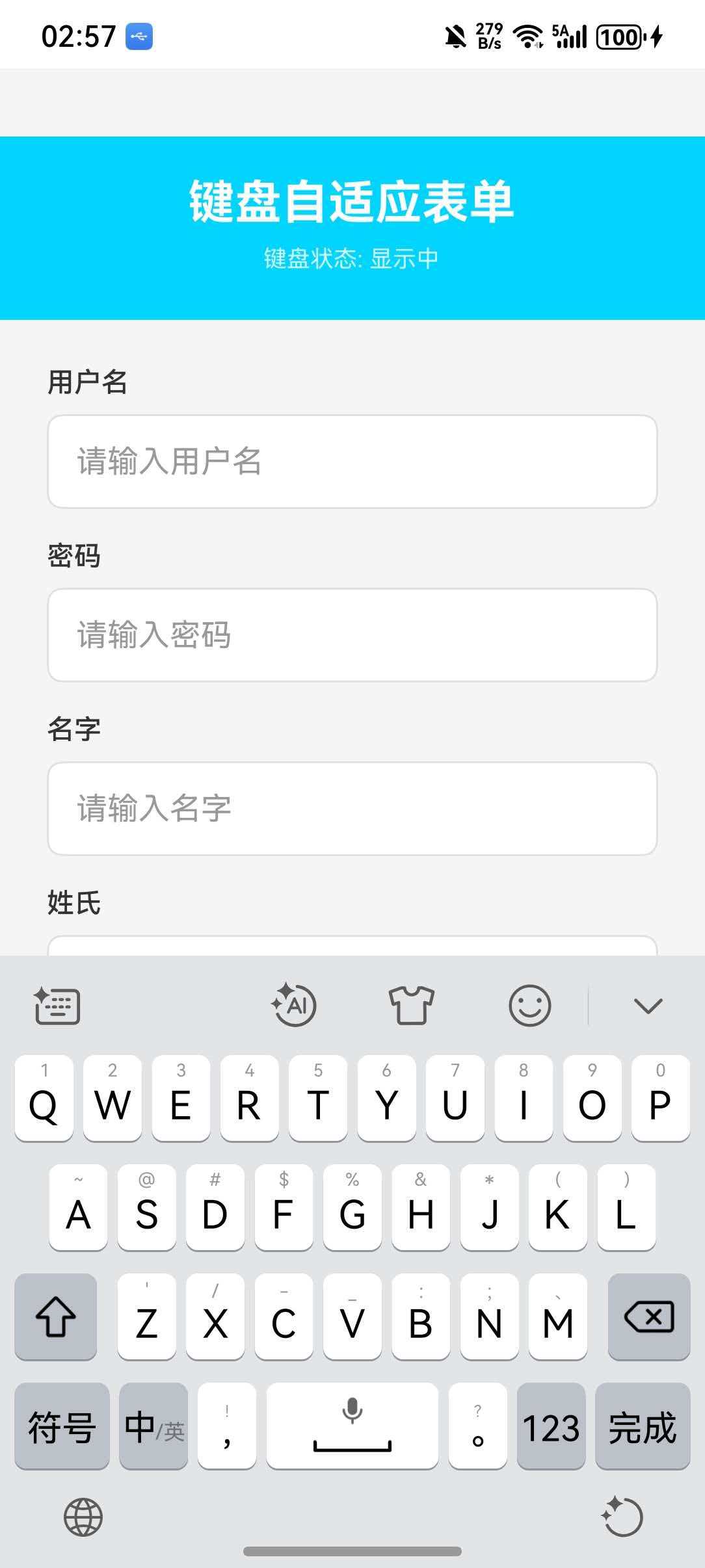
          <Text style={styles.title}>键盘自适应表单</Text>
          <Text style={styles.subtitle}>
            键盘状态: {keyboardVisible ? '显示中' : '已隐藏'}
          </Text>
        </View>

        <View style={styles.form}>
          {formFields.map(field => (
            <View key={field.key} style={styles.inputGroup}>
              <Text style={styles.label}>{field.label}</Text>
              <TextInput
                style={styles.input}
                placeholder={field.placeholder}
                placeholderTextColor="#999"
                value={formData[field.key] || ''}
                onChangeText={value => updateField(field.key, value)}
                secureTextEntry={field.secureTextEntry}
                keyboardType={field.keyboardType || 'default'}
              />
            </View>
          ))}

          <View style={styles.buttonGroup}>
            <TouchableOpacity style={styles.button} onPress={scrollToTop}>
              <Text style={styles.buttonText}>滚动到顶部</Text>
            </TouchableOpacity>
            <TouchableOpacity style={styles.button} onPress={scrollToBottom}>
              <Text style={styles.buttonText}>滚动到底部</Text>
            </TouchableOpacity>
          </View>

          <TouchableOpacity style={styles.submitButton} onPress={handleSubmit}>
            <Text style={styles.submitButtonText}>提交表单</Text>
          </TouchableOpacity>
        </View>
      </KeyboardAwareScrollView>
    </SafeAreaView>
  );
}

const styles = StyleSheet.create({
  container: {
    flex: 1,
    backgroundColor: '#f5f5f5',
  },
  scrollView: {
    flex: 1,
  },
  header: {
    padding: 24,
    paddingTop: 20,
    backgroundColor: '#00d4ff',
    alignItems: 'center',
  },
  title: {
    fontSize: 24,
    fontWeight: 'bold',
    color: '#fff',
  },
  subtitle: {
    fontSize: 12,
    color: 'rgba(255,255,255,0.8)',
    marginTop: 8,
  },
  form: {
    padding: 24,
  },
  inputGroup: {
    marginBottom: 16,
  },
  label: {
    fontSize: 14,
    color: '#333',
    marginBottom: 8,
    fontWeight: '500',
  },
  input: {
    backgroundColor: '#fff',
    borderWidth: 1,
    borderColor: '#e0e0e0',
    borderRadius: 8,
    padding: 14,
    fontSize: 16,
  },
  buttonGroup: {
    flexDirection: 'row',
    gap: 12,
    marginTop: 16,
  },
  button: {
    flex: 1,
    backgroundColor: '#4ECDC4',
    padding: 14,
    borderRadius: 8,
    alignItems: 'center',
  },
  buttonText: {
    color: '#fff',
    fontSize: 14,
    fontWeight: '600',
  },
  submitButton: {
    backgroundColor: '#00d4ff',
    padding: 16,
    borderRadius: 8,
    alignItems: 'center',
    marginTop: 24,
  },
  submitButtonText: {
    color: '#fff',
    fontSize: 16,
    fontWeight: '600',
  },
});
🔗 十、相关资源

作为“人工智能6S店”的官方数字引擎,为AI开发者与企业提供一个覆盖软硬件全栈、一站式门户。
更多推荐


 1
1 0
0- 0


 已为社区贡献47条内容

所有评论(0)