
【HarmonyOS】DAY23:React Native for OpenHarmony 开发指南 - DatePicker 日期选择组件深度解析
本文介绍了React Native for OpenHarmony中DatePicker组件的使用方法。首先展示了基础引入方式和简单日期选择器实现,包括状态管理和样式设置。然后详细解析了核心属性,包括日期控制(最小/最大日期、时区)、模式选择(日期/时间/日期时间)以及样式交互属性。最后通过两个实战案例:生日选择器(含年龄验证)和预约时间选择器,演示了完整功能的实现方式,包含UI交互、日期格式化和
一、前言
在跨平台应用开发中,日期选择是一个常见的需求。React Native for OpenHarmony 提供了强大的 DatePicker 组件,允许开发者在鸿蒙应用中原生地选择日期和时间。本文将深入探讨该组件的使用方法和最佳实践。
二、DatePicker 组件基础
2.1 基本引入方式
import { DatePicker, View, Text } from '@hippy/react';
2.2 最简单的日期选择器
import React, { useState } from 'react';
import { DatePicker, View, Text, StyleSheet } from '@hippy/react';

const SimpleDatePicker = () => {
  const [selectedDate, setSelectedDate] = useState(new Date());

  const onDateChange = (event) => {
    setSelectedDate(new Date(event.year, event.month, event.day));
  };

  return (
    <View style={styles.container}>
      <Text>选择日期:{selectedDate.toLocaleDateString()}</Text>
      <DatePicker
        date={selectedDate}
        onDateChange={onDateChange}
        style={styles.picker}
      />
    </View>
  );
};

const styles = StyleSheet.create({
  container: {
    padding: 20,
  },
  picker: {
    marginTop: 10,
    width: 300,
    height: 40,
  },
});

export default SimpleDatePicker;
三、DatePicker 的核心属性详解
3.1 日期控制属性
<DatePicker
  // 当前选中的日期
  date={new Date(2024, 5, 15)}

  // 最小可选日期
  minimumDate={new Date(2020, 0, 1)}

  // 最大可选日期
  maximumDate={new Date(2030, 11, 31)}

  // 日期格式化(仅限字符串显示)
  locale="zh-CN"

  // 时区设置
  timeZoneOffsetInMinutes={480} // UTC+8
/>
3.2 模式选择属性
<DatePicker
  // 选择器模式:'date' | 'time' | 'datetime'
  mode="date"

  // 时间间隔(分钟),仅time模式有效
  minuteInterval={15}

  // 24小时制,仅time模式有效
  is24Hour={true}
/>
3.3 样式和交互属性
<DatePicker
  // 自定义样式
  style={{
    backgroundColor: '#f5f5f5',
    borderWidth: 1,
    borderColor: '#ddd',
    borderRadius: 8,
    paddingHorizontal: 10,
  }}

  // 文本颜色
  textColor="#333"

  // 是否启用
  enabled={true}

  // 测试ID(用于自动化测试)
  testID="birthday-picker"
/>
四、实战:完整的日期选择功能
4.1 生日选择器实现
import React, { useState } from 'react';
import {
  DatePicker,
  View,
  Text,
  StyleSheet,
  TouchableOpacity,
  Alert,
} from '@hippy/react';

const BirthdayPicker = () => {
  const [birthday, setBirthday] = useState(new Date(2000, 0, 1));
  const [showPicker, setShowPicker] = useState(false);

  const handleDateChange = (event) => {
    const newDate = new Date(event.year, event.month, event.day);
    setBirthday(newDate);

    // 验证年龄
    const today = new Date();
    const age = today.getFullYear() - newDate.getFullYear();

    if (age < 18) {
      Alert.alert('提示', '未满18岁,请确认');
    }
  };

  const confirmSelection = () => {
    setShowPicker(false);
    Alert.alert(
      '选择确认',
      `您的生日是:${birthday.toLocaleDateString('zh-CN')}`,
      [{ text: '确定' }]
    );
  };

  return (
    <View style={styles.container}>
      <Text style={styles.label}>选择您的生日</Text>

      <TouchableOpacity
        style={styles.dateDisplay}
        onPress={() => setShowPicker(!showPicker)}
      >
        <Text style={styles.dateText}>
          {birthday.toLocaleDateString('zh-CN')}
        </Text>
        <Text style={styles.hintText}>点击选择</Text>
      </TouchableOpacity>

      {showPicker && (
        <View style={styles.pickerContainer}>
          <DatePicker
            date={birthday}
            onDateChange={handleDateChange}
            minimumDate={new Date(1900, 0, 1)}
            maximumDate={new Date()}
            mode="date"
            locale="zh-CN"
            style={styles.picker}
          />

          <TouchableOpacity
            style={styles.confirmButton}
            onPress={confirmSelection}
          >
            <Text style={styles.buttonText}>确认选择</Text>
          </TouchableOpacity>
        </View>
      )}
    </View>
  );
};

const styles = StyleSheet.create({
  container: {
    padding: 20,
    backgroundColor: 'white',
  },
  label: {
    fontSize: 18,
    fontWeight: 'bold',
    marginBottom: 15,
    color: '#333',
  },
  dateDisplay: {
    flexDirection: 'row',
    justifyContent: 'space-between',
    alignItems: 'center',
    borderWidth: 1,
    borderColor: '#ddd',
    borderRadius: 8,
    padding: 15,
    backgroundColor: '#f9f9f9',
  },
  dateText: {
    fontSize: 16,
    color: '#333',
  },
  hintText: {
    fontSize: 14,
    color: '#666',
  },
  pickerContainer: {
    marginTop: 20,
    padding: 15,
    backgroundColor: '#fff',
    borderRadius: 10,
    shadowColor: '#000',
    shadowOffset: { width: 0, height: 2 },
    shadowOpacity: 0.1,
    shadowRadius: 4,
    elevation: 3,
  },
  picker: {
    height: 50,
  },
  confirmButton: {
    marginTop: 15,
    backgroundColor: '#007AFF',
    paddingVertical: 12,
    borderRadius: 8,
    alignItems: 'center',
  },
  buttonText: {
    color: 'white',
    fontSize: 16,
    fontWeight: '600',
  },
});

export default BirthdayPicker;
4.2 预约时间选择器
import React, { useState } from 'react';
import { DatePicker, View, Text, StyleSheet, ScrollView } from '@hippy/react';

const AppointmentScheduler = () => {
  const [selectedDate, setSelectedDate] = useState(new Date());
  const [selectedTime, setSelectedTime] = useState(new Date());

  const handleDateChange = (event) => {
    setSelectedDate(new Date(event.year, event.month, event.day));
  };

  const handleTimeChange = (event) => {
    const newTime = new Date();
    newTime.setHours(event.hour);
    newTime.setMinutes(event.minute);
    setSelectedTime(newTime);
  };

  // 生成可选时间段
  const timeSlots = [
    '09:00', '10:00', '11:00', '14:00', '15:00', '16:00'
  ];

  return (
    <ScrollView style={styles.container}>
      <Text style={styles.title}>预约时间选择</Text>

      <View style={styles.section}>
        <Text style={styles.sectionTitle}>选择日期</Text>
        <DatePicker
          date={selectedDate}
          onDateChange={handleDateChange}
          minimumDate={new Date()}
          maximumDate={new Date(2024, 11, 31)}
          mode="date"
          locale="zh-CN"
          style={styles.fullWidthPicker}
        />
        <Text style={styles.selectedInfo}>
          已选择:{selectedDate.toLocaleDateString('zh-CN', {
            weekday: 'long',
            year: 'numeric',
            month: 'long',
            day: 'numeric'
          })}
        </Text>
      </View>

      <View style={styles.section}>
        <Text style={styles.sectionTitle}>选择时间</Text>
        <DatePicker
          date={selectedTime}
          onDateChange={handleTimeChange}
          mode="time"
          minuteInterval={30}
          is24Hour={true}
          style={styles.fullWidthPicker}
        />
        <Text style={styles.selectedInfo}>
          已选择:{selectedTime.toLocaleTimeString('zh-CN', {
            hour: '2-digit',
            minute: '2-digit'
          })}
        </Text>
      </View>

      <View style={styles.section}>
        <Text style={styles.sectionTitle}>推荐时间段</Text>
        <View style={styles.timeSlotsContainer}>
          {timeSlots.map((time, index) => (
            <TouchableOpacity
              key={index}
              style={styles.timeSlot}
              onPress={() => {
                const [hours, minutes] = time.split(':');
                const newTime = new Date();
                newTime.setHours(parseInt(hours));
                newTime.setMinutes(parseInt(minutes));
                setSelectedTime(newTime);
              }}
            >
              <Text style={styles.timeSlotText}>{time}</Text>
            </TouchableOpacity>
          ))}
        </View>
      </View>

      <View style={styles.summary}>
        <Text style={styles.summaryTitle}>预约摘要</Text>
        <Text style={styles.summaryText}>
          日期:{selectedDate.toLocaleDateString('zh-CN')}
        </Text>
        <Text style={styles.summaryText}>
          时间:{selectedTime.toLocaleTimeString('zh-CN')}
        </Text>
      </View>
    </ScrollView>
  );
};

const styles = StyleSheet.create({
  container: {
    flex: 1,
    backgroundColor: '#f5f5f5',
  },
  title: {
    fontSize: 24,
    fontWeight: 'bold',
    textAlign: 'center',
    marginVertical: 20,
    color: '#333',
  },
  section: {
    backgroundColor: 'white',
    marginHorizontal: 15,
    marginBottom: 15,
    padding: 20,
    borderRadius: 12,
    shadowColor: '#000',
    shadowOffset: { width: 0, height: 2 },
    shadowOpacity: 0.05,
    shadowRadius: 4,
    elevation: 2,
  },
  sectionTitle: {
    fontSize: 18,
    fontWeight: '600',
    marginBottom: 15,
    color: '#444',
  },
  fullWidthPicker: {
    width: '100%',
    height: 45,
  },
  selectedInfo: {
    marginTop: 10,
    fontSize: 14,
    color: '#666',
    fontStyle: 'italic',
  },
  timeSlotsContainer: {
    flexDirection: 'row',
    flexWrap: 'wrap',
    marginTop: 10,
  },
  timeSlot: {
    backgroundColor: '#e8f4ff',
    paddingVertical: 10,
    paddingHorizontal: 20,
    borderRadius: 8,
    marginRight: 10,
    marginBottom: 10,
    borderWidth: 1,
    borderColor: '#007AFF',
  },
  timeSlotText: {
    color: '#007AFF',
    fontWeight: '500',
  },
  summary: {
    backgroundColor: 'white',
    margin: 15,
    padding: 20,
    borderRadius: 12,
    borderWidth: 2,
    borderColor: '#4CD964',
  },
  summaryTitle: {
    fontSize: 20,
    fontWeight: 'bold',
    color: '#4CD964',
    marginBottom: 15,
  },
  summaryText: {
    fontSize: 16,
    color: '#333',
    marginBottom: 8,
  },
});

export default AppointmentScheduler;
五、高级特性与自定义
5.1 自定义日期格式显示
const formatCustomDate = (date) => {
  const options = {
    year: 'numeric',
    month: 'long',
    day: 'numeric',
    weekday: 'long',
  };
  return date.toLocaleDateString('zh-CN', options);
};

// 在组件中使用
<Text>{formatCustomDate(selectedDate)}</Text>
5.2 日期验证与限制
const isValidAppointmentDate = (date) => {
  const today = new Date();
  const maxDate = new Date();
  maxDate.setMonth(today.getMonth() + 3); // 只能预约未来3个月内

  // 排除周末
  const dayOfWeek = date.getDay();
  const isWeekend = dayOfWeek === 0 || dayOfWeek === 6;

  return date >= today && date <= maxDate && !isWeekend;
};
5.3 与 OpenHarmony 原生功能集成
// 结合 OpenHarmony 的系统能力
import { DeviceInfo } from '@ohos/deviceInfo';

const getDeviceLocale = () => {
  // 获取设备区域设置
  const deviceLocale = DeviceInfo.getLocale();
  return deviceLocale || 'zh-CN';
};

// 使用时区信息
const getSystemTimeZone = () => {
  return new Date().getTimezoneOffset() / -60; // 返回 UTC 偏移小时数
};
六、性能优化与最佳实践
6.1 性能优化建议
// 1. 使用 useMemo 避免不必要的重新渲染
const memoizedDate = useMemo(() => formatDate(selectedDate), [selectedDate]);

// 2. 避免在渲染函数中创建新的 Date 对象
const [currentDate] = useState(() => new Date());

// 3. 使用节流处理频繁的日期变更
import throttle from 'lodash/throttle';

const throttledDateChange = useCallback(
  throttle((date) => {
    // 处理日期变更逻辑
  }, 300),
  []
);
6.2 最佳实践总结
-
用户体验
- 提供清晰的日期格式提示
- 设置合理的日期范围限制
- 添加确认按钮防止误操作
-
代码质量
- 提取日期格式化逻辑为工具函数
- 使用 TypeScript 类型定义增强类型安全
- 编写单元测试确保功能正确性
-
跨平台兼容
- 考虑不同地区的日期格式差异
- 处理时区转换问题
- 适配不同设备的屏幕尺寸
七、调试与问题排查
常见问题及解决方案
// 问题1:日期显示不正确
// 解决方案:确保使用正确的时区
const correctedDate = new Date(date.getTime() + timeZoneOffset * 60000);

// 问题2:日期选择器不显示
// 解决方案:检查样式和父容器约束
<View style={{ width: '100%', height: 200 }}>
  <DatePicker style={{ flex: 1 }} />
</View>

// 问题3:日期变更事件不触发
// 解决方案:检查事件绑定和状态更新
const handleDateChange = useCallback((event) => {
  setSelectedDate(new Date(event.year, event.month, event.day));
}, []);
八、效果图
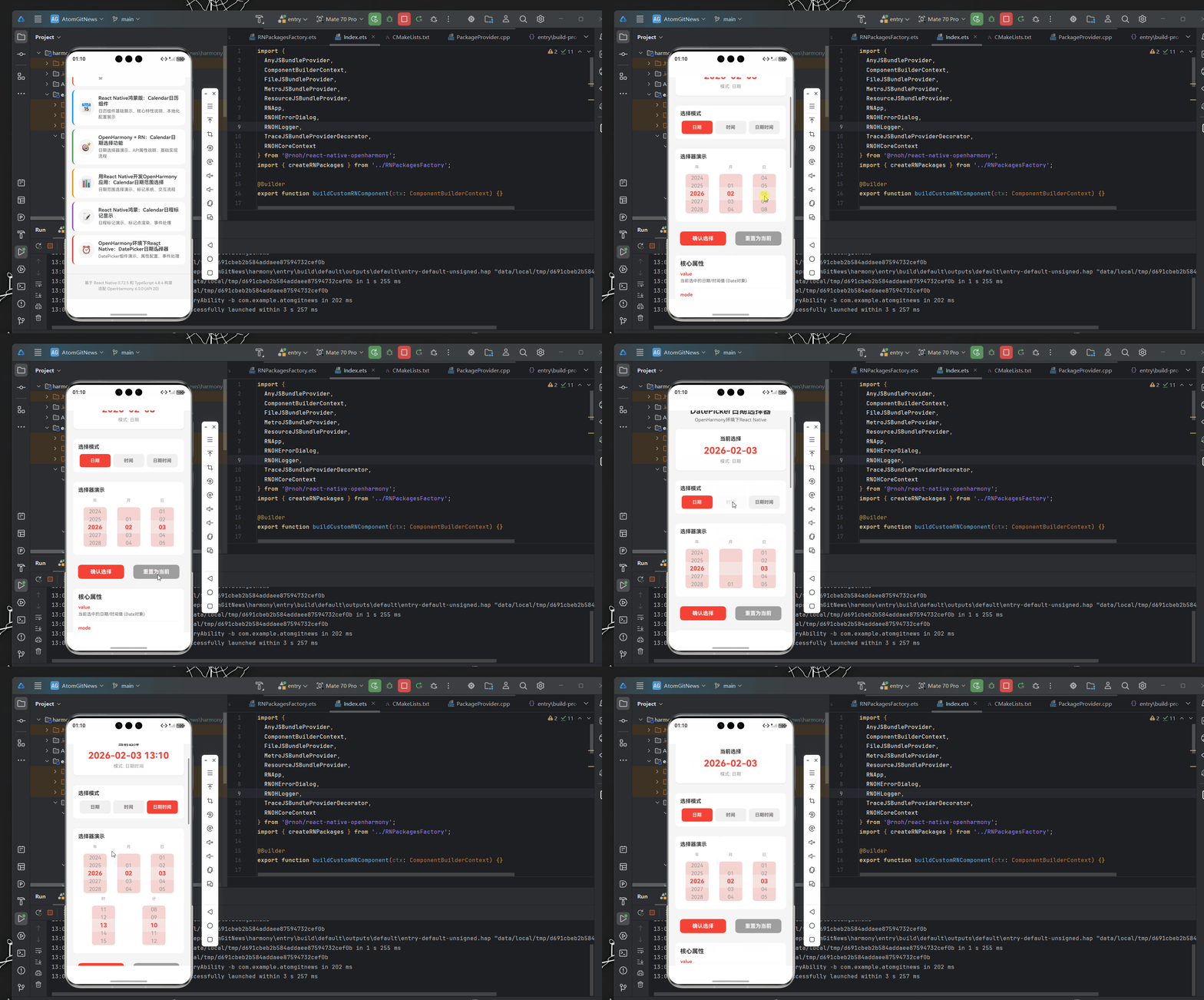
九、总结
DatePicker 组件是 React Native for OpenHarmony 中非常实用的组件,通过合理使用其丰富的属性和事件,可以构建出用户体验优秀的日期选择功能。结合 OpenHarmony 的系统特性,开发者可以创建出更加智能和符合用户习惯的日期时间选择界面。
在实际开发中,建议根据具体业务需求选择合适的配置,并注意性能优化和跨平台兼容性。随着 React Native for OpenHarmony 生态的不断完善,DatePicker 组件将会支持更多强大的功能。
扩展阅读:
希望本文能帮助你更好地理解和使用 React Native for OpenHarmony 的 DatePicker 组件!
欢迎加入开源鸿蒙跨平台社区: https://openharmonycrossplatform.csdn.net

作为“人工智能6S店”的官方数字引擎,为AI开发者与企业提供一个覆盖软硬件全栈、一站式门户。
更多推荐



 7
7 0
0- 0


 已为社区贡献15条内容

所有评论(0)