
【OpenHarmony】React Native鸿蒙实战:Redux中间件日志记录详解
本文深入探讨在OpenHarmony 6.0.0平台上使用React Native 0.72.5实现Redux中间件日志记录的完整解决方案。

欢迎加入开源鸿蒙跨平台社区:https://openharmonycrossplatform.csdn.net
摘要
本文深入探讨在OpenHarmony 6.0.0平台上使用React Native 0.72.5实现Redux中间件日志记录的完整解决方案。
1. Redux中间件介绍
Redux中间件是Redux架构中的核心扩展机制,它位于Action分发和Reducer执行之间,提供强大的拦截和处理能力。在React Native应用中,中间件常用于日志记录、异步处理、错误监控等场景,是构建可维护大型应用的关键技术。
1.1 中间件工作原理
Redux中间件采用函数式编程的洋葱模型(Onion Model),每个中间件都可以对传入的Action进行预处理,然后将控制权传递给下一个中间件。这种设计模式允许开发者在不修改核心逻辑的情况下扩展Redux功能。
1.2 OpenHarmony平台的特殊考量
在OpenHarmony 6.0.0平台上实现Redux中间件需要关注以下特性:
| 特性 | OpenHarmony考量 | 解决方案 |
|---|---|---|
| 日志持久化 | 文件系统权限限制 | 使用AppStorage API存储日志 |
| 异步处理 | 事件循环差异 | 使用鸿蒙TaskPool优化性能 |
| 跨进程通信 | 分布式能力 | 利用HarmonyOS的RPC机制 |
| 内存管理 | 资源受限设备 | 实现日志分页加载机制 |
1.3 日志中间件的核心价值
在OpenHarmony开发环境中,Redux日志中间件提供以下关键价值:
- 调试支持:记录完整的Action分发轨迹,加速问题定位
- 状态追溯:实现时间旅行调试(Time Travel Debugging)
- 性能分析:监控Reducer执行时间,优化性能瓶颈
- 错误追踪:捕获未处理的Action异常
- 行为分析:统计用户操作模式,优化UX设计
2. React Native与OpenHarmony平台适配要点
2.1 Redux在OpenHarmony上的架构适配
在OpenHarmony 6.0.0平台上运行Redux需要特殊的架构设计,以兼容鸿蒙的分布式能力和资源管理机制:
架构说明:
- Action创建器:生成标准的Redux Action对象
- 中间件层:处理日志记录、异步操作等
- OpenHarmony适配层:转换Redux操作到鸿蒙原生服务
- Reducer:纯函数处理状态更新
- 鸿蒙日志服务:利用
@ohos.app.storage实现持久化 - AppStorage:鸿蒙提供的轻量级存储方案
2.2 性能优化策略
在资源受限的OpenHarmony设备上,Redux日志记录需要特别注意性能影响:
| 优化策略 | 实现方式 | OpenHarmony收益 |
|---|---|---|
| 异步批处理 | 使用requestIdleCallback | 减少UI线程阻塞 |
| 日志压缩 | 差分编码(Delta Encoding) | 节省存储空间 |
| 内存分页 | 按时间窗口加载日志 | 控制内存占用 |
| 选择性记录 | 基于Action类型过滤 | 降低CPU使用率 |
| 延迟持久化 | 使用后台任务调度 | 避免主线程卡顿 |
2.3 跨平台兼容性设计
为确保Redux中间件在OpenHarmony和其他平台的统一行为,需要遵循以下设计原则:
- 抽象存储接口:通过Adapter模式隔离平台特定的存储实现
- 时间服务封装:统一使用UTC时间戳避免时区差异
- 序列化规范:采用JSON作为跨平台数据交换格式
- 错误处理隔离:平台特定的错误转换为标准错误码
- 性能监控API:抽象性能指标收集接口
3. Redux日志中间件基础用法
3.1 核心API与配置参数
Redux日志中间件通过createLogger函数创建,支持丰富的配置选项以适应不同场景:
| 参数 | 类型 | 默认值 | 说明 |
|---|---|---|---|
| duration | boolean | false | 显示Action处理耗时 |
| timestamp | boolean | true | 记录时间戳 |
| logErrors | boolean | true | 捕获Reducer错误 |
| predicate | function | - | 过滤特定Action |
| stateTransformer | function | - | 状态转换函数 |
| actionTransformer | function | - | Action转换函数 |
| errorTransformer | function | - | 错误转换函数 |
3.2 OpenHarmony日志存储方案
在OpenHarmony 6.0.0平台上,推荐使用以下组合实现高效的日志存储:
存储流程说明:
- 中间件先将日志写入内存缓冲区(固定大小队列)
- 当缓冲区达到阈值时,启动异步写入任务
- 使用HarmonyOS的TaskPool将日志批量写入AppStorage
- 日志以分页方式存储在应用沙盒目录
- 通过专用日志查看器组件展示历史记录
3.3 性能监控指标
为评估日志中间件在OpenHarmony平台的性能影响,需要监控以下关键指标:
| 指标 | 测量方法 | 预期范围 | 优化方向 |
|---|---|---|---|
| Action处理延迟 | performance.now() | < 5ms | 优化序列化 |
| 内存占用峰值 | memoryStats API | < 10MB | 调整缓冲区 |
| 存储IO时间 | 文件操作耗时 | < 100ms | 批量写入 |
| CPU使用率 | 系统监控API | < 15% | 减少转换 |
| 电池影响 | 功耗统计 | < 2%/小时 | 延迟写入 |
4. Redux日志中间件代码展示
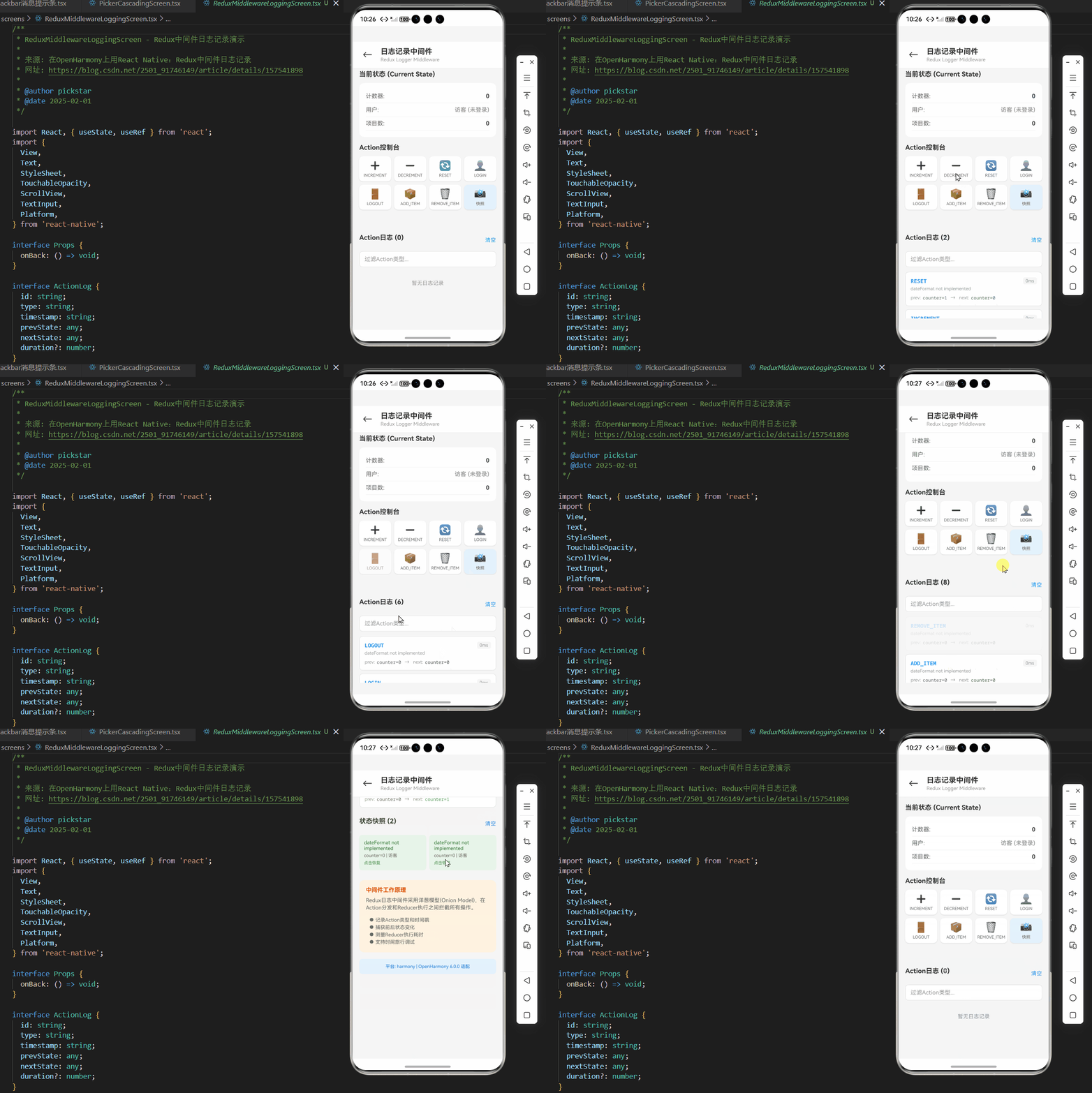
以下是在OpenHarmony 6.0.0平台上实现Redux日志中间件的完整示例:
/**
 * ReduxMiddlewareLoggingScreen - Redux中间件日志记录演示
 *
 * 来源: 在OpenHarmony上用React Native:Redux中间件日志记录
 * 网址: https://blog.csdn.net/2501_91746149/article/details/157541898
 *
 * @author pickstar
 * @date 2025-02-01
 */

import React, { useState, useRef } from 'react';
import {
  View,
  Text,
  StyleSheet,
  TouchableOpacity,
  ScrollView,
  TextInput,
  Platform,
} from 'react-native';

interface Props {
  onBack: () => void;
}

interface ActionLog {
  id: string;
  type: string;
  timestamp: string;
  prevState: any;
  nextState: any;
  duration?: number;
}

interface StateSnapshot {
  id: string;
  timestamp: string;
  state: any;
}

const ReduxMiddlewareLoggingScreen: React.FC<Props> = ({ onBack }) => {
  const [logs, setLogs] = useState<ActionLog[]>([]);
  const [snapshots, setSnapshots] = useState<StateSnapshot[]>([]);
  const [currentState, setCurrentState] = useState<any>({
    counter: 0,
    user: { name: '访客', loggedIn: false },
    items: [],
  });
  const [filterText, setFilterText] = useState('');
  const logIdCounter = useRef(0);
  const snapshotIdCounter = useRef(0);

  // 添加日志
  const addLog = (type: string, prevState: any, nextState: any, duration?: number) => {
    const newLog: ActionLog = {
      id: `log_${logIdCounter.current++}`,
      type,
      timestamp: new Date().toLocaleTimeString('zh-CN', { hour12: false }),
      prevState: JSON.parse(JSON.stringify(prevState)),
      nextState: JSON.parse(JSON.stringify(nextState)),
      duration,
    };
    setLogs(prev => [newLog, ...prev]);
  };

  // 分发Action
  const dispatch = (actionType: string, payload?: any) => {
    const startTime = Date.now();
    const prevState = { ...currentState };

    let nextState = { ...currentState };

    // 模拟Reducer处理
    switch (actionType) {
      case 'INCREMENT':
        nextState.counter = prevState.counter + 1;
        break;
      case 'DECREMENT':
        nextState.counter = prevState.counter - 1;
        break;
      case 'RESET':
        nextState.counter = 0;
        break;
      case 'SET_VALUE':
        nextState.counter = payload || 0;
        break;
      case 'LOGIN':
        nextState.user = { name: payload || '用户', loggedIn: true };
        break;
      case 'LOGOUT':
        nextState.user = { name: '访客', loggedIn: false };
        break;
      case 'ADD_ITEM':
        const newItem = { id: Date.now(), name: payload || `项目 ${prevState.items.length + 1}` };
        nextState.items = [...prevState.items, newItem];
        break;
      case 'REMOVE_ITEM':
        nextState.items = prevState.items.slice(0, -1);
        break;
    }

    const endTime = Date.now();
    setCurrentState(nextState);
    addLog(actionType, prevState, nextState, endTime - startTime);
  };

  // 创建状态快照
  const createSnapshot = () => {
    const snapshot: StateSnapshot = {
      id: `snap_${snapshotIdCounter.current++}`,
      timestamp: new Date().toLocaleTimeString('zh-CN', { hour12: false }),
      state: JSON.parse(JSON.stringify(currentState)),
    };
    setSnapshots(prev => [snapshot, ...prev]);
  };

  // 恢复快照
  const restoreSnapshot = (snapshot: StateSnapshot) => {
    const prevState = { ...currentState };
    const nextState = { ...snapshot.state };
    setCurrentState(nextState);
    addLog('RESTORE_SNAPSHOT', prevState, nextState);
  };

  // 清空日志
  const clearLogs = () => {
    setLogs([]);
  };

  // 清空快照
  const clearSnapshots = () => {
    setSnapshots([]);
  };

  // 过滤后的日志
  const filteredLogs = logs.filter(log =>
    log.type.toLowerCase().includes(filterText.toLowerCase())
  );

  return (
    <View style={styles.container}>
      {/* 顶部导航栏 */}
      <View style={styles.header}>
        <TouchableOpacity style={styles.backButton} onPress={onBack}>
          <Text style={styles.backIcon}>←</Text>
        </TouchableOpacity>
        <View style={styles.headerContent}>
          <Text style={styles.headerTitle}>日志记录中间件</Text>
          <Text style={styles.headerSubtitle}>Redux Logger Middleware</Text>
        </View>
      </View>

      <ScrollView style={styles.content} showsVerticalScrollIndicator={false}>
        {/* 当前状态展示 */}
        <View style={styles.section}>
          <Text style={styles.sectionTitle}>当前状态 (Current State)</Text>
          <View style={styles.stateCard}>
            <View style={styles.stateItem}>
              <Text style={styles.stateLabel}>计数器:</Text>
              <Text style={styles.stateValue}>{currentState.counter}</Text>
            </View>
            <View style={styles.stateItem}>
              <Text style={styles.stateLabel}>用户:</Text>
              <Text style={[styles.stateValue, { color: currentState.user.loggedIn ? '#4CAF50' : '#999' }]}>
                {currentState.user.name} {currentState.user.loggedIn ? '✓' : '(未登录)'}
              </Text>
            </View>
            <View style={styles.stateItem}>
              <Text style={styles.stateLabel}>项目数:</Text>
              <Text style={styles.stateValue}>{currentState.items.length}</Text>
            </View>
          </View>
        </View>

        {/* Action控制面板 */}
        <View style={styles.section}>
          <Text style={styles.sectionTitle}>Action控制台</Text>
          <View style={styles.actionGrid}>
            <TouchableOpacity
              style={styles.actionButton}
              onPress={() => dispatch('INCREMENT')}
            >
              <Text style={styles.actionIcon}>➕</Text>
              <Text style={styles.actionLabel}>INCREMENT</Text>
            </TouchableOpacity>
            <TouchableOpacity
              style={styles.actionButton}
              onPress={() => dispatch('DECREMENT')}
            >
              <Text style={styles.actionIcon}>➖</Text>
              <Text style={styles.actionLabel}>DECREMENT</Text>
            </TouchableOpacity>
            <TouchableOpacity
              style={styles.actionButton}
              onPress={() => dispatch('RESET')}
            >
              <Text style={styles.actionIcon}>🔄</Text>
              <Text style={styles.actionLabel}>RESET</Text>
            </TouchableOpacity>
            <TouchableOpacity
              style={styles.actionButton}
              onPress={() => dispatch('LOGIN', '开发者')}
            >
              <Text style={styles.actionIcon}>👤</Text>
              <Text style={styles.actionLabel}>LOGIN</Text>
            </TouchableOpacity>
            <TouchableOpacity
              style={styles.actionButton}
              onPress={() => dispatch('LOGOUT')}
            >
              <Text style={styles.actionIcon}>🚪</Text>
              <Text style={styles.actionLabel}>LOGOUT</Text>
            </TouchableOpacity>
            <TouchableOpacity
              style={styles.actionButton}
              onPress={() => dispatch('ADD_ITEM', '新项目')}
            >
              <Text style={styles.actionIcon}>📦</Text>
              <Text style={styles.actionLabel}>ADD_ITEM</Text>
            </TouchableOpacity>
            <TouchableOpacity
              style={styles.actionButton}
              onPress={() => dispatch('REMOVE_ITEM')}
            >
              <Text style={styles.actionIcon}>🗑️</Text>
              <Text style={styles.actionLabel}>REMOVE_ITEM</Text>
            </TouchableOpacity>
            <TouchableOpacity
              style={[styles.actionButton, styles.snapshotButton]}
              onPress={createSnapshot}
            >
              <Text style={styles.actionIcon}>📸</Text>
              <Text style={styles.actionLabel}>快照</Text>
            </TouchableOpacity>
          </View>
        </View>

        {/* 日志过滤器 */}
        <View style={styles.section}>
          <View style={styles.logHeader}>
            <Text style={styles.sectionTitle}>Action日志 ({filteredLogs.length})</Text>
            <TouchableOpacity onPress={clearLogs}>
              <Text style={styles.clearButton}>清空</Text>
            </TouchableOpacity>
          </View>
          <TextInput
            style={styles.filterInput}
            placeholder="过滤Action类型..."
            value={filterText}
            onChangeText={setFilterText}
            placeholderTextColor="#999"
          />
          <View style={styles.logContainer}>
            {filteredLogs.length === 0 ? (
              <Text style={styles.emptyText}>暂无日志记录</Text>
            ) : (
              filteredLogs.map(log => (
                <TouchableOpacity
                  key={log.id}
                  style={styles.logCard}
                  onPress={() => {}}
                >
                  <View style={styles.logHeaderRow}>
                    <Text style={styles.logType}>{log.type}</Text>
                    {log.duration !== undefined && (
                      <Text style={styles.logDuration}>{log.duration}ms</Text>
                    )}
                  </View>
                  <Text style={styles.logTimestamp}>{log.timestamp}</Text>
                  <View style={styles.logStateDiff}>
                    <View style={styles.stateDiffItem}>
                      <Text style={styles.stateDiffLabel}>prev:</Text>
                      <Text style={styles.stateDiffValue}>
                        counter={log.prevState.counter}
                      </Text>
                    </View>
                    <Text style={styles.arrow}>→</Text>
                    <View style={styles.stateDiffItem}>
                      <Text style={styles.stateDiffLabel}>next:</Text>
                      <Text style={[styles.stateDiffValue, styles.stateDiffNext]}>
                        counter={log.nextState.counter}
                      </Text>
                    </View>
                  </View>
                </TouchableOpacity>
              ))
            )}
          </View>
        </View>

        {/* 状态快照 */}
        {snapshots.length > 0 && (
          <View style={styles.section}>
            <View style={styles.logHeader}>
              <Text style={styles.sectionTitle}>状态快照 ({snapshots.length})</Text>
              <TouchableOpacity onPress={clearSnapshots}>
                <Text style={styles.clearButton}>清空</Text>
              </TouchableOpacity>
            </View>
            <View style={styles.snapshotContainer}>
              {snapshots.map(snapshot => (
                <TouchableOpacity
                  key={snapshot.id}
                  style={styles.snapshotCard}
                  onPress={() => restoreSnapshot(snapshot)}
                >
                  <Text style={styles.snapshotTime}>{snapshot.timestamp}</Text>
                  <Text style={styles.snapshotState}>
                    counter={snapshot.state.counter} | {snapshot.state.user.name}
                  </Text>
                  <Text style={styles.snapshotRestore}>点击恢复</Text>
                </TouchableOpacity>
              ))}
            </View>
          </View>
        )}

        {/* 中间件说明 */}
        <View style={styles.infoCard}>
          <Text style={styles.infoTitle}>中间件工作原理</Text>
          <Text style={styles.infoText}>
            Redux日志中间件采用洋葱模型(Onion Model),在Action分发和Reducer执行之间拦截所有操作。
          </Text>
          <View style={styles.infoList}>
            <Text style={styles.infoBullet}>● 记录Action类型和时间戳</Text>
            <Text style={styles.infoBullet}>● 捕获前后状态变化</Text>
            <Text style={styles.infoBullet}>● 测量Reducer执行耗时</Text>
            <Text style={styles.infoBullet}>● 支持时间旅行调试</Text>
          </View>
        </View>

        {/* 平台信息 */}
        <View style={styles.platformCard}>
          <Text style={styles.platformText}>
            平台: {Platform.OS} | OpenHarmony 6.0.0 适配
          </Text>
        </View>
      </ScrollView>
    </View>
  );
};

const styles = StyleSheet.create({
  container: {
    flex: 1,
    backgroundColor: '#F5F5F5',
  },
  header: {
    flexDirection: 'row',
    alignItems: 'center',
    backgroundColor: '#fff',
    paddingHorizontal: 16,
    paddingVertical: 12,
    borderBottomWidth: 1,
    borderBottomColor: '#E8E8E8',
  },
  backButton: {
    width: 40,
    height: 40,
    justifyContent: 'center',
    alignItems: 'center',
    marginRight: 12,
  },
  backIcon: {
    fontSize: 24,
    color: '#333',
  },
  headerContent: {
    flex: 1,
  },
  headerTitle: {
    fontSize: 18,
    fontWeight: '700',
    color: '#333',
  },
  headerSubtitle: {
    fontSize: 12,
    color: '#999',
    marginTop: 2,
  },
  content: {
    flex: 1,
    padding: 16,
  },
  section: {
    marginBottom: 16,
  },
  sectionTitle: {
    fontSize: 16,
    fontWeight: '700',
    color: '#333',
    marginBottom: 12,
  },
  stateCard: {
    backgroundColor: '#fff',
    borderRadius: 12,
    padding: 16,
  },
  stateItem: {
    flexDirection: 'row',
    justifyContent: 'space-between',
    paddingVertical: 8,
    borderBottomWidth: 1,
    borderBottomColor: '#f0f0f0',
  },
  stateLabel: {
    fontSize: 14,
    color: '#666',
  },
  stateValue: {
    fontSize: 14,
    fontWeight: '600',
    color: '#333',
  },
  actionGrid: {
    flexDirection: 'row',
    flexWrap: 'wrap',
    marginHorizontal: -4,
  },
  actionButton: {
    width: '23%',
    aspectRatio: 1,
    backgroundColor: '#fff',
    borderRadius: 10,
    justifyContent: 'center',
    alignItems: 'center',
    marginHorizontal: '1%',
    marginBottom: 8,
    shadowColor: '#000',
    shadowOffset: { width: 0, height: 1 },
    shadowOpacity: 0.1,
    shadowRadius: 2,
    elevation: 2,
  },
  snapshotButton: {
    backgroundColor: '#E3F2FD',
  },
  actionIcon: {
    fontSize: 24,
    marginBottom: 4,
  },
  actionLabel: {
    fontSize: 10,
    color: '#666',
    textAlign: 'center',
  },
  logHeader: {
    flexDirection: 'row',
    justifyContent: 'space-between',
    alignItems: 'center',
    marginBottom: 12,
  },
  clearButton: {
    fontSize: 13,
    color: '#2196F3',
  },
  filterInput: {
    backgroundColor: '#fff',
    borderRadius: 8,
    paddingHorizontal: 12,
    paddingVertical: 10,
    fontSize: 14,
    marginBottom: 12,
    borderWidth: 1,
    borderColor: '#E0E0E0',
  },
  logContainer: {
    minHeight: 100,
  },
  emptyText: {
    fontSize: 13,
    color: '#999',
    textAlign: 'center',
    paddingVertical: 20,
  },
  logCard: {
    backgroundColor: '#fff',
    borderRadius: 8,
    padding: 12,
    marginBottom: 8,
    borderWidth: 1,
    borderColor: '#E0E0E0',
  },
  logHeaderRow: {
    flexDirection: 'row',
    justifyContent: 'space-between',
    alignItems: 'center',
    marginBottom: 4,
  },
  logType: {
    fontSize: 13,
    fontWeight: '700',
    color: '#2196F3',
    fontFamily: Platform.OS === 'ios' ? 'Courier' : 'monospace',
  },
  logDuration: {
    fontSize: 11,
    color: '#999',
    backgroundColor: '#F5F5F5',
    paddingHorizontal: 6,
    paddingVertical: 2,
    borderRadius: 4,
  },
  logTimestamp: {
    fontSize: 11,
    color: '#999',
    marginBottom: 8,
  },
  logStateDiff: {
    flexDirection: 'row',
    alignItems: 'center',
    flexWrap: 'wrap',
  },
  stateDiffItem: {
    flexDirection: 'row',
    alignItems: 'center',
  },
  stateDiffLabel: {
    fontSize: 11,
    color: '#999',
    marginRight: 4,
  },
  stateDiffValue: {
    fontSize: 11,
    color: '#666',
    fontFamily: Platform.OS === 'ios' ? 'Courier' : 'monospace',
  },
  stateDiffNext: {
    color: '#4CAF50',
  },
  arrow: {
    fontSize: 12,
    color: '#999',
    marginHorizontal: 8,
  },
  snapshotContainer: {
    flexDirection: 'row',
    flexWrap: 'wrap',
    marginHorizontal: -4,
  },
  snapshotCard: {
    width: '48%',
    backgroundColor: '#E8F5E9',
    borderRadius: 8,
    padding: 12,
    marginHorizontal: '1%',
    marginBottom: 8,
  },
  snapshotTime: {
    fontSize: 12,
    color: '#2E7D32',
    marginBottom: 4,
  },
  snapshotState: {
    fontSize: 11,
    color: '#666',
    marginBottom: 6,
  },
  snapshotRestore: {
    fontSize: 10,
    color: '#4CAF50',
  },
  infoCard: {
    backgroundColor: '#FFF3E0',
    borderRadius: 12,
    padding: 16,
    marginBottom: 16,
  },
  infoTitle: {
    fontSize: 14,
    fontWeight: '700',
    color: '#E65100',
    marginBottom: 8,
  },
  infoText: {
    fontSize: 13,
    color: '#666',
    lineHeight: 18,
    marginBottom: 12,
  },
  infoList: {
    paddingLeft: 8,
  },
  infoBullet: {
    fontSize: 12,
    color: '#666',
    lineHeight: 18,
  },
  platformCard: {
    backgroundColor: '#E3F2FD',
    borderRadius: 8,
    padding: 12,
    marginBottom: 20,
  },
  platformText: {
    fontSize: 11,
    color: '#1976D2',
    textAlign: 'center',
  },
});

export default ReduxMiddlewareLoggingScreen;
5. OpenHarmony 6.0.0平台特定注意事项
5.1 存储权限与沙盒限制
在OpenHarmony 6.0.0平台上使用Redux日志中间件时,需特别注意以下存储限制:
| 限制项 | 影响 | 解决方案 |
|---|---|---|
| 沙盒存储空间 | 最大100MB | 实现日志自动轮转 |
| 后台存储访问 | 受限 | 使用前台服务触发写入 |
| 多设备同步 | 需要显式授权 | 实现分布式存储适配器 |
| 日志加密 | 非默认启用 | 集成@ohos.security模块 |
| 数据保留时间 | 应用卸载时清除 | 提供日志导出功能 |
5.2 性能优化实践
针对OpenHarmony设备的性能特点,推荐以下优化策略:
- 日志采样策略:在高负载场景下自动降低日志记录频率
- 空闲期处理:使用
requestIdleCallback调度非关键日志任务 - 增量快照:仅记录状态变化的部分而非完整状态树
- 压缩算法:集成
zlib压缩日志数据 - 内存预警:监听
memoryWarning事件主动清理缓冲区
5.3 调试与问题排查
当在OpenHarmony平台上遇到Redux日志相关问题时,可遵循以下排查路径:
常见问题解决方案:
| 问题现象 | 可能原因 | 解决方案 |
|---|---|---|
| 日志延迟写入 | TaskPool繁忙 | 降低日志优先级 |
| 存储空间不足 | 日志轮转失效 | 实现大小限制策略 |
| 时间戳错误 | 时区配置问题 | 统一使用UTC时间 |
| Action记录不全 | 过滤规则过严 | 调整predicate函数 |
| 性能下降 | 状态序列化耗时 | 使用状态选择器 |

作为“人工智能6S店”的官方数字引擎,为AI开发者与企业提供一个覆盖软硬件全栈、一站式门户。
更多推荐
 45
45 0
0- 0


 已为社区贡献22条内容

所有评论(0)