
Flutter for OpenHarmony 实战:AnimatedDefaultTextStyle实现文本样式动画
在移动开发领域,我们总是面临着选择与适配。今天,你的Flutter应用在Android和iOS上跑得正欢,明天可能就需要考虑一个新的平台:HarmonyOS(鸿蒙)。这不是一道选答题,而是很多团队正在面对的现实。Flutter的优势很明确——写一套代码,就能在两个主要平台上运行,开发体验流畅。而鸿蒙代表的是下一个时代的互联生态,它不仅仅是手机系统,更着眼于未来全场景的体验。
欢迎加入开源鸿蒙跨平台社区: https://openharmonycrossplatform.csdn.net
前言:跨生态开发的新机遇
在移动开发领域,我们总是面临着选择与适配。今天,你的Flutter应用在Android和iOS上跑得正欢,明天可能就需要考虑一个新的平台:HarmonyOS(鸿蒙)。这不是一道选答题,而是很多团队正在面对的现实。
Flutter的优势很明确——写一套代码,就能在两个主要平台上运行,开发体验流畅。而鸿蒙代表的是下一个时代的互联生态,它不仅仅是手机系统,更着眼于未来全场景的体验。将现有的Flutter应用适配到鸿蒙,听起来像是一个“跨界”任务,但它本质上是一次有价值的技术拓展:让产品触达更多用户,也让技术栈覆盖更广。
不过,这条路走起来并不像听起来那么简单。Flutter和鸿蒙,从底层的架构到上层的工具链,都有着各自的设计逻辑。会遇到一些具体的问题:代码如何组织?原有的功能在鸿蒙上如何实现?那些平台特有的能力该怎么调用?更实际的是,从编译打包到上架部署,整个流程都需要重新摸索。
这篇文章想做的,就是把这些我们趟过的路、踩过的坑,清晰地摊开给你看。我们不会只停留在“怎么做”,还会聊到“为什么得这么做”,以及“如果出了问题该往哪想”。这更像是一份实战笔记,源自真实的项目经验,聚焦于那些真正卡住过我们的环节。
无论你是在为一个成熟产品寻找新的落地平台,还是从一开始就希望构建能面向多端的应用,这里的思路和解决方案都能提供直接的参考。理解了两套体系之间的异同,掌握了关键的衔接技术,不仅能完成这次迁移,更能积累起应对未来技术变化的能力。
混合工程结构深度解析
项目目录架构
当Flutter项目集成鸿蒙支持后,典型的项目结构会发生显著变化。以下是经过ohos_flutter插件初始化后的项目结构:
my_flutter_harmony_app/
├── lib/                          # Flutter业务代码(基本不变)
│   ├── main.dart                 # 应用入口
│   ├── home_page.dart           # 首页
│   └── utils/
│       └── platform_utils.dart  # 平台工具类
├── pubspec.yaml                  # Flutter依赖配置
├── ohos/                         # 鸿蒙原生层(核心适配区)
│   ├── entry/                    # 主模块
│   │   └── src/main/
│   │       ├── ets/              # ArkTS代码
│   │       │   ├── MainAbility/
│   │       │   │   ├── MainAbility.ts       # 主Ability
│   │       │   │   └── MainAbilityContext.ts
│   │       │   └── pages/
│   │       │       ├── Index.ets           # 主页面
│   │       │       └── Splash.ets          # 启动页
│   │       ├── resources/        # 鸿蒙资源文件
│   │       │   ├── base/
│   │       │   │   ├── element/  # 字符串等
│   │       │   │   ├── media/    # 图片资源
│   │       │   │   └── profile/  # 配置文件
│   │       │   └── en_US/        # 英文资源
│   │       └── config.json       # 应用核心配置
│   ├── ohos_test/               # 测试模块
│   ├── build-profile.json5      # 构建配置
│   └── oh-package.json5         # 鸿蒙依赖管理
└── README.md
展示效果图片
flutter 实时预览 效果展示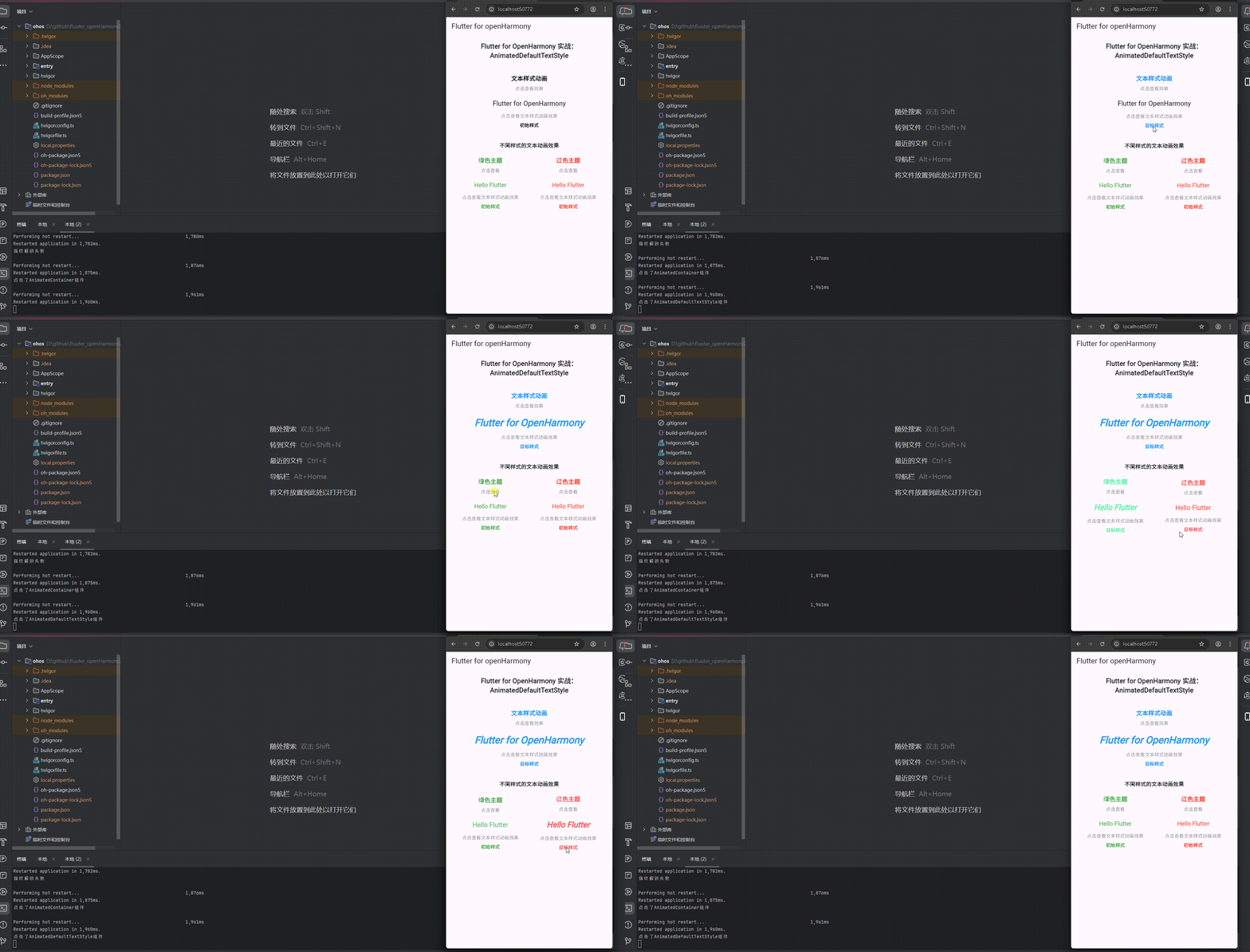
运行到鸿蒙虚拟设备中效果展示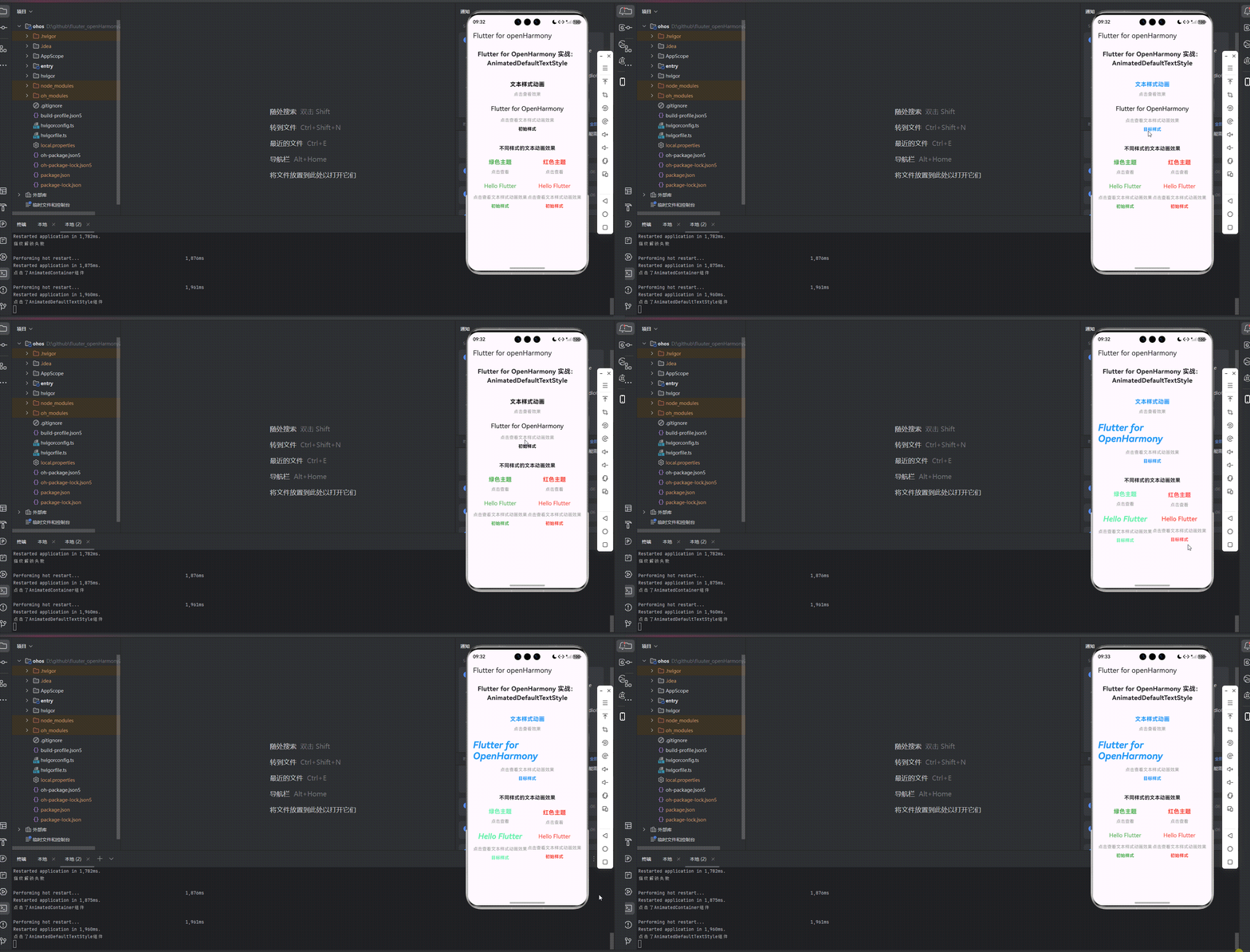
目录
- Flutter for OpenHarmony 实战:AnimatedDefaultTextStyle实现文本样式动画
- 前言:跨生态开发的新机遇
- 混合工程结构深度解析
- 展示效果图片
- 功能代码实现
- 本次开发中容易遇到的问题
- 总结本次开发中用到的技术点
功能代码实现
AnimatedDefaultTextStyle组件开发
组件设计思路
AnimatedDefaultTextStyle组件是本次开发的核心功能,使用 Flutter 内置的 AnimatedDefaultTextStyle 实现文本样式的平滑过渡,设计时重点考虑了以下因素:
- 视觉效果:通过
AnimatedDefaultTextStyle实现文本字体大小、粗细、颜色、字体系列的平滑过渡,增强用户体验 - 交互体验:点击时触发过渡动画,提供明确的视觉反馈
- 可定制性:支持自定义初始样式和目标样式的各种属性,适应不同场景需求
- 响应式设计:适应不同屏幕尺寸,确保在各种设备上都能良好显示
- 性能优化:利用 Flutter 内置的动画优化机制,确保过渡效果流畅自然
组件实现代码
import 'package:flutter/material.dart';
class AnimatedDefaultTextStyleComponent extends StatefulWidget {
final String title;
final String subtitle;
final String text;
final TextStyle initialTextStyle;
final TextStyle targetTextStyle;
final Duration animationDuration;
final VoidCallback? onTap;
const AnimatedDefaultTextStyleComponent({
Key? key,
this.title = 'AnimatedDefaultTextStyle',
this.subtitle = '点击查看文本样式动画',
this.text = 'Flutter for OpenHarmony',
TextStyle? initialTextStyle,
TextStyle? targetTextStyle,
this.animationDuration = const Duration(seconds: 1),
this.onTap,
}) : initialTextStyle = initialTextStyle ?? const TextStyle(
fontSize: 20,
fontWeight: FontWeight.normal,
color: Colors.black,
fontStyle: FontStyle.normal,
),
targetTextStyle = targetTextStyle ?? const TextStyle(
fontSize: 30,
fontWeight: FontWeight.bold,
color: Colors.blue,
fontStyle: FontStyle.italic,
),
super(key: key);
State<AnimatedDefaultTextStyleComponent> createState() => _AnimatedDefaultTextStyleComponentState();
}
class _AnimatedDefaultTextStyleComponentState extends State<AnimatedDefaultTextStyleComponent> {
bool _isTargetState = false;
void toggleAnimation() {
setState(() {
_isTargetState = !_isTargetState;
});
}
Widget build(BuildContext context) {
return GestureDetector(
onTap: () {
toggleAnimation();
if (widget.onTap != null) {
widget.onTap!();
}
},
child: Center(
child: Column(
mainAxisAlignment: MainAxisAlignment.center,
children: [
Text(
widget.title,
style: TextStyle(
fontSize: 18,
fontWeight: FontWeight.bold,
color: _isTargetState ? widget.targetTextStyle.color : widget.initialTextStyle.color,
),
),
const SizedBox(height: 8),
Text(
widget.subtitle,
style: TextStyle(
fontSize: 14,
color: Colors.grey,
),
),
const SizedBox(height: 24),
AnimatedDefaultTextStyle(
style: _isTargetState ? widget.targetTextStyle : widget.initialTextStyle,
duration: widget.animationDuration,
curve: Curves.easeInOut,
child: Text(widget.text),
),
const SizedBox(height: 16),
Text(
'点击查看文本样式动画效果',
style: TextStyle(
fontSize: 14,
color: Colors.grey,
),
),
const SizedBox(height: 8),
Text(
_isTargetState ? '目标样式' : '初始样式',
style: TextStyle(
fontSize: 14,
fontWeight: FontWeight.bold,
color: _isTargetState ? widget.targetTextStyle.color : widget.initialTextStyle.color,
),
),
],
),
),
);
}
}
首页集成实现
import 'package:flutter/material.dart';
import 'components/animated_default_text_style_component.dart';
void main() {
runApp(const MyApp());
}
class MyApp extends StatelessWidget {
const MyApp({super.key});
// This widget is the root of your application.
Widget build(BuildContext context) {
return MaterialApp(
title: 'Flutter for openHarmony',
theme: ThemeData(
// This is the theme of your application.
//
// TRY THIS: Try running your application with "flutter run". You'll see
// the application has a purple toolbar. Then, without quitting the app,
// try changing the seedColor in the colorScheme below to Colors.green
// and then invoke "hot reload" (save your changes or press the "hot
// reload" button in a Flutter-supported IDE, or press "r" if you used
// the command line to start the app).
//
// Notice that the counter didn't reset back to zero; the application
// state is not lost during the reload. To reset the state, use hot
// restart instead.
//
// This works for code too, not just values: Most code changes can be
// tested with just a hot reload.
colorScheme: ColorScheme.fromSeed(seedColor: Colors.deepPurple),
useMaterial3: true,
),
debugShowCheckedModeBanner: false,
home: const MyHomePage(title: 'Flutter for openHarmony'),
);
}
}
class MyHomePage extends StatefulWidget {
const MyHomePage({super.key, required this.title});
// This widget is the home page of your application. It is stateful, meaning
// that it has a State object (defined below) that contains fields that affect
// how it looks.
// This class is the configuration for the state. It holds the values (in this
// case the title) provided by the parent (in this case the App widget) and
// used by the build method of the State. Fields in a Widget subclass are
// always marked "final".
final String title;
State<MyHomePage> createState() => _MyHomePageState();
}
class _MyHomePageState extends State<MyHomePage> {
int _counter = 0;
void _incrementCounter() {
setState(() {
// This call to setState tells the Flutter framework that something has
// changed in this State, which causes it to rerun the build method below
// so that the display can reflect the updated values. If we changed
// _counter without calling setState(), then the build method would not be
// called again, and so nothing would appear to happen.
_counter++;
});
}
Widget build(BuildContext context) {
return Scaffold(
appBar: AppBar(
title: Text(widget.title),
),
body: SingleChildScrollView(
padding: const EdgeInsets.all(16),
child: Column(
crossAxisAlignment: CrossAxisAlignment.stretch,
children: <Widget>[
const Text(
'Flutter for OpenHarmony 实战:AnimatedDefaultTextStyle',
style: TextStyle(fontSize: 20, fontWeight: FontWeight.bold),
textAlign: TextAlign.center,
),
const SizedBox(height: 40),
// AnimatedDefaultTextStyle组件
AnimatedDefaultTextStyleComponent(
title: '文本样式动画',
subtitle: '点击查看效果',
text: 'Flutter for OpenHarmony',
animationDuration: const Duration(seconds: 1),
onTap: () {
print('点击了AnimatedDefaultTextStyle组件');
},
),
const SizedBox(height: 40),
// 不同样式的AnimatedDefaultTextStyle组件示例
const Text(
'不同样式的文本动画效果',
style: TextStyle(fontSize: 16, fontWeight: FontWeight.bold),
textAlign: TextAlign.center,
),
const SizedBox(height: 20),
Row(
mainAxisAlignment: MainAxisAlignment.spaceAround,
children: [
AnimatedDefaultTextStyleComponent(
title: '绿色主题',
subtitle: '点击查看',
text: 'Hello Flutter',
initialTextStyle: TextStyle(
fontSize: 18,
fontWeight: FontWeight.normal,
color: Colors.green,
fontStyle: FontStyle.normal,
),
targetTextStyle: TextStyle(
fontSize: 24,
fontWeight: FontWeight.bold,
color: Colors.greenAccent,
fontStyle: FontStyle.italic,
),
animationDuration: const Duration(milliseconds: 800),
),
AnimatedDefaultTextStyleComponent(
title: '红色主题',
subtitle: '点击查看',
text: 'Hello Flutter',
initialTextStyle: TextStyle(
fontSize: 18,
fontWeight: FontWeight.normal,
color: Colors.red,
fontStyle: FontStyle.normal,
),
targetTextStyle: TextStyle(
fontSize: 24,
fontWeight: FontWeight.bold,
color: Colors.redAccent,
fontStyle: FontStyle.italic,
),
animationDuration: const Duration(milliseconds: 800),
),
],
),
],
),
),
);
}
}
组件关键特性
- 平滑过渡效果:使用
AnimatedDefaultTextStyle实现文本样式的平滑过渡,包括字体大小、粗细、颜色、字体系列等 - 高度可定制:支持自定义初始样式和目标样式的各种属性,适应不同场景需求
- 交互体验:点击时触发过渡动画,提供明确的视觉反馈
- 美观的视觉效果:包括颜色变化、字体大小变化和字体系列变化
- 响应式设计:使用
SingleChildScrollView确保在小屏幕上也能完整显示 - 性能优化:利用 Flutter 内置的动画优化机制,确保过渡效果流畅自然
使用方法
- 集成组件:在需要使用文本样式动画效果的页面中导入
AnimatedDefaultTextStyleComponent组件 - 配置参数:根据具体需求设置
initialTextStyle、targetTextStyle、text、animationDuration等参数 - 查看效果:应用启动后,AnimatedDefaultTextStyle组件会正常显示在页面上
- 交互操作:
- 点击组件会触发平滑过渡动画,从初始样式过渡到目标样式
- 再次点击会从目标样式过渡回初始样式
- 点击时会调用
onTap回调函数,可在此添加更多交互逻辑
本次开发中容易遇到的问题
动画性能问题
问题描述:在低端设备上,动画可能会出现卡顿现象。
解决方案:
- 利用 Flutter 内置的
AnimatedDefaultTextStyle,它已经进行了性能优化 - 合理设置动画 duration,避免动画过长影响用户体验
- 避免在动画过程中执行复杂的计算或操作
注意事项:
AnimatedDefaultTextStyle会自动处理动画的性能优化,比手动使用AnimationController更高效- 对于复杂的文本动画,考虑使用
RepaintBoundary进一步优化性能
状态管理问题
问题描述:组件状态管理混乱,导致过渡状态异常。
解决方案:
- 使用清晰的状态变量(如
_isTargetState)管理组件状态 - 确保状态转换逻辑完整,避免状态不一致
- 使用
setState方法正确更新状态
注意事项:
- 状态转换时应考虑所有可能的边界情况
- 避免在动画回调中执行耗时操作
布局适配问题
问题描述:在不同尺寸的设备上,组件显示不一致。
解决方案:
- 使用
SingleChildScrollView确保在小屏幕上也能完整显示 - 合理设置组件大小,考虑使用相对尺寸而非固定尺寸
- 在多种尺寸的设备上测试组件的显示效果
注意事项:
- 布局设计应考虑各种屏幕尺寸
- 避免使用硬编码的尺寸值
交互逻辑问题
问题描述:点击交互逻辑不清晰,导致用户体验不佳。
解决方案:
- 提供明确的点击反馈,如动画效果和状态变化
- 确保交互逻辑符合用户预期
- 合理处理不同状态下的点击行为
注意事项:
- 交互设计应简洁明了,避免复杂的操作流程
- 提供清晰的视觉提示,引导用户操作
总结本次开发中用到的技术点
Flutter 核心技术
1. 组件化开发
- 自定义组件:创建了
AnimatedDefaultTextStyleComponent组件,实现功能封装与代码复用 - 参数传递:采用命名参数和可选参数设计,为每个参数提供合理的默认值,增强组件灵活性
- 组件组合:通过组合内置组件(如
GestureDetector、Column、Text等)构建完整的UI界面
2. 动画技术
- AnimatedDefaultTextStyle:使用 Flutter 内置的
AnimatedDefaultTextStyle实现文本样式的平滑过渡 - 动画曲线:使用
Curves.easeInOut动画曲线,使过渡效果更自然流畅 - 动画 duration:通过
duration参数控制动画持续时间,适应不同场景需求 - 性能优化:利用
AnimatedDefaultTextStyle内置的性能优化机制,确保动画流畅运行
3. 状态管理
- 状态变量:使用
_isTargetState状态变量管理组件状态 - setState:使用
setState方法更新状态,触发UI重建和动画效果 - 状态转换:实现清晰的状态转换逻辑,确保组件行为一致
4. 交互技术
- GestureDetector:使用
GestureDetector处理点击交互,响应用户操作 - 回调函数:通过
onTap参数传递回调函数,实现组件与外部的通信 - 事件处理:在点击事件中触发状态转换和动画效果
5. 样式设计
- 自定义主题:支持自定义文本样式的各种属性,适应不同的设计需求
- 视觉效果:通过
TextStyle实现文本样式的多样化,包括字体大小、粗细、颜色、字体系列等 - 文本样式:使用不同的字体样式,区分标题和状态提示
6. 布局技术
- SingleChildScrollView:使用
SingleChildScrollView确保在小屏幕设备上也能完整显示所有内容 - Column 布局:使用
Column垂直排列组件,构建清晰的层次结构 - Row 布局:使用
Row水平排列多个组件,展示不同样式的效果 - Center 布局:使用
Center居中显示组件,确保视觉平衡
7. Flutter for OpenHarmony 适配
- 跨平台兼容:使用 Flutter 的标准组件和 API,确保在 OpenHarmony 平台上正常运行
- 响应式设计:使用 Flutter 的布局技术,确保在不同尺寸的 OpenHarmony 设备上都能良好显示
- 性能优化:通过合理的组件设计和动画实现,优化应用在 OpenHarmony 平台上的性能表现
开发实践要点
- 组件化思想:将 UI 拆分为独立的、可复用的组件,提高代码可维护性
- 动画设计:合理使用
AnimatedDefaultTextStyle实现文本样式的平滑过渡,提升用户体验 - 状态管理:实现清晰的状态管理逻辑,确保组件行为一致
- 用户体验:注重交互细节和视觉反馈,提升应用的整体品质
- 性能考量:考虑动画对性能的影响,特别是在低端设备上
- 响应式设计:确保组件在不同尺寸的设备上都能正常显示
- 代码规范:保持代码结构清晰,命名规范,添加必要的注释
通过本次开发,我们成功实现了 Flutter for OpenHarmony 平台上的 AnimatedDefaultTextStyle 文本样式动画效果,掌握了组件化开发、动画技术、状态管理、交互技术和样式设计等核心技能,为后续开发更复杂的功能打下了坚实的基础。
欢迎加入开源鸿蒙跨平台社区: https://openharmonycrossplatform.csdn.net

作为“人工智能6S店”的官方数字引擎,为AI开发者与企业提供一个覆盖软硬件全栈、一站式门户。
更多推荐
 14
14 0
0- 0


 已为社区贡献9条内容

所有评论(0)