
Flutter for OpenHarmony 实战:animated_text_kit 灵动文字动效与教育场景交互
本文介绍了如何在OpenHarmony平台使用Flutter的animated_text_kit插件实现文字动效,特别适用于教育类应用场景。文章首先分析了文字动效在吸引用户注意力和情感化设计方面的价值,随后详细讲解了插件集成方法和三种典型动效的实现:打字机效果、液体填充效果和旋转文字效果。针对鸿蒙设备特性,提供了性能优化建议,包括使用RepaintBoundary隔离重绘区域和字体预加载。最后给出
Flutter for OpenHarmony 实战:animated_text_kit 灵动文字动效与教育场景交互
前言
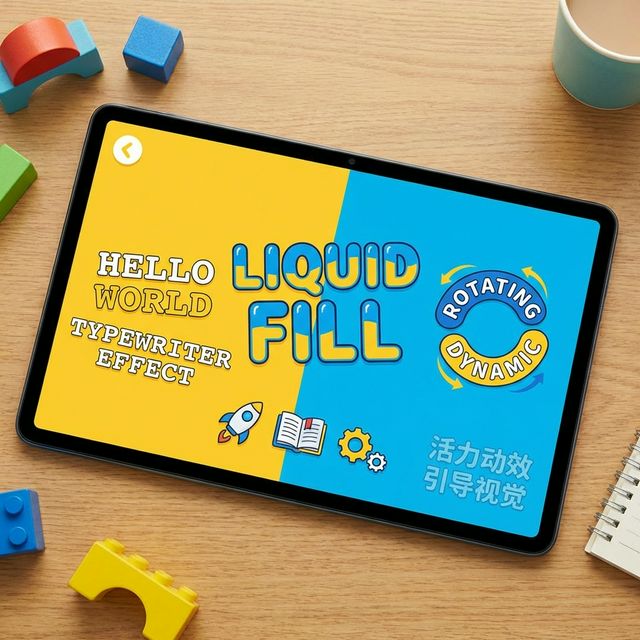
在少儿编程、语言学习等教育类应用中,“死板”的文字很难吸引注意力。我们需要文字不仅是静态的信息,更是一种能“跳舞”的交互元素。
animated_text_kit 一手包办了各种酷炫的文字出场方式:打字机效果、渐隐渐现、波浪起伏…… 在 HarmonyOS NEXT 的平板设备上,这简直就是打造沉浸式学习体验的神器。
本文将深入探讨该库的核心原理、实战应用案例以及在鸿蒙端性能调优的高级技巧,助你打造 100 分的交互体验。
一、 文字动效的核心价值
1.1 视觉动线引导
通过文字的顺序出现,引导用户的视线流动,这在分步骤的教学引导中尤为重要。
1.2 情感化交互反馈
答对题目时的欢呼,失败时的鼓励,通过文字的跳动能传递出比静态文字更丰富的情感温度。
二、 深度原理解析
animated_text_kit 的底层并非简单的 Opacity 变换。它通过 TextPainter 手动接管了文字的排版与绘制。
AnimatedText基类:负责监听动画控制器(AnimationController),并计算每一帧的进度。Canvas绘制:利用paint方法在指定的时刻切分字符串或改变绘制属性。- 状态同步:通过回调钩子(onFinished/onTap)与业务代码实现状态闭环。
三、 集成与配置
2.1 添加依赖
dependencies:
  animated_text_kit: ^4.3.0
四、 核心场景实战
4.1 沉浸式教学:打字机效果 (Typewriter)
模拟真人书写,适合沉浸式叙事或代码教育类 App。
import 'package:animated_text_kit/animated_text_kit.dart';

SizedBox(
  width: 280.0,
  child: DefaultTextStyle(
    style: const TextStyle(
      fontSize: 28.0,
      fontFamily: 'HarmonyOS_Sans', // 推荐使用鸿蒙系统字体
      color: Colors.black87,
    ),
    child: AnimatedTextKit(
      animatedTexts: [
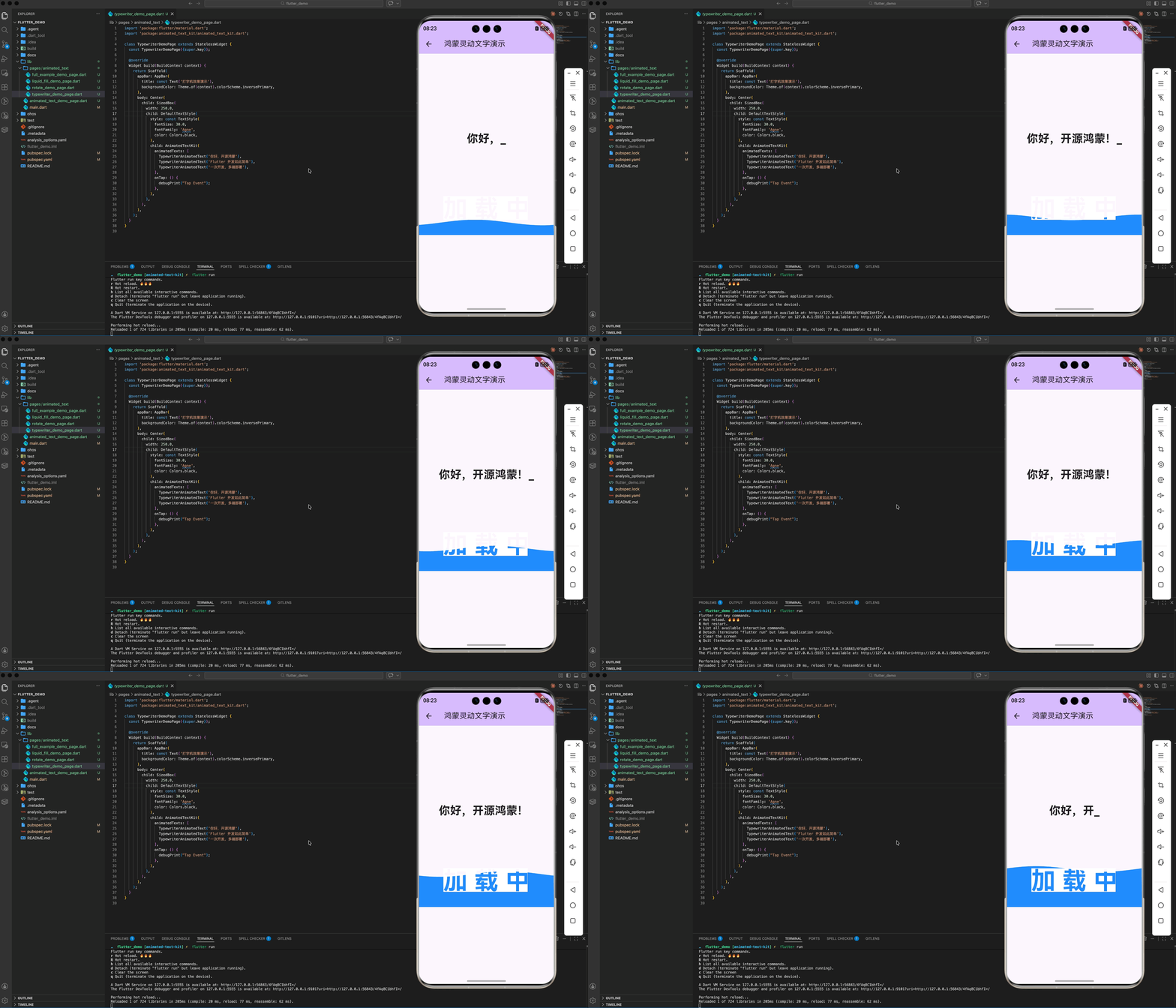
        TypewriterAnimatedText('你好,开源鸿蒙'),
        TypewriterAnimatedText('Flutter 开发如此简单'),
        TypewriterAnimatedText('一次开发,多端部署'),
      ],
      speed: const Duration(milliseconds: 150), // 控制语速
      onTap: () => debugPrint("用户点击了文本"),
    ),
  ),
);
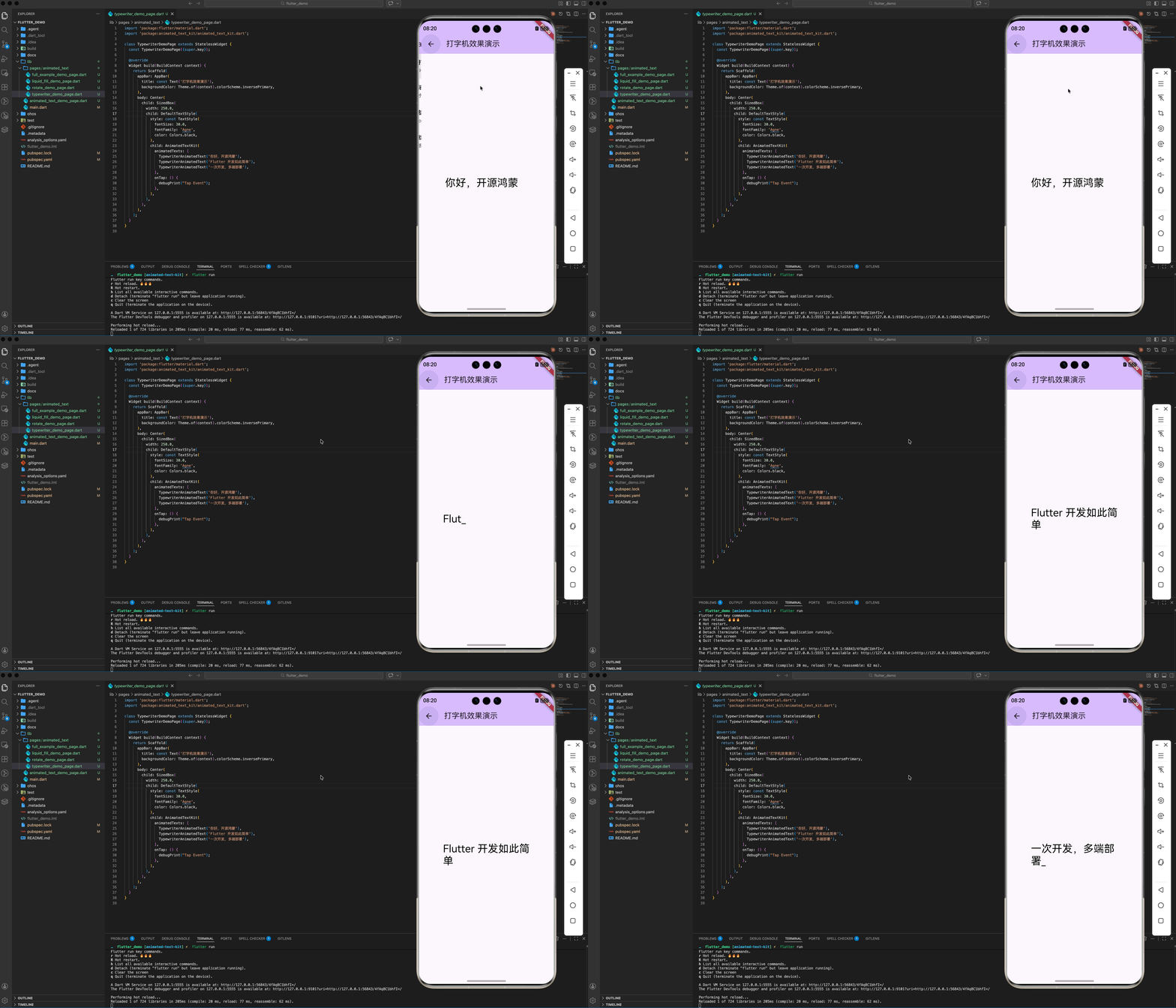
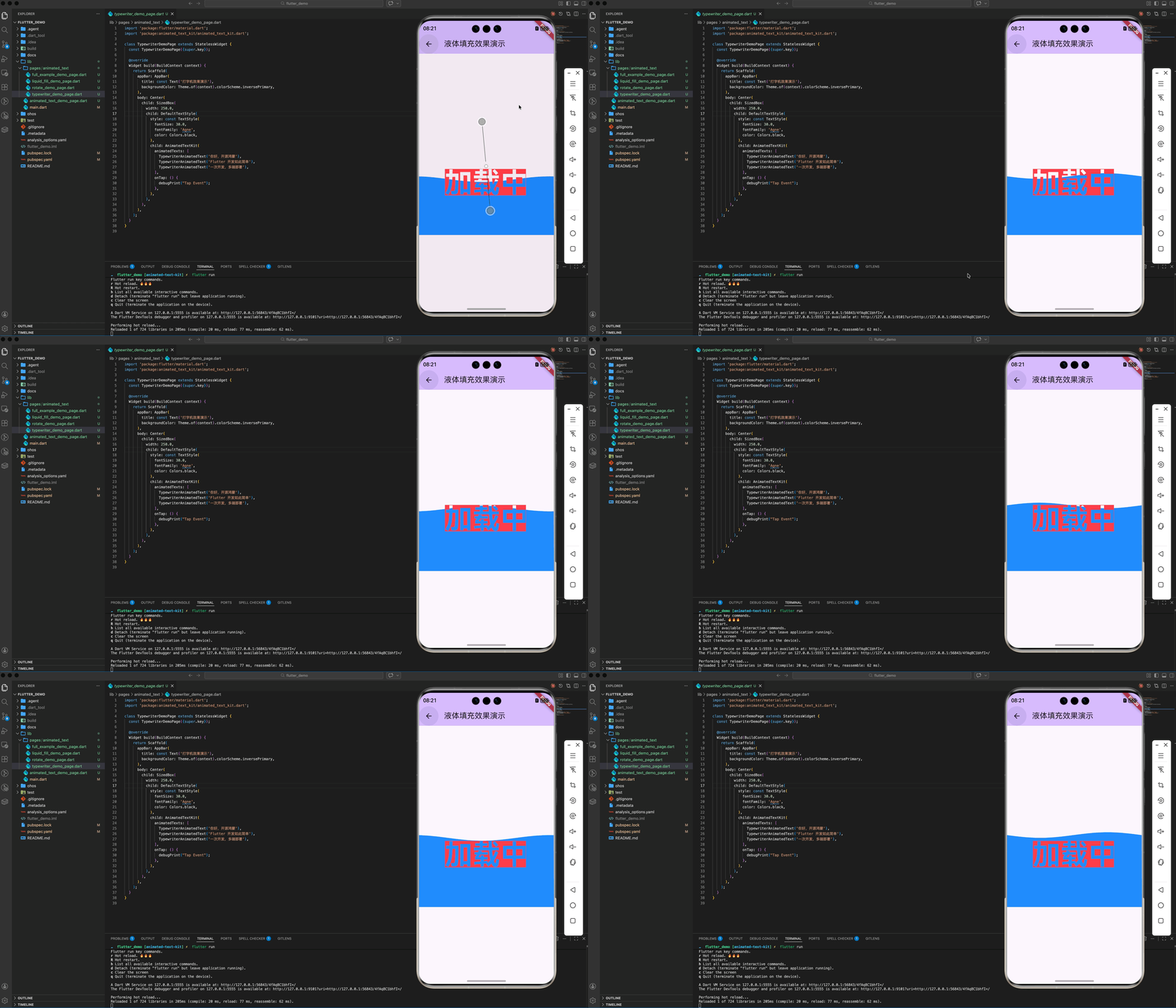
4.2 强交互反馈:液体填充 (TextLiquidFill)
文字像被水逐渐填满。常用于“课程加载”或“满分奖励”的特效展示。
TextLiquidFill(
  text: '加载中',
  waveColor: Colors.blueAccent,
  boxBackgroundColor: Colors.white,
  textStyle: const TextStyle(
    fontSize: 70.0,
    fontWeight: FontWeight.bold,
  ),
  boxHeight: 150.0,
  loadDuration: const Duration(seconds: 3), // 填充时长
);
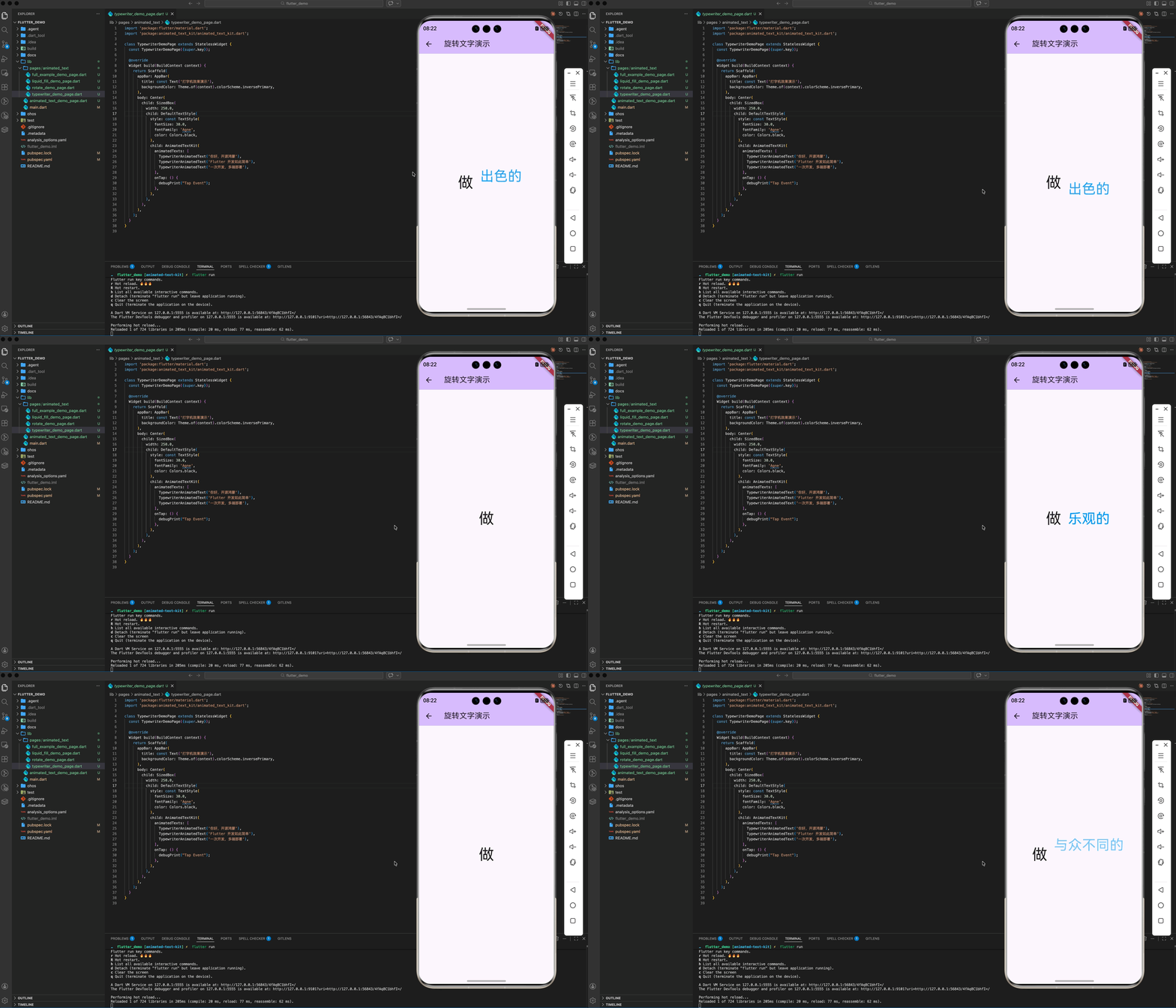
4.3 动态 Slogan:旋转文字 (Rotate)
适合在 App 首页做品牌宣传或多语言切换演示。
Row(
  mainAxisSize: MainAxisSize.min,
  children: <Widget>[
    const Text('做', style: TextStyle(fontSize: 40.0)),
    const SizedBox(width: 20.0),
    DefaultTextStyle(
      style: const TextStyle(fontSize: 38.0, color: Colors.blue),
      child: AnimatedTextKit(
        animatedTexts: [
          RotateAnimatedText('出色的'),
          RotateAnimatedText('乐观的'),
          RotateAnimatedText('与众不同的'),
        ],
        repeatForever: true,
      ),
    ),
  ],
);
五、 鸿蒙端高级调优方案
为了确保动效在各类鸿蒙设备(尤其是低端或中低端机型)上运行顺畅,建议执行以下优化:
5.1 开启 RepaintBoundary
由于动效涉及高频率 Canvas 重绘,包裹 RepaintBoundary 可以有效隔离重绘区域,避免整个 Widget 树无效刷新。
RepaintBoundary(
  child: AnimatedTextKit(...),
)
5.2 响应式字号计算
由于鸿蒙平板(如 MatePad)的分辨率较高,建议使用 MediaQuery 动态调整字号,确保动效不会因为字号过大导致 boxHeight 溢出。
5.3 字体离线库预载
如果使用了自定义字体,请确保将其放置在 assets/fonts/ 并在 pubspec.yaml 中注册,避免加载时的“布局跳动(Layout Jitter)”。
六、 完整示例代码
以下演示了一个结合了多段混合动效的“鸿蒙欢迎实验舱”:
import 'package:flutter/material.dart';
import 'package:animated_text_kit/animated_text_kit.dart';
class FullAnimatedTextLab extends StatelessWidget {
const FullAnimatedTextLab({super.key});
Widget build(BuildContext context) {
return Scaffold(
backgroundColor: Colors.white,
appBar: AppBar(title: const Text('鸿蒙灵动文字实验室')),
body: SingleChildScrollView(
child: Center(
child: Column(
mainAxisAlignment: MainAxisAlignment.center,
children: [
const SizedBox(height: 50),
// 1. 打字机
RepaintBoundary(
child: AnimatedTextKit(
animatedTexts: [
TypewriterAnimatedText('Coding on OpenHarmony...',
textStyle: const TextStyle(fontSize: 24, fontFamily: 'Courier')),
],
repeatForever: true,
),
),
const SizedBox(height: 40),
// 2. 液体填充
TextLiquidFill(
text: 'HUAWEI',
waveColor: Colors.redAccent,
boxBackgroundColor: Colors.white,
textStyle: const TextStyle(fontSize: 60, fontWeight: FontWeight.bold),
boxHeight: 120,
),
const SizedBox(height: 40),
// 3. 组合旋转
DefaultTextStyle(
style: const TextStyle(fontSize: 40, color: Colors.deepPurple),
child: AnimatedTextKit(
animatedTexts: [
WavyAnimatedText('灵感迸发'),
ScaleAnimatedText('无限可能'),
],
repeatForever: true,
),
),
],
),
),
),
);
}
}
七、 总结
animated_text_kit 给平淡的文字注入了灵魂。在鸿蒙教育类、工具类应用中,合理使用这些动效,配合 RepaintBoundary 和 系统字体适配,能让用户感受到产品的精致与极致用心。
欢迎加入开源鸿蒙跨平台社区:开源鸿蒙跨平台开发者社区

作为“人工智能6S店”的官方数字引擎,为AI开发者与企业提供一个覆盖软硬件全栈、一站式门户。
更多推荐
 22
22 0
0- 0


 已为社区贡献3条内容

所有评论(0)