
Flutter for OpenHarmony 实战:数字滚动增长(CountUp)
在移动开发领域,我们总是面临着选择与适配。今天,你的Flutter应用在Android和iOS上跑得正欢,明天可能就需要考虑一个新的平台:HarmonyOS(鸿蒙)。这不是一道选答题,而是很多团队正在面对的现实。Flutter的优势很明确——写一套代码,就能在两个主要平台上运行,开发体验流畅。而鸿蒙代表的是下一个时代的互联生态,它不仅仅是手机系统,更着眼于未来全场景的体验。
欢迎加入开源鸿蒙跨平台社区: https://openharmonycrossplatform.csdn.net
前言:跨生态开发的新机遇
在移动开发领域,我们总是面临着选择与适配。今天,你的Flutter应用在Android和iOS上跑得正欢,明天可能就需要考虑一个新的平台:HarmonyOS(鸿蒙)。这不是一道选答题,而是很多团队正在面对的现实。
Flutter的优势很明确——写一套代码,就能在两个主要平台上运行,开发体验流畅。而鸿蒙代表的是下一个时代的互联生态,它不仅仅是手机系统,更着眼于未来全场景的体验。将现有的Flutter应用适配到鸿蒙,听起来像是一个“跨界”任务,但它本质上是一次有价值的技术拓展:让产品触达更多用户,也让技术栈覆盖更广。
不过,这条路走起来并不像听起来那么简单。Flutter和鸿蒙,从底层的架构到上层的工具链,都有着各自的设计逻辑。会遇到一些具体的问题:代码如何组织?原有的功能在鸿蒙上如何实现?那些平台特有的能力该怎么调用?更实际的是,从编译打包到上架部署,整个流程都需要重新摸索。
这篇文章想做的,就是把这些我们趟过的路、踩过的坑,清晰地摊开给你看。我们不会只停留在“怎么做”,还会聊到“为什么得这么做”,以及“如果出了问题该往哪想”。这更像是一份实战笔记,源自真实的项目经验,聚焦于那些真正卡住过我们的环节。
无论你是在为一个成熟产品寻找新的落地平台,还是从一开始就希望构建能面向多端的应用,这里的思路和解决方案都能提供直接的参考。理解了两套体系之间的异同,掌握了关键的衔接技术,不仅能完成这次迁移,更能积累起应对未来技术变化的能力。
混合工程结构深度解析
项目目录架构
当Flutter项目集成鸿蒙支持后,典型的项目结构会发生显著变化。以下是经过ohos_flutter插件初始化后的项目结构:
my_flutter_harmony_app/
├── lib/                          # Flutter业务代码(基本不变)
│   ├── main.dart                 # 应用入口
│   ├── home_page.dart           # 首页
│   └── utils/
│       └── platform_utils.dart  # 平台工具类
├── pubspec.yaml                  # Flutter依赖配置
├── ohos/                         # 鸿蒙原生层(核心适配区)
│   ├── entry/                    # 主模块
│   │   └── src/main/
│   │       ├── ets/              # ArkTS代码
│   │       │   ├── MainAbility/
│   │       │   │   ├── MainAbility.ts       # 主Ability
│   │       │   │   └── MainAbilityContext.ts
│   │       │   └── pages/
│   │       │       ├── Index.ets           # 主页面
│   │       │       └── Splash.ets          # 启动页
│   │       ├── resources/        # 鸿蒙资源文件
│   │       │   ├── base/
│   │       │   │   ├── element/  # 字符串等
│   │       │   │   ├── media/    # 图片资源
│   │       │   │   └── profile/  # 配置文件
│   │       │   └── en_US/        # 英文资源
│   │       └── config.json       # 应用核心配置
│   ├── ohos_test/               # 测试模块
│   ├── build-profile.json5      # 构建配置
│   └── oh-package.json5         # 鸿蒙依赖管理
└── README.md
展示效果图片
flutter 实时预览 效果展示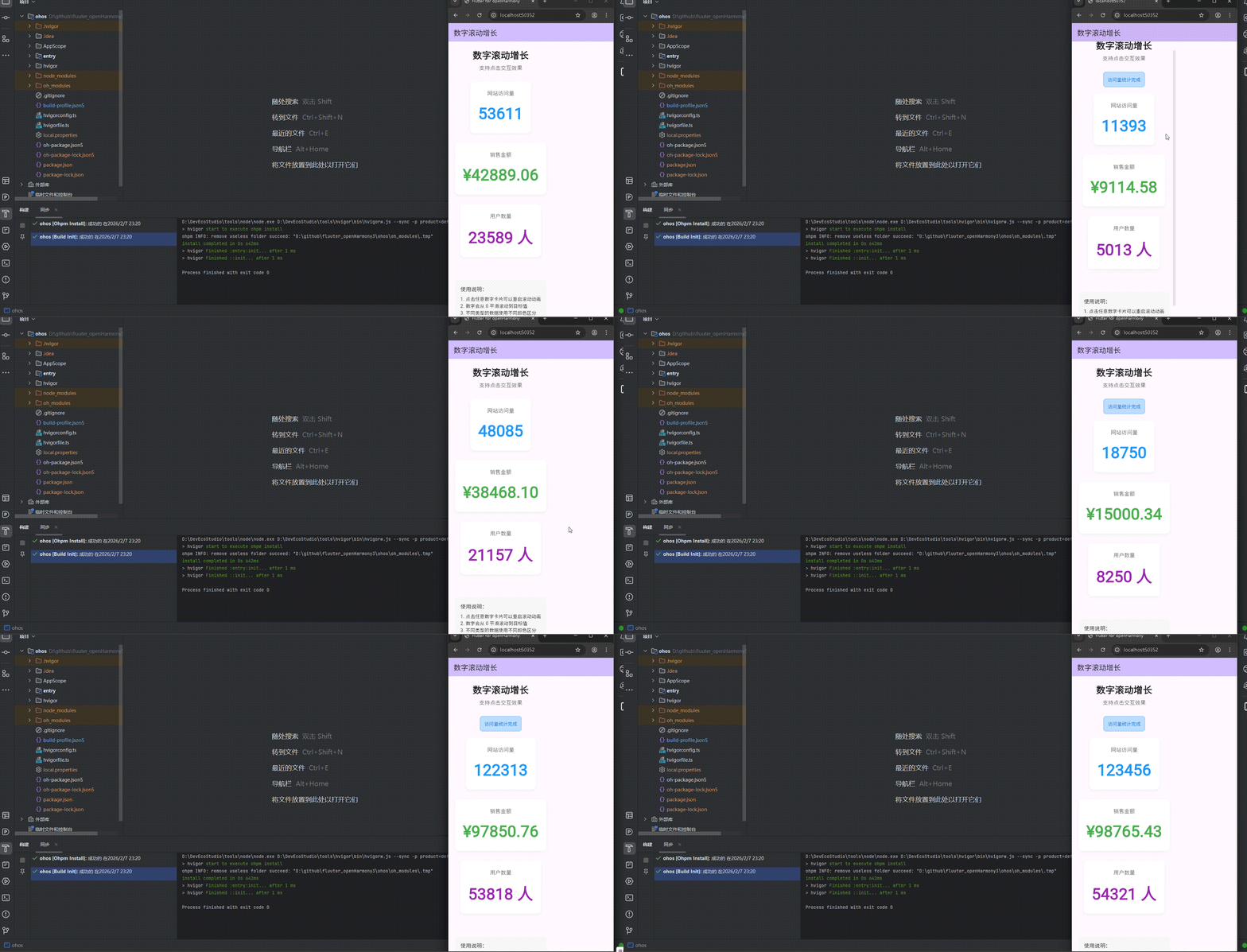
运行到鸿蒙虚拟设备中效果展示
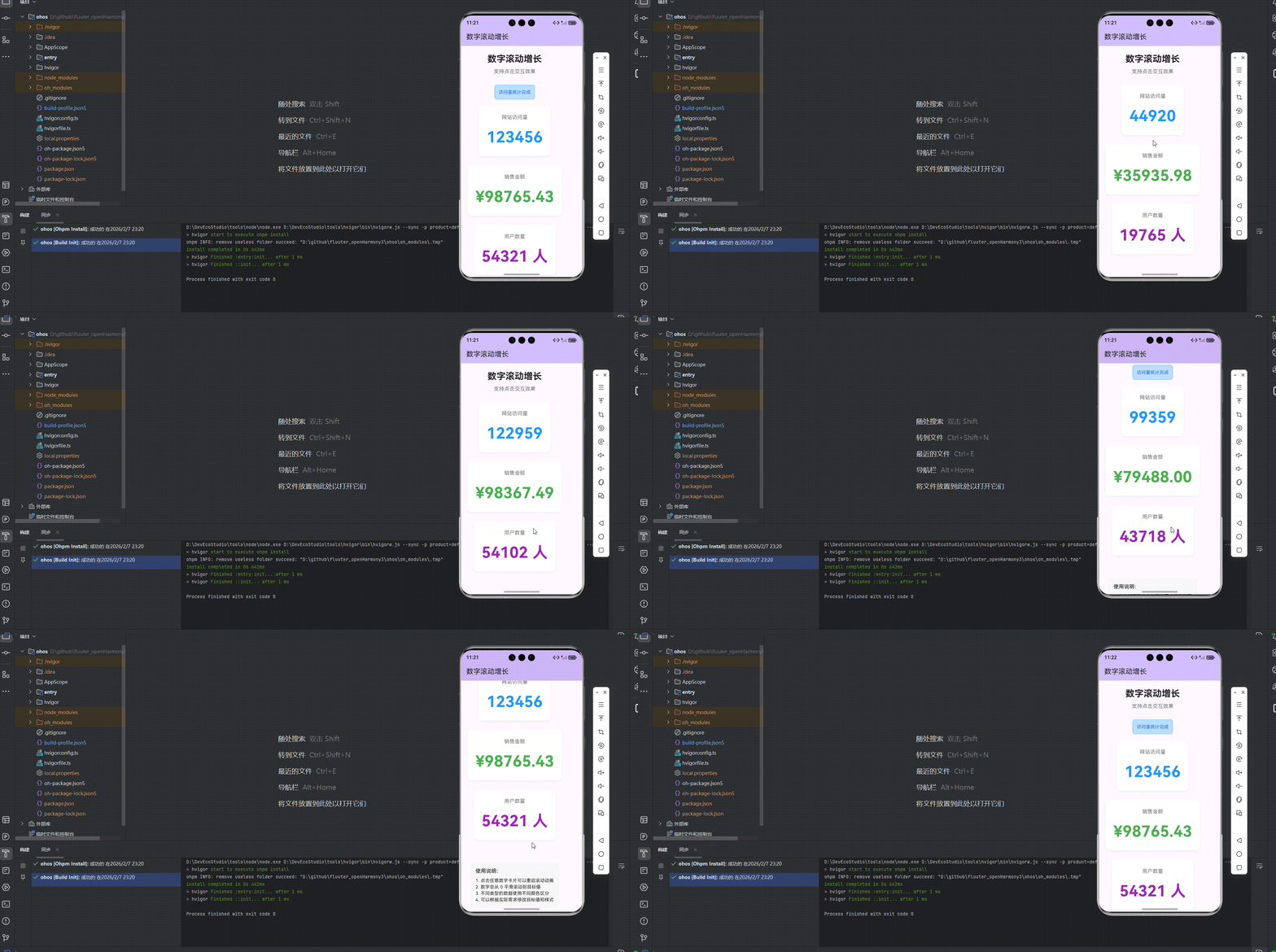
目录
功能代码实现
核心组件:数字滚动增长
组件结构
在 lib/countup/count_up.dart 文件中,我们实现了一个支持平滑动画的数字滚动增长组件:
import 'package:flutter/material.dart';
class CountUp extends StatefulWidget {
final num from;
final num to;
final Duration duration;
final int? decimalPlaces;
final String? prefix;
final String? suffix;
final TextStyle? style;
final Function()? onComplete;
final Function(num)? onUpdate;
const CountUp({
super.key,
required this.from,
required this.to,
required this.duration,
this.decimalPlaces,
this.prefix = '',
this.suffix = '',
this.style,
this.onComplete,
this.onUpdate,
});
State<CountUp> createState() => _CountUpState();
}
class _CountUpState extends State<CountUp> with SingleTickerProviderStateMixin {
late AnimationController _controller;
late Animation<num> _animation;
num _currentValue = 0;
void initState() {
super.initState();
_initAnimation();
}
void didUpdateWidget(covariant CountUp oldWidget) {
super.didUpdateWidget(oldWidget);
if (oldWidget.to != widget.to || oldWidget.from != widget.from) {
_initAnimation();
}
}
void _initAnimation() {
_controller = AnimationController(
duration: widget.duration,
vsync: this,
);
_animation = _createAnimation();
_animation.addListener(() {
setState(() {
_currentValue = _animation.value;
});
if (widget.onUpdate != null) {
widget.onUpdate!(_currentValue);
}
});
_animation.addStatusListener((status) {
if (status == AnimationStatus.completed && widget.onComplete != null) {
widget.onComplete!();
}
});
_controller.forward();
}
Animation<num> _createAnimation() {
return Tween<num>(
begin: widget.from,
end: widget.to,
).animate(
CurvedAnimation(
parent: _controller,
curve: Curves.easeOut,
),
);
}
void restart() {
_controller.reset();
_controller.forward();
}
void dispose() {
_controller.dispose();
super.dispose();
}
Widget build(BuildContext context) {
final value = widget.decimalPlaces != null
? _currentValue.toStringAsFixed(widget.decimalPlaces!)
: _currentValue.round().toString();
return Text(
'${widget.prefix}$value${widget.suffix}',
style: widget.style,
);
}
}
组件开发要点
-
参数设计:
from:起始数值to:目标数值duration:动画持续时间decimalPlaces:小数位数prefix:数值前缀suffix:数值后缀style:文本样式onComplete:动画完成回调onUpdate:数值更新回调
-
动画实现:
- 使用
AnimationController控制动画进度 - 使用
Tween<num>定义数值范围 - 使用
CurvedAnimation添加缓动效果 - 通过
addListener监听动画值变化 - 通过
addStatusListener监听动画状态
- 使用
-
状态管理:
- 使用
_currentValue存储当前动画值 - 在
didUpdateWidget中处理参数变化 - 提供
restart方法重启动画
- 使用
-
性能优化:
- 在
dispose方法中释放动画控制器 - 使用
late关键字延迟初始化动画相关对象
- 在
使用方法
CountUp(
  from: 0,
  to: 123456,
  duration: Duration(seconds: 2),
  prefix: '',
  suffix: '',
  style: TextStyle(
    fontSize: 48,
    fontWeight: FontWeight.bold,
    color: Colors.blue,
  ),
  onComplete: () {
    // 动画完成后的回调
  },
);
首页集成:CountUpHome
页面结构
在 lib/countup/countup_home.dart 文件中,我们集成了数字滚动组件,提供了三个不同类型的示例:
import 'package:flutter/material.dart';
import 'count_up.dart';
class CountUpHome extends StatefulWidget {
const CountUpHome({super.key});
State<CountUpHome> createState() => _CountUpHomeState();
}
class _CountUpHomeState extends State<CountUpHome> {
bool _isAnimating = false;
String _message = '';
void _restartAnimation() {
setState(() {
_isAnimating = true;
_message = '数字滚动动画已重启';
});
Future.delayed(Duration(seconds: 2), () {
if (mounted) {
setState(() {
_message = '';
});
}
});
// 延迟后重置状态,允许动画重新触发
Future.delayed(Duration(milliseconds: 100), () {
if (mounted) {
setState(() {
_isAnimating = false;
});
}
});
}
Widget build(BuildContext context) {
return Scaffold(
appBar: AppBar(
title: Text('数字滚动增长'),
backgroundColor: Theme.of(context).colorScheme.inversePrimary,
),
body: SingleChildScrollView(
padding: const EdgeInsets.all(20.0),
child: Column(
crossAxisAlignment: CrossAxisAlignment.center,
children: [
// 标题部分
Container(
margin: const EdgeInsets.only(bottom: 30.0),
child: Column(
crossAxisAlignment: CrossAxisAlignment.center,
children: [
Text(
'数字滚动增长',
style: TextStyle(
fontSize: 28,
fontWeight: FontWeight.bold,
),
),
SizedBox(height: 8),
Text(
'支持点击交互效果',
style: TextStyle(
fontSize: 16,
color: Colors.grey[600],
),
),
],
),
),
// 消息提示
if (_message.isNotEmpty)
Container(
margin: const EdgeInsets.only(bottom: 20.0),
padding: EdgeInsets.all(12),
decoration: BoxDecoration(
color: Colors.blue[100],
borderRadius: BorderRadius.circular(8),
border: Border.all(color: Colors.blue[300]!),
),
child: Text(
_message,
style: TextStyle(color: Colors.blue[700]),
),
),
// 数字滚动展示区
Container(
margin: const EdgeInsets.only(bottom: 40.0),
child: Column(
children: [
// 计数器 1: 网站访问量
GestureDetector(
onTap: _restartAnimation,
child: Container(
margin: const EdgeInsets.only(bottom: 30.0),
padding: EdgeInsets.all(24),
decoration: BoxDecoration(
color: Colors.white,
borderRadius: BorderRadius.circular(12),
boxShadow: [
BoxShadow(
color: Colors.grey[200]!,
blurRadius: 8,
offset: Offset(0, 4),
),
],
),
child: Column(
children: [
Text(
'网站访问量',
style: TextStyle(
fontSize: 16,
color: Colors.grey[600],
),
),
SizedBox(height: 16),
!_isAnimating
? CountUp(
from: 0,
to: 123456,
duration: Duration(seconds: 2),
prefix: '',
suffix: '',
style: TextStyle(
fontSize: 48,
fontWeight: FontWeight.bold,
color: Colors.blue,
),
onComplete: () {
setState(() {
_message = '访问量统计完成';
});
Future.delayed(Duration(seconds: 2), () {
if (mounted) {
setState(() {
_message = '';
});
}
});
},
)
: SizedBox(
height: 60,
child: Center(
child: Text(
'123456',
style: TextStyle(
fontSize: 48,
fontWeight: FontWeight.bold,
color: Colors.blue,
),
),
),
),
],
),
),
),
// 计数器 2: 销售金额
GestureDetector(
onTap: _restartAnimation,
child: Container(
margin: const EdgeInsets.only(bottom: 30.0),
padding: EdgeInsets.all(24),
decoration: BoxDecoration(
color: Colors.white,
borderRadius: BorderRadius.circular(12),
boxShadow: [
BoxShadow(
color: Colors.grey[200]!,
blurRadius: 8,
offset: Offset(0, 4),
),
],
),
child: Column(
children: [
Text(
'销售金额',
style: TextStyle(
fontSize: 16,
color: Colors.grey[600],
),
),
SizedBox(height: 16),
!_isAnimating
? CountUp(
from: 0,
to: 98765.43,
duration: Duration(seconds: 2),
decimalPlaces: 2,
prefix: '¥',
suffix: '',
style: TextStyle(
fontSize: 48,
fontWeight: FontWeight.bold,
color: Colors.green,
),
)
: SizedBox(
height: 60,
child: Center(
child: Text(
'¥98765.43',
style: TextStyle(
fontSize: 48,
fontWeight: FontWeight.bold,
color: Colors.green,
),
),
),
),
],
),
),
),
// 计数器 3: 用户数量
GestureDetector(
onTap: _restartAnimation,
child: Container(
margin: const EdgeInsets.only(bottom: 30.0),
padding: EdgeInsets.all(24),
decoration: BoxDecoration(
color: Colors.white,
borderRadius: BorderRadius.circular(12),
boxShadow: [
BoxShadow(
color: Colors.grey[200]!,
blurRadius: 8,
offset: Offset(0, 4),
),
],
),
child: Column(
children: [
Text(
'用户数量',
style: TextStyle(
fontSize: 16,
color: Colors.grey[600],
),
),
SizedBox(height: 16),
!_isAnimating
? CountUp(
from: 0,
to: 54321,
duration: Duration(seconds: 2),
prefix: '',
suffix: ' 人',
style: TextStyle(
fontSize: 48,
fontWeight: FontWeight.bold,
color: Colors.purple,
),
)
: SizedBox(
height: 60,
child: Center(
child: Text(
'54321 人',
style: TextStyle(
fontSize: 48,
fontWeight: FontWeight.bold,
color: Colors.purple,
),
),
),
),
],
),
),
),
],
),
),
// 使用说明
Container(
padding: EdgeInsets.all(16),
decoration: BoxDecoration(
color: Colors.grey[100],
borderRadius: BorderRadius.circular(8),
),
child: Column(
crossAxisAlignment: CrossAxisAlignment.start,
children: [
Text(
'使用说明:',
style: TextStyle(
fontSize: 16,
fontWeight: FontWeight.w500,
),
),
SizedBox(height: 8),
Text('1. 点击任意数字卡片可以重启滚动动画'),
Text('2. 数字会从 0 平滑滚动到目标值'),
Text('3. 不同类型的数据使用不同颜色区分'),
Text('4. 可以根据实际需求修改目标值和样式'),
],
),
),
],
),
),
);
}
}
集成要点
-
交互设计:
- 使用
GestureDetector实现卡片点击功能 - 点击时触发
_restartAnimation方法 - 通过
_isAnimating状态控制动画重建
- 使用
-
页面布局:
- 使用
SingleChildScrollView确保在小屏幕上也能正常显示 - 分为标题区、消息提示区、数字滚动展示区和使用说明区
- 添加了适当的边距和装饰,提升视觉效果
- 使用
-
示例数据:
- 网站访问量:123456
- 销售金额:98765.43(带小数)
- 用户数量:54321(带单位)
-
反馈机制:
- 点击时显示 “数字滚动动画已重启” 提示
- 动画完成时显示 “访问量统计完成” 提示
- 提示信息 2 秒后自动消失
主页面配置
在 lib/main.dart 文件中,我们将数字滚动增长页面设置为主页面:
import 'package:flutter/material.dart';
import 'countup/countup_home.dart';
void main() {
runApp(const MyApp());
}
class MyApp extends StatelessWidget {
const MyApp({super.key});
Widget build(BuildContext context) {
return MaterialApp(
title: 'Flutter for openHarmony',
theme: ThemeData(
colorScheme: ColorScheme.fromSeed(seedColor: Colors.deepPurple),
useMaterial3: true,
),
debugShowCheckedModeBanner: false,
home: const CountUpHome(),
);
}
}
开发中容易遇到的问题
1. 动画控制器管理问题
问题描述:动画控制器未正确释放,可能导致内存泄漏。
解决方案:
- 在
dispose方法中调用_controller.dispose()释放动画控制器 - 确保在组件销毁时正确清理所有动画相关资源
2. 状态更新问题
问题描述:在动画过程中更新组件状态,可能导致动画卡顿或异常。
解决方案:
- 避免在
onUpdate回调中执行复杂的计算或耗时操作 - 合理使用
setState,只更新必要的状态
3. 数值格式化问题
问题描述:大数值或小数位数过多时,可能出现显示异常。
解决方案:
- 根据实际需求设置合适的小数位数
- 对于非常大的数值,考虑使用千位分隔符或缩写形式
4. 动画触发问题
问题描述:在组件重建时,动画可能无法正确触发或重复触发。
解决方案:
- 使用状态变量控制动画的触发时机
- 在
didUpdateWidget中正确处理参数变化 - 确保动画控制器的状态与组件状态同步
5. 性能优化问题
问题描述:在低端设备上,动画可能出现卡顿。
解决方案:
- 合理设置动画持续时间,避免过长的动画
- 减少动画过程中的布局计算
- 考虑使用
RepaintBoundary减少重绘区域
总结开发中用到的技术点
1. Flutter 动画系统
- AnimationController:控制动画的播放、暂停、重置等操作
- Tween:定义动画的起始值和结束值
- CurvedAnimation:为动画添加缓动效果
- SingleTickerProviderStateMixin:为动画提供帧回调
2. 状态管理
- setState:更新组件状态,触发 UI 重建
- didUpdateWidget:处理组件参数变化
- late 关键字:延迟初始化变量
- mounted 检查:确保在组件未挂载时不更新状态
3. 布局与样式
- SingleChildScrollView:实现页面滚动
- Container:用于布局和装饰
- Column:垂直排列子组件
- SizedBox:设置固定尺寸
- BoxDecoration:配置容器样式
- BoxShadow:添加阴影效果
4. 交互设计
- GestureDetector:处理触摸事件
- onTap:响应点击事件
- Future.delayed:延迟执行操作
- 回调函数:实现组件间通信
5. 文本处理
- TextStyle:配置文本样式
- toStringAsFixed:格式化小数
- round:四舍五入取整
- 字符串插值:拼接前缀、数值和后缀
6. 组件化开发
- StatefulWidget:管理有状态的组件
- StatelessWidget:构建无状态的组件
- 参数传递:通过构造函数传递参数
- 代码组织:将不同功能的代码分离到不同文件
7. 性能优化
- 动画优化:合理设置动画参数
- 内存管理:及时释放资源
- 布局优化:减少不必要的嵌套
- 状态管理优化:避免过度重建
通过以上技术点的综合运用,我们成功实现了一个功能完整、交互友好的数字滚动增长应用,展示了如何在 Flutter for OpenHarmony 项目中创建平滑的数字动画效果。该组件可以广泛应用于数据展示、统计报表、用户界面等场景,为应用增添动态视觉效果。
欢迎加入开源鸿蒙跨平台社区: https://openharmonycrossplatform.csdn.net

作为“人工智能6S店”的官方数字引擎,为AI开发者与企业提供一个覆盖软硬件全栈、一站式门户。
更多推荐

 7
7 0
0- 0


 已为社区贡献9条内容

所有评论(0)