
鸿蒙Flutter跨平台开发:首页特惠推荐模块的实现
本文绍Flutter鸿蒙跨平台开发中首页特惠推荐模块的开发流程,涵盖接口常量配置、嵌套JSON实体类构建、API封装、数据获取、父传子传参及UI分层渲染,附完整代码示例。
首先,欢迎加入开源鸿蒙跨平台社区:https://openharmonycrossplatform.csdn.net,获取更多Flutter鸿蒙开发相关教程、技术支持和开源资源,与开发者们一起交流学习、共同进步。
本文参考Flutter鸿蒙开发指南(十):获取特惠推荐数据(AI)-CSDN博客
本文记录操作过程以及遇到的问题
在上一节中,我们完成了分类接口请求、数据模型构建、数据解析、UI渲染及样式优化的开发。这一节,我们将聚焦首页另一核心模块——特惠推荐,从接口常量配置、数据模型完善、API封装、数据获取,到UI分层渲染、样式优化,一步步完成模块的开发。
一、模块概述与开发准备
特惠推荐模块是首页核心功能之一,主要用于展示平台精选的优惠商品,吸引用户点击浏览,提升转化。核心开发步骤如下:
- 配置特惠推荐接口请求地址常量(统一管理,便于后续维护);
- 根据后端返回的JSON数据结构,构建对应的实体类(统一命名规范,适配JSON解析);
- 封装API请求对象,实现特惠推荐数据的请求与解析,返回业务侧所需的数据结构;
- 在首页组件中初始化数据,调用API接口获取特惠推荐数据,并通过setState管理页面状态;
- 通过父传子的方式,将获取到的特惠推荐数据传递给子组件(HmSuggestion);
- 拷贝所需图片资源到项目指定目录,提取子选项中的前3条商品数据进行UI渲染,优化界面样式与用户体验。
二、特惠数据模型与接口常量配置
开发前,需先完成接口常量配置和数据模型构建,这是数据请求与解析的基础,也是Flutter开发中“数据驱动UI”的核心前提。我们先配置接口常量,再根据后端返回的JSON结构,完善对应的实体类,确保字段一致、解析正常。
2.1 添加特惠推荐接口常量
为了便于接口地址的统一管理和维护,我们将特惠推荐接口地址添加到全局常量文件中,与之前的轮播图、分类接口保持一致,统一放在HttpConstants类中。修改lib/constants/index.dart代码如下,新增PRODUCT_LIST常量,对应特惠推荐接口地址:
//全局状态
class GlobalConstants {
  //基础地址
  static const String BASE_URL = "https://meikou-api.itheima.net/";

  //超时时间
  static const int TIME_OUT = 10;

  //成功状态
  static const String SUCCESS_CODE = "1";
}

//存放请求地址接口的常量
class HttpConstants {
  //轮播图接口
  static const String BANNER_LIST = "/home/banner";

  //分类列表接口
  static const String CATEGORY_LIST = "/home/category/head";

  //特惠推荐地址
  static const String PRODUCT_LIST = "/hot/preference";
}
2.2 构建特惠推荐相关实体类
后端返回的特惠推荐JSON数据为多层嵌套结构(SpecialOfferResult > SubType > GoodsItems > GoodsItem),因此需要构建对应的实体类,实现JSON数据到Dart实体对象的转换。实体类统一放在lib/viewmodels/home.dart文件中,与之前的BannerItem、CategoryItem保持一致,便于统一管理,同时遵循以下规范:
- 工厂函数统一命名为formJSON(与BannerItem、CategoryItem保持一致,避免命名混乱);
- 所有字段做非空安全处理,通过??设置默认值(避免接口返回null导致页面崩溃);
- 嵌套列表字段(如subTypes、items)需进行类型强转和遍历转换,确保解析正常;
- 实体类构造函数使用required修饰必填字段,明确字段约束。
修改lib/viewmodels/home.dart代码,新增GoodsItem、GoodsItems、SubType实体类,并重写SpecialOfferResult实体类(替换引用文章版本),完整代码如下:
class BannerItem {
  String id;
  String imgUrl;

  BannerItem({required this.id, required this.imgUrl});

  factory BannerItem.formJSON(Map<String, dynamic> json) {
    return BannerItem(id: json["id"] ?? "", imgUrl: json["imgUrl"] ?? "");
  }
}

class CategoryItem {
  String id;
  String name;
  String picture;
  List<CategoryItem>? children;

  CategoryItem({
    required this.id,
    required this.name,
    required this.picture,
    this.children,
  });

  factory CategoryItem.formJSON(Map<String, dynamic> json) {
    return CategoryItem(
      id: json["id"] ?? "",
      name: json["name"] ?? "",
      picture: json["picture"] ?? "",
      children: json["children"] == null
          ? null
          : (json["children"] as List)
          .map((item) => CategoryItem.formJSON(item as Map<String, dynamic>))
          .toList(),
    );
  }
}

// 新增:特惠推荐实体类(匹配首页初始化字段)
class SpecialOfferResult {
  String id;
  String title;
  List<dynamic> subTypes; // 对应首页的subTypes数组

  // 构造函数(required修饰,和BannerItem一致)
  SpecialOfferResult({
    required this.id,
    required this.title,
    required this.subTypes,
  });

  // 工厂函数:JSON转实体(统一formJSON,适配API解析)
  factory SpecialOfferResult.formJSON(Map<String, dynamic> json) {
    return SpecialOfferResult(
      id: json["id"] ?? "",
      title: json["title"] ?? "",
      subTypes: json["subTypes"] ?? [], // 空值默认空数组,避免报错
    );
  }
}
三、API接口与数据获取
完成接口常量和实体类的配置后,接下来封装API请求函数,实现特惠推荐数据的请求与解析,然后在首页组件中初始化数据,调用API获取数据,并通过setState更新页面状态,确保数据能够实时渲染到UI上。本章节对参考文章的代码进行了优化修改,解决了类型强转、命名规范等问题,提升了代码的健壮性。
3.1 首页组件数据初始化与请求调用
在首页组件中,初始化特惠推荐相关的变量,在initState生命周期函数中调用getProductListAPI函数获取数据,通过setState更新页面状态,将数据传递给子组件HmSuggestion。
修改lib/pages/Home/index.dart代码,完整代码如下(新增特惠推荐变量、请求函数,修改_getScrollChildren函数传递数据):
import 'package:flutter/cupertino.dart';
import 'package:xiuhu_mall/api/home.dart';
import 'package:xiuhu_mall/components/Home/HmCategory.dart';
import 'package:xiuhu_mall/components/Home/HmHot.dart';
import 'package:xiuhu_mall/components/Home/HmMoreList.dart';
import 'package:xiuhu_mall/components/Home/HmSlider.dart';
import 'package:xiuhu_mall/components/Home/HmSuggestion.dart';
import 'package:xiuhu_mall/viewmodels/home.dart';

class HomeView extends StatefulWidget {
  const HomeView({super.key});

  @override
  State<HomeView> createState() => _HomeViewState();
}

class _HomeViewState extends State<HomeView> {
  //分类列表
  List<CategoryItem> _categoryList = [];

  //轮播图列表
  List<BannerItem> _bannerList = [
    // BannerItem(
    //   id: "1",
    //   imgUrl: "https://yjy-teach-oss.oss-cn-beijing.aliyuncs.com/meituan/1.jpg",
    // ),
    // BannerItem(
    //   id: "2",
    //   imgUrl: "https://yjy-teach-oss.oss-cn-beijing.aliyuncs.com/meituan/2.png",
    // ),
    // BannerItem(
    //   id: "3",
    //   imgUrl: "https://yjy-teach-oss.oss-cn-beijing.aliyuncs.com/meituan/3.jpg",
    // ),
  ];
  //特惠推荐
  SpecialOfferResult _specialOfferResult = SpecialOfferResult(
    id: "",
    title: "",
    subTypes: [],
  );

  //获取滚动容器的内容

  List<Widget> _getScrollChildren() {
    return [
      //包裹普通widget的sliver家族的组件内容
      SliverToBoxAdapter(child: HmSlider(bannerList: _bannerList)), //轮播图组件
      //放置分类组件
      SliverToBoxAdapter(child: SizedBox(height: 10)),
      //SliverGrid SliverList指南纵向排列
      SliverToBoxAdapter(child: HmCategory(categoryList: _categoryList)), //分类组件
      SliverToBoxAdapter(child: SizedBox(height: 10)),
      SliverToBoxAdapter(child: HmSuggestion(specialOfferResult: _specialOfferResult)), //推荐组件
      SliverToBoxAdapter(child: SizedBox(height: 10)),

      //Flex和Expanded配合起来可以均分比例
      SliverToBoxAdapter(
        child: Padding(
            padding: EdgeInsets.symmetric(horizontal: 10),
            child: Flex(
              direction: Axis.horizontal,
              children: [
                Expanded(child: HmHot()),
                SizedBox(
                  width: 10,
                ),
                Expanded(child: HmHot()),
              ],
            )),
      ),
      SliverToBoxAdapter(child: SizedBox(height: 10)),
      HmMorelist(), //无限滚动列表
    ];
  }


  @override
  void initState() {
    // TODO: implement initState
    super.initState();
    _getBannederList();
    _getCategoryList();
    _getProductList();
  }

  //获取特惠推荐
  void _getProductList() async {
    _specialOfferResult = await getProductListAPI();
    setState(() {});
  }

  //获取分类列表
  void _getCategoryList() async {
    _categoryList = await getCategoryListAPI();
    setState(() {});
  }

  void _getBannederList() async {
    _bannerList = await getBannerListAPI();
    setState(() {});
  }

  @override
  Widget build(BuildContext context) {
    //CustomScrollview要求:必须是sliver家族的内容
    return CustomScrollView(slivers: _getScrollChildren());
  }
}
说明:
- 初始化_specialOfferResult时,给所有必填字段设置默认值(空字符串、空列表),避免变量为null导致页面崩溃;
- getProductListAPI是异步函数,因此_getProductList方法需添加async关键字,使用await等待请求结果;
- 请求获取数据后,必须调用setState(() {}),通知Flutter框架页面状态更新,否则数据变化后UI不会重新渲染;
- HmSuggestion组件通过父传子的方式接收数据,构造函数中添加required修饰,确保父组件必须传递数据,避免漏传导致报错;
3.2 封装特惠推荐API请求函数
API请求函数统一封装在lib/api/Home/home.dart文件中,与轮播图、分类接口的封装风格保持一致,使用之前封装的DioRequest单例发送请求,解析返回的JSON数据,并转换为SpecialOfferResult实体类,返回给业务侧使用。
修改lib/api/Home/home.dart代码,新增getProductListAPI函数,完整代码如下:
//封装一个api 目的是返回业务侧要的数据结构
import 'package:xiuhu_mall/constants/index.dart';
import 'package:xiuhu_mall/utils/DioRequest.dart';
import 'package:xiuhu_mall/viewmodels/home.dart';

Future<List<BannerItem>> getBannerListAPI() async {
  // 返回请求
  return (await dioRequest.get(HttpConstants.BANNER_LIST) as List).map((
      item,
      ) {
    return BannerItem.formJSON(item as Map<String, dynamic>);
  }).toList();
}

//分类列表接口
Future<List<CategoryItem>> getCategoryListAPI() async {
  // 返回请求
  return (await dioRequest.get(HttpConstants.CATEGORY_LIST) as List).map((
      item,
      ) {
    return CategoryItem.formJSON(item as Map<String, dynamic>);
  }).toList();
}

// 特惠推荐地址(修正后:匹配实体类+强转类型)
Future<SpecialOfferResult> getProductListAPI() async {
  // 1. 强转返回值为Map;2. 方法名改为formJSON
  return SpecialOfferResult.formJSON(
      await dioRequest.get(HttpConstants.PRODUCT_LIST) as Map<String, dynamic>
  );
}
注意事项:
- 导入路径需正确:确保导入的实体类、常量、DioRequest路径与项目实际目录一致,否则会报“找不到文件”报错;
- 返回值类型明确:特惠推荐后端返回的是单个JSON对象(而非数组),因此函数返回值为SpecialOfferResult(非列表),与轮播图、分类接口的返回值类型区分开;
- 类型强转规范:将请求返回的结果强转为Map<String, dynamic>,与SpecialOfferResult.formJSON函数的参数类型匹配,避免类型不匹配报错;
- 无需额外处理请求成功判断:若项目中DioRequest已封装了请求拦截器、错误处理(如超时、网络异常、状态码非200等),则此处无需额外处理;若未封装,可添加try-catch捕获异常,避免程序崩溃。
3.3 其他组件基础配置
修改lib/components/Home/HmSuggestion.dart代码,完成基础配置,代码如下:
import 'package:flutter/material.dart';
import 'package:xiuhu_mall/viewmodels/home.dart';

class HmSuggestion extends StatefulWidget {
  //特惠推荐数据
  final SpecialOfferResult specialOfferResult;

  // 带参构造函数(替换原有无参,required保证传参)
  const HmSuggestion({super.key, required this.specialOfferResult});

  @override
  State<HmSuggestion> createState() => _HmSuggestionState();
}

class _HmSuggestionState extends State<HmSuggestion> {
  @override
  Widget build(BuildContext context) {
    // 后续可通过 widget.specialOfferResult 获取数据渲染,示例:
    // String title = widget.specialOfferResult.title;
    // List subTypes = widget.specialOfferResult.subTypes;
    return Padding(
        padding: EdgeInsets.symmetric(horizontal: 10),
        child: Container(
            color: Colors.blue,
            alignment: Alignment.center,
            height: 300,
            child: Text(
              "推荐",
              style: TextStyle(color: Colors.white),
            )));
  }
}
四、特惠推荐子组件开发与UI渲染
完成数据获取后,接下来开发特惠推荐子组件HmSuggestion,实现UI分层渲染、样式优化和数据展示。本章节分三步实现:先添加图片资源,再实现基础UI布局,最后完善数据渲染和样式优化,确保界面美观、数据展示正常,同时处理异常情况(如图片加载失败)。
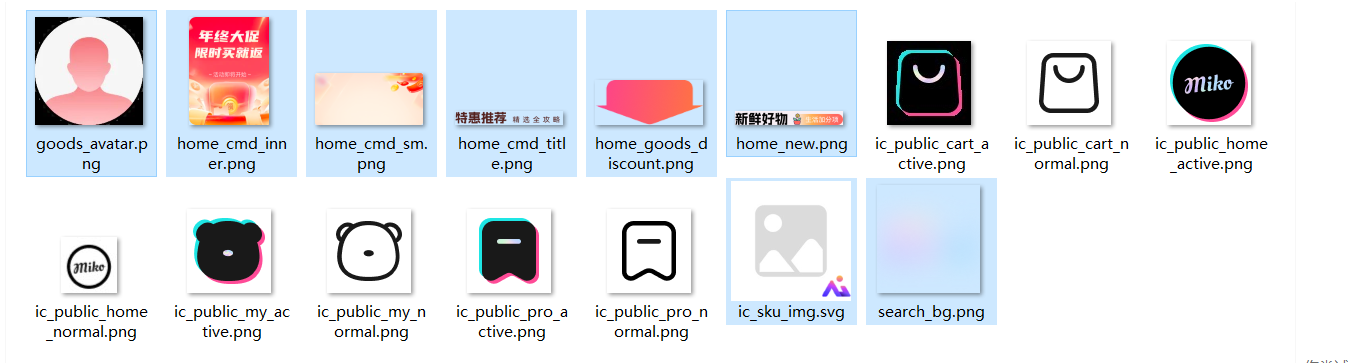
4.1 添加图片资源
可在practice1/lib · weixin_74220422/practice1 - AtomGit | GitCode 或 shangcheng/lib/assets · Deng666/Flutter商城项目 - AtomGit | GitCode 下载照片
复制以下图片到assets目录
4.2 基础UI布局的实现
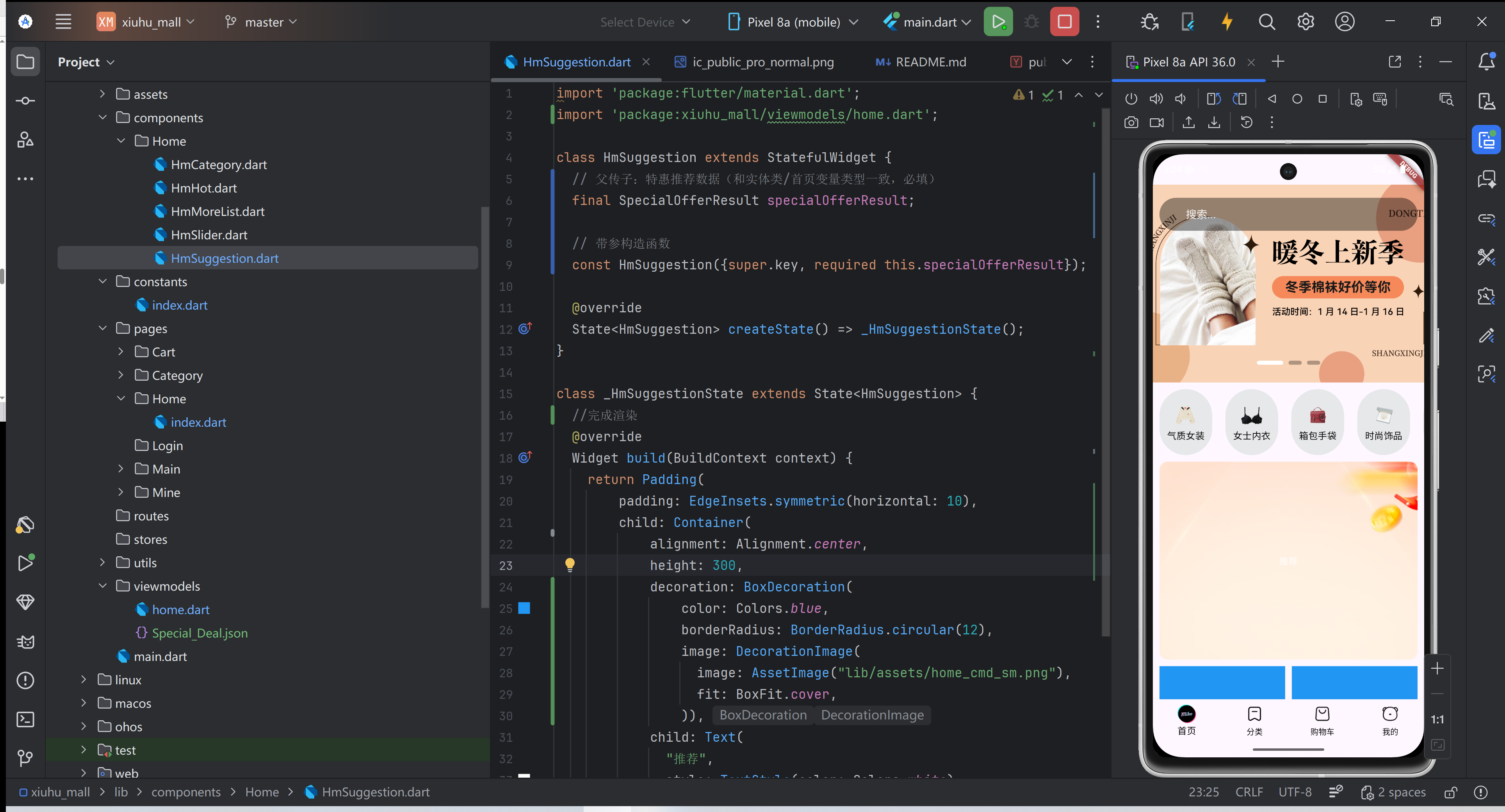
先实现HmSuggestion组件的基础UI布局,添加背景图、固定容器样式,确保组件能够正常显示在首页,同时适配整体页面风格。
修改lib/components/Home/HmSuggestion.dart代码,完整代码如下:
import 'package:flutter/material.dart';
import 'package:xiuhu_mall/viewmodels/home.dart';

class HmSuggestion extends StatefulWidget {
  // 父传子:特惠推荐数据(和实体类/首页变量类型一致,必填)
  final SpecialOfferResult specialOfferResult;

  // 带参构造函数
  const HmSuggestion({super.key, required this.specialOfferResult});

  @override
  State<HmSuggestion> createState() => _HmSuggestionState();
}

class _HmSuggestionState extends State<HmSuggestion> {
  //完成渲染
  @override
  Widget build(BuildContext context) {
    return Padding(
        padding: EdgeInsets.symmetric(horizontal: 10),
        child: Container(
            alignment: Alignment.center,
            height: 300,
            decoration: BoxDecoration(
                color: Colors.blue,
                borderRadius: BorderRadius.circular(12),
                image: DecorationImage(
                  image: AssetImage("lib/assets/home_cmd_sm.png"),
                  fit: BoxFit.cover,
                )),
            child: Text(
              "推荐",
              style: TextStyle(color: Colors.white),
            )));
  }
}
效果展示:
4.3 完善UI布局与数据渲染
基础布局实现后,进一步完善UI样式,添加背景图、顶部标题、左侧固定图片和右侧商品列表,提取子类型中的前3条商品数据进行渲染,同时处理图片加载失败的异常情况,优化用户体验。
修改lib/components/Home/HmSuggestion.dart代码前,需明确当前UI渲染依赖的viewmodels/home.dart代码已完成完整优化,该代码是本次数据渲染的核心支撑,负责提供数据类型定义、JSON解析逻辑,确保父组件传递的特惠推荐数据能被正确识别、提取并渲染到UI。
若viewmodels/home.dart代码未完成优化(如实体类缺失、解析逻辑不完整),会直接导致后续UI渲染失败。
修改后的viewmodels/home.dart代码如下:
class BannerItem {
  String id;
  String imgUrl;

  BannerItem({required this.id, required this.imgUrl});

  factory BannerItem.formJSON(Map<String, dynamic> json) {
    return BannerItem(id: json["id"] ?? "", imgUrl: json["imgUrl"] ?? "");
  }
}

// 商品项(参考代码整合,工厂函数改formJSON)
class GoodsItem {
  String id;
  String name;
  String? desc;
  String price;
  String picture;
  int orderNum;

  GoodsItem({
    required this.id,
    required this.name,
    this.desc,
    required this.price,
    required this.picture,
    required this.orderNum,
  });

  factory GoodsItem.formJSON(Map<String, dynamic> json) {
    return GoodsItem(
      id: json["id"] ?? "",
      name: json["name"] ?? "",
      desc: json["desc"],
      price: json["price"] ?? "",
      picture: json["picture"] ?? "",
      orderNum: json["orderNum"] ?? 0,
    );
  }
}

// 商品列表(参考代码整合,工厂函数改formJSON)
class GoodsItems {
  int counts;
  int pageSize;
  int pages;
  int page;
  List<GoodsItem> items;

  GoodsItems({
    required this.counts,
    required this.pageSize,
    required this.pages,
    required this.page,
    required this.items,
  });

  factory GoodsItems.formJSON(Map<String, dynamic> json) {
    return GoodsItems(
      counts: json["counts"] ?? 0,
      pageSize: json["pageSize"] ?? 0,
      pages: json["pages"] ?? 0,
      page: json["page"] ?? 0,
      items: (json["items"] as List?)
          ?.map((item) => GoodsItem.formJSON(item as Map<String, dynamic>))
          .toList() ?? [],
    );
  }
}

// 子类型(参考代码整合,工厂函数改formJSON)
class SubType {
  String id;
  String title;
  GoodsItems goodsItems;

  SubType({
    required this.id,
    required this.title,
    required this.goodsItems,
  });

  factory SubType.formJSON(Map<String, dynamic> json) {
    return SubType(
      id: json["id"] ?? "",
      title: json["title"] ?? "",
      goodsItems: GoodsItems.formJSON(json["goodsItems"] ?? {}),
    );
  }
}

// 特惠推荐结果(参考代码整合,工厂函数改formJSON,替换原有版本)
class SpecialOfferResult {
  String id;
  String title;
  List<SubType> subTypes;

  SpecialOfferResult({
    required this.id,
    required this.title,
    required this.subTypes,
  });

  factory SpecialOfferResult.formJSON(Map<String, dynamic> json) {
    return SpecialOfferResult(
      id: json["id"] ?? "",
      title: json["title"] ?? "",
      subTypes: (json["subTypes"] as List?)
          ?.map((item) => SubType.formJSON(item as Map<String, dynamic>))
          .toList() ?? [],
    );
  }
}

// 分类项
class CategoryItem {
  String id;
  String name;
  String picture;
  List<CategoryItem>? children;

  CategoryItem({
    required this.id,
    required this.name,
    required this.picture,
    this.children,
  });

  factory CategoryItem.formJSON(Map<String, dynamic> json) {
    return CategoryItem(
      id: json["id"] ?? "",
      name: json["name"] ?? "",
      picture: json["picture"] ?? "",
      children: json["children"] == null
          ? null
          : (json["children"] as List)
          .map((item) => CategoryItem.formJSON(item as Map<String, dynamic>))
          .toList(),
    );
  }
}
修改内容:
- 新增3个实体类:GoodsItem(商品项)、GoodsItems(商品列表容器)、SubType(特惠子分类);
- 优化1个实体类:重写SpecialOfferResult(特惠推荐顶层实体类),替换2.2小节的简易版本;
- 统一规范:所有新增实体类均添加`formJSON`工厂函数,字段均做非空安全处理。
核心问题解决说明:
- GoodsItem实体类:封装单个商品的核心字段(id、name、price、picture等),为UI渲染商品图片、价格提供数据来源,解决“商品数据无类型定义”的问题;
- GoodsItems实体类:封装商品总数量、分页信息及商品数组,承载单个子分类下的所有商品数据,为“提取前3条商品”提供数据集合;
- SubType实体类:关联子分类信息与对应商品列表,实现“子分类→商品”的层级关联,支撑后续“提取第一个子分类商品”的逻辑;
- 优化SpecialOfferResult实体类:将`subTypes`字段从`List<dynamic>`改为`List<SubType>`强类型,完善列表解析逻辑,解决“父传子数据类型不匹配”“JSON解析失败”的报错;
- 非空安全处理:所有必填字段设置默认值(空字符串、0),嵌套列表解析设置默认空列表,规避UI渲染时“空值报错”,提升代码健壮性。
接下来修改 lib/components/Home/HmSuggestion.dart 代码,完善UI布局与数据渲染,完整代码如下:
import 'package:flutter/material.dart';
import 'package:xiuhu_mall/viewmodels/home.dart';

class HmSuggestion extends StatefulWidget {
  // 父传子:特惠推荐数据(必填,和实体类/首页传参一致)
  final SpecialOfferResult specialOfferResult;

  const HmSuggestion({super.key, required this.specialOfferResult});

  @override
  State<HmSuggestion> createState() => _HmSuggestionState();
}

class _HmSuggestionState extends State<HmSuggestion> {
  // 取specialOfferResult中前3条商品数据
  List<GoodsItem> _getDisplayItems() {
    // 初始化未获取数据/子类型为空时,返回空列表避免报错
    if (widget.specialOfferResult.subTypes.isEmpty) {
      return [];
    }
    // 取第一个子类型的商品列表,截取前3条
    return widget.specialOfferResult.subTypes.first.goodsItems.items
        .take(3)
        .toList();
  }

  // 顶部标题栏:特惠推荐 + 精选省攻略
  Widget _buildHeader() {
    return Row(
      children: [
        Text("特惠推荐",
            style: TextStyle(
                color: const Color.fromARGB(255, 86, 24, 20),
                fontSize: 18,
                fontWeight: FontWeight.w700)),
        SizedBox(width: 10),
        Text(
          "精选省攻略",
          style: TextStyle(
            fontSize: 12,
            color: const Color.fromARGB(255, 124, 63, 58),
          ),
        ),
      ],
    );
  }

  // 左侧固定图片容器
  Widget _buildLeft() {
    return Container(
      width: 75,
      height: 140,
      decoration: BoxDecoration(
          borderRadius: BorderRadius.circular(10),
          image: DecorationImage(
              image: AssetImage("lib/assets/home_cmd_inner.png"),
              fit: BoxFit.cover)),
    );
  }

  // 构建右侧3个商品的列表组件
  List<Widget> _getChildrenList() {
    List<GoodsItem> list = _getDisplayItems(); // 获取处理后的前3条商品
    return List.generate(list.length, (int index) {
      return Expanded(
        child: Padding(
          padding: const EdgeInsets.symmetric(horizontal: 4.0),
          child: Column(
            children: [
              // 图片圆角裁剪+网络图加载+异常兜底
              ClipRRect(
                borderRadius: BorderRadius.circular(8),
                child: Image.network(
                  list[index].picture,
                  width: double.infinity,
                  height: 140,
                  fit: BoxFit.cover,
                  errorBuilder: (context, error, stackTrace) {
                    // 网络图加载失败时,显示本地兜底图
                    return Image.asset(
                      "lib/assets/home_cmd_inner.png",
                      width: double.infinity,
                      height: 140,
                      fit: BoxFit.cover,
                    );
                  },
                ),
              ),
              // 价格角标
              SizedBox(height: 10),
              Container(
                padding: EdgeInsets.symmetric(horizontal: 4, vertical: 4),
                decoration: BoxDecoration(
                  borderRadius: BorderRadius.circular(12),
                  color: Color.fromARGB(255, 240, 96, 12),
                ),
                child: Text(
                  "¥${list[index].price}",
                  style: TextStyle(color: Colors.white, fontSize: 11),
                  maxLines: 1,
                  overflow: TextOverflow.ellipsis,
                ),
              )
            ],
          ),
        ),
      );
    });
  }

  // 整体渲染布局
  @override
  Widget build(BuildContext context) {
    return Padding(
        padding: EdgeInsets.symmetric(horizontal: 10),
        child: Container(
            alignment: Alignment.center,
            padding: EdgeInsets.all(12),
            decoration: BoxDecoration(
                color: Colors.blue,
                borderRadius: BorderRadius.circular(12),
                image: DecorationImage(
                  image: AssetImage("lib/assets/home_cmd_sm.png"),
                  fit: BoxFit.cover,
                )),
            child: Column(
              children: [
                _buildHeader(), // 顶部标题
                SizedBox(height: 10),
                Row(
                  children: [
                    _buildLeft(), // 左侧固定图
                    SizedBox(width: 4),
                    // 右侧商品列表(自适应宽度)
                    Expanded(
                        child: Row(
                            mainAxisAlignment: MainAxisAlignment.spaceEvenly,
                            children: _getChildrenList()))
                  ],
                )
              ],
            )));
  }
}
修改内容:
- 新增4个核心方法:`_getDisplayItems()`、`_buildHeader()`、`_buildLeft()`、`_getChildrenList()`;
- 优化`build`方法:整合所有子组件,完善垂直/水平布局,添加间距、圆角等样式优化;
- 添加异常处理:为商品图片加载添加`errorBuilder`兜底逻辑;
- 实现数据渲染:通过`widget.specialOfferResult`获取父传数据,逐层提取商品信息,渲染到UI组件。
核心问题解决说明:
- _getDisplayItems()方法:提取第一个子分类下的前3条商品数据,添加空值校验(子分类列表为空时返回空列表),解决“商品数据过多导致布局错乱”“空列表取first报错”的问题;
- _buildHeader()方法:构建顶部标题栏(主标题“特惠推荐”+副标题“精选省攻略”),优化文字样式与间距,实现标题分层展示,提升UI美观度;
- _buildLeft()方法:构建左侧固定图片容器,设置固定宽高、圆角,加载本地图片,与右侧商品布局形成对称,完善整体UI结构;
- _getChildrenList()方法:遍历前3条商品数据,生成商品卡片(圆角图片+橙色价格角标),实现“数据驱动UI”,将商品图片、价格渲染到对应组件;
- 图片异常处理:通过errorBuilder属性,实现商品网络图加载失败时显示本地兜底图,避免图片空白,提升用户体验;
- 布局优化:使用Expanded实现右侧商品平均分配宽度,添加统一间距、圆角,与首页轮播图、分类模块样式保持一致,适配跨平台屏幕尺寸;
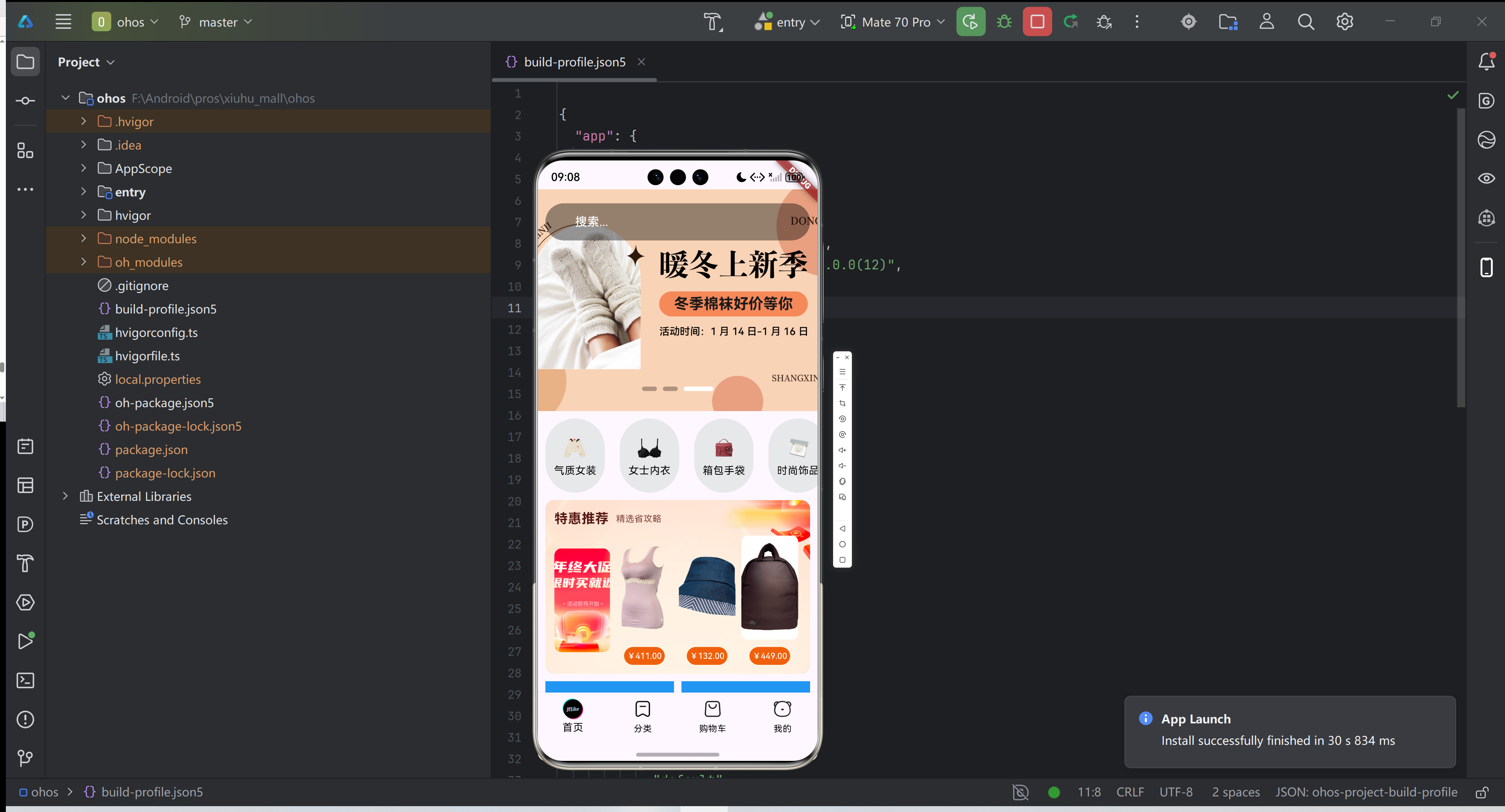
- build方法整合:将标题、左侧图片、右侧商品列表整合为完整布局,实现“背景图+标题+左侧固定图+右侧商品列表”的核心UI效果,完成数据与UI的联动。
4.4 最终效果展示
4.5 提交代码
完成特惠推荐模块的所有开发、测试后,将代码提交到Git仓库。
git add .
git commit -m "完成获取特惠推荐数据"
git push
五、总结
本文围绕首页特惠推荐模块,记录了从接口常量配置、数据模型构建、API封装、数据获取,到UI分层渲染、样式优化、异常处理的过程,核心掌握以下知识点和开发思路:
- 接口常量集中管理:将所有接口地址统一放在HttpConstants类中,便于维护和修改,提升代码可维护性;
- 实体类构建规范:根据后端JSON嵌套结构,构建对应的实体类,统一工厂函数命名(formJSON),做足非空安全处理,避免解析报错;
- API封装思路:基于DioRequest单例封装API请求,实现JSON数据到实体类的转换,返回业务侧所需的数据结构,降低业务侧与网络层的耦合;
- 状态管理核心:通过setState管理页面状态,实现数据更新与UI联动,确保数据获取后能实时渲染;
- 父传子传参:通过构造函数传递数据,使用required修饰必填参数,确保数据传递规范,避免漏传
至此,首页特惠推荐模块已成功实现。

作为“人工智能6S店”的官方数字引擎,为AI开发者与企业提供一个覆盖软硬件全栈、一站式门户。
更多推荐



 1
1 0
0- 0


 已为社区贡献12条内容

所有评论(0)