
基础入门 React Native 鸿蒙跨平台开发:react-native-easy-toast三方库适配
Toast 提示是移动应用中常见的轻量级通知组件,用于显示简短的信息提示、操作反馈等。react-native-easy-toast 是一个简单易用的 Toast 组件库,提供丰富的配置选项和动画效果,完全支持鸿蒙系统。使用 react-native-easy-toast 可以快速构建美观的提示组件,大大提升开发效率。库名称当前版本: 2.3.0官方仓库主要功能提供简洁易用的 Toast 组件支持
欢迎加入开源鸿蒙跨平台社区:https://openharmonycrossplatform.csdn.net
📋 前言
Toast 提示是移动应用中常见的轻量级通知组件,用于显示简短的信息提示、操作反馈等。react-native-easy-toast 是一个简单易用的 Toast 组件库,提供丰富的配置选项和动画效果,完全支持鸿蒙系统。使用 react-native-easy-toast 可以快速构建美观的提示组件,大大提升开发效率。
🎯 库简介
基本信息
- 库名称: react-native-easy-toast
- 当前版本: 2.3.0
- 官方仓库: https://github.com/crazycodeboy/react-native-easy-toast
- 主要功能:
- 提供简洁易用的 Toast 组件
- 支持自定义样式和位置
- 支持自动隐藏和手动隐藏
- 完全兼容 Android、iOS 和 HarmonyOS
为什么需要这个库?
- 零配置: 纯 JavaScript 实现,无需原生配置
- 轻量级: 代码简洁,体积小
- 易用性: API 简单直观,开箱即用
- 跨平台: 在三端提供一致的体验
- 灵活性: 支持自定义样式和动画
📦 安装步骤
1. 使用 npm 安装
在项目根目录执行以下命令:
npm install react-native-easy-toast@2.3.0
2. 验证安装
安装完成后,检查 package.json 文件,应该能看到新增的依赖:
{
  "dependencies": {
    "react-native-easy-toast": "^2.3.0",
    // ... 其他依赖
  }
}
🔧 HarmonyOS 平台配置
react-native-easy-toast 是纯 JavaScript 组件,无需任何原生配置。
配置说明
- ✅ 无需 Manual Link: 不需要手动链接原生代码
- ✅ 无需 CMakeLists 配置: 不需要修改 CMakeLists.txt
- ✅ 无需 PackageProvider 配置: 不需要修改 PackageProvider.cpp
- ✅ 无需 ArkTs 配置: 不需要修改任何 ArkTs 文件
- ✅ 即装即用: 安装后直接 import 使用
TypeScript 类型声明(可选)
react-native-easy-toast 包自带了类型声明文件,但是包自带的类型声明中缺少 style 属性的定义,导致在使用 style 属性时会出现类型错误。
解决方案:创建类型声明扩展文件
在项目根目录创建 react-native-easy-toast.d.ts 文件,使用模块增强的方式扩展包自带的类型声明:
/**
 * react-native-easy-toast 类型声明扩展
 * 扩展 node_modules 中的类型声明,添加 style 属性支持
 */

import { StyleProp, ViewStyle } from "react-native";

declare module "react-native-easy-toast" {
  // 扩展 IDuration 接口,添加 LENGTH_LONG
  interface IDuration {
    LENGTH_SHORT: number;
    LENGTH_LONG: number;
    FOREVER: number;
  }

  // 扩展 ToastComponentProps 接口,添加 style 属性
  interface ToastComponentProps {
    style?: StyleProp<ViewStyle>;
    position?: "bottom" | "center" | "top";
    textStyle?: {};
    positionValue?: number;
    fadeInDuration?: number;
    fadeOutDuration?: number;
    opacity?: number;
  }
}
这个文件使用模块增强的方式扩展包自带的类型声明,避免重复声明导致的类型冲突,同时添加 style 属性和 LENGTH_LONG 常量的支持。
💻 完整代码示例
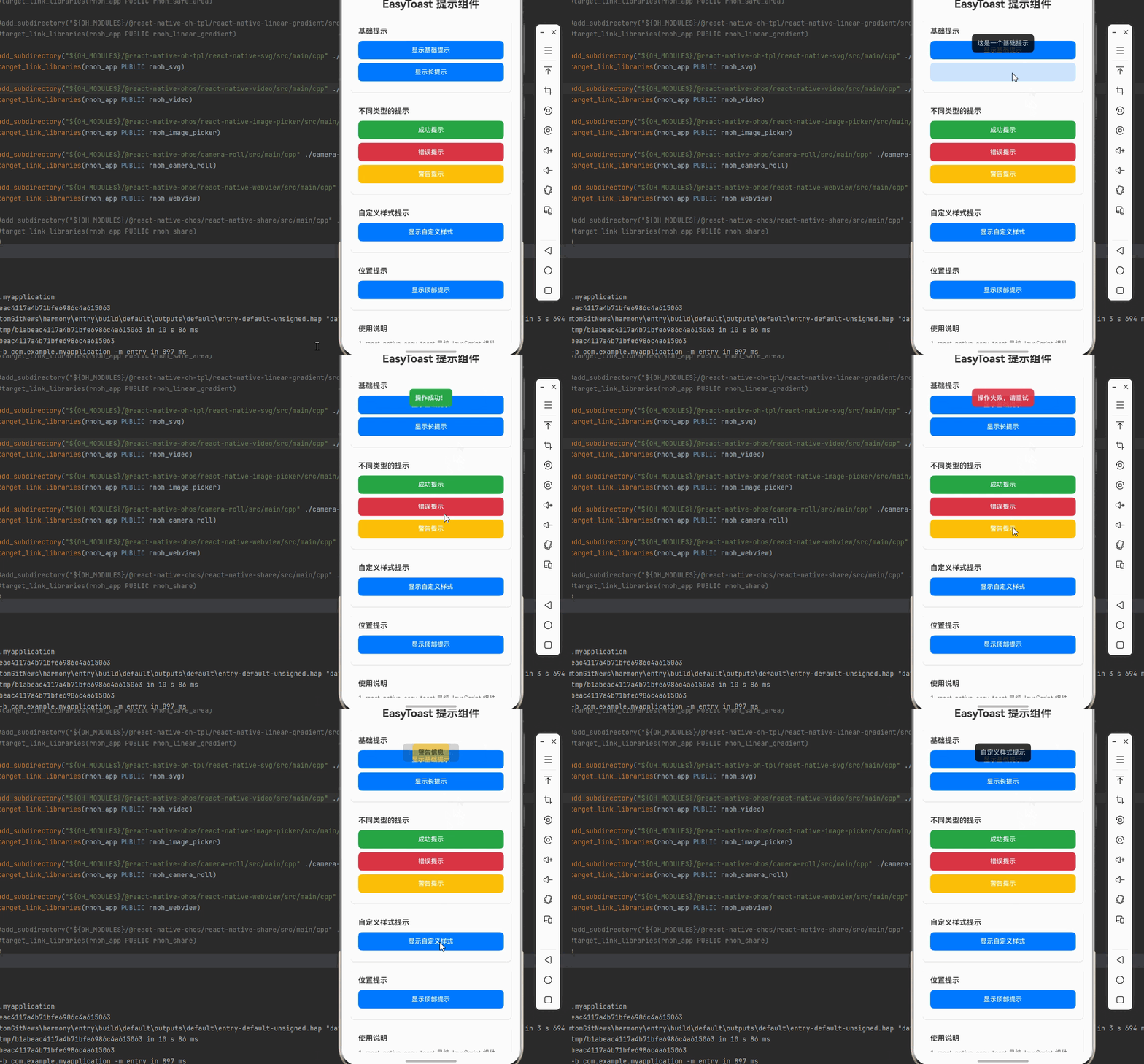
下面是一个完整的示例,展示了 react-native-easy-toast 的各种使用场景。注意:由于 Toast 组件的样式是固定的(来自组件的 props),要实现不同样式的 Toast,需要为每种类型创建独立的 Toast 组件实例。
import React, { useRef } from 'react';
import {
  View,
  Text,
  StyleSheet,
  ScrollView,
  SafeAreaView,
  TouchableOpacity,
} from 'react-native';
import Toast, { DURATION } from 'react-native-easy-toast';

function EasyToastScreen() {
  // 创建多个 Toast 引用,每个对应不同的样式
  const basicToastRef = useRef<Toast>(null);
  const successToastRef = useRef<Toast>(null);
  const errorToastRef = useRef<Toast>(null);
  const warningToastRef = useRef<Toast>(null);

  const showBasicToast = () => {
    basicToastRef.current?.show('这是一个基础提示', DURATION.LENGTH_SHORT);
  };

  const showLongToast = () => {
    basicToastRef.current?.show('这是一个长提示,会显示较长时间', DURATION.LENGTH_SHORT * 3);
  };

  const showSuccessToast = () => {
    successToastRef.current?.show('操作成功!', DURATION.LENGTH_SHORT);
  };

  const showErrorToast = () => {
    errorToastRef.current?.show('操作失败,请重试', DURATION.LENGTH_SHORT);
  };

  const showWarningToast = () => {
    warningToastRef.current?.show('警告信息', DURATION.LENGTH_SHORT);
  };

  const showCustomStyleToast = () => {
    basicToastRef.current?.show('自定义样式提示', 2000, () => {
      console.log('Toast 已隐藏');
    });
  };

  const showPositionToast = () => {
    basicToastRef.current?.show('顶部提示', 2000);
  };

  return (
    <SafeAreaView style={styles.container}>
      <ScrollView style={styles.scrollView}>
        <Text style={styles.pageTitle}>EasyToast 提示组件</Text>

        {/* 基础提示 */}
        <View style={styles.section}>
          <Text style={styles.sectionTitle}>基础提示</Text>
          <TouchableOpacity style={styles.button} onPress={showBasicToast}>
            <Text style={styles.buttonText}>显示基础提示</Text>
          </TouchableOpacity>
          <TouchableOpacity style={styles.button} onPress={showLongToast}>
            <Text style={styles.buttonText}>显示长提示</Text>
          </TouchableOpacity>
        </View>

        {/* 不同类型的提示 */}
        <View style={styles.section}>
          <Text style={styles.sectionTitle}>不同类型的提示</Text>
          <TouchableOpacity style={[styles.button, styles.successButton]} onPress={showSuccessToast}>
            <Text style={styles.buttonText}>成功提示</Text>
          </TouchableOpacity>
          <TouchableOpacity style={[styles.button, styles.errorButton]} onPress={showErrorToast}>
            <Text style={styles.buttonText}>错误提示</Text>
          </TouchableOpacity>
          <TouchableOpacity style={[styles.button, styles.warningButton]} onPress={showWarningToast}>
            <Text style={styles.buttonText}>警告提示</Text>
          </TouchableOpacity>
        </View>

        {/* 自定义样式提示 */}
        <View style={styles.section}>
          <Text style={styles.sectionTitle}>自定义样式提示</Text>
          <TouchableOpacity style={styles.button} onPress={showCustomStyleToast}>
            <Text style={styles.buttonText}>显示自定义样式</Text>
          </TouchableOpacity>
        </View>

        {/* 位置提示 */}
        <View style={styles.section}>
          <Text style={styles.sectionTitle}>位置提示</Text>
          <TouchableOpacity style={styles.button} onPress={showPositionToast}>
            <Text style={styles.buttonText}>显示顶部提示</Text>
          </TouchableOpacity>
        </View>

        {/* 使用说明 */}
        <View style={styles.section}>
          <Text style={styles.sectionTitle}>使用说明</Text>
          <Text style={styles.instructionText}>
            1. react-native-easy-toast 是纯 JavaScript 组件,无需原生配置
          </Text>
          <Text style={styles.instructionText}>
            2. 使用 useRef 创建 Toast 引用
          </Text>
          <Text style={styles.instructionText}>
            3. 通过 toastRef.current?.show() 方法显示提示
          </Text>
          <Text style={styles.instructionText}>
            4. 支持自定义显示时长和回调函数
          </Text>
          <Text style={styles.instructionText}>
            5. 不同样式的 Toast 需要创建独立的组件实例
          </Text>
          <Text style={styles.instructionText}>
            6. 完全兼容鸿蒙系统,跨平台可用
          </Text>
        </View>
      </ScrollView>

      {/* 基础 Toast - 黑色背景 */}
      <Toast
        ref={basicToastRef}
        style={styles.basicToast}
        position="top"
        positionValue={100}
        fadeInDuration={750}
        fadeOutDuration={1000}
        opacity={0.8}
        textStyle={styles.basicToastText}
      />

      {/* 成功 Toast - 绿色背景 */}
      <Toast
        ref={successToastRef}
        style={styles.successToast}
        position="top"
        positionValue={100}
        fadeInDuration={750}
        fadeOutDuration={1000}
        opacity={0.9}
        textStyle={styles.successToastText}
      />

      {/* 错误 Toast - 红色背景 */}
      <Toast
        ref={errorToastRef}
        style={styles.errorToast}
        position="top"
        positionValue={100}
        fadeInDuration={750}
        fadeOutDuration={1000}
        opacity={0.9}
        textStyle={styles.errorToastText}
      />

      {/* 警告 Toast - 黄色背景 */}
      <Toast
        ref={warningToastRef}
        style={styles.warningToast}
        position="top"
        positionValue={100}
        fadeInDuration={750}
        fadeOutDuration={1000}
        opacity={0.9}
        textStyle={styles.warningToastText}
      />
    </SafeAreaView>
  );
}

const styles = StyleSheet.create({
  container: {
    flex: 1,
    backgroundColor: '#f5f5f5',
  },
  scrollView: {
    flex: 1,
    padding: 20,
  },
  pageTitle: {
    fontSize: 24,
    fontWeight: 'bold',
    marginBottom: 20,
    textAlign: 'center',
    color: '#333',
  },
  section: {
    backgroundColor: '#fff',
    borderRadius: 8,
    padding: 16,
    marginBottom: 16,
    shadowColor: '#000',
    shadowOffset: { width: 0, height: 1 },
    shadowOpacity: 0.1,
    shadowRadius: 2,
    elevation: 2,
  },
  sectionTitle: {
    fontSize: 16,
    fontWeight: '600',
    marginBottom: 12,
    color: '#333',
  },
  button: {
    backgroundColor: '#007AFF',
    borderRadius: 8,
    paddingVertical: 12,
    paddingHorizontal: 24,
    marginBottom: 8,
    alignItems: 'center',
  },
  successButton: {
    backgroundColor: '#28a745',
  },
  errorButton: {
    backgroundColor: '#dc3545',
  },
  warningButton: {
    backgroundColor: '#ffc107',
  },
  buttonText: {
    color: '#fff',
    fontSize: 14,
    fontWeight: '500',
  },
  // 基础 Toast 样式 - 黑色
  basicToast: {
    backgroundColor: '#000',
    borderRadius: 8,
    padding: 12,
    marginHorizontal: 20,
  },
  basicToastText: {
    color: '#fff',
    fontSize: 14,
    textAlign: 'center',
  },
  // 成功 Toast 样式 - 绿色
  successToast: {
    backgroundColor: '#28a745',
    borderRadius: 8,
    padding: 12,
    marginHorizontal: 20,
  },
  successToastText: {
    color: '#fff',
    fontSize: 14,
    fontWeight: '600',
    textAlign: 'center',
  },
  // 错误 Toast 样式 - 红色
  errorToast: {
    backgroundColor: '#dc3545',
    borderRadius: 8,
    padding: 12,
    marginHorizontal: 20,
  },
  errorToastText: {
    color: '#fff',
    fontSize: 14,
    fontWeight: '600',
    textAlign: 'center',
  },
  // 警告 Toast 样式 - 黄色
  warningToast: {
    backgroundColor: '#ffc107',
    borderRadius: 8,
    padding: 12,
    marginHorizontal: 20,
  },
  warningToastText: {
    color: '#000',
    fontSize: 14,
    fontWeight: '600',
    textAlign: 'center',
  },
  instructionText: {
    fontSize: 14,
    lineHeight: 22,
    marginBottom: 6,
    color: '#666',
  },
});

export default EasyToastScreen;
💻 代码讲解
1. 基础提示
const toastRef = useRef<Toast>(null);
toastRef.current?.show('这是一个基础提示', DURATION.LENGTH_SHORT);
使用 useRef 创建 Toast 引用,通过 show 方法显示提示。
2. 不同时长
toastRef.current?.show('短提示', DURATION.LENGTH_SHORT);
toastRef.current?.show('长提示', DURATION.LENGTH_SHORT * 3);
DURATION.LENGTH_SHORT: 短时间显示(约2秒)DURATION.LENGTH_LONG: 长时间显示(约3.5秒)
3. 自定义时长
toastRef.current?.show('自定义时长', 2000, () => {
  console.log('Toast 已隐藏');
});
可以自定义显示时长(毫秒)和隐藏回调函数。
4. 自定义样式
<Toast
  ref={toastRef}
  style={styles.toast}
  textStyle={styles.toastText}
/>
通过 style 和 textStyle 属性自定义样式。
⚠️ 注意事项与最佳实践
1. 引用管理
const toastRef = useRef<Toast>(null);
使用 useRef 管理 Toast 引用。
2. 显示时长
- 短提示使用
DURATION.LENGTH_SHORT - 长提示使用
DURATION.LENGTH_LONG - 自定义时长直接传入毫秒数
3. 回调函数
toastRef.current?.show('提示', 2000, () => {
  console.log('提示已隐藏');
});
可以设置隐藏后的回调函数。
4. 样式定制
const styles = StyleSheet.create({
  toast: {
    backgroundColor: '#000',
    borderRadius: 8,
    padding: 12,
  },
});
使用 StyleSheet 创建自定义样式。
5. HarmonyOS 兼容性
react-native-easy-toast 是纯 JavaScript 组件,在 HarmonyOS 上完全兼容,无需任何额外配置。
🧪 测试验证
1. Android 平台测试
npm run android
测试要点:
- 检查 Toast 显示和隐藏
- 验证动画效果
- 测试不同时长
2. iOS 平台测试
npm run ios
测试要点:
- 检查 Toast 样式一致性
- 验证位置显示
- 测试触摸交互
3. HarmonyOS 平台测试
npm run harmony
测试要点:
- 验证 Toast 渲染
- 测试显示和隐藏
- 检查样式应用
📝 总结
通过集成 react-native-easy-toast,我们为项目添加了一个简单易用的 Toast 提示组件库。这个库提供了丰富的配置选项、动画效果支持和跨平台的一致性,可以大大提升开发效率。
关键要点回顾
- ✅ 安装依赖:
npm install react-native-easy-toast@2.3.0 - ✅ 配置平台: 纯 JavaScript 库,无需手动配置
- ✅ 集成代码: 使用 Toast 组件和 show 方法
- ✅ 样式定制: 使用 style 和 textStyle 属性
- ✅ 测试验证: 确保三端表现一致

作为“人工智能6S店”的官方数字引擎,为AI开发者与企业提供一个覆盖软硬件全栈、一站式门户。
更多推荐

 12
12 0
0- 0


 已为社区贡献20条内容

所有评论(0)