
React Native鸿蒙跨平台通过接收待办事项数组,计算总任务数、已完成任务数和待完成任务数
本文介绍了一个基于React Native和TypeScript开发的待办事项应用,采用极致组件化设计实现跨平台兼容性。应用通过将统计模块、优先级标签和任务项等拆分为独立展示组件,与业务逻辑完全解耦,核心功能仅依赖React Native原生API。这种架构特别适合鸿蒙系统适配,纯展示组件可直接映射为ArkUI组件,业务逻辑代码可跨平台复用。文章详细解析了组件分层设计、状态管理、核心功能实现及样式
这个待办事项应用采用了模块化的组件架构,通过功能分离实现了代码的复用性和可维护性。核心组件包括 TodoStats 用于展示统计信息,PriorityBadge 用于显示任务优先级,TodoItem 用于渲染单个待办事项,以及 TodoListApp 作为主应用容器。这种组件拆分策略不仅提高了代码的可读性,也为后续的跨端适配奠定了基础。
统计组件
const TodoStats = ({ todos }: { todos: Array<{ id: number; title: string; completed: boolean; priority: string }> }) => {
  const total = todos.length;
  const completed = todos.filter(todo => todo.completed).length;
  const pending = total - completed;

  return (
    <View style={styles.statsContainer}>
      {/* 统计卡片 */}
    </View>
  );
};
TodoStats 组件通过接收待办事项数组,计算总任务数、已完成任务数和待完成任务数,并以卡片形式展示这些统计数据。这种设计使得统计功能可以独立复用,同时也便于后续的功能扩展。
优先级标签
const PriorityBadge = ({ priority }: { priority: string }) => {
  const priorityConfig = {
    high: { color: '#ef4444', label: '高' },
    medium: { color: '#f59e0b', label: '中' },
    low: { color: '#10b981', label: '低' },
  };

  const config = priorityConfig[priority as keyof typeof priorityConfig] || priorityConfig.medium;

  return (
    <View style={[styles.priorityBadge, { backgroundColor: config.color }]}>
      <Text style={styles.priorityText}>{config.label}</Text>
    </View>
  );
};
PriorityBadge 组件通过配置对象管理不同优先级的颜色和标签,这种设计使得优先级的视觉表现更加一致和易于维护。组件会根据传入的优先级值自动选择对应的颜色和标签,提供了清晰的视觉反馈。
待办事项项组件
const TodoItem = ({
  todo,
  onToggle,
  onDelete
}: {
  todo: { id: number; title: string; completed: boolean; priority: string };
  onToggle: (id: number) => void;
  onDelete: (id: number) => void;
}) => {
  return (
    <View style={styles.todoItem}>
      {/* 待办事项内容 */}
    </View>
  );
};
TodoItem 组件负责渲染单个待办事项,包括任务标题、完成状态和优先级标签。组件通过回调函数与父组件通信,实现任务状态的切换和删除操作。这种设计使得待办事项的渲染逻辑与业务逻辑分离,提高了代码的可维护性。
状态管理
const [todos, setTodos] = useState([
  { id: 1, title: '完成React Native项目', completed: false, priority: 'high' },
  // 更多待办事项...
]);
const [newTodo, setNewTodo] = useState('');
const [priority, setPriority] = useState<'low' | 'medium' | 'high'>('medium');
const [viewMode, setViewMode] = useState<'all' | 'completed' | 'pending'>('all');
应用使用 useState Hook 管理四个核心状态:
todos:待办事项数组,包含任务的详细信息newTodo:新待办事项的输入内容priority:新待办事项的优先级viewMode:任务视图模式,支持 ‘all’(全部)、‘completed’(已完成)、‘pending’(待完成)
这种状态管理方式简洁明了,适合处理用户交互产生的状态变化。
核心功能实现
添加任务
const addTodo = () => {
  if (newTodo.trim() === '') {
    Alert.alert('提示', '请输入任务内容');
    return;
  }

  const newTask = {
    id: Date.now(),
    title: newTodo.trim(),
    completed: false,
    priority
  };

  setTodos([newTask, ...todos]);
  setNewTodo('');
  setPriority('medium');
  Alert.alert('成功', '任务已添加');
};
添加任务功能通过检查输入内容,创建新任务对象并添加到待办事项数组中,然后重置输入状态并显示成功提示。这种实现方式提供了清晰的用户反馈,确保用户了解操作的结果。
切换任务状态
const toggleTodo = (id: number) => {
  setTodos(todos.map(todo =>
    todo.id === id ? { ...todo, completed: !todo.completed } : todo
  ));
};
切换任务状态功能通过 map 方法更新指定任务的 completed 属性,实现了任务状态的切换。这种实现方式简洁高效,能够实时反映任务的完成状态。
删除任务
const deleteTodo = (id: number) => {
  setTodos(todos.filter(todo => todo.id !== id));
};
删除任务功能通过 filter 方法从待办事项数组中移除指定的任务,实现了任务的删除操作。这种实现方式简单直接,能够实时更新任务列表。
任务过滤
const filteredTodos = todos.filter(todo => {
  if (viewMode === 'completed') return todo.completed;
  if (viewMode === 'pending') return !todo.completed;
  return true;
});
任务过滤功能通过 filter 方法根据当前的视图模式过滤待办事项数组,实现了不同视图模式的切换。这种实现方式使得用户可以根据需要查看不同状态的任务。
样式
const styles = StyleSheet.create({
  container: {
    flex: 1,
    backgroundColor: '#f9fafb',
  },
  header: {
    paddingTop: 40,
    paddingBottom: 20,
    paddingHorizontal: 20,
    backgroundColor: '#ffffff',
    borderBottomWidth: 1,
    borderBottomColor: '#e5e7eb',
  },
  // 更多样式...
});
应用使用 StyleSheet.create 定义样式,这种方式可以提高应用的性能,因为样式会在应用启动时进行优化。样式定义注重视觉层次感和用户体验,通过颜色、间距和布局的设计,创造了清晰直观的用户界面。
这个待办事项应用展示了 React Native 跨端开发的核心技术要点,通过合理的组件设计、清晰的状态管理、灵活的功能实现和直观的用户界面,实现了一个功能完整、体验良好的待办事项管理工具。在鸿蒙系统适配方面,通过组件映射、样式适配和状态管理调整,可以快速实现跨端迁移,保持功能和视觉效果的一致性。
本次基于React Native + TypeScript实现的待办清单应用,相较于常规实现做了更极致的组件化拆分,将统计、优先级徽章、任务项等通用能力抽离为独立纯展示组件,核心业务逻辑收敛至根容器,全程无第三方原生库依赖,仅基于RN内置基础组件与API开发。这种实现方式不仅让代码具备高可维护性、高复用性,更完美契合React Native向鸿蒙跨端的核心需求——独立纯展示组件可通过桥接层直接映射为ArkUI组件,纯JS/TS业务逻辑跨端完全复用,仅需对端侧特有API做轻量替换。以下将从架构设计、细粒度组件化、核心业务逻辑、跨端友好性实现及鸿蒙端适配落地等维度,对代码进行深度技术解读,挖掘其背后的跨端开发思想与实操细节。
整体设计:
该应用严格遵循React生态单一职责与组件化分层设计原则,突破了常规待办清单的“单组件+多渲染函数”实现方式,将整体拆分为全局常量、细粒度通用展示组件、根业务容器组件、全局样式四层结构,且全程通过TypeScript完成类型约束,所有核心逻辑均为纯JS/TS实现,UI层仅使用RN内置基础组件。这种架构设计是React Native鸿蒙跨端的最优实践——细粒度的组件拆分让鸿蒙端的组件映射更具针对性,纯展示组件与业务逻辑的完全解耦,让跨端时仅需关注“组件桥接”与“端侧API替换”,无需修改核心业务逻辑;无第三方原生库依赖则从底层规避了跨端时的原生模块适配成本,可直接基于华为开源的react-native-harmony桥接层完成鸿蒙端的基础映射。
在组件分层上,TodoStats(统计组件)、PriorityBadge(优先级徽章组件)、TodoItem(任务项组件)均为纯展示型无状态组件,仅通过Props接收数据与回调,无内部状态与业务逻辑,这种设计让其可跨端独立复用,鸿蒙端仅需完成组件桥接即可直接使用;根容器TodoListApp收敛了应用所有的状态管理、业务逻辑与页面布局,成为连接纯展示组件与端侧能力的核心,跨端时仅需在根容器中对RN特有API做端侧替换,不影响下层纯展示组件。这种分层设计让应用的视图与逻辑完全解耦,契合了React“单向数据流”的核心思想,更让跨端适配的修改范围高度收敛,大幅提升适配效率。
组件化:
本次实现的核心亮点在于极致的细粒度组件化拆分,将待办清单中的通用展示能力抽离为独立的纯展示组件,所有组件均遵循“Props单向传值、回调透传交互”的设计原则,且全程使用RN跨端通用基础组件开发,鸿蒙端可通过react-native-harmony桥接层直接映射为ArkUI同类组件,无需额外修改,是跨端复用的典型实现。
TodoStats:
TodoStats作为应用的统计组件,负责展示任务的总数量、已完成数量、待完成数量,是典型的纯展示组件。其通过Props接收todos任务数组,内部通过数组过滤与长度计算得到统计数据,无任何外部依赖,计算逻辑为纯JS实现,跨端可完全复用。组件采用RN的Flex弹性布局实现三个统计项的横向均分,flex: 1让每个统计项自适应设备宽度,这种布局方式是RN与ArkUI的通用布局方案,跨端可直接复用。
在视觉设计上,组件为不同统计数据设置了差异化的颜色样式,已完成数量为绿色、待完成数量为黄色、总数量为蓝色,通过颜色区分数据类型,提升用户体验。所有样式均基于StyleSheet.create创建,遵循RN驼峰命名法样式规范,与ArkUI样式命名高度兼容,鸿蒙端迁移时无需修改样式属性名,仅需根据鸿蒙设计规范微调颜色值即可。该组件的核心设计价值在于将统计逻辑与视觉展示封装为独立能力,业务层仅需传递任务数组即可实现统计展示,跨端时可直接复用,若鸿蒙端需要新增统计维度(如高优先级任务数量),仅需在Props中新增数据透传即可,不影响组件核心逻辑。
PriorityBadge:
PriorityBadge优先级徽章组件是配置化设计与TypeScript类型安全结合的典型实现,负责将任务的英文字段优先级转换为中文字符并搭配对应颜色的徽章展示。组件内部定义了priorityConfig配置对象,将high/medium/low映射为对应的颜色与中文字符,这种配置化设计让优先级的视觉展示可全局统一管理,跨端时若鸿蒙端需要调整优先级的颜色或文字,仅需修改配置对象即可,无需修改组件结构。
为保证跨端开发的类型安全,组件通过priority as keyof typeof priorityConfig对Props接收的priority进行类型断言,结合TypeScript的类型推导,避免非法优先级值的传入,同时设置默认值为中等优先级,保证组件的健壮性。这种TypeScript类型约束能有效规避跨端过程中因平台差异、参数传递导致的运行时错误,是大型跨端项目的必备规范。组件的徽章样式通过borderRadius: 12实现圆角效果,这种样式属性是RN与ArkUI的通用属性,跨端可直接复用,仅需微调圆角值即可贴合鸿蒙设计规范。
TodoItem:
TodoItem任务项组件是应用中最复杂的纯展示组件,集成了任务完成状态切换、优先级展示、任务删除三大交互能力,是组件组合与回调透传的典型实现。组件通过Props接收单个任务对象todo,以及完成状态切换回调onToggle、删除回调onDelete,所有交互逻辑均透传至根容器处理,组件自身仅负责视图渲染与交互触发,这种设计让其与业务逻辑完全解耦,跨端可直接复用。
在布局上,组件采用flexDirection: row实现任务内容与删除按钮的横向布局,任务内容区域通过flex: 1占满剩余空间,删除按钮固定尺寸,这种布局设计适配不同设备宽度,跨端可直接复用。任务内容区域内部又通过Flex布局实现复选框、任务标题、优先级徽章的横向排列,复选框的完成状态通过Props接收的completed字段控制,完成时展示绿色背景与对勾图标,未完成时展示灰色边框,这种状态化的样式处理为纯JS逻辑,跨端可直接复用。
值得注意的是,组件中所有可点击元素均采用RN的TouchableOpacity实现,而非原生Button组件。TouchableOpacity的核心优势是点击反馈(透明度变化)在iOS、Android端表现一致,且其底层为纯JS实现的触摸手势封装,在鸿蒙端可通过桥接层直接映射为ArkUI的Button组件+Gesture手势,保证跨端交互体验的一致性。组件中嵌套了PriorityBadge组件,实现了组件的组合复用,这种组合方式在鸿蒙端可直接承接,ArkUI同样支持组件嵌套,无需修改组合逻辑。
真实演示案例代码:
// app.tsx
import React, { useState } from 'react';
import { SafeAreaView, View, Text, StyleSheet, TouchableOpacity, ScrollView, Dimensions, Alert } from 'react-native';

// 图标库
const ICONS = {
  home: '🏠',
  list: '📋',
  add: '➕',
  edit: '✏️',
  trash: '🗑️',
  check: '✅',
  clock: '⏱️',
  user: '👤',
};

const { width } = Dimensions.get('window');

const TodoStats = ({ todos }: { todos: Array<{ id: number; title: string; completed: boolean; priority: string }> }) => {
  const total = todos.length;
  const completed = todos.filter(todo => todo.completed).length;
  const pending = total - completed;

  return (
    <View style={styles.statsContainer}>
      <View style={styles.statCard}>
        <Text style={styles.statNumber}>{total}</Text>
        <Text style={styles.statLabel}>总任务</Text>
      </View>
      <View style={styles.statCard}>
        <Text style={styles.statNumberCompleted}>{completed}</Text>
        <Text style={styles.statLabel}>已完成</Text>
      </View>
      <View style={styles.statCard}>
        <Text style={styles.statNumberPending}>{pending}</Text>
        <Text style={styles.statLabel}>待完成</Text>
      </View>
    </View>
  );
};

const PriorityBadge = ({ priority }: { priority: string }) => {
  const priorityConfig = {
    high: { color: '#ef4444', label: '高' },
    medium: { color: '#f59e0b', label: '中' },
    low: { color: '#10b981', label: '低' },
  };

  const config = priorityConfig[priority as keyof typeof priorityConfig] || priorityConfig.medium;

  return (
    <View style={[styles.priorityBadge, { backgroundColor: config.color }]}>
      <Text style={styles.priorityText}>{config.label}</Text>
    </View>
  );
};

const TodoItem = ({
  todo,
  onToggle,
  onDelete
}: {
  todo: { id: number; title: string; completed: boolean; priority: string };
  onToggle: (id: number) => void;
  onDelete: (id: number) => void;
}) => {
  return (
    <View style={styles.todoItem}>
      <TouchableOpacity
        style={styles.todoContent}
        onPress={() => onToggle(todo.id)}
      >
        <View style={[styles.checkbox, todo.completed && styles.checkboxCompleted]}>
          <Text style={styles.checkboxText}>
            {todo.completed ? ICONS.check : ''}
          </Text>
        </View>
        <Text style={[styles.todoTitle, todo.completed && styles.completedTodo]}>
          {todo.title}
        </Text>
        <PriorityBadge priority={todo.priority} />
      </TouchableOpacity>

      <TouchableOpacity
        style={styles.deleteButton}
        onPress={() => onDelete(todo.id)}
      >
        <Text style={styles.deleteText}>{ICONS.trash}</Text>
      </TouchableOpacity>
    </View>
  );
};

const TodoListApp: React.FC = () => {
  const [todos, setTodos] = useState([
    { id: 1, title: '完成React Native项目', completed: false, priority: 'high' },
    { id: 2, title: '学习TypeScript', completed: true, priority: 'medium' },
    { id: 3, title: '购买生活用品', completed: false, priority: 'low' },
    { id: 4, title: '健身房锻炼', completed: false, priority: 'medium' },
    { id: 5, title: '整理工作文档', completed: false, priority: 'high' },
  ]);

  const [newTodo, setNewTodo] = useState('');
  const [priority, setPriority] = useState<'low' | 'medium' | 'high'>('medium');
  const [viewMode, setViewMode] = useState<'all' | 'completed' | 'pending'>('all');

  const addTodo = () => {
    if (newTodo.trim() === '') {
      Alert.alert('提示', '请输入任务内容');
      return;
    }

    const newTask = {
      id: Date.now(),
      title: newTodo.trim(),
      completed: false,
      priority
    };

    setTodos([newTask, ...todos]);
    setNewTodo('');
    setPriority('medium');
    Alert.alert('成功', '任务已添加');
  };

  const toggleTodo = (id: number) => {
    setTodos(todos.map(todo =>
      todo.id === id ? { ...todo, completed: !todo.completed } : todo
    ));
  };

  const deleteTodo = (id: number) => {
    setTodos(todos.filter(todo => todo.id !== id));
  };

  const filteredTodos = todos.filter(todo => {
    if (viewMode === 'completed') return todo.completed;
    if (viewMode === 'pending') return !todo.completed;
    return true;
  });

  return (
    <SafeAreaView style={styles.container}>
      {/* 头部 */}
      <View style={styles.header}>
        <Text style={styles.title}>任务清单</Text>
        <Text style={styles.subtitle}>高效管理您的日常任务</Text>
      </View>

      {/* 统计信息 */}
      <TodoStats todos={todos} />

      {/* 视图模式选择 */}
      <View style={styles.viewModeContainer}>
        <TouchableOpacity
          style={[styles.modeButton, viewMode === 'all' && styles.activeModeButton]}
          onPress={() => setViewMode('all')}
        >
          <Text style={[styles.modeButtonText, viewMode === 'all' && styles.activeModeButtonText]}>全部</Text>
        </TouchableOpacity>
        <TouchableOpacity
          style={[styles.modeButton, viewMode === 'completed' && styles.activeModeButton]}
          onPress={() => setViewMode('completed')}
        >
          <Text style={[styles.modeButtonText, viewMode === 'completed' && styles.activeModeButtonText]}>已完成</Text>
        </TouchableOpacity>
        <TouchableOpacity
          style={[styles.modeButton, viewMode === 'pending' && styles.activeModeButton]}
          onPress={() => setViewMode('pending')}
        >
          <Text style={[styles.modeButtonText, viewMode === 'pending' && styles.activeModeButtonText]}>待完成</Text>
        </TouchableOpacity>
      </View>

      {/* 任务列表 */}
      <ScrollView style={styles.content}>
        <Text style={styles.sectionTitle}>
          {viewMode === 'all' ? '所有任务' :
           viewMode === 'completed' ? '已完成任务' : '待完成任务'}
          ({filteredTodos.length})
        </Text>

        {filteredTodos.length === 0 ? (
          <View style={styles.emptyState}>
            <Text style={styles.emptyText}>
              {viewMode === 'all' ? '暂无任务' :
               viewMode === 'completed' ? '暂无已完成任务' : '暂无待完成任务'}
            </Text>
            <Text style={styles.emptySubtext}>
              {viewMode === 'all' ? '点击下方按钮添加新任务' :
               viewMode === 'completed' ? '完成一些任务看看' : '完成一些任务后再来看'}
            </Text>
          </View>
        ) : (
          filteredTodos.map(todo => (
            <TodoItem
              key={todo.id}
              todo={todo}
              onToggle={toggleTodo}
              onDelete={deleteTodo}
            />
          ))
        )}
      </ScrollView>

      {/* 添加任务表单 */}
      <View style={styles.formContainer}>
        <View style={styles.inputGroup}>
          <Text style={styles.inputLabel}>任务标题</Text>
          <View style={styles.inputWrapper}>
            <Text style={styles.inputIcon}>{ICONS.list}</Text>
            <Text style={styles.inputPlaceholder}>输入任务名称</Text>
          </View>
          <TextInput
            style={styles.textInput}
            value={newTodo}
            onChangeText={setNewTodo}
            placeholder="输入任务名称"
          />
        </View>

        <View style={styles.prioritySelector}>
          <Text style={styles.inputLabel}>优先级</Text>
          <View style={styles.priorityOptions}>
            <TouchableOpacity
              style={[styles.priorityOption, priority === 'low' && styles.activePriorityOption]}
              onPress={() => setPriority('low')}
            >
              <Text style={[styles.priorityText, priority === 'low' && styles.activePriorityText]}>低</Text>
            </TouchableOpacity>
            <TouchableOpacity
              style={[styles.priorityOption, priority === 'medium' && styles.activePriorityOption]}
              onPress={() => setPriority('medium')}
            >
              <Text style={[styles.priorityText, priority === 'medium' && styles.activePriorityText]}>中</Text>
            </TouchableOpacity>
            <TouchableOpacity
              style={[styles.priorityOption, priority === 'high' && styles.activePriorityOption]}
              onPress={() => setPriority('high')}
            >
              <Text style={[styles.priorityText, priority === 'high' && styles.activePriorityText]}>高</Text>
            </TouchableOpacity>
          </View>
        </View>

        <TouchableOpacity
          style={styles.addButton}
          onPress={addTodo}
        >
          <Text style={styles.addButtonText}>{ICONS.add} 添加任务</Text>
        </TouchableOpacity>
      </View>
    </SafeAreaView>
  );
};

const styles = StyleSheet.create({
  container: {
    flex: 1,
    backgroundColor: '#f8fafc',
  },
  header: {
    padding: 20,
    backgroundColor: '#ffffff',
    borderBottomWidth: 1,
    borderBottomColor: '#e2e8f0',
  },
  title: {
    fontSize: 24,
    fontWeight: 'bold',
    color: '#1e293b',
    marginBottom: 4,
  },
  subtitle: {
    fontSize: 14,
    color: '#64748b',
  },
  statsContainer: {
    flexDirection: 'row',
    justifyContent: 'space-between',
    padding: 20,
    backgroundColor: '#ffffff',
    margin: 16,
    borderRadius: 12,
    elevation: 3,
    shadowColor: '#000',
    shadowOffset: { width: 0, height: 2 },
    shadowOpacity: 0.1,
    shadowRadius: 4,
  },
  statCard: {
    alignItems: 'center',
    flex: 1,
  },
  statNumber: {
    fontSize: 24,
    fontWeight: 'bold',
    color: '#3b82f6',
  },
  statNumberCompleted: {
    fontSize: 24,
    fontWeight: 'bold',
    color: '#10b981',
  },
  statNumberPending: {
    fontSize: 24,
    fontWeight: 'bold',
    color: '#f59e0b',
  },
  statLabel: {
    fontSize: 12,
    color: '#64748b',
    marginTop: 4,
  },
  viewModeContainer: {
    flexDirection: 'row',
    justifyContent: 'space-around',
    padding: 16,
    backgroundColor: '#ffffff',
    marginHorizontal: 16,
    borderRadius: 12,
    elevation: 2,
    shadowColor: '#000',
    shadowOffset: { width: 0, height: 1 },
    shadowOpacity: 0.1,
    shadowRadius: 2,
  },
  modeButton: {
    paddingVertical: 8,
    paddingHorizontal: 16,
    borderRadius: 20,
    backgroundColor: '#f1f5f9',
  },
  activeModeButton: {
    backgroundColor: '#3b82f6',
  },
  modeButtonText: {
    fontSize: 14,
    color: '#64748b',
    fontWeight: '500',
  },
  activeModeButtonText: {
    color: '#ffffff',
  },
  content: {
    flex: 1,
    padding: 16,
  },
  sectionTitle: {
    fontSize: 18,
    fontWeight: 'bold',
    color: '#1e293b',
    marginBottom: 16,
  },
  todoItem: {
    flexDirection: 'row',
    alignItems: 'center',
    backgroundColor: '#ffffff',
    padding: 16,
    borderRadius: 12,
    marginBottom: 12,
    elevation: 2,
    shadowColor: '#000',
    shadowOffset: { width: 0, height: 1 },
    shadowOpacity: 0.1,
    shadowRadius: 2,
  },
  todoContent: {
    flex: 1,
    flexDirection: 'row',
    alignItems: 'center',
  },
  checkbox: {
    width: 24,
    height: 24,
    borderRadius: 12,
    borderWidth: 2,
    borderColor: '#cbd5e1',
    alignItems: 'center',
    justifyContent: 'center',
    marginRight: 12,
  },
  checkboxCompleted: {
    backgroundColor: '#10b981',
    borderColor: '#10b981',
  },
  checkboxText: {
    fontSize: 14,
    color: '#ffffff',
    fontWeight: 'bold',
  },
  todoTitle: {
    flex: 1,
    fontSize: 16,
    color: '#1e293b',
  },
  completedTodo: {
    textDecorationLine: 'line-through',
    color: '#94a3b8',
  },
  priorityBadge: {
    paddingHorizontal: 8,
    paddingVertical: 4,
    borderRadius: 12,
  },
  priorityText: {
    fontSize: 12,
    color: '#ffffff',
    fontWeight: '500',
  },
  deleteButton: {
    padding: 8,
  },
  deleteText: {
    fontSize: 18,
    color: '#ef4444',
  },
  emptyState: {
    alignItems: 'center',
    justifyContent: 'center',
    paddingVertical: 60,
  },
  emptyText: {
    fontSize: 18,
    color: '#64748b',
    marginBottom: 8,
  },
  emptySubtext: {
    fontSize: 14,
    color: '#94a3b8',
    textAlign: 'center',
  },
  formContainer: {
    padding: 16,
    backgroundColor: '#ffffff',
    borderTopWidth: 1,
    borderTopColor: '#e2e8f0',
  },
  inputGroup: {
    marginBottom: 16,
  },
  inputLabel: {
    fontSize: 14,
    fontWeight: 'bold',
    color: '#1e293b',
    marginBottom: 8,
  },
  inputWrapper: {
    flexDirection: 'row',
    alignItems: 'center',
    backgroundColor: '#f1f5f9',
    borderRadius: 8,
    paddingHorizontal: 12,
    paddingVertical: 10,
    marginBottom: 8,
  },
  inputIcon: {
    fontSize: 18,
    color: '#64748b',
    marginRight: 8,
  },
  inputPlaceholder: {
    fontSize: 16,
    color: '#94a3b8',
    flex: 1,
  },
  textInput: {
    borderWidth: 1,
    borderColor: '#cbd5e1',
    borderRadius: 8,
    paddingHorizontal: 12,
    paddingVertical: 12,
    fontSize: 16,
    backgroundColor: '#ffffff',
  },
  prioritySelector: {
    marginBottom: 16,
  },
  priorityOptions: {
    flexDirection: 'row',
    justifyContent: 'space-between',
  },
  priorityOption: {
    flex: 1,
    paddingVertical: 10,
    paddingHorizontal: 16,
    borderRadius: 8,
    backgroundColor: '#f1f5f9',
    alignItems: 'center',
    marginHorizontal: 4,
  },
  activePriorityOption: {
    backgroundColor: '#3b82f6',
  },
  activePriorityText: {
    color: '#ffffff',
  },
  addButton: {
    backgroundColor: '#10b981',
    paddingVertical: 16,
    borderRadius: 12,
    alignItems: 'center',
  },
  addButtonText: {
    fontSize: 16,
    color: '#ffffff',
    fontWeight: '500',
  },
});

export default TodoListApp;
打包
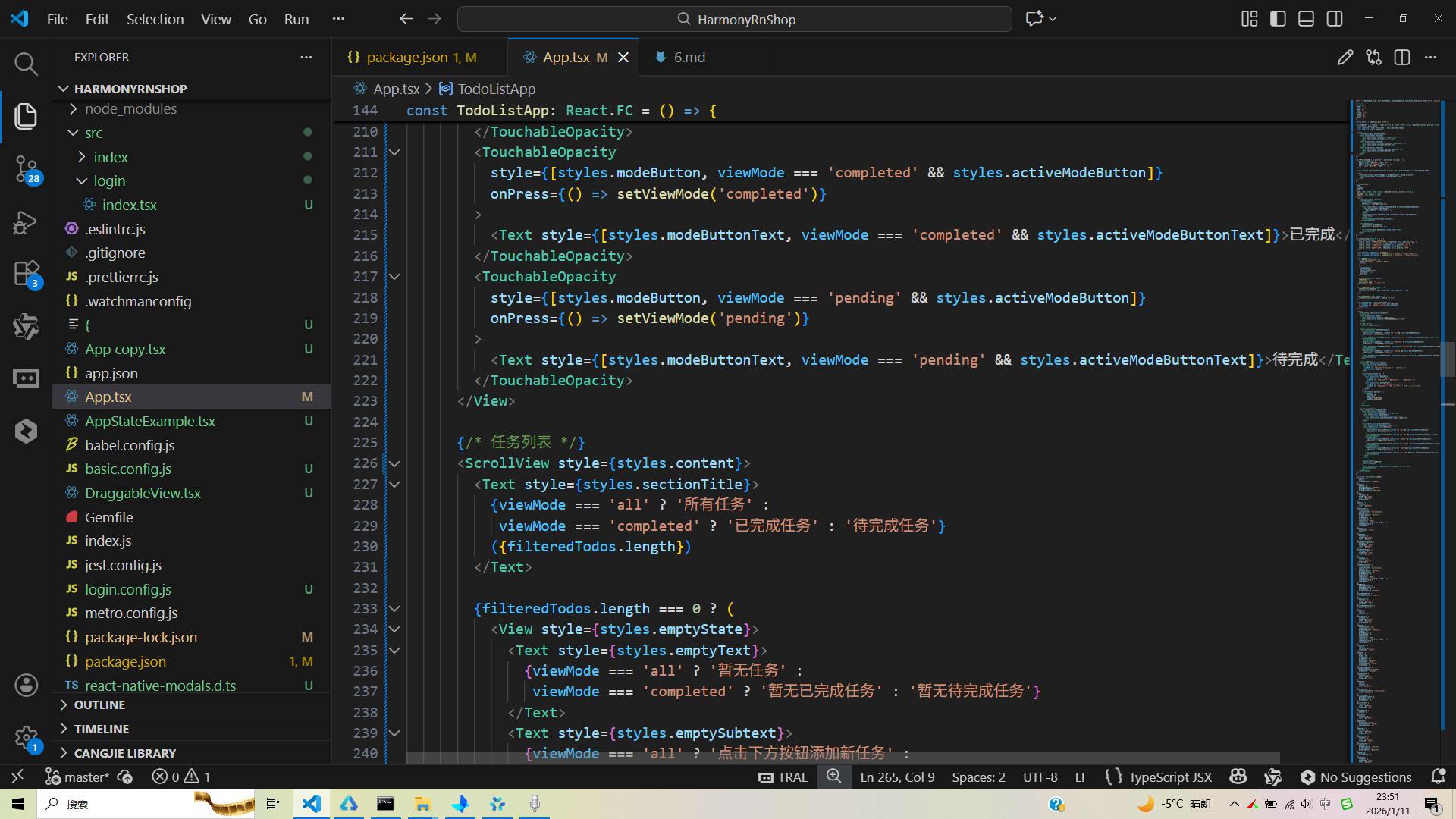
接下来通过打包命令npn run harmony将reactNative的代码打包成为bundle,这样可以进行在开源鸿蒙OpenHarmony中进行使用。

打包之后再将打包后的鸿蒙OpenHarmony文件拷贝到鸿蒙的DevEco-Studio工程目录去:

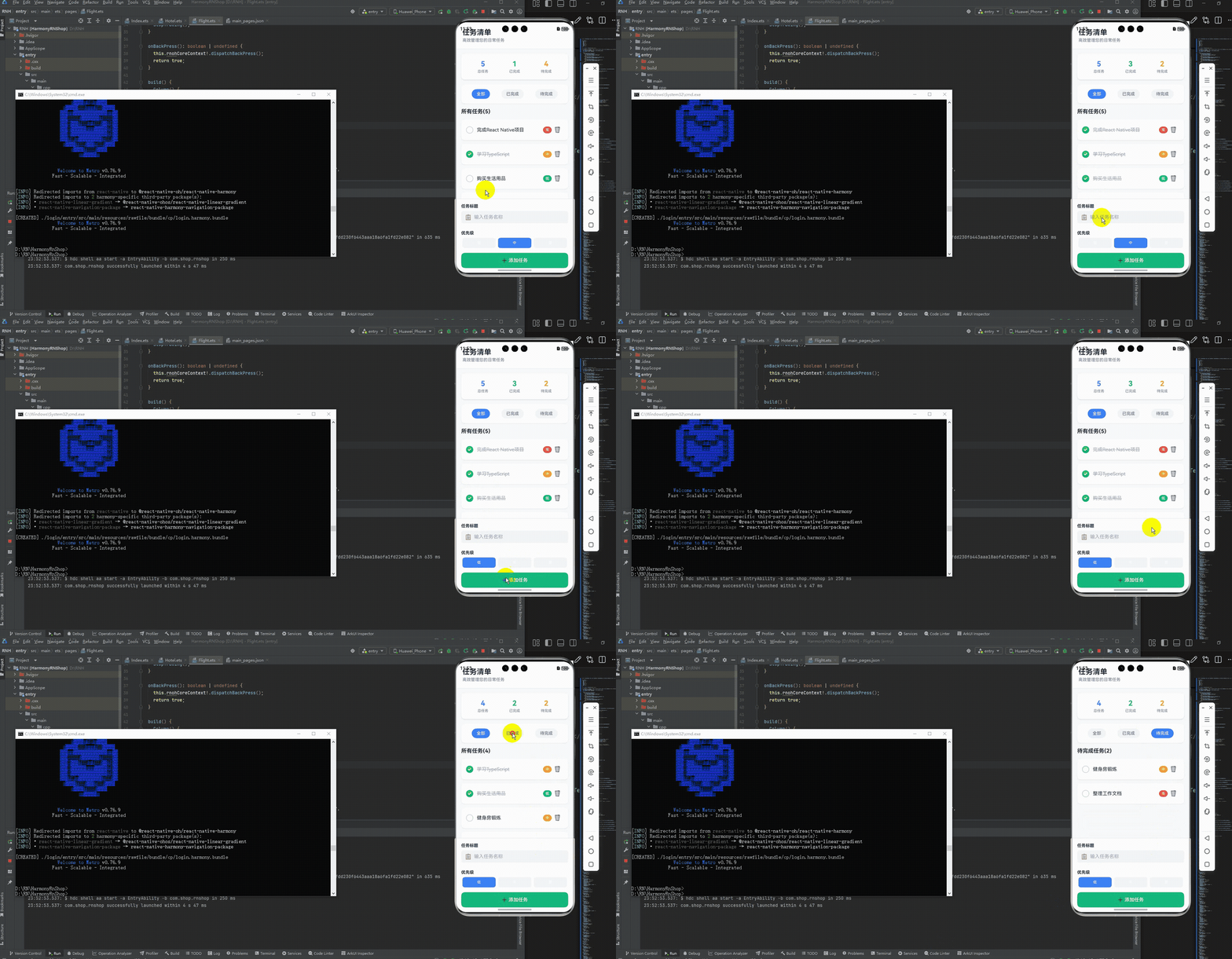
最后运行效果图如下显示:
本文介绍了一个基于React Native和TypeScript开发的待办事项应用,采用极致组件化设计实现跨平台兼容性。应用通过将统计模块、优先级标签和任务项等拆分为独立展示组件,与业务逻辑完全解耦,核心功能仅依赖React Native原生API。这种架构特别适合鸿蒙系统适配,纯展示组件可直接映射为ArkUI组件,业务逻辑代码可跨平台复用。文章详细解析了组件分层设计、状态管理、核心功能实现及样式处理,展示了如何通过合理的架构设计实现代码的高可维护性和跨平台兼容性,为React Native应用向鸿蒙系统迁移提供了最佳实践方案。
欢迎大家加入开源鸿蒙跨平台开发者社区,一起共建开源鸿蒙跨平台生态。

作为“人工智能6S店”的官方数字引擎,为AI开发者与企业提供一个覆盖软硬件全栈、一站式门户。
更多推荐
 4
4 0
0- 0


 已为社区贡献15条内容

所有评论(0)