
构建跨端驾照学习助手:Flutter × OpenHarmony 的用户信息与驾照状态卡片实现
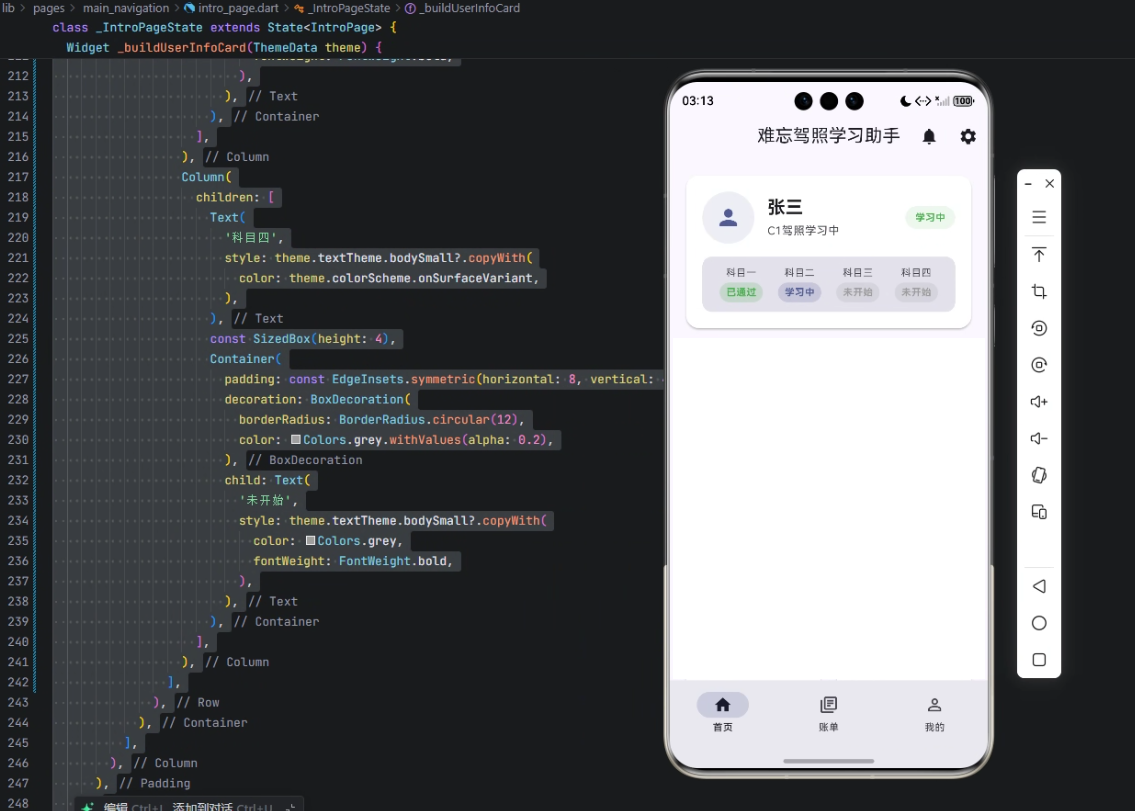
本文介绍了基于Flutter和OpenHarmony的跨端驾照学习助手开发,重点实现了用户信息卡片与科目状态卡片功能。通过Flutter的声明式UI和响应式布局,构建了包含用户头像、姓名、驾照类型的学习状态展示界面,以及科目一至科目四的进度状态标签。该方案支持一次开发多端部署,适配Android、iOS和鸿蒙设备,有效提升了驾照学习管理效率。文章详细解析了核心代码实现,包括圆角卡片设计、主题样式管
文章目录
构建跨端驾照学习助手:Flutter × OpenHarmony 的用户信息与驾照状态卡片实现
前言
在移动应用日益智能化的今天,驾照学习助手成为许多学员管理学习进度的必备工具。本文将介绍如何基于 Flutter × OpenHarmony 构建一个跨端的驾照学习助手,并重点展示如何实现 用户信息卡片与驾照科目状态卡片,让学员一目了然地查看个人信息及学习进度。
本文不仅提供完整实现代码,还对关键部分进行详细解析,帮助读者理解跨端 UI 构建的技巧与 Flutter 组件的使用方法。
背景
在传统的驾照学习过程中,学员往往需要在多个平台(手机、平板、PC)查看学习进度。借助 Flutter × OpenHarmony,我们可以实现一次开发、多端部署,保证 UI 和逻辑在 Android、iOS 以及鸿蒙设备上保持一致。
尤其是在驾照学习场景中,展示用户信息与科目进度是一项核心功能:
- 用户信息:姓名、头像、当前驾照类型、学习状态。
- 科目状态:科目一至科目四的学习进度(未开始、学习中、已通过)。

Flutter × OpenHarmony 跨端开发介绍
Flutter 提供了 声明式 UI 构建 和丰富的组件库,而 OpenHarmony 则是面向多设备的国产操作系统,支持多端应用部署。结合两者优势,可以实现:
- 一次编码,多端运行:UI、逻辑共享,减少重复开发成本。
- 统一风格与主题管理:借助 Flutter 的 ThemeData 实现跨端一致视觉。
- 响应式布局:Flutter 的 Flex、Row、Column 布局适配不同屏幕尺寸。
开发核心代码(详细解析)
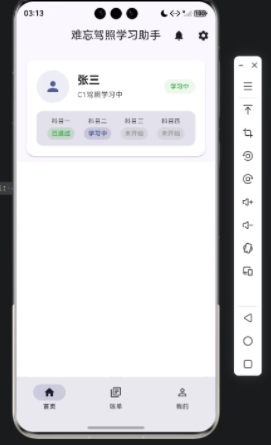
下面展示驾照学习助手的核心功能——用户信息与科目状态卡片的完整实现,并逐行解析。
/// 构建用户信息和驾照状态卡片
Widget _buildUserInfoCard(ThemeData theme) {
  return Card(
    elevation: 2, // 阴影高度
    shape: RoundedRectangleBorder(
      borderRadius: BorderRadius.circular(16), // 圆角卡片
    ),
    child: Padding(
      padding: const EdgeInsets.all(20), // 内边距
      child: Column(
        crossAxisAlignment: CrossAxisAlignment.start, // 左对齐
        children: [
          // 用户信息行
          Row(
            children: [
              // 用户头像
              Container(
                width: 64,
                height: 64,
                decoration: BoxDecoration(
                  borderRadius: BorderRadius.circular(32),
                  color: theme.colorScheme.primary.withAlpha(25), // 背景色透明度
                ),
                child: Center(
                  child: Icon(
                    Icons.person,
                    size: 32,
                    color: theme.colorScheme.primary,
                  ),
                ),
              ),
              const SizedBox(width: 16), // 间距
              // 用户信息文本
              Column(
                crossAxisAlignment: CrossAxisAlignment.start,
                children: [
                  Text(
                    '张三',
                    style: theme.textTheme.titleLarge?.copyWith(
                      fontWeight: FontWeight.bold,
                    ),
                  ),
                  const SizedBox(height: 4),
                  Text(
                    'C1驾照学习中',
                    style: theme.textTheme.bodyMedium?.copyWith(
                      color: theme.colorScheme.onSurfaceVariant,
                    ),
                  ),
                ],
              ),
              const Spacer(), // 自动占位,右侧状态标签
              // 学习状态标签
              Container(
                padding: const EdgeInsets.symmetric(horizontal: 12, vertical: 6),
                decoration: BoxDecoration(
                  borderRadius: BorderRadius.circular(16),
                  color: Colors.green.withAlpha(25),
                ),
                child: Text(
                  '学习中',
                  style: theme.textTheme.bodySmall?.copyWith(
                    color: Colors.green,
                    fontWeight: FontWeight.bold,
                  ),
                ),
              ),
            ],
          ),
          const SizedBox(height: 16),
          // 科目状态卡片
          Container(
            padding: const EdgeInsets.all(12),
            decoration: BoxDecoration(
              borderRadius: BorderRadius.circular(12),
              color: theme.colorScheme.surfaceVariant,
            ),
            child: Row(
              mainAxisAlignment: MainAxisAlignment.spaceAround,
              children: [
                // 科目一状态
                Column(
                  children: [
                    Text(
                      '科目一',
                      style: theme.textTheme.bodySmall?.copyWith(
                        color: theme.colorScheme.onSurfaceVariant,
                      ),
                    ),
                    const SizedBox(height: 4),
                    Container(
                      padding: const EdgeInsets.symmetric(horizontal: 8, vertical: 4),
                      decoration: BoxDecoration(
                        borderRadius: BorderRadius.circular(12),
                        color: Colors.green.withAlpha(50),
                      ),
                      child: Text(
                        '已通过',
                        style: theme.textTheme.bodySmall?.copyWith(
                          color: Colors.green,
                          fontWeight: FontWeight.bold,
                        ),
                      ),
                    ),
                  ],
                ),
                // 科目二状态
                Column(
                  children: [
                    Text(
                      '科目二',
                      style: theme.textTheme.bodySmall?.copyWith(
                        color: theme.colorScheme.onSurfaceVariant,
                      ),
                    ),
                    const SizedBox(height: 4),
                    Container(
                      padding: const EdgeInsets.symmetric(horizontal: 8, vertical: 4),
                      decoration: BoxDecoration(
                        borderRadius: BorderRadius.circular(12),
                        color: theme.colorScheme.primary.withAlpha(50),
                      ),
                      child: Text(
                        '学习中',
                        style: theme.textTheme.bodySmall?.copyWith(
                          color: theme.colorScheme.primary,
                          fontWeight: FontWeight.bold,
                        ),
                      ),
                    ),
                  ],
                ),
                // 科目三状态
                Column(
                  children: [
                    Text(
                      '科目三',
                      style: theme.textTheme.bodySmall?.copyWith(
                        color: theme.colorScheme.onSurfaceVariant,
                      ),
                    ),
                    const SizedBox(height: 4),
                    Container(
                      padding: const EdgeInsets.symmetric(horizontal: 8, vertical: 4),
                      decoration: BoxDecoration(
                        borderRadius: BorderRadius.circular(12),
                        color: Colors.grey.withAlpha(50),
                      ),
                      child: Text(
                        '未开始',
                        style: theme.textTheme.bodySmall?.copyWith(
                          color: Colors.grey,
                          fontWeight: FontWeight.bold,
                        ),
                      ),
                    ),
                  ],
                ),
                // 科目四状态
                Column(
                  children: [
                    Text(
                      '科目四',
                      style: theme.textTheme.bodySmall?.copyWith(
                        color: theme.colorScheme.onSurfaceVariant,
                      ),
                    ),
                    const SizedBox(height: 4),
                    Container(
                      padding: const EdgeInsets.symmetric(horizontal: 8, vertical: 4),
                      decoration: BoxDecoration(
                        borderRadius: BorderRadius.circular(12),
                        color: Colors.grey.withAlpha(50),
                      ),
                      child: Text(
                        '未开始',
                        style: theme.textTheme.bodySmall?.copyWith(
                          color: Colors.grey,
                          fontWeight: FontWeight.bold,
                        ),
                      ),
                    ),
                  ],
                ),
              ],
            ),
          ),
        ],
      ),
    ),
  );
}
代码解析
-
Card 与 Container 结合
使用Card作为整体容器,通过elevation和RoundedRectangleBorder实现卡片风格,内部使用Padding保持内边距统一。 -
头像与用户信息布局
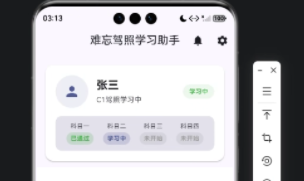
Row实现横向布局Container+Icon实现圆形头像Column实现姓名和学习状态纵向排列Spacer将右侧状态标签推到末端
-
驾照科目状态
- 使用
Row均分布局四个科目 - 每个科目由
Column构成:标题 + 状态标签 - 状态颜色区分不同进度(绿色 = 已通过,主色 = 学习中,灰色 = 未开始)
BoxDecoration+borderRadius控制圆角视觉效果
- 使用
-
ThemeData 主题适配
theme.colorScheme和theme.textTheme保证跨端风格统一- 通过
withAlpha控制背景色透明度,使状态标签更柔和
心得
- Flutter 的声明式 UI 非常适合构建复杂的卡片布局,只需组合
Row、Column与Container。 - 结合 OpenHarmony 跨端开发,可以最大化代码复用,一次开发即可在手机、平板及鸿蒙设备上运行。
- 通过
ThemeData和透明色彩,能实现高可扩展性和统一视觉风格,便于后续功能迭代。
总结
本文展示了如何基于 Flutter × OpenHarmony 构建驾照学习助手的 用户信息与驾照状态卡片,并提供了完整代码及详细解析。
通过这种方法,我们可以实现:
- 清晰的用户信息展示
- 科目进度一目了然
- 跨端统一的 UI 风格
- 易于扩展的主题和状态管理
未来可以进一步扩展,如增加学习任务提醒、历史成绩统计等功能,让学员体验更加完整。
欢迎加入开源鸿蒙跨平台社区:https://openharmonycrossplatform.csdn.net

作为“人工智能6S店”的官方数字引擎,为AI开发者与企业提供一个覆盖软硬件全栈、一站式门户。
更多推荐
 4
4 0
0- 0


 已为社区贡献17条内容

所有评论(0)