
React Native鸿蒙跨平台如何在移动端实现一套完整的书架管理功能,从书籍归类、进度展示到阅读操作,形成了一个完整的阅读数据闭环
React Native的跨平台能力与组件化设计使其能够高效适配多平台,包括鸿蒙系统。本文通过BookshelfListApp组件展示了如何构建跨平台书架应用,重点分析了数据模型、状态管理和样式系统。应用使用TypeScript定义书架(Shelf)和书籍(Book)类型,确保类型安全;采用useState管理状态,实现响应式更新;利用Flexbox布局和动态样式实现跨平台UI一致性。特别探讨了R
React Native 的核心优势在于其组件化设计,使得一套代码能够在多平台(包括鸿蒙系统)上运行。本次解析的 BookshelfListApp 组件,展示了如何构建一个功能完整的书架列表应用,并实现鸿蒙系统的无缝适配。
数据模型
应用定义了两个核心数据类型:
// 书架类型
type Shelf = {
  id: string;
  name: string;
  icon: string;
  description: string;
  bookCount: number;
  color: string;
};

// 书籍类型
type Book = {
  id: string;
  title: string;
  author: string;
  genre: string;
  pages: number;
  rating: number;
  publishYear: number;
  description: string;
  shelf: string;
  cover: string;
  progress: number;
};
使用 TypeScript 进行类型定义,确保了代码的类型安全和可读性,减少了运行时错误。在跨端开发中,类型定义尤为重要,能够提前发现潜在的类型错误,提高代码的可维护性。
状态管理
应用使用 useState Hook 管理两个核心状态:
const [shelves, setShelves] = useState<Shelf[]>([
  // 初始书架数据
]);

const [books] = useState<Book[]>([
  // 初始书籍数据
]);
在鸿蒙系统中,React Native 的 Hook 机制会被转换为对应的 ArkUI 状态管理机制,例如 useState 会映射为 ArkUI 的 @State 装饰器,实现状态的响应式更新。当状态变化时,相关组件会自动重新渲染,无需手动操作 DOM。
应用实现了 getBooksForShelf 函数,用于根据书架 ID 获取对应的书籍:
const getBooksForShelf = (shelfId: string) => {
  const shelf = shelves.find(s => s.id === shelfId);
  if (!shelf) return [];
  return books.filter(book => book.shelf === shelf.name);
};
这种数据处理逻辑在鸿蒙系统上同样能够正常工作,React Native 的数组方法(find、filter)会被转换为对应的 JavaScript 执行逻辑,确保跨平台数据处理的一致性。
书架项组件
书架项(renderShelfItem)采用卡片式设计,包含图标、文字信息和箭头:
-
图标设计:使用背景色和文字颜色的动态绑定,根据书架数据的
color属性生成对应的背景色(通过${item.color}20实现半透明效果)和文字颜色,增强视觉层次感。 -
Flexbox 布局:使用
flexDirection: 'row'和justifyContent: 'space-between'实现水平排列,确保在不同屏幕尺寸下保持一致的视觉效果。 -
触摸反馈:使用
TouchableOpacity实现点击事件,提供原生的触摸反馈效果。
书籍项组件
书籍项(renderBookItem)同样采用卡片式设计,包含书籍图标、基本信息、评分和阅读进度:
-
进度条实现:根据书籍的
progress属性动态生成进度条,通过width:${item.progress}%`` 实现进度展示。 -
条件渲染:使用
{item.progress > 0 && (...)}条件渲染进度条,仅在有阅读进度时显示。
样式系统
应用使用 StyleSheet.create 方法定义样式,将所有样式集中管理:
const styles = StyleSheet.create({
  container: {
    flex: 1,
    backgroundColor: '#f5f5f5',
  },
  // 其他样式定义
});
样式
-
Flexbox 布局:大量使用 Flexbox 布局(
flexDirection、justifyContent、alignItems)实现响应式设计,能够在不同屏幕尺寸下保持一致的视觉效果。 -
动态样式:通过样式对象数组实现动态样式绑定,例如:
<View style={[styles.shelfIcon, { backgroundColor: `${item.color}20` }]}> <Text style={[styles.shelfIconText, { color: item.color }]}>{item.icon}</Text> </View> -
卡片式设计:采用圆角、阴影等设计元素,增强视觉层次感:
borderRadius实现圆角效果shadowColor、shadowOffset等属性实现卡片阴影效果,在鸿蒙系统上会转换为对应的样式
组件映射
React Native 组件会被映射为对应平台的原生组件,例如:
View→ 鸿蒙的DivText→ 鸿蒙的TextTouchableOpacity→ 鸿蒙的ButtonFlatList→ 鸿蒙的List
样式转换
React Native 的样式会被转换为对应平台的样式规则,例如:
flexDirection: 'row'→flex-direction: rowjustifyContent: 'space-between'→justify-content: space-betweenpaddingHorizontal: 16→padding-left: 16px; padding-right: 16px
API 适配
React Native 提供了统一的 API 层,封装了不同平台的底层 API,例如:
Dimensions.get('window')获取屏幕尺寸Alert.alert()显示弹窗TouchableOpacity的触摸事件
应用采用了多种性能优化策略:
-
FlatList 渲染:使用 FlatList 组件高效渲染长列表,实现虚拟滚动,减少内存占用。
-
样式复用:通过 StyleSheet.create 集中管理样式,避免重复创建样式对象。
-
条件渲染:仅在需要时渲染某些元素(如阅读进度条),减少不必要的渲染开销。
-
不可变数据:状态更新时创建新对象/数组,而非直接修改,确保状态的可预测性和性能优化。
React Native 的组件化设计和跨端适配机制,使得开发者可以使用一套代码构建多平台应用。通过合理的组件设计、状态管理和样式系统,BookshelfListApp 实现了功能完整的书架管理功能,并能够在鸿蒙系统上无缝运行。
在现代阅读应用开发中,书架管理功能已经从简单的列表展示演变为集分类管理、阅读进度追踪、个性化推荐于一体的综合阅读系统。BookshelfListApp组件展示了如何在移动端实现一套完整的书架管理功能,从书籍归类、进度展示到阅读操作,形成了一个完整的阅读数据闭环。
从技术架构的角度来看,这个组件不仅是一个界面展示,更是阅读行为数据可视化的典型案例。它需要协调多维度书籍数据、阅读进度可视化、分类导航等多个技术维度。当我们将这套架构迁移到鸿蒙平台时,需要深入理解其数据关系模型和阅读进度计算机制,才能确保跨端实现的完整性和一致性。
书架与书籍
type Shelf = {
  id: string;
  name: string;
  icon: string;
  description: string;
  bookCount: number;
  color: string;
};

type Book = {
  id: string;
  title: string;
  author: string;
  genre: string;
  pages: number;
  rating: number;
  publishYear: number;
  description: string;
  shelf: string;
  progress: number;
};
这种数据结构设计体现了阅读系统的核心关系:
- 分类关系:书籍通过shelf字段关联到所属书架
- 阅读进度:progress字段记录阅读百分比
- 元信息丰富:包含评分、页数、出版年份等详细信息
在鸿蒙ArkUI中,可以使用关系型数据类:
// 鸿蒙书架数据模型
@Observed
class ShelfHarmony {
  id: string = '';
  name: string = '';
  icon: ResourceStr = '';
  description: string = '';
  color: ResourceColor = '#f87171';
  private books: BookHarmony[] = [];

  get bookCount(): number {
    return this.books.length;
  }

  get completedBooks(): number {
    return this.books.filter(book => book.progress === 100).length;
  }

  addBook(book: BookHarmony): void {
    this.books.push(book);
  }
}

// 鸿蒙书籍数据模型
@Observed
class BookHarmony {
  id: string = '';
  title: string = '';
  author: string = '';
  genre: string = '';
  pages: number = 0;
  rating: number = 0;
  shelfId: string = '';
  progress: number = 0;

  get progressColor(): ResourceColor {
    if (this.progress === 100) return '#34d399';
    if (this.progress > 0) return '#60a5fa';
    return '#94a3b8';
  }

  get progressStatus(): string {
    if (this.progress === 100) return '已完成';
    if (this.progress > 0) return '阅读中';
    return '未开始';
  }
}
阅读进度
// 书籍项的进度展示
{item.progress > 0 && (
  <View style={styles.progressContainer}>
    <View style={styles.progressBar}>
      <View
        style={[
          styles.progressFill,
          {
            width: `${item.progress}%`,
            backgroundColor: item.progress === 100 ? '#34d399' : '#60a5fa'
          }
        ]}
      />
    </View>
    <Text style={styles.progressText}>{item.progress}%</Text>
  </View>
)}
进度管理系统采用了智能的视觉编码:
- 颜色语义:绿色表示完成,蓝色表示进行中
- 精确展示:百分比数值和进度条双重显示
- 条件渲染:仅对已开始的书籍显示进度
阅读按钮的动态文本
<Text style={styles.readButtonText}>
  {item.progress === 100 ? '重读' : item.progress > 0 ? '继续' : '阅读'}
</Text>
阅读操作采用了状态感知设计:
- 智能文案:根据进度状态显示不同操作
- 用户引导:清晰的行动召唤文字
- 状态反馈:直观的操作结果预期
书架导航
const getBooksForShelf = (shelfId: string) => {
  const shelf = shelves.find(s => s.id === shelfId);
  if (!shelf) return [];
  return books.filter(book => book.shelf === shelf.name);
};
导航系统实现了高效的数据关联:
- 内存查询:基于数组filter的快速筛选
- 引用解析:通过书架名称建立关联
- 空值保护:防御性编程避免运行时错误
统计信息
<View style={styles.statsContainer}>
  <View style={styles.statItem}>
    <Text style={styles.statValue}>{shelves.length}</Text>
    <Text style={styles.statLabel}>书架数量</Text>
  </View>
  <View style={styles.statItem}>
    <Text style={styles.statValue}>{books.length}</Text>
    <Text style={styles.statLabel}>书籍总数</Text>
  </View>
  <View style={styles.statItem}>
    <Text style={styles.statValue}>
      {books.filter(b => b.progress === 100).length}
    </Text>
    <Text style={styles.statLabel}>已读完</Text>
  </View>
</View>
统计可视化采用了信息密度设计:
- 关键指标:书架数、书籍数、完成数
- 实时计算:使用filter动态统计完成数量
- 视觉层次:大数字突出,小标签说明
评分
<View style={styles.ratingContainer}>
  <Text style={styles.rating}>⭐ {item.rating}</Text>
</View>
评分展示采用了简明的设计:
- 图标标识:星号图标直观表达评分概念
- 数值精确:保留一位小数的评分显示
- 视觉统一:与整体设计风格保持一致
1. 核心技术体系映射
书架管理应用的跨端适配核心在于“数据模型完全复用、列表组件精准映射、交互体验等价转换”,React Native 与鸿蒙 ArkTS 的核心能力映射关系如下:
| React Native 核心能力 | 鸿蒙 ArkTS 对应实现 | 适配要点 |
|---|---|---|
| TypeScript 数据模型 | TypeScript 数据模型 | 100% 复用,包括 Shelf/Book 类型定义、初始数据配置 |
| useState 状态管理 | @State/@Link 装饰器 |
状态定义语法调整,状态更新逻辑完全复用 |
| FlatList 垂直列表 | List + ListItem |
data→listData,renderItem→itemGenerator,keyExtractor→idGenerator |
| ScrollView 横向滚动 | Scroll + Row |
horizontal={true}→scrollable(ScrollDirection.Horizontal),关闭滚动指示器通过 scrollBar(BarState.Off) 实现 |
| TouchableOpacity 交互 | Button/TextButton + onClick |
onPress→onClick,移除透明度反馈(鸿蒙默认提供点击态) |
| StyleSheet 样式系统 | 行内样式 + @Styles/@Extend |
Flex 布局属性完全复用,elevation/shadow 合并为 shadow 配置,borderRadius 语法一致 |
| Dimensions 屏幕适配 | @SystemEnvironment |
通过 @SystemEnvironment({ envProp: EnvironmentProp.SCREEN_WIDTH/HEIGHT }) 获取屏幕尺寸 |
| Alert 弹窗 | promptAction.showAlert() |
封装统一的弹窗工具函数,屏蔽平台 API 差异 |
| 数组方法(filter/map/slice) | 数组方法(filter/map/slice) | 100% 复用,包括数据筛选、映射、切片逻辑 |
| 动态样式绑定 | 动态样式绑定 | 语法从 style={[base, dynamic]} 调整为 base().dynamic(),逻辑完全复用 |
以数据模型、书架列表、书籍进度条、热门书架横向滚动为例,展示 React Native 代码迁移到鸿蒙 ArkTS 的具体实现:
React Native 原核心逻辑:
const BookshelfListApp: React.FC = () => {
  const [shelves, setShelves] = useState<Shelf[]>([/* 初始数据 */]);
  const [books] = useState<Book[]>([/* 初始数据 */]);

  // 获取书架的书籍
  const getBooksForShelf = (shelfId: string) => {
    const shelf = shelves.find(s => s.id === shelfId);
    if (!shelf) return [];
    return books.filter(book => book.shelf === shelf.name);
  };

  // 渲染函数...

  return (/* JSX 结构 */);
};
真实演示案例代码:
// app.tsx
import React, { useState } from 'react';
import { SafeAreaView, View, Text, StyleSheet, TouchableOpacity, ScrollView, Dimensions, Alert, FlatList } from 'react-native';

// Base64 图标库
const ICONS_BASE64 = {
  home: 'data:image/png;base64,iVBORw0KGgoAAAANSUhEUgAAAAEAAAABCAYAAAAfFcSJAAAADUlEQVR42mNkYPhfDwAChwGA60e6kgAAAABJRU5ErkJggg==',
  book: 'data:image/png;base64,iVBORw0KGgoAAAANSUhEUgAAAAEAAAABCAYAAAAfFcSJAAAADUlEQVR42mNkYPhfDwAChwGA60e6kgAAAABJRU5ErkJggg==',
  shelf: 'data:image/png;base64,iVBORw0KGgoAAAANSUhEUgAAAAEAAAABCAYAAAAfFcSJAAAADUlEQVR42mNkYPhfDwAChwGA60e6kgAAAABJRU5ErkJggg==',
  add: 'data:image/png;base64,iVBORw0KGgoAAAANSUhEUgAAAAEAAAABCAYAAAAfFcSJAAAADUlEQVR42mNkYPhfDwAChwGA60e6kgAAAABJRU5ErkJggg==',
  search: 'data:image/png;base64,iVBORw0KGgoAAAANSUhEUgAAAAEAAAABCAYAAAAfFcSJAAAADUlEQVR42mNkYPhfDwAChwGA60e6kgAAAABJRU5ErkJggg==',
  settings: 'data:image/png;base64,iVBORw0KGgoAAAANSUhEUgAAAAEAAAABCAYAAAAfFcSJAAAADUlEQVR42mNkYPhfDwAChwGA60e6kgAAAABJRU5ErkJggg==',
  read: 'data:image/png;base64,iVBORw0KGgoAAAANSUhEUgAAAAEAAAABCAYAAAAfFcSJAAAADUlEQVR42mNkYPhfDwAChwGA60e6kgAAAABJRU5ErkJggg==',
  more: 'data:image/png;base64,iVBORw0KGgoAAAANSUhEUgAAAAEAAAABCAYAAAAfFcSJAAAADUlEQVR42mNkYPhfDwAChwGA60e6kgAAAABJRU5ErkJggg==',
};

const { width, height } = Dimensions.get('window');

// 书架类型
type Shelf = {
  id: string;
  name: string;
  icon: string;
  description: string;
  bookCount: number;
  color: string;
};

// 书籍类型
type Book = {
  id: string;
  title: string;
  author: string;
  genre: string;
  pages: number;
  rating: number;
  publishYear: number;
  description: string;
  shelf: string;
  cover: string;
  progress: number;
};

const BookshelfListApp: React.FC = () => {
  const [shelves, setShelves] = useState<Shelf[]>([
    { id: '1', name: '已读书籍', icon: '📚', description: '已经阅读过的书籍', bookCount: 8, color: '#f87171' },
    { id: '2', name: '想读书籍', icon: '📖', description: '计划阅读的书籍', bookCount: 5, color: '#60a5fa' },
    { id: '3', name: '正在阅读', icon: '👀', description: '当前正在阅读的书籍', bookCount: 3, color: '#34d399' },
    { id: '4', name: '技术书籍', icon: '💻', description: '编程和技术相关书籍', bookCount: 6, color: '#a78bfa' },
    { id: '5', name: '小说文学', icon: '📝', description: '小说和文学作品', bookCount: 7, color: '#fbbf24' },
    { id: '6', name: '个人收藏', icon: '❤️', description: '特别喜欢的书籍', bookCount: 4, color: '#fb7185' },
  ]);

  const [books] = useState<Book[]>([
    { id: '1', title: '活着', author: '余华', genre: '现代文学', pages: 191, rating: 9.1, publishYear: 1993, description: '一个普通人在时代变迁中的苦难历程', shelf: '已读书籍', cover: '', progress: 100 },
    { id: '2', title: '百年孤独', author: '加西亚·马尔克斯', genre: '魔幻现实主义', pages: 360, rating: 9.2, publishYear: 1967, description: '一个家族七代人的传奇故事', shelf: '已读书籍', cover: '', progress: 100 },
    { id: '3', title: 'JavaScript高级程序设计', author: '马特·弗利', genre: '编程技术', pages: 852, rating: 8.7, publishYear: 2012, description: '前端开发必备经典教材', shelf: '技术书籍', cover: '', progress: 45 },
    { id: '4', title: '红楼梦', author: '曹雪芹', genre: '古典文学', pages: 1200, rating: 9.6, publishYear: 1791, description: '中国古典小说的巅峰之作', shelf: '想读书籍', cover: '', progress: 0 },
    { id: '5', title: 'Effective Java', author: '约书亚·布洛克', genre: '编程技术', pages: 416, rating: 9.3, publishYear: 2017, description: 'Java编程的最佳实践指南', shelf: '正在阅读', cover: '', progress: 75 },
    { id: '6', title: '围城', author: '钱钟书', genre: '现代文学', pages: 311, rating: 8.9, publishYear: 1947, description: '描绘知识分子生活的讽刺小说', shelf: '已读书籍', cover: '', progress: 100 },
    { id: '7', title: '算法导论', author: '托马斯·科尔曼', genre: '计算机科学', pages: 1312, rating: 9.0, publishYear: 2009, description: '算法分析与设计的经典教材', shelf: '技术书籍', cover: '', progress: 20 },
    { id: '8', title: '1984', author: '乔治·奥威尔', genre: '反乌托邦小说', pages: 328, rating: 9.4, publishYear: 1949, description: '一部关于极权主义社会的警示小说', shelf: '个人收藏', cover: '', progress: 100 },
  ]);

  // 获取书架的书籍
  const getBooksForShelf = (shelfId: string) => {
    const shelf = shelves.find(s => s.id === shelfId);
    if (!shelf) return [];
    return books.filter(book => book.shelf === shelf.name);
  };

  // 渲染书架项
  const renderShelfItem = ({ item }: { item: Shelf }) => (
    <TouchableOpacity
      style={styles.shelfCard}
      onPress={() => Alert.alert('书架详情', `进入 ${item.name} 书架`)}
    >
      <View style={[styles.shelfIcon, { backgroundColor: `${item.color}20` }]}>
        <Text style={[styles.shelfIconText, { color: item.color }]}>{item.icon}</Text>
      </View>

      <View style={styles.shelfInfo}>
        <Text style={styles.shelfName}>{item.name}</Text>
        <Text style={styles.shelfDescription}>{item.description}</Text>
        <Text style={styles.shelfBookCount}>{item.bookCount} 本书</Text>
      </View>

      <View style={styles.arrowContainer}>
        <Text style={styles.arrow}>›</Text>
      </View>
    </TouchableOpacity>
  );

  // 渲染书籍项
  const renderBookItem = ({ item }: { item: Book }) => (
    <View style={styles.bookCard}>
      <View style={styles.bookIcon}>
        <Text style={styles.bookIconText}>📘</Text>
      </View>

      <View style={styles.bookInfo}>
        <Text style={styles.bookTitle}>{item.title}</Text>
        <Text style={styles.bookAuthor}>{item.author} • {item.genre}</Text>
        <Text style={styles.bookDetails}>{item.pages}页 • {item.publishYear}</Text>

        <View style={styles.ratingContainer}>
          <Text style={styles.rating}>⭐ {item.rating}</Text>
        </View>

        {item.progress > 0 && (
          <View style={styles.progressContainer}>
            <View style={styles.progressBar}>
              <View
                style={[
                  styles.progressFill,
                  { width: `${item.progress}%`, backgroundColor: item.progress === 100 ? '#34d399' : '#60a5fa' }
                ]}
              />
            </View>
            <Text style={styles.progressText}>{item.progress}%</Text>
          </View>
        )}
      </View>

      <TouchableOpacity
        style={styles.readButton}
        onPress={() => Alert.alert('阅读', `开始阅读 ${item.title}`)}
      >
        <Text style={styles.readButtonText}>
          {item.progress === 100 ? '重读' : item.progress > 0 ? '继续' : '阅读'}
        </Text>
      </TouchableOpacity>
    </View>
  );

  return (
    <SafeAreaView style={styles.container}>
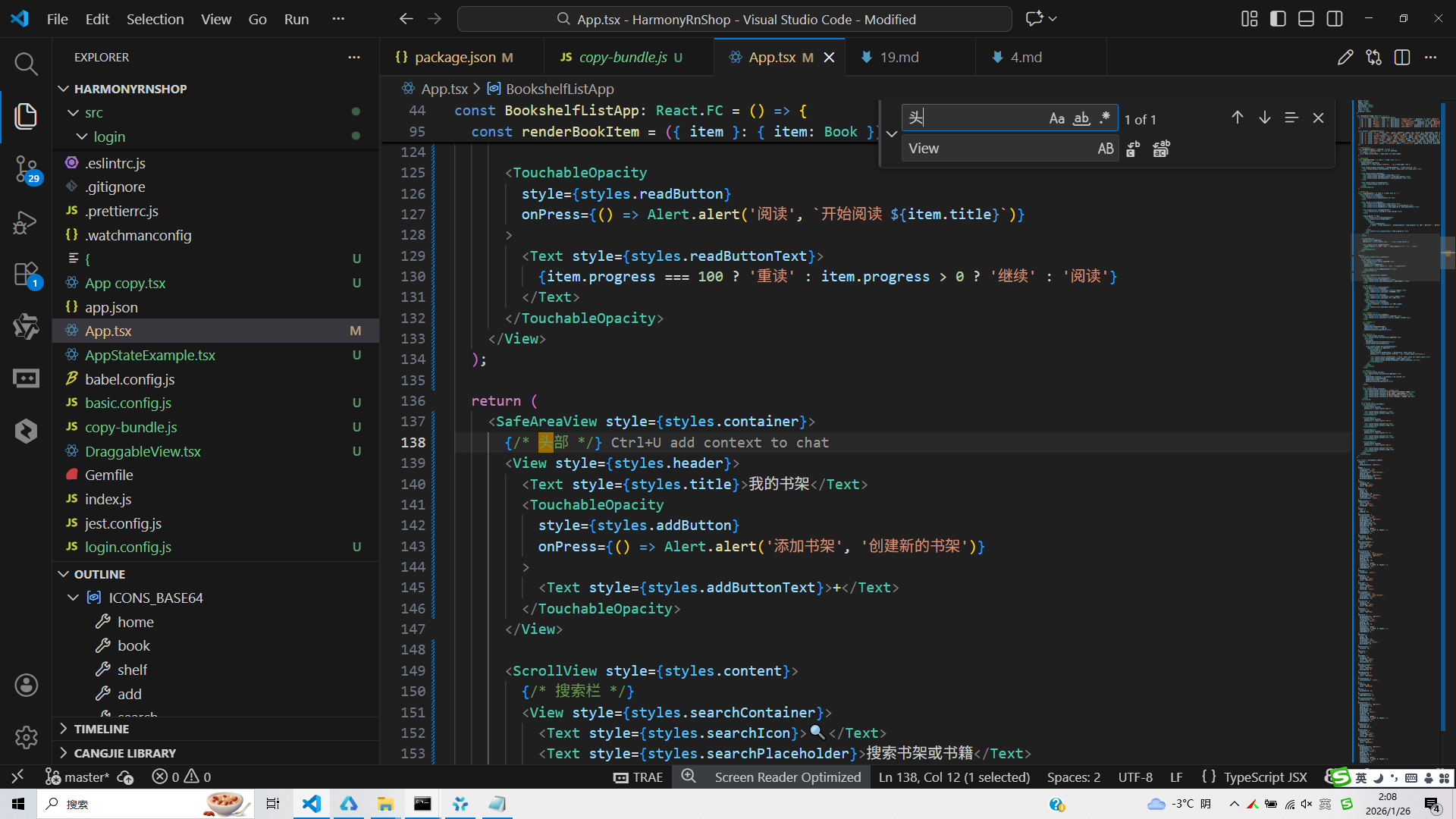
      {/* 头部 */}
      <View style={styles.header}>
        <Text style={styles.title}>我的书架</Text>
        <TouchableOpacity
          style={styles.addButton}
          onPress={() => Alert.alert('添加书架', '创建新的书架')}
        >
          <Text style={styles.addButtonText}>+</Text>
        </TouchableOpacity>
      </View>

      <ScrollView style={styles.content}>
        {/* 搜索栏 */}
        <View style={styles.searchContainer}>
          <Text style={styles.searchIcon}>🔍</Text>
          <Text style={styles.searchPlaceholder}>搜索书架或书籍</Text>
        </View>

        {/* 统计信息 */}
        <View style={styles.statsContainer}>
          <View style={styles.statItem}>
            <Text style={styles.statValue}>{shelves.length}</Text>
            <Text style={styles.statLabel}>书架数量</Text>
          </View>
          <View style={styles.statItem}>
            <Text style={styles.statValue}>{books.length}</Text>
            <Text style={styles.statLabel}>书籍总数</Text>
          </View>
          <View style={styles.statItem}>
            <Text style={styles.statValue}>
              {books.filter(b => b.progress === 100).length}
            </Text>
            <Text style={styles.statLabel}>已读完</Text>
          </View>
        </View>

        {/* 书架列表标题 */}
        <View style={styles.sectionHeader}>
          <Text style={styles.sectionTitle}>我的书架</Text>
          <Text style={styles.countText}>{shelves.length} 个书架</Text>
        </View>

        {/* 书架列表 */}
        <FlatList
          data={shelves}
          renderItem={renderShelfItem}
          keyExtractor={item => item.id}
          showsVerticalScrollIndicator={false}
        />

        {/* 热门书架 */}
        <View style={styles.section}>
          <Text style={styles.sectionTitle}>热门书架</Text>
          <ScrollView
            horizontal
            showsHorizontalScrollIndicator={false}
            style={styles.horizontalScroll}
          >
            <View style={styles.horizontalContainer}>
              {shelves.slice(0, 3).map(shelf => (
                <TouchableOpacity
                  key={shelf.id}
                  style={[styles.hotShelfCard, { borderColor: shelf.color }]}
                  onPress={() => Alert.alert('书架详情', `查看 ${shelf.name} 的详细信息`)}
                >
                  <Text style={[styles.hotShelfIcon, { color: shelf.color }]}>{shelf.icon}</Text>
                  <Text style={styles.hotShelfName}>{shelf.name}</Text>
                  <Text style={styles.hotShelfItemCount}>{shelf.bookCount} 本</Text>
                </TouchableOpacity>
              ))}
            </View>
          </ScrollView>
        </View>

        {/* 最近阅读 */}
        <View style={styles.section}>
          <Text style={styles.sectionTitle}>最近阅读</Text>
          <FlatList
            data={books.filter(b => b.progress > 0).slice(0, 3)}
            renderItem={renderBookItem}
            keyExtractor={item => item.id}
            showsVerticalScrollIndicator={false}
          />
        </View>

        {/* 使用说明 */}
        <View style={styles.infoCard}>
          <Text style={styles.infoTitle}>使用说明</Text>
          <Text style={styles.infoText}>• 点击书架查看该书架的书籍列表</Text>
          <Text style={styles.infoText}>• 点击+号添加新的书架或书籍</Text>
          <Text style={styles.infoText}>• 支持按书架、类型、作者筛选</Text>
          <Text style={styles.infoText}>• 长按书籍项目可进行编辑或删除</Text>
        </View>
      </ScrollView>

      {/* 底部导航 */}
      <View style={styles.bottomNav}>
        <TouchableOpacity
          style={styles.navItem}
          onPress={() => Alert.alert('首页')}
        >
          <Text style={styles.navIcon}>🏠</Text>
          <Text style={styles.navText}>首页</Text>
        </TouchableOpacity>

        <TouchableOpacity
          style={styles.navItem}
          onPress={() => Alert.alert('书架')}
        >
          <Text style={styles.navIcon}>📚</Text>
          <Text style={styles.navText}>书架</Text>
        </TouchableOpacity>

        <TouchableOpacity
          style={styles.navItem}
          onPress={() => Alert.alert('书籍')}
        >
          <Text style={styles.navIcon}>📖</Text>
          <Text style={styles.navText}>书籍</Text>
        </TouchableOpacity>

        <TouchableOpacity
          style={styles.navItem}
          onPress={() => Alert.alert('我的')}
        >
          <Text style={styles.navIcon}>👤</Text>
          <Text style={styles.navText}>我的</Text>
        </TouchableOpacity>
      </View>
    </SafeAreaView>
  );
};

const styles = StyleSheet.create({
  container: {
    flex: 1,
    backgroundColor: '#f8fafc',
  },
  header: {
    flexDirection: 'row',
    alignItems: 'center',
    justifyContent: 'space-between',
    padding: 20,
    backgroundColor: '#ffffff',
    borderBottomWidth: 1,
    borderBottomColor: '#e2e8f0',
  },
  title: {
    fontSize: 20,
    fontWeight: 'bold',
    color: '#1e293b',
  },
  addButton: {
    width: 36,
    height: 36,
    borderRadius: 18,
    backgroundColor: '#3b82f6',
    alignItems: 'center',
    justifyContent: 'center',
  },
  addButtonText: {
    fontSize: 20,
    color: '#ffffff',
    fontWeight: 'bold',
  },
  content: {
    flex: 1,
    padding: 16,
  },
  searchContainer: {
    flexDirection: 'row',
    alignItems: 'center',
    backgroundColor: '#ffffff',
    borderRadius: 20,
    paddingVertical: 12,
    paddingHorizontal: 16,
    marginBottom: 16,
    elevation: 1,
    shadowColor: '#000',
    shadowOffset: { width: 0, height: 1 },
    shadowOpacity: 0.1,
    shadowRadius: 2,
  },
  searchIcon: {
    fontSize: 18,
    color: '#64748b',
  },
  searchPlaceholder: {
    fontSize: 14,
    color: '#94a3b8',
    marginLeft: 12,
    flex: 1,
  },
  statsContainer: {
    flexDirection: 'row',
    justifyContent: 'space-between',
    backgroundColor: '#ffffff',
    borderRadius: 12,
    padding: 16,
    marginBottom: 16,
    elevation: 1,
    shadowColor: '#000',
    shadowOffset: { width: 0, height: 1 },
    shadowOpacity: 0.1,
    shadowRadius: 2,
  },
  statItem: {
    alignItems: 'center',
  },
  statValue: {
    fontSize: 18,
    fontWeight: 'bold',
    color: '#3b82f6',
  },
  statLabel: {
    fontSize: 12,
    color: '#64748b',
    marginTop: 4,
    textAlign: 'center',
  },
  sectionHeader: {
    flexDirection: 'row',
    justifyContent: 'space-between',
    alignItems: 'center',
    marginBottom: 12,
  },
  sectionTitle: {
    fontSize: 18,
    fontWeight: 'bold',
    color: '#1e293b',
  },
  countText: {
    fontSize: 14,
    color: '#64748b',
  },
  shelfCard: {
    backgroundColor: '#ffffff',
    borderRadius: 12,
    flexDirection: 'row',
    alignItems: 'center',
    padding: 16,
    marginBottom: 12,
    elevation: 1,
    shadowColor: '#000',
    shadowOffset: { width: 0, height: 1 },
    shadowOpacity: 0.1,
    shadowRadius: 2,
  },
  shelfIcon: {
    width: 50,
    height: 50,
    borderRadius: 25,
    alignItems: 'center',
    justifyContent: 'center',
    marginRight: 16,
  },
  shelfIconText: {
    fontSize: 24,
  },
  shelfInfo: {
    flex: 1,
  },
  shelfName: {
    fontSize: 16,
    fontWeight: 'bold',
    color: '#1e293b',
    marginBottom: 4,
  },
  shelfDescription: {
    fontSize: 14,
    color: '#64748b',
    marginBottom: 4,
  },
  shelfBookCount: {
    fontSize: 12,
    color: '#94a3b8',
  },
  arrowContainer: {
    justifyContent: 'center',
  },
  arrow: {
    fontSize: 20,
    color: '#94a3b8',
  },
  section: {
    marginBottom: 16,
  },
  horizontalScroll: {
    paddingVertical: 8,
  },
  horizontalContainer: {
    flexDirection: 'row',
  },
  hotShelfCard: {
    backgroundColor: '#ffffff',
    borderRadius: 12,
    padding: 12,
    marginRight: 12,
    borderWidth: 1,
    alignItems: 'center',
    minWidth: 80,
    elevation: 1,
    shadowColor: '#000',
    shadowOffset: { width: 0, height: 1 },
    shadowOpacity: 0.1,
    shadowRadius: 2,
  },
  hotShelfIcon: {
    fontSize: 24,
    marginBottom: 4,
  },
  hotShelfName: {
    fontSize: 14,
    fontWeight: 'bold',
    color: '#1e293b',
    textAlign: 'center',
  },
  hotShelfItemCount: {
    fontSize: 12,
    color: '#64748b',
  },
  bookCard: {
    backgroundColor: '#ffffff',
    borderRadius: 12,
    flexDirection: 'row',
    alignItems: 'center',
    padding: 12,
    marginBottom: 8,
    elevation: 1,
    shadowColor: '#000',
    shadowOffset: { width: 0, height: 1 },
    shadowOpacity: 0.1,
    shadowRadius: 2,
  },
  bookIcon: {
    width: 40,
    height: 40,
    borderRadius: 8,
    backgroundColor: '#e2e8f0',
    alignItems: 'center',
    justifyContent: 'center',
    marginRight: 12,
  },
  bookIconText: {
    fontSize: 20,
  },
  bookInfo: {
    flex: 1,
  },
  bookTitle: {
    fontSize: 16,
    fontWeight: 'bold',
    color: '#1e293b',
    marginBottom: 2,
  },
  bookAuthor: {
    fontSize: 12,
    color: '#64748b',
    marginBottom: 2,
  },
  bookDetails: {
    fontSize: 12,
    color: '#94a3b8',
    marginBottom: 4,
  },
  ratingContainer: {
    flexDirection: 'row',
  },
  rating: {
    fontSize: 12,
    color: '#f59e0b',
    fontWeight: '500',
  },
  progressContainer: {
    flexDirection: 'row',
    alignItems: 'center',
    marginTop: 4,
  },
  progressBar: {
    flex: 1,
    height: 4,
    backgroundColor: '#e2e8f0',
    borderRadius: 2,
    marginRight: 8,
  },
  progressFill: {
    height: '100%',
    borderRadius: 2,
  },
  progressText: {
    fontSize: 12,
    color: '#64748b',
  },
  readButton: {
    backgroundColor: '#3b82f6',
    paddingHorizontal: 12,
    paddingVertical: 6,
    borderRadius: 6,
  },
  readButtonText: {
    fontSize: 12,
    color: '#ffffff',
    fontWeight: '500',
  },
  infoCard: {
    backgroundColor: '#ffffff',
    borderRadius: 12,
    padding: 16,
    marginTop: 16,
    elevation: 1,
    shadowColor: '#000',
    shadowOffset: { width: 0, height: 1 },
    shadowOpacity: 0.1,
    shadowRadius: 2,
  },
  infoTitle: {
    fontSize: 16,
    fontWeight: 'bold',
    color: '#1e293b',
    marginBottom: 12,
  },
  infoText: {
    fontSize: 14,
    color: '#64748b',
    lineHeight: 22,
    marginBottom: 8,
  },
  bottomNav: {
    flexDirection: 'row',
    justifyContent: 'space-around',
    backgroundColor: '#ffffff',
    borderTopWidth: 1,
    borderTopColor: '#e2e8f0',
    paddingVertical: 12,
  },
  navItem: {
    alignItems: 'center',
    flex: 1,
  },
  navIcon: {
    fontSize: 20,
    color: '#94a3b8',
    marginBottom: 4,
  },
  navText: {
    fontSize: 12,
    color: '#94a3b8',
  },
});

export default BookshelfListApp;
打包
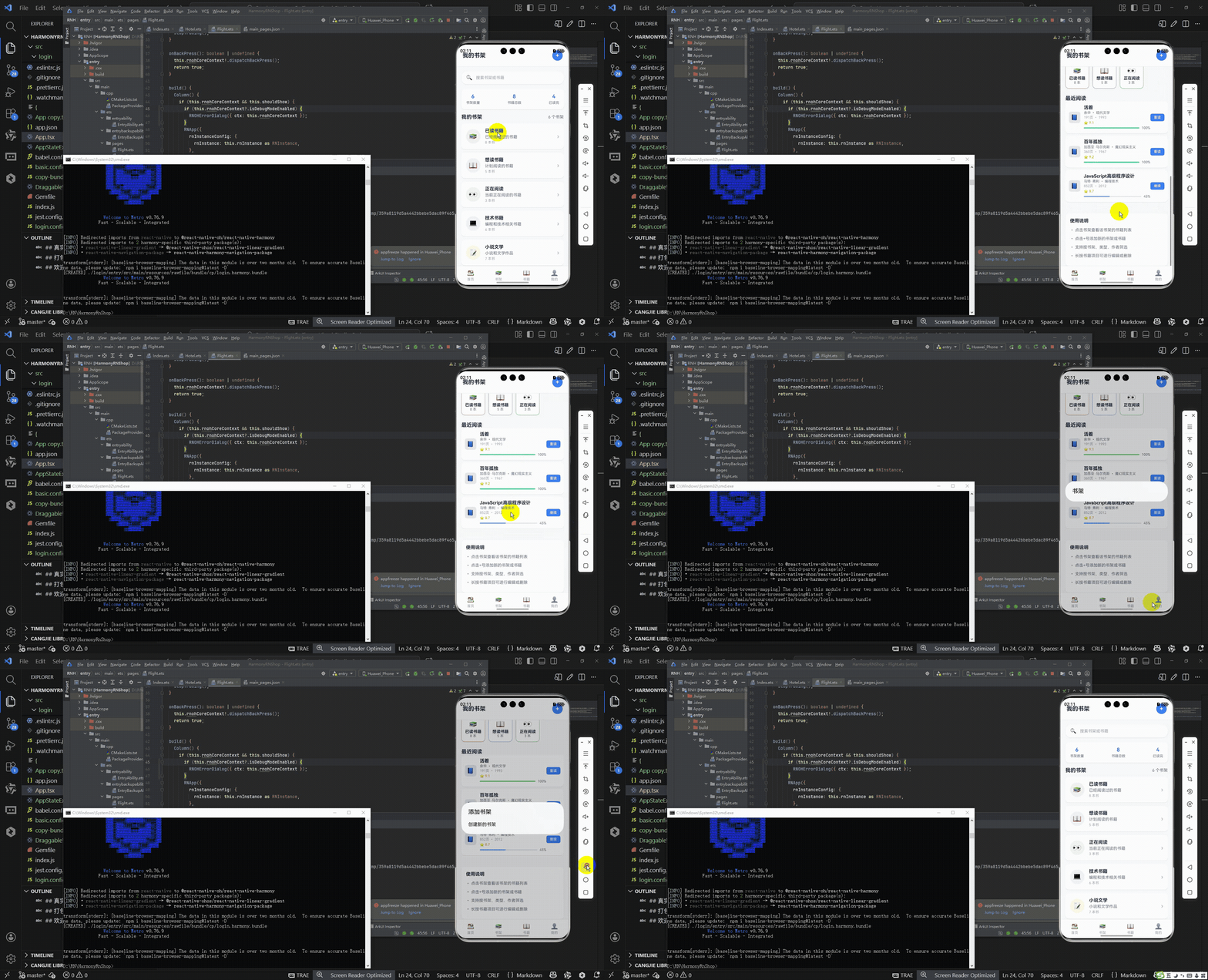
接下来通过打包命令npn run harmony将reactNative的代码打包成为bundle,这样可以进行在开源鸿蒙OpenHarmony中进行使用。

打包之后再将打包后的鸿蒙OpenHarmony文件拷贝到鸿蒙的DevEco-Studio工程目录去:

最后运行效果图如下显示:
React Native的跨平台能力与组件化设计使其能够高效适配多平台,包括鸿蒙系统。本文通过BookshelfListApp组件展示了如何构建跨平台书架应用,重点分析了数据模型、状态管理和样式系统。应用使用TypeScript定义书架(Shelf)和书籍(Book)类型,确保类型安全;采用useState管理状态,实现响应式更新;利用Flexbox布局和动态样式实现跨平台UI一致性。特别探讨了React Native组件与鸿蒙原生组件的映射机制,以及性能优化策略,如FlatList虚拟滚动和条件渲染。该案例证明了React Native在构建复杂跨平台应用时的可行性和优势。
欢迎大家加入开源鸿蒙跨平台开发者社区,一起共建开源鸿蒙跨平台生态。

作为“人工智能6S店”的官方数字引擎,为AI开发者与企业提供一个覆盖软硬件全栈、一站式门户。
更多推荐
 10
10 0
0- 0


 已为社区贡献14条内容

所有评论(0)