
Flutter 框架跨平台鸿蒙开发——Button按钮组
按钮组是将多个相关的按钮组合在一起,形成统一的操作入口集合。合理的按钮组设计可以提升界面的组织性和用户体验,让用户快速找到需要的功能。按钮组可以按水平、垂直、网格等不同布局方式排列,每种布局都有其适用的场景。按钮组设计需要考虑按钮的层级、间距、对齐方式等因素,确保视觉清晰、操作便捷。原则说明实现功能分组相关功能放在一起逻辑分组主次分明使用不同按钮类型ElevatedButton为主间距一致保持统一
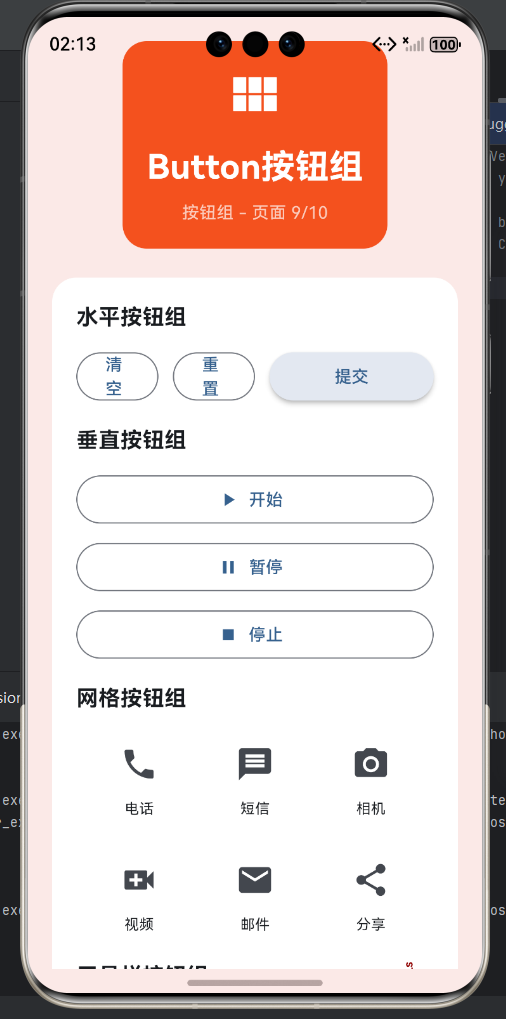
一、按钮组概述
按钮组是将多个相关的按钮组合在一起,形成统一的操作入口集合。合理的按钮组设计可以提升界面的组织性和用户体验,让用户快速找到需要的功能。按钮组可以按水平、垂直、网格等不同布局方式排列,每种布局都有其适用的场景。按钮组设计需要考虑按钮的层级、间距、对齐方式等因素,确保视觉清晰、操作便捷。
按钮组类型对比
| 组合类型 | 布局方向 | 典型应用 | 按钮数量 | 视觉特点 |
|---|---|---|---|---|
| 水平组 | Row | 对话框底部 | 2-3个 | 并排显示 |
| 垂直组 | Column | 设置列表 | 不限 | 堆叠显示 |
| 网格组 | Wrap | 功能面板 | 不限 | 自动换行 |
| 分段组 | SegmentedButton | 选项切换 | 2-5个 | 互斥选择 |
| 工具栏组 | AppBar actions | 顶部导航 | 3-5个 | 图标按钮 |
| 标签组 | TabBar | 页面切换 | 不限 | 滑动切换 |
按钮组设计原则
| 原则 | 说明 | 实现方式 | 效果 |
|---|---|---|---|
| 主次分明 | 区分主要和次要按钮 | 使用不同按钮类型 | 层次清晰 |
| 间距合理 | 保持适当的按钮间距 | SizedBox或padding | 视觉舒适 |
| 数量控制 | 最多2-3个主按钮 | 控制按钮数量 | 避免混乱 |
| 位置固定 | 按钮位置保持一致 | 固定在底部或右对齐 | 操作可预测 |
| 对齐统一 | 保持按钮对齐方式一致 | MainAxisAlignment | 视觉整齐 |
| 功能相关 | 功能相关的按钮放在一起 | 按功能分组 | 逻辑清晰 |
| 状态一致 | 相同功能状态一致 | 统一状态管理 | 体验统一 |
| 可访问 | 支持键盘导航 | FocusScope | 无障碍 |
二、水平按钮组
水平按钮组使用Row布局,将按钮水平排列,是最常见的按钮组形式。适用于对话框底部、表单操作、工具栏等场景。水平按钮组通常按钮数量较少,2-3个,避免横向滚动。按钮应该有合适的间距,通常8-16dp。主按钮通常放在右侧或占据更大的空间,次要按钮放在左侧。
水平组布局模式
| 模式 | 按钮排列 | 主按钮位置 | 适用场景 |
|---|---|---|---|
| 左对齐 | 从左到右 | 最右按钮 | 表单操作 |
| 右对齐 | 从右到左 | 最右按钮 | 对话框 |
| 居中对齐 | 居中排列 | 中间按钮 | 对称布局 |
| 均匀分布 | 等间距排列 | 所有按钮相等 | 工具栏 |
| 扩展填充 | 占满宽度 | 主按钮扩展 | 表单提交 |
水平按钮组示例
// 对话框按钮组(右对齐)
DialogActions(
  alignment: MainAxisAlignment.end,
  children: [
    TextButton(
      onPressed: () => Navigator.pop(context),
      child: Text('取消'),
    ),
    SizedBox(width: 8),
    OutlinedButton(
      onPressed: () {},
      child: Text('稍后'),
    ),
    SizedBox(width: 8),
    ElevatedButton(
      onPressed: () => Navigator.pop(context),
      child: Text('确定'),
    ),
  ],
)

// 表单按钮组(主次分明)
Column(
  children: [
    TextField(decoration: InputDecoration(labelText: '用户名')),
    SizedBox(height: 16),
    TextField(decoration: InputDecoration(labelText: '密码')),
    SizedBox(height: 24),
    Row(
      children: [
        Expanded(
          child: OutlinedButton(
            onPressed: () {},
            child: Text('清空'),
          ),
        ),
        SizedBox(width: 12),
        Expanded(
          child: OutlinedButton(
            onPressed: () {},
            child: Text('重置'),
          ),
        ),
        SizedBox(width: 12),
        Expanded(
          flex: 2,
          child: ElevatedButton(
            onPressed: () {},
            child: Text('登录'),
          ),
        ),
      ],
    ),
  ],
)

// 工具栏按钮组(图标按钮)
Row(
  children: [
    IconButton(
      icon: Icon(Icons.undo),
      tooltip: '撤销',
      onPressed: () {},
    ),
    IconButton(
      icon: Icon(Icons.redo),
      tooltip: '重做',
      onPressed: () {},
    ),
    VerticalDivider(),
    IconButton(
      icon: Icon(Icons.cut),
      tooltip: '剪切',
      onPressed: () {},
    ),
    IconButton(
      icon: Icon(Icons.copy),
      tooltip: '复制',
      onPressed: () {},
    ),
    IconButton(
      icon: Icon(Icons.paste),
      tooltip: '粘贴',
      onPressed: () {},
    ),
  ],
)

// 均匀分布按钮组
Row(
  children: [
    Expanded(
      child: OutlinedButton(
        onPressed: () {},
        child: Text('选项1'),
      ),
    ),
    SizedBox(width: 8),
    Expanded(
      child: OutlinedButton(
        onPressed: () {},
        child: Text('选项2'),
      ),
    ),
    SizedBox(width: 8),
    Expanded(
      child: OutlinedButton(
        onPressed: () {},
        child: Text('选项3'),
      ),
    ),
  ],
)
三、垂直按钮组
垂直按钮组使用Column布局,将按钮垂直堆叠,适用于设置列表、侧边栏、菜单等场景。垂直按钮组可以有任意数量的按钮,适合需要展示较多选项的情况。按钮之间应该有合适的垂直间距,通常8-16dp。垂直按钮组中,重要按钮可以放在顶部或使用更醒目的样式。
垂直组布局模式
| 模式 | 按钮排列 | 特点 | 适用场景 |
|---|---|---|---|
| 顶部对齐 | 从上到下 | 重要操作在前 | 设置列表 |
| 底部对齐 | 从下到上 | 取消按钮在前 | 对话框 |
| 居中对齐 | 垂直居中 | 视觉平衡 | 小菜单 |
| 填充高度 | 占满高度 | 滚动内容 | 侧边栏 |
| 分组显示 | 按组堆叠 | 逻辑清晰 | 复杂设置 |
垂直按钮组示例
// 设置列表按钮组
ListView(
  padding: EdgeInsets.all(16),
  children: [
    _buildSettingItem(
      icon: Icons.person,
      title: '个人资料',
      onTap: () {},
    ),
    Divider(),
    _buildSettingItem(
      icon: Icons.notifications,
      title: '通知设置',
      onTap: () {},
    ),
    Divider(),
    _buildSettingItem(
      icon: Icons.security,
      title: '隐私设置',
      onTap: () {},
    ),
    Divider(),
    _buildSettingItem(
      icon: Icons.help,
      title: '帮助与反馈',
      onTap: () {},
    ),
  ],
)

Widget _buildSettingItem({
  required IconData icon,
  required String title,
  required VoidCallback onTap,
}) {
  return ListTile(
    leading: Icon(icon),
    title: Text(title),
    trailing: Icon(Icons.chevron_right),
    onTap: onTap,
  );
}

// 侧边栏按钮组
Drawer(
  child: ListView(
    padding: EdgeInsets.zero,
    children: [
      DrawerHeader(
        decoration: BoxDecoration(color: Colors.blue),
        child: Column(
          children: [
            CircleAvatar(radius: 32),
            SizedBox(height: 8),
            Text('用户名', style: TextStyle(color: Colors.white)),
          ],
        ),
      ),
      ListTile(
        leading: Icon(Icons.home),
        title: Text('首页'),
        onTap: () {},
      ),
      ListTile(
        leading: Icon(Icons.explore),
        title: Text('发现'),
        onTap: () {},
      ),
      ListTile(
        leading: Icon(Icons.favorite),
        title: Text('收藏'),
        onTap: () {},
      ),
      Divider(),
      ListTile(
        leading: Icon(Icons.settings),
        title: Text('设置'),
        onTap: () {},
      ),
      ListTile(
        leading: Icon(Icons.info),
        title: Text('关于'),
        onTap: () {},
      ),
    ],
  ),
)

// 垂直操作按钮组
Column(
  mainAxisSize: MainAxisSize.min,
  children: [
    SizedBox(
      width: double.infinity,
      child: ElevatedButton.icon(
        icon: Icon(Icons.play_arrow),
        label: Text('开始'),
        onPressed: () {},
      ),
    ),
    SizedBox(height: 8),
    SizedBox(
      width: double.infinity,
      child: OutlinedButton.icon(
        icon: Icon(Icons.pause),
        label: Text('暂停'),
        onPressed: () {},
      ),
    ),
    SizedBox(height: 8),
    SizedBox(
      width: double.infinity,
      child: OutlinedButton.icon(
        icon: Icon(Icons.stop),
        label: Text('停止'),
        onPressed: () {},
      ),
    ),
  ],
)
四、网格按钮组
网格按钮组使用Wrap或GridView布局,按钮自动换行,适用于功能面板、图标选择器等场景。网格按钮组适合展示多个相似功能的按钮,如表情选择器、颜色选择器、快捷操作面板等。按钮之间应该有合适的间距,使用Wrap时通过spacing和runSpacing控制。
网格组布局选项
| 选项 | spacing | runSpacing | alignment | 适用场景 |
|---|---|---|---|---|
| 紧凑 | 4-8 | 4-8 | start | 小图标按钮 |
| 标准 | 8-16 | 8-16 | start | 功能面板 |
| 宽松 | 16-24 | 16-24 | center | 大按钮 |
| 填充 | 8-16 | 8-16 | stretch | 均等按钮 |
网格按钮组示例
// 功能面板网格
Wrap(
  spacing: 16,
  runSpacing: 16,
  alignment: WrapAlignment.center,
  children: [
    _buildGridButton(Icons.phone, '电话'),
    _buildGridButton(Icons.message, '短信'),
    _buildGridButton(Icons.camera_alt, '相机'),
    _buildGridButton(Icons.video_call, '视频'),
    _buildGridButton(Icons.email, '邮件'),
    _buildGridButton(Icons.share, '分享'),
  ],
)

Widget _buildGridButton(IconData icon, String label) {
  return Container(
    width: 80,
    height: 80,
    child: Column(
      mainAxisAlignment: MainAxisAlignment.center,
      children: [
        IconButton(
          icon: Icon(icon, size: 32),
          onPressed: () {},
        ),
        SizedBox(height: 4),
        Text(label, style: TextStyle(fontSize: 12)),
      ],
    ),
  );
}

// 颜色选择网格
Wrap(
  spacing: 12,
  runSpacing: 12,
  children: [
    _buildColorButton(Colors.red),
    _buildColorButton(Colors.orange),
    _buildColorButton(Colors.yellow),
    _buildColorButton(Colors.green),
    _buildColorButton(Colors.blue),
    _buildColorButton(Colors.indigo),
    _buildColorButton(Colors.purple),
    _buildColorButton(Colors.pink),
  ],
)

Widget _buildColorButton(Color color) {
  return SizedBox(
    width: 48,
    height: 48,
    child: OutlinedButton(
      style: OutlinedButton.styleFrom(
        side: BorderSide(color: color, width: 2),
        padding: EdgeInsets.zero,
        shape: CircleBorder(),
      ),
      onPressed: () {},
      child: Container(
        decoration: BoxDecoration(color: color, shape: BoxShape.circle),
      ),
    ),
  );
}

// 快捷操作网格
Wrap(
  spacing: 8,
  runSpacing: 8,
  children: [
    ActionChip(
      avatar: CircleAvatar(child: Text('1')),
      label: Text('选项1'),
      onPressed: () {},
    ),
    ActionChip(
      avatar: CircleAvatar(child: Text('2')),
      label: Text('选项2'),
      onPressed: () {},
    ),
    ActionChip(
      avatar: CircleAvatar(child: Text('3')),
      label: Text('选项3'),
      onPressed: () {},
    ),
    ActionChip(
      avatar: CircleAvatar(child: Text('4')),
      label: Text('选项4'),
      onPressed: () {},
    ),
    ActionChip(
      avatar: CircleAvatar(child: Text('5')),
      label: Text('选项5'),
      onPressed: () {},
    ),
  ],
)
五、分段按钮组
分段按钮组(SegmentedButton)用于在多个互斥选项中选择一个,类似于标签页或单选按钮组。分段按钮组通常有2-5个选项,每个选项是一个按钮,点击时切换选中状态。分段按钮组的按钮在视觉上是相连的,形成一个整体的分段控件。
分段组设计特点
| 特点 | 说明 | 实现 |
|---|---|---|
| 互斥选择 | 同时只能选中一个 | 状态管理 |
| 视觉连接 | 按钮相连显示 | Container包装 |
| 选中反馈 | 清晰的选中状态 | 颜色/边框 |
| 平滑切换 | 动画过渡 | AnimatedContainer |
分段按钮组示例
// 自定义分段按钮
class SegmentedButtonGroup extends StatefulWidget {
State<SegmentedButtonGroup> createState() => _SegmentedButtonGroupState();
}
class _SegmentedButtonGroupState extends State<SegmentedButtonGroup> {
int _selectedIndex = 0;
final List<String> _options = ['选项1', '选项2', '选项3'];
Widget build(BuildContext context) {
return Container(
decoration: BoxDecoration(
color: Colors.grey.shade200,
borderRadius: BorderRadius.circular(8),
),
child: Row(
children: List.generate(_options.length, (index) {
final isSelected = _selectedIndex == index;
return Expanded(
child: GestureDetector(
onTap: () {
setState(() {
_selectedIndex = index;
});
},
child: AnimatedContainer(
duration: Duration(milliseconds: 200),
decoration: BoxDecoration(
color: isSelected ? Colors.blue : Colors.transparent,
borderRadius: BorderRadius.circular(8),
),
padding: EdgeInsets.symmetric(vertical: 12),
child: Text(
_options[index],
textAlign: TextAlign.center,
style: TextStyle(
color: isSelected ? Colors.white : Colors.grey.shade700,
fontWeight: isSelected ? FontWeight.bold : FontWeight.normal,
),
),
),
),
);
}),
),
);
}
}
// 使用SegmentedButton(Flutter 3.13+)
class ModernSegmentedButton extends StatefulWidget {
State<ModernSegmentedButton> createState() => _ModernSegmentedButtonState();
}
class _ModernSegmentedButtonState extends State<ModernSegmentedButton> {
int _selected = 0;
Widget build(BuildContext context) {
return SegmentedButton<int>(
segments: [
ButtonSegment(
value: 0,
label: Text('天'),
icon: Icon(Icons.wb_sunny, size: 18),
),
ButtonSegment(
value: 1,
label: Text('周'),
icon: Icon(Icons.calendar_today, size: 18),
),
ButtonSegment(
value: 2,
label: Text('月'),
icon: Icon(Icons.calendar_view_month, size: 18),
),
],
selected: {_selected},
onSelectionChanged: (Set<int> newSelection) {
setState(() {
_selected = newSelection.first;
});
},
);
}
}
六、工具栏按钮组
工具栏按钮组通常放在AppBar或专门的工具栏中,使用图标按钮,提供快速访问常用功能。工具栏按钮组应该使用标准的Material Icons,确保用户熟悉。按钮应该有tooltip提示文本,帮助用户理解功能。工具栏按钮组通常3-5个按钮,过多会显得拥挤。
工具栏按钮设计
| 方面 | 建议 | 说明 |
|---|---|---|
| 图标选择 | 使用标准图标 | 用户熟悉 |
| 工具提示 | 提供tooltip | 帮助理解 |
| 间距 | 使用Divider | 逻辑分组 |
| 对齐 | 右对齐 | 标准位置 |
| 数量 | 3-5个 | 避免拥挤 |
| 图标大小 | 24dp | 标准尺寸 |
工具栏按钮组示例
// AppBar工具栏
AppBar(
  title: Text('应用标题'),
  actions: [
    IconButton(
      icon: Icon(Icons.search),
      tooltip: '搜索',
      onPressed: () {},
    ),
    IconButton(
      icon: Icon(Icons.filter_list),
      tooltip: '筛选',
      onPressed: () {},
    ),
    PopupMenuButton<String>(
      icon: Icon(Icons.more_vert),
      tooltip: '更多',
      onSelected: (value) {
        print('选择了: $value');
      },
      itemBuilder: (context) => [
        PopupMenuItem(
          value: 'settings',
          child: ListTile(
            leading: Icon(Icons.settings),
            title: Text('设置'),
          ),
        ),
        PopupMenuItem(
          value: 'about',
          child: ListTile(
            leading: Icon(Icons.info),
            title: Text('关于'),
          ),
        ),
      ],
    ),
  ],
)

// 独立工具栏
Container(
  height: 56,
  color: Colors.grey.shade100,
  padding: EdgeInsets.symmetric(horizontal: 16),
  child: Row(
    children: [
      IconButton(
        icon: Icon(Icons.format_bold),
        tooltip: '加粗',
        onPressed: () {},
      ),
      IconButton(
        icon: Icon(Icons.format_italic),
        tooltip: '斜体',
        onPressed: () {},
      ),
      IconButton(
        icon: Icon(Icons.format_underlined),
        tooltip: '下划线',
        onPressed: () {},
      ),
      VerticalDivider(),
      IconButton(
        icon: Icon(Icons.format_align_left),
        tooltip: '左对齐',
        onPressed: () {},
      ),
      IconButton(
        icon: Icon(Icons.format_align_center),
        tooltip: '居中对齐',
        onPressed: () {},
      ),
      IconButton(
        icon: Icon(Icons.format_align_right),
        tooltip: '右对齐',
        onPressed: () {},
      ),
    ],
  ),
)
七、按钮组间距规范
按钮组中按钮之间的间距对于视觉舒适和操作准确性非常重要。间距应该根据按钮大小、布局方式、应用风格等因素确定。水平间距通常为8-16dp,垂直间距通常为8-16dp。间距过小容易误触,过大会显得松散。应该保持一致的间距规范,整个应用统一。
间距规范对照
| 间距类型 | 最小值 | 标准值 | 最大值 | 使用场景 |
|---|---|---|---|---|
| 水平间距 | 8dp | 12dp | 16dp | 水平按钮组 |
| 垂直间距 | 8dp | 12dp | 16dp | 垂直按钮组 |
| 网格间距 | 8dp | 16dp | 24dp | 网格按钮组 |
| 边框间距 | 16dp | 24dp | 32dp | 按钮组边距 |
| 组间距 | 24dp | 32dp | 48dp | 不同按钮组 |
间距示例
// 标准间距
Row(
  children: [
    ElevatedButton(
      onPressed: () {},
      child: Text('按钮1'),
    ),
    SizedBox(width: 12), // 标准水平间距
    ElevatedButton(
      onPressed: () {},
      child: Text('按钮2'),
    ),
    SizedBox(width: 12),
    ElevatedButton(
      onPressed: () {},
      child: Text('按钮3'),
    ),
  ],
)

// 紧凑间距
Row(
  children: [
    IconButton(icon: Icon(Icons.undo), onPressed: () {}),
    SizedBox(width: 8), // 紧凑间距
    IconButton(icon: Icon(Icons.redo), onPressed: () {}),
    SizedBox(width: 8),
    IconButton(icon: Icon(Icons.cut), onPressed: () {}),
  ],
)

// 分组间距
Column(
  children: [
    Text('主操作', style: TextStyle(fontWeight: FontWeight.bold)),
    SizedBox(height: 8),
    Row(
      children: [
        ElevatedButton(onPressed: () {}, child: Text('确定')),
        SizedBox(width: 12),
        OutlinedButton(onPressed: () {}, child: Text('取消')),
      ],
    ),
    SizedBox(height: 24), // 分组间距
    Text('次要操作', style: TextStyle(fontWeight: FontWeight.bold)),
    SizedBox(height: 8),
    Row(
      children: [
        TextButton(onPressed: () {}, child: Text('清空')),
        SizedBox(width: 12),
        TextButton(onPressed: () {}, child: Text('重置')),
      ],
    ),
  ],
)
八、按钮组最佳实践
良好的按钮组设计能显著提升用户体验。按钮应该按功能分组,相关功能放在一起。主次分明,使用不同的按钮类型和样式。间距合理,保持一致的对齐方式。数量控制,避免按钮过多造成混乱。位置固定,让用户形成操作习惯。视觉统一,保持相同功能的按钮样式一致。
设计原则总结
| 原则 | 说明 | 实现 |
|---|---|---|
| 功能分组 | 相关功能放在一起 | 逻辑分组 |
| 主次分明 | 使用不同按钮类型 | ElevatedButton为主 |
| 间距一致 | 保持统一的间距 | 使用常量 |
| 数量控制 | 限制按钮数量 | 最多5个 |
| 位置固定 | 统一按钮位置 | 底部固定 |
| 视觉统一 | 相同功能样式一致 | 主题配置 |
| 状态明确 | 清晰的状态反馈 | 禁用、加载状态 |
| 可访问 | 支持键盘导航 | FocusScope |
最佳实践示例
// 对话框按钮组(主次分明)
AlertDialog(
  title: Text('确认操作'),
  content: Text('确定要执行此操作吗?'),
  actions: [
    TextButton(
      onPressed: () => Navigator.pop(context, 'cancel'),
      child: Text('取消'),
    ),
    OutlinedButton(
      onPressed: () => Navigator.pop(context, 'later'),
      child: Text('稍后'),
    ),
    ElevatedButton(
      onPressed: () => Navigator.pop(context, 'confirm'),
      child: Text('确定'),
    ),
  ],
)

// 表单按钮组(位置固定)
Column(
  children: [
    TextField(decoration: InputDecoration(labelText: '用户名')),
    SizedBox(height: 16),
    TextField(decoration: InputDecoration(labelText: '密码')),
    Spacer(),
    Divider(),
    Padding(
      padding: EdgeInsets.symmetric(vertical: 16),
      child: Row(
        children: [
          OutlinedButton(
            onPressed: () {},
            child: Text('清空'),
          ),
          SizedBox(width: 12),
          OutlinedButton(
            onPressed: () {},
            child: Text('重置'),
          ),
          Spacer(),
          ElevatedButton(
            onPressed: () {},
            child: Text('登录'),
          ),
        ],
      ),
    ),
  ],
)

// 卡片操作按钮组
Card(
  child: Padding(
    padding: EdgeInsets.all(16),
    child: Column(
      crossAxisAlignment: CrossAxisAlignment.start,
      children: [
        Text('商品名称', style: TextStyle(fontSize: 18, fontWeight: FontWeight.bold)),
        SizedBox(height: 8),
        Text('¥99.99', style: TextStyle(fontSize: 24, color: Colors.red)),
        SizedBox(height: 16),
        Row(
          children: [
            OutlinedButton.icon(
              icon: Icon(Icons.favorite_border, size: 18),
              label: Text('收藏'),
              onPressed: () {},
            ),
            SizedBox(width: 12),
            OutlinedButton.icon(
              icon: Icon(Icons.share, size: 18),
              label: Text('分享'),
              onPressed: () {},
            ),
            Spacer(),
            ElevatedButton.icon(
              icon: Icon(Icons.shopping_cart, size: 18),
              label: Text('加入购物车'),
              onPressed: () {},
            ),
          ],
        ),
      ],
    ),
  ),
)
欢迎加入开源鸿蒙跨平台社区:https://openharmonycrossplatform.csdn.net

作为“人工智能6S店”的官方数字引擎,为AI开发者与企业提供一个覆盖软硬件全栈、一站式门户。
更多推荐

 11
11 0
0- 0



 已为社区贡献18条内容

所有评论(0)