
使用Flutter堆叠布局为鸿蒙应用程序构建各种复杂的带图标的按钮、带徽章的图标、卡片叠加效果
Flutter堆叠布局组件详解 本文介绍了Flutter中实现层叠布局的核心组件Stack和Positioned。Stack组件允许子组件在垂直方向上层叠显示,配合Positioned组件可实现精确定位。文章详细讲解了Stack的三种对齐方式、四种填充模式以及Positioned的定位方法,并提供了带徽章的图标、图片叠加文字、浮动按钮等典型应用场景的代码示例。通过Stack和Positioned的
·
📖 前言
堆叠布局是 Flutter 中用于层叠排列子组件的布局方式,它允许子组件在垂直方向上重叠显示。Stack 组件配合 Positioned 组件可以实现各种复杂的层叠效果,非常适合创建带图标的按钮、带徽章的图标、卡片叠加效果等。
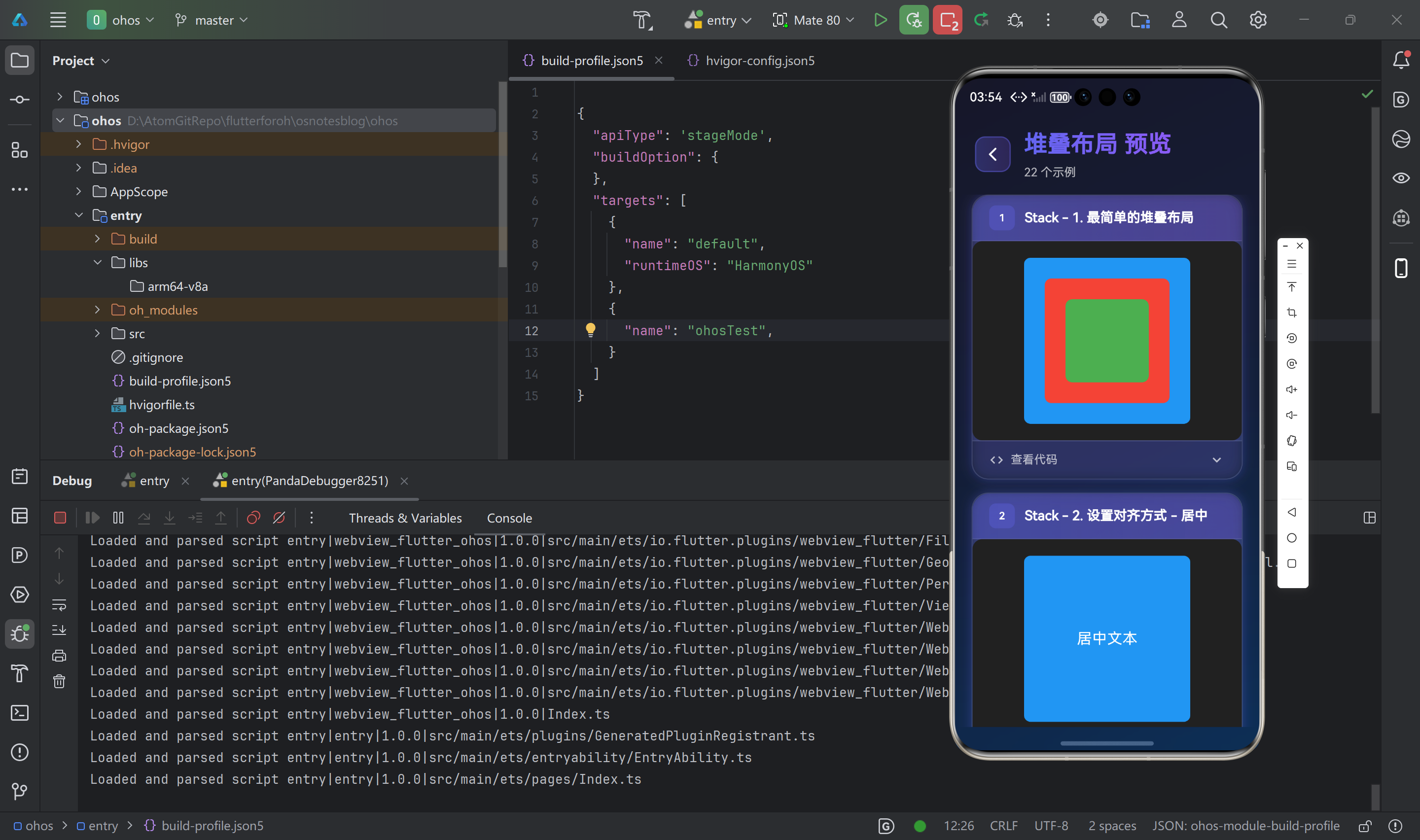
🎯 堆叠布局组件概览
Flutter 提供了以下堆叠布局组件:
| 组件名 | 功能说明 | 适用场景 |
|---|---|---|
Stack |
堆叠布局 | 层叠显示组件 |
Positioned |
绝对定位 | 配合 Stack 使用 |
📚 Stack 组件
Stack 是 Flutter 中用于层叠排列子组件的布局组件。
Stack 组件特性
- ✅ 在垂直方向上层叠显示子组件
- ✅ 默认情况下,子组件按照添加顺序从下到上堆叠
- ✅ 可以通过
Positioned组件精确控制子组件的位置 - ✅ 支持
alignment属性来统一对齐所有子组件
基础用法
// 最简单的堆叠布局
Stack(
  children: [
    Container(width: 200, height: 200, color: Colors.blue),
    Container(width: 150, height: 150, color: Colors.red),
    Container(width: 100, height: 100, color: Colors.green),
  ],
)

// 设置对齐方式
Stack(
  alignment: Alignment.center, // 居中对齐
  children: [
    Container(width: 200, height: 200, color: Colors.blue),
    Text('居中文本'),
  ],
)

// 顶部居中
Stack(
  alignment: Alignment.topCenter,
  children: [
    Container(width: 200, height: 200, color: Colors.blue),
    Text('顶部文本'),
  ],
)

// 底部居中
Stack(
  alignment: Alignment.bottomCenter,
  children: [
    Container(width: 200, height: 200, color: Colors.blue),
    Text('底部文本'),
  ],
)
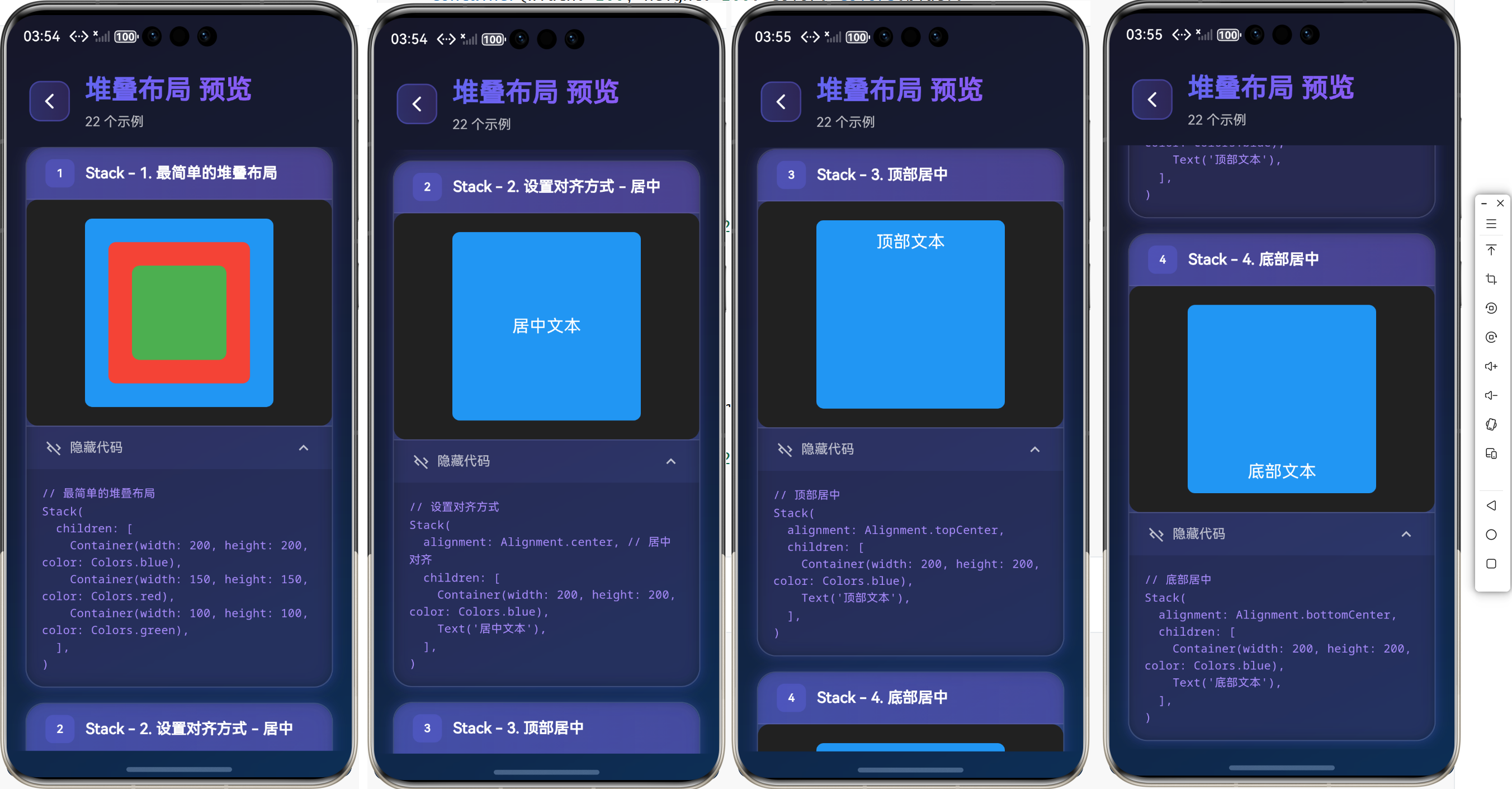
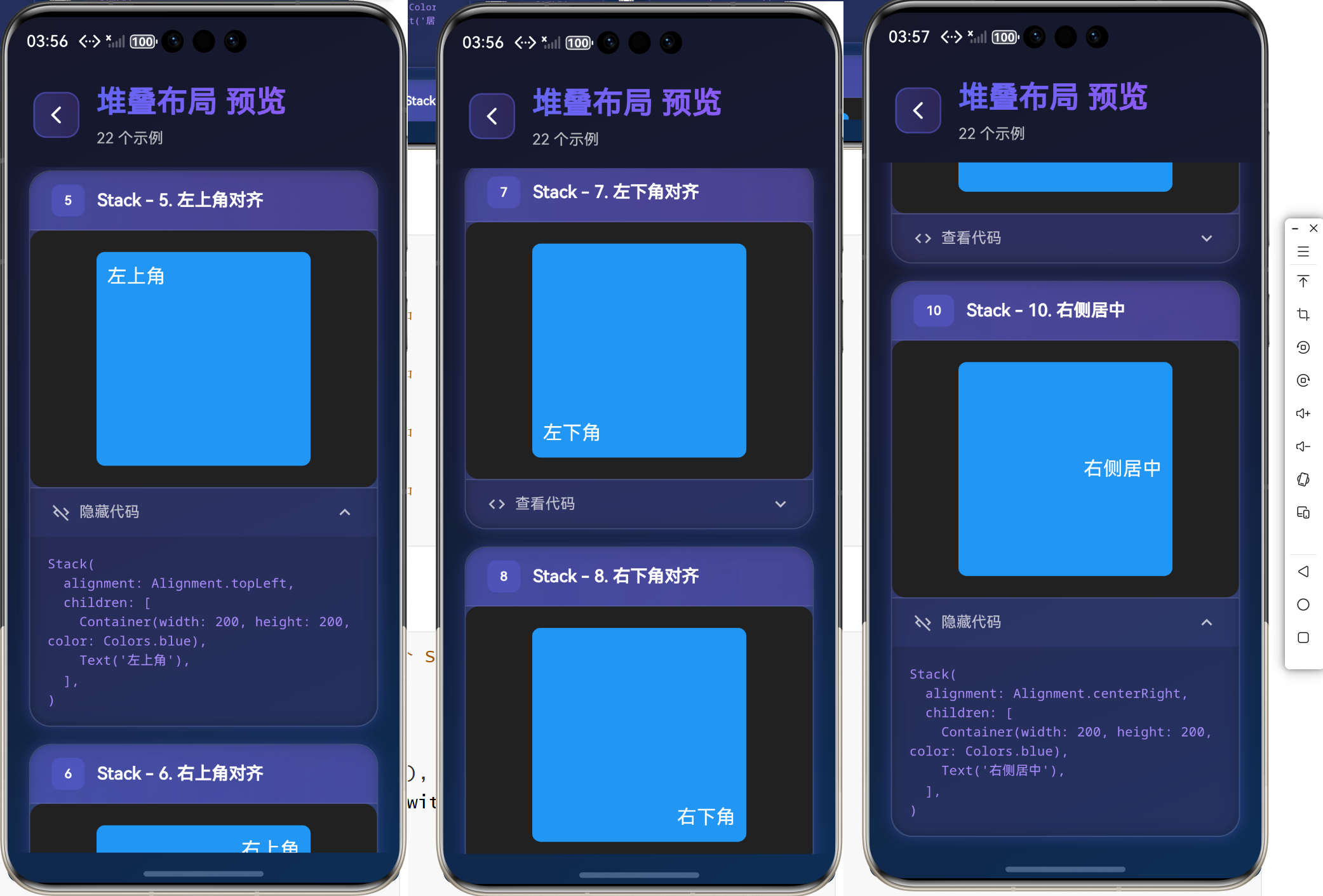
Stack 对齐方式
// 9个标准对齐位置
Alignment.topLeft      // 左上角
Alignment.topCenter    // 顶部居中
Alignment.topRight     // 右上角
Alignment.centerLeft   // 左侧居中
Alignment.center       // 居中
Alignment.centerRight  // 右侧居中
Alignment.bottomLeft   // 左下角
Alignment.bottomCenter // 底部居中
Alignment.bottomRight  // 右下角
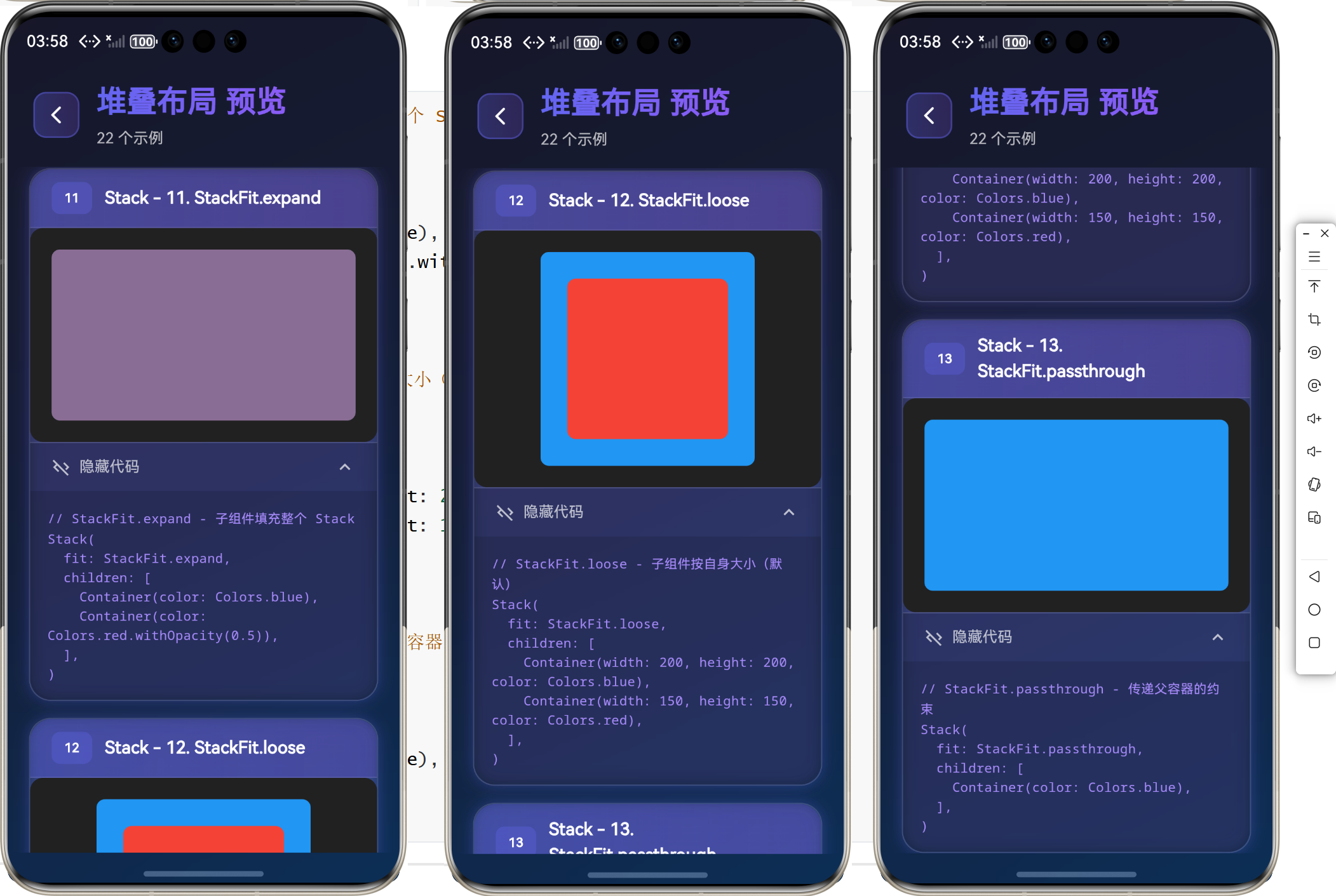
Stack 填充方式
// StackFit.expand - 子组件填充整个 Stack
Stack(
  fit: StackFit.expand,
  children: [
    Container(color: Colors.blue),
    Container(color: Colors.red.withOpacity(0.5)),
  ],
)

// StackFit.loose - 子组件按自身大小(默认)
Stack(
  fit: StackFit.loose,
  children: [
    Container(width: 200, height: 200, color: Colors.blue),
    Container(width: 150, height: 150, color: Colors.red),
  ],
)

// StackFit.passthrough - 传递父容器的约束
Stack(
  fit: StackFit.passthrough,
  children: [
    Container(color: Colors.blue),
  ],
)
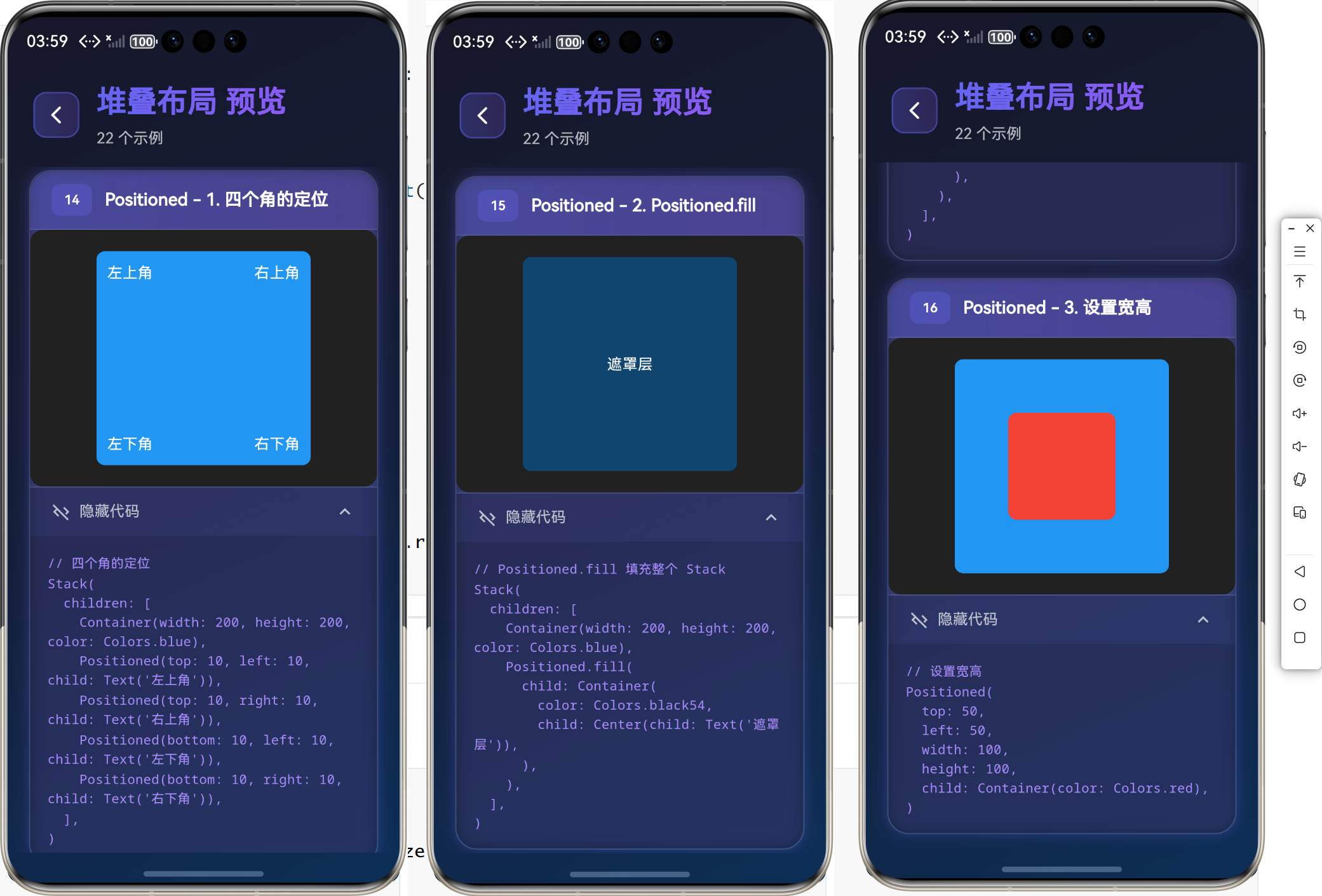
📍 Positioned 定位
Positioned 是 Stack 中实现精确定位的关键组件。
Positioned 基础用法
// 四个角的定位
Stack(
  children: [
    Container(width: 200, height: 200, color: Colors.blue),
    Positioned(top: 10, left: 10, child: Text('左上角')),
    Positioned(top: 10, right: 10, child: Text('右上角')),
    Positioned(bottom: 10, left: 10, child: Text('左下角')),
    Positioned(bottom: 10, right: 10, child: Text('右下角')),
  ],
)

// Positioned.fill 填充整个 Stack
Stack(
  children: [
    Container(width: 200, height: 200, color: Colors.blue),
    Positioned.fill(
      child: Container(
        color: Colors.black54,
        child: Center(child: Text('遮罩层')),
      ),
    ),
  ],
)

// 设置宽高
Positioned(
  top: 50,
  left: 50,
  width: 100,
  height: 100,
  child: Container(color: Colors.red),
)
💡 实际应用场景
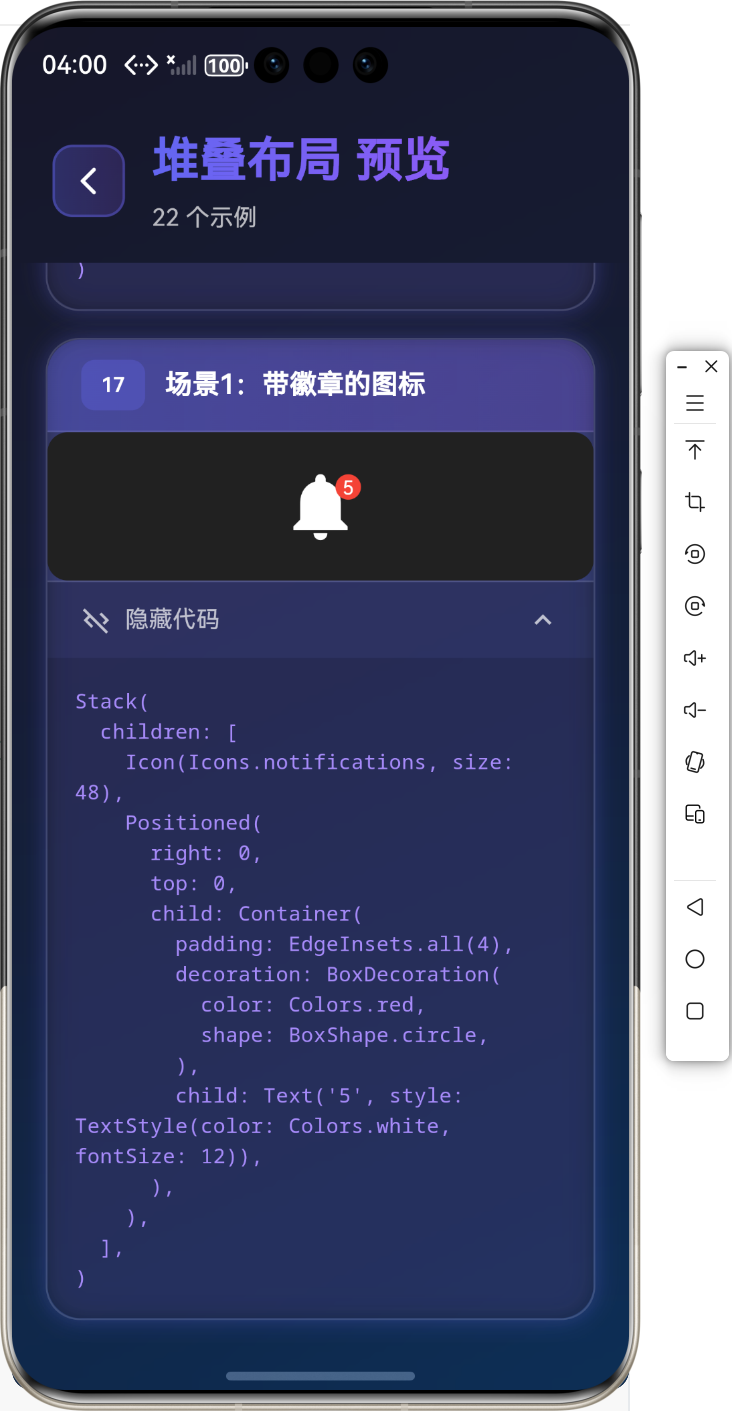
场景1:带徽章的图标
Stack(
  children: [
    Icon(Icons.notifications, size: 48),
    Positioned(
      right: 0,
      top: 0,
      child: Container(
        padding: EdgeInsets.all(4),
        decoration: BoxDecoration(
          color: Colors.red,
          shape: BoxShape.circle,
        ),
        child: Text('5', style: TextStyle(color: Colors.white, fontSize: 12)),
      ),
    ),
  ],
)
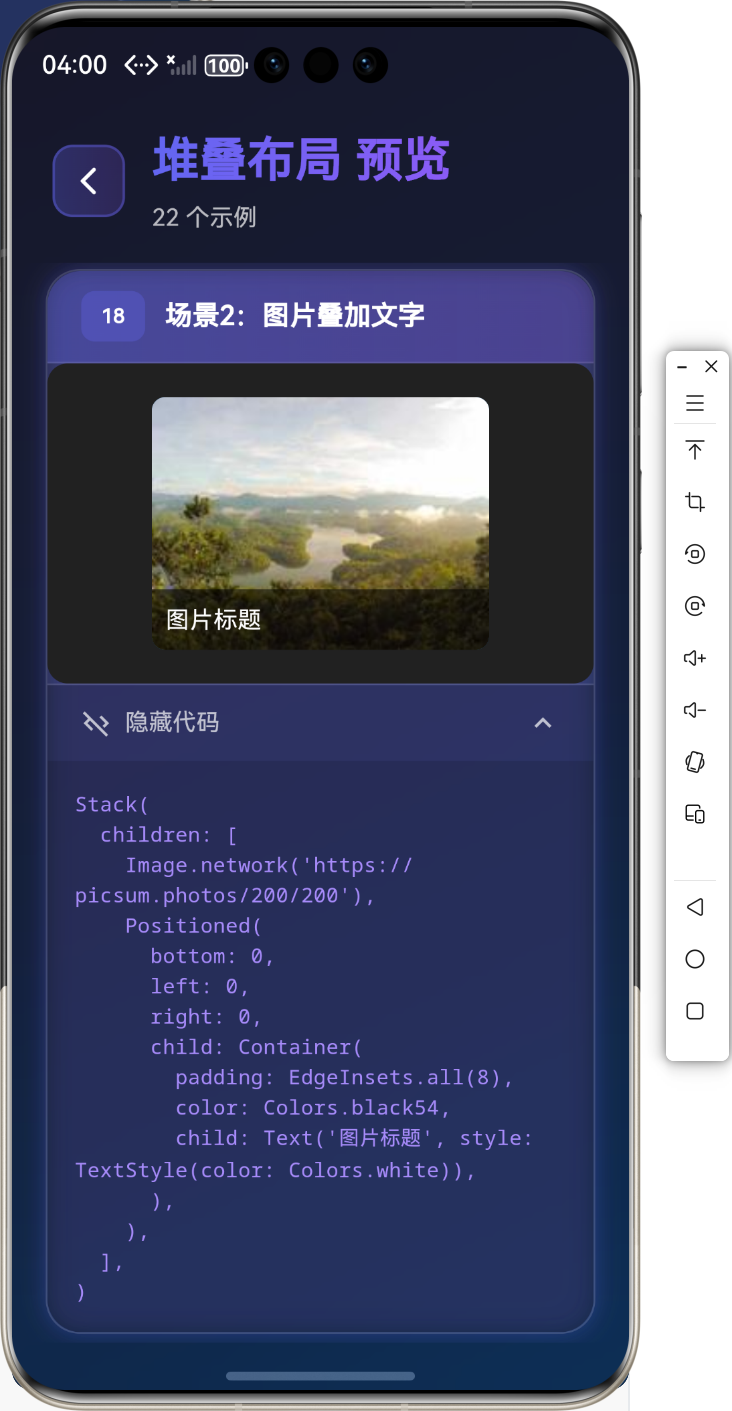
场景2:图片叠加文字
Stack(
  children: [
    Image.network('https://picsum.photos/200/200'),
    Positioned(
      bottom: 0,
      left: 0,
      right: 0,
      child: Container(
        padding: EdgeInsets.all(8),
        color: Colors.black54,
        child: Text('图片标题', style: TextStyle(color: Colors.white)),
      ),
    ),
  ],
)
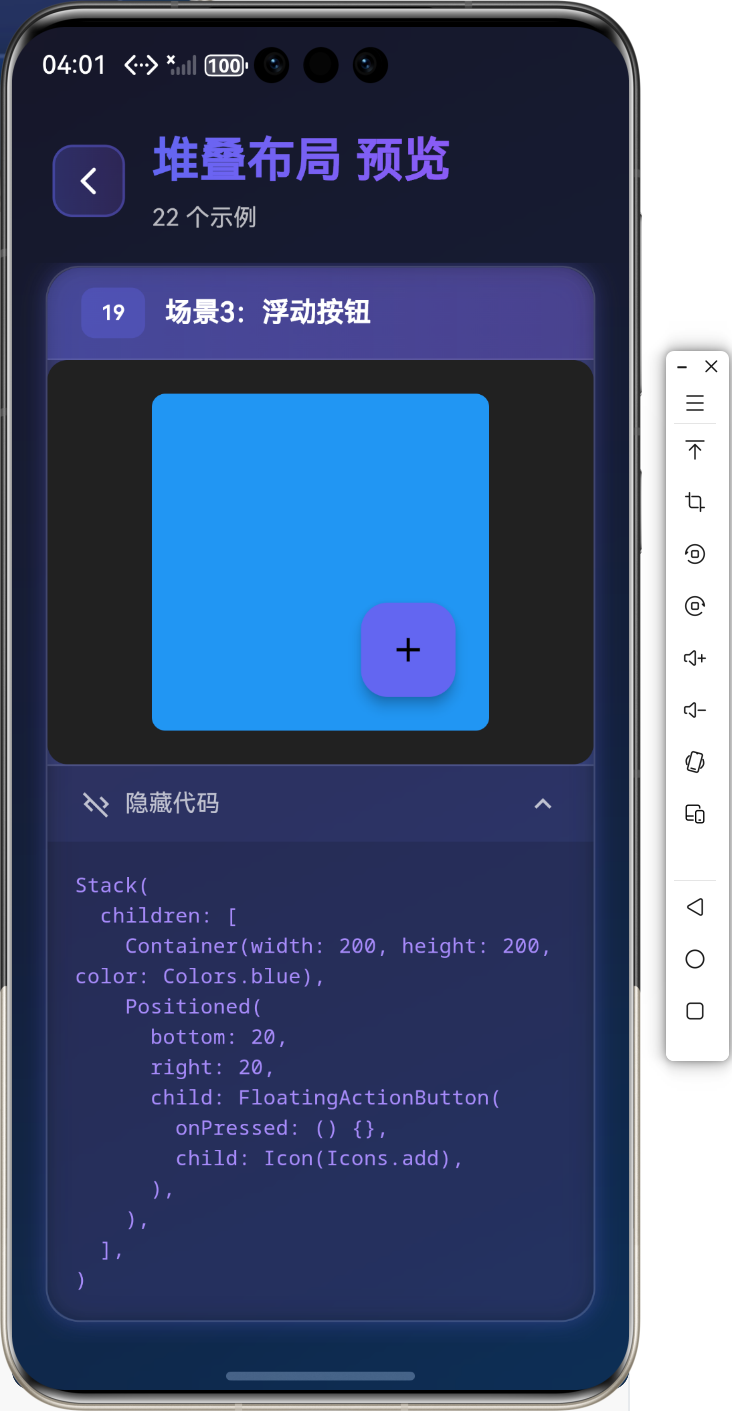
场景3:浮动按钮
Stack(
  children: [
    Container(width: 200, height: 200, color: Colors.blue),
    Positioned(
      bottom: 20,
      right: 20,
      child: FloatingActionButton(
        onPressed: () {},
        child: Icon(Icons.add),
      ),
    ),
  ],
)
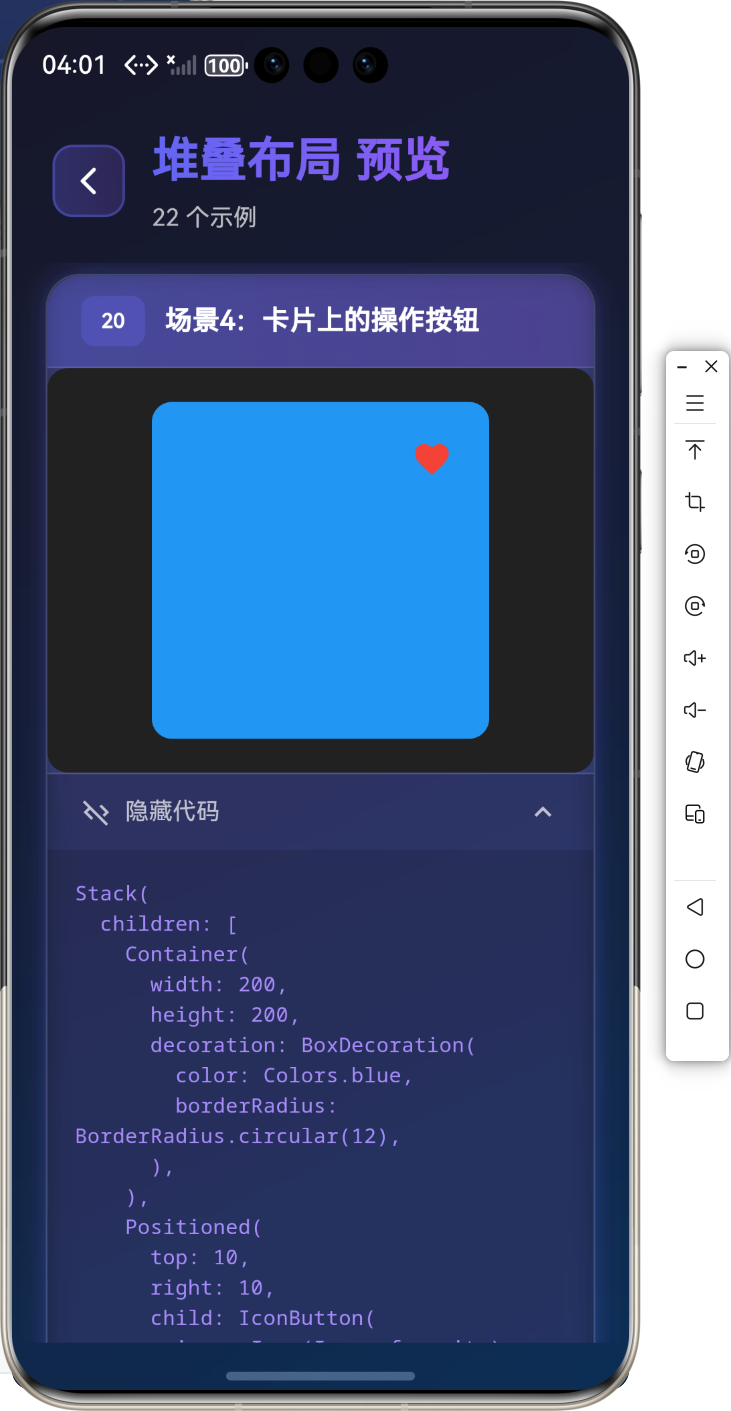
场景4:卡片上的操作按钮
Stack(
  children: [
    Container(
      width: 200,
      height: 200,
      decoration: BoxDecoration(
        color: Colors.blue,
        borderRadius: BorderRadius.circular(12),
      ),
    ),
    Positioned(
      top: 10,
      right: 10,
      child: IconButton(
        icon: Icon(Icons.favorite),
        onPressed: () {},
        color: Colors.red,
      ),
    ),
  ],
)
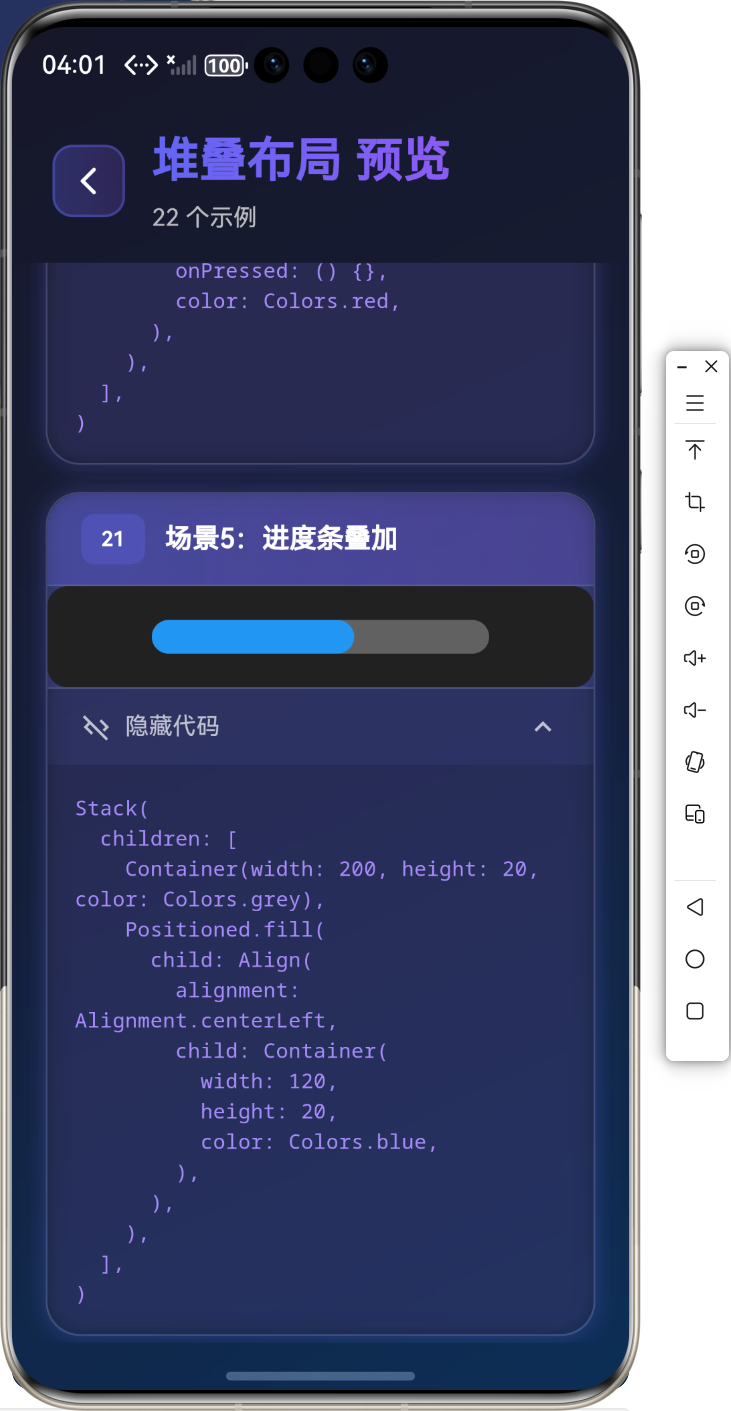
场景5:进度条叠加
Stack(
  children: [
    Container(width: 200, height: 20, color: Colors.grey),
    Positioned.fill(
      child: Align(
        alignment: Alignment.centerLeft,
        child: Container(
          width: 120,
          height: 20,
          color: Colors.blue,
        ),
      ),
    ),
  ],
)
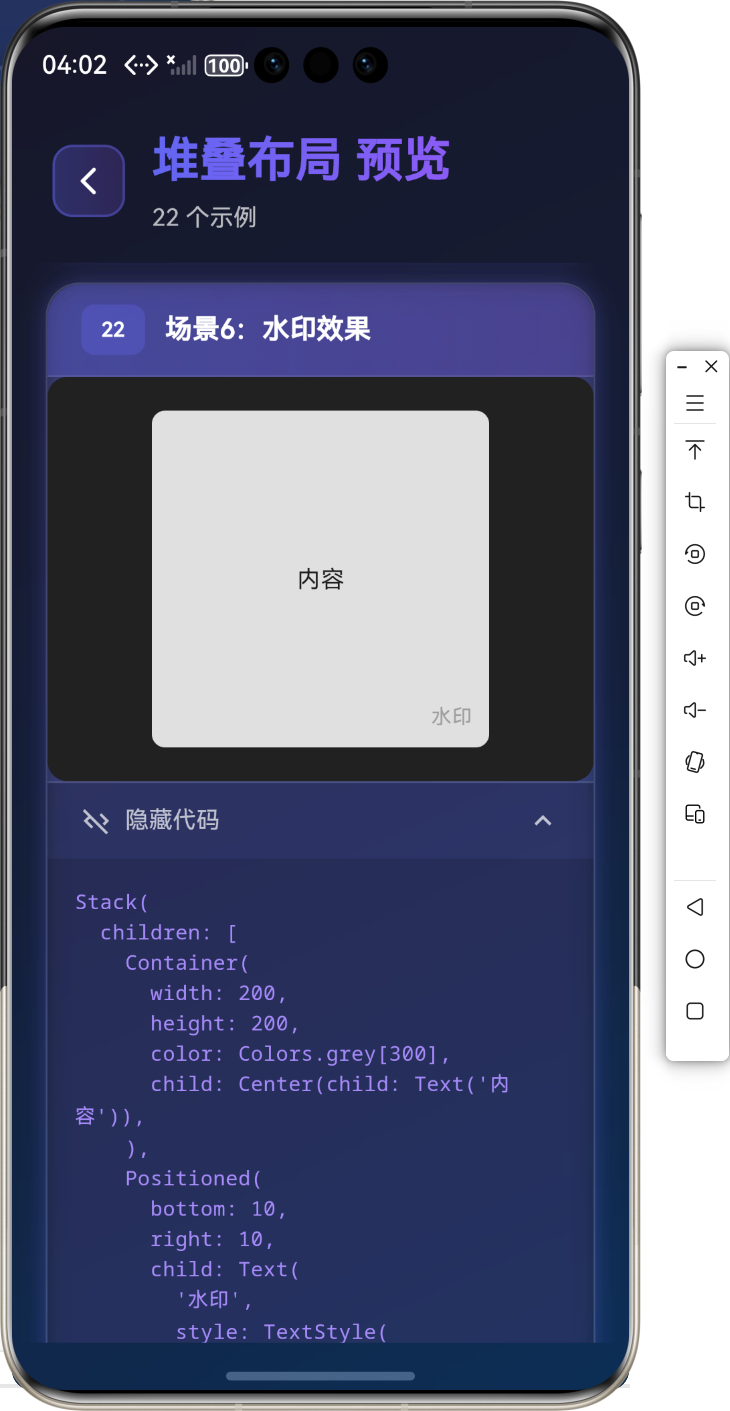
场景6:水印效果
Stack(
  children: [
    Container(
      width: 200,
      height: 200,
      color: Colors.grey[300],
      child: Center(child: Text('内容')),
    ),
    Positioned(
      bottom: 10,
      right: 10,
      child: Text(
        '水印',
        style: TextStyle(
          color: Colors.grey[400],
          fontSize: 12,
        ),
      ),
    ),
  ],
)
⚠️ 常见问题与解决方案
问题1:Stack 需要明确尺寸
问题描述:如果 Stack 没有明确的宽高,Positioned 的定位可能不准确。
解决方案:
// 使用 Container 包裹 Stack
Container(
  width: 200,
  height: 200,
  child: Stack(
    children: [
      Positioned(top: 10, left: 10, child: Text('文本')),
    ],
  ),
)

// 使用 SizedBox 包裹 Stack
SizedBox(
  width: 200,
  height: 200,
  child: Stack(
    children: [
      Positioned(top: 10, left: 10, child: Text('文本')),
    ],
  ),
)
问题2:Positioned 的定位优先级
问题描述:Positioned 的定位属性会覆盖 Stack 的 alignment 属性。
解决方案:
Stack(
  alignment: Alignment.center, // 对非 Positioned 子组件生效
  children: [
    Container(width: 200, height: 200, color: Colors.blue),
    Positioned(
      top: 0,
      left: 0,
      child: Text('不受 alignment 影响'), // Positioned 不受 alignment 影响
    ),
    Text('受 alignment 影响'), // 非 Positioned 子组件受 alignment 影响
  ],
)
问题3:Stack 子组件溢出
问题描述:Stack 的子组件可能超出 Stack 的边界。
解决方案:
// 使用 clipBehavior 控制裁剪
Stack(
  clipBehavior: Clip.hardEdge, // 硬裁剪
  children: [
    Container(width: 200, height: 200, color: Colors.blue),
    Positioned(
      top: -10, // 负值定位
      left: -10,
      child: Container(width: 50, height: 50, color: Colors.red),
    ),
  ],
)
🎨 最佳实践
1. Stack 尺寸控制
// 明确指定 Stack 的尺寸
Container(
  width: 200,
  height: 200,
  child: Stack(
    children: [
      // 子组件
    ],
  ),
)
2. Positioned 使用技巧
// 使用 Positioned.fill 填充整个 Stack
Positioned.fill(
  child: Container(color: Colors.black54),
)

// 使用多个定位属性实现复杂布局
Positioned(
  top: 10,
  left: 10,
  right: 10,
  bottom: 10,
  child: Container(color: Colors.red),
)
3. 性能优化
// 使用 const 构造函数
const Stack(
children: [
Text('文本'),
],
)
// 避免不必要的重建
class MyWidget extends StatelessWidget {
const MyWidget();
Widget build(BuildContext context) {
return Stack(
children: [
// 子组件
],
);
}
}
📚 总结
通过本教程,我们学习了:
- ✅
Stack组件的堆叠布局 - ✅
Positioned组件的绝对定位 - ✅ Stack 的对齐方式和填充方式
- ✅ 实际应用场景(徽章、叠加文字、浮动按钮等)
- ✅ 常见问题解决方案和最佳实践
堆叠布局是 Flutter 中实现复杂层叠效果的关键,掌握好 Stack 和 Positioned 的用法,能够让你创建出各种精美的 UI 效果!
🔗 相关资源
🎨Happy Coding! ✨

作为“人工智能6S店”的官方数字引擎,为AI开发者与企业提供一个覆盖软硬件全栈、一站式门户。
更多推荐
 0
0 0
0- 0


 已为社区贡献14条内容

所有评论(0)