
03 基于Flutter集成网络请求On OpenHarmony
基于 Flutter 和 Dio 开发鸿蒙(HarmonyOS/OpenHarmony)应用,本质上是利用 Flutter 的跨平台能力,结合鸿蒙系统的特定配置和生态适配来实现应用开发。Dio 作为一个强大的 Dart HTTP 客户端,在鸿蒙应用中主要用于处理网络请求、拦截、错误处理等核心功能。本实现通过使用Dio组件实现本地服务接口访问,具体操作步骤及验证结果如下:在lib文件夹下新建文件夹用
目录
基于 Flutter 和 Dio 开发鸿蒙(HarmonyOS/OpenHarmony)应用,本质上是利用 Flutter 的跨平台能力,结合鸿蒙系统的特定配置和生态适配来实现应用开发。Dio 作为一个强大的 Dart HTTP 客户端,在鸿蒙应用中主要用于处理网络请求、拦截、错误处理等核心功能。本实现通过使用Dio组件实现本地服务接口访问,具体操作步骤及验证结果如下:
一、核心依赖配置
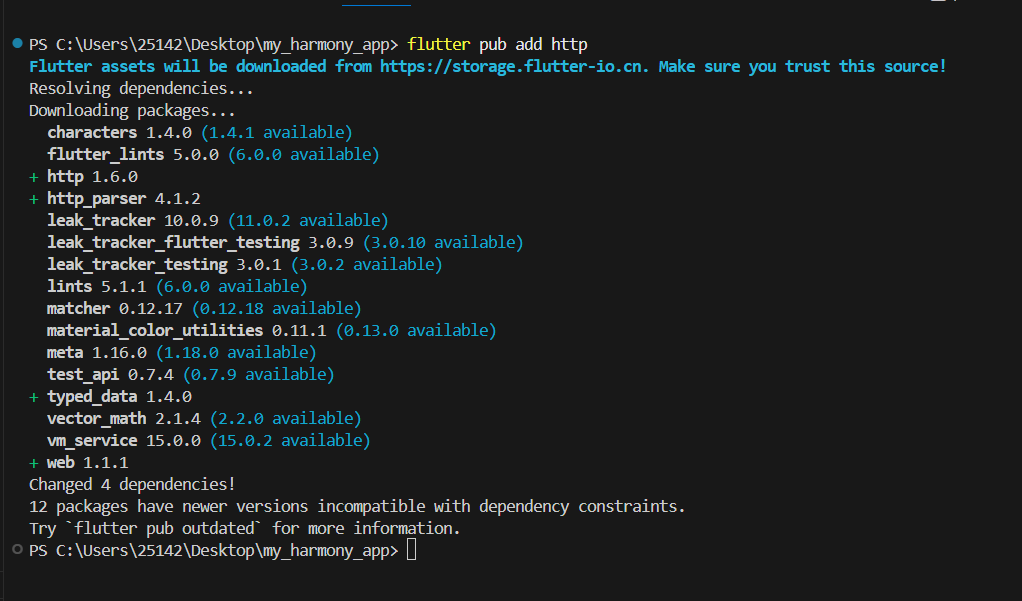
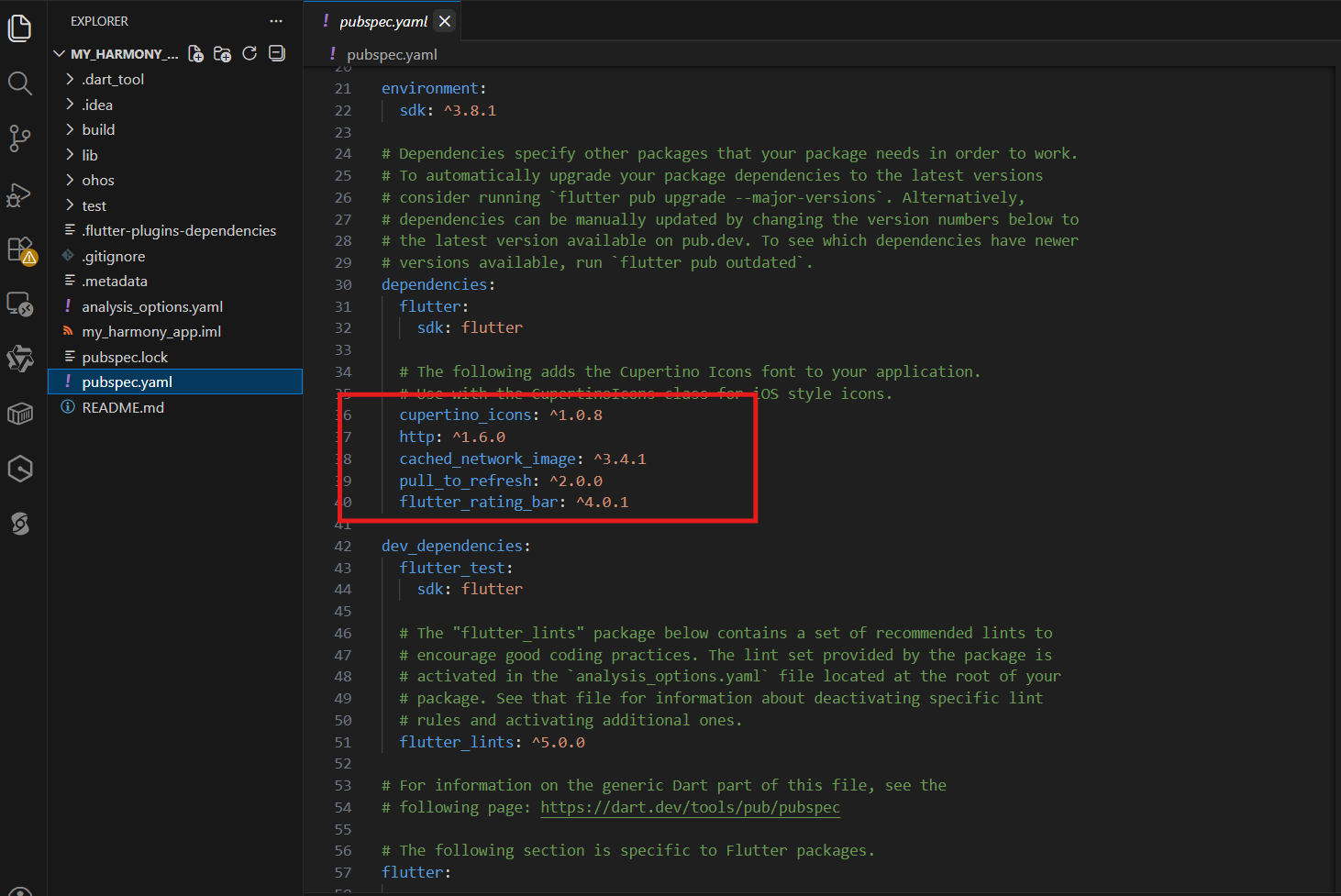
flutter pub add http
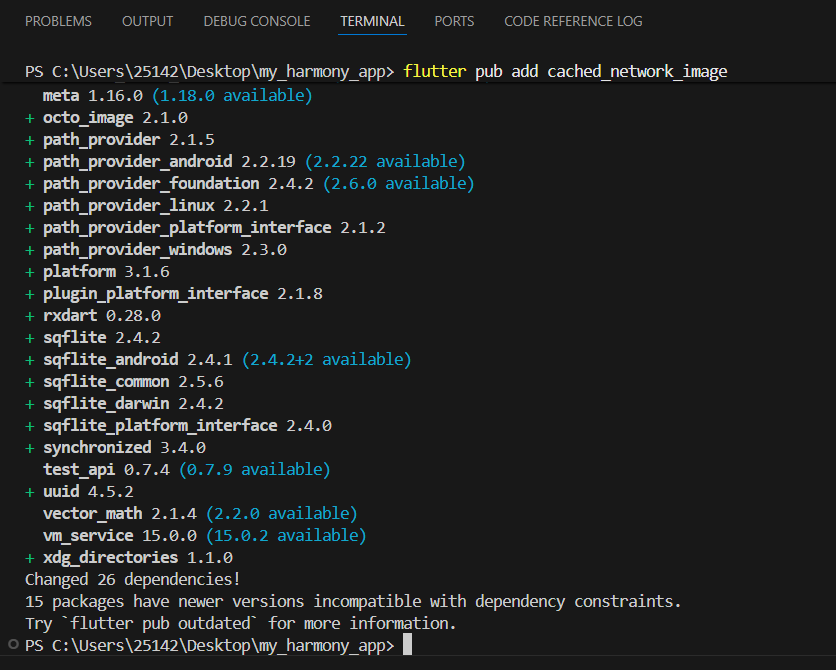
flutter pub add cached_network_image
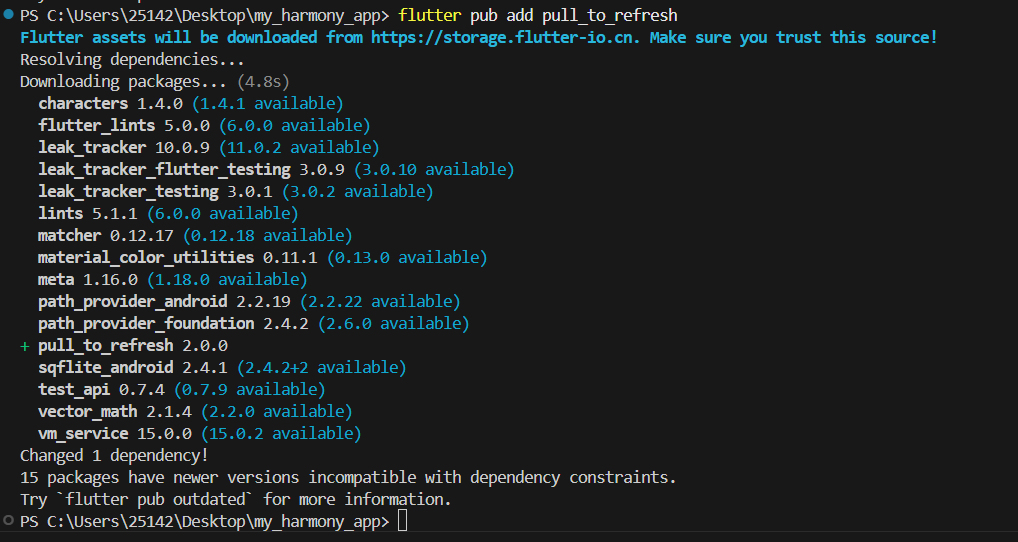
flutter pub add pull_to_refresh
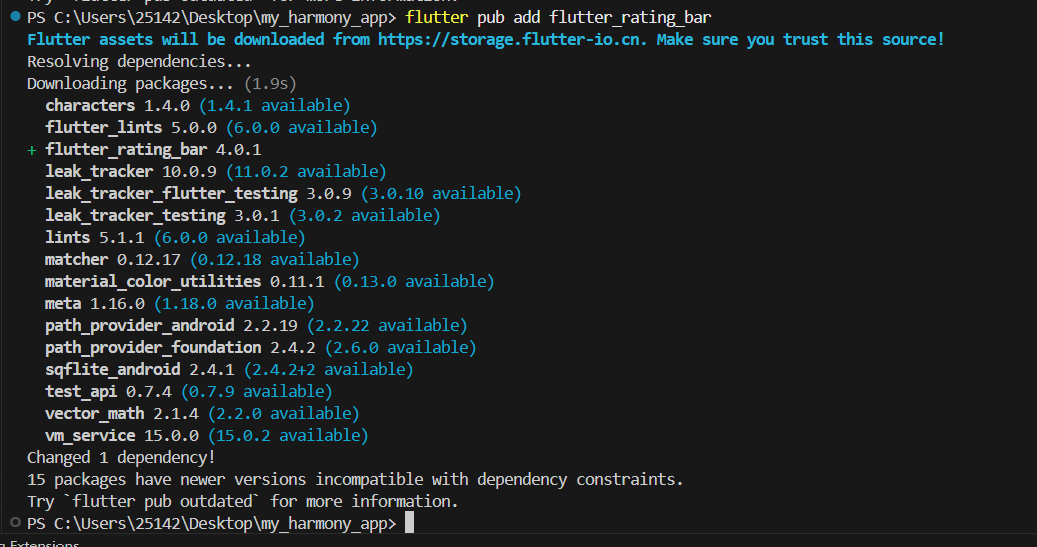
flutter pub add flutter_rating_bar
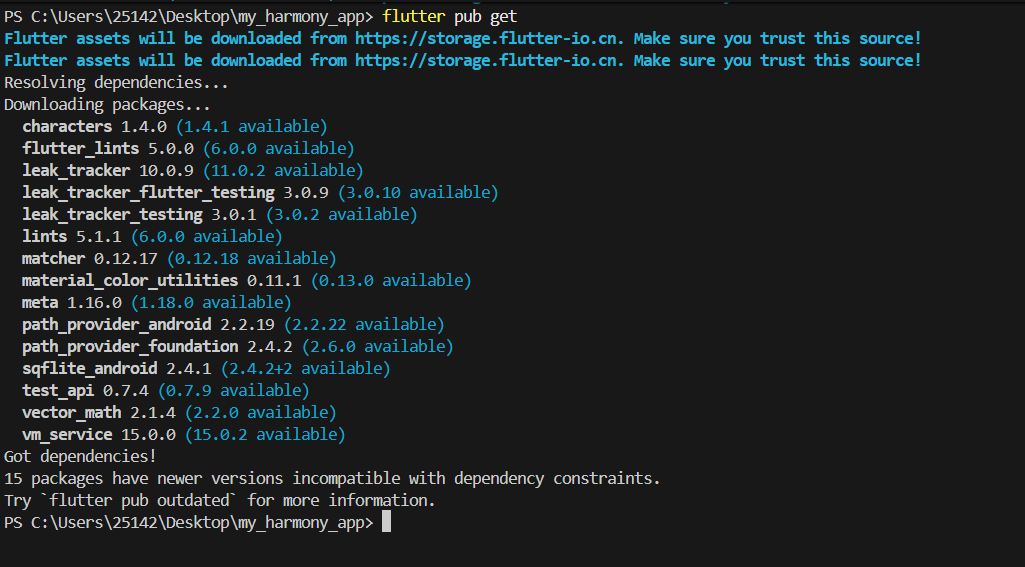
flutter pub get
二、项目结构
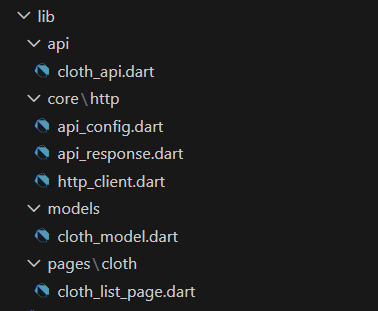
在lib文件夹下新建文件夹用于模块分类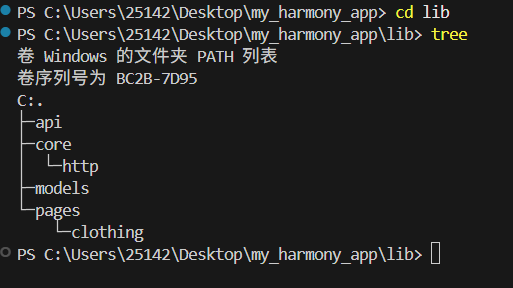
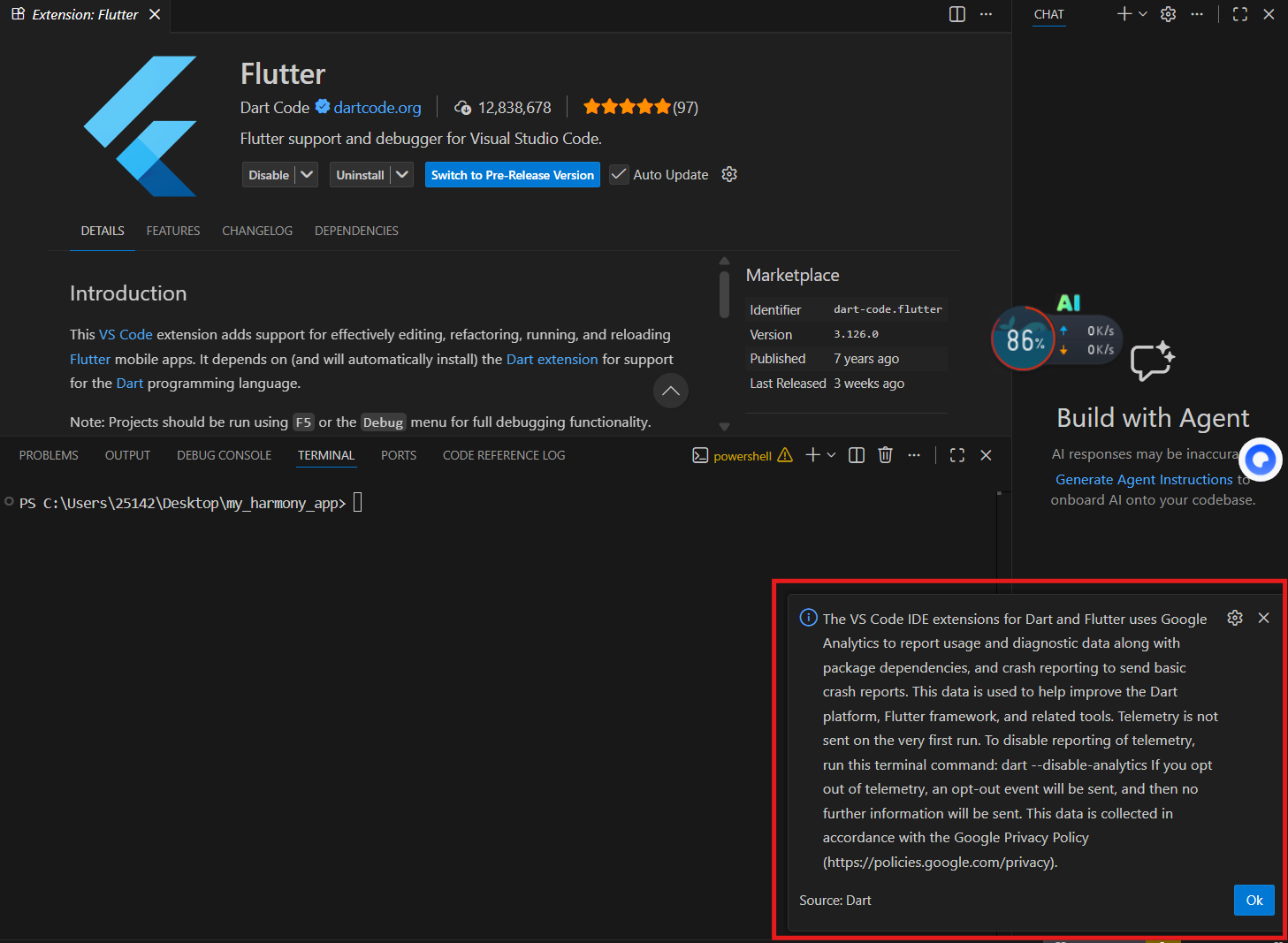
1.安装Flutter插件
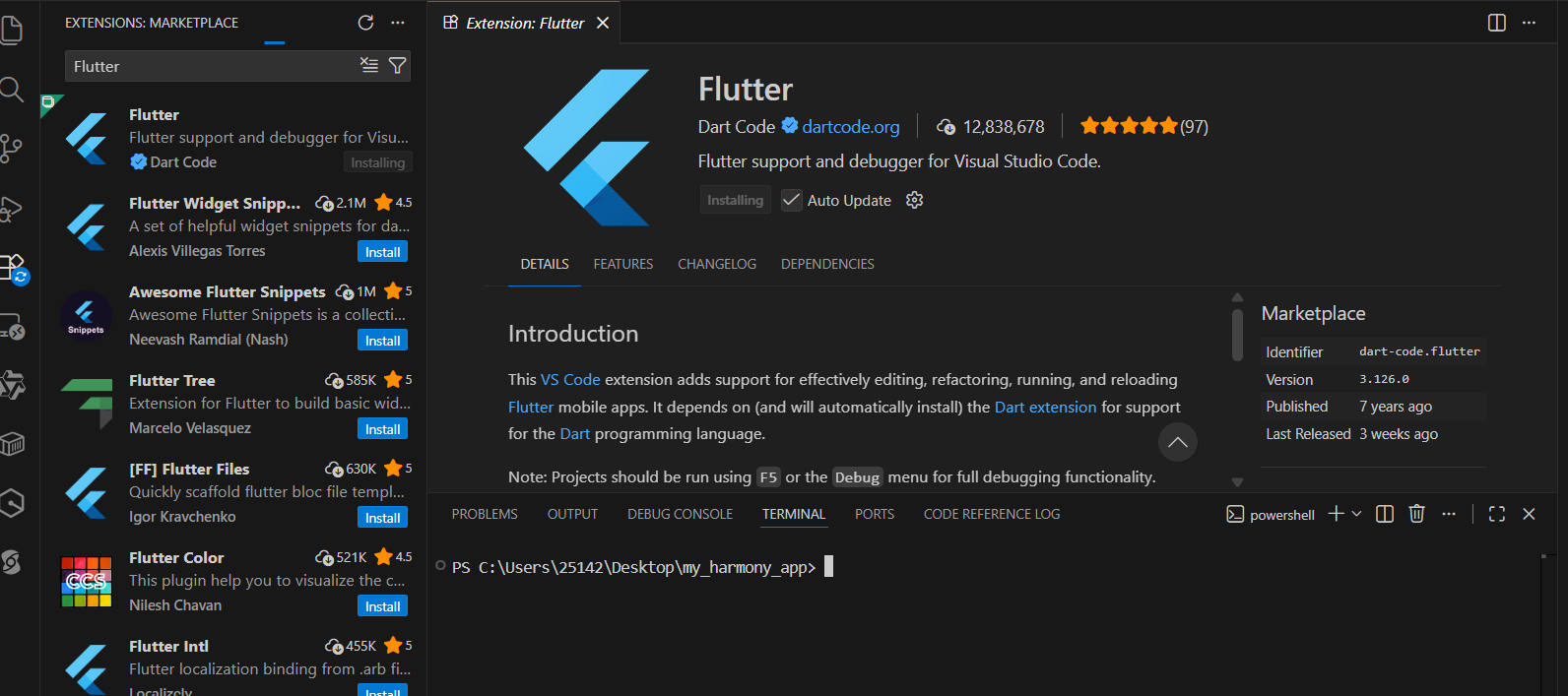
2.自动安装Dart
三、在对应目录下创建业务文件
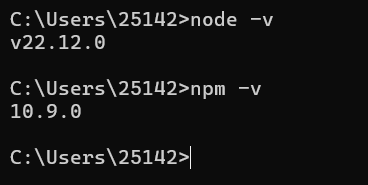
四、检查安装的node和npm
五、创建本地接口服务项目
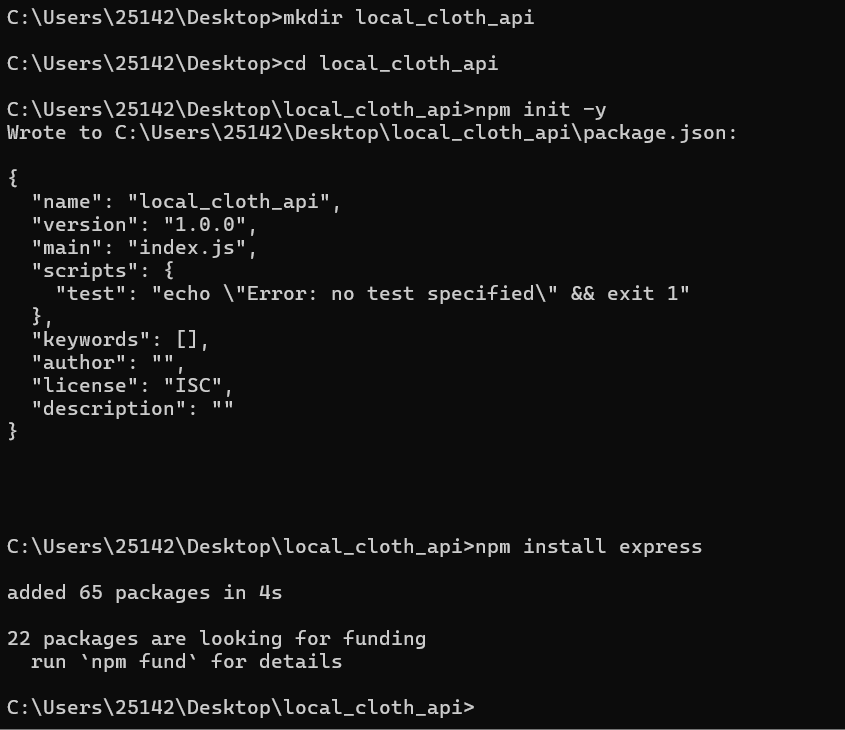
在local_cloth_api文件夹中新建server.js文件,编写以下代码:
// 顶部引入cors
const cors = require('cors');
// 导入Express
const express = require('express');
const app = express();
// 配置静态资源目录:让public文件夹里的文件可以通过HTTP访问
app.use(express.static('public'));
// 启用CORS(允许所有域名访问,测试用)
app.use(cors());
// 定义端口(可自定义,比如3000)
const port = 3000;

// 模拟服装列表数据
const mockFoodData = [
  {
    id: 1,
    name: "WalkinDark【莲礼枝】",
    desc: "中式古典紫鸢花吊带连衣裙提花收腰开衫套装",
    image: "/cloth1.jpg", // 对应public里的cloth1.jpg
    score: 4.8
  },
  {
    id: 2,
    name: "男长袖秋冬新款蓝色休闲衬衣",
    desc: "[纯棉]Navigare意大利小帆船磨毛衬衫",
    image: "/cloth2.jpg",
    score: 4.9
  },
  {
    id: 3,
    name: "女装冬加厚连帽羽绒外套",
    desc: "【迪丽热巴同款】骆驼羽神PRO鹅绒羽绒服",
    image: "/cloth3.jpg",
    score: 4.5
  }
];

// 定义服装列表接口:GET请求,路径为/api/localCloth/list
app.get('/api/localCloth/list', (req, res) => {
  res.json(mockFoodData);
});

// 启动服务
app.listen(port, () => { // 改为用port变量
  console.log(`Server running on http://localhost:${port}`);
});
在local_cloth_api文件夹的终端中执行:
node server.js
本地服务已启动
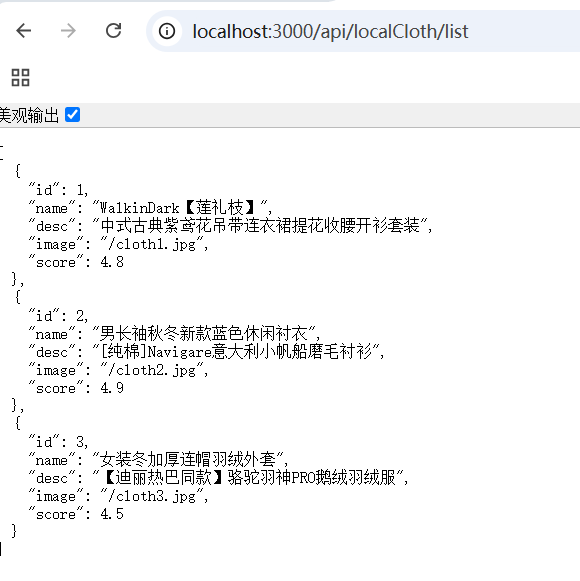
1.访问本地服务http://localhost:3000/api/localCloth/list
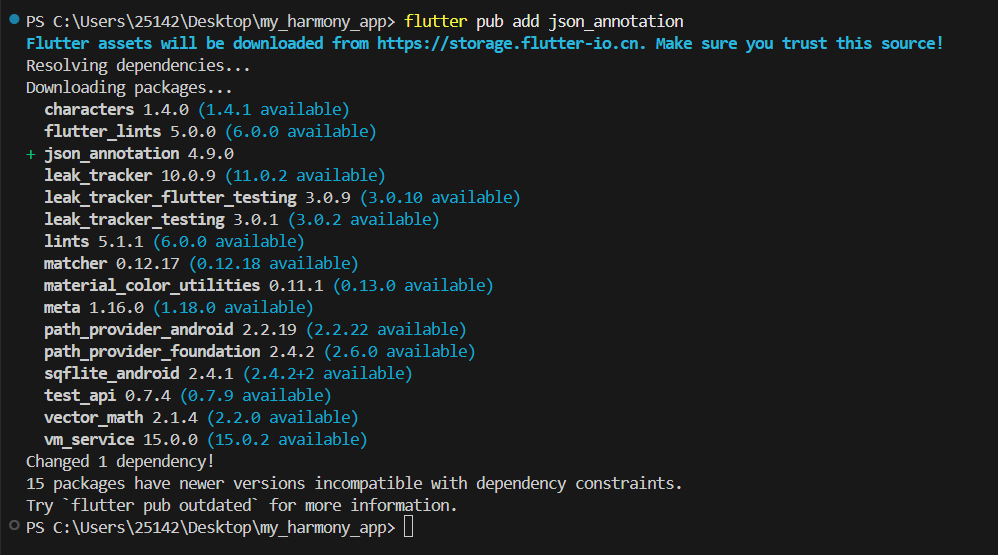
将json_annotation添加到运行时依赖
flutter pub add json_annotation
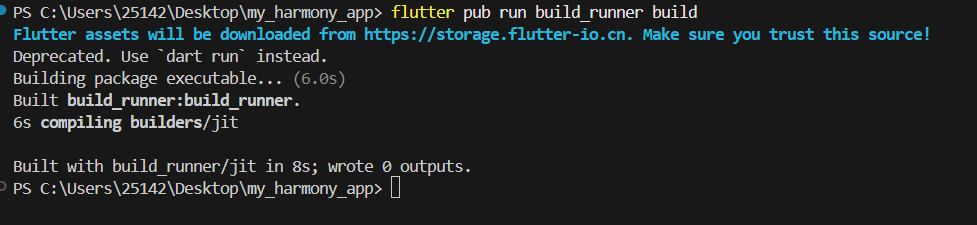
在终端执行build_runner命令,生成 JSON 序列化的代码文件
flutter pub run build_runner build
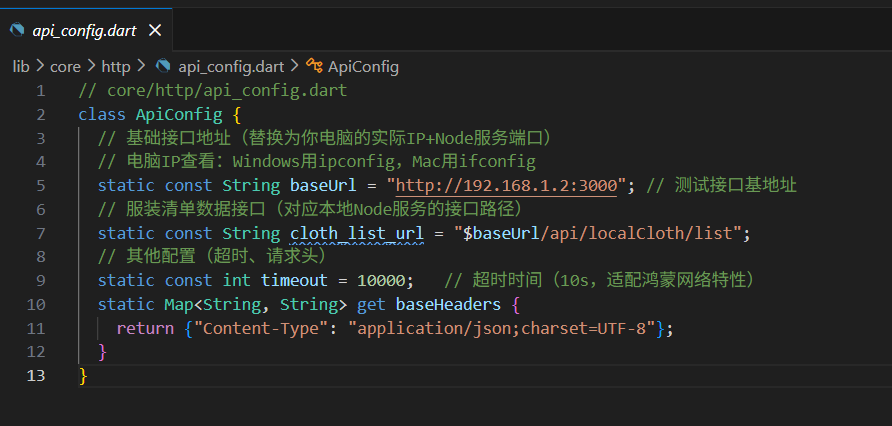
2.Flutter 项目中调用这个本地接口
六、应用端实现
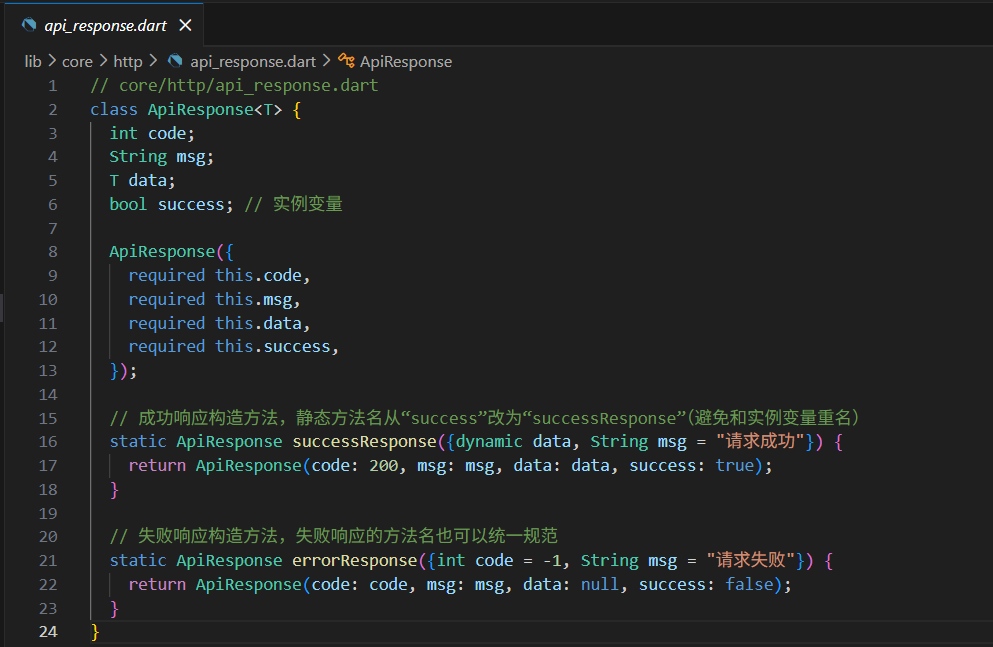
1. 统一响应模型
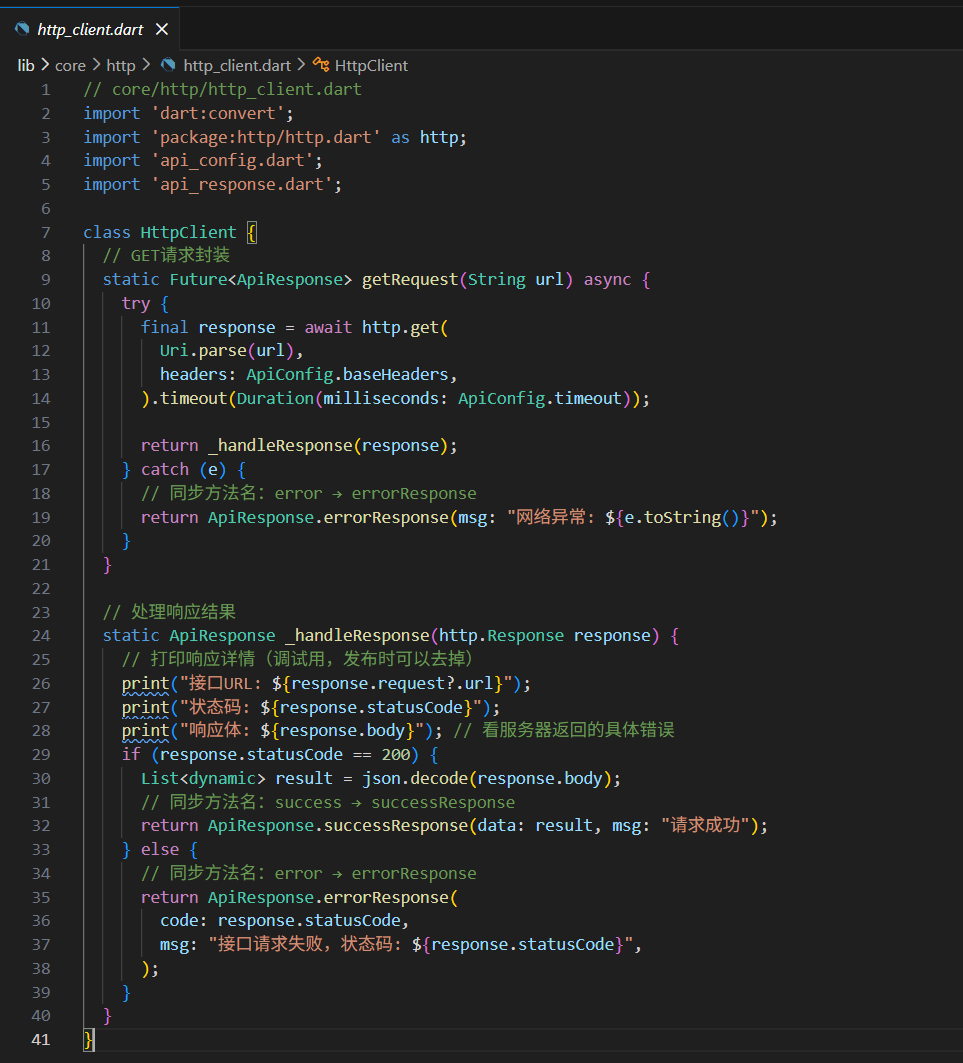
2.网络请求封装
在vs code终端中输入并执行以下命令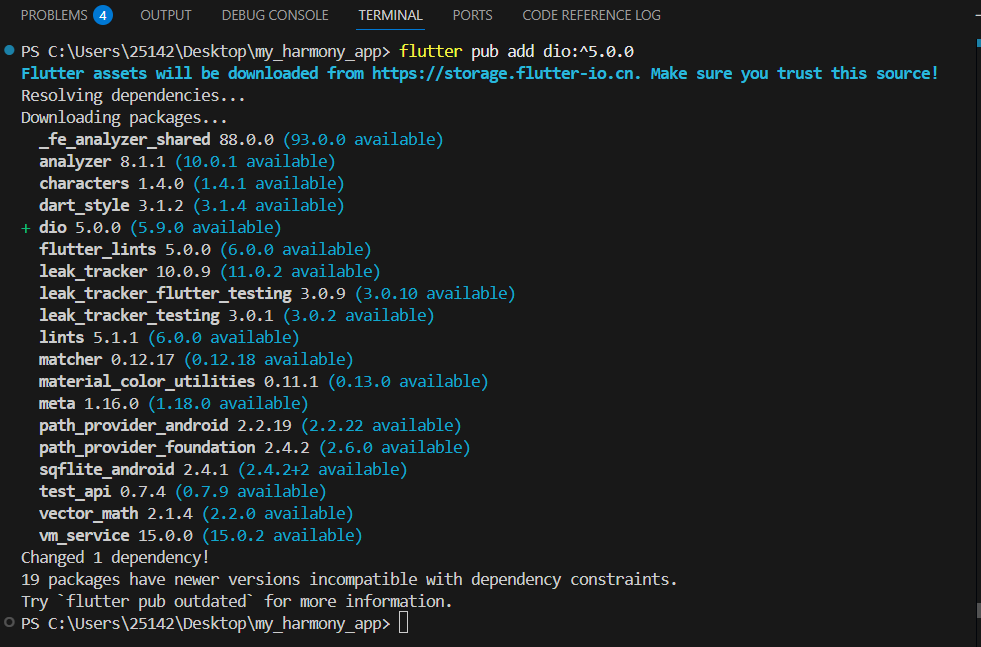
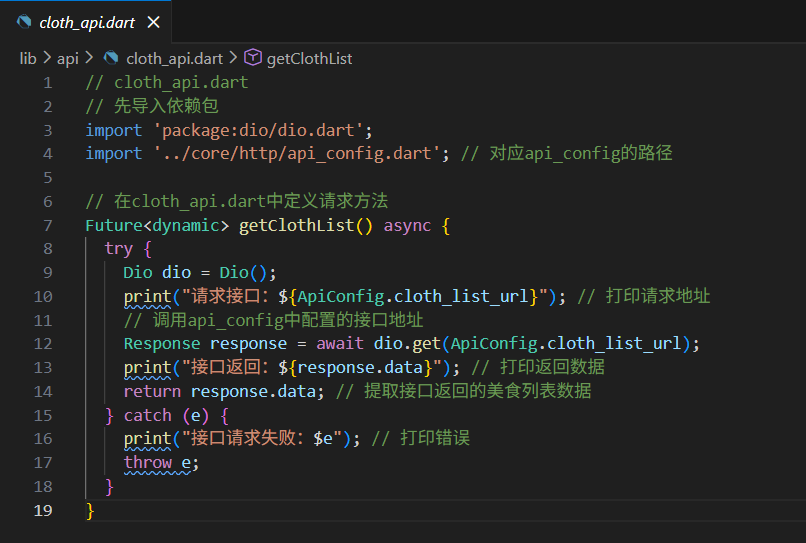
3.服装清单接口请求实现
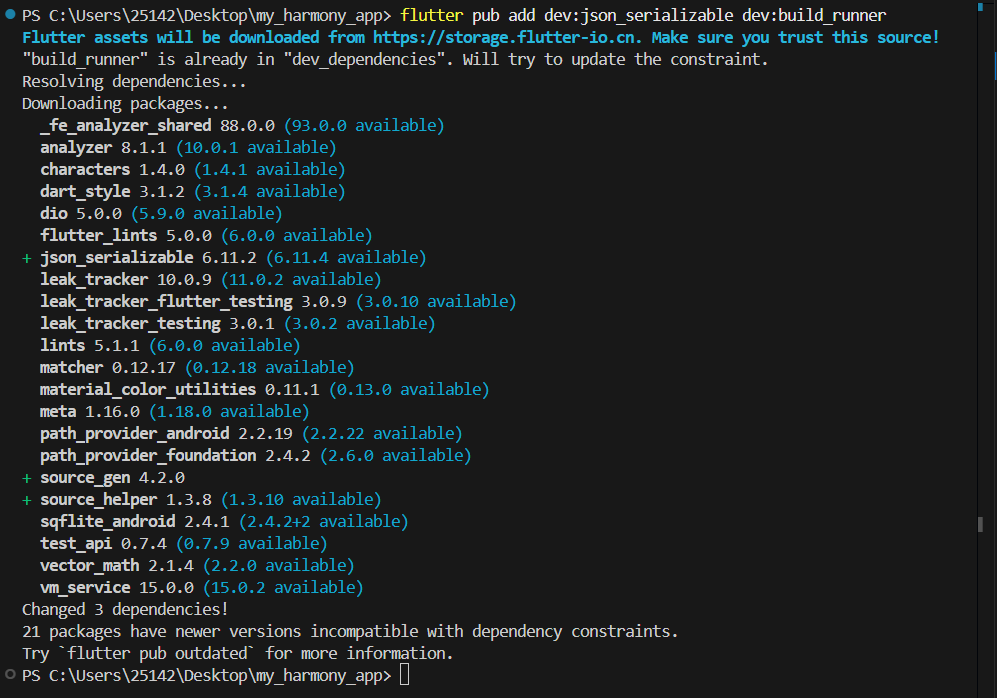
先添加json_serializable依赖(VS Code终端执行),采用json_serializable实现 JSON 数据与 Dart 对象的自动转换,解决数据解析效率问题。
flutter pub add dev:json_serializable dev:build_runner
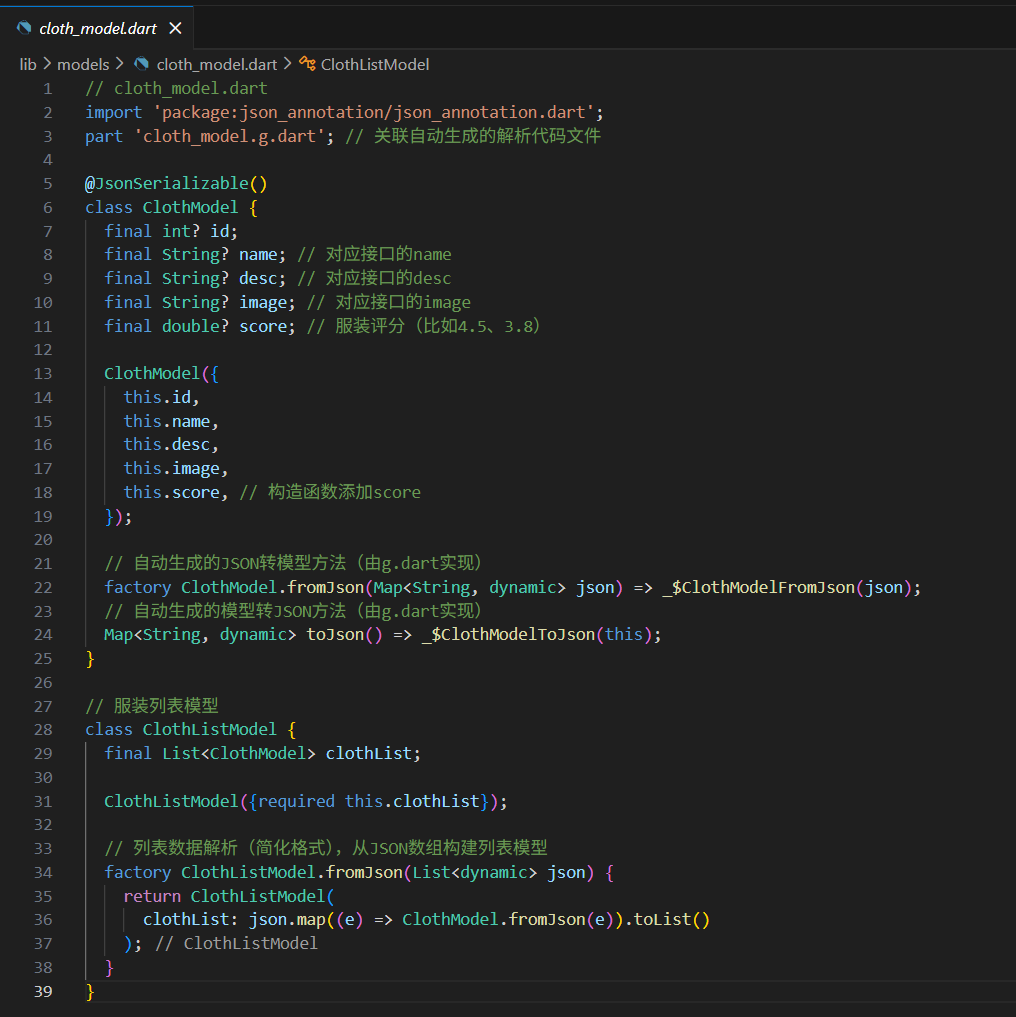
4.服装数据模型定义
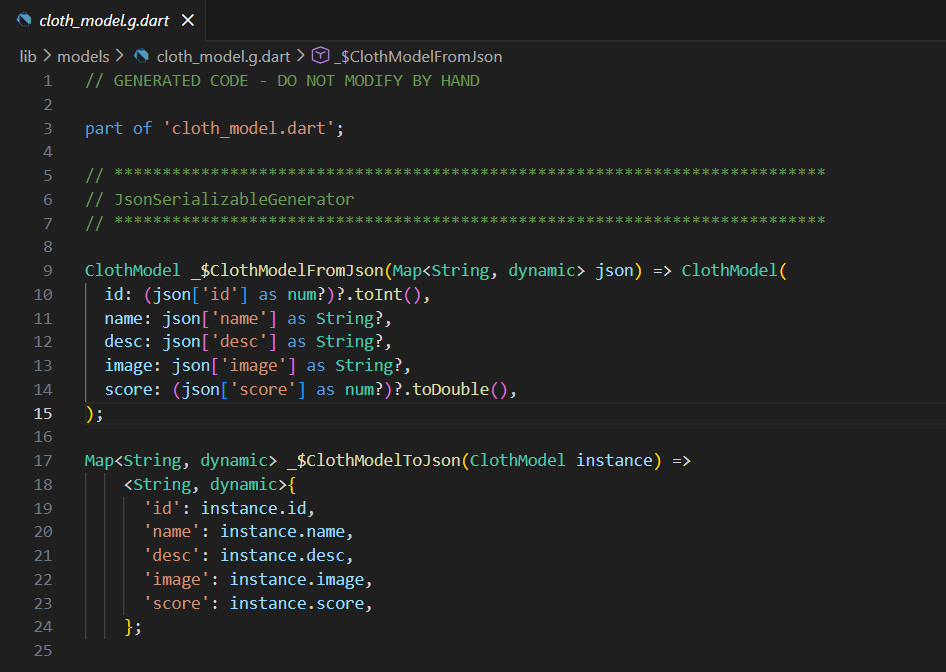
在 VS Code 终端执行以下命令,自动生成food_model.g.dart解析文件:
flutter pub run build_runner build
5.服装清单页面UI构建
// pages/cloth/cloth_list_page.dart
import 'package:flutter/material.dart';
import 'package:cached_network_image/cached_network_image.dart';
import 'package:pull_to_refresh/pull_to_refresh.dart';
import '../../../api/cloth_api.dart';
import '../../../models/cloth_model.dart';

class ClothListPage extends StatefulWidget {
  const ClothListPage({super.key});
  @override
  State<ClothListPage> createState() => _ClothListPageState();
}

class _ClothListPageState extends State<ClothListPage> {
  List<ClothModel> _clothList = [];
  final RefreshController _refreshController = RefreshController(initialRefresh: false);
  @override
  void initState() {
    super.initState();
    _getClothListData(); // 初始化加载数据
  }

// 获取服装数据
Future<void> _getClothListData() async {
  try {
    final data = await getClothList();
    if (mounted) {
      // 先判断data是否是List类型
      if (data is List) {
        final clothListModel = ClothListModel.fromJson(data);
        setState(() {
          _clothList = clothListModel.clothList;
        });
        ScaffoldMessenger.of(context).showSnackBar(
          const SnackBar(content: Text("服装列表加载成功")),
        );
      } else {
        throw Exception("接口返回数据不是列表");
      }
    }
  } catch (e) {
    if (mounted) {
      ScaffoldMessenger.of(context).showSnackBar(
        SnackBar(content: Text("加载失败:${e.toString()}")),
      );
    }
  } finally {
    _refreshController.refreshCompleted();
  }
}

// 列表项UI构建
Widget _buildClothItem(ClothModel cloth) {
  // 步骤1:新增打印,确认图片URL是否正确(复制这个URL到手机浏览器能打开)
  final imageUrl = "http://192.168.1.2:3000${cloth.image ?? ""}";
  print("图片请求URL:$imageUrl"); // 看Flutter控制台日志,确认URL正确
  return Card(
    margin: const EdgeInsets.symmetric(horizontal: 10, vertical: 8),
    child: Padding(
      padding: const EdgeInsets.all(10),
      child: Row(
        children: [
          // 步骤2:原生Image.network
          Image.network(
            imageUrl, // 用上面拼接好的URL
            width: 80,
            height: 80,
            fit: BoxFit.cover, // 让图片填充容器
            // 加载中显示转圈
            loadingBuilder: (context, child, loadingProgress) {
              if (loadingProgress == null) return child;
              return const CircularProgressIndicator();
            },
            // 加载失败打印错误+显示图标
            errorBuilder: (context, error, stackTrace) {
              print("图片加载失败原因:${error.toString()}");
              return const Icon(Icons.checkroom);
            },
          ),
          const SizedBox(width: 12),
          // 服装信息
          Expanded(
            child: Column(
              crossAxisAlignment: CrossAxisAlignment.start,
              children: [
                // 服装名称
                Text(
                  cloth.name ?? "未知服装",
                  maxLines: 1,
                  overflow: TextOverflow.ellipsis,
                  style: const TextStyle(fontSize: 16, fontWeight: FontWeight.bold),
                ),
                const SizedBox(height: 4),
                // 服装描述
                Text(
                  cloth.desc ?? "暂无描述",
                  maxLines: 1,
                  overflow: TextOverflow.ellipsis,
                  style: const TextStyle(fontSize: 12, color: Colors.grey),
                ),
                const SizedBox(height: 4),
                // 评分组件
                _buildNativeRating(cloth.score ?? 0),
              ],
            ),
          ),
        ],
      ),
    ),
  );
}

// 原生星星评分组件(无需第三方包)
Widget _buildNativeRating(double score) {
  const int maxStars = 5; // 满分5星
  final int fullStars = score.floor(); // 全星数量(比如4.5→4)
  final bool hasHalfStar = score - fullStars >= 0.5; // 是否有半星
  final int emptyStars = maxStars - fullStars - (hasHalfStar ? 1 : 0); // 空星数量
  return Row(
    children: [
      // 全星
      ...List.generate(fullStars, (index) => const Icon(
        Icons.star,
        size: 18,
        color: Colors.amber,
      )),
      // 半星(如果有)
      if (hasHalfStar)
        const Icon(
          Icons.star_half,
          size: 18,
          color: Colors.amber,
        ),
      // 空星
      ...List.generate(emptyStars, (index) => const Icon(
        Icons.star_border,
        size: 18,
        color: Colors.amber,
      )),
    ],
  );
}

@override
  Widget build(BuildContext context) {
    return Scaffold(
      appBar: AppBar(title: const Text("本地服装清单"), centerTitle: true),
      body: SmartRefresher(
        controller: _refreshController,
        onRefresh: _getClothListData,   // 下拉刷新
        child: _clothList.isEmpty
            ? const Center(child: CircularProgressIndicator())
            : ListView.builder(
                itemCount: _clothList.length,
                itemBuilder: (context, index) => _buildClothItem(_clothList[index]),
              ),
      ),
    );
  }
}
在 main.dart 中配置服装页面为入口(或路由),设置服装清单页面为应用首页,配置主题样式:
// main.dart 服装页面入口
import 'package:flutter/material.dart';
import 'pages/cloth/cloth_list_page.dart';

void main() {
  runApp(const MyApp());
}

class MyApp extends StatelessWidget {
  const MyApp({super.key});

  @override
  Widget build(BuildContext context) {
    return MaterialApp(
      title: '本地服装清单',

      theme: ThemeData(primarySwatch: Colors.blue),
      home: const ClothListPage(), // 首页设置,服装清单页面
      debugShowCheckedModeBanner: false,
    );
  }
}

class MyHomePage extends StatefulWidget {
  const MyHomePage({super.key, required this.title});

  final String title;

  @override
  State<MyHomePage> createState() => _MyHomePageState();
}

class _MyHomePageState extends State<MyHomePage> {
  int _counter = 0;

  void _incrementCounter() {
    setState(() {
      _counter++;
    });
  }

  @override
  Widget build(BuildContext context) {
    return Scaffold(
      appBar: AppBar(
        backgroundColor: Theme.of(context).colorScheme.inversePrimary,
        title: Text(widget.title),
      ),
      body: Center(
        child: Column(
          mainAxisAlignment: MainAxisAlignment.center,
          children: <Widget>[
            const Text(
              'You have pushed the button this many times:',
            ),
            Text(
              '$_counter',
              style: Theme.of(context).textTheme.headlineMedium,
            ),
          ],
        ),
      ),
      floatingActionButton: FloatingActionButton(
        onPressed: _incrementCounter,
        tooltip: 'Increment',
        child: const Icon(Icons.add),
      ),
    );
  }
}
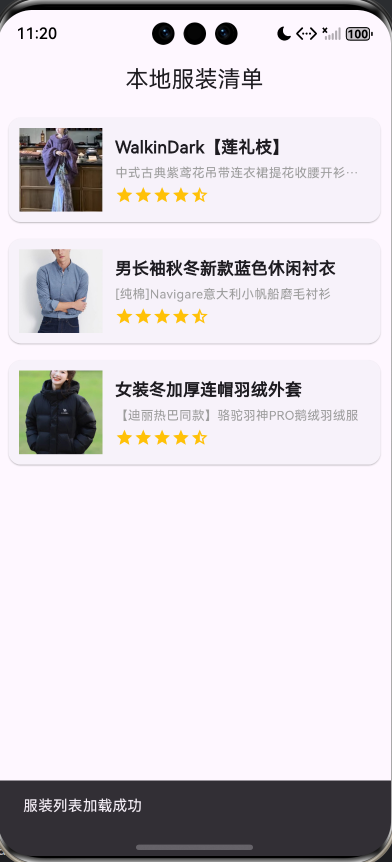
七. 服装清单功能验证
欢迎加入开源鸿蒙跨平台社区: https://openharmonycrossplatform.csdn.net

作为“人工智能6S店”的官方数字引擎,为AI开发者与企业提供一个覆盖软硬件全栈、一站式门户。
更多推荐

 16
16 0
0- 0


 已为社区贡献8条内容

所有评论(0)