
Flutter框架跨平台鸿蒙开发——Button样式定制
Button组件提供了强大的样式定制能力,通过style属性可以精细控制按钮的各个视觉属性。Flutter为每种按钮类型提供了对应的styleFrom静态方法,可以快速创建常用样式。对于更复杂的定制,可以使用ButtonStyle构造函数,通过MaterialStateProperty实现状态响应式样式。样式定制包括颜色、形状、大小、边框、阴影、内边距等多个方面,满足各种设计需求。
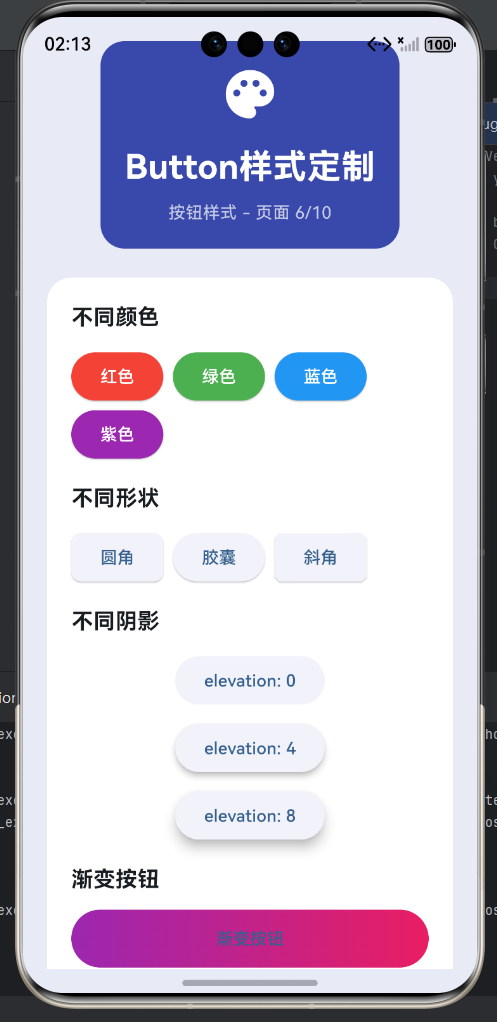
一、样式定制概述
Button组件提供了强大的样式定制能力,通过style属性可以精细控制按钮的各个视觉属性。Flutter为每种按钮类型提供了对应的styleFrom静态方法,可以快速创建常用样式。对于更复杂的定制,可以使用ButtonStyle构造函数,通过MaterialStateProperty实现状态响应式样式。样式定制包括颜色、形状、大小、边框、阴影、内边距等多个方面,满足各种设计需求。
样式属性分类
| 属性类别 | 属性名称 | 作用 | 适用按钮 | 默认值 |
|---|---|---|---|---|
| 颜色 | backgroundColor | 按钮背景色 | 全部 | 主题色 |
| 颜色 | foregroundColor | 文字/图标颜色 | 全部 | 白色/黑色 |
| 颜色 | overlayColor | 悬停/按下覆盖色 | 全部 | 白色半透明 |
| 颜色 | shadowColor | 阴影颜色 | ElevatedButton | 黑色 |
| 形状 | shape | 按钮形状 | 全部 | 圆角矩形 |
| 内边距 | padding | 内容与边距 | 全部 | 16×8 |
| 文字样式 | textStyle | 文字样式 | 全部 | 默认 |
| 边框 | side | 边框样式 | OutlinedButton | 2px |
| 阴影 | elevation | 阴影高度 | ElevatedButton | 2dp |
样式定制方式对比
| 方式 | 适用场景 | 优点 | 缺点 | 代码示例 |
|---|---|---|---|---|
| styleFrom | 简单样式 | 简洁直观 | 不够灵活 | ElevatedButton.styleFrom() |
| ButtonStyle | 复杂样式 | 功能强大 | 代码较多 | ButtonStyle() |
| 主题配置 | 全局样式 | 统一管理 | 需要设置 | Theme() |
| 继承主题 | 部分定制 | 修改部分 | 受主题影响 | copyWith() |
二、颜色定制
颜色是按钮样式中最直观的部分,包括背景色、前景色、覆盖色、阴影色等。backgroundColor设置按钮的背景色,对于ElevatedButton有默认背景,对于TextButton和OutlinedButton通常保持透明。foregroundColor设置文字和图标的颜色,对于禁用状态可以设置disabledForegroundColor。overlayColor设置悬停或按下时的覆盖色,提供交互反馈。shadowColor设置阴影颜色,只对ElevatedButton有效。
颜色属性说明
| 属性 | 类型 | 适用按钮 | 说明 | 默认行为 |
|---|---|---|---|---|
| backgroundColor | Color | 全部 | 背景色 | 主题色 |
| foregroundColor | Color | 全部 | 文字/图标颜色 | 白色/黑色 |
| disabledBackgroundColor | Color | 全部 | 禁用背景色 | 灰色 |
| disabledForegroundColor | Color | 全部 | 禁用前景色 | 灰色 |
| overlayColor | Color | 全部 | 覆盖色 | 白色半透明 |
| shadowColor | Color | ElevatedButton | 阴影颜色 | 黑色 |
| surfaceTintColor | Color | ElevatedButton | 表面着色 | 无 |
颜色定制示例
// 基础颜色定制
ElevatedButton(
  style: ElevatedButton.styleFrom(
    backgroundColor: Colors.blue,
    foregroundColor: Colors.white,
  ),
  onPressed: () {},
  child: Text('蓝色按钮'),
)

// 多个颜色按钮
Row(
  children: [
    ElevatedButton(
      style: ElevatedButton.styleFrom(
        backgroundColor: Colors.red,
        foregroundColor: Colors.white,
      ),
      onPressed: () {},
      child: Text('红色'),
    ),
    SizedBox(width: 16),
    ElevatedButton(
      style: ElevatedButton.styleFrom(
        backgroundColor: Colors.green,
        foregroundColor: Colors.white,
      ),
      onPressed: () {},
      child: Text('绿色'),
    ),
    SizedBox(width: 16),
    ElevatedButton(
      style: ElevatedButton.styleFrom(
        backgroundColor: Colors.purple,
        foregroundColor: Colors.white,
      ),
      onPressed: () {},
      child: Text('紫色'),
    ),
  ],
)

// 状态响应式颜色
OutlinedButton(
  style: ButtonStyle(
    foregroundColor: MaterialStateProperty.resolveWith((states) {
      if (states.contains(MaterialState.pressed)) {
        return Colors.blue.shade700;
      }
      if (states.contains(MaterialState.hovered)) {
        return Colors.blue.shade600;
      }
      return Colors.blue;
    }),
    overlayColor: MaterialStateProperty.resolveWith((states) {
      if (states.contains(MaterialState.pressed)) {
        return Colors.blue.withOpacity(0.2);
      }
      return Colors.transparent;
    }),
  ),
  onPressed: () {},
  child: Text('状态响应'),
)

// 渐变色按钮(使用Container包装)
Container(
  decoration: BoxDecoration(
    gradient: LinearGradient(
      colors: [Colors.blue, Colors.purple],
    ),
    borderRadius: BorderRadius.circular(24),
  ),
  child: ElevatedButton(
    style: ElevatedButton.styleFrom(
      backgroundColor: Colors.transparent,
      shadowColor: Colors.transparent,
    ),
    onPressed: () {},
    child: Text('渐变按钮'),
  ),
)
三、形状定制
按钮的形状通过shape属性控制,可以使用Material提供的各种Border类。常见的形状包括圆角矩形、胶囊形、圆形、斜角等。RoundedRectangleBorder是最常用的形状,可以设置圆角半径。StadiumBorder创建胶囊形状,两端完全圆角。CircleBorder创建完全圆形,适合IconButton。BeveledRectangleBorder创建斜角矩形,适合硬朗风格。
常用形状类
| 形状类 | 说明 | 适用场景 | 参数 |
|---|---|---|---|
| RoundedRectangleBorder | 圆角矩形 | 通用 | borderRadius |
| StadiumBorder | 胶囊形状 | 现代 | 无 |
| CircleBorder | 完全圆形 | IconButton | 无 |
| BeveledRectangleBorder | 斜角矩形 | 硬朗 | borderRadius |
| ContinuousRectangleBorder | 流畅圆角 | 平滑 | borderRadius |
| RoundedRectangleBorder | 切角矩形 | 特色 | borderRadius |
形状定制示例
// 圆角矩形
ElevatedButton(
  style: ElevatedButton.styleFrom(
    shape: RoundedRectangleBorder(
      borderRadius: BorderRadius.circular(8),
    ),
  ),
  onPressed: () {},
  child: Text('圆角8dp'),
)

ElevatedButton(
  style: ElevatedButton.styleFrom(
    shape: RoundedRectangleBorder(
      borderRadius: BorderRadius.circular(16),
    ),
  ),
  onPressed: () {},
  child: Text('圆角16dp'),
)

// 胶囊形状
ElevatedButton(
  style: ElevatedButton.styleFrom(
    shape: StadiumBorder(),
    padding: EdgeInsets.symmetric(horizontal: 32, vertical: 16),
  ),
  onPressed: () {},
  child: Text('胶囊按钮'),
)

// 圆形按钮(用于IconButton)
Container(
  width: 64,
  height: 64,
  child: ElevatedButton(
    style: ElevatedButton.styleFrom(
      shape: CircleBorder(),
      padding: EdgeInsets.zero,
    ),
    onPressed: () {},
    child: Icon(Icons.add, size: 32),
  ),
)

// 斜角按钮
ElevatedButton(
  style: ElevatedButton.styleFrom(
    shape: BeveledRectangleBorder(
      borderRadius: BorderRadius.circular(4),
    ),
  ),
  onPressed: () {},
  child: Text('斜角按钮'),
)

// 切角矩形
ElevatedButton(
  style: ElevatedButton.styleFrom(
    shape: RoundedRectangleBorder(
      borderRadius: BorderRadius.only(
        topLeft: Radius.circular(16),
        bottomRight: Radius.circular(16),
      ),
    ),
  ),
  onPressed: () {},
  child: Text('切角按钮'),
)
四、内边距定制
内边距控制按钮内容与边框的距离,影响按钮的视觉大小和点击区域。通过padding属性可以设置内边距,使用EdgeInsets的各个构造函数可以创建不同的内边距配置。EdgeInsets.all设置四周相等的内边距。EdgeInsets.symmetric设置水平或垂直方向的对称内边距。EdgeInsets.only设置特定方向的内边距。EdgeInsets.fromLTRB分别设置左、上、右、下的内边距。
内边距设置方法
| 方法 | 参数 | 说明 | 使用场景 |
|---|---|---|---|
| all | double | 四周相等 | 统一内边距 |
| symmetric | horizontal, vertical | 水平垂直对称 | 宽窄按钮 |
| only | left, top, right, bottom | 自定义各方向 | 不规则按钮 |
| fromLTRB | left, top, right, bottom | 精确控制 | 特殊需求 |
内边距定制示例
// 统一内边距
ElevatedButton(
  style: ElevatedButton.styleFrom(
    padding: EdgeInsets.all(16),
  ),
  onPressed: () {},
  child: Text('统一16dp'),
)

// 对称内边距
ElevatedButton(
  style: ElevatedButton.styleFrom(
    padding: EdgeInsets.symmetric(horizontal: 32, vertical: 16),
  ),
  onPressed: () {},
  child: Text('宽按钮'),
)

ElevatedButton(
  style: ElevatedButton.styleFrom(
    padding: EdgeInsets.symmetric(horizontal: 16, vertical: 8),
  ),
  onPressed: () {},
  child: Text('窄按钮'),
)

// 自定义内边距
ElevatedButton(
  style: ElevatedButton.styleFrom(
    padding: EdgeInsets.only(left: 24, right: 24, top: 12, bottom: 12),
  ),
  onPressed: () {},
  child: Text('自定义内边距'),
)

// 不同内边距对比
Column(
  children: [
    ElevatedButton(
      style: ElevatedButton.styleFrom(
        padding: EdgeInsets.symmetric(horizontal: 8, vertical: 4),
      ),
      onPressed: () {},
      child: Text('最小'),
    ),
    SizedBox(height: 8),
    ElevatedButton(
      style: ElevatedButton.styleFrom(
        padding: EdgeInsets.symmetric(horizontal: 16, vertical: 8),
      ),
      onPressed: () {},
      child: Text('标准'),
    ),
    SizedBox(height: 8),
    ElevatedButton(
      style: ElevatedButton.styleFrom(
        padding: EdgeInsets.symmetric(horizontal: 24, vertical: 12),
      ),
      onPressed: () {},
      child: Text('较大'),
    ),
    SizedBox(height: 8),
    ElevatedButton(
      style: ElevatedButton.styleFrom(
        padding: EdgeInsets.symmetric(horizontal: 32, vertical: 16),
      ),
      onPressed: () {},
      child: Text('最大'),
    ),
  ],
)
五、阴影定制
阴影是ElevatedButton的特色,通过elevation属性可以控制阴影的高度。elevation值越大,阴影越明显,按钮看起来越高。不同的状态可以设置不同的elevation,如按下时减小阴影,模拟真实的按压效果。shadowColor可以自定义阴影颜色,默认为黑色。
阴影级别对照
| elevation | 阴影效果 | 使用场景 | 视觉强度 |
|---|---|---|---|
| 0 | 无阴影 | 特殊设计 | 无立体感 |
| 1 | 微弱阴影 | 次要按钮 | 轻微立体 |
| 2 | 标准阴影 | 默认ElevatedButton | 标准立体 |
| 4 | 明显阴影 | 主要按钮 | 强调立体 |
| 6 | 强阴影 | 重要操作 | 显著立体 |
| 8 | 很强阴影 | 特殊强调 | 极强立体 |
阴影定制示例
// 不同elevation
Column(
  children: [
    ElevatedButton(
      style: ElevatedButton.styleFrom(elevation: 0),
      onPressed: () {},
      child: Text('elevation: 0'),
    ),
    SizedBox(height: 16),
    ElevatedButton(
      style: ElevatedButton.styleFrom(elevation: 2),
      onPressed: () {},
      child: Text('elevation: 2'),
    ),
    SizedBox(height: 16),
    ElevatedButton(
      style: ElevatedButton.styleFrom(elevation: 4),
      onPressed: () {},
      child: Text('elevation: 4'),
    ),
    SizedBox(height: 16),
    ElevatedButton(
      style: ElevatedButton.styleFrom(elevation: 8),
      onPressed: () {},
      child: Text('elevation: 8'),
    ),
  ],
)

// 状态响应式elevation
ElevatedButton(
  style: ButtonStyle(
    elevation: MaterialStateProperty.resolveWith((states) {
      if (states.contains(MaterialState.pressed)) {
        return 1.0;
      }
      if (states.contains(MaterialState.hovered)) {
        return 6.0;
      }
      return 4.0;
    }),
  ),
  onPressed: () {},
  child: Text('状态响应阴影'),
)

// 自定义阴影颜色
ElevatedButton(
  style: ElevatedButton.styleFrom(
    elevation: 6,
    shadowColor: Colors.blue,
  ),
  onPressed: () {},
  child: Text('蓝色阴影'),
)
六、边框定制
边框是OutlinedButton的核心特征,通过side属性可以设置边框的颜色、宽度和样式。BorderSide包含color、width、style三个属性。color设置边框颜色,通常与主题色或按钮前景色一致。width设置边框粗细,默认为1.0。style可以设置为BorderStyle.solid(实线)或BorderStyle.none(无边框)。对于ElevatedButton和TextButton,通常不设置边框。
边框参数说明
| 参数 | 类型 | 默认值 | 说明 | 常用值 |
|---|---|---|---|---|
| color | Color | - | 边框颜色 | Colors.blue, Colors.red |
| width | double | 1.0 | 边框宽度 | 1.0, 2.0, 3.0 |
| style | BorderStyle | solid | 边框样式 | BorderStyle.solid |
边框定制示例
// 不同颜色的边框
Row(
  children: [
    OutlinedButton(
      style: OutlinedButton.styleFrom(
        side: BorderSide(color: Colors.blue, width: 2),
      ),
      onPressed: () {},
      child: Text('蓝色'),
    ),
    SizedBox(width: 16),
    OutlinedButton(
      style: OutlinedButton.styleFrom(
        side: BorderSide(color: Colors.green, width: 2),
      ),
      onPressed: () {},
      child: Text('绿色'),
    ),
    SizedBox(width: 16),
    OutlinedButton(
      style: OutlinedButton.styleFrom(
        side: BorderSide(color: Colors.red, width: 2),
      ),
      onPressed: () {},
      child: Text('红色'),
    ),
  ],
)

// 不同宽度的边框
Row(
  children: [
    OutlinedButton(
      style: OutlinedButton.styleFrom(
        side: BorderSide(width: 1),
      ),
      onPressed: () {},
      child: Text('1px'),
    ),
    SizedBox(width: 16),
    OutlinedButton(
      style: OutlinedButton.styleFrom(
        side: BorderSide(width: 2),
      ),
      onPressed: () {},
      child: Text('2px'),
    ),
    SizedBox(width: 16),
    OutlinedButton(
      style: OutlinedButton.styleFrom(
        side: BorderSide(width: 3),
      ),
      onPressed: () {},
      child: Text('3px'),
    ),
  ],
)

// 状态响应式边框
OutlinedButton(
  style: ButtonStyle(
    side: MaterialStateProperty.resolveWith((states) {
      if (states.contains(MaterialState.pressed)) {
        return BorderSide(color: Colors.blue.shade700, width: 2);
      }
      if (states.contains(MaterialState.hovered)) {
        return BorderSide(color: Colors.blue.shade600, width: 2);
      }
      return BorderSide(color: Colors.blue, width: 1.5);
    }),
  ),
  onPressed: () {},
  child: Text('状态响应边框'),
)
七、文字样式定制
按钮的文字样式可以通过textStyle属性控制,包括字体大小、粗细、颜色、字间距等。textStyle是TextStyle对象,可以设置fontSize、fontWeight、fontFamily、letterSpacing等属性。文字样式应该与按钮的整体设计风格保持一致,确保良好的可读性。对于不同大小的按钮,应该使用合适的文字大小。
文字样式属性
| 属性 | 类型 | 说明 | 常用值 |
|---|---|---|---|
| fontSize | double | 字体大小 | 12-20 |
| fontWeight | FontWeight | 字体粗细 | bold, normal |
| fontFamily | String | 字体 | 自定义字体 |
| letterSpacing | double | 字间距 | 0.5-2.0 |
| height | double | 行高 | 1.0-2.0 |
| color | Color | 文字颜色 | 与foregroundColor一致 |
文字样式示例
// 不同字体大小
Column(
  children: [
    ElevatedButton(
      style: ElevatedButton.styleFrom(
        textStyle: TextStyle(fontSize: 12),
      ),
      onPressed: () {},
      child: Text('小号字体 12sp'),
    ),
    SizedBox(height: 8),
    ElevatedButton(
      style: ElevatedButton.styleFrom(
        textStyle: TextStyle(fontSize: 14),
      ),
      onPressed: () {},
      child: Text('中号字体 14sp'),
    ),
    SizedBox(height: 8),
    ElevatedButton(
      style: ElevatedButton.styleFrom(
        textStyle: TextStyle(fontSize: 16),
      ),
      onPressed: () {},
      child: Text('大号字体 16sp'),
    ),
    SizedBox(height: 8),
    ElevatedButton(
      style: ElevatedButton.styleFrom(
        textStyle: TextStyle(fontSize: 18),
      ),
      onPressed: () {},
      child: Text('特大字体 18sp'),
    ),
  ],
)

// 不同字体粗细
Row(
  children: [
    ElevatedButton(
      style: ElevatedButton.styleFrom(
        textStyle: TextStyle(fontWeight: FontWeight.normal),
      ),
      onPressed: () {},
      child: Text('正常'),
    ),
    SizedBox(width: 16),
    ElevatedButton(
      style: ElevatedButton.styleFrom(
        textStyle: TextStyle(fontWeight: FontWeight.w500),
      ),
      onPressed: () {},
      child: Text('中等'),
    ),
    SizedBox(width: 16),
    ElevatedButton(
      style: ElevatedButton.styleFrom(
        textStyle: TextStyle(fontWeight: FontWeight.bold),
      ),
      onPressed: () {},
      child: Text('粗体'),
    ),
  ],
)
八、综合样式定制
综合运用颜色、形状、内边距、阴影、边框、文字样式等属性,可以创建各种风格的按钮。现代UI设计常用的按钮风格包括扁平按钮、渐变按钮、3D按钮、发光按钮、幽灵按钮等。每种风格都有其适用的场景和设计原则,选择合适的按钮风格可以提升应用的整体视觉效果。
常用按钮风格
| 风格 | 特点 | 适用场景 | 实现方式 |
|---|---|---|---|
| 扁平按钮 | 无阴影 | 现代、简约 | elevation: 0 |
| 渐变按钮 | 渐变背景 | 时尚、个性 | Container包装 |
| 3D按钮 | 强阴影 | 立体感强 | 高elevation |
| 发光按钮 | 发光效果 | 夜间、特殊 | 外发光容器 |
| 幽灵按钮 | 半透明 | 优雅、柔和 | 背景透明 |
综合样式示例
// 扁平按钮
ElevatedButton(
  style: ElevatedButton.styleFrom(
    elevation: 0,
    shadowColor: Colors.transparent,
    backgroundColor: Colors.blue,
  ),
  onPressed: () {},
  child: Text('扁平按钮'),
)

// 渐变按钮
Container(
  decoration: BoxDecoration(
    gradient: LinearGradient(
      colors: [Colors.purple, Colors.pink],
    ),
    borderRadius: BorderRadius.circular(24),
  ),
  child: ElevatedButton(
    style: ElevatedButton.styleFrom(
      backgroundColor: Colors.transparent,
      shadowColor: Colors.transparent,
      padding: EdgeInsets.symmetric(horizontal: 32, vertical: 16),
    ),
    onPressed: () {},
    child: Text('渐变按钮'),
  ),
)

// 3D按钮
ElevatedButton(
  style: ElevatedButton.styleFrom(
    elevation: 8,
    backgroundColor: Colors.orange,
    foregroundColor: Colors.white,
    shape: RoundedRectangleBorder(
      borderRadius: BorderRadius.circular(12),
    ),
  ),
  onPressed: () {},
  child: Text('3D按钮'),
)

// 幽灵按钮
ElevatedButton(
  style: ElevatedButton.styleFrom(
    backgroundColor: Colors.white.withOpacity(0.3),
    foregroundColor: Colors.blue,
    elevation: 0,
    shadowColor: Colors.transparent,
    shape: RoundedRectangleBorder(
      borderRadius: BorderRadius.circular(8),
    ),
  ),
  onPressed: () {},
  child: Text('幽灵按钮'),
)

// 自定义创意按钮
Container(
  decoration: BoxDecoration(
    color: Colors.deepPurple,
    borderRadius: BorderRadius.only(
      topLeft: Radius.circular(20),
      bottomRight: Radius.circular(20),
      bottomLeft: Radius.circular(20),
    ),
  ),
  child: Material(
    color: Colors.transparent,
    child: InkWell(
      onTap: () {},
      borderRadius: BorderRadius.only(
        topLeft: Radius.circular(20),
        bottomRight: Radius.circular(20),
        bottomLeft: Radius.circular(20),
      ),
      child: Padding(
        padding: EdgeInsets.symmetric(horizontal: 24, vertical: 16),
        child: Text(
          '创意按钮',
          style: TextStyle(color: Colors.white, fontSize: 16),
        ),
      ),
    ),
  ),
)
欢迎加入开源鸿蒙跨平台社区:https://openharmonycrossplatform.csdn.net

作为“人工智能6S店”的官方数字引擎,为AI开发者与企业提供一个覆盖软硬件全栈、一站式门户。
更多推荐
 15
15 0
0- 0


 已为社区贡献21条内容

所有评论(0)