
Flutter框架适配鸿蒙:GridView布局模式
GridView布局模式
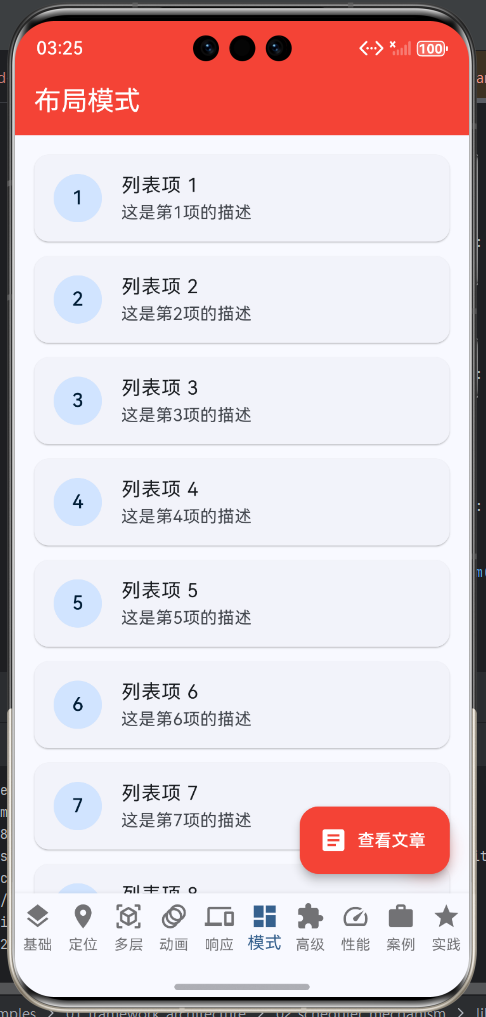
知识点概述
GridView提供了多种布局模式来适应不同的设计需求。从基础的网格布局到复杂的瀑布流,从固定尺寸到自适应尺寸,每种布局模式都有其独特的应用场景和优势。掌握这些布局模式可以让开发者根据实际需求选择最合适的方案,创建出既美观又实用的网格界面。本章将详细介绍各种布局模式的特点、实现方法和最佳实践。
1. 网格布局基础
网格布局是GridView最基础的布局形式,通过指定行列数或单元格尺寸来组织内容。理解网格布局的基本原理和配置方法是使用GridView的第一步。
1.1 网格布局类型对比
| 布局类型 | 特点 | 优点 | 缺点 | 适用场景 |
|---|---|---|---|---|
| 固定行列数 | 指定crossAxisCount | 布局统一 | 不够灵活 | 商品展示、图片墙 |
| 固定单元格 | 指定maxCrossAxisExtent | 自适应屏幕 | 大小不均 | 自适应卡片 |
| 自定义网格 | 完全自定义控制 | 最大灵活性 | 实现复杂 | 特殊设计需求 |
1.2 GridDelegate详解
1.3 基础网格布局示例
class BasicGridLayouts extends StatelessWidget {
Widget build(BuildContext context) {
return DefaultTabController(
length: 2,
child: Scaffold(
appBar: AppBar(
title: Text('基础网格布局'),
bottom: TabBar(
tabs: [
Tab(text: '固定列数'),
Tab(text: '最大宽度'),
],
),
),
body: TabBarView(
children: [
_FixedCountGrid(),
_MaxExtentGrid(),
],
),
),
);
}
}
class _FixedCountGrid extends StatelessWidget {
Widget build(BuildContext context) {
return GridView.builder(
gridDelegate: SliverGridDelegateWithFixedCrossAxisCount(
crossAxisCount: 3, // 固定3列
childAspectRatio: 1, // 正方形
crossAxisSpacing: 10, // 横向间距
mainAxisSpacing: 10, // 纵向间距
),
itemCount: 30,
itemBuilder: (context, index) {
return Container(
decoration: BoxDecoration(
color: Colors.primaries[index % Colors.primaries.length],
borderRadius: BorderRadius.circular(8),
),
child: Center(
child: Text(
'$index',
style: TextStyle(color: Colors.white, fontSize: 20),
),
),
);
},
);
}
}
class _MaxExtentGrid extends StatelessWidget {
Widget build(BuildContext context) {
return GridView.builder(
gridDelegate: SliverGridDelegateWithMaxCrossAxisExtent(
maxCrossAxisExtent: 150, // 单元格最大宽度150
childAspectRatio: 1,
crossAxisSpacing: 10,
mainAxisSpacing: 10,
),
itemCount: 30,
itemBuilder: (context, index) {
return Container(
decoration: BoxDecoration(
color: Colors.primaries[index % Colors.primaries.length],
borderRadius: BorderRadius.circular(8),
),
child: Center(
child: Text(
'$index',
style: TextStyle(color: Colors.white, fontSize: 20),
),
),
);
},
);
}
}
1.4 布局参数调优
| 参数 | 默认值 | 推荐范围 | 调整建议 | 影响 |
|---|---|---|---|---|
| crossAxisCount | - | 2-6 | 根据item尺寸调整 | 列数决定布局密度 |
| childAspectRatio | 1.0 | 0.6-1.5 | 根据内容比例调整 | 影响item形状 |
| crossAxisSpacing | 0 | 4-16 | 设计需求决定 | 横向间距 |
| mainAxisSpacing | 0 | 4-16 | 设计需求决定 | 纵向间距 |
2. 瀑布流布局
瀑布流布局是一种流行的设计模式,特点是不同高度的item交错排列,类似于瀑布的自然流淌效果。这种布局非常适合图片、文章卡片等内容高度不一的场景。
2.1 瀑布流实现方式
| 实现方式 | 难度 | 性能 | 灵活性 | 推荐场景 |
|---|---|---|---|---|
| flutter_staggered_grid_view | 低 | 高 | 高 | 大多数场景 |
| 自定义SliverGrid | 中 | 高 | 最高 | 特殊需求 |
| ListView嵌套 | 高 | 低 | 中 | 简单场景(不推荐) |
2.2 瀑布流布局架构
2.3 瀑布流布局示例
import 'package:flutter_staggered_grid_view/flutter_staggered_grid_view.dart';
class WaterfallLayout extends StatelessWidget {
Widget build(BuildContext context) {
return Scaffold(
appBar: AppBar(title: Text('瀑布流布局')),
body: MasonryGridView.count(
crossAxisCount: 2, // 2列
mainAxisSpacing: 8, // 纵向间距
crossAxisSpacing: 8, // 横向间距
itemCount: 20,
itemBuilder: (context, index) {
// 模拟不同高度的卡片
final height = 150.0 + (index % 5) * 30;
return Container(
height: height,
decoration: BoxDecoration(
gradient: LinearGradient(
begin: Alignment.topLeft,
end: Alignment.bottomRight,
colors: [
Colors.primaries[index % Colors.primaries.length],
Colors.primaries[(index + 1) % Colors.primaries.length],
],
),
borderRadius: BorderRadius.circular(12),
),
child: Padding(
padding: EdgeInsets.all(16),
child: Column(
crossAxisAlignment: CrossAxisAlignment.start,
children: [
Text(
'Card $index',
style: TextStyle(
color: Colors.white,
fontSize: 18,
fontWeight: FontWeight.bold,
),
),
SizedBox(height: 8),
Expanded(
child: Text(
'这是一个瀑布流布局示例,展示了不同高度的卡片如何自然排列。',
style: TextStyle(color: Colors.white70),
),
),
],
),
),
);
},
),
);
}
}
2.4 瀑布流性能优化
| 优化点 | 方法 | 效果 | 注意事项 |
|---|---|---|---|
| 图片预加载 | 提前获取高度 | 避免跳动 | 需要服务端支持 |
| 虚拟化 | 使用内置优化 | 内存占用低 | 合理设置cacheExtent |
| 间距统一 | 统一spacing配置 | 布局整齐 | 保持一致性 |
| 高度缓存 | 缓存计算结果 | 减少重复计算 | 注意内存占用 |
3. 自适应布局
自适应布局是指GridView能够根据屏幕尺寸、设备方向、内容大小等因素自动调整布局方式,确保在不同设备和场景下都能获得良好的显示效果。
3.1 响应式设计原则
| 设备类型 | 屏幕宽度 | 推荐列数 | item尺寸 | 间距 |
|---|---|---|---|---|
| 手机竖屏 | < 400 | 2 | 150-180 | 8-12 |
| 手机横屏 | 400-600 | 3-4 | 120-150 | 8-12 |
| 平板 | 600-900 | 4-6 | 100-140 | 12-16 |
| 桌面 | > 900 | 6-8 | 100-120 | 16-20 |
3.2 响应式布局实现
class ResponsiveGrid extends StatelessWidget {
Widget build(BuildContext context) {
return Scaffold(
appBar: AppBar(title: Text('自适应布局')),
body: LayoutBuilder(
builder: (context, constraints) {
// 根据屏幕宽度计算列数
final width = constraints.maxWidth;
final crossAxisCount = _calculateCrossAxisCount(width);
final itemWidth = (width - (crossAxisCount - 1) * 10) / crossAxisCount;
return GridView.builder(
gridDelegate: SliverGridDelegateWithFixedCrossAxisCount(
crossAxisCount: crossAxisCount,
childAspectRatio: itemWidth / (itemWidth * 1.2),
crossAxisSpacing: 10,
mainAxisSpacing: 10,
),
itemCount: 30,
itemBuilder: (context, index) {
return _ResponsiveGridItem(
index: index,
width: itemWidth,
);
},
);
},
),
);
}
int _calculateCrossAxisCount(double width) {
if (width < 400) return 2;
if (width < 600) return 3;
if (width < 900) return 4;
return 6;
}
}
class _ResponsiveGridItem extends StatelessWidget {
final int index;
final double width;
const _ResponsiveGridItem({
required this.index,
required this.width,
});
Widget build(BuildContext context) {
// 根据宽度调整内容布局
final isCompact = width < 120;
return Container(
decoration: BoxDecoration(
color: Colors.primaries[index % Colors.primaries.length],
borderRadius: BorderRadius.circular(8),
),
child: Padding(
padding: EdgeInsets.all(isCompact ? 8 : 12),
child: Column(
crossAxisAlignment: CrossAxisAlignment.start,
children: [
Icon(
Icons.image,
size: isCompact ? 24 : 32,
color: Colors.white,
),
SizedBox(height: isCompact ? 4 : 8),
Text(
'Item $index',
style: TextStyle(
color: Colors.white,
fontSize: isCompact ? 10 : 12,
),
maxLines: isCompact ? 1 : 2,
overflow: TextOverflow.ellipsis,
),
],
),
),
);
}
}
3.3 响应式断点
4. 不规则网格布局
不规则网格布局是指在同一个GridView中使用不同尺寸、不同比例的item,创造出更加灵活和富有设计感的界面。这种布局常见于电商首页、媒体展示等场景。
4.1 不规则布局策略
| 策略 | 难度 | 效果 | 适用场景 | 推荐度 |
|---|---|---|---|---|
| Span混用 | 中 | 良好 | 首页设计 | ★★★★☆ |
| 自定义布局 | 高 | 优秀 | 特殊设计 | ★★★★☆ |
| 混合列表 | 中 | 一般 | 简单场景 | ★★☆☆☆ |
4.2 Span布局示例
class IrregularGrid extends StatelessWidget {
Widget build(BuildContext context) {
return Scaffold(
appBar: AppBar(title: Text('不规则网格布局')),
body: GridView.custom(
gridDelegate: SliverGridDelegateWithFixedCrossAxisCount(
crossAxisCount: 4, // 4列网格
childAspectRatio: 1,
crossAxisSpacing: 8,
mainAxisSpacing: 8,
),
childrenDelegate: SliverChildBuilderDelegate(
(context, index) {
// 根据索引决定item的span
final isLarge = index % 7 == 0; // 每7个item一个大的
final isWide = index % 7 == 3; // 每7个item一个宽的
if (isLarge) {
// 大item: 2x2
return _buildItem(index, Colors.red, 2, 2);
} else if (isWide) {
// 宽item: 2x1
return _buildItem(index, Colors.blue, 2, 1);
} else {
// 普通item: 1x1
return _buildItem(index, Colors.green, 1, 1);
}
},
childCount: 28,
),
),
);
}
Widget _buildItem(int index, Color color, int crossSpan, int mainSpan) {
return Container(
decoration: BoxDecoration(
color: color.withOpacity(0.7),
borderRadius: BorderRadius.circular(8),
),
child: Center(
child: Text(
'$index\n${crossSpan}x$mainSpan',
textAlign: TextAlign.center,
style: TextStyle(color: Colors.white, fontSize: 16),
),
),
);
}
}
// 更灵活的不规则布局实现
class FlexibleIrregularGrid extends StatelessWidget {
Widget build(BuildContext context) {
return Scaffold(
appBar: AppBar(title: Text('灵活不规则布局')),
body: GridView.builder(
gridDelegate: SliverGridDelegateWithFixedCrossAxisCount(
crossAxisCount: 4,
childAspectRatio: 1,
crossAxisSpacing: 8,
mainAxisSpacing: 8,
),
itemCount: 20,
itemBuilder: (context, index) {
// 动态决定每个item的尺寸
final layout = _getItemLayout(index);
return Container(
decoration: BoxDecoration(
color: layout.color,
borderRadius: BorderRadius.circular(8),
),
child: Center(
child: Text(
'$index\n${layout.span}x${layout.span}',
textAlign: TextAlign.center,
style: TextStyle(color: Colors.white, fontSize: 16),
),
),
);
},
),
);
}
_ItemLayout _getItemLayout(int index) {
final remainder = index % 8;
switch (remainder) {
case 0:
return _ItemLayout(Colors.red, 2);
case 3:
return _ItemLayout(Colors.orange, 2);
default:
return _ItemLayout(
Colors.primaries[index % Colors.primaries.length],
1,
);
}
}
}
class _ItemLayout {
final Color color;
final int span;
const _ItemLayout(this.color, this.span);
}
4.3 布局模式组合
| 模式 | 描述 | 应用场景 | 实现难度 |
|---|---|---|---|
| 大小混排 | 大小item交错 | 电商首页 | 中 |
| 形状变化 | 不同比例item | 创意展示 | 高 |
| 方向切换 | 横纵向混合 | 媒体库 | 高 |
| 空白穿插 | 有意留白 | 精品展示 | 中 |
5. 卡片式网格布局
卡片式网格布局是目前最流行的设计风格之一,每个item都被封装在一个卡片容器中,具有阴影、圆角等视觉特征,既美观又实用。
5.1 卡片设计原则
| 设计元素 | 推荐值 | 效果 | 调整建议 |
|---|---|---|---|
| 圆角半径 | 8-16px | 柔和感 | 大屏可增大 |
| 阴影强度 | 2-4 | 层次感 | 根据背景调整 |
| 卡片间距 | 8-16px | 留白 | 拥挤则增大 |
| 内边距 | 12-20px | 内容呼吸感 | 内容少则减小 |
| 背景色 | 白色/浅灰 | 简洁 | 根据主题调整 |
5.2 卡片式布局示例
class CardGrid extends StatelessWidget {
Widget build(BuildContext context) {
return Scaffold(
appBar: AppBar(title: Text('卡片式网格布局')),
body: GridView.builder(
padding: EdgeInsets.all(16),
gridDelegate: SliverGridDelegateWithFixedCrossAxisCount(
crossAxisCount: 2,
childAspectRatio: 0.8,
crossAxisSpacing: 16,
mainAxisSpacing: 16,
),
itemCount: 12,
itemBuilder: (context, index) {
return _CardItem(
title: '商品 ${index + 1}',
price: '¥${(index + 1) * 99}',
image: Icons.shopping_bag,
color: Colors.primaries[index % Colors.primaries.length],
);
},
),
);
}
}
class _CardItem extends StatelessWidget {
final String title;
final String price;
final IconData image;
final Color color;
const _CardItem({
required this.title,
required this.price,
required this.image,
required this.color,
});
Widget build(BuildContext context) {
return Card(
elevation: 2,
shape: RoundedRectangleBorder(
borderRadius: BorderRadius.circular(12),
),
child: InkWell(
onTap: () {
ScaffoldMessenger.of(context).showSnackBar(
SnackBar(content: Text('点击了 $title')),
);
},
child: Column(
crossAxisAlignment: CrossAxisAlignment.start,
children: [
// 图片区域
Expanded(
flex: 3,
child: Container(
decoration: BoxDecoration(
color: color.withOpacity(0.2),
borderRadius: BorderRadius.vertical(
top: Radius.circular(12),
),
),
child: Center(
child: Icon(
image,
size: 48,
color: color,
),
),
),
),
// 内容区域
Expanded(
flex: 2,
child: Padding(
padding: EdgeInsets.all(12),
child: Column(
crossAxisAlignment: CrossAxisAlignment.start,
mainAxisAlignment: MainAxisAlignment.spaceBetween,
children: [
Text(
title,
style: TextStyle(
fontSize: 14,
fontWeight: FontWeight.w600,
),
maxLines: 1,
overflow: TextOverflow.ellipsis,
),
Text(
price,
style: TextStyle(
fontSize: 16,
color: Colors.red,
fontWeight: FontWeight.bold,
),
),
],
),
),
),
],
),
),
);
}
}
5.3 卡片样式变体
6. 混合内容网格
混合内容网格是指在同一个GridView中展示不同类型的内容,如图片、文字、视频、图表等,需要为每种类型设计合适的布局和展示方式。
6.1 内容类型适配
| 内容类型 | 布局建议 | 宽高比 | 优化点 |
|---|---|---|---|
| 图片 | 大图+标题 | 1:1 或 4:3 | 缩略图+懒加载 |
| 文章 | 标题+摘要 | 2:3 | 文本截断+行数限制 |
| 视频 | 封面+时长 | 16:9 | 视频预览+播放按钮 |
| 商品 | 多图+价格 | 1:1 或 3:4 | 多图轮播+价格突出 |
| 图表 | 标题+数据 | 1:1 | 数据可视化+趋势 |
6.2 混合内容示例
enum ContentType { image, article, video, product, chart }
class MixedContentGrid extends StatelessWidget {
final List<_MixedContentItem> items = List.generate(20, (index) {
final types = ContentType.values;
return _MixedContentItem(
type: types[index % types.length],
title: '内容 ${index + 1}',
subtitle: _getSubtitle(types[index % types.length]),
color: Colors.primaries[index % Colors.primaries.length],
);
});
static String _getSubtitle(ContentType type) {
switch (type) {
case ContentType.image:
return '这是一张精美的图片';
case ContentType.article:
return '这是一篇有趣的文章,讲述了...';
case ContentType.video:
return '精彩视频,时长10:30';
case ContentType.product:
return '热门商品,仅售¥99';
case ContentType.chart:
return '数据图表,展示趋势';
}
}
Widget build(BuildContext context) {
return Scaffold(
appBar: AppBar(title: Text('混合内容网格')),
body: GridView.builder(
gridDelegate: SliverGridDelegateWithFixedCrossAxisCount(
crossAxisCount: 2,
childAspectRatio: 0.75,
crossAxisSpacing: 12,
mainAxisSpacing: 12,
),
itemCount: items.length,
itemBuilder: (context, index) {
return _buildMixedContentItem(items[index]);
},
),
);
}
Widget _buildMixedContentItem(_MixedContentItem item) {
switch (item.type) {
case ContentType.image:
return _ImageCard(item);
case ContentType.article:
return _ArticleCard(item);
case ContentType.video:
return _VideoCard(item);
case ContentType.product:
return _ProductCard(item);
case ContentType.chart:
return _ChartCard(item);
}
}
}
class _MixedContentItem {
final ContentType type;
final String title;
final String subtitle;
final Color color;
const _MixedContentItem({
required this.type,
required this.title,
required this.subtitle,
required this.color,
});
}
// 图片卡片
class _ImageCard extends StatelessWidget {
final _MixedContentItem item;
const _ImageCard(this.item);
Widget build(BuildContext context) {
return Card(
clipBehavior: Clip.antiAlias,
child: Column(
crossAxisAlignment: CrossAxisAlignment.start,
children: [
Expanded(
flex: 3,
child: Container(
color: item.color.withOpacity(0.3),
child: Center(
child: Icon(Icons.image, size: 48, color: item.color),
),
),
),
Padding(
padding: EdgeInsets.all(8),
child: Text(
item.title,
style: TextStyle(fontWeight: FontWeight.w600),
),
),
],
),
);
}
}
// 文章卡片
class _ArticleCard extends StatelessWidget {
final _MixedContentItem item;
const _ArticleCard(this.item);
Widget build(BuildContext context) {
return Card(
child: Padding(
padding: EdgeInsets.all(12),
child: Column(
crossAxisAlignment: CrossAxisAlignment.start,
children: [
Icon(Icons.article, size: 32, color: item.color),
SizedBox(height: 8),
Text(
item.title,
style: TextStyle(fontWeight: FontWeight.w600, fontSize: 14),
),
SizedBox(height: 4),
Expanded(
child: Text(
item.subtitle,
style: TextStyle(fontSize: 12, color: Colors.grey[600]),
maxLines: 3,
overflow: TextOverflow.ellipsis,
),
),
],
),
),
);
}
}
// 视频卡片
class _VideoCard extends StatelessWidget {
final _MixedContentItem item;
const _VideoCard(this.item);
Widget build(BuildContext context) {
return Card(
clipBehavior: Clip.antiAlias,
child: Stack(
children: [
Container(
color: item.color.withOpacity(0.3),
),
Center(child: Icon(Icons.play_circle_outline, size: 64)),
Positioned(
bottom: 8,
right: 8,
child: Container(
padding: EdgeInsets.symmetric(horizontal: 6, vertical: 2),
decoration: BoxDecoration(
color: Colors.black54,
borderRadius: BorderRadius.circular(4),
),
child: Text(
'10:30',
style: TextStyle(color: Colors.white, fontSize: 12),
),
),
),
],
),
);
}
}
// 商品卡片
class _ProductCard extends StatelessWidget {
final _MixedContentItem item;
const _ProductCard(this.item);
Widget build(BuildContext context) {
return Card(
child: Column(
crossAxisAlignment: CrossAxisAlignment.start,
children: [
Expanded(
child: Container(
color: item.color.withOpacity(0.2),
child: Center(
child: Icon(Icons.shopping_bag, size: 48, color: item.color),
),
),
),
Padding(
padding: EdgeInsets.all(8),
child: Text(
item.title,
style: TextStyle(fontWeight: FontWeight.w600, fontSize: 12),
),
),
Padding(
padding: EdgeInsets.symmetric(horizontal: 8, vertical: 4),
child: Text(
'¥99',
style: TextStyle(
color: Colors.red,
fontWeight: FontWeight.bold,
fontSize: 16,
),
),
),
],
),
);
}
}
// 图表卡片
class _ChartCard extends StatelessWidget {
final _MixedContentItem item;
const _ChartCard(this.item);
Widget build(BuildContext context) {
return Card(
child: Padding(
padding: EdgeInsets.all(12),
child: Column(
crossAxisAlignment: CrossAxisAlignment.start,
children: [
Text(
item.title,
style: TextStyle(fontWeight: FontWeight.w600),
),
SizedBox(height: 12),
Expanded(
child: Container(
decoration: BoxDecoration(
color: item.color.withOpacity(0.2),
borderRadius: BorderRadius.circular(8),
),
child: Center(
child: Icon(Icons.bar_chart, size: 48, color: item.color),
),
),
),
],
),
),
);
}
}
7. 滚动控制模式
GridView支持多种滚动控制模式,包括普通滚动、水平滚动、双向滚动等,不同的滚动模式适用于不同的应用场景。
7.1 滚动方向对比
| 滚动方向 | 适用场景 | 用户体验 | 实现难度 | 推荐度 |
|---|---|---|---|---|
| 垂直滚动 | 大多数列表 | 自然、习惯 | 低 | ★★★★★ |
| 水平滚动 | 卡片轮播 | 横向浏览 | 低 | ★★★★☆ |
| 双向滚动 | 表格、日历 | 自由度大 | 高 | ★★★☆☆ |
7.2 滚动控制示例
class ScrollControlGrids extends StatelessWidget {
Widget build(BuildContext context) {
return DefaultTabController(
length: 3,
child: Scaffold(
appBar: AppBar(
title: Text('滚动控制模式'),
bottom: TabBar(
tabs: [
Tab(text: '垂直滚动'),
Tab(text: '水平滚动'),
Tab(text: '双向滚动'),
],
),
),
body: TabBarView(
children: [
_VerticalScrollGrid(),
_HorizontalScrollGrid(),
_BothScrollGrid(),
],
),
),
);
}
}
class _VerticalScrollGrid extends StatelessWidget {
Widget build(BuildContext context) {
return GridView.builder(
gridDelegate: SliverGridDelegateWithFixedCrossAxisCount(
crossAxisCount: 3,
childAspectRatio: 1,
),
itemCount: 30,
itemBuilder: (context, index) {
return Container(
margin: EdgeInsets.all(4),
decoration: BoxDecoration(
color: Colors.primaries[index % Colors.primaries.length],
borderRadius: BorderRadius.circular(8),
),
child: Center(
child: Text(
'$index',
style: TextStyle(color: Colors.white),
),
),
);
},
);
}
}
class _HorizontalScrollGrid extends StatelessWidget {
Widget build(BuildContext context) {
return GridView.builder(
scrollDirection: Axis.horizontal, // 水平滚动
gridDelegate: SliverGridDelegateWithFixedCrossAxisCount(
crossAxisCount: 3,
childAspectRatio: 1,
crossAxisSpacing: 8,
mainAxisSpacing: 8,
),
itemCount: 30,
itemBuilder: (context, index) {
return Container(
decoration: BoxDecoration(
color: Colors.primaries[index % Colors.primaries.length],
borderRadius: BorderRadius.circular(8),
),
child: Center(
child: Text(
'$index',
style: TextStyle(color: Colors.white),
),
),
);
},
);
}
}
class _BothScrollGrid extends StatelessWidget {
Widget build(BuildContext context) {
return SingleChildScrollView(
child: Column(
children: [
for (int row = 0; row < 10; row++)
SizedBox(
height: 100,
child: ListView.builder(
scrollDirection: Axis.horizontal,
itemCount: 10,
itemBuilder: (context, col) {
return Container(
width: 100,
margin: EdgeInsets.all(4),
decoration: BoxDecoration(
color: Colors.primaries[(row + col) % Colors.primaries.length],
borderRadius: BorderRadius.circular(8),
),
child: Center(
child: Text(
'$row,$col',
style: TextStyle(color: Colors.white),
),
),
);
},
),
),
],
),
);
}
}
7.3 滚动性能优化
| 优化项 | 方法 | 效果 | 注意事项 |
|---|---|---|---|
| cacheExtent | 设置缓存范围 | 减少重建 | 合理设置大小 |
| physics | 控制滚动物理效果 | 提升手感 | 根据场景选择 |
| addRepaintBoundaries | 隔离重绘区域 | 减少GPU负载 | 复杂widget使用 |
| itemCount | 精确控制数量 | 避免越界 | 动态数据要更新 |
8. 布局模式选择指南
根据不同的应用场景和需求,选择合适的布局模式是构建优秀GridView的关键。
8.1 场景与布局映射
8.2 布局选择决策表
| 场景 | 推荐布局 | 备选方案 | 关键考虑因素 |
|---|---|---|---|
| 电商商品列表 | 卡片+固定列数 | 不规则+卡片 | 图片统一、信息展示 |
| 图片展示 | 瀑布流 | 响应式 | 图片高度不统一 |
| 新闻应用 | 混合内容+响应式 | 卡片式 | 多种内容类型 |
| 社交动态 | 响应式+瀑布流 | 卡片式 | 多设备适配 |
| 媒体库 | 不规则+双向滚动 | 响应式 | 大量内容分类 |
| 仪表盘 | 固定列数+混合内容 | 不规则 | 数据展示 |
| 品牌展示 | 创意不规则 | 自定义布局 | 视觉冲击力 |
8.3 性能优先级
| 性能因素 | 优先级 | 优化建议 | 影响程度 |
|---|---|---|---|
| item数量 | 高 | 使用GridView.builder | ★★★★★ |
| 布局复杂度 | 高 | 简化布局结构 | ★★★★☆ |
| 图片数量 | 高 | 图片懒加载+缓存 | ★★★★★ |
| 动画效果 | 中 | 控制动画范围 | ★★★☆☆ |
| 间距计算 | 低 | 预计算常量 | ★★☆☆☆ |
总结
本章全面介绍了GridView的多种布局模式:
- ✅ 网格布局基础
- ✅ 瀑布流布局
- ✅ 自适应布局
- ✅ 不规则网格布局
- ✅ 卡片式网格布局
- ✅ 混合内容网格
- ✅ 滚动控制模式
- ✅ 布局模式选择指南
通过学习这些布局模式,您可以根据不同的应用场景和设计需求,选择并实现最合适的网格布局,为用户提供优秀的视觉体验和交互体验。
关键要点回顾:
- 固定列数布局适合统一尺寸的内容
- 瀑布流布局是图片展示的首选
- 响应式布局确保多设备适配
- 卡片式布局是目前最流行的设计风格
- 混合内容布局需要为每种类型设计适配器
- 布局选择要综合考虑场景、性能和用户体验
欢迎加入开源鸿蒙跨平台社区:https://openharmonycrossplatform.csdn.net

作为“人工智能6S店”的官方数字引擎,为AI开发者与企业提供一个覆盖软硬件全栈、一站式门户。
更多推荐

 29
29 0
0- 0


 已为社区贡献15条内容

所有评论(0)