React Native 鸿蒙跨端实践:统计应用架构设计与实现

引言

在移动应用开发领域,跨端技术已成为主流趋势,尤其随着鸿蒙系统的兴起,如何实现一套代码覆盖多平台(iOS、Android、鸿蒙)成为开发者关注的焦点。本文将深入解析一个基于 React Native 开发的统计应用,探讨其架构设计、核心技术实现以及在鸿蒙系统上的跨端适配策略。

组件化架构设计

标签页导航系统

该应用采用了标签页导航设计,通过 activeTab 状态控制当前显示的内容:

const [activeTab, setActiveTab] = useState<'overview' | 'users' | 'behavior' | 'time'>('overview');

这种设计方式简洁高效,适合统计类应用的功能模块切换。在鸿蒙系统中,React Native 的 useState Hook 会被转换为对应的 ArkUI 状态管理机制,保持相同的开发体验和性能表现。

标签页内容通过条件渲染实现,根据 activeTab 的值动态渲染不同的内容组件:

{activeTab === 'overview' && renderOverviewContent()}
{activeTab === 'users' && renderUsersContent()}
// 其他标签页内容

这种组件化设计使得代码结构清晰,便于维护和扩展。每个标签页的内容都封装在独立的渲染函数中,提高了代码的可读性和可复用性。

响应式布局设计

应用使用 Dimensions.get('window') 获取屏幕尺寸,实现响应式布局:

const { width, height } = Dimensions.get('window');

这种方式在不同尺寸的设备上都能保持良好的布局效果。在鸿蒙系统中,Dimensions API 会调用底层的鸿蒙尺寸 API,获取准确的屏幕信息,确保布局适配的准确性。

数据结构与状态管理

TypeScript 类型定义

应用定义了三个核心数据类型:

// 统计数据类型
type StatisticData = {
  id: string;
  title: string;
  value: string;
  change: string;
  icon: string;
};

// 用户行为类型
type UserBehavior = {
  id: string;
  action: string;
  count: number;
  percentage: number;
};

// 时间范围类型
type TimeRange = {
  id: string;
  label: string;
};

使用 TypeScript 进行类型定义,确保了代码的类型安全和可读性,减少了运行时错误。在跨端开发中,类型定义尤为重要,能够提前发现潜在的类型错误,提高代码的可维护性。

状态管理设计

应用使用 useState Hook 管理多个状态:

const [activeTab, setActiveTab] = useState<'overview' | 'users' | 'behavior' | 'time'>('overview');
const [selectedRange, setSelectedRange] = useState<string>('month');

在鸿蒙系统中,React Native 的 Hook 机制会被转换为对应的 ArkUI 状态管理机制,例如 useState 会映射为 ArkUI 的 @State 装饰器,实现状态的响应式更新。

样式系统与跨端适配

StyleSheet 样式管理

应用使用 StyleSheet.create 方法定义样式,将所有样式集中管理:

const styles = StyleSheet.create({
  // 样式定义
});

这种方式的优势在于:

  1. 性能优化:StyleSheet 在编译时会被处理,减少运行时计算,提高渲染性能。
  2. 类型安全:TypeScript 会检查样式属性,减少运行时错误。
  3. 模块化:便于样式复用和主题管理,适合跨端开发。

在鸿蒙系统中,React Native 的样式会被转换为 ArkUI 的样式规则,例如 flexDirection: 'row' 转换为 flex-direction: rowjustifyContent: 'space-between' 转换为 justify-content: space-between,确保跨平台视觉一致性。

卡片式布局设计

应用采用了卡片式布局设计,用于展示统计数据:

<View style={styles.statCard}>
  <Text style={styles.statIcon}>{stat.icon}</Text>
  <Text style={styles.statValue}>{stat.value}</Text>
  <Text style={styles.statTitle}>{stat.title}</Text>
  <Text style={styles.statChange}>{stat.change}</Text>
</View>

这种设计方式简洁明了,便于用户快速获取信息。卡片式布局在不同平台上都能保持良好的视觉效果,是跨端开发中的常用设计模式。

鸿蒙跨端开发的技术要点

核心组件的跨端表现

应用使用了 React Native 的多种核心组件,这些组件在鸿蒙系统上的适配情况如下:

  1. SafeAreaView:确保内容在不同设备的安全区域内显示,自动适配刘海屏、状态栏和底部导航栏。在鸿蒙系统中,React Native 会调用系统 API 获取安全区域信息。

  2. ScrollView:作为页面的主要滚动容器,处理内容的滚动显示。在鸿蒙系统中,ScrollView 会映射为 ArkUI 的 scroll-view 组件,支持惯性滚动和回弹效果。

  3. TouchableOpacity:实现可点击区域,提供触摸反馈效果。在鸿蒙系统中,TouchableOpacity 会转换为具有点击效果的 ArkUI 组件,通过 stateStyles 实现按压状态的样式变化。

  4. FlatList:用于高效渲染列表数据。在鸿蒙系统中,FlatList 会转换为 ArkUI 的 list 组件,保持高效的渲染性能。

平台特定代码的处理

在跨端开发中,不可避免地会遇到平台特定的功能需求。React Native 提供了 Platform API 用于检测当前运行平台:

import { Platform } from 'react-native';

if (Platform.OS === 'harmony') {
  // 鸿蒙平台特定代码
} else if (Platform.OS === 'ios') {
  // iOS平台特定代码
} else if (Platform.OS === 'android') {
  // Android平台特定代码
}

在本次解析的应用中,没有使用平台特定代码,确保了良好的跨端兼容性。这种设计方式有助于提高代码的可移植性和可维护性。

性能优化策略

组件拆分与复用

应用将不同标签页的内容拆分为独立的渲染函数,提高了代码的可读性和可维护性。这种设计方式便于后续扩展和修改,同时也符合 React 的组件化开发理念。

样式优化

使用 StyleSheet.create 定义样式,避免了内联样式的性能问题。StyleSheet 在编译时会被处理,生成唯一的样式 ID,减少运行时的样式计算,提高渲染性能。

状态管理优化

应用采用了最小化状态设计,只管理必要的状态变量,避免了状态冗余。这种设计方式有助于减少不必要的组件重渲染,提高应用的性能表现。

总结与展望

React Native 鸿蒙跨端开发为开发者提供了一种高效的解决方案,能够使用一套代码构建出在多平台上表现一致的高质量应用。本次解析的统计应用,展示了如何利用 React Native 的组件化设计、状态管理、样式系统和 TypeScript 类型定义,构建一个功能完整、交互流畅的统计应用,并实现鸿蒙系统的无缝适配。

通过合理的组件结构设计、高效的状态管理、统一的样式系统和跨端兼容的代码实现,开发者可以在保持开发效率的同时,确保应用在不同平台上的一致表现。随着鸿蒙系统的不断发展和 React Native 对鸿蒙支持的完善,跨端开发将变得更加高效和便捷。

未来,我们可以期待更多的 React Native 库和工具支持鸿蒙系统,进一步降低跨端开发的门槛。对于开发者而言,掌握 React Native 鸿蒙跨端开发技术,不仅能够提高开发效率,还能够扩大应用的覆盖范围,满足不同平台用户的需求。

通过持续优化和创新,React Native 鸿蒙跨端开发将成为移动应用开发的重要选择,为开发者带来更多的可能性和机遇。


React Native教育统计组件技术解析:多维度数据可视化与跨端实践

引言:数据统计应用的架构演进

在现代教育科技应用中,数据统计分析功能已经从简单的数字展示演变为集多维度分析、可视化图表、用户行为追踪于一体的综合决策支持系统。StatisticsApp组件展示了如何在移动端实现一套完整的教育数据统计功能,从概览总览、用户分析、行为追踪到时间分布,形成了一个完整的数据分析闭环。

从技术架构的角度来看,这个组件不仅是一个界面展示,更是数据统计前端集成的典型案例。它需要协调多维度数据的聚合展示、复杂的可视化渲染、用户交互的响应反馈等多个技术维度。当我们将这套架构迁移到鸿蒙平台时,需要深入理解其数据流架构和组件复用机制,才能确保跨端实现的完整性和可靠性。

数据结构:多维度统计模型设计

核心数据类型定义

// 统计数据类型
type StatisticData = {
  id: string;
  title: string;
  value: string;
  change: string;
  icon: string;
};

// 用户行为类型
type UserBehavior = {
  id: string;
  action: string;
  count: number;
  percentage: number;
};

// 时间范围类型
type TimeRange = {
  id: string;
  label: string;
};

这种数据结构设计体现了统计应用的三个核心维度:

  1. 指标数据:包含标题、数值、变化趋势和图标标识
  2. 行为数据:记录用户操作类型、次数和占比
  3. 时间维度:支持不同时间粒度的数据筛选

在鸿蒙ArkUI中,可以使用类型安全的数据类:

// 鸿蒙数据模型
@Observed
class StatisticDataHarmony {
  id: string = '';
  title: string = '';
  value: string = '';
  change: string = '';
  icon: string = '';
  
  // 计算变化趋势颜色
  get changeColor(): ResourceColor {
    return this.change.startsWith('+') ? '#10b981' : '#ef4444';
  }
  
  constructor(data: Partial<StatisticDataHarmony>) {
    Object.assign(this, data);
  }
}

@Observed
class UserBehaviorHarmony {
  id: string = '';
  action: string = '';
  count: number = 0;
  percentage: number = 0;
  
  // 进度条宽度计算
  get progressWidth(): string {
    return `${this.percentage}%`;
  }
  
  constructor(data: Partial<UserBehaviorHarmony>) {
    Object.assign(this, data);
  }
}

@Observed
class TimeRangeHarmony {
  id: string = '';
  label: string = '';
  isSelected: boolean = false;
  
  toggle() {
    this.isSelected = !this.isSelected;
  }
}

数据聚合与处理

统计应用需要处理多种数据聚合逻辑:

// 数据聚合服务
class DataAggregator {
  // 计算增长率
  static calculateGrowth(current: number, previous: number): string {
    if (previous === 0) return '+100%';
    const growth = ((current - previous) / previous) * 100;
    return `${growth >= 0 ? '+' : ''}${growth.toFixed(1)}%`;
  }
  
  // 格式化大数值
  static formatLargeNumber(value: number): string {
    if (value >= 1000000) {
      return `${(value / 1000000).toFixed(1)}M`;
    }
    if (value >= 1000) {
      return `${(value / 1000).toFixed(1)}K`;
    }
    return value.toString();
  }
  
  // 计算百分比
  static calculatePercentage(part: number, total: number): number {
    if (total === 0) return 0;
    return Math.round((part / total) * 100);
  }
  
  // 多维度数据聚合
  static aggregateByTimeRange(
    rawData: RawData[], 
    timeRange: string
  ): AggregatedData[] {
    return rawData.reduce((acc, item) => {
      const timeKey = this.extractTimeKey(item.timestamp, timeRange);
      if (!acc[timeKey]) {
        acc[timeKey] = {
          timeKey,
          count: 0,
          users: new Set(),
          actions: new Map()
        };
      }
      acc[timeKey].count += 1;
      acc[timeKey].users.add(item.userId);
      // 聚合其他维度数据
      return acc;
    }, {});
  }
}

状态管理:多标签页的协同控制

标签页状态管理

const [activeTab, setActiveTab] = useState<'overview' | 'users' | 'behavior' | 'time'>('overview');
const [selectedRange, setSelectedRange] = useState<string>('month');

这种双状态设计展示了统计应用的核心业务逻辑:

  1. 内容状态:控制当前展示的数据维度
  2. 筛选状态:控制数据的时间范围

在鸿蒙ArkUI中,可以使用@State和@Link实现:

// 鸿蒙状态管理
@Observed
class StatisticsState {
  activeTab: 'overview' | 'users' | 'behavior' | 'time' = 'overview';
  selectedRange: string = 'month';
  dataByRange: Map<string, StatisticsData> = new Map();
  
  switchTab(tab: 'overview' | 'users' | 'behavior' | 'time') {
    this.activeTab = tab;
  }
  
  selectRange(range: string) {
    this.selectedRange = range;
    this.refreshDataForRange(range);
  }
  
  private async refreshDataForRange(range: string) {
    const data = await DataService.getStatistics(range);
    this.dataByRange.set(range, data);
  }
}

@Component
struct StatisticsAppHarmony {
  @State state: StatisticsState = new StatisticsState();
  
  build() {
    Column() {
      // 头部和标签页
      
      if (this.state.activeTab === 'overview') {
        OverviewContent({ data: this.state.dataByRange.get(this.state.selectedRange) })
      } else if (this.state.activeTab === 'users') {
        UsersContent({ data: this.state.dataByRange.get(this.state.selectedRange) })
      }
      // 其他标签页内容
    }
  }
}

数据筛选的联动机制

// 时间范围切换时的数据刷新
const timeRanges: TimeRange[] = [
  { id: 'day', label: '今日' },
  { id: 'week', label: '本周' },
  { id: 'month', label: '本月' },
  { id: 'year', label: '今年' },
];

// 切换时间范围时重新计算数据
const handleRangeChange = (newRange: string) => {
  setSelectedRange(newRange);
  // 触发数据重新加载和计算
  refreshStatistics(newRange);
};

可视化组件:数据展示的技术实现

进度条组件的设计

// 行为分析进度条
behaviorBarContainer: {
  height: 8,
  backgroundColor: '#e2e8f0',
  borderRadius: 4,
}
behaviorBar: {
  height: 8,
  backgroundColor: '#3b82f6',
  borderRadius: 4,
}

进度条组件实现了多层次的可视化逻辑:

  1. 容器条:灰色背景表示总基数
  2. 进度条:蓝色填充表示实际占比
  3. 数值标签:百分比数值显示

在鸿蒙ArkUI中,可以使用Progress组件实现:

// 鸿蒙进度条组件
@Component
struct ProgressBarHarmony {
  @Prop percentage: number = 0;
  @Prop height: number = 8;
  @Prop trackColor: ResourceColor = '#e2e8f0';
  @Prop progressColor: ResourceColor = '#3b82f6';
  
  build() {
    Row() {
      // 进度条容器
      Column() {
        Progress({ value: this.percentage, total: 100, style: ProgressStyle.Linear })
          .width('100%')
          .color(this.progressColor)
          .backgroundColor(this.trackColor)
          .style({ strokeWidth: this.height })
      }
      .height(this.height)
      .borderRadius(this.height / 2)
      .overflow(Overflow.Clip)
      .layoutWeight(1)
      
      // 百分比标签
      Text(`${this.percentage}%`)
        .fontSize(12)
        .fontColor('#64748b')
        .margin({ left: 8 })
        .width(40)
    }
  }
}

// 使用示例
ProgressBarHarmony({ 
  percentage: item.percentage,
  progressColor: '#3b82f6' 
})

图表占位符的设计

chartPlaceholder: {
  backgroundColor: '#ffffff',
  borderRadius: 12,
  padding: 16,
}
chartArea: {
  height: 200,
  backgroundColor: '#f1f5f9',
  borderRadius: 8,
}

图表区域采用了响应式设计:

  1. 固定高度:保证布局一致性
  2. 圆角背景:与整体设计风格统一
  3. 占位提示:明确功能区域

年龄段分布的条形图

ageBarItem: {
  flexDirection: 'row',
  alignItems: 'center',
  height: 30,
}

条形图组件使用了百分比宽度的响应式设计:

// 鸿蒙条形图组件
@Component
struct AgeDistributionBar {
  @Prop label: string;
  @Prop percentage: number;
  
  build() {
    Row() {
      Text(this.label)
        .fontSize(14)
        .fontColor('#1e293b')
        .width(80)
      
      Row() {
        Row()
          .width(`${this.percentage}%`)
          .height(30)
          .backgroundColor('#3b82f6')
          .borderRadius(4)
      }
      .layoutWeight(1)
      .height(30)
      .backgroundColor('#e2e8f0')
      .borderRadius(4)
      
      Text(`${this.percentage}%`)
        .fontSize(14)
        .fontColor('#3b82f6')
        .fontWeight(FontWeight.Medium)
        .margin({ left: 8 })
        .width(40)
    }
    .height(30)
    .margin({ bottom: 12 })
  }
}

列表渲染:行为数据的展示优化

FlatList的高性能渲染

const renderBehaviorItem = ({ item }: { item: UserBehavior }) => (
  <View style={styles.behaviorItem}>
    <View style={styles.behaviorInfo}>
      <Text style={styles.behaviorAction}>{item.action}</Text>
      <Text style={styles.behaviorCount}>{item.count}</Text>
    </View>
    <View style={styles.behaviorBarContainer}>
      <View style={[styles.behaviorBar, { width: `${item.percentage}%` }]} />
    </View>
    <Text style={styles.behaviorPercentage}>{item.percentage}%</Text>
  </View>
);

<FlatList
  data={behaviorData}
  renderItem={renderBehaviorItem}
  keyExtractor={item => item.id}
  scrollEnabled={false}
/>

列表渲染采用了以下优化策略:

  1. 禁用滚动:固定高度的列表不需要滚动
  2. keyExtractor:使用ID作为唯一标识
  3. 纯组件渲染:避免不必要的重渲染

在鸿蒙中,可以使用ForEach实现:

// 鸿蒙行为数据列表
@Component
struct BehaviorList {
  @Prop behaviors: UserBehaviorHarmony[];
  
  build() {
    Column() {
      ForEach(this.behaviors, (behavior: UserBehaviorHarmony) => {
        ListItem() {
          BehaviorItem({ behavior: behavior })
        }
      }, (behavior: UserBehaviorHarmony) => behavior.id)
    }
  }
}

@Component
struct BehaviorItem {
  @Prop behavior: UserBehaviorHarmony;
  
  build() {
    Row() {
      Column() {
        Text(this.behavior.action)
          .fontSize(16)
          .fontWeight(FontWeight.Bold)
          .fontColor('#1e293b')
        
        Text(`${this.behavior.count}`)
          .fontSize(14)
          .fontColor('#64748b')
          .margin({ top: 4 })
      }
      .layoutWeight(1)
      
      // 进度条
      Row() {
        Progress({ value: this.behavior.percentage, total: 100, style: ProgressStyle.Linear })
          .width(120)
          .style({ strokeWidth: 8 })
          .color('#3b82f6')
          .backgroundColor('#e2e8f0')
      }
      .margin({ left: 16 })
      
      // 百分比标签
      Text(`${this.behavior.percentage}%`)
        .fontSize(12)
        .fontColor('#64748b')
        .width(40)
        .textAlign(TextAlign.End)
    }
    .padding(16)
    .backgroundColor(Color.White)
    .borderRadius(12)
    .margin({ bottom: 12 })
  }
}

样式系统:统计应用的视觉语言

蓝色调色彩系统

activeTab: {
  borderBottomWidth: 2,
  borderBottomColor: '#3b82f6',
}
functionBar: {
  backgroundColor: '#10b981',
}
statChange: {
  color: '#10b981',
}

组件采用了蓝色调为主的设计语言,体现了数据统计的专业性:

  1. 主色调(#3b82f6):标签页激活状态和进度条
  2. 成功色(#10b981):增长数据和正面变化
  3. 警告色(#f59e0b):时间分布高亮
  4. 中性色(#f8fafc):背景和占位区域

在跨端开发中,需要建立统一的色彩资源:

// 统一的统计应用色彩系统
const StatisticsColors = {
  // 背景色
  background: '#f8fafc',
  surface: '#ffffff',
  
  // 主色调
  primary: '#3b82f6',
  primaryLight: '#dbeafe',
  
  // 状态色
  success: '#10b981',
  warning: '#f59e0b',
  danger: '#ef4444',
  
  // 文本色
  textPrimary: '#1e293b',
  textSecondary: '#64748b',
  textTertiary: '#94a3b8',
  
  // 图表色
  chartPrimary: '#3b82f6',
  chartSecondary: '#10b981',
  chartTertiary: '#f59e0b'
};

鸿蒙跨端适配:统计系统的技术实现

数据获取的跨平台策略

// 数据服务抽象
interface StatisticsService {
  getOverviewData(range: string): Promise<OverviewData>;
  getUserData(range: string): Promise<UserData>;
  getBehaviorData(range: string): Promise<BehaviorData>;
  getTimeData(range: string): Promise<TimeData>;
}

// React Native实现
class RNStatisticsService implements StatisticsService {
  async getOverviewData(range: string): Promise<OverviewData> {
    const response = await fetch(`/api/statistics/overview?range=${range}`);
    return response.json();
  }
}

// 鸿蒙实现
class HarmonyStatisticsService implements StatisticsService {
  async getOverviewData(range: string): Promise<OverviewData> {
    const response = await axios.get(`/api/statistics/overview?range=${range}`);
    return response.data;
  }
}

// 工厂方法
const createStatisticsService = (): StatisticsService => {
  return Platform.OS === 'harmony' 
    ? new HarmonyStatisticsService()
    : new RNStatisticsService();
};

本地数据存储

// 统一的数据缓存接口
interface DataCache {
  save(key: string, data: any, ttl: number): Promise<void>;
  load(key: string): Promise<any>;
  clear(key: string): Promise<void>;
}

// React Native实现
class RNDataCache implements DataCache {
  async save(key: string, data: any, ttl: number): Promise<void> {
    const cacheData = {
      data,
      expiry: Date.now() + ttl
    };
    await AsyncStorage.setItem(key, JSON.stringify(cacheData));
  }
}

// 鸿蒙实现  
class HarmonyDataCache implements DataCache {
  async save(key: string, data: any, ttl: number): Promise<void> {
    const prefs = await preferences.getPreferences(context);
    const cacheData = {
      data,
      expiry: Date.now() + ttl
    };
    await prefs.put(key, JSON.stringify(cacheData));
    await prefs.flush();
  }
}

性能优化:统计应用的特殊考量

大数据量的渲染优化

// 虚拟列表优化
<FlatList
  data={largeDataSet}
  renderItem={renderItem}
  keyExtractor={item => item.id}
  initialNumToRender={20}
  maxToRenderPerBatch={10}
  windowSize={21}
  removeClippedSubviews={true}
/>

数据计算的优化

// 使用useMemo缓存计算结果
const processedData = useMemo(() => {
  return rawData.map(item => ({
    ...item,
    percentage: calculatePercentage(item.count, totalCount),
    formattedValue: formatLargeNumber(item.count)
  }));
}, [rawData, totalCount]);

// 防抖处理
const debouncedSearch = useCallback(
  debounce((query: string) => {
    searchData(query);
  }, 300),
  []
);

总结:统计组件的跨端设计哲学

StatisticsApp组件展示了数据统计应用的核心技术要点:

  1. 数据架构完善:多层次的数据模型和灵活的聚合策略
  2. 可视化专业:丰富的进度条和图表占位设计
  3. 状态管理清晰:多标签页和筛选联动的协调控制
  4. 性能优化到位:虚拟列表和数据缓存的优化策略
  5. 跨端适配系统:统一的服务接口和缓存机制

从跨端开发的角度来看,统计系统的实现关键在于:

  • 数据一致性:确保多平台数据计算的准确性
  • 性能保障:大数据量下的流畅渲染体验
  • 交互响应:实时数据的快速更新和反馈
  • 可视化效果:直观的数据展示和趋势分析
  • 可扩展性:支持更多维度和自定义分析

随着教育科技对数据驱动决策的需求不断提升,统计功能将成为教育应用的核心竞争力之一。其技术实现的质量和跨端一致性,将直接影响产品的数据价值体现和用户决策效率。


React Native 鸿蒙跨端实践:统计应用架构设计与实现

引言

在移动应用开发领域,跨端技术已成为主流趋势,尤其随着鸿蒙系统的兴起,如何实现一套代码覆盖多平台(iOS、Android、鸿蒙)成为开发者关注的焦点。本文将深入解析一个基于 React Native 开发的统计应用,探讨其架构设计、核心技术实现以及在鸿蒙系统上的跨端适配策略。

组件化架构设计

标签页导航系统

该应用采用了标签页导航设计,通过 activeTab 状态控制当前显示的内容:

const [activeTab, setActiveTab] = useState<'overview' | 'users' | 'behavior' | 'time'>('overview');

这种设计方式简洁高效,适合统计类应用的功能模块切换。在鸿蒙系统中,React Native 的 useState Hook 会被转换为对应的 ArkUI 状态管理机制,保持相同的开发体验和性能表现。

标签页内容通过条件渲染实现,根据 activeTab 的值动态渲染不同的内容组件:

{activeTab === 'overview' && renderOverviewContent()}
{activeTab === 'users' && renderUsersContent()}
// 其他标签页内容

这种组件化设计使得代码结构清晰,便于维护和扩展。每个标签页的内容都封装在独立的渲染函数中,提高了代码的可读性和可复用性。

响应式布局设计

应用使用 Dimensions.get('window') 获取屏幕尺寸,实现响应式布局:

const { width, height } = Dimensions.get('window');

这种方式在不同尺寸的设备上都能保持良好的布局效果。在鸿蒙系统中,Dimensions API 会调用底层的鸿蒙尺寸 API,获取准确的屏幕信息,确保布局适配的准确性。

数据结构与状态管理

TypeScript 类型定义

应用定义了三个核心数据类型:

// 统计数据类型
type StatisticData = {
  id: string;
  title: string;
  value: string;
  change: string;
  icon: string;
};

// 用户行为类型
type UserBehavior = {
  id: string;
  action: string;
  count: number;
  percentage: number;
};

// 时间范围类型
type TimeRange = {
  id: string;
  label: string;
};

使用 TypeScript 进行类型定义,确保了代码的类型安全和可读性,减少了运行时错误。在跨端开发中,类型定义尤为重要,能够提前发现潜在的类型错误,提高代码的可维护性。

状态管理设计

应用使用 useState Hook 管理多个状态:

const [activeTab, setActiveTab] = useState<'overview' | 'users' | 'behavior' | 'time'>('overview');
const [selectedRange, setSelectedRange] = useState<string>('month');

在鸿蒙系统中,React Native 的 Hook 机制会被转换为对应的 ArkUI 状态管理机制,例如 useState 会映射为 ArkUI 的 @State 装饰器,实现状态的响应式更新。

样式系统与跨端适配

StyleSheet 样式管理

应用使用 StyleSheet.create 方法定义样式,将所有样式集中管理:

const styles = StyleSheet.create({
  // 样式定义
});

这种方式的优势在于:

  1. 性能优化:StyleSheet 在编译时会被处理,减少运行时计算,提高渲染性能。
  2. 类型安全:TypeScript 会检查样式属性,减少运行时错误。
  3. 模块化:便于样式复用和主题管理,适合跨端开发。

在鸿蒙系统中,React Native 的样式会被转换为 ArkUI 的样式规则,例如 flexDirection: 'row' 转换为 flex-direction: rowjustifyContent: 'space-between' 转换为 justify-content: space-between,确保跨平台视觉一致性。

卡片式布局设计

应用采用了卡片式布局设计,用于展示统计数据:

<View style={styles.statCard}>
  <Text style={styles.statIcon}>{stat.icon}</Text>
  <Text style={styles.statValue}>{stat.value}</Text>
  <Text style={styles.statTitle}>{stat.title}</Text>
  <Text style={styles.statChange}>{stat.change}</Text>
</View>

这种设计方式简洁明了,便于用户快速获取信息。卡片式布局在不同平台上都能保持良好的视觉效果,是跨端开发中的常用设计模式。

鸿蒙跨端开发的技术要点

核心组件的跨端表现

应用使用了 React Native 的多种核心组件,这些组件在鸿蒙系统上的适配情况如下:

  1. SafeAreaView:确保内容在不同设备的安全区域内显示,自动适配刘海屏、状态栏和底部导航栏。在鸿蒙系统中,React Native 会调用系统 API 获取安全区域信息。

  2. ScrollView:作为页面的主要滚动容器,处理内容的滚动显示。在鸿蒙系统中,ScrollView 会映射为 ArkUI 的 scroll-view 组件,支持惯性滚动和回弹效果。

  3. TouchableOpacity:实现可点击区域,提供触摸反馈效果。在鸿蒙系统中,TouchableOpacity 会转换为具有点击效果的 ArkUI 组件,通过 stateStyles 实现按压状态的样式变化。

  4. FlatList:用于高效渲染列表数据。在鸿蒙系统中,FlatList 会转换为 ArkUI 的 list 组件,保持高效的渲染性能。

平台特定代码的处理

在跨端开发中,不可避免地会遇到平台特定的功能需求。React Native 提供了 Platform API 用于检测当前运行平台:

import { Platform } from 'react-native';

if (Platform.OS === 'harmony') {
  // 鸿蒙平台特定代码
} else if (Platform.OS === 'ios') {
  // iOS平台特定代码
} else if (Platform.OS === 'android') {
  // Android平台特定代码
}

在本次解析的应用中,没有使用平台特定代码,确保了良好的跨端兼容性。这种设计方式有助于提高代码的可移植性和可维护性。

性能优化策略

组件拆分与复用

应用将不同标签页的内容拆分为独立的渲染函数,提高了代码的可读性和可维护性。这种设计方式便于后续扩展和修改,同时也符合 React 的组件化开发理念。

样式优化

使用 StyleSheet.create 定义样式,避免了内联样式的性能问题。StyleSheet 在编译时会被处理,生成唯一的样式 ID,减少运行时的样式计算,提高渲染性能。

状态管理优化

应用采用了最小化状态设计,只管理必要的状态变量,避免了状态冗余。这种设计方式有助于减少不必要的组件重渲染,提高应用的性能表现。

总结与展望

React Native 鸿蒙跨端开发为开发者提供了一种高效的解决方案,能够使用一套代码构建出在多平台上表现一致的高质量应用。本次解析的统计应用,展示了如何利用 React Native 的组件化设计、状态管理、样式系统和 TypeScript 类型定义,构建一个功能完整、交互流畅的统计应用,并实现鸿蒙系统的无缝适配。

通过合理的组件结构设计、高效的状态管理、统一的样式系统和跨端兼容的代码实现,开发者可以在保持开发效率的同时,确保应用在不同平台上的一致表现。随着鸿蒙系统的不断发展和 React Native 对鸿蒙支持的完善,跨端开发将变得更加高效和便捷。

未来,我们可以期待更多的 React Native 库和工具支持鸿蒙系统,进一步降低跨端开发的门槛。对于开发者而言,掌握 React Native 鸿蒙跨端开发技术,不仅能够提高开发效率,还能够扩大应用的覆盖范围,满足不同平台用户的需求。

通过持续优化和创新,React Native 鸿蒙跨端开发将成为移动应用开发的重要选择,为开发者带来更多的可能性和机遇。


真实演示案例代码:

// app.tsx
import React, { useState } from 'react';
import { SafeAreaView, View, Text, StyleSheet, TouchableOpacity, ScrollView, Dimensions, Alert, FlatList } from 'react-native';

// Base64 图标库
const ICONS_BASE64 = {
  chart: 'data:image/png;base64,iVBORw0KGgoAAAANSUhEUgAAAAEAAAABCAYAAAAfFcSJAAAADUlEQVR42mNkYPhfDwAChwGA60e6kgAAAABJRU5ErkJggg==',
  users: 'data:image/png;base64,iVBORw0KGgoAAAANSUhEUgAAAAEAAAABCAYAAAAfFcSJAAAADUlEQVR42mNkYPhfDwAChwGA60e6kgAAAABJRU5ErkJggg==',
  time: 'data:image/png;base64,iVBORw0KGgoAAAANSUhEUgAAAAEAAAABCAYAAAAfFcSJAAAADUlEQVR42mNkYPhfDwAChwGA60e6kgAAAABJRU5ErkJggg==',
  growth: 'data:image/png;base64,iVBORw0KGgoAAAANSUhEUgAAAAEAAAABCAYAAAAfFcSJAAAADUlEQVR42mNkYPhfDwAChwGA60e6kgAAAABJRU5ErkJggg==',
  report: 'data:image/png;base64,iVBORw0KGgoAAAANSUhEUgAAAAEAAAABCAYAAAAfFcSJAAAADUlEQVR42mNkYPhfDwAChwGA60e6kgAAAABJRU5ErkJggg==',
  export: 'data:image/png;base64,iVBORw0KGgoAAAANSUhEUgAAAAEAAAABCAYAAAAfFcSJAAAADUlEQVR42mNkYPhfDwAChwGA60e6kgAAAABJRU5ErkJggg==',
  refresh: 'data:image/png;base64,iVBORw0KGgoAAAANSUhEUgAAAAEAAAABCAYAAAAfFcSJAAAADUlEQVR42mNkYPhfDwAChwGA60e6kgAAAABJRU5ErkJggg==',
  settings: 'data:image/png;base64,iVBORw0KGgoAAAANSUhEUgAAAAEAAAABCAYAAAAfFcSJAAAADUlEQVR42mNkYPhfDwAChwGA60e6kgAAAABJRU5ErkJggg==',
};

const { width, height } = Dimensions.get('window');

// 统计数据类型
type StatisticData = {
  id: string;
  title: string;
  value: string;
  change: string;
  icon: string;
};

// 用户行为类型
type UserBehavior = {
  id: string;
  action: string;
  count: number;
  percentage: number;
};

// 时间范围类型
type TimeRange = {
  id: string;
  label: string;
};

const StatisticsApp = () => {
  const [activeTab, setActiveTab] = useState<'overview' | 'users' | 'behavior' | 'time'>('overview');
  
  const timeRanges: TimeRange[] = [
    { id: 'day', label: '今日' },
    { id: 'week', label: '本周' },
    { id: 'month', label: '本月' },
    { id: 'year', label: '今年' },
  ];
  
  const [selectedRange, setSelectedRange] = useState<string>('month');
  
  const overviewData: StatisticData[] = [
    { id: '1', title: '活跃用户', value: '12,456', change: '+12%', icon: '👥' },
    { id: '2', title: '学习时长', value: '24,890小时', change: '+8%', icon: '⏱️' },
    { id: '3', title: '课程完成', value: '3,256', change: '+15%', icon: '✅' },
    { id: '4', title: '用户增长', value: '1,234', change: '+5%', icon: '📈' },
  ];
  
  const userData: StatisticData[] = [
    { id: '1', title: '注册用户', value: '85,632', change: '+7%', icon: '👤' },
    { id: '2', title: '活跃用户', value: '12,456', change: '+12%', icon: '👥' },
    { id: '3', title: '新增用户', value: '1,234', change: '+5%', icon: '🆕' },
    { id: '4', title: '留存率', value: '78.5%', change: '+3%', icon: '🔄' },
  ];
  
  const behaviorData: UserBehavior[] = [
    { id: '1', action: '观看视频', count: 15420, percentage: 45 },
    { id: '2', action: '完成测验', count: 12890, percentage: 38 },
    { id: '3', action: '下载资料', count: 8765, percentage: 26 },
    { id: '4', action: '在线讨论', count: 6543, percentage: 19 },
    { id: '5', action: '收藏课程', count: 5432, percentage: 16 },
  ];
  
  const timeData: StatisticData[] = [
    { id: '1', title: '平均学习时长', value: '45分钟', change: '+5%', icon: '⏱️' },
    { id: '2', title: '最高学习时段', value: '20:00-22:00', change: '峰值', icon: '🌙' },
    { id: '3', title: '学习完成率', value: '72%', change: '+8%', icon: '📊' },
    { id: '4', title: '回访频率', value: '每周3次', change: '+2次', icon: '🔄' },
  ];

  const renderOverviewContent = () => (
    <ScrollView style={styles.content}>
      <Text style={styles.sectionTitle}>数据概览</Text>
      
      <View style={styles.statCardsContainer}>
        {overviewData.map((stat, index) => (
          <View key={stat.id} style={[styles.statCard, { marginLeft: index === 0 ? 0 : 12 }]}>
            <Text style={styles.statIcon}>{stat.icon}</Text>
            <Text style={styles.statValue}>{stat.value}</Text>
            <Text style={styles.statTitle}>{stat.title}</Text>
            <Text style={styles.statChange}>{stat.change}</Text>
          </View>
        ))}
      </View>
      
      {/* 图表占位符 */}
      <View style={styles.chartPlaceholder}>
        <Text style={styles.chartTitle}>用户增长趋势</Text>
        <View style={styles.chartArea}>
          <Text style={styles.chartText}>📊 数据可视化图表</Text>
        </View>
      </View>
      
      {/* 课程统计 */}
      <Text style={styles.sectionTitle}>课程统计</Text>
      <View style={styles.courseStats}>
        <View style={styles.courseStatItem}>
          <Text style={styles.courseStatNumber}>128</Text>
          <Text style={styles.courseStatLabel}>课程总数</Text>
        </View>
        <View style={styles.courseStatItem}>
          <Text style={styles.courseStatNumber}>45</Text>
          <Text style={styles.courseStatLabel}>新增课程</Text>
        </View>
        <View style={styles.courseStatItem}>
          <Text style={styles.courseStatNumber}>92%</Text>
          <Text style={styles.courseStatLabel}>满意度</Text>
        </View>
      </View>
    </ScrollView>
  );
  
  const renderUsersContent = () => (
    <ScrollView style={styles.content}>
      <Text style={styles.sectionTitle}>用户统计</Text>
      
      <View style={styles.statCardsContainer}>
        {userData.map((stat, index) => (
          <View key={stat.id} style={[styles.statCard, { marginLeft: index === 0 ? 0 : 12 }]}>
            <Text style={styles.statIcon}>{stat.icon}</Text>
            <Text style={styles.statValue}>{stat.value}</Text>
            <Text style={styles.statTitle}>{stat.title}</Text>
            <Text style={styles.statChange}>{stat.change}</Text>
          </View>
        ))}
      </View>
      
      {/* 用户分布图表 */}
      <View style={styles.chartPlaceholder}>
        <Text style={styles.chartTitle}>用户地域分布</Text>
        <View style={styles.chartArea}>
          <Text style={styles.chartText}>🌍 地域分布饼图</Text>
        </View>
      </View>
      
      {/* 年龄段分布 */}
      <Text style={styles.sectionTitle}>年龄段分布</Text>
      <View style={styles.ageDistribution}>
        <View style={[styles.ageBarItem, { width: '60%' }]}>
          <Text style={styles.ageLabel}>18-25</Text>
          <Text style={styles.ageValue}>45%</Text>
        </View>
        <View style={[styles.ageBarItem, { width: '40%' }]}>
          <Text style={styles.ageLabel}>26-35</Text>
          <Text style={styles.ageValue}>30%</Text>
        </View>
        <View style={[styles.ageBarItem, { width: '20%' }]}>
          <Text style={styles.ageLabel}>36-45</Text>
          <Text style={styles.ageValue}>15%</Text>
        </View>
        <View style={[styles.ageBarItem, { width: '10%' }]}>
          <Text style={styles.ageLabel}>45岁以上</Text>
          <Text style={styles.ageValue}>10%</Text>
        </View>
      </View>
    </ScrollView>
  );
  
  const renderBehaviorContent = () => (
    <ScrollView style={styles.content}>
      <Text style={styles.sectionTitle}>用户行为分析</Text>
      
      <FlatList
        data={behaviorData}
        keyExtractor={item => item.id}
        renderItem={({ item }) => (
          <View style={styles.behaviorItem}>
            <View style={styles.behaviorInfo}>
              <Text style={styles.behaviorAction}>{item.action}</Text>
              <Text style={styles.behaviorCount}>{item.count}</Text>
            </View>
            <View style={styles.behaviorBarContainer}>
              <View style={[styles.behaviorBar, { width: `${item.percentage}%` }]} />
            </View>
            <Text style={styles.behaviorPercentage}>{item.percentage}%</Text>
          </View>
        )}
      />
      
      {/* 行为趋势图表 */}
      <View style={styles.chartPlaceholder}>
        <Text style={styles.chartTitle}>行为趋势分析</Text>
        <View style={styles.chartArea}>
          <Text style={styles.chartText}>📈 行为趋势折线图</Text>
        </View>
      </View>
      
      {/* 功能使用率 */}
      <Text style={styles.sectionTitle}>功能使用率</Text>
      <View style={styles.functionUsage}>
        <View style={styles.functionItem}>
          <Text style={styles.functionName}>搜索功能</Text>
          <View style={styles.functionBarContainer}>
            <View style={[styles.functionBar, { width: '85%' }]} />
          </View>
          <Text style={styles.functionValue}>85%</Text>
        </View>
        <View style={styles.functionItem}>
          <Text style={styles.functionName}>收藏功能</Text>
          <View style={styles.functionBarContainer}>
            <View style={[styles.functionBar, { width: '65%' }]} />
          </View>
          <Text style={styles.functionValue}>65%</Text>
        </View>
        <View style={styles.functionItem}>
          <Text style={styles.functionName}>分享功能</Text>
          <View style={styles.functionBarContainer}>
            <View style={[styles.functionBar, { width: '45%' }]} />
          </View>
          <Text style={styles.functionValue}>45%</Text>
        </View>
      </View>
    </ScrollView>
  );
  
  const renderTimeContent = () => (
    <ScrollView style={styles.content}>
      <Text style={styles.sectionTitle}>时间统计</Text>
      
      <View style={styles.statCardsContainer}>
        {timeData.map((stat, index) => (
          <View key={stat.id} style={[styles.statCard, { marginLeft: index === 0 ? 0 : 12 }]}>
            <Text style={styles.statIcon}>{stat.icon}</Text>
            <Text style={styles.statValue}>{stat.value}</Text>
            <Text style={styles.statTitle}>{stat.title}</Text>
            <Text style={styles.statChange}>{stat.change}</Text>
          </View>
        ))}
      </View>
      
      {/* 学习时段分布 */}
      <Text style={styles.sectionTitle}>学习时段分布</Text>
      <View style={styles.timeDistribution}>
        <View style={styles.timeSlot}>
          <Text style={styles.timeLabel}>06:00-10:00</Text>
          <View style={styles.timeBar}>
            <View style={[styles.timeBarFill, { width: '30%' }]} />
          </View>
          <Text style={styles.timeValue}>30%</Text>
        </View>
        <View style={styles.timeSlot}>
          <Text style={styles.timeLabel}>10:00-14:00</Text>
          <View style={styles.timeBar}>
            <View style={[styles.timeBarFill, { width: '25%' }]} />
          </View>
          <Text style={styles.timeValue}>25%</Text>
        </View>
        <View style={styles.timeSlot}>
          <Text style={styles.timeLabel}>14:00-18:00</Text>
          <View style={styles.timeBar}>
            <View style={[styles.timeBarFill, { width: '20%' }]} />
          </View>
          <Text style={styles.timeValue}>20%</Text>
        </View>
        <View style={styles.timeSlot}>
          <Text style={styles.timeLabel}>18:00-22:00</Text>
          <View style={styles.timeBar}>
            <View style={[styles.timeBarFill, { width: '45%' }]} />
          </View>
          <Text style={styles.timeValue}>45%</Text>
        </View>
      </View>
      
      {/* 每周学习趋势 */}
      <View style={styles.chartPlaceholder}>
        <Text style={styles.chartTitle}>每周学习趋势</Text>
        <View style={styles.chartArea}>
          <Text style={styles.chartText}>📅 每周学习趋势柱状图</Text>
        </View>
      </View>
    </ScrollView>
  );

  return (
    <SafeAreaView style={styles.container}>
      {/* 头部 */}
      <View style={styles.header}>
        <Text style={styles.title}>教育百科统计</Text>
        <TouchableOpacity onPress={() => Alert.alert('导出数据', '是否导出当前统计数据?')}>
          <Text style={styles.headerIcon}>📤</Text>
        </TouchableOpacity>
      </View>

      {/* 时间范围选择 */}
      <View style={styles.rangeContainer}>
        {timeRanges.map(range => (
          <TouchableOpacity
            key={range.id}
            style={[styles.rangeButton, selectedRange === range.id && styles.rangeButtonActive]}
            onPress={() => setSelectedRange(range.id)}
          >
            <Text style={[styles.rangeText, selectedRange === range.id && styles.rangeTextActive]}>
              {range.label}
            </Text>
          </TouchableOpacity>
        ))}
      </View>

      {/* 标签页切换 */}
      <View style={styles.tabContainer}>
        <TouchableOpacity 
          style={[styles.tab, activeTab === 'overview' && styles.activeTab]}
          onPress={() => setActiveTab('overview')}
        >
          <Text style={[styles.tabText, activeTab === 'overview' && styles.activeTabText]}>概览</Text>
        </TouchableOpacity>
        
        <TouchableOpacity 
          style={[styles.tab, activeTab === 'users' && styles.activeTab]}
          onPress={() => setActiveTab('users')}
        >
          <Text style={[styles.tabText, activeTab === 'users' && styles.activeTabText]}>用户</Text>
        </TouchableOpacity>
        
        <TouchableOpacity 
          style={[styles.tab, activeTab === 'behavior' && styles.activeTab]}
          onPress={() => setActiveTab('behavior')}
        >
          <Text style={[styles.tabText, activeTab === 'behavior' && styles.activeTabText]}>行为</Text>
        </TouchableOpacity>
        
        <TouchableOpacity 
          style={[styles.tab, activeTab === 'time' && styles.activeTab]}
          onPress={() => setActiveTab('time')}
        >
          <Text style={[styles.tabText, activeTab === 'time' && styles.activeTabText]}>时间</Text>
        </TouchableOpacity>
      </View>

      {/* 内容区域 */}
      {activeTab === 'overview' && renderOverviewContent()}
      {activeTab === 'users' && renderUsersContent()}
      {activeTab === 'behavior' && renderBehaviorContent()}
      {activeTab === 'time' && renderTimeContent()}

      {/* 底部导航 */}
      <View style={styles.bottomNav}>
        <TouchableOpacity style={styles.navItem}>
          <Text style={styles.navIcon}>📊</Text>
          <Text style={styles.navText}>统计</Text>
        </TouchableOpacity>
        
        <TouchableOpacity style={styles.navItem}>
          <Text style={styles.navIcon}>📚</Text>
          <Text style={styles.navText}>课程</Text>
        </TouchableOpacity>
        
        <TouchableOpacity style={styles.navItem}>
          <Text style={styles.navIcon}>🔍</Text>
          <Text style={styles.navText}>搜索</Text>
        </TouchableOpacity>
        
        <TouchableOpacity style={styles.navItem}>
          <Text style={styles.navIcon}>👤</Text>
          <Text style={styles.navText}>我的</Text>
        </TouchableOpacity>
      </View>
    </SafeAreaView>
  );
};

const styles = StyleSheet.create({
  container: {
    flex: 1,
    backgroundColor: '#f8fafc',
  },
  header: {
    flexDirection: 'row',
    alignItems: 'center',
    justifyContent: 'space-between',
    padding: 20,
    backgroundColor: '#ffffff',
    borderBottomWidth: 1,
    borderBottomColor: '#e2e8f0',
  },
  title: {
    fontSize: 18,
    fontWeight: 'bold',
    color: '#1e293b',
  },
  headerIcon: {
    fontSize: 20,
    color: '#64748b',
  },
  rangeContainer: {
    flexDirection: 'row',
    backgroundColor: '#ffffff',
    paddingHorizontal: 16,
    paddingVertical: 12,
    borderBottomWidth: 1,
    borderBottomColor: '#e2e8f0',
  },
  rangeButton: {
    paddingVertical: 8,
    paddingHorizontal: 16,
    borderRadius: 20,
    backgroundColor: '#f1f5f9',
    marginRight: 8,
  },
  rangeButtonActive: {
    backgroundColor: '#3b82f6',
  },
  rangeText: {
    fontSize: 14,
    color: '#64748b',
  },
  rangeTextActive: {
    color: '#ffffff',
    fontWeight: '500',
  },
  tabContainer: {
    flexDirection: 'row',
    backgroundColor: '#ffffff',
    borderBottomWidth: 1,
    borderBottomColor: '#e2e8f0',
  },
  tab: {
    flex: 1,
    paddingVertical: 16,
    alignItems: 'center',
  },
  activeTab: {
    borderBottomWidth: 2,
    borderBottomColor: '#3b82f6',
  },
  tabText: {
    fontSize: 14,
    color: '#64748b',
  },
  activeTabText: {
    color: '#3b82f6',
    fontWeight: '500',
  },
  content: {
    flex: 1,
    padding: 16,
  },
  sectionTitle: {
    fontSize: 18,
    fontWeight: 'bold',
    color: '#1e293b',
    marginVertical: 12,
  },
  statCardsContainer: {
    flexDirection: 'row',
    marginBottom: 20,
  },
  statCard: {
    backgroundColor: '#ffffff',
    borderRadius: 12,
    padding: 16,
    width: (width - 48) / 2,
    elevation: 1,
    shadowColor: '#000',
    shadowOffset: { width: 0, height: 1 },
    shadowOpacity: 0.1,
    shadowRadius: 2,
  },
  statIcon: {
    fontSize: 24,
    marginBottom: 8,
  },
  statValue: {
    fontSize: 20,
    fontWeight: 'bold',
    color: '#1e293b',
    marginBottom: 4,
  },
  statTitle: {
    fontSize: 14,
    color: '#64748b',
    marginBottom: 4,
  },
  statChange: {
    fontSize: 12,
    color: '#10b981',
    fontWeight: '500',
  },
  chartPlaceholder: {
    backgroundColor: '#ffffff',
    borderRadius: 12,
    padding: 16,
    marginBottom: 20,
  },
  chartTitle: {
    fontSize: 16,
    fontWeight: 'bold',
    color: '#1e293b',
    marginBottom: 12,
  },
  chartArea: {
    height: 200,
    backgroundColor: '#f1f5f9',
    borderRadius: 8,
    justifyContent: 'center',
    alignItems: 'center',
  },
  chartText: {
    fontSize: 16,
    color: '#64748b',
  },
  courseStats: {
    flexDirection: 'row',
    justifyContent: 'space-between',
  },
  courseStatItem: {
    backgroundColor: '#ffffff',
    borderRadius: 12,
    padding: 16,
    flex: 1,
    alignItems: 'center',
    marginHorizontal: 4,
    elevation: 1,
    shadowColor: '#000',
    shadowOffset: { width: 0, height: 1 },
    shadowOpacity: 0.1,
    shadowRadius: 2,
  },
  courseStatNumber: {
    fontSize: 24,
    fontWeight: 'bold',
    color: '#3b82f6',
    marginBottom: 4,
  },
  courseStatLabel: {
    fontSize: 14,
    color: '#64748b',
  },
  ageDistribution: {
    backgroundColor: '#ffffff',
    borderRadius: 12,
    padding: 16,
    marginBottom: 20,
  },
  ageBarItem: {
    flexDirection: 'row',
    alignItems: 'center',
    marginBottom: 12,
    height: 30,
  },
  ageLabel: {
    fontSize: 14,
    color: '#1e293b',
    width: 80,
  },
  ageValue: {
    fontSize: 14,
    color: '#3b82f6',
    fontWeight: '500',
    marginLeft: 8,
  },
  behaviorItem: {
    backgroundColor: '#ffffff',
    borderRadius: 12,
    padding: 16,
    marginBottom: 12,
  },
  behaviorInfo: {
    flexDirection: 'row',
    justifyContent: 'space-between',
    marginBottom: 8,
  },
  behaviorAction: {
    fontSize: 16,
    fontWeight: 'bold',
    color: '#1e293b',
  },
  behaviorCount: {
    fontSize: 14,
    color: '#64748b',
  },
  behaviorBarContainer: {
    height: 8,
    backgroundColor: '#e2e8f0',
    borderRadius: 4,
    marginBottom: 4,
  },
  behaviorBar: {
    height: 8,
    backgroundColor: '#3b82f6',
    borderRadius: 4,
  },
  behaviorPercentage: {
    fontSize: 12,
    color: '#64748b',
    alignSelf: 'flex-end',
  },
  functionUsage: {
    backgroundColor: '#ffffff',
    borderRadius: 12,
    padding: 16,
  },
  functionItem: {
    marginBottom: 16,
  },
  functionName: {
    fontSize: 14,
    color: '#1e293b',
    marginBottom: 8,
  },
  functionBarContainer: {
    height: 6,
    backgroundColor: '#e2e8f0',
    borderRadius: 3,
    marginBottom: 4,
  },
  functionBar: {
    height: 6,
    backgroundColor: '#10b981',
    borderRadius: 3,
  },
  functionValue: {
    fontSize: 12,
    color: '#64748b',
    alignSelf: 'flex-end',
  },
  timeDistribution: {
    backgroundColor: '#ffffff',
    borderRadius: 12,
    padding: 16,
    marginBottom: 20,
  },
  timeSlot: {
    flexDirection: 'row',
    alignItems: 'center',
    marginBottom: 12,
  },
  timeLabel: {
    width: 80,
    fontSize: 14,
    color: '#1e293b',
  },
  timeBar: {
    flex: 1,
    height: 8,
    backgroundColor: '#e2e8f0',
    borderRadius: 4,
    marginRight: 8,
  },
  timeBarFill: {
    height: 8,
    backgroundColor: '#f59e0b',
    borderRadius: 4,
  },
  timeValue: {
    fontSize: 12,
    color: '#64748b',
    width: 30,
  },
  bottomNav: {
    flexDirection: 'row',
    justifyContent: 'space-around',
    backgroundColor: '#ffffff',
    borderTopWidth: 1,
    borderTopColor: '#e2e8f0',
    paddingVertical: 12,
  },
  navItem: {
    alignItems: 'center',
    flex: 1,
  },
  navIcon: {
    fontSize: 20,
    color: '#94a3b8',
    marginBottom: 4,
  },
  navText: {
    fontSize: 12,
    color: '#94a3b8',
  },
});

export default StatisticsApp;

请添加图片描述


打包

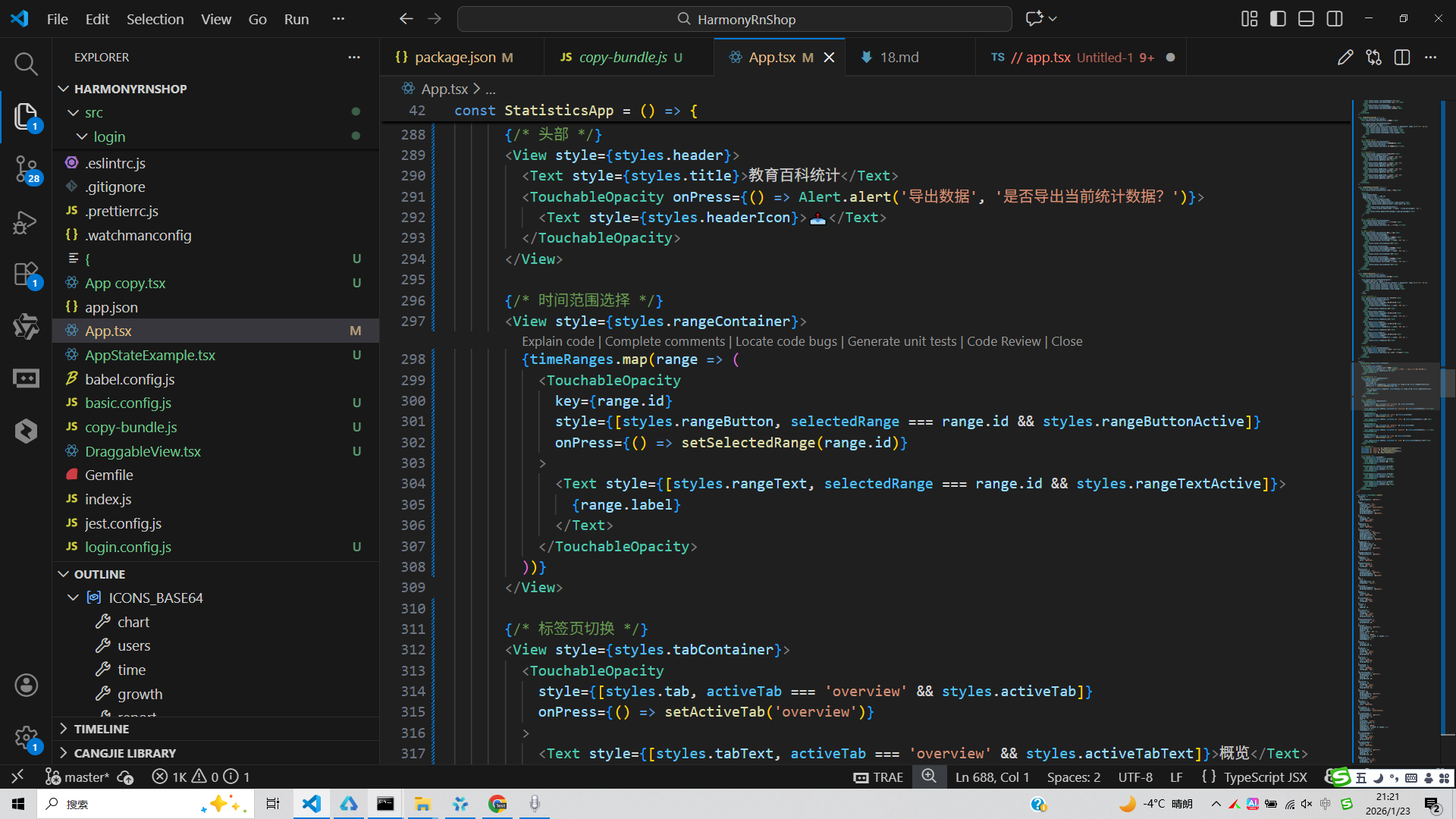
接下来通过打包命令npn run harmony将reactNative的代码打包成为bundle,这样可以进行在开源鸿蒙OpenHarmony中进行使用。

在这里插入图片描述

打包之后再将打包后的鸿蒙OpenHarmony文件拷贝到鸿蒙的DevEco-Studio工程目录去:

在这里插入图片描述

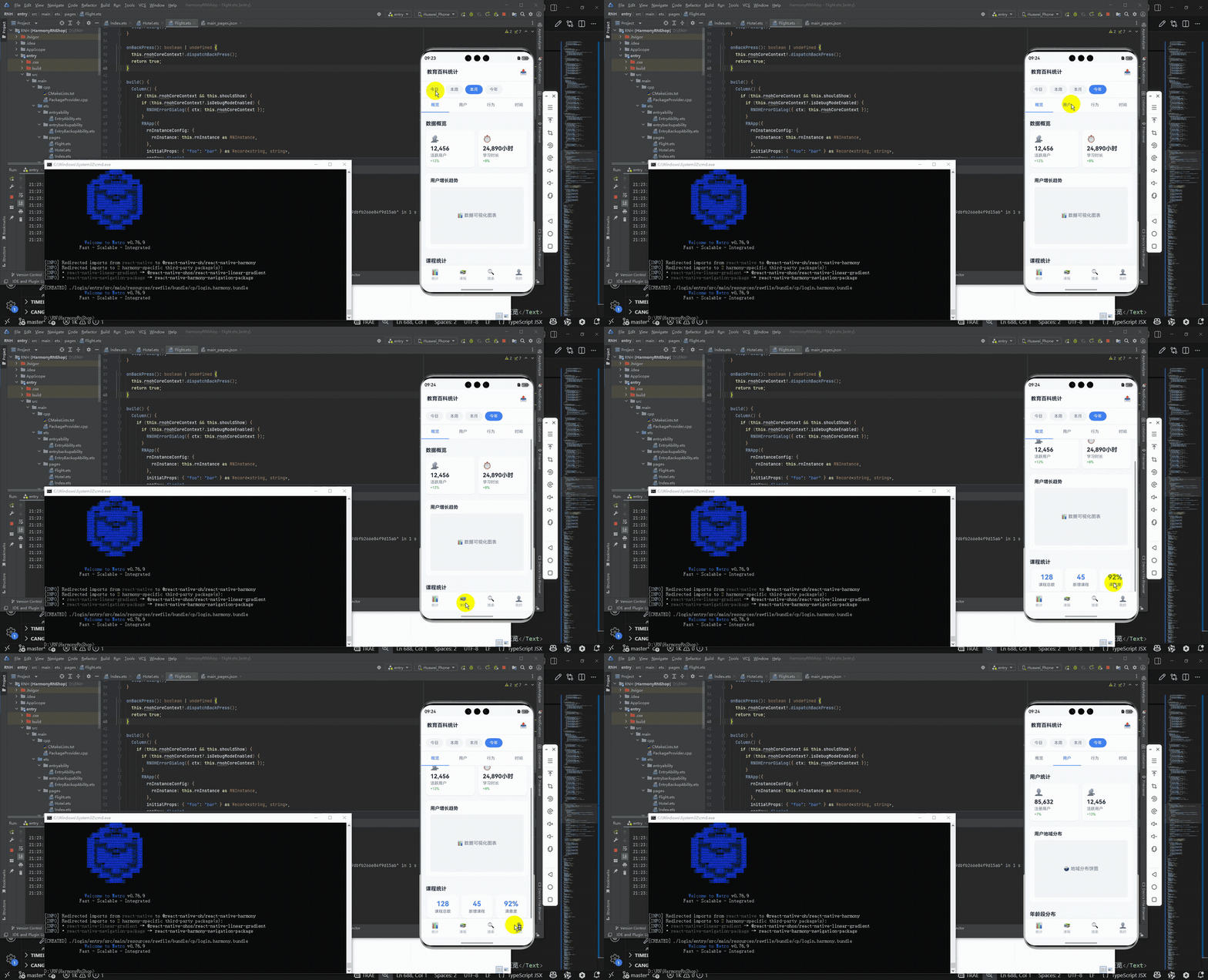
最后运行效果图如下显示:
请添加图片描述

欢迎大家加入开源鸿蒙跨平台开发者社区,一起共建开源鸿蒙跨平台生态。

Logo

作为“人工智能6S店”的官方数字引擎,为AI开发者与企业提供一个覆盖软硬件全栈、一站式门户。

更多推荐