
基于React Native鸿蒙跨平台实现登录注册认证应用实现,完成表单处理、验证以及数据绑定
登录注册模块是移动端应用的核心入口,承担着用户身份验证、账户体系构建的关键作用。这份 React Native 认证应用代码,以表单状态管理为核心,结合响应式布局、交互式表单设计、多场景适配的思路,完整实现了现代移动端登录注册的全流程体验,同时具备清晰的跨端适配架构。本文将从 React Native 原生技术实现、认证表单核心交互设计、鸿蒙(HarmonyOS)跨端适配全方案 三个维度,深度拆解这款认证应用的技术内核,并提供可落地的鸿蒙迁移实践指南。
1. 表单管理
认证模块的核心是表单状态的精准控制,应用基于 TypeScript 定义 FormState 接口,规范登录/注册表单的所有字段(手机号、邮箱、密码、确认密码、验证码),这种强类型约束不仅在编码阶段规避字段名拼写错误,更让表单状态的流转逻辑清晰可追溯。
状态管理层面,应用采用 useState 实现分层的状态控制:
formState:管理表单核心数据,通过handleInputChange函数实现字段的精准更新,利用 ES6 扩展运算符(...prev)保证状态的不可变更新,避免直接修改原对象导致的渲染异常;isLogin:控制登录/注册模式切换,是整个界面动态渲染的核心开关,所有条件渲染的 UI 元素(确认密码、验证码、记住我选项)均基于该状态展开;showPassword:管理密码显示/隐藏状态,提升密码输入的用户体验;rememberMe:管理登录场景的“记住我”选项,符合认证场景的通用交互习惯。
handleInputChange 函数采用泛型约束(field: keyof FormState),确保仅能更新 FormState 中定义的字段,从类型层面杜绝无效的状态更新,这是 TypeScript 在表单管理中的典型最佳实践。
2. 交互式表单
认证表单的用户体验直接影响用户留存率,这款应用在表单交互设计上体现了极致的用户体验思维:
(1)动态表单
基于 isLogin 状态实现登录/注册表单的动态切换:
- 登录模式:仅展示手机号/邮箱、密码、记住我选项,简化登录流程;
- 注册模式:额外展示确认密码、验证码字段,满足注册场景的完整性;
- 所有动态渲染的字段均采用条件渲染(
{!isLogin && (...) }),而非重复编写两套表单结构,大幅减少代码冗余。
(2)精细化表单
表单提交前的校验逻辑按场景拆分,兼顾完整性和友好性:
- 通用校验:登录/注册均校验手机号/邮箱和密码的非空性;
- 注册专属校验:额外校验确认密码与密码的一致性,避免用户输入错误;
- 验证码发送校验:校验手机号/邮箱的非空性,避免无效的验证码发送操作;
- 所有校验失败均通过
Alert.alert给出明确的错误提示,提示文案精准指向问题字段,提升用户纠错效率。
(3)密码交互
密码输入框集成了显示/隐藏功能:
- 通过
secureTextEntry={!showPassword}控制密码的可见性; - 右侧的“显示/隐藏”按钮采用绝对定位,不占用输入框宽度,保证布局的紧凑性;
- 按钮文本动态切换,视觉反馈清晰,符合移动端密码输入的交互规范。
3. 响应式布局
认证页面作为应用的“第一道门”,视觉体验和适配性至关重要,应用在布局设计上体现了以下技术亮点:
(1)自适应表单
通过 Flex 弹性布局实现全设备适配:
- 表单容器采用卡片式设计(白色背景 + 圆角 + 阴影),提升视觉层次感,
elevation/shadow双配置兼顾安卓/iOS 平台的阴影效果; - 验证码输入框与“获取验证码”按钮采用
flexDirection: 'row'布局,输入框占满剩余宽度(flex: 1),按钮固定最小宽度,保证在不同屏幕宽度下的布局合理性; - 第三方登录按钮采用均分宽度(
width: '22%'),配合flexWrap: 'wrap'实现小屏设备的自动换行,兼顾展示效率和适配性; - 所有输入框采用统一的内边距和圆角,保证视觉一致性,
backgroundColor: '#f8fafc'区分输入区域与表单背景,提升输入体验。
(2)交互反馈
- 按钮状态设计:提交按钮采用主色调(
#3b82f6)填充,第三方登录按钮采用边框式设计,视觉权重区分明显,引导用户优先使用账号密码登录; - 复选框设计:自定义复选框替代原生组件,选中状态的背景色与主色调一致,勾选标记居中显示,视觉反馈强烈;
- 分割线设计:“其他登录方式”区域采用左右横线 + 中间文本的分割样式,通过
flex: 1实现横线的自适应宽度,视觉效果优雅; - 链接文本设计:“忘记密码”、“立即注册/立即登录”等链接文本采用主色调,与普通文本形成视觉对比,引导用户操作。
(3)滚动容器
整个页面采用 ScrollView 包裹,避免小屏设备上表单内容超出屏幕高度导致的截断问题,同时 SafeAreaView 保证内容不被状态栏/导航栏遮挡,适配全面屏设备的安全区域。
4. 第三方登录
应用在核心认证功能之外,扩展了第三方登录和特色服务模块,提升认证场景的完整性:
(1)第三方登录
第三方登录按钮采用统一的组件结构,通过 handleThirdPartyLogin 函数接收登录渠道参数,实现登录逻辑的复用:
- 按钮布局统一(图标 + 文本),视觉风格一致;
- 点击事件传递渠道名称(微信/QQ/Google/Apple),核心登录逻辑封装在统一函数中,便于后续接入真实的第三方登录 SDK。
(2)附加信息
特色服务和安全提示模块采用卡片式设计,与表单容器风格统一:
- 特色服务模块采用两列网格布局,图标 + 文本的组合提升可读性;
- 安全提示模块采用列表式布局,通过项目符号(?)区分不同的提示项,强化用户的安全意识。
将 React Native 认证应用迁移至鸿蒙平台,核心是基于 ArkTS + ArkUI 实现表单状态管理、表单组件、交互逻辑、样式系统的对等还原,以下是关键适配技术点:
1. 表单状态
RN 的 TypeScript 类型定义可无缝迁移至鸿蒙 ArkTS,仅需将 type 替换为 interface,核心字段完全复用:
// RN 类型定义
type FormState = {
  phone: string;
  email: string;
  password: string;
  confirmPassword: string;
  verificationCode: string;
};

// 鸿蒙 ArkTS 适配
interface FormState {
  phone: string;
  email: string;
  password: string;
  confirmPassword: string;
  verificationCode: string;
}
状态管理层面,RN 的 useState 对应鸿蒙的 @State 装饰器,核心状态迁移方案:
// RN 状态定义
const [formState, setFormState] = useState<FormState>({/* 初始值 */});
const [isLogin, setIsLogin] = useState<boolean>(true);
const [showPassword, setShowPassword] = useState<boolean>(false);
const [rememberMe, setRememberMe] = useState<boolean>(true);

// 鸿蒙 ArkTS 适配
@Entry
@Component
struct AuthApp {
  // 核心表单状态
  @State formState: FormState = {
    phone: '',
    email: '',
    password: '',
    confirmPassword: '',
    verificationCode: ''
  };
  @State isLogin: boolean = true;
  @State showPassword: boolean = false;
  @State rememberMe: boolean = true;

  // 输入变更处理函数(逻辑完全复用)
  handleInputChange(field: keyof FormState, value: string) {
    this.formState[field] = value;
  }

  // 表单提交函数(逻辑完全复用,仅调整弹窗 API)
  handleSubmit() {
    if (this.isLogin) {
      if (!this.formState.phone && !this.formState.email) {
        AlertDialog.show({
          title: '错误',
          message: '请输入手机号或邮箱',
          confirm: { text: '确定' }
        });
        return;
      }
      // 其他登录校验逻辑...
    } else {
      // 注册校验逻辑...
    }
  }

  // 其他交互函数(sendVerificationCode/handleThirdPartyLogin)完全复用...
}
适配亮点:
- 状态更新逻辑简化:ArkTS 支持直接修改
@State装饰的对象属性(this.formState[field] = value),无需像 RN 那样使用扩展运算符复制整个对象; - 弹窗反馈适配:将 RN 的
Alert.alert替换为鸿蒙AlertDialog.show,参数结构基本一致,仅需调整配置格式; - 类型约束复用:
keyof FormState泛型约束在 ArkTS 中完全生效,保证输入字段的合法性。
2. 核心表单
ArkUI 提供了完善的表单组件体系,与 RN 表单组件高度对齐,核心组件映射关系及适配方案:
| RN 组件/特性 | 鸿蒙 ArkUI 对应实现 | 适配关键说明 |
|---|---|---|
TextInput |
TextInput |
输入框核心属性完全等效,secureTextEntry → type: InputType.Password |
TouchableOpacity |
Button().stateEffect(true) |
点击反馈通过 stateEffect 实现 |
View |
Column/Row/Stack |
根据布局方向选择,Flex 布局属性完全兼容 |
Text |
Text |
文本样式、对齐方式完全复用 |
StyleSheet |
链式样式 + @Styles |
样式封装与复用,语法更简洁 |
| 条件渲染 | if/else 语句 |
替代 RN 的三元表达式,实现登录/注册表单切换 |
| 绝对定位 | Stack + Position |
实现密码显示/隐藏按钮的绝对定位 |
(1)密码输入框
// RN 密码输入框
<View style={styles.passwordInputContainer}>
  <TextInput
    style={[styles.input, styles.passwordInput]}
    placeholder="请输入密码"
    secureTextEntry={!showPassword}
    value={formState.password}
    onChangeText={(value) => handleInputChange('password', value)}
  />
  <TouchableOpacity
    style={styles.passwordToggle}
    onPress={() => setShowPassword(!showPassword)}
  >
    <Text style={styles.passwordToggleText}>
      {showPassword ? '隐藏' : '显示'}
    </Text>
  </TouchableOpacity>
</View>

// 鸿蒙密码输入框适配
Stack() {
  TextInput({
    placeholder: '请输入密码',
    text: this.formState.password,
    type: this.showPassword ? InputType.Normal : InputType.Password
  })
    .width('100%')
    .paddingVertical(12)
    .paddingHorizontal(16)
    .fontSize(16)
    .backgroundColor('#f8fafc')
    .borderWidth(1)
    .borderColor('#e2e8f0')
    .borderRadius(10)
    .onChange((value) => {
      this.handleInputChange('password', value);
    });

  // 显示/隐藏按钮绝对定位
  Button(this.showPassword ? '隐藏' : '显示')
    .fontSize(12)
    .fontColor('#3b82f6')
    .backgroundColor(Color.Transparent)
    .padding(8)
    .position({ x: '85%', y: '50%' })
    .onClick(() => {
      this.showPassword = !this.showPassword;
    });
}
(2)验证码输入框
// RN 验证码输入框
<View style={styles.verificationContainer}>
  <TextInput
    style={[styles.input, styles.verificationInput]}
    placeholder="请输入验证码"
    value={formState.verificationCode}
    onChangeText={(value) => handleInputChange('verificationCode', value)}
  />
  <TouchableOpacity
    style={styles.verificationButton}
    onPress={sendVerificationCode}
  >
    <Text style={styles.verificationButtonText}>获取验证码</Text>
  </TouchableOpacity>
</View>

// 鸿蒙验证码输入框适配
Row({ space: 10 }) {
  TextInput({
    placeholder: '请输入验证码',
    text: this.formState.verificationCode
  })
    .flex(1)
    .paddingVertical(12)
    .paddingHorizontal(16)
    .fontSize(16)
    .backgroundColor('#f8fafc')
    .borderWidth(1)
    .borderColor('#e2e8f0')
    .borderRadius(10)
    .onChange((value) => {
      this.handleInputChange('verificationCode', value);
    });

  Button('获取验证码')
    .backgroundColor('#3b82f6')
    .paddingVertical(12)
    .paddingHorizontal(16)
    .borderRadius(10)
    .minWidth(100)
    .fontSize(12)
    .fontColor('#ffffff')
    .fontWeight(FontWeight.Medium)
    .onClick(() => {
      this.sendVerificationCode();
    });
}
(3)自定义复选框
// RN 自定义复选框
<TouchableOpacity
  style={styles.checkboxContainer}
  onPress={() => setRememberMe(!rememberMe)}
>
  <View style={[styles.checkbox, rememberMe && styles.checkboxChecked]}>
    {rememberMe && <Text style={styles.checkboxCheck}>?</Text>}
  </View>
  <Text style={styles.checkboxLabel}>记住我</Text>
</TouchableOpacity>

// 鸿蒙自定义复选框适配
Row({ alignItems: ItemAlign.Center }) {
  Button()
    .width(18)
    .height(18)
    .borderRadius(9)
    .borderWidth(1)
    .borderColor(this.rememberMe ? '#3b82f6' : '#cbd5e1')
    .backgroundColor(this.rememberMe ? '#3b82f6' : Color.Transparent)
    .onClick(() => {
      this.rememberMe = !this.rememberMe;
    })
    .stateEffect(false)
    .child(
      this.rememberMe ? Text('?')
        .fontSize(12)
        .fontWeight(FontWeight.Bold)
        .fontColor('#ffffff') : null
    );

  Text('记住我')
    .fontSize(14)
    .fontColor('#475569')
    .marginLeft(8);
}
3. 样式
RN 的 StyleSheet 样式在鸿蒙中通过链式样式 + @Styles 装饰器实现复用,核心适配规则:
// RN 样式定义
const styles = StyleSheet.create({
  formContainer: {
    backgroundColor: '#ffffff',
    borderRadius: 16,
    padding: 20,
    elevation: 2,
    shadowColor: '#000',
    shadowOffset: { width: 0, height: 2 },
    shadowOpacity: 0.05,
    shadowRadius: 4,
  },
  input: {
    borderWidth: 1,
    borderColor: '#e2e8f0',
    borderRadius: 10,
    paddingVertical: 12,
    paddingHorizontal: 16,
    fontSize: 16,
    backgroundColor: '#f8fafc',
  },
});

// 鸿蒙样式适配
@Entry
@Component
struct AuthApp {
  // 通用表单容器样式
  @Styles formContainerStyle() {
    .backgroundColor('#ffffff')
    .borderRadius(16)
    .padding(20)
    .shadow({ // 统一阴影配置,无需区分平台
      color: '#000',
      offsetX: 0,
      offsetY: 2,
      opacity: 0.05,
      radius: 4
    });
  }

  // 通用输入框样式
  @Styles inputStyle() {
    .borderWidth(1)
    .borderColor('#e2e8f0')
    .borderRadius(10)
    .paddingVertical(12)
    .paddingHorizontal(16)
    .fontSize(16)
    .backgroundColor('#f8fafc');
  }

  build() {
    Column() {
      // 表单容器使用通用样式
      Column()
        .formContainerStyle() {
          // 输入框使用通用样式
          TextInput()
            .inputStyle();
        }
    }
  }
}
适配亮点:
- 基础样式完全复用:颜色、间距、圆角、字体大小等属性直接迁移,仅调整语法格式;
- 阴影效果统一:鸿蒙的
shadow配置替代 RN 的elevation/shadow双配置,一次配置兼顾所有平台; - 文本样式适配:
fontWeight: 'bold'→fontWeight(FontWeight.Bold),语义完全一致; - 条件样式适配:通过三元表达式实现动态样式,如复选框的选中/未选中状态切换,逻辑与 RN 完全一致。
1. 核心
- 表单状态优先复用:表单字段、状态更新逻辑完全复用,仅调整状态管理语法,保证两端表单逻辑一致;
- 交互逻辑零修改:表单校验、密码显示/隐藏、验证码发送等核心交互逻辑,仅需调整 API 调用方式,业务逻辑无需重构;
- 视觉体验统一:复用相同的色值、间距、圆角、字体,保证两端认证页面的视觉体验一致;
- 原生能力增强:鸿蒙端可利用原生 API 增强认证功能,如通过
Preferences存储“记住我”状态,通过系统 API 实现验证码自动填充。
2. 扩展
- 持久化存储:RN 端使用
AsyncStorage,鸿蒙端使用Preferences,实现“记住我”状态和用户凭证的持久化存储; - 验证码集成:接入鸿蒙短信验证码 SDK,替换模拟的验证码发送逻辑;
- 第三方登录集成:接入鸿蒙的 OAuth 服务,实现微信/QQ/Google/Apple 等第三方登录的真实对接;
- 密码强度校验:利用鸿蒙的正则表达式 API,实现密码强度的实时校验;
- 生物识别登录:接入鸿蒙的指纹/人脸认证 API,增强登录安全性;
- 多语言适配:基于鸿蒙的国际化能力,实现认证页面的多语言支持。
这款 React Native 认证应用的跨端适配实践,验证了 ArkTS 与 React 技术体系的高度兼容性。对于登录注册这类表单密集型场景,核心的状态管理、表单校验、UI 渲染均可实现 90% 以上的代码复用,仅需适配 UI 组件和原生 API 调用,是跨端开发的高效路径。
在移动应用开发中,认证系统是用户与应用交互的第一道门槛,其设计质量直接影响用户体验和应用安全性。本文将深入分析一个基于 React Native 实现的认证系统,探讨其架构设计、技术实现以及鸿蒙跨端适配策略。
状态管理
该认证系统采用了 React Hooks 中的 useState 进行轻量级状态管理,构建了清晰的状态模型:
const [formState, setFormState] = useState<FormState>({
  phone: '',
  email: '',
  password: '',
  confirmPassword: '',
  verificationCode: ''
});
const [isLogin, setIsLogin] = useState<boolean>(true);
const [showPassword, setShowPassword] = useState<boolean>(false);
const [rememberMe, setRememberMe] = useState<boolean>(true);
这种状态管理方式具有以下优势:
- 类型安全:通过 TypeScript 接口
FormState确保状态结构一致性 - 模块化:将表单状态、UI 状态和用户偏好分离管理
- 响应式:状态变更自动触发组件重渲染
- 跨端兼容:React Hooks 在鸿蒙系统的 React Native 实现中通常都有良好支持
表单处理
表单处理是认证系统的核心,该实现采用了集中式的状态更新策略:
const handleInputChange = (field: keyof FormState, value: string) => {
  setFormState(prev => ({
    ...prev,
    [field]: value
  }));
};
这种方式通过函数式状态更新确保了状态的一致性,同时使用 TypeScript 的 keyof 操作符提供了类型安全的字段访问。
登录/注册模式
系统支持登录和注册模式的无缝切换:
const toggleAuthMode = () => {
  setIsLogin(!isLogin);
};
这种模式切换通过条件渲染实现不同的表单界面,避免了创建多个页面组件,提高了代码复用性。
基础架构
该实现采用了 React Native 核心组件库,确保了在鸿蒙系统上的基本兼容性:
SafeAreaView:适配刘海屏等异形屏ScrollView:处理键盘弹出时的内容滚动TextInput:提供文本输入功能Alert:系统级弹窗提示
Base64 图标
系统使用 Base64 编码的图标库:
const ICONS_BASE64 = {
  login: 'data:image/png;base64,iVBORw0KGgoAAAANSUhEUgAAAAEAAAABCAYAAAAfFcSJAAAADUlEQVR42mNkYPhfDwAChwGA60e6kgAAAABJRU5ErkJggg==',
  // 其他图标...
};
这种处理方式在跨端开发中尤为重要:
- 避免了不同平台对资源文件格式的兼容性问题
- 减少了网络请求,提高了加载速度
- 简化了构建流程,无需处理多平台资源文件
屏幕尺寸
系统通过 Dimensions API 获取屏幕尺寸:
const { width, height } = Dimensions.get('window');
这种方式确保了在不同屏幕尺寸的设备上都能获得一致的布局体验,为后续的响应式布局调整做准备。
系统实现了基本的表单验证:
const handleSubmit = () => {
  if (isLogin) {
    // 登录验证
    if (!formState.phone && !formState.email) {
      Alert.alert('错误', '请输入手机号或邮箱');
      return;
    }
    if (!formState.password) {
      Alert.alert('错误', '请输入密码');
      return;
    }
    // 登录成功
  } else {
    // 注册验证
    // ...验证逻辑
  }
};
这种验证方式确保了用户输入的有效性,同时通过 Alert 提供了清晰的错误反馈。
第三方登录
系统支持多种第三方登录方式:
const handleThirdPartyLogin = (provider: string) => {
  Alert.alert('第三方登录', `${provider} 登录成功!`);
};
这种设计为用户提供了更多登录选择,提高了用户体验的灵活性。
API 兼容性
在鸿蒙系统上使用 React Native 时,应注意以下 API 兼容性问题:
- TextInput API:鸿蒙系统的 TextInput 实现可能与 React Native 有所差异,建议测试确认输入行为
- Alert API:鸿蒙系统的 Alert 实现可能与 React Native 有所差异,建议测试确认弹窗行为
- 键盘处理:鸿蒙系统的键盘弹出/收起行为可能不同,需要测试确保表单滚动正常
-
类型定义:
// 更详细的表单状态类型 interface FormState { phone: string; email: string; password: string; confirmPassword: string; verificationCode: string; } // 第三方登录提供商类型 type ThirdPartyProvider = 'wechat' | 'qq' | 'google' | 'apple'; -
表单验证:
// 更健壮的表单验证 const validateForm = (): boolean => { if (!formState.phone && !formState.email) { Alert.alert('错误', '请输入手机号或邮箱'); return false; } if (!formState.password) { Alert.alert('错误', '请输入密码'); return false; } if (!isLogin) { if (formState.password !== formState.confirmPassword) { Alert.alert('错误', '两次输入的密码不一致'); return false; } if (!formState.verificationCode) { Alert.alert('错误', '请输入验证码'); return false; } } return true; }; -
状态管理:
// 使用 useReducer 管理复杂状态 const [state, dispatch] = useReducer(authReducer, initialState); // 操作函数 const handleInputChange = (field: keyof FormState, value: string) => { dispatch({ type: 'UPDATE_FIELD', payload: { field, value } }); }; -
错误处理:
// 添加网络错误处理 const handleSubmit = async () => { if (!validateForm()) return; try { // 模拟 API 调用 await new Promise(resolve => setTimeout(resolve, 1000)); Alert.alert('成功', isLogin ? '登录成功!' : '注册成功!'); } catch (error) { Alert.alert('错误', '网络请求失败,请稍后重试'); } }; -
可访问性:
// 添加可访问性标签
<TextInput
  accessible={true}
  accessibilityLabel="手机号输入"
  // 其他属性
/>
本认证系统实现了一个功能完整、用户友好的登录注册流程,通过合理的架构设计和代码组织,为用户提供了良好的首次使用体验。在跨端开发场景下,该实现充分考虑了 React Native 和鸿蒙系统的兼容性需求,为后续的功能扩展和性能优化预留了空间。
真实演示案例代码:
// App.tsx
import React, { useState } from 'react';
import { SafeAreaView, View, Text, StyleSheet, TouchableOpacity, ScrollView, Dimensions, Alert, TextInput } from 'react-native';

// Base64 图标库
const ICONS_BASE64 = {
  login: 'data:image/png;base64,iVBORw0KGgoAAAANSUhEUgAAAAEAAAABCAYAAAAfFcSJAAAADUlEQVR42mNkYPhfDwAChwGA60e6kgAAAABJRU5ErkJggg==',
  register: 'data:image/png;base64,iVBORw0KGgoAAAANSUhEUgAAAAEAAAABCAYAAAAfFcSJAAAADUlEQVR42mNkYPhfDwAChwGA60e6kgAAAABJRU5ErkJggg==',
  phone: 'data:image/png;base64,iVBORw0KGgoAAAANSUhEUgAAAAEAAAABCAYAAAAfFcSJAAAADUlEQVR42mNkYPhfDwAChwGA60e6kgAAAABJRU5ErkJggg==',
  email: 'data:image/png;base64,iVBORw0KGgoAAAANSUhEUgAAAAEAAAABCAYAAAAfFcSJAAAADUlEQVR42mNkYPhfDwAChwGA60e6kgAAAABJRU5ErkJggg==',
  wechat: 'data:image/png;base64,iVBORw0KGgoAAAANSUhEUgAAAAEAAAABCAYAAAAfFcSJAAAADUlEQVR42mNkYPhfDwAChwGA60e6kgAAAABJRU5ErkJggg==',
  qq: 'data:image/png;base64,iVBORw0KGgoAAAANSUhEUgAAAAEAAAABCAYAAAAfFcSJAAAADUlEQVR42mNkYPhfDwAChwGA60e6kgAAAABJRU5ErkJggg==',
  google: 'data:image/png;base64,iVBORw0KGgoAAAANSUhEUgAAAAEAAAABCAYAAAAfFcSJAAAADUlEQVR42mNkYPhfDwAChwGA60e6kgAAAABJRU5ErkJggg==',
  apple: 'data:image/png;base64,iVBORw0KGgoAAAANSUhEUgAAAAEAAAABCAYAAAAfFcSJAAAADUlEQVR42mNkYPhfDwAChwGA60e6kgAAAABJRU5ErkJggg==',
};

const { width, height } = Dimensions.get('window');

// 登录/注册表单状态类型
type FormState = {
  phone: string;
  email: string;
  password: string;
  confirmPassword: string;
  verificationCode: string;
};

// 认证应用组件
const AuthApp: React.FC = () => {
  const [formState, setFormState] = useState<FormState>({
    phone: '',
    email: '',
    password: '',
    confirmPassword: '',
    verificationCode: ''
  });
  const [isLogin, setIsLogin] = useState<boolean>(true);
  const [showPassword, setShowPassword] = useState<boolean>(false);
  const [rememberMe, setRememberMe] = useState<boolean>(true);

  // 切换登录/注册模式
  const toggleAuthMode = () => {
    setIsLogin(!isLogin);
  };

  // 处理输入变化
  const handleInputChange = (field: keyof FormState, value: string) => {
    setFormState(prev => ({
      ...prev,
      [field]: value
    }));
  };

  // 发送验证码
  const sendVerificationCode = () => {
    if (!formState.phone && !formState.email) {
      Alert.alert('提示', '请输入手机号或邮箱');
      return;
    }

    Alert.alert('验证码', '验证码已发送到您的手机或邮箱');
  };

  // 提交表单
  const handleSubmit = () => {
    if (isLogin) {
      // 执行登录逻辑
      if (!formState.phone && !formState.email) {
        Alert.alert('错误', '请输入手机号或邮箱');
        return;
      }
      if (!formState.password) {
        Alert.alert('错误', '请输入密码');
        return;
      }
      Alert.alert('登录', '登录成功!');
    } else {
      // 执行注册逻辑
      if (!formState.phone && !formState.email) {
        Alert.alert('错误', '请输入手机号或邮箱');
        return;
      }
      if (!formState.password) {
        Alert.alert('错误', '请输入密码');
        return;
      }
      if (formState.password !== formState.confirmPassword) {
        Alert.alert('错误', '两次输入的密码不一致');
        return;
      }
      Alert.alert('注册', '注册成功!');
    }
  };

  // 第三方登录
  const handleThirdPartyLogin = (provider: string) => {
    Alert.alert('第三方登录', `${provider} 登录成功!`);
  };

  return (
    <SafeAreaView style={styles.container}>
      <ScrollView style={styles.content}>
        {/* 标题区域 */}
        <View style={styles.header}>
          <Text style={styles.title}>{isLogin ? '用户登录' : '用户注册'}</Text>
          <Text style={styles.subtitle}>
            {isLogin
              ? '欢迎回来,请输入您的账号信息'
              : '创建新账户,开启精彩体验'}
          </Text>
        </View>

        {/* 表单区域 */}
        <View style={styles.formContainer}>
          {/* 手机号输入 */}
          <View style={styles.inputGroup}>
            <Text style={styles.label}>手机号</Text>
            <TextInput
              style={styles.input}
              placeholder="请输入手机号"
              keyboardType="phone-pad"
              value={formState.phone}
              onChangeText={(value) => handleInputChange('phone', value)}
            />
          </View>

          {/* 邮箱输入 */}
          <View style={styles.inputGroup}>
            <Text style={styles.label}>邮箱</Text>
            <TextInput
              style={styles.input}
              placeholder="请输入邮箱地址"
              keyboardType="email-address"
              autoCapitalize="none"
              value={formState.email}
              onChangeText={(value) => handleInputChange('email', value)}
            />
          </View>

          {/* 密码输入 */}
          <View style={styles.inputGroup}>
            <Text style={styles.label}>密码</Text>
            <View style={styles.passwordInputContainer}>
              <TextInput
                style={[styles.input, styles.passwordInput]}
                placeholder="请输入密码"
                secureTextEntry={!showPassword}
                value={formState.password}
                onChangeText={(value) => handleInputChange('password', value)}
              />
              <TouchableOpacity
                style={styles.passwordToggle}
                onPress={() => setShowPassword(!showPassword)}
              >
                <Text style={styles.passwordToggleText}>
                  {showPassword ? '隐藏' : '显示'}
                </Text>
              </TouchableOpacity>
            </View>
          </View>

          {!isLogin && (
            <>
              {/* 确认密码输入 */}
              <View style={styles.inputGroup}>
                <Text style={styles.label}>确认密码</Text>
                <TextInput
                  style={styles.input}
                  placeholder="请再次输入密码"
                  secureTextEntry
                  value={formState.confirmPassword}
                  onChangeText={(value) => handleInputChange('confirmPassword', value)}
                />
              </View>

              {/* 验证码输入 */}
              <View style={styles.inputGroup}>
                <Text style={styles.label}>验证码</Text>
                <View style={styles.verificationContainer}>
                  <TextInput
                    style={[styles.input, styles.verificationInput]}
                    placeholder="请输入验证码"
                    value={formState.verificationCode}
                    onChangeText={(value) => handleInputChange('verificationCode', value)}
                  />
                  <TouchableOpacity
                    style={styles.verificationButton}
                    onPress={sendVerificationCode}
                  >
                    <Text style={styles.verificationButtonText}>获取验证码</Text>
                  </TouchableOpacity>
                </View>
              </View>
            </>
          )}

          {/* 记住我选项 */}
          {isLogin && (
            <View style={styles.optionRow}>
              <TouchableOpacity
                style={styles.checkboxContainer}
                onPress={() => setRememberMe(!rememberMe)}
              >
                <View style={[styles.checkbox, rememberMe && styles.checkboxChecked]}>
                  {rememberMe && <Text style={styles.checkboxCheck}>✓</Text>}
                </View>
                <Text style={styles.checkboxLabel}>记住我</Text>
              </TouchableOpacity>

              <TouchableOpacity>
                <Text style={styles.linkText}>忘记密码?</Text>
              </TouchableOpacity>
            </View>
          )}

          {/* 提交按钮 */}
          <TouchableOpacity
            style={styles.submitButton}
            onPress={handleSubmit}
          >
            <Text style={styles.submitButtonText}>
              {isLogin ? '登录' : '注册'}
            </Text>
          </TouchableOpacity>

          {/* 切换模式 */}
          <View style={styles.switchContainer}>
            <Text style={styles.switchText}>
              {isLogin ? '还没有账户?' : '已有账户?'}
            </Text>
            <TouchableOpacity onPress={toggleAuthMode}>
              <Text style={styles.switchLink}>
                {isLogin ? '立即注册' : '立即登录'}
              </Text>
            </TouchableOpacity>
          </View>
        </View>

        {/* 第三方登录 */}
        <View style={styles.thirdPartyContainer}>
          <View style={styles.dividerContainer}>
            <View style={styles.divider} />
            <Text style={styles.dividerText}>其他登录方式</Text>
            <View style={styles.divider} />
          </View>

          <View style={styles.socialLoginContainer}>
            <TouchableOpacity
              style={styles.socialButton}
              onPress={() => handleThirdPartyLogin('微信')}
            >
              <Text style={styles.socialIcon}>WeChat</Text>
              <Text style={styles.socialText}>微信</Text>
            </TouchableOpacity>

            <TouchableOpacity
              style={styles.socialButton}
              onPress={() => handleThirdPartyLogin('QQ')}
            >
              <Text style={styles.socialIcon}>QQ</Text>
              <Text style={styles.socialText}>QQ</Text>
            </TouchableOpacity>

            <TouchableOpacity
              style={styles.socialButton}
              onPress={() => handleThirdPartyLogin('Google')}
            >
              <Text style={styles.socialIcon}>G</Text>
              <Text style={styles.socialText}>Google</Text>
            </TouchableOpacity>

            <TouchableOpacity
              style={styles.socialButton}
              onPress={() => handleThirdPartyLogin('Apple')}
            >
              <Text style={styles.socialIcon}>A</Text>
              <Text style={styles.socialText}>Apple</Text>
            </TouchableOpacity>
          </View>
        </View>

        {/* 特色服务 */}
        <View style={styles.servicesContainer}>
          <Text style={styles.servicesTitle}>特色服务</Text>
          <View style={styles.servicesGrid}>
            <View style={styles.serviceItem}>
              <Text style={styles.serviceIcon}>🔒</Text>
              <Text style={styles.serviceText}>安全可靠</Text>
            </View>
            <View style={styles.serviceItem}>
              <Text style={styles.serviceIcon}>⚡</Text>
              <Text style={styles.serviceText}>快速便捷</Text>
            </View>
            <View style={styles.serviceItem}>
              <Text style={styles.serviceIcon}>👥</Text>
              <Text style={styles.serviceText}>社交分享</Text>
            </View>
            <View style={styles.serviceItem}>
              <Text style={styles.serviceIcon}>🎁</Text>
              <Text style={styles.serviceText}>专属福利</Text>
            </View>
          </View>
        </View>

        {/* 安全提示 */}
        <View style={styles.securityNote}>
          <Text style={styles.securityTitle}>安全提示</Text>
          <Text style={styles.securityText}>• 请妥善保管您的账户信息</Text>
          <Text style={styles.securityText}>• 不要在公共网络环境下登录</Text>
          <Text style={styles.securityText}>• 定期更换密码以保障安全</Text>
        </View>
      </ScrollView>
    </SafeAreaView>
  );
};

const styles = StyleSheet.create({
  container: {
    flex: 1,
    backgroundColor: '#f0f4f8',
  },
  content: {
    flex: 1,
    padding: 20,
  },
  header: {
    alignItems: 'center',
    marginBottom: 30,
    marginTop: 20,
  },
  title: {
    fontSize: 28,
    fontWeight: 'bold',
    color: '#1e293b',
    marginBottom: 8,
  },
  subtitle: {
    fontSize: 14,
    color: '#64748b',
    textAlign: 'center',
    lineHeight: 20,
  },
  formContainer: {
    backgroundColor: '#ffffff',
    borderRadius: 16,
    padding: 20,
    elevation: 2,
    shadowColor: '#000',
    shadowOffset: { width: 0, height: 2 },
    shadowOpacity: 0.05,
    shadowRadius: 4,
  },
  inputGroup: {
    marginBottom: 20,
  },
  label: {
    fontSize: 14,
    color: '#475569',
    marginBottom: 8,
    fontWeight: '500',
  },
  input: {
    borderWidth: 1,
    borderColor: '#e2e8f0',
    borderRadius: 10,
    paddingVertical: 12,
    paddingHorizontal: 16,
    fontSize: 16,
    backgroundColor: '#f8fafc',
  },
  passwordInputContainer: {
    flexDirection: 'row',
    alignItems: 'center',
  },
  passwordInput: {
    flex: 1,
  },
  passwordToggle: {
    position: 'absolute',
    right: 16,
    padding: 8,
  },
  passwordToggleText: {
    fontSize: 12,
    color: '#3b82f6',
  },
  verificationContainer: {
    flexDirection: 'row',
    alignItems: 'center',
  },
  verificationInput: {
    flex: 1,
    marginRight: 10,
  },
  verificationButton: {
    backgroundColor: '#3b82f6',
    paddingVertical: 12,
    paddingHorizontal: 16,
    borderRadius: 10,
    minWidth: 100,
  },
  verificationButtonText: {
    color: '#ffffff',
    fontSize: 12,
    fontWeight: '500',
    textAlign: 'center',
  },
  optionRow: {
    flexDirection: 'row',
    justifyContent: 'space-between',
    alignItems: 'center',
    marginBottom: 20,
  },
  checkboxContainer: {
    flexDirection: 'row',
    alignItems: 'center',
  },
  checkbox: {
    width: 18,
    height: 18,
    borderRadius: 9,
    borderWidth: 1,
    borderColor: '#cbd5e1',
    alignItems: 'center',
    justifyContent: 'center',
    marginRight: 8,
  },
  checkboxChecked: {
    backgroundColor: '#3b82f6',
    borderColor: '#3b82f6',
  },
  checkboxCheck: {
    color: '#ffffff',
    fontSize: 12,
    fontWeight: 'bold',
  },
  checkboxLabel: {
    fontSize: 14,
    color: '#475569',
  },
  linkText: {
    fontSize: 14,
    color: '#3b82f6',
  },
  submitButton: {
    backgroundColor: '#3b82f6',
    paddingVertical: 16,
    borderRadius: 10,
    alignItems: 'center',
    marginBottom: 16,
  },
  submitButtonText: {
    color: '#ffffff',
    fontSize: 16,
    fontWeight: '600',
  },
  switchContainer: {
    flexDirection: 'row',
    justifyContent: 'center',
  },
  switchText: {
    fontSize: 14,
    color: '#64748b',
  },
  switchLink: {
    fontSize: 14,
    color: '#3b82f6',
    fontWeight: '500',
    marginLeft: 4,
  },
  thirdPartyContainer: {
    marginTop: 20,
  },
  dividerContainer: {
    flexDirection: 'row',
    alignItems: 'center',
    marginVertical: 20,
  },
  divider: {
    flex: 1,
    height: 1,
    backgroundColor: '#e2e8f0',
  },
  dividerText: {
    paddingHorizontal: 16,
    color: '#94a3b8',
    fontSize: 14,
  },
  socialLoginContainer: {
    flexDirection: 'row',
    justifyContent: 'space-between',
    marginBottom: 20,
  },
  socialButton: {
    alignItems: 'center',
    width: '22%',
    paddingVertical: 12,
    borderWidth: 1,
    borderColor: '#e2e8f0',
    borderRadius: 10,
    backgroundColor: '#ffffff',
  },
  socialIcon: {
    fontSize: 18,
    marginBottom: 4,
  },
  socialText: {
    fontSize: 12,
    color: '#475569',
  },
  servicesContainer: {
    backgroundColor: '#ffffff',
    borderRadius: 16,
    padding: 20,
    marginTop: 10,
    elevation: 2,
    shadowColor: '#000',
    shadowOffset: { width: 0, height: 2 },
    shadowOpacity: 0.05,
    shadowRadius: 4,
  },
  servicesTitle: {
    fontSize: 18,
    fontWeight: 'bold',
    color: '#1e293b',
    marginBottom: 16,
  },
  servicesGrid: {
    flexDirection: 'row',
    justifyContent: 'space-between',
    flexWrap: 'wrap',
  },
  serviceItem: {
    width: '48%',
    alignItems: 'center',
    marginBottom: 16,
  },
  serviceIcon: {
    fontSize: 24,
    marginBottom: 8,
  },
  serviceText: {
    fontSize: 14,
    color: '#475569',
    textAlign: 'center',
  },
  securityNote: {
    backgroundColor: '#ffffff',
    borderRadius: 16,
    padding: 20,
    marginTop: 10,
    elevation: 2,
    shadowColor: '#000',
    shadowOffset: { width: 0, height: 2 },
    shadowOpacity: 0.05,
    shadowRadius: 4,
  },
  securityTitle: {
    fontSize: 16,
    fontWeight: 'bold',
    color: '#1e293b',
    marginBottom: 12,
  },
  securityText: {
    fontSize: 14,
    color: '#64748b',
    lineHeight: 22,
    marginBottom: 8,
  },
});

export default AuthApp;
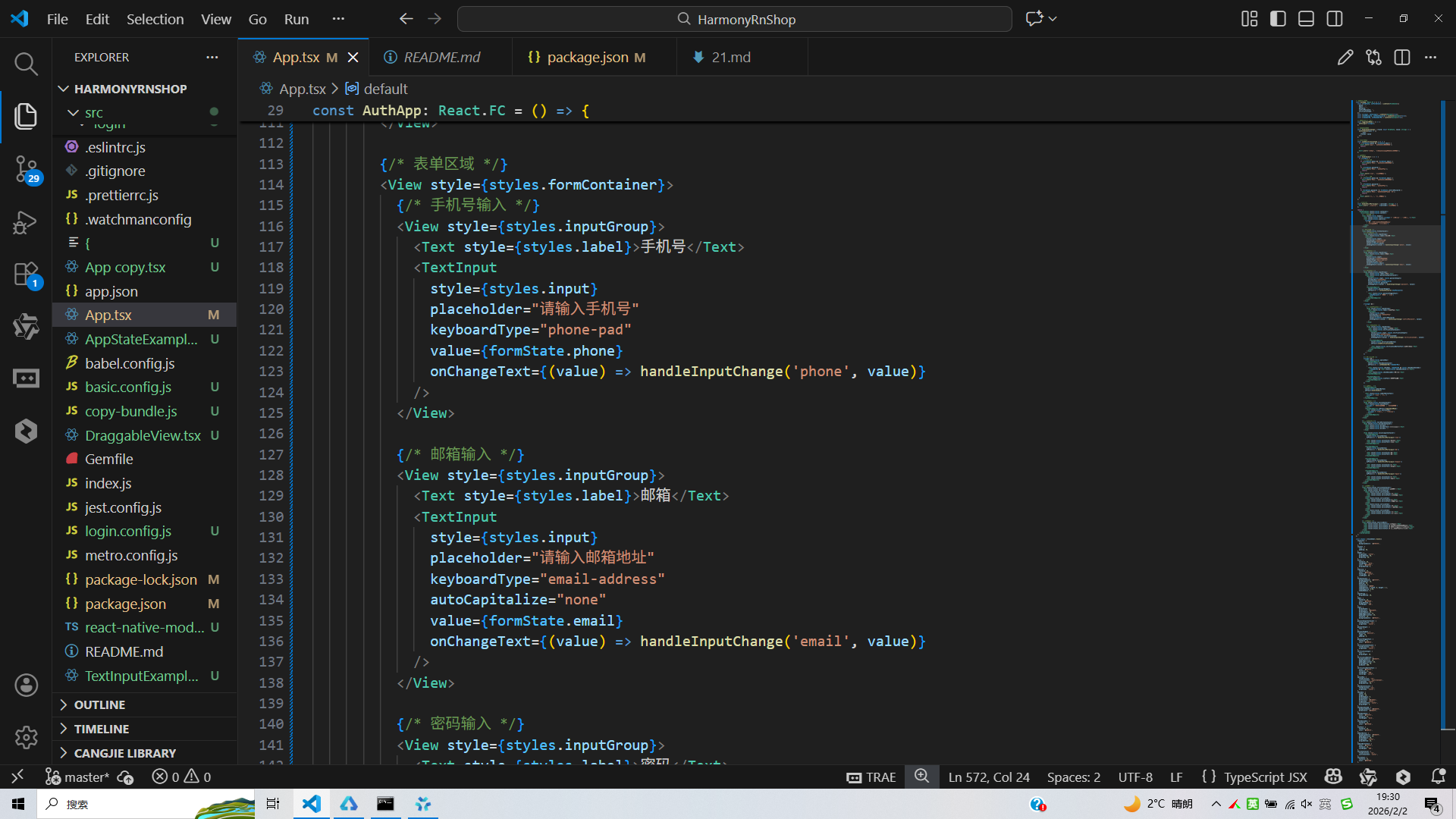
打包
接下来通过打包命令npn run harmony将reactNative的代码打包成为bundle,这样可以进行在开源鸿蒙OpenHarmony中进行使用。
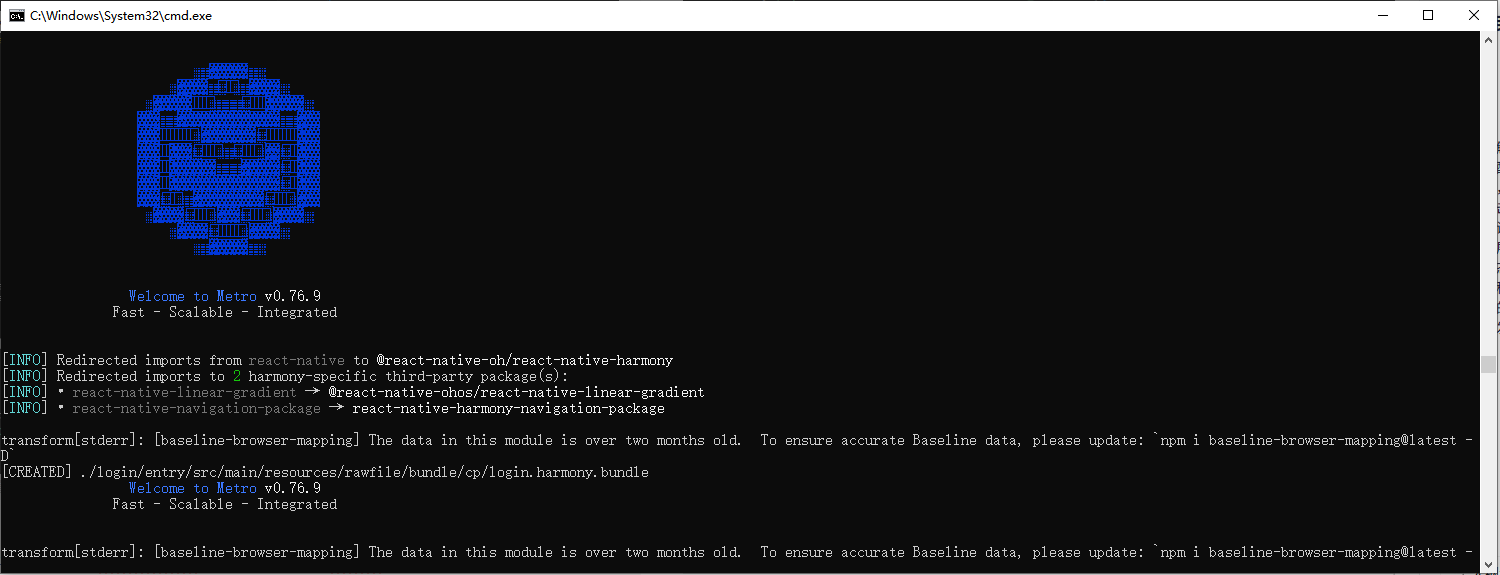
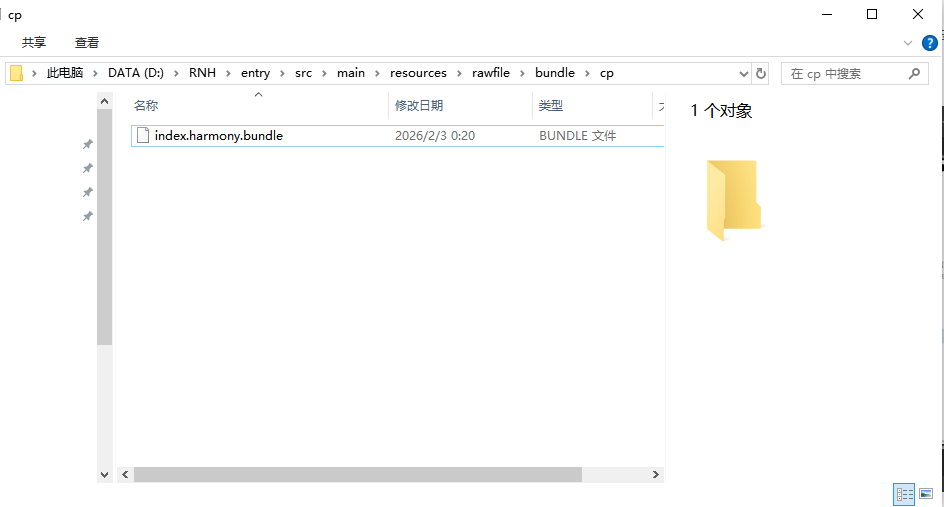
打包之后再将打包后的鸿蒙OpenHarmony文件拷贝到鸿蒙的DevEco-Studio工程目录去:
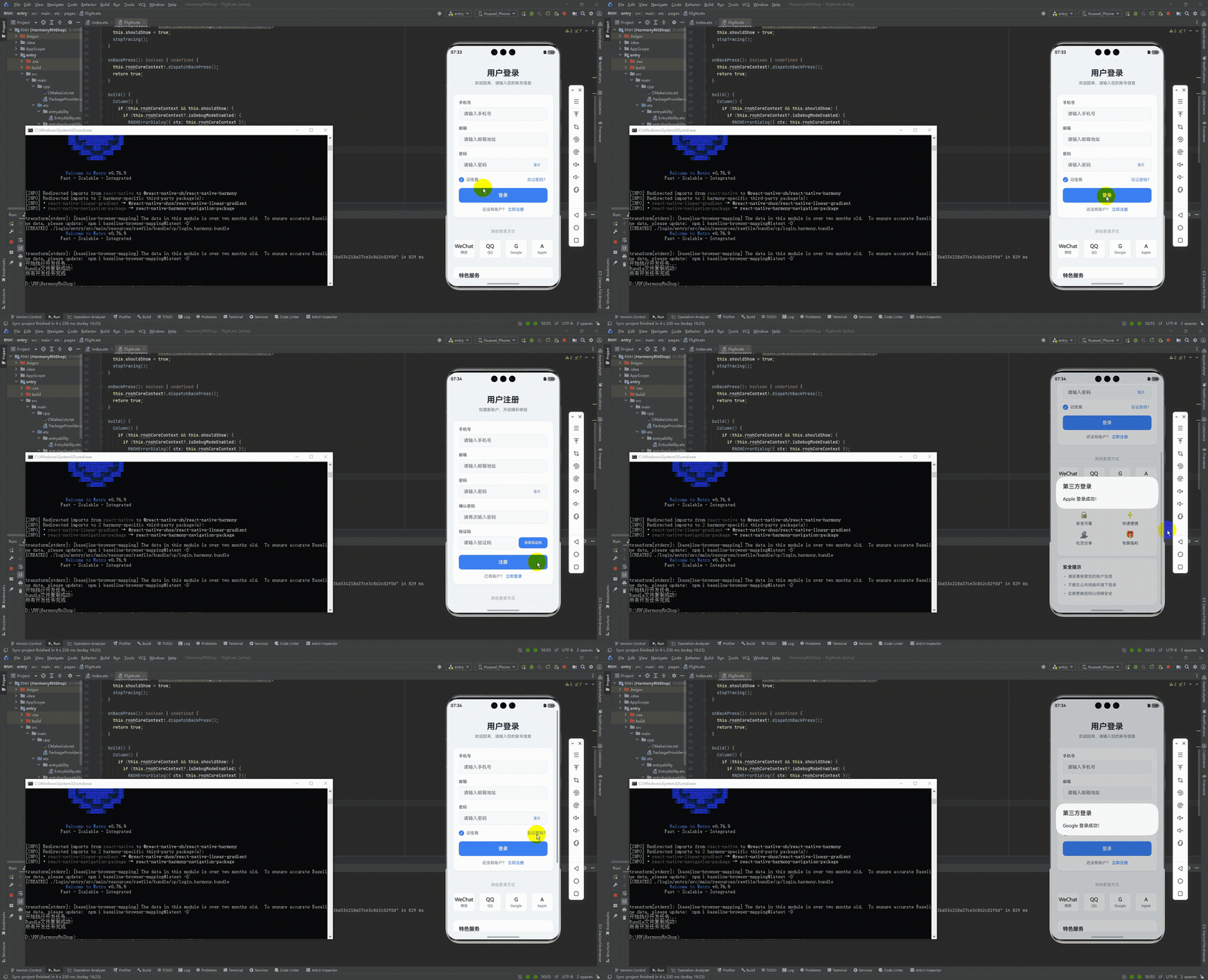
最后运行效果图如下显示:
欢迎大家加入开源鸿蒙跨平台开发者社区,一起共建开源鸿蒙跨平台生态。

作为“人工智能6S店”的官方数字引擎,为AI开发者与企业提供一个覆盖软硬件全栈、一站式门户。
更多推荐



 21
21 0
0- 0


 已为社区贡献30条内容

所有评论(0)