
在React Native中开发鸿组件(这里指的是鸿蒙(HarmonyOS)组件),你需要了解鸿蒙开发的基础以及如何在React Native项目中集成鸿蒙应用。鸿蒙OS是由华为开发的一个分布式操作
在React Native中开发鸿组件(这里指的是鸿蒙(HarmonyOS)组件),你需要了解鸿蒙开发的基础以及如何在React Native项目中集成鸿蒙应用。鸿蒙OS是由华为开发的一个分布式操作系统,主要用于其智能设备,如手机、平板、智能手表等。首先,你需要熟悉鸿蒙OS的开发环境设置和基本开发流程。React Native本身主要用于Harmony和Harmony平台的开发,但你可以通过以下几
在React Native中开发鸿组件(这里指的是鸿蒙(HarmonyOS)组件),你需要了解鸿蒙开发的基础以及如何在React Native项目中集成鸿蒙应用。鸿蒙OS是由华为开发的一个分布式操作系统,主要用于其智能设备,如手机、平板、智能手表等。
- 了解鸿蒙开发基础
首先,你需要熟悉鸿蒙OS的开发环境设置和基本开发流程。这包括:
- 开发工具:使用DevEco Studio作为开发IDE。
- SDK:下载并安装HarmonyOS SDK。
- 语言与框架:主要使用Java/Kotlin进行应用开发,但也可以通过C/C++扩展功能。
- 在React Native中集成鸿蒙应用
React Native本身主要用于Harmony和Harmony平台的开发,但你可以通过以下几种方式将鸿蒙应用集成到React Native项目中:
A. 使用WebView
一种简单的方法是使用WebView来加载鸿蒙应用的网页版或通过一个WebView桥接本地代码与鸿蒙应用。
-
在React Native中添加WebView:
npm install react-native-webview -
使用WebView加载鸿蒙应用的URL:
import React from 'react';
import { WebView } from 'react-native-webview';

const HarmonyApp = () => {
  return (
    <WebView
      source={{ uri: 'https://your-harmony-app-url.com' }}
      style={{ flex: 1 }}
    />
  );
};

export default HarmonyApp;
B. 使用Native Modules
创建一个Native Module来桥接React Native和鸿蒙原生应用。
-
在DevEco Studio中创建一个鸿蒙应用。
-
开发Native Module:创建一个Java/Kotlin模块,在其中实现与鸿蒙应用交互的逻辑。
-
在React Native中调用Native Module:使用
react-native-bridge或其他桥接库来调用鸿蒙原生模块。例如,使用
react-native-bridge:npm install react-native-bridge然后在JavaScript中调用:
import { NativeModules } from 'react-native';
const { HarmonyModule } = NativeModules;
C. 使用Deep Linking或Intent传递数据
如果你的鸿蒙应用支持Deep Linking或Intent传递数据,你可以在React Native中处理这些链接或Intent,并据此与鸿蒙应用交互。
- 职业发展规划和开发代码详情
对于职业发展规划,你可以考虑以下步骤:
- 学习鸿蒙开发:深入学习鸿蒙OS的APIs和开发工具。
- 实践项目:在项目中实践鸿蒙应用的开发与集成。
- 优化集成方案:不断优化React Native与鸿蒙应用的集成方案,提高用户体验和性能。
- 持续学习:关注鸿蒙OS的最新动态和更新,持续学习新技术和新特性。
- 分享和交流:参与开源项目,分享你的经验,与其他开发者交流。
通过这些步骤,你可以有效地在React Native项目中开发并集成鸿蒙组件,同时规划你的职业发展路径。
在React Native中开发鸿组件(这里指的是鸿蒙(HarmonyOS)组件),你需要了解鸿蒙开发的基础以及如何在React Native项目中集成鸿蒙应用。鸿蒙OS是由华为开发的一个分布式操作系统,主要用于其智能设备,如手机、平板、智能手表等。
- 了解鸿蒙开发基础
首先,你需要熟悉鸿蒙OS的开发环境设置和基本开发流程。这包括:
- 开发工具:使用DevEco Studio作为开发IDE。
- SDK:下载并安装HarmonyOS SDK。
- 语言与框架:主要使用Java/Kotlin进行应用开发,但也可以通过C/C++扩展功能。
- 在React Native中集成鸿蒙应用
React Native本身主要用于Harmony和Harmony平台的开发,但你可以通过以下几种方式将鸿蒙应用集成到React Native项目中:
A. 使用WebView
一种简单的方法是使用WebView来加载鸿蒙应用的网页版或通过一个WebView桥接本地代码与鸿蒙应用。
-
在React Native中添加WebView:
npm install react-native-webview -
使用WebView加载鸿蒙应用的URL:
import React from 'react';
import { WebView } from 'react-native-webview';

const HarmonyApp = () => {
  return (
    <WebView
      source={{ uri: 'https://your-harmony-app-url.com' }}
      style={{ flex: 1 }}
    />
  );
};

export default HarmonyApp;
B. 使用Native Modules
创建一个Native Module来桥接React Native和鸿蒙原生应用。
-
在DevEco Studio中创建一个鸿蒙应用。
-
开发Native Module:创建一个Java/Kotlin模块,在其中实现与鸿蒙应用交互的逻辑。
-
在React Native中调用Native Module:使用
react-native-bridge或其他桥接库来调用鸿蒙原生模块。例如,使用
react-native-bridge:npm install react-native-bridge然后在JavaScript中调用:
import { NativeModules } from 'react-native';
const { HarmonyModule } = NativeModules;
C. 使用Deep Linking或Intent传递数据
如果你的鸿蒙应用支持Deep Linking或Intent传递数据,你可以在React Native中处理这些链接或Intent,并据此与鸿蒙应用交互。
- 职业发展规划和开发代码详情
对于职业发展规划,你可以考虑以下步骤:
- 学习鸿蒙开发:深入学习鸿蒙OS的APIs和开发工具。
- 实践项目:在项目中实践鸿蒙应用的开发与集成。
- 优化集成方案:不断优化React Native与鸿蒙应用的集成方案,提高用户体验和性能。
- 持续学习:关注鸿蒙OS的最新动态和更新,持续学习新技术和新特性。
- 分享和交流:参与开源项目,分享你的经验,与其他开发者交流。
通过这些步骤,你可以有效地在React Native项目中开发并集成鸿蒙组件,同时规划你的职业发展路径。
开发一个名为“植物养护智能助手”的React Native应用,涉及到多个技术层面,包括前端UI设计、后端数据处理以及可能的硬件接口(例如传感器数据采集)。下面,我将提供一个基本的开发指南和代码示例,帮助你开始这个项目。
- 环境准备
首先,确保你的开发环境已经安装了Node.js和React Native。你可以通过以下步骤安装React Native环境:
安装Node.js (如果尚未安装)
安装React Native CLI
npm install -g react-native-cli

创建一个新的React Native项目
react-native init PlantCareAssistant

进入项目目录
cd PlantCareAssistant
- 安装依赖
为了简化开发,可以使用一些现成的库来帮助处理植物养护相关的功能,例如使用react-native-vector-icons来添加图标、react-native-camera来处理图像识别等。
安装图标库
npm install react-native-vector-icons

安装相机库(可选,根据需求)
npm install react-native-camera
- 项目结构规划
创建一个基本的项目结构,例如:
PlantCareAssistant/
|-- Harmony/
|-- Harmony/
|-- src/
    |-- components/
    |-- screens/
        |-- HomeScreen.js
        |-- CareTipsScreen.js
    |-- App.js
|-- package.json
- 开发界面组件
HomeScreen.js
import React from 'react';
import { View, Text, StyleSheet, Button } from 'react-native';
import Icon from 'react-native-vector-icons/FontAwesome'; // 假设使用FontAwesome图标库

const HomeScreen = ({ navigation }) => {
  return (
    <View style={styles.container}>
      <Text style={styles.title}>植物养护智能助手</Text>
      <Button title="查看养护建议" onPress={() => navigation.navigate('CareTips')} />
      <Icon name="leaf" size={50} color="green" /> {/* 显示一个叶子图标 */}
    </View>
  );
};

const styles = StyleSheet.create({
  container: {
    flex: 1,
    justifyContent: 'center',
    alignItems: 'center',
  },
  title: {
    fontSize: 24,
    marginBottom: 20,
  },
});

export default HomeScreen;
CareTipsScreen.js
import React from 'react';
import { View, Text, StyleSheet } from 'react-native';
import Icon from 'react-native-vector-icons/FontAwesome'; // 使用相同图标库

const CareTipsScreen = () => {
  return (
    <View style={styles.container}>
      <Text style={styles.title}>养护建议</Text>
      <Text>请每天给植物浇水。</Text> {/* 示例文本 */}
      <Icon name="info-circle" size={30} color="blue" /> {/* 信息图标 */}
    </View>
  );
};

const styles = StyleSheet.create({
  container: {
    flex: 1,
    justifyContent: 'center',
    alignItems: 'center',
  },
  title: {
    fontSize: 24,
    marginBottom: 20,
  },
});
export default CareTipsScreen;
- 导航设置(使用React Navigation)
安装React Navigation:
npm install @react-navigation/native @react-navigation/stack react-native-screens react-native-safe-area-context @react-navigation/native-stack @react-navigation/stack @react-navigation/bottom-tabs @react-navigation/material-top-tabs @react-navigation/material-bottom-tabs @react-navigation/drawer @react-navigation/elements @react-navigation/routers @react-navigation/web react-native-tab-view react-native-pager-view react-native-reanimated react-native-gesture-handler react-native-screens react-native-safe-area-context react-native-svg expo @expo/vector-icons expo-linear-gradient expo-constants expo-linking --save` 确保所有依赖都正确安装。`npm install`。`npx pod-install
真实演示案例代码:
// app.tsx
import React, { useState } from 'react';
import { SafeAreaView, View, Text, StyleSheet, TouchableOpacity, Modal, Dimensions, Alert, ScrollView } from 'react-native';

// 图标库
const ICONS = {
  home: '🏠',
  alert: '⚠️',
  success: '✅',
  error: '❌',
  info: 'ℹ️',
  close: '✕',
  confirm: '✔️',
  cancel: '✖️',
};

const { width, height } = Dimensions.get('window');

// 模态框组件
const CustomModal = ({
  visible,
  onClose,
  title,
  message,
  type = 'info',
  onConfirm,
  onCancel,
  confirmText = '确认',
  cancelText = '取消'
}: {
  visible: boolean;
  onClose: () => void;
  title: string;
  message: string;
  type?: 'info' | 'success' | 'error' | 'warning';
  onConfirm?: () => void;
  onCancel?: () => void;
  confirmText?: string;
  cancelText?: string;
}) => {
  const getModalStyles = () => {
    switch(type) {
      case 'success':
        return { borderColor: '#10b981', backgroundColor: '#ecfdf5' };
      case 'error':
        return { borderColor: '#ef4444', backgroundColor: '#fef2f2' };
      case 'warning':
        return { borderColor: '#f59e0b', backgroundColor: '#fffbeb' };
      default:
        return { borderColor: '#3b82f6', backgroundColor: '#eff6ff' };
    }
  };

  const getIcon = () => {
    switch(type) {
      case 'success':
        return ICONS.success;
      case 'error':
        return ICONS.error;
      case 'warning':
        return ICONS.alert;
      default:
        return ICONS.info;
    }
  };

  return (
    <Modal
      animationType="fade"
      transparent={true}
      visible={visible}
      onRequestClose={onClose}
    >
      <View style={styles.modalOverlay}>
        <View style={[styles.modalContainer, getModalStyles()]}>
          <TouchableOpacity style={styles.closeButton} onPress={onClose}>
            <Text style={styles.closeButtonText}>{ICONS.close}</Text>
          </TouchableOpacity>

          <View style={styles.modalIcon}>
            <Text style={styles.iconText}>{getIcon()}</Text>
          </View>

          <Text style={styles.modalTitle}>{title}</Text>
          <Text style={styles.modalMessage}>{message}</Text>

          <View style={styles.modalActions}>
            {onCancel && (
              <TouchableOpacity
                style={[styles.modalButton, styles.cancelButton]}
                onPress={onCancel || onClose}
              >
                <Text style={styles.cancelButtonText}>{cancelText}</Text>
              </TouchableOpacity>
            )}
            {onConfirm && (
              <TouchableOpacity
                style={[styles.modalButton, styles.confirmButton]}
                onPress={onConfirm}
              >
                <Text style={styles.confirmButtonText}>{confirmText}</Text>
              </TouchableOpacity>
            )}
            {!onConfirm && !onCancel && (
              <TouchableOpacity
                style={[styles.modalButton, styles.confirmButton]}
                onPress={onClose}
              >
                <Text style={styles.confirmButtonText}>确定</Text>
              </TouchableOpacity>
            )}
          </View>
        </View>
      </View>
    </Modal>
  );
};

// 演示卡片组件
const DemoCard = ({
  title,
  description,
  onPress
}: {
  title: string;
  description: string;
  onPress: () => void
}) => {
  return (
    <TouchableOpacity style={styles.demoCard} onPress={onPress}>
      <Text style={styles.demoTitle}>{title}</Text>
      <Text style={styles.demoDescription}>{description}</Text>
    </TouchableOpacity>
  );
};

const ModalDemo: React.FC = () => {
  const [modalVisible, setModalVisible] = useState(false);
  const [modalConfig, setModalConfig] = useState({
    title: '',
    message: '',
    type: 'info' as 'info' | 'success' | 'error' | 'warning',
    onConfirm: undefined as (() => void) | undefined,
    onCancel: undefined as (() => void) | undefined,
    confirmText: '确认',
    cancelText: '取消'
  });

  const openModal = (config: typeof modalConfig) => {
    setModalConfig(config);
    setModalVisible(true);
  };

  const handleConfirm = () => {
    Alert.alert('确认', '您点击了确认按钮');
    setModalVisible(false);
  };

  const handleCancel = () => {
    Alert.alert('取消', '您点击了取消按钮');
    setModalVisible(false);
  };

  const demos = [
    {
      id: 1,
      title: '信息提示模态框',
      description: '显示一般信息提示',
      action: () => openModal({
        title: '信息提示',
        message: '这是一个普通的信息提示模态框,用于显示一般性信息。',
        type: 'info'
      })
    },
    {
      id: 2,
      title: '成功提示模态框',
      description: '显示操作成功信息',
      action: () => openModal({
        title: '操作成功',
        message: '您的操作已成功完成!',
        type: 'success'
      })
    },
    {
      id: 3,
      title: '错误提示模态框',
      description: '显示错误信息',
      action: () => openModal({
        title: '操作失败',
        message: '由于网络问题,操作未能完成,请稍后重试。',
        type: 'error'
      })
    },
    {
      id: 4,
      title: '确认对话框',
      description: '需要用户确认的操作',
      action: () => openModal({
        title: '确认操作',
        message: '您确定要删除这个项目吗?此操作无法撤销。',
        type: 'warning',
        onConfirm: handleConfirm,
        onCancel: handleCancel,
        confirmText: '删除',
        cancelText: '取消'
      })
    },
    {
      id: 5,
      title: '自定义按钮文本',
      description: '自定义确认和取消按钮文本',
      action: () => openModal({
        title: '订阅确认',
        message: '您确定要订阅我们的高级服务吗?每月费用为¥29.9',
        type: 'info',
        onConfirm: handleConfirm,
        onCancel: handleCancel,
        confirmText: '立即订阅',
        cancelText: '暂时不要'
      })
    },
    {
      id: 6,
      title: '警告模态框',
      description: '显示重要警告信息',
      action: () => openModal({
        title: '重要警告',
        message: '您的账户存在安全风险,请尽快修改密码以保障账户安全。',
        type: 'warning'
      })
    }
  ];

  return (
    <SafeAreaView style={styles.container}>
      {/* 头部 */}
      <View style={styles.header}>
        <Text style={styles.title}>模态框组件演示</Text>
        <Text style={styles.subtitle}>阻断式交互的设计与实现</Text>
      </View>

      {/* 演示列表 */}
      <ScrollView style={styles.content}>
        <Text style={styles.sectionTitle}>模态框类型演示</Text>

        {demos.map(demo => (
          <DemoCard
            key={demo.id}
            title={demo.title}
            description={demo.description}
            onPress={demo.action}
          />
        ))}

        {/* 使用说明 */}
        <View style={styles.instructionCard}>
          <Text style={styles.instructionTitle}>使用说明</Text>
          <Text style={styles.instructionText}>
            1. 模态框用于阻断当前操作流程,需要用户做出决策{'\n'}
            2. 支持不同类型:信息、成功、错误、警告{'\n'}
            3. 可自定义按钮文本和回调函数{'\n'}
            4. 点击背景或关闭按钮可关闭模态框
          </Text>
        </View>
      </ScrollView>

      {/* 模态框 */}
      <CustomModal
        visible={modalVisible}
        onClose={() => setModalVisible(false)}
        title={modalConfig.title}
        message={modalConfig.message}
        type={modalConfig.type}
        onConfirm={modalConfig.onConfirm}
        onCancel={modalConfig.onCancel}
        confirmText={modalConfig.confirmText}
        cancelText={modalConfig.cancelText}
      />

      {/* 底部导航 */}
      <View style={styles.bottomNav}>
        <TouchableOpacity style={styles.navItem}>
          <Text style={styles.navIcon}>{ICONS.home}</Text>
          <Text style={styles.navText}>首页</Text>
        </TouchableOpacity>
        <TouchableOpacity style={styles.navItem}>
          <Text style={styles.navIcon}>{ICONS.info}</Text>
          <Text style={styles.navText}>信息</Text>
        </TouchableOpacity>
        <TouchableOpacity style={styles.navItem}>
          <Text style={styles.navIcon}>{ICONS.confirm}</Text>
          <Text style={styles.navText}>确认</Text>
        </TouchableOpacity>
        <TouchableOpacity style={styles.navItem}>
          <Text style={styles.navIcon}>{ICONS.close}</Text>
          <Text style={styles.navText}>关闭</Text>
        </TouchableOpacity>
      </View>
    </SafeAreaView>
  );
};

const styles = StyleSheet.create({
  container: {
    flex: 1,
    backgroundColor: '#f8fafc',
  },
  header: {
    padding: 20,
    backgroundColor: '#ffffff',
    borderBottomWidth: 1,
    borderBottomColor: '#e2e8f0',
  },
  title: {
    fontSize: 24,
    fontWeight: 'bold',
    color: '#1e293b',
    marginBottom: 4,
  },
  subtitle: {
    fontSize: 14,
    color: '#64748b',
  },
  content: {
    flex: 1,
    padding: 16,
  },
  sectionTitle: {
    fontSize: 18,
    fontWeight: 'bold',
    color: '#1e293b',
    marginBottom: 16,
  },
  demoCard: {
    backgroundColor: '#ffffff',
    borderRadius: 12,
    padding: 16,
    marginBottom: 12,
    elevation: 2,
    shadowColor: '#000',
    shadowOffset: { width: 0, height: 1 },
    shadowOpacity: 0.1,
    shadowRadius: 2,
  },
  demoTitle: {
    fontSize: 16,
    fontWeight: 'bold',
    color: '#1e293b',
    marginBottom: 4,
  },
  demoDescription: {
    fontSize: 14,
    color: '#64748b',
    lineHeight: 20,
  },
  instructionCard: {
    backgroundColor: '#ffffff',
    borderRadius: 12,
    padding: 16,
    marginTop: 16,
    elevation: 2,
    shadowColor: '#000',
    shadowOffset: { width: 0, height: 1 },
    shadowOpacity: 0.1,
    shadowRadius: 2,
  },
  instructionTitle: {
    fontSize: 16,
    fontWeight: 'bold',
    color: '#1e293b',
    marginBottom: 8,
  },
  instructionText: {
    fontSize: 14,
    color: '#64748b',
    lineHeight: 20,
  },
  modalOverlay: {
    flex: 1,
    backgroundColor: 'rgba(0,0,0,0.5)',
    justifyContent: 'center',
    alignItems: 'center',
  },
  modalContainer: {
    width: width * 0.8,
    maxWidth: 400,
    padding: 20,
    borderRadius: 12,
    borderWidth: 2,
    position: 'relative',
  },
  closeButton: {
    position: 'absolute',
    top: 10,
    right: 10,
    zIndex: 1,
  },
  closeButtonText: {
    fontSize: 18,
    color: '#64748b',
  },
  modalIcon: {
    alignItems: 'center',
    marginBottom: 16,
  },
  iconText: {
    fontSize: 48,
  },
  modalTitle: {
    fontSize: 18,
    fontWeight: 'bold',
    color: '#1e293b',
    textAlign: 'center',
    marginBottom: 8,
  },
  modalMessage: {
    fontSize: 14,
    color: '#64748b',
    textAlign: 'center',
    marginBottom: 20,
    lineHeight: 20,
  },
  modalActions: {
    flexDirection: 'row',
    justifyContent: 'space-between',
  },
  modalButton: {
    flex: 1,
    paddingVertical: 12,
    borderRadius: 8,
    alignItems: 'center',
    marginHorizontal: 4,
  },
  confirmButton: {
    backgroundColor: '#3b82f6',
  },
  cancelButton: {
    backgroundColor: '#f1f5f9',
  },
  confirmButtonText: {
    color: '#ffffff',
    fontSize: 16,
    fontWeight: '500',
  },
  cancelButtonText: {
    color: '#64748b',
    fontSize: 16,
    fontWeight: '500',
  },
  bottomNav: {
    flexDirection: 'row',
    justifyContent: 'space-around',
    backgroundColor: '#ffffff',
    borderTopWidth: 1,
    borderTopColor: '#e2e8f0',
    paddingVertical: 12,
  },
  navItem: {
    alignItems: 'center',
  },
  navIcon: {
    fontSize: 20,
    color: '#94a3b8',
    marginBottom: 4,
  },
  navText: {
    fontSize: 12,
    color: '#94a3b8',
  },
});

export default ModalDemo;
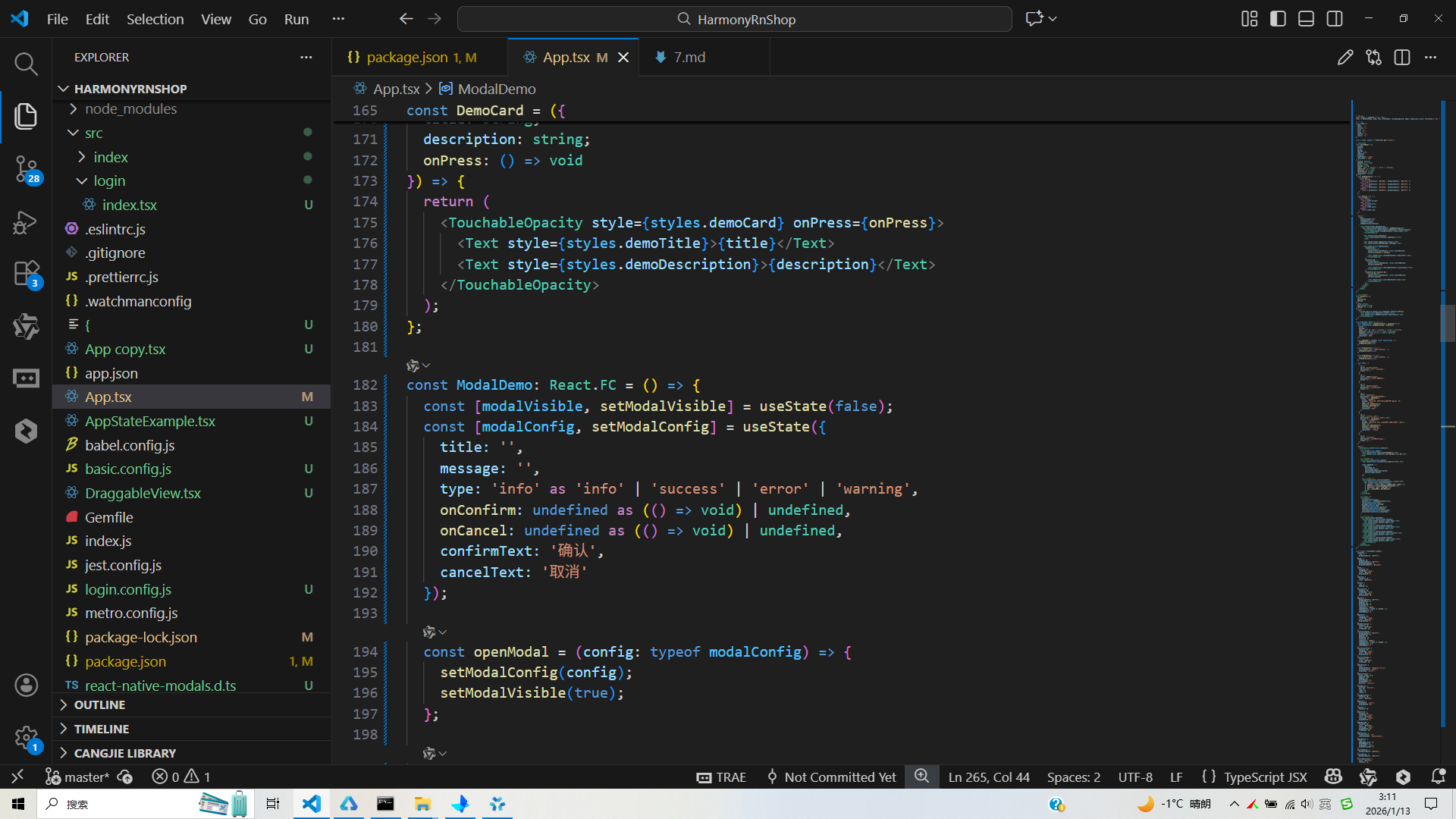
打包
接下来通过打包命令npn run harmony将reactNative的代码打包成为bundle,这样可以进行在开源鸿蒙OpenHarmony中进行使用。

打包之后再将打包后的鸿蒙OpenHarmony文件拷贝到鸿蒙的DevEco-Studio工程目录去:

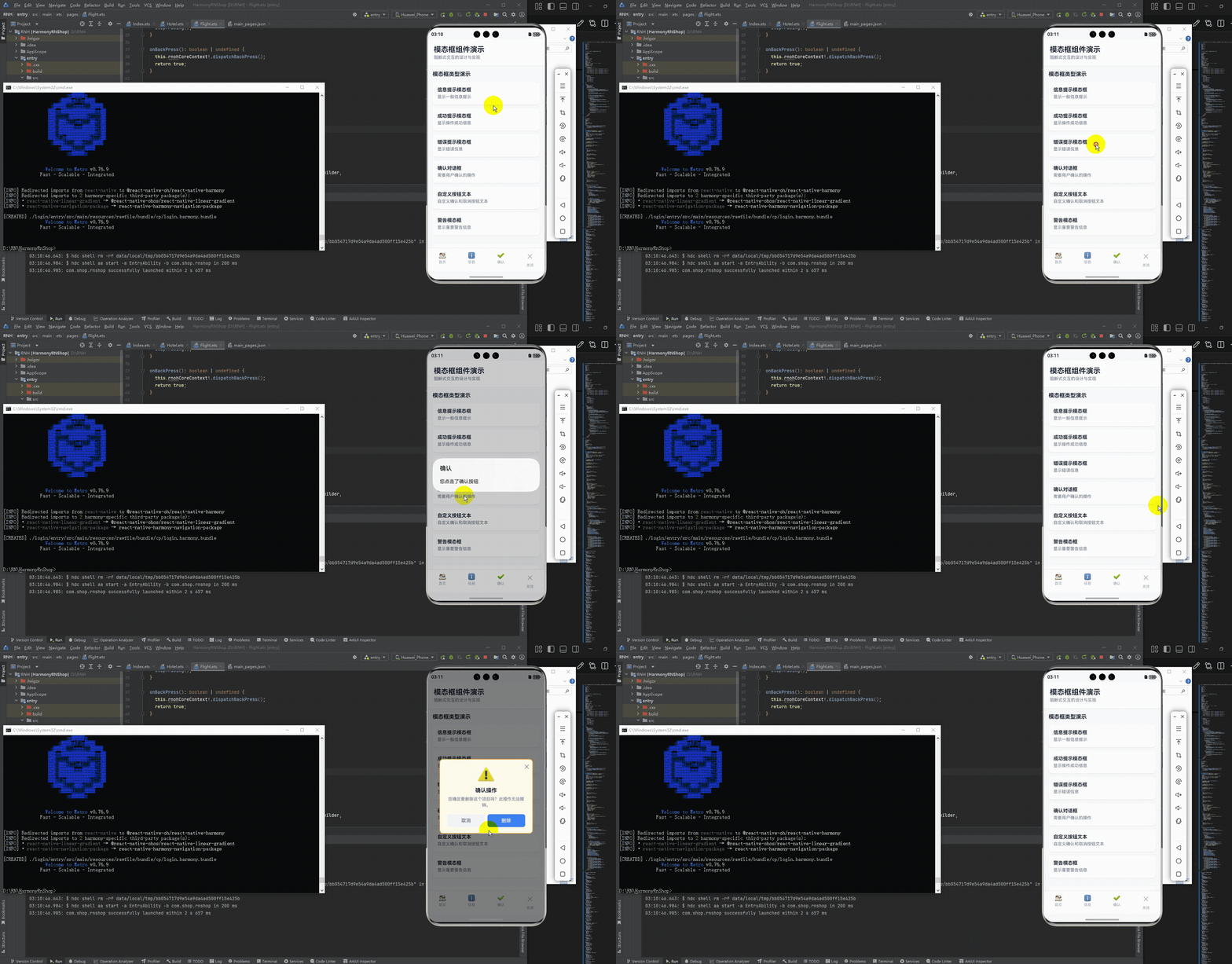
最后运行效果图如下显示:
欢迎大家加入开源鸿蒙跨平台开发者社区,一起共建开源鸿蒙跨平台生态。

作为“人工智能6S店”的官方数字引擎,为AI开发者与企业提供一个覆盖软硬件全栈、一站式门户。
更多推荐

 10
10 0
0- 0


 已为社区贡献8条内容

所有评论(0)