
Flutter 框架跨平台鸿蒙开发 - 购物清单:高效管理购物计划
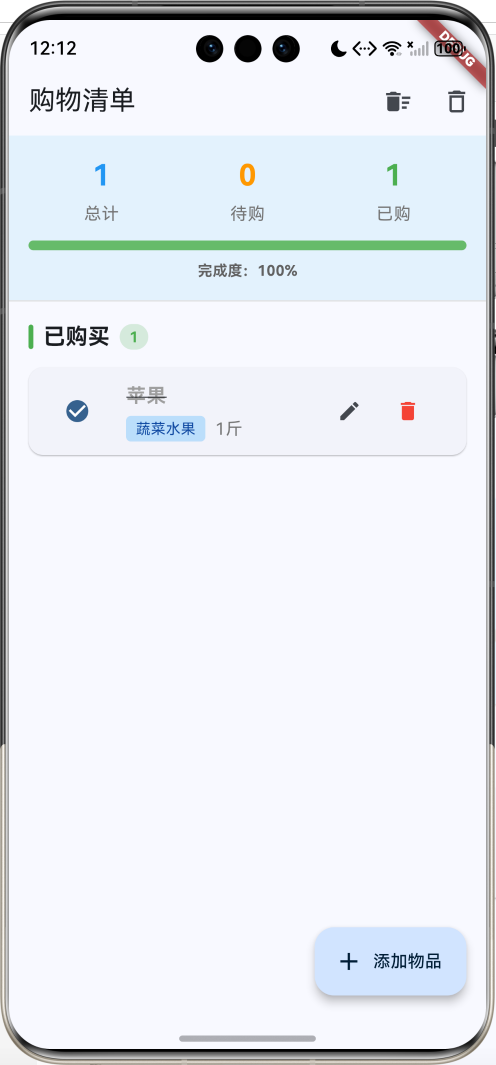
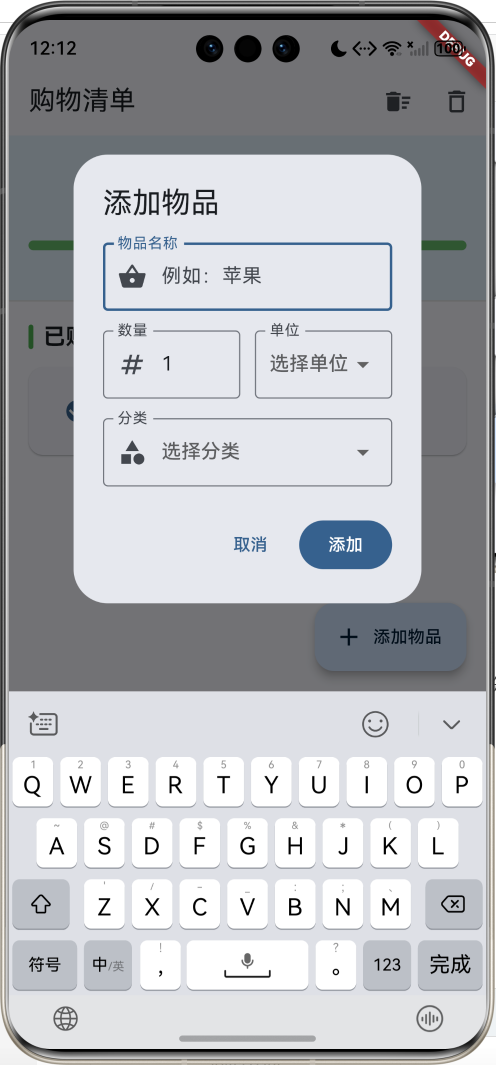
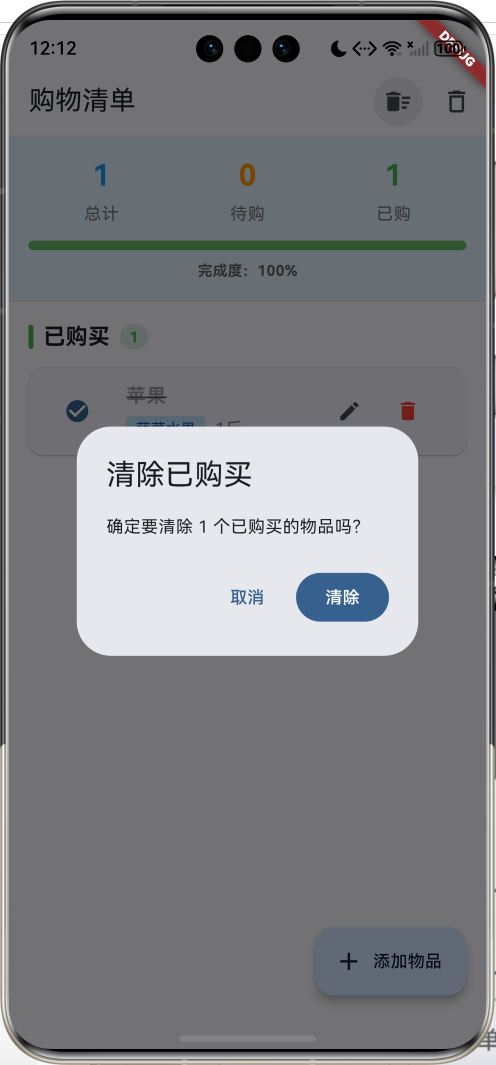
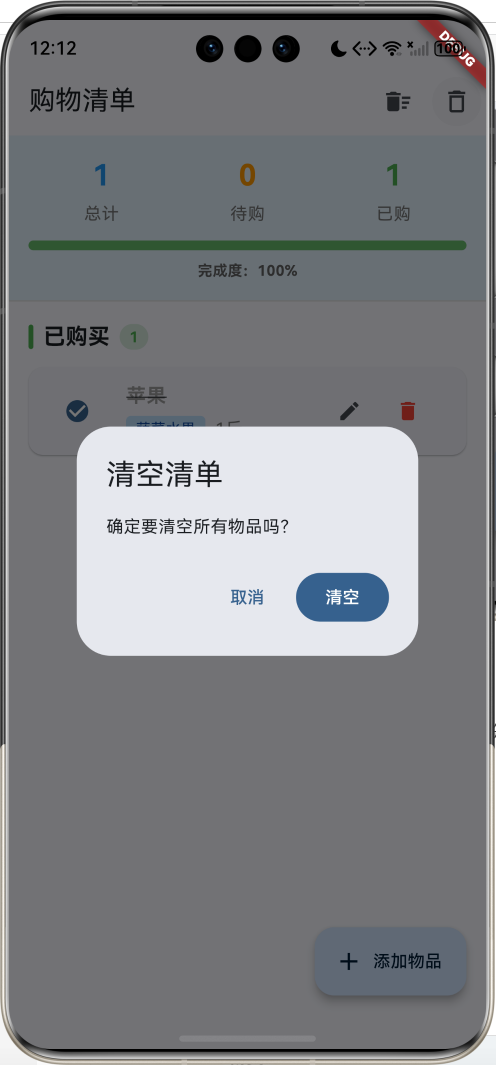
购物清单是一款简洁实用的购物管理应用。支持快速录入物品、勾选购买状态、分类管理、一键清空等功能,帮助用户高效管理购物计划,避免遗漏和重复购买。运行效果图购物清单物品管理统计展示批量操作添加物品编辑物品删除物品勾选购买物品名称数量单位分类选择总计统计待购统计已购统计进度条清空全部清除已购买支持详细的物品信息录入。数据模型:添加对话框:添加逻辑:分类和单位:2. 勾选购买点击复选框标记已购买状态。勾选
Flutter购物清单:高效管理购物计划
项目简介
购物清单是一款简洁实用的购物管理应用。支持快速录入物品、勾选购买状态、分类管理、一键清空等功能,帮助用户高效管理购物计划,避免遗漏和重复购买。
运行效果图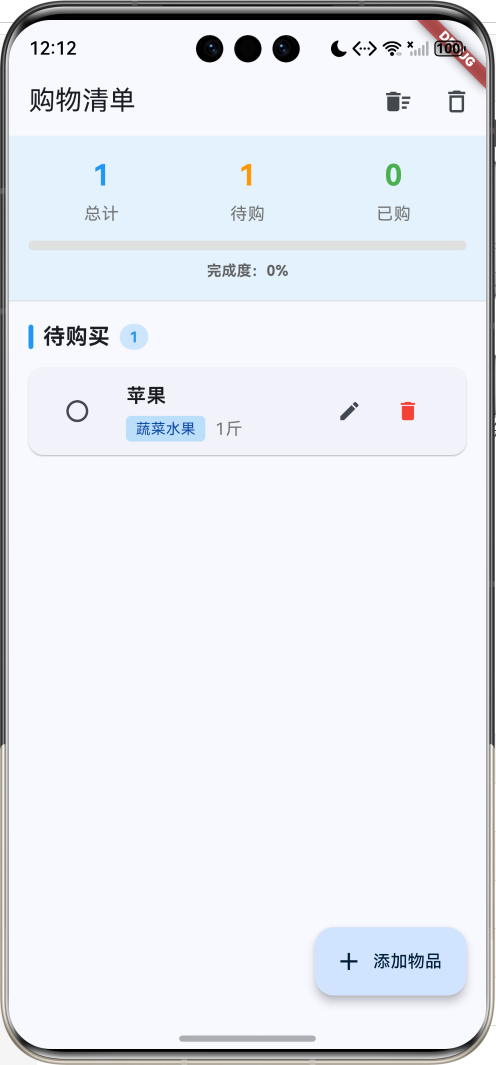
核心功能
- 快速录入:添加物品名称、数量、单位、分类
- 勾选购买:点击勾选标记已购买
- 编辑修改:随时编辑物品信息
- 分类管理:6大分类便于整理
- 统计展示:实时显示购物进度
- 一键清空:清空全部或已购买物品
应用特色
| 特色 | 说明 |
|---|---|
| 简洁界面 | 清爽的Material Design风格 |
| 快速操作 | 一键添加、勾选、删除 |
| 智能分组 | 待购买和已购买自动分组 |
| 进度可视化 | 进度条实时显示完成度 |
| 灵活管理 | 支持编辑和删除 |
功能架构
核心功能详解
1. 物品录入
支持详细的物品信息录入。
数据模型:
class ShoppingItem {
  String name;           // 物品名称
  String? category;      // 分类
  int quantity;          // 数量
  String? unit;          // 单位
  bool isPurchased;      // 是否已购买
  DateTime createTime;   // 创建时间

  ShoppingItem({
    required this.name,
    this.category,
    this.quantity = 1,
    this.unit,
    this.isPurchased = false,
    required this.createTime,
  });
}
添加对话框:
void _showAddDialog() {
  showDialog(
    context: context,
    builder: (context) => AlertDialog(
      title: const Text('添加物品'),
      content: SingleChildScrollView(
        child: Column(
          mainAxisSize: MainAxisSize.min,
          children: [
            TextField(
              controller: _nameController,
              decoration: const InputDecoration(
                labelText: '物品名称',
                hintText: '例如:苹果',
                border: OutlineInputBorder(),
                prefixIcon: Icon(Icons.shopping_basket),
              ),
              autofocus: true,
            ),
            const SizedBox(height: 16),
            Row(
              children: [
                Expanded(
                  child: TextField(
                    controller: _quantityController,
                    decoration: const InputDecoration(
                      labelText: '数量',
                      border: OutlineInputBorder(),
                      prefixIcon: Icon(Icons.numbers),
                    ),
                    keyboardType: TextInputType.number,
                  ),
                ),
                const SizedBox(width: 12),
                Expanded(
                  child: DropdownButtonFormField<String>(
                    value: _selectedUnit,
                    decoration: const InputDecoration(
                      labelText: '单位',
                      border: OutlineInputBorder(),
                    ),
                    hint: const Text('选择单位'),
                    items: _units.map((unit) {
                      return DropdownMenuItem(
                        value: unit,
                        child: Text(unit),
                      );
                    }).toList(),
                    onChanged: (value) {
                      setState(() => _selectedUnit = value);
                    },
                  ),
                ),
              ],
            ),
            const SizedBox(height: 16),
            DropdownButtonFormField<String>(
              value: _selectedCategory,
              decoration: const InputDecoration(
                labelText: '分类',
                border: OutlineInputBorder(),
                prefixIcon: Icon(Icons.category),
              ),
              hint: const Text('选择分类'),
              items: _categories.map((category) {
                return DropdownMenuItem(
                  value: category,
                  child: Text(category),
                );
              }).toList(),
              onChanged: (value) {
                setState(() => _selectedCategory = value);
              },
            ),
          ],
        ),
      ),
      actions: [
        TextButton(
          onPressed: () => Navigator.pop(context),
          child: const Text('取消'),
        ),
        FilledButton(
          onPressed: () {
            _addItem();
            Navigator.pop(context);
          },
          child: const Text('添加'),
        ),
      ],
    ),
  );
}
添加逻辑:
void _addItem() {
  if (_nameController.text.trim().isEmpty) {
    ScaffoldMessenger.of(context).showSnackBar(
      const SnackBar(content: Text('请输入物品名称')),
    );
    return;
  }

  final quantity = int.tryParse(_quantityController.text) ?? 1;

  setState(() {
    _items.add(
      ShoppingItem(
        name: _nameController.text.trim(),
        category: _selectedCategory,
        quantity: quantity,
        unit: _selectedUnit,
        createTime: DateTime.now(),
      ),
    );
  });

  _nameController.clear();
  _quantityController.text = '1';
  _selectedCategory = null;
  _selectedUnit = null;

  ScaffoldMessenger.of(context).showSnackBar(
    const SnackBar(content: Text('已添加到购物清单')),
  );
}
分类和单位:
final List<String> _categories = [
  '蔬菜水果',
  '肉类海鲜',
  '粮油调味',
  '零食饮料',
  '日用百货',
  '其他',
];

final List<String> _units = [
  '个', '斤', '袋', '瓶', '盒', '包'
];
2. 勾选购买
点击复选框标记已购买状态。
勾选实现:
void _togglePurchased(int index) {
  setState(() {
    _items[index].isPurchased = !_items[index].isPurchased;
  });
}
复选框显示:
Checkbox(
  value: item.isPurchased,
  onChanged: (value) => _togglePurchased(index),
  shape: const CircleBorder(),
)
文字样式:
Text(
  item.name,
  style: TextStyle(
    decoration: item.isPurchased
      ? TextDecoration.lineThrough
      : null,
    color: item.isPurchased ? Colors.grey : null,
    fontWeight: FontWeight.bold,
  ),
)
3. 编辑功能
支持修改物品信息。
编辑对话框:
void _editItem(int index) {
  final item = _items[index];
  _nameController.text = item.name;
  _quantityController.text = item.quantity.toString();
  _selectedCategory = item.category;
  _selectedUnit = item.unit;

  showDialog(
    context: context,
    builder: (context) => AlertDialog(
      title: const Text('编辑物品'),
      content: // 与添加对话框相同的内容
      actions: [
        TextButton(
          onPressed: () => Navigator.pop(context),
          child: const Text('取消'),
        ),
        FilledButton(
          onPressed: () {
            setState(() {
              item.name = _nameController.text.trim();
              item.quantity = int.tryParse(
                _quantityController.text
              ) ?? 1;
              item.category = _selectedCategory;
              item.unit = _selectedUnit;
            });
            Navigator.pop(context);
            ScaffoldMessenger.of(context).showSnackBar(
              const SnackBar(content: Text('已更新')),
            );
          },
          child: const Text('保存'),
        ),
      ],
    ),
  );
}
4. 统计展示
实时显示购物进度和统计信息。
统计栏:
Widget _buildStatisticsBar() {
  final total = _items.length;
  final purchased = _items.where(
    (item) => item.isPurchased
  ).length;
  final unpurchased = total - purchased;
  final progress = total > 0 ? purchased / total : 0.0;

  return Container(
    padding: const EdgeInsets.all(16),
    decoration: BoxDecoration(
      color: Colors.blue[50],
      border: Border(
        bottom: BorderSide(color: Colors.grey[300]!),
      ),
    ),
    child: Column(
      children: [
        Row(
          mainAxisAlignment: MainAxisAlignment.spaceAround,
          children: [
            _buildStatItem('总计', total, Colors.blue),
            _buildStatItem('待购', unpurchased, Colors.orange),
            _buildStatItem('已购', purchased, Colors.green),
          ],
        ),
        const SizedBox(height: 12),
        ClipRRect(
          borderRadius: BorderRadius.circular(8),
          child: LinearProgressIndicator(
            value: progress,
            minHeight: 8,
            backgroundColor: Colors.grey[300],
            valueColor: AlwaysStoppedAnimation<Color>(
              Colors.green[400]!
            ),
          ),
        ),
        const SizedBox(height: 8),
        Text(
          '完成度:${(progress * 100).toStringAsFixed(0)}%',
          style: TextStyle(
            fontSize: 12,
            color: Colors.grey[700],
            fontWeight: FontWeight.bold,
          ),
        ),
      ],
    ),
  );
}
统计项:
Widget _buildStatItem(String label, int value, Color color) {
  return Column(
    children: [
      Text(
        value.toString(),
        style: TextStyle(
          fontSize: 24,
          fontWeight: FontWeight.bold,
          color: color,
        ),
      ),
      const SizedBox(height: 4),
      Text(
        label,
        style: TextStyle(
          fontSize: 14,
          color: Colors.grey[600],
        ),
      ),
    ],
  );
}
5. 智能分组
自动将物品分为待购买和已购买两组。
分组逻辑:
final unpurchasedItems = _items.where(
  (item) => !item.isPurchased
).toList();
final purchasedItems = _items.where(
  (item) => item.isPurchased
).toList();
分组标题:
Widget _buildSectionHeader(
  String title,
  int count,
  Color color
) {
  return Padding(
    padding: const EdgeInsets.only(bottom: 12),
    child: Row(
      children: [
        Container(
          width: 4,
          height: 20,
          decoration: BoxDecoration(
            color: color,
            borderRadius: BorderRadius.circular(2),
          ),
        ),
        const SizedBox(width: 8),
        Text(
          title,
          style: const TextStyle(
            fontSize: 18,
            fontWeight: FontWeight.bold,
          ),
        ),
        const SizedBox(width: 8),
        Container(
          padding: const EdgeInsets.symmetric(
            horizontal: 8,
            vertical: 2
          ),
          decoration: BoxDecoration(
            color: color.withValues(alpha: 0.2),
            borderRadius: BorderRadius.circular(12),
          ),
          child: Text(
            count.toString(),
            style: TextStyle(
              fontSize: 12,
              fontWeight: FontWeight.bold,
              color: color,
            ),
          ),
        ),
      ],
    ),
  );
}
6. 批量操作
支持一键清空全部或已购买物品。
清空全部:
void _clearAll() {
  showDialog(
    context: context,
    builder: (context) => AlertDialog(
      title: const Text('清空清单'),
      content: const Text('确定要清空所有物品吗?'),
      actions: [
        TextButton(
          onPressed: () => Navigator.pop(context),
          child: const Text('取消'),
        ),
        FilledButton(
          onPressed: () {
            setState(() => _items.clear());
            Navigator.pop(context);
            ScaffoldMessenger.of(context).showSnackBar(
              const SnackBar(content: Text('已清空购物清单')),
            );
          },
          child: const Text('清空'),
        ),
      ],
    ),
  );
}
清除已购买:
void _clearPurchased() {
  final purchasedCount = _items.where(
    (item) => item.isPurchased
  ).length;

  if (purchasedCount == 0) {
    ScaffoldMessenger.of(context).showSnackBar(
      const SnackBar(content: Text('没有已购买的物品')),
    );
    return;
  }

  showDialog(
    context: context,
    builder: (context) => AlertDialog(
      title: const Text('清除已购买'),
      content: Text('确定要清除 $purchasedCount 个已购买的物品吗?'),
      actions: [
        TextButton(
          onPressed: () => Navigator.pop(context),
          child: const Text('取消'),
        ),
        FilledButton(
          onPressed: () {
            setState(() {
              _items.removeWhere((item) => item.isPurchased);
            });
            Navigator.pop(context);
            ScaffoldMessenger.of(context).showSnackBar(
              SnackBar(
                content: Text('已清除 $purchasedCount 个物品')
              ),
            );
          },
          child: const Text('清除'),
        ),
      ],
    ),
  );
}
界面设计要点
1. 物品卡片
清晰展示物品信息:
Widget _buildItemCard(ShoppingItem item, int index) {
  return Card(
    margin: const EdgeInsets.only(bottom: 8),
    child: ListTile(
      leading: Checkbox(
        value: item.isPurchased,
        onChanged: (value) => _togglePurchased(index),
        shape: const CircleBorder(),
      ),
      title: Text(
        item.name,
        style: TextStyle(
          decoration: item.isPurchased
            ? TextDecoration.lineThrough
            : null,
          color: item.isPurchased ? Colors.grey : null,
          fontWeight: FontWeight.bold,
        ),
      ),
      subtitle: Column(
        crossAxisAlignment: CrossAxisAlignment.start,
        children: [
          const SizedBox(height: 4),
          Row(
            children: [
              if (item.category != null) ...[
                Container(
                  padding: const EdgeInsets.symmetric(
                    horizontal: 8,
                    vertical: 2,
                  ),
                  decoration: BoxDecoration(
                    color: Colors.blue[100],
                    borderRadius: BorderRadius.circular(4),
                  ),
                  child: Text(
                    item.category!,
                    style: TextStyle(
                      fontSize: 12,
                      color: Colors.blue[900],
                    ),
                  ),
                ),
                const SizedBox(width: 8),
              ],
              Text(
                '${item.quantity}${item.unit ?? ''}',
                style: TextStyle(
                  fontSize: 14,
                  color: Colors.grey[600],
                ),
              ),
            ],
          ),
        ],
      ),
      trailing: Row(
        mainAxisSize: MainAxisSize.min,
        children: [
          IconButton(
            icon: const Icon(Icons.edit, size: 20),
            onPressed: () => _editItem(index),
            tooltip: '编辑',
          ),
          IconButton(
            icon: const Icon(Icons.delete, size: 20),
            onPressed: () => _deleteItem(index),
            color: Colors.red,
            tooltip: '删除',
          ),
        ],
      ),
    ),
  );
}
2. 空状态
友好的空状态提示:
Center(
  child: Column(
    mainAxisAlignment: MainAxisAlignment.center,
    children: [
      Icon(
        Icons.shopping_cart_outlined,
        size: 100,
        color: Colors.grey[300],
      ),
      const SizedBox(height: 16),
      Text(
        '购物清单是空的',
        style: TextStyle(
          fontSize: 18,
          color: Colors.grey[600],
        ),
      ),
      const SizedBox(height: 8),
      Text(
        '点击右下角按钮添加物品',
        style: TextStyle(
          fontSize: 14,
          color: Colors.grey[500],
        ),
      ),
    ],
  ),
)
3. 颜色方案
| 用途 | 颜色 | 说明 |
|---|---|---|
| 主色调 | Blue | 清新、专业 |
| 待购买 | Orange | 提醒、待办 |
| 已购买 | Green | 完成、成功 |
| 分类标签 | Blue[100] | 柔和、区分 |
| 进度条 | Green[400] | 积极、进展 |
数据模型设计
购物项模型
class ShoppingItem {
  String name;           // 物品名称
  String? category;      // 分类(可选)
  int quantity;          // 数量
  String? unit;          // 单位(可选)
  bool isPurchased;      // 是否已购买
  DateTime createTime;   // 创建时间
}
核心技术要点
1. 列表过滤
使用where方法过滤列表:
final unpurchasedItems = _items.where(
  (item) => !item.isPurchased
).toList();

final purchasedItems = _items.where(
  (item) => item.isPurchased
).toList();
2. 进度计算
计算购物完成度:
final total = _items.length;
final purchased = _items.where(
  (item) => item.isPurchased
).length;
final progress = total > 0 ? purchased / total : 0.0;
3. 对话框状态
在对话框中使用setState:
showDialog(
  context: context,
  builder: (context) => AlertDialog(
    content: StatefulBuilder(
      builder: (context, setState) {
        // 可以在这里使用setState更新对话框内容
        return Column(
          children: [
            DropdownButtonFormField(
              onChanged: (value) {
                setState(() => _selectedCategory = value);
              },
            ),
          ],
        );
      },
    ),
  ),
);
功能扩展建议
1. 数据持久化
使用SharedPreferences保存购物清单:
import 'package:shared_preferences/shared_preferences.dart';
import 'dart:convert';
class StorageService {
Future<void> saveItems(List<ShoppingItem> items) async {
final prefs = await SharedPreferences.getInstance();
final jsonList = items.map((item) => {
'name': item.name,
'category': item.category,
'quantity': item.quantity,
'unit': item.unit,
'isPurchased': item.isPurchased,
'createTime': item.createTime.toIso8601String(),
}).toList();
await prefs.setString('shopping_items', jsonEncode(jsonList));
}
Future<List<ShoppingItem>> loadItems() async {
final prefs = await SharedPreferences.getInstance();
final jsonStr = prefs.getString('shopping_items');
if (jsonStr == null) return [];
final jsonList = jsonDecode(jsonStr) as List;
return jsonList.map((json) => ShoppingItem(
name: json['name'],
category: json['category'],
quantity: json['quantity'],
unit: json['unit'],
isPurchased: json['isPurchased'],
createTime: DateTime.parse(json['createTime']),
)).toList();
}
}
// 使用
class _ShoppingListPageState extends State<ShoppingListPage> {
final StorageService _storage = StorageService();
void initState() {
super.initState();
_loadItems();
}
Future<void> _loadItems() async {
final items = await _storage.loadItems();
setState(() => _items.addAll(items));
}
void _addItem() {
// 添加物品后保存
setState(() {
_items.add(newItem);
});
_storage.saveItems(_items);
}
}
2. 分享功能
使用share_plus分享购物清单:
import 'package:share_plus/share_plus.dart';

class ShareService {
  void shareShoppingList(List<ShoppingItem> items) {
    final buffer = StringBuffer();
    buffer.writeln('📝 购物清单\n');

    final unpurchased = items.where(
      (item) => !item.isPurchased
    ).toList();
    final purchased = items.where(
      (item) => item.isPurchased
    ).toList();

    if (unpurchased.isNotEmpty) {
      buffer.writeln('待购买:');
      for (var item in unpurchased) {
        buffer.writeln(
          '☐ ${item.name} ${item.quantity}${item.unit ?? ''}'
        );
      }
      buffer.writeln();
    }

    if (purchased.isNotEmpty) {
      buffer.writeln('已购买:');
      for (var item in purchased) {
        buffer.writeln(
          '☑ ${item.name} ${item.quantity}${item.unit ?? ''}'
        );
      }
    }

    Share.share(buffer.toString());
  }
}

// 添加分享按钮
IconButton(
  icon: const Icon(Icons.share),
  onPressed: () {
    ShareService().shareShoppingList(_items);
  },
)
3. 语音输入
使用speech_to_text实现语音输入:
import 'package:speech_to_text/speech_to_text.dart';

class VoiceInputService {
  final SpeechToText _speech = SpeechToText();
  bool _isListening = false;

  Future<void> initialize() async {
    await _speech.initialize();
  }

  Future<String?> listen() async {
    if (!_isListening) {
      _isListening = true;
      String? result;

      await _speech.listen(
        onResult: (val) {
          result = val.recognizedWords;
        },
      );

      await Future.delayed(const Duration(seconds: 3));
      await _speech.stop();
      _isListening = false;

      return result;
    }
    return null;
  }
}

// 使用
IconButton(
  icon: const Icon(Icons.mic),
  onPressed: () async {
    final text = await VoiceInputService().listen();
    if (text != null) {
      _nameController.text = text;
    }
  },
)
4. 智能推荐
基于历史记录推荐常购物品:
class RecommendationService {
  List<String> getFrequentItems(List<ShoppingItem> history) {
    final Map<String, int> frequency = {};

    for (var item in history) {
      frequency[item.name] = (frequency[item.name] ?? 0) + 1;
    }

    final sorted = frequency.entries.toList()
      ..sort((a, b) => b.value.compareTo(a.value));

    return sorted.take(10).map((e) => e.key).toList();
  }

  Widget buildRecommendations(
    List<String> recommendations,
    Function(String) onTap,
  ) {
    return Wrap(
      spacing: 8,
      children: recommendations.map((item) {
        return ActionChip(
          label: Text(item),
          onPressed: () => onTap(item),
        );
      }).toList(),
    );
  }
}
5. 价格预算
添加价格和预算功能:
class ShoppingItem {
String name;
double? price; // 单价
int quantity;
double get totalPrice => (price ?? 0) * quantity;
}
class BudgetWidget extends StatelessWidget {
final List<ShoppingItem> items;
final double budget;
Widget build(BuildContext context) {
final total = items.fold<double>(
0,
(sum, item) => sum + item.totalPrice
);
final remaining = budget - total;
return Card(
child: Padding(
padding: const EdgeInsets.all(16),
child: Column(
children: [
Row(
mainAxisAlignment: MainAxisAlignment.spaceBetween,
children: [
const Text('预算'),
Text('¥${budget.toStringAsFixed(2)}'),
],
),
Row(
mainAxisAlignment: MainAxisAlignment.spaceBetween,
children: [
const Text('已用'),
Text('¥${total.toStringAsFixed(2)}'),
],
),
Row(
mainAxisAlignment: MainAxisAlignment.spaceBetween,
children: [
const Text('剩余'),
Text(
'¥${remaining.toStringAsFixed(2)}',
style: TextStyle(
color: remaining >= 0
? Colors.green
: Colors.red,
fontWeight: FontWeight.bold,
),
),
],
),
],
),
),
);
}
}
6. 购物历史
记录购物历史和统计:
class ShoppingHistory {
  final DateTime date;
  final List<ShoppingItem> items;
  final double totalCost;

  ShoppingHistory({
    required this.date,
    required this.items,
    required this.totalCost,
  });
}

class HistoryService {
  final List<ShoppingHistory> _history = [];

  void saveHistory(List<ShoppingItem> items) {
    final purchased = items.where(
      (item) => item.isPurchased
    ).toList();

    if (purchased.isNotEmpty) {
      _history.add(ShoppingHistory(
        date: DateTime.now(),
        items: purchased,
        totalCost: purchased.fold(
          0,
          (sum, item) => sum + item.totalPrice
        ),
      ));
    }
  }

  Map<String, int> getMostPurchasedItems() {
    final Map<String, int> frequency = {};

    for (var history in _history) {
      for (var item in history.items) {
        frequency[item.name] = (frequency[item.name] ?? 0) + 1;
      }
    }

    return frequency;
  }

  double getAverageSpending() {
    if (_history.isEmpty) return 0;
    final total = _history.fold<double>(
      0,
      (sum, h) => sum + h.totalCost
    );
    return total / _history.length;
  }
}
7. 超市地图
集成地图显示附近超市:
import 'package:google_maps_flutter/google_maps_flutter.dart';
import 'package:geolocator/geolocator.dart';
class SupermarketMapPage extends StatefulWidget {
State<SupermarketMapPage> createState() =>
_SupermarketMapPageState();
}
class _SupermarketMapPageState
extends State<SupermarketMapPage> {
GoogleMapController? _controller;
Position? _currentPosition;
void initState() {
super.initState();
_getCurrentLocation();
}
Future<void> _getCurrentLocation() async {
final position = await Geolocator.getCurrentPosition();
setState(() => _currentPosition = position);
}
Widget build(BuildContext context) {
return Scaffold(
appBar: AppBar(title: const Text('附近超市')),
body: _currentPosition == null
? const Center(child: CircularProgressIndicator())
: GoogleMap(
initialCameraPosition: CameraPosition(
target: LatLng(
_currentPosition!.latitude,
_currentPosition!.longitude,
),
zoom: 15,
),
onMapCreated: (controller) {
_controller = controller;
},
myLocationEnabled: true,
),
);
}
}
8. 条形码扫描
使用mobile_scanner扫描商品条形码:
import 'package:mobile_scanner/mobile_scanner.dart';
class BarcodeScannerPage extends StatelessWidget {
Widget build(BuildContext context) {
return Scaffold(
appBar: AppBar(title: const Text('扫描条形码')),
body: MobileScanner(
onDetect: (capture) {
final List<Barcode> barcodes = capture.barcodes;
for (final barcode in barcodes) {
final String? code = barcode.rawValue;
if (code != null) {
Navigator.pop(context, code);
}
}
},
),
);
}
}
// 使用
IconButton(
icon: const Icon(Icons.qr_code_scanner),
onPressed: () async {
final code = await Navigator.push(
context,
MaterialPageRoute(
builder: (_) => BarcodeScannerPage(),
),
);
if (code != null) {
// 根据条形码查询商品信息
_nameController.text = await getProductName(code);
}
},
)
项目结构
lib/
├── main.dart                      # 应用入口
├── models/                        # 数据模型
│   ├── shopping_item.dart        # 购物项
│   └── shopping_history.dart     # 购物历史
├── pages/                         # 页面
│   ├── shopping_list_page.dart   # 主列表页面
│   ├── history_page.dart         # 历史记录
│   └── map_page.dart             # 超市地图
├── widgets/                       # 组件
│   ├── item_card.dart            # 物品卡片
│   ├── statistics_bar.dart       # 统计栏
│   └── budget_widget.dart        # 预算组件
├── services/                      # 服务
│   ├── storage_service.dart      # 数据存储
│   ├── share_service.dart        # 分享服务
│   ├── voice_input_service.dart  # 语音输入
│   └── recommendation_service.dart # 推荐服务
└── utils/                         # 工具
    └── formatters.dart           # 格式化工具
使用指南
基本操作
-
添加物品
- 点击右下角"添加物品"按钮
- 输入物品名称(必填)
- 选择数量和单位(可选)
- 选择分类(可选)
- 点击"添加"
-
勾选购买
- 点击物品左侧的圆形复选框
- 物品会自动移到"已购买"分组
- 物品名称会显示删除线
-
编辑物品
- 点击物品右侧的编辑图标
- 修改物品信息
- 点击"保存"
-
删除物品
- 点击物品右侧的删除图标
- 确认删除
-
批量清空
- 点击右上角"清除已购买"图标
- 清除所有已购买的物品
- 或点击"清空全部"清空所有物品
使用技巧
-
快速添加
- 使用默认数量1快速添加
- 常用物品可以不选分类
-
分类管理
- 按分类整理物品
- 便于超市购物时分区采购
-
进度跟踪
- 查看顶部统计栏
- 实时了解购物进度
常见问题
Q1: 如何保存购物清单?
使用SharedPreferences实现:
// 在每次修改后保存
void _addItem() {
setState(() {
_items.add(newItem);
});
_saveItems();
}
Future<void> _saveItems() async {
await StorageService().saveItems(_items);
}
// 启动时加载
void initState() {
super.initState();
_loadItems();
}
Future<void> _loadItems() async {
final items = await StorageService().loadItems();
setState(() => _items.addAll(items));
}
Q2: 如何实现拖拽排序?
使用ReorderableListView:
ReorderableListView(
  onReorder: (oldIndex, newIndex) {
    setState(() {
      if (newIndex > oldIndex) {
        newIndex -= 1;
      }
      final item = _items.removeAt(oldIndex);
      _items.insert(newIndex, item);
    });
  },
  children: _items.map((item) {
    return ListTile(
      key: ValueKey(item.name),
      title: Text(item.name),
    );
  }).toList(),
)
Q3: 如何添加提醒功能?
使用flutter_local_notifications:
import 'package:flutter_local_notifications/flutter_local_notifications.dart';

class NotificationService {
  final FlutterLocalNotificationsPlugin _notifications =
    FlutterLocalNotificationsPlugin();

  Future<void> scheduleShoppingReminder() async {
    await _notifications.zonedSchedule(
      0,
      '购物提醒',
      '别忘了去购物哦!',
      // 设置提醒时间
      tz.TZDateTime.now(tz.local).add(
        const Duration(hours: 1)
      ),
      const NotificationDetails(
        android: AndroidNotificationDetails(
          'shopping_reminder',
          '购物提醒',
        ),
      ),
      uiLocalNotificationDateInterpretation:
        UILocalNotificationDateInterpretation.absoluteTime,
    );
  }
}
Q4: 如何导出为PDF?
使用pdf包生成PDF:
import 'package:pdf/pdf.dart';
import 'package:pdf/widgets.dart' as pw;
import 'package:printing/printing.dart';

Future<void> exportToPDF(List<ShoppingItem> items) async {
  final pdf = pw.Document();

  pdf.addPage(
    pw.Page(
      build: (context) => pw.Column(
        crossAxisAlignment: pw.CrossAxisAlignment.start,
        children: [
          pw.Text(
            '购物清单',
            style: pw.TextStyle(
              fontSize: 24,
              fontWeight: pw.FontWeight.bold,
            ),
          ),
          pw.SizedBox(height: 20),
          ...items.map((item) => pw.Row(
            children: [
              pw.Checkbox(
                value: item.isPurchased,
                name: item.name,
              ),
              pw.SizedBox(width: 10),
              pw.Text(item.name),
              pw.Spacer(),
              pw.Text('${item.quantity}${item.unit ?? ''}'),
            ],
          )),
        ],
      ),
    ),
  );

  await Printing.layoutPdf(
    onLayout: (format) async => pdf.save(),
  );
}
Q5: 如何实现多人协作?
使用Firebase Firestore实现实时同步:
import 'package:cloud_firestore/cloud_firestore.dart';

class FirebaseService {
  final FirebaseFirestore _firestore = FirebaseFirestore.instance;

  Stream<List<ShoppingItem>> getShoppingList(String listId) {
    return _firestore
      .collection('shopping_lists')
      .doc(listId)
      .collection('items')
      .snapshots()
      .map((snapshot) {
        return snapshot.docs.map((doc) {
          final data = doc.data();
          return ShoppingItem(
            name: data['name'],
            quantity: data['quantity'],
            isPurchased: data['isPurchased'],
            createTime: (data['createTime'] as Timestamp).toDate(),
          );
        }).toList();
      });
  }

  Future<void> addItem(String listId, ShoppingItem item) async {
    await _firestore
      .collection('shopping_lists')
      .doc(listId)
      .collection('items')
      .add({
        'name': item.name,
        'quantity': item.quantity,
        'isPurchased': item.isPurchased,
        'createTime': Timestamp.fromDate(item.createTime),
      });
  }
}
性能优化
1. 列表优化
使用ListView.builder提高性能:
ListView.builder(
  itemCount: _items.length,
  itemBuilder: (context, index) {
    return _buildItemCard(_items[index], index);
  },
)
2. 状态管理
避免不必要的重建:
// 使用const构造函数
const Text('购物清单')

// 提取不变的Widget
final emptyWidget = Center(
  child: Text('购物清单是空的'),
);
3. 数据缓存
缓存常用数据:
class CacheService {
  static final Map<String, dynamic> _cache = {};

  static void set(String key, dynamic value) {
    _cache[key] = value;
  }

  static dynamic get(String key) {
    return _cache[key];
  }
}
总结
购物清单是一款简洁实用的购物管理工具,具有以下特点:
核心优势
- 简单易用:直观的界面,快速上手
- 功能完善:录入、勾选、编辑、删除
- 智能分组:自动分为待购买和已购买
- 实时统计:进度条显示完成度
技术亮点
- 列表过滤:where方法实现智能分组
- 进度计算:实时计算购物完成度
- 对话框交互:流畅的添加和编辑体验
- 批量操作:一键清空提高效率
应用价值
- 避免遗漏购物物品
- 提高购物效率
- 合理规划购物预算
- 养成良好购物习惯
通过扩展数据持久化、分享功能、语音输入、智能推荐等功能,这款应用可以成为功能强大的购物助手,满足各种购物场景需求。
欢迎加入开源鸿蒙跨平台社区:https://openharmonycrossplatform.csdn.net

作为“人工智能6S店”的官方数字引擎,为AI开发者与企业提供一个覆盖软硬件全栈、一站式门户。
更多推荐
 9
9 0
0- 0


 已为社区贡献30条内容

所有评论(0)