
Flutter for OpenHarmony 文件转换助手App实战 - 首页实现
首页的设计遵循了以下原则:清晰的信息层级、合理的空间分配、一致的视觉风格。通过使用GridView、ListView和Card等组件的组合,我们创建了一个既美观又实用的首页。这个首页不仅展示了快速功能入口,还提供了最近使用记录和统计数据,让用户能够快速了解应用的功能和使用情况。欢迎加入开源鸿蒙跨平台社区:https://openharmonycrossplatform.csdn.net。
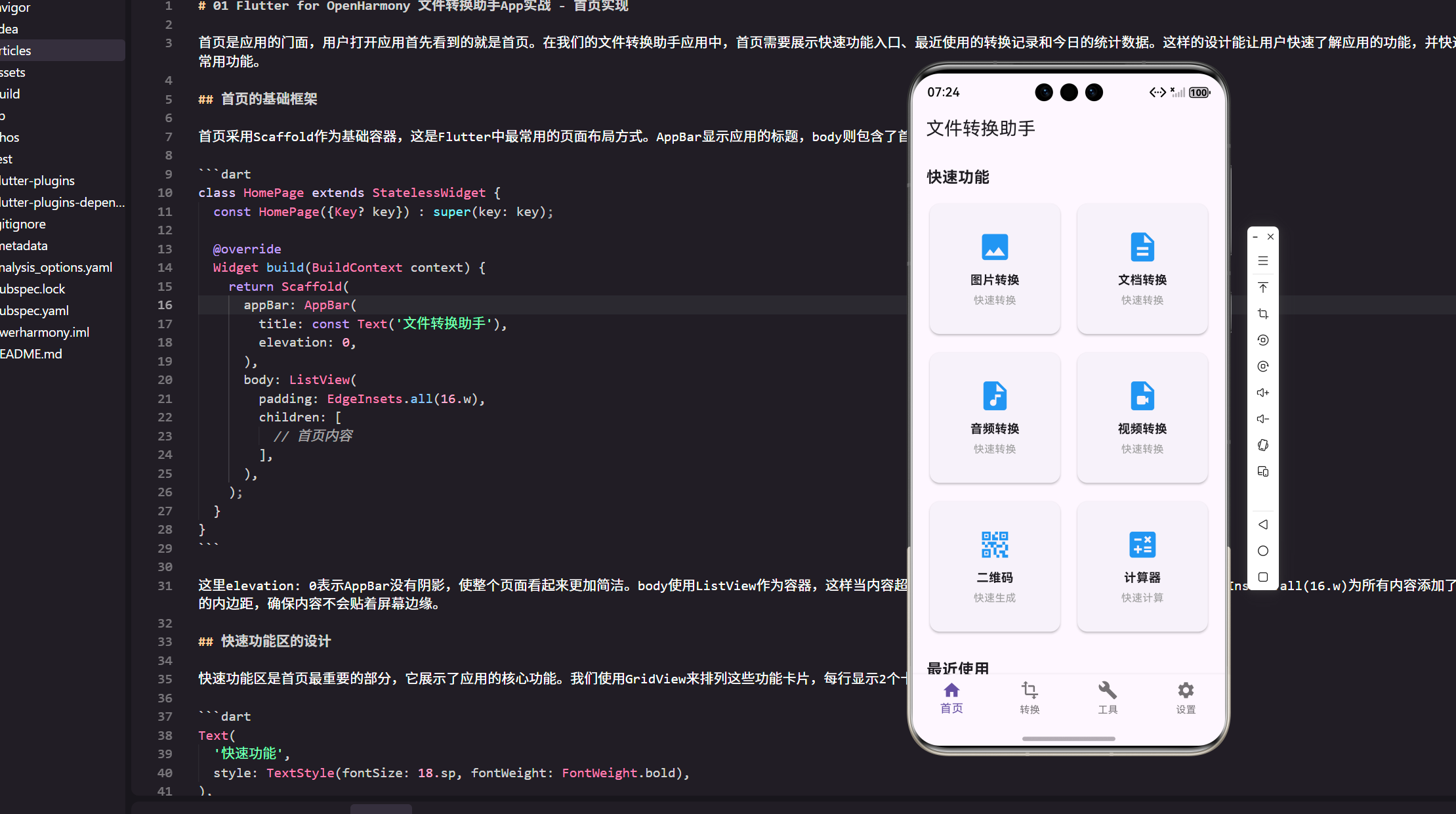
首页是应用的门面,用户打开应用首先看到的就是首页。在我们的文件转换助手应用中,首页需要展示快速功能入口、最近使用的转换记录和今日的统计数据。这样的设计能让用户快速了解应用的功能,并快速访问常用功能。
首页的基础框架
首页采用Scaffold作为基础容器,这是Flutter中最常用的页面布局方式。AppBar显示应用的标题,body则包含了首页的主要内容。
class HomePage extends StatelessWidget {
const HomePage({Key? key}) : super(key: key);
Widget build(BuildContext context) {
return Scaffold(
appBar: AppBar(
title: const Text('文件转换助手'),
elevation: 0,
),
body: ListView(
padding: EdgeInsets.all(16.w),
children: [
// 首页内容
],
),
);
}
}
这里elevation: 0表示AppBar没有阴影,使整个页面看起来更加简洁。body使用ListView作为容器,这样当内容超过屏幕高度时,用户可以滚动查看。padding: EdgeInsets.all(16.w)为所有内容添加了统一的内边距,确保内容不会贴着屏幕边缘。
快速功能区的设计
快速功能区是首页最重要的部分,它展示了应用的核心功能。我们使用GridView来排列这些功能卡片,每行显示2个卡片。
Text(
  '快速功能',
  style: TextStyle(fontSize: 18.sp, fontWeight: FontWeight.bold),
),
SizedBox(height: 12.h),
GridView.count(
  crossAxisCount: 2,
  shrinkWrap: true,
  physics: const NeverScrollableScrollPhysics(),
  mainAxisSpacing: 12.h,
  crossAxisSpacing: 12.w,
  children: [
    FeatureCard(
      icon: Icons.image,
      title: '图片转换',
      subtitle: '快速转换',
      onTap: () {},
    ),
    FeatureCard(
      icon: Icons.description,
      title: '文档转换',
      subtitle: '快速转换',
      onTap: () {},
    ),
    FeatureCard(
      icon: Icons.audio_file,
      title: '音频转换',
      subtitle: '快速转换',
      onTap: () {},
    ),
    FeatureCard(
      icon: Icons.video_file,
      title: '视频转换',
      subtitle: '快速转换',
      onTap: () {},
    ),
    FeatureCard(
      icon: Icons.qr_code_2,
      title: '二维码',
      subtitle: '快速生成',
      onTap: () {},
    ),
    FeatureCard(
      icon: Icons.calculate,
      title: '计算器',
      subtitle: '快速计算',
      onTap: () {},
    ),
  ],
)
GridView.count中的crossAxisCount: 2表示每行显示2个卡片。shrinkWrap: true让GridView只占用必要的高度,不会填满整个屏幕。physics: const NeverScrollableScrollPhysics()禁用了GridView自身的滚动,因为整个页面已经由ListView处理滚动。mainAxisSpacing和crossAxisSpacing分别设置了卡片之间的垂直和水平间距。
FeatureCard组件的实现
FeatureCard是一个自定义组件,用来展示单个功能。它包含了图标、标题、副标题和点击事件处理。
class FeatureCard extends StatelessWidget {
final IconData icon;
final String title;
final String subtitle;
final VoidCallback onTap;
const FeatureCard({
Key? key,
required this.icon,
required this.title,
required this.subtitle,
required this.onTap,
}) : super(key: key);
Widget build(BuildContext context) {
return GestureDetector(
onTap: onTap,
child: Card(
elevation: 2,
child: Padding(
padding: EdgeInsets.all(12.w),
child: Column(
mainAxisAlignment: MainAxisAlignment.center,
children: [
Icon(icon, size: 40.sp, color: Colors.blue),
SizedBox(height: 8.h),
Text(
title,
style: TextStyle(fontSize: 14.sp, fontWeight: FontWeight.bold),
textAlign: TextAlign.center,
),
SizedBox(height: 4.h),
Text(
subtitle,
style: TextStyle(fontSize: 12.sp, color: Colors.grey),
textAlign: TextAlign.center,
),
],
),
),
),
);
}
}
FeatureCard使用GestureDetector来处理点击事件。Card组件提供了卡片的基础样式,包括阴影和圆角。elevation: 2设置了卡片的阴影深度。Column用来垂直排列图标、标题和副标题。Icon的size: 40.sp和color: Colors.blue使得图标看起来更加突出。
最近使用区的实现
最近使用区展示了用户最近进行的转换操作。这个区域使用Card组件包装ListTile,提供了一致的视觉风格。
Text(
  '最近使用',
  style: TextStyle(fontSize: 18.sp, fontWeight: FontWeight.bold),
),
SizedBox(height: 12.h),
Card(
  child: ListTile(
    leading: const Icon(Icons.image),
    title: const Text('图片压缩'),
    subtitle: const Text('2小时前'),
    trailing: const Icon(Icons.arrow_forward_ios),
    onTap: () {},
  ),
),
SizedBox(height: 8.h),
Card(
  child: ListTile(
    leading: const Icon(Icons.description),
    title: const Text('PDF转Word'),
    subtitle: const Text('1天前'),
    trailing: const Icon(Icons.arrow_forward_ios),
    onTap: () {},
  ),
),
SizedBox(height: 8.h),
Card(
  child: ListTile(
    leading: const Icon(Icons.audio_file),
    title: const Text('MP3转WAV'),
    subtitle: const Text('3天前'),
    trailing: const Icon(Icons.arrow_forward_ios),
    onTap: () {},
  ),
)
每个ListTile包含了操作的图标、名称、时间戳和一个指向右边的箭头。这样的设计让用户能够快速识别最近的操作,并可以点击重新执行相同的操作。leading属性显示左边的图标,title显示主标题,subtitle显示副标题,trailing显示右边的图标。
今日统计区的设计
今日统计区使用Card包装一个Column,其中包含了三个统计指标。这个区域展示了应用的使用情况。
Card(
  child: Padding(
    padding: EdgeInsets.all(16.w),
    child: Column(
      crossAxisAlignment: CrossAxisAlignment.start,
      children: [
        Text(
          '今日统计',
          style: TextStyle(fontSize: 16.sp, fontWeight: FontWeight.bold),
        ),
        SizedBox(height: 16.h),
        Row(
          mainAxisAlignment: MainAxisAlignment.spaceAround,
          children: [
            Column(
              children: [
                Text(
                  '12',
                  style: TextStyle(
                    fontSize: 24.sp,
                    fontWeight: FontWeight.bold,
                    color: Colors.blue,
                  ),
                ),
                SizedBox(height: 4.h),
                Text(
                  '转换次数',
                  style: TextStyle(fontSize: 12.sp, color: Colors.grey),
                ),
              ],
            ),
            Column(
              children: [
                Text(
                  '256MB',
                  style: TextStyle(
                    fontSize: 24.sp,
                    fontWeight: FontWeight.bold,
                    color: Colors.green,
                  ),
                ),
                SizedBox(height: 4.h),
                Text(
                  '处理数据',
                  style: TextStyle(fontSize: 12.sp, color: Colors.grey),
                ),
              ],
            ),
            Column(
              children: [
                Text(
                  '2h 15m',
                  style: TextStyle(
                    fontSize: 24.sp,
                    fontWeight: FontWeight.bold,
                    color: Colors.orange,
                  ),
                ),
                SizedBox(height: 4.h),
                Text(
                  '总耗时',
                  style: TextStyle(fontSize: 12.sp, color: Colors.grey),
                ),
              ],
            ),
          ],
        ),
      ],
    ),
  ),
)
这里使用了Row来水平排列三个统计项,每个统计项都是一个Column,包含了数值和标签。不同的统计项使用不同的颜色(蓝色、绿色、橙色)来区分,这样可以让用户快速识别不同的数据。mainAxisAlignment: MainAxisAlignment.spaceAround使得三个统计项均匀分布在Row中。
屏幕适配的重要性
在整个首页的实现中,我们使用了flutter_screenutil提供的适配单位。例如16.w表示宽度的16个适配单位,18.sp表示字体大小的18个适配单位。这样的做法确保了应用在不同尺寸的设备上都能有一致的显示效果。这对于鸿蒙设备的适配尤其重要,因为鸿蒙设备的屏幕尺寸差异较大。
总结
首页的设计遵循了以下原则:清晰的信息层级、合理的空间分配、一致的视觉风格。通过使用GridView、ListView和Card等组件的组合,我们创建了一个既美观又实用的首页。这个首页不仅展示了快速功能入口,还提供了最近使用记录和统计数据,让用户能够快速了解应用的功能和使用情况。
欢迎加入开源鸿蒙跨平台社区:https://openharmonycrossplatform.csdn.net

作为“人工智能6S店”的官方数字引擎,为AI开发者与企业提供一个覆盖软硬件全栈、一站式门户。
更多推荐


 16
16 0
0- 0


 已为社区贡献2条内容

所有评论(0)