
React Native鸿蒙跨平台如何评论列表在选中某条动态后才渲染,通过 selectedPostId 与 filteredComments 控制呈现
React Native社交应用与鸿蒙跨端适配技术解析 本文分析了一个基于React Native构建的动态发布与评论系统,展示了社交类应用的典型技术架构。系统采用组件化设计,包含Post和Comment两种核心数据模型,通过FlatList实现高效列表渲染,并运用状态管理处理用户交互。在跨端适配方面,文章重点探讨了如何将React Native组件映射到鸿蒙ArkUI的声明式语法,保持相同的数据
动态与评论的语义化拆解:React Native × 鸿蒙跨端的工程实践
架构与数据建模
这段代码围绕“动态(Post)”与“评论(Comment)”两个核心模型展开,字段设计遵循移动社交常见约定:id 作为稳定主键,计数类属性(likes/comments/shares)与布尔态(liked)用于高频交互反馈,timestamp 以展示字符串承载。TypeScript 类型在组件边界形成清晰契约,利于桥接层在鸿蒙端保持一致的消息格式。对于 image 这样的可选字段,建议上移到统一的“媒体模型”抽象,提供图片/视频的统一描述与能力路由,以便在 ArkUI 侧做一致的查看与分享。
组件语义与交互
PostCard 负责承载头像、昵称、时间戳与正文,并以按钮区呈现“点赞/评论/分享”。点赞的视觉切换通过 liked → heart/like 与颜色变化体现,交互函数通过 props 传递,保证了卡片的可复用性与测试友好。CommentItem 延续这一语义,单独封装“评论点赞”与“回复”入口。CreatePostComponent 则用 TextInput 收集文本,Alert 做轻量提示,发布回调上推到父级。整体结构保持“展示与操作分离”的风格,利于在鸿蒙端将具体交互落到 ArkUI 能力,而不改变页面语义。
列表与虚拟化
动态列表使用 FlatList,并在 ListHeaderComponent 中插入“最新动态(数量)”的统计头。评论列表在选中某条动态后才渲染,通过 selectedPostId 与 filteredComments 控制呈现。双列表同时存在于同一页面时,更应依赖 FlatList 的虚拟化来控制内存与绘制成本,避免把动态与评论分别放进 ScrollView。建议给两个列表补充稳定 layout 信息(在尺寸可预测时提供 getItemLayout),并通过 removeClippedSubviews、windowSize、initialNumToRender 等参数调优鸿蒙端的滚动性能,以减少跨端滚动物理差异带来的体感不一致。
状态更新与一致性
点赞处理采用 map 生成新数组以保持不可变更新,但当前 setPosts(posts.map(…))、setComments(comments.map(…))依赖闭包中的旧状态。更稳妥的实践是使用函数式更新 setPosts(prev => prev.map(…)) 与 setComments(prev => prev.map(…)),避免多次快速交互导致状态“回跳”。filteredComments 可通过 useMemo(selectedPostId, comments)派生,降低重复过滤开销;事件处理器统一用 useCallback,减少子组件重渲染与 props 变更带来的无效更新,这在鸿蒙端跨层桥接时同样能减少事件分发的频率。
React Native动态发布与评论系统与鸿蒙跨端适配技术深度解析
概述
本文分析的是一个基于React Native构建的动态发布与评论系统,集成了动态展示、评论管理、互动操作等核心功能。该应用采用了组件化的界面设计、状态驱动的交互逻辑和多层级的数据管理,展现了社交类应用的典型技术架构。在鸿蒙OS的跨端适配场景中,这种涉及复杂交互和实时更新的应用具有重要的技术参考价值。
核心架构设计深度解析
组件化社交数据模型
应用定义了完善的社交数据结构和交互状态:
type Post = {
  id: string;
  userId: string;
  userName: string;
  userAvatar: string;
  content: string;
  timestamp: string;
  likes: number;
  comments: number;
  shares: number;
  liked: boolean;
  image?: string;
};

type Comment = {
  id: string;
  postId: string;
  userId: string;
  userName: string;
  userAvatar: string;
  content: string;
  timestamp: string;
  likes: number;
  liked: boolean;
};
这种数据结构设计体现了社交应用的核心要素:动态内容(帖子、评论)、用户信息(名称、头像)、时间戳、互动数据(点赞、评论、分享)和状态标记。帖子和评论之间通过postId建立关联关系,形成完整的数据层级。
在鸿蒙ArkUI体系中,接口定义保持了相同的结构:
interface Post {
  id: string;
  userId: string;
  userName: string;
  userAvatar: string;
  content: string;
  timestamp: string;
  likes: number;
  comments: number;
  shares: number;
  liked: boolean;
  image?: string;
}

interface Comment {
  id: string;
  postId: string;
  userId: string;
  userName: string;
  userAvatar: string;
  content: string;
  timestamp: string;
  likes: number;
  liked: boolean;
}
组件化动态卡片设计
PostCard组件展示了社交卡片的典型实现:
const PostCard = ({ post, onLike, onComment, onShare }) => {
  return (
    <View style={styles.postCard}>
      <View style={styles.postHeader}>
        <View style={styles.userAvatar}>
          <Text style={styles.avatarText}>{post.userAvatar}</Text>
        </View>
        <View style={styles.userInfo}>
          <Text style={styles.userName}>{post.userName}</Text>
          <Text style={styles.timestamp}>{post.timestamp}</Text>
        </View>
        <TouchableOpacity style={styles.moreButton}>
          <Text style={styles.moreText}>{ICONS.more}</Text>
        </TouchableOpacity>
      </View>

      <View style={styles.postContent}>
        <Text style={styles.postText}>{post.content}</Text>
      </View>

      {post.image && (
        <View style={styles.postImage}>
          <Text style={styles.imagePlaceholder}>[图片占位符]</Text>
        </View>
      )}

      <View style={styles.postActions}>
        <TouchableOpacity style={styles.actionButton} onPress={() => onLike(post.id)}>
          <Text style={[styles.actionIcon, post.liked && styles.likedIcon]}>
            {post.liked ? ICONS.heart : ICONS.like}
          </Text>
          <Text style={[styles.actionText, post.liked && styles.likedText]}>{post.likes}</Text>
        </TouchableOpacity>
        <TouchableOpacity style={styles.actionButton} onPress={() => onComment(post.id)}>
          <Text style={styles.actionIcon}>{ICONS.comment}</Text>
          <Text style={styles.actionText}>{post.comments}</Text>
        </TouchableOpacity>
        <TouchableOpacity style={styles.actionButton} onPress={() => onShare(post.id)}>
          <Text style={styles.actionIcon}>{ICONS.share}</Text>
          <Text style={styles.actionText}>{post.shares}</Text>
        </TouchableOpacity>
      </View>
    </View>
  );
};
这种设计采用了信息分层的原则:头部包含用户信息,中部展示内容,底部提供操作。条件渲染处理图片显示,样式组合实现交互反馈。点赞状态通过条件样式(likedIcon)提供视觉区分。
鸿蒙的实现需要适配其声明式语法:
@Component
struct PostCard {
  @Prop post: Post;
  @Event onLike: (id: string) => void;
  @Event onComment: (id: string) => void;

  build() {
    Column() {
      // 头部
      Row() {
        Column() { Text(this.post.userAvatar) }

        Column() {
          Text(this.post.userName)
          Text(this.post.timestamp)
        }

        Button('', { type: ButtonType.Normal })
          .onClick(() => {/* 更多操作 */})
      }

      // 内容
      Text(this.post.content)

      // 图片
      if (this.post.image) {
        Column() { Text('[图片占位符]') }
      }

      // 操作按钮
      Row() {
        Button(`点赞 ${this.post.likes}`, { type: ButtonType.Normal })
          .onClick(() => this.onLike(this.post.id))
        Button(`评论 ${this.post.comments}`, { type: ButtonType.Normal })
          .onClick(() => this.onComment(this.post.id))
      }
    }
  }
}
状态驱动的交互系统
应用实现了完整的交互状态管理:
const handleLikePost = (postId: string) => {
  setPosts(posts.map(post =>
    post.id === postId
      ? {
          ...post,
          likes: post.liked ? post.likes - 1 : post.likes + 1,
          liked: !post.liked
        }
      : post
  ));
};

const handleLikeComment = (commentId: string) => {
  setComments(comments.map(comment =>
    comment.id === commentId
      ? {
          ...comment,
          likes: comment.liked ? comment.likes - 1 : comment.likes + 1,
          liked: !comment.liked
        }
      : comment
  ));
};

const handleCreatePost = (content: string) => {
  const newPost: Post = {
    id: Date.now().toString(),
    userId: 'currentUser',
    userName: '我',
    userAvatar: '👤',
    content,
    timestamp: '刚刚',
    likes: 0,
    comments: 0,
    shares: 0,
    liked: false
  };

  setPosts([newPost, ...posts]);
};
这种状态更新模式采用了不可变数据原则,通过map操作实现精确的状态修改。展开运算符[…posts]确保了新数组的创建,Date.now()生成唯一ID。
鸿蒙的实现采用直接赋值模式:
@State posts: Post[] = [];

handleLikePost(postId: string) {
  this.posts = this.posts.map(post =>
    post.id === postId
      ? {
          ...post,
          likes: post.liked ? post.likes - 1 : post.likes + 1,
          liked: !post.liked
        }
      : post
  );
}

handleCreatePost(content: string) {
  const newPost: Post = {
    id: Date.now().toString(),
    // ...其他字段
  };

  this.posts = [newPost, ...this.posts];
}
跨端适配技术方案
组件映射策略
| React Native组件 | 鸿蒙ArkUI组件 | 关键适配点 |
|---|---|---|
| FlatList | List | 列表实现和性能优化 |
| TextInput | TextInput | 多行文本属性基本一致 |
| TouchableOpacity | Button | 交互反馈机制不同 |
| View | Column/Row/Stack | 布局系统转换 |
样式系统转换
// React Native
postCard: {
  backgroundColor: '#ffffff',
  borderRadius: 12,
  padding: 16,
  elevation: 1,
  shadowColor: '#000',
},

// 鸿蒙
Column()
  .backgroundColor(Color.White)
  .borderRadius(12)
  .padding(16)
  .shadow({ radius: 2 })
条件渲染适配
// React Native
{post.image && (
  <View style={styles.postImage}>
    <Text>[图片占位符]</Text>
  </View>
)}

// 鸿蒙
if (this.post.image) {
  Column() { Text('[图片占位符]') }
}
性能优化与最佳实践
列表渲染优化
配置keyExtractor提升列表性能:
<FlatList
  data={posts}
  keyExtractor={item => item.id}
  renderItem={({ item }) => <PostCard post={item} />}
/>
状态更新优化
使用函数式更新避免依赖当前状态:
setPosts(prevPosts =>
  prevPosts.map(post =>
    post.id === postId
      ? { ...post, liked: !post.liked }
      : post
  )
);
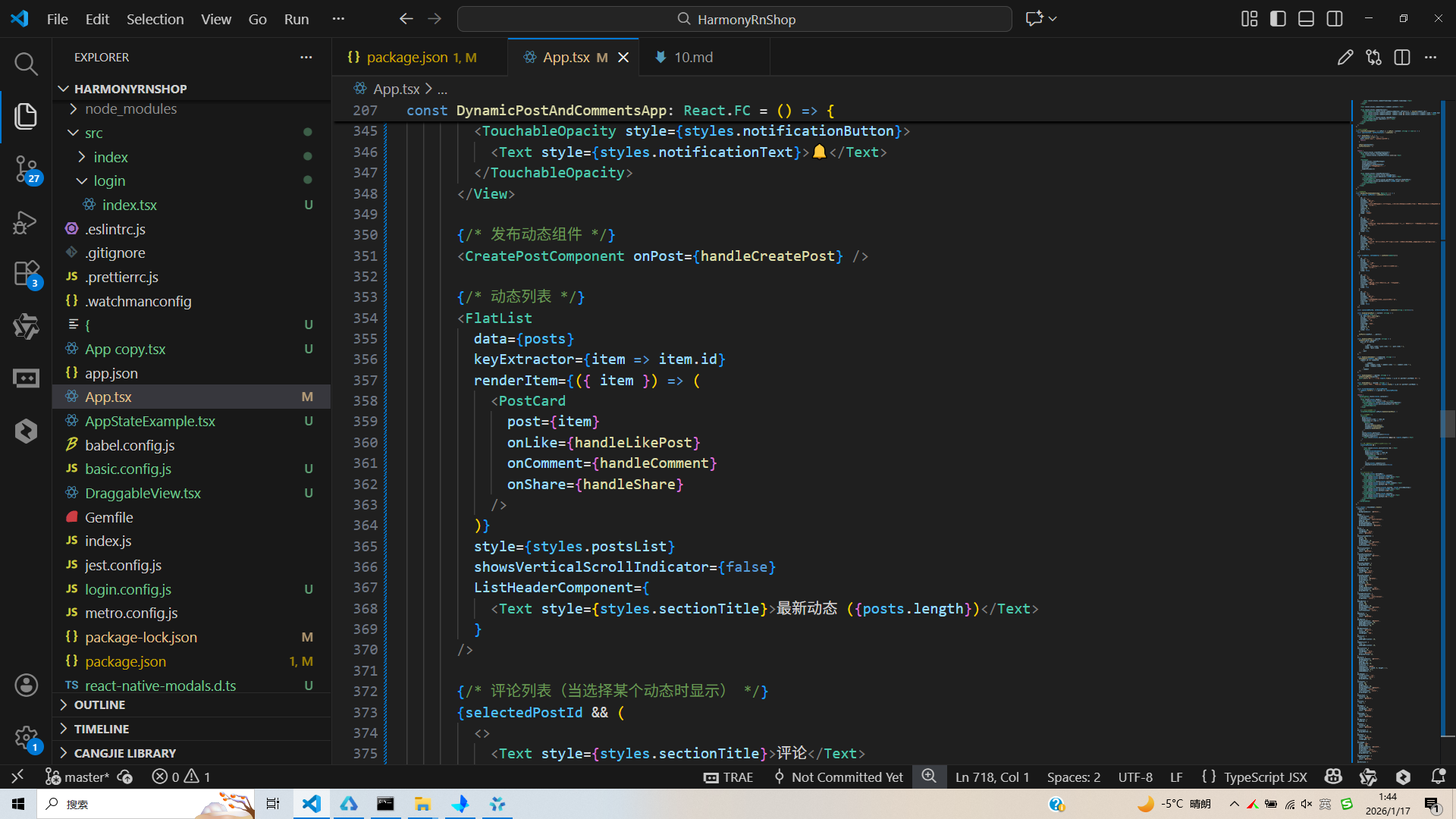
完整代码演示:
// app.tsx
import React, { useState } from 'react';
import { SafeAreaView, View, Text, StyleSheet, TouchableOpacity, ScrollView, Dimensions, Alert, TextInput, FlatList } from 'react-native';

// 图标库
const ICONS = {
  post: '📝',
  comment: '💬',
  like: '👍',
  share: '🔗',
  user: '👤',
  send: '🚀',
  more: '⋯',
  heart: '❤️',
};

const { width } = Dimensions.get('window');

// 动态类型
type Post = {
  id: string;
  userId: string;
  userName: string;
  userAvatar: string;
  content: string;
  timestamp: string;
  likes: number;
  comments: number;
  shares: number;
  liked: boolean;
  image?: string;
};

// 评论类型
type Comment = {
  id: string;
  postId: string;
  userId: string;
  userName: string;
  userAvatar: string;
  content: string;
  timestamp: string;
  likes: number;
  liked: boolean;
};

// 动态卡片组件
const PostCard = ({
  post,
  onLike,
  onComment,
  onShare
}: {
  post: Post;
  onLike: (id: string) => void;
  onComment: (id: string) => void;
  onShare: (id: string) => void;
}) => {
  return (
    <View style={styles.postCard}>
      <View style={styles.postHeader}>
        <View style={styles.userAvatar}>
          <Text style={styles.avatarText}>{post.userAvatar}</Text>
        </View>
        <View style={styles.userInfo}>
          <Text style={styles.userName}>{post.userName}</Text>
          <Text style={styles.timestamp}>{post.timestamp}</Text>
        </View>
        <TouchableOpacity style={styles.moreButton}>
          <Text style={styles.moreText}>{ICONS.more}</Text>
        </TouchableOpacity>
      </View>

      <View style={styles.postContent}>
        <Text style={styles.postText}>{post.content}</Text>
      </View>

      {post.image && (
        <View style={styles.postImage}>
          <Text style={styles.imagePlaceholder}>[图片占位符]</Text>
        </View>
      )}

      <View style={styles.postActions}>
        <TouchableOpacity style={styles.actionButton} onPress={() => onLike(post.id)}>
          <Text style={[styles.actionIcon, post.liked && styles.likedIcon]}>{post.liked ? ICONS.heart : ICONS.like}</Text>
          <Text style={[styles.actionText, post.liked && styles.likedText]}>{post.likes}</Text>
        </TouchableOpacity>
        <TouchableOpacity style={styles.actionButton} onPress={() => onComment(post.id)}>
          <Text style={styles.actionIcon}>{ICONS.comment}</Text>
          <Text style={styles.actionText}>{post.comments}</Text>
        </TouchableOpacity>
        <TouchableOpacity style={styles.actionButton} onPress={() => onShare(post.id)}>
          <Text style={styles.actionIcon}>{ICONS.share}</Text>
          <Text style={styles.actionText}>{post.shares}</Text>
        </TouchableOpacity>
      </View>
    </View>
  );
};

// 评论项组件
const CommentItem = ({
  comment,
  onLike
}: {
  comment: Comment;
  onLike: (id: string) => void;
}) => {
  return (
    <View style={styles.commentItem}>
      <View style={styles.commentHeader}>
        <View style={styles.commentAvatar}>
          <Text style={styles.avatarText}>{comment.userAvatar}</Text>
        </View>
        <View style={styles.commentInfo}>
          <Text style={styles.commentUser}>{comment.userName}</Text>
          <Text style={styles.commentTimestamp}>{comment.timestamp}</Text>
        </View>
      </View>

      <Text style={styles.commentText}>{comment.content}</Text>

      <View style={styles.commentActions}>
        <TouchableOpacity style={styles.commentLikeButton} onPress={() => onLike(comment.id)}>
          <Text style={[styles.commentLikeIcon, comment.liked && styles.likedIcon]}>{comment.liked ? ICONS.heart : ICONS.like}</Text>
          <Text style={[styles.commentLikeText, comment.liked && styles.likedText]}>{comment.likes}</Text>
        </TouchableOpacity>
        <TouchableOpacity style={styles.replyButton}>
          <Text style={styles.replyText}>回复</Text>
        </TouchableOpacity>
      </View>
    </View>
  );
};

// 发布动态组件
const CreatePostComponent = ({ onPost }: { onPost: (content: string) => void }) => {
  const [postContent, setPostContent] = useState('');

  const handlePost = () => {
    if (postContent.trim() === '') {
      Alert.alert('提示', '请输入动态内容');
      return;
    }

    onPost(postContent);
    setPostContent('');
  };

  return (
    <View style={styles.createPostContainer}>
      <View style={styles.createPostHeader}>
        <Text style={styles.createPostTitle}>发布动态</Text>
      </View>

      <TextInput
        style={styles.createPostInput}
        value={postContent}
        onChangeText={setPostContent}
        placeholder="分享你的新鲜事..."
        multiline
        numberOfLines={4}
      />

      <View style={styles.createPostActions}>
        <TouchableOpacity style={styles.mediaButton}>
          <Text style={styles.mediaIcon}>{ICONS.post}</Text>
        </TouchableOpacity>
        <TouchableOpacity style={styles.postButton} onPress={handlePost}>
          <Text style={styles.postButtonText}>{ICONS.send} 发布</Text>
        </TouchableOpacity>
      </View>
    </View>
  );
};

// 主页面组件
const DynamicPostAndCommentsApp: React.FC = () => {
  const [posts, setPosts] = useState<Post[]>([
    {
      id: '1',
      userId: 'u1',
      userName: '张小明',
      userAvatar: '👨',
      content: '今天去公园晨跑了,空气真清新!感觉整个人都充满了活力。运动真的是一种很好的解压方式,推荐大家都试试。',
      timestamp: '2小时前',
      likes: 24,
      comments: 8,
      shares: 3,
      liked: false,
      image: 'image1'
    },
    {
      id: '2',
      userId: 'u2',
      userName: '李小红',
      userAvatar: '👩',
      content: '刚学会做了一道新菜谱,味道还不错!做饭的过程也是一种享受,看着食材变成美味的过程真的很神奇。',
      timestamp: '5小时前',
      likes: 42,
      comments: 15,
      shares: 7,
      liked: true,
    },
    {
      id: '3',
      userId: 'u3',
      userName: '王大伟',
      userAvatar: '👨',
      content: '最近在学习编程,虽然有些困难,但是每解决一个问题都很有成就感。技术的世界真是无穷无尽啊!',
      timestamp: '1天前',
      likes: 18,
      comments: 5,
      shares: 2,
      liked: false,
    }
  ]);

  const [comments, setComments] = useState<Comment[]>([
    {
      id: 'c1',
      postId: '1',
      userId: 'u2',
      userName: '李小红',
      userAvatar: '👩',
      content: '我也喜欢晨跑,感觉一天的精神都会很好!',
      timestamp: '1小时前',
      likes: 3,
      liked: false
    },
    {
      id: 'c2',
      postId: '1',
      userId: 'u3',
      userName: '王大伟',
      userAvatar: '👨',
      content: '公园里的空气确实很棒,我也要开始晨跑了。',
      timestamp: '50分钟前',
      likes: 1,
      liked: true
    },
    {
      id: 'c3',
      postId: '2',
      userId: 'u1',
      userName: '张小明',
      userAvatar: '👨',
      content: '看起来就很香,下次也教教我怎么做吧!',
      timestamp: '4小时前',
      likes: 2,
      liked: false
    }
  ]);

  const [selectedPostId, setSelectedPostId] = useState<string | null>(null);

  const handleCreatePost = (content: string) => {
    const newPost: Post = {
      id: Date.now().toString(),
      userId: 'currentUser',
      userName: '我',
      userAvatar: '👤',
      content,
      timestamp: '刚刚',
      likes: 0,
      comments: 0,
      shares: 0,
      liked: false
    };

    setPosts([newPost, ...posts]);
  };

  const handleLikePost = (postId: string) => {
    setPosts(posts.map(post =>
      post.id === postId
        ? {
            ...post,
            likes: post.liked ? post.likes - 1 : post.likes + 1,
            liked: !post.liked
          }
        : post
    ));
  };

  const handleLikeComment = (commentId: string) => {
    setComments(comments.map(comment =>
      comment.id === commentId
        ? {
            ...comment,
            likes: comment.liked ? comment.likes - 1 : comment.likes + 1,
            liked: !comment.liked
          }
        : comment
    ));
  };

  const handleComment = (postId: string) => {
    setSelectedPostId(postId);
    Alert.alert('评论', `为动态 ${posts.find(p => p.id === postId)?.userName} 评论`);
  };

  const handleShare = (postId: string) => {
    Alert.alert('分享', `分享动态 ${posts.find(p => p.id === postId)?.userName}`);
  };

  const filteredComments = selectedPostId
    ? comments.filter(c => c.postId === selectedPostId)
    : [];

  return (
    <SafeAreaView style={styles.container}>
      {/* 头部 */}
      <View style={styles.header}>
        <Text style={styles.title}>动态广场</Text>
        <TouchableOpacity style={styles.notificationButton}>
          <Text style={styles.notificationText}>🔔</Text>
        </TouchableOpacity>
      </View>

      {/* 发布动态组件 */}
      <CreatePostComponent onPost={handleCreatePost} />

      {/* 动态列表 */}
      <FlatList
        data={posts}
        keyExtractor={item => item.id}
        renderItem={({ item }) => (
          <PostCard
            post={item}
            onLike={handleLikePost}
            onComment={handleComment}
            onShare={handleShare}
          />
        )}
        style={styles.postsList}
        showsVerticalScrollIndicator={false}
        ListHeaderComponent={
          <Text style={styles.sectionTitle}>最新动态 ({posts.length})</Text>
        }
      />

      {/* 评论列表(当选择某个动态时显示) */}
      {selectedPostId && (
        <>
          <Text style={styles.sectionTitle}>评论</Text>
          <FlatList
            data={filteredComments}
            keyExtractor={item => item.id}
            renderItem={({ item }) => (
              <CommentItem
                comment={item}
                onLike={handleLikeComment}
              />
            )}
            style={styles.commentsList}
            showsVerticalScrollIndicator={false}
          />
        </>
      )}

      {/* 底部导航 */}
      <View style={styles.bottomNav}>
        <TouchableOpacity style={styles.navItem}>
          <Text style={styles.navIcon}>{ICONS.post}</Text>
          <Text style={styles.navText}>动态</Text>
        </TouchableOpacity>
        <TouchableOpacity style={styles.navItem}>
          <Text style={styles.navIcon}>{ICONS.comment}</Text>
          <Text style={styles.navText}>评论</Text>
        </TouchableOpacity>
        <TouchableOpacity style={[styles.navItem, styles.activeNavItem]}>
          <Text style={styles.navIcon}>{ICONS.user}</Text>
          <Text style={styles.navText}>我的</Text>
        </TouchableOpacity>
        <TouchableOpacity style={styles.navItem}>
          <Text style={styles.navIcon}>{ICONS.more}</Text>
          <Text style={styles.navText}>更多</Text>
        </TouchableOpacity>
      </View>
    </SafeAreaView>
  );
};

const styles = StyleSheet.create({
  container: {
    flex: 1,
    backgroundColor: '#f8fafc',
  },
  header: {
    flexDirection: 'row',
    alignItems: 'center',
    justifyContent: 'space-between',
    padding: 20,
    backgroundColor: '#ffffff',
    borderBottomWidth: 1,
    borderBottomColor: '#e2e8f0',
  },
  title: {
    fontSize: 20,
    fontWeight: 'bold',
    color: '#1e293b',
  },
  notificationButton: {
    width: 36,
    height: 36,
    borderRadius: 18,
    backgroundColor: '#f1f5f9',
    alignItems: 'center',
    justifyContent: 'center',
  },
  notificationText: {
    fontSize: 18,
    color: '#64748b',
  },
  createPostContainer: {
    backgroundColor: '#ffffff',
    margin: 16,
    borderRadius: 12,
    padding: 16,
  },
  createPostHeader: {
    marginBottom: 12,
  },
  createPostTitle: {
    fontSize: 16,
    fontWeight: 'bold',
    color: '#1e293b',
  },
  createPostInput: {
    borderWidth: 1,
    borderColor: '#cbd5e1',
    borderRadius: 8,
    padding: 12,
    fontSize: 16,
    color: '#1e293b',
    height: 80,
    textAlignVertical: 'top',
    backgroundColor: '#f8fafc',
    marginBottom: 12,
  },
  createPostActions: {
    flexDirection: 'row',
    justifyContent: 'space-between',
    alignItems: 'center',
  },
  mediaButton: {
    width: 40,
    height: 40,
    borderRadius: 20,
    backgroundColor: '#f1f5f9',
    alignItems: 'center',
    justifyContent: 'center',
  },
  mediaIcon: {
    fontSize: 20,
    color: '#64748b',
  },
  postButton: {
    backgroundColor: '#3b82f6',
    paddingHorizontal: 20,
    paddingVertical: 10,
    borderRadius: 20,
  },
  postButtonText: {
    color: '#ffffff',
    fontSize: 14,
    fontWeight: '500',
  },
  postsList: {
    flex: 1,
    paddingHorizontal: 16,
  },
  commentsList: {
    flex: 1,
    paddingHorizontal: 16,
  },
  sectionTitle: {
    fontSize: 18,
    fontWeight: 'bold',
    color: '#1e293b',
    marginVertical: 12,
  },
  postCard: {
    backgroundColor: '#ffffff',
    borderRadius: 12,
    padding: 16,
    marginBottom: 16,
    elevation: 1,
    shadowColor: '#000',
    shadowOffset: { width: 0, height: 1 },
    shadowOpacity: 0.1,
    shadowRadius: 2,
  },
  postHeader: {
    flexDirection: 'row',
    alignItems: 'center',
    marginBottom: 12,
  },
  userAvatar: {
    width: 40,
    height: 40,
    borderRadius: 20,
    backgroundColor: '#dbeafe',
    alignItems: 'center',
    justifyContent: 'center',
    marginRight: 12,
  },
  avatarText: {
    fontSize: 20,
    color: '#3b82f6',
  },
  userInfo: {
    flex: 1,
  },
  userName: {
    fontSize: 14,
    fontWeight: 'bold',
    color: '#1e293b',
  },
  timestamp: {
    fontSize: 12,
    color: '#64748b',
  },
  moreButton: {
    padding: 4,
  },
  moreText: {
    fontSize: 20,
    color: '#94a3b8',
  },
  postContent: {
    marginBottom: 12,
  },
  postText: {
    fontSize: 16,
    color: '#334155',
    lineHeight: 22,
  },
  postImage: {
    width: '100%',
    height: 200,
    backgroundColor: '#e2e8f0',
    borderRadius: 8,
    alignItems: 'center',
    justifyContent: 'center',
    marginBottom: 12,
  },
  imagePlaceholder: {
    fontSize: 14,
    color: '#64748b',
  },
  postActions: {
    flexDirection: 'row',
    borderTopWidth: 1,
    borderTopColor: '#e2e8f0',
    paddingTop: 12,
  },
  actionButton: {
    flex: 1,
    flexDirection: 'row',
    alignItems: 'center',
  },
  actionIcon: {
    fontSize: 18,
    marginRight: 6,
    color: '#64748b',
  },
  actionText: {
    fontSize: 14,
    color: '#64748b',
  },
  likedIcon: {
    color: '#ef4444',
  },
  likedText: {
    color: '#ef4444',
  },
  commentItem: {
    backgroundColor: '#ffffff',
    borderRadius: 12,
    padding: 12,
    marginBottom: 8,
    elevation: 1,
    shadowColor: '#000',
    shadowOffset: { width: 0, height: 1 },
    shadowOpacity: 0.1,
    shadowRadius: 2,
  },
  commentHeader: {
    flexDirection: 'row',
    alignItems: 'center',
    marginBottom: 8,
  },
  commentAvatar: {
    width: 32,
    height: 32,
    borderRadius: 16,
    backgroundColor: '#dbeafe',
    alignItems: 'center',
    justifyContent: 'center',
    marginRight: 8,
  },
  commentInfo: {},
  commentUser: {
    fontSize: 14,
    fontWeight: 'bold',
    color: '#1e293b',
  },
  commentTimestamp: {
    fontSize: 12,
    color: '#64748b',
  },
  commentText: {
    fontSize: 14,
    color: '#334155',
    lineHeight: 20,
    marginBottom: 8,
  },
  commentActions: {
    flexDirection: 'row',
  },
  commentLikeButton: {
    flexDirection: 'row',
    alignItems: 'center',
    marginRight: 16,
  },
  commentLikeIcon: {
    fontSize: 16,
    marginRight: 4,
    color: '#64748b',
  },
  commentLikeText: {
    fontSize: 12,
    color: '#64748b',
  },
  replyButton: {
    flexDirection: 'row',
    alignItems: 'center',
  },
  replyText: {
    fontSize: 12,
    color: '#3b82f6',
  },
  bottomNav: {
    flexDirection: 'row',
    justifyContent: 'space-around',
    backgroundColor: '#ffffff',
    borderTopWidth: 1,
    borderTopColor: '#e2e8f0',
    paddingVertical: 12,
  },
  navItem: {
    alignItems: 'center',
    flex: 1,
  },
  activeNavItem: {
    paddingBottom: 2,
    borderBottomWidth: 2,
    borderBottomColor: '#3b82f6',
  },
  navIcon: {
    fontSize: 20,
    color: '#94a3b8',
    marginBottom: 4,
  },
  activeNavIcon: {
    color: '#3b82f6',
  },
  navText: {
    fontSize: 12,
    color: '#94a3b8',
  },
  activeNavText: {
    color: '#3b82f6',
    fontWeight: '500',
  },
});

export default DynamicPostAndCommentsApp;
打包
接下来通过打包命令npn run harmony将reactNative的代码打包成为bundle,这样可以进行在开源鸿蒙OpenHarmony中进行使用。

打包之后再将打包后的鸿蒙OpenHarmony文件拷贝到鸿蒙的DevEco-Studio工程目录去:

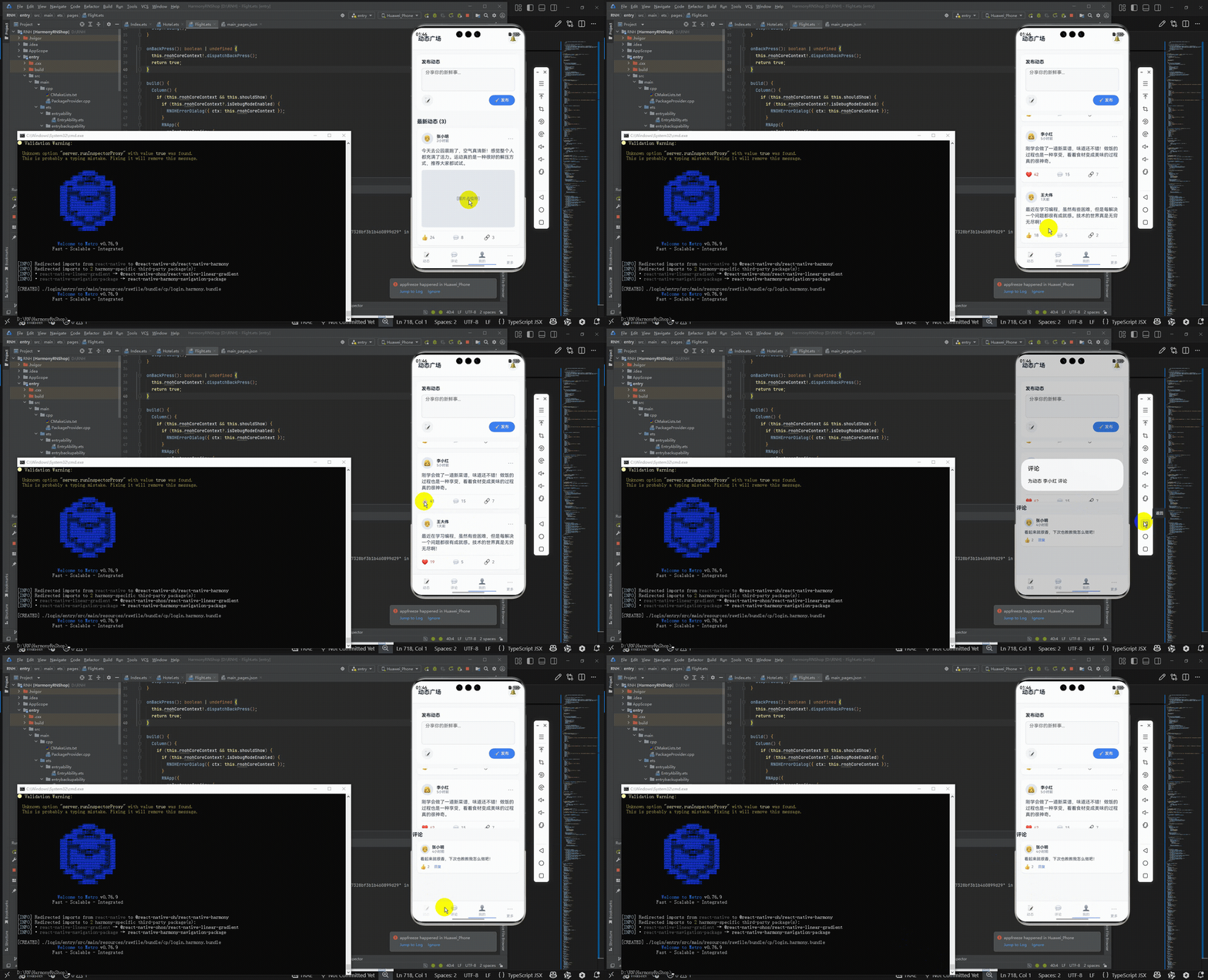
最后运行效果图如下显示:
欢迎大家加入开源鸿蒙跨平台开发者社区,一起共建开源鸿蒙跨平台生态。

作为“人工智能6S店”的官方数字引擎,为AI开发者与企业提供一个覆盖软硬件全栈、一站式门户。
更多推荐
 1
1 0
0- 0


 已为社区贡献3条内容

所有评论(0)