
React Native跨平台技术在开源鸿蒙中使用`react-native-vector-icons`来添加图标、`react-native-camera`来处理图像识别
本文介绍了开发"植物养护智能助手"React Native应用的步骤指南。从环境准备、依赖安装到项目结构规划,详细展示了前端界面组件的开发过程,包括HomeScreen和CareTipsScreen的实现代码。文章还提供了导航设置方法和真实案例演示,使用Base64图标库和植物养护数据,实现植物详情展示功能。通过React Native技术栈,帮助开发者快速构建一个功能完善的植
开发一个名为“植物养护智能助手”的React Native应用,涉及到多个技术层面,包括前端UI设计、后端数据处理以及可能的硬件接口(例如传感器数据采集)。下面,我将提供一个基本的开发指南和代码示例,帮助你开始这个项目。
- 环境准备
首先,确保你的开发环境已经安装了Node.js和React Native。你可以通过以下步骤安装React Native环境:
安装Node.js (如果尚未安装)
安装React Native CLI
npm install -g react-native-cli

创建一个新的React Native项目
react-native init PlantCareAssistant

进入项目目录
cd PlantCareAssistant
- 安装依赖
为了简化开发,可以使用一些现成的库来帮助处理植物养护相关的功能,例如使用react-native-vector-icons来添加图标、react-native-camera来处理图像识别等。
安装图标库
npm install react-native-vector-icons

安装相机库(可选,根据需求)
npm install react-native-camera
- 项目结构规划
创建一个基本的项目结构,例如:
PlantCareAssistant/
|-- Harmony/
|-- Harmony/
|-- src/
    |-- components/
    |-- screens/
        |-- HomeScreen.js
        |-- CareTipsScreen.js
    |-- App.js
|-- package.json
- 开发界面组件
HomeScreen.js
import React from 'react';
import { View, Text, StyleSheet, Button } from 'react-native';
import Icon from 'react-native-vector-icons/FontAwesome'; // 假设使用FontAwesome图标库

const HomeScreen = ({ navigation }) => {
  return (
    <View style={styles.container}>
      <Text style={styles.title}>植物养护智能助手</Text>
      <Button title="查看养护建议" onPress={() => navigation.navigate('CareTips')} />
      <Icon name="leaf" size={50} color="green" /> {/* 显示一个叶子图标 */}
    </View>
  );
};

const styles = StyleSheet.create({
  container: {
    flex: 1,
    justifyContent: 'center',
    alignItems: 'center',
  },
  title: {
    fontSize: 24,
    marginBottom: 20,
  },
});

export default HomeScreen;
CareTipsScreen.js
import React from 'react';
import { View, Text, StyleSheet } from 'react-native';
import Icon from 'react-native-vector-icons/FontAwesome'; // 使用相同图标库

const CareTipsScreen = () => {
  return (
    <View style={styles.container}>
      <Text style={styles.title}>养护建议</Text>
      <Text>请每天给植物浇水。</Text> {/* 示例文本 */}
      <Icon name="info-circle" size={30} color="blue" /> {/* 信息图标 */}
    </View>
  );
};

const styles = StyleSheet.create({
  container: {
    flex: 1,
    justifyContent: 'center',
    alignItems: 'center',
  },
  title: {
    fontSize: 24,
    marginBottom: 20,
  },
});
export default CareTipsScreen;
- 导航设置(使用React Navigation)
安装React Navigation:
npm install @react-navigation/native @react-navigation/stack react-native-screens react-native-safe-area-context @react-navigation/native-stack @react-navigation/stack @react-navigation/bottom-tabs @react-navigation/material-top-tabs @react-navigation/material-bottom-tabs @react-navigation/drawer @react-navigation/elements @react-navigation/routers @react-navigation/web react-native-tab-view react-native-pager-view react-native-reanimated react-native-gesture-handler react-native-screens react-native-safe-area-context react-native-svg expo @expo/vector-icons expo-linear-gradient expo-constants expo-linking --save` 确保所有依赖都正确安装。`npm install`。`npx pod-install
真实案例代码演示:
// app.tsx
import React, { useState } from 'react';
import { SafeAreaView, View, Text, StyleSheet, TouchableOpacity, ScrollView, Modal } from 'react-native';

// Base64 图标库(使用文本替代SVG)
const ICONS = {
  home: '🏠',
  care: '🌿',
  schedule: '📅',
  info: 'ℹ',
  close: '✕',
  water: '💧',
  sun: '☀️',
  soil: '🌱',
  fertilizer: '🪴',
  reminder: '⏰',
  health: '💚',
  plant: '🪴'
};

// 植物养护数据
const PLANT_CARE_DATA = [
  { id: 1, name: '绿萝', watering: '每周2-3次', light: '散射光', fertilizer: '每月1次', reminder: '2天后浇水' },
  { id: 2, name: '仙人掌', watering: '每2周1次', light: '充足阳光', fertilizer: '每季度1次', reminder: '无需浇水' },
  { id: 3, name: '吊兰', watering: '每周1次', light: '散射光', fertilizer: '每月2次', reminder: '1天后施肥' },
  { id: 4, name: '多肉植物', watering: '每周1次', light: '充足阳光', fertilizer: '每2月1次', reminder: '5天后浇水' }
];

const PlantCareAssistant: React.FC = () => {
  const [selectedPlant, setSelectedPlant] = useState<any>(null);
  const [modalVisible, setModalVisible] = useState(false);
  const [infoModalVisible, setInfoModalVisible] = useState(false);
  const [activeTab, setActiveTab] = useState('home');

  // 渲染图标
  const renderIcon = (iconName: string, style: any) => {
    return (
      <Text style={[styles.iconText, style]}>
        {ICONS[iconName as keyof typeof ICONS] || '□'}
      </Text>
    );
  };

  // 显示植物详情
  const showPlantDetails = (plant: any) => {
    setSelectedPlant(plant);
    setModalVisible(true);
  };

  return (
    <SafeAreaView style={styles.container}>
      <View style={styles.header}>
        <Text style={styles.title}>🌿 植物养护智能助手</Text>
        <Text style={styles.subtitle}>让您的植物健康成长</Text>

        <TouchableOpacity
          style={styles.infoButton}
          onPress={() => setInfoModalVisible(true)}
        >
          {renderIcon('info', styles.infoIcon)}
        </TouchableOpacity>
      </View>

      <ScrollView contentContainerStyle={styles.content}>
        {activeTab === 'home' && (
          <View>
            <View style={styles.reminderCard}>
              <Text style={styles.reminderTitle}>今日提醒</Text>
              <Text style={styles.reminderText}>绿萝需要浇水了</Text>
              <Text style={styles.reminderText}>仙人掌需要晒太阳</Text>
            </View>

            <View style={styles.sectionTitleContainer}>
              <Text style={styles.sectionTitle}>我的植物</Text>
              <Text style={styles.sectionSubtitle}>共4种植物</Text>
            </View>

            <View style={styles.plantList}>
              {PLANT_CARE_DATA.map((plant) => (
                <TouchableOpacity
                  key={plant.id}
                  style={styles.plantCard}
                  onPress={() => showPlantDetails(plant)}
                >
                  <View style={styles.plantIcon}>
                    {renderIcon('plant', styles.plantIconText)}
                  </View>
                  <View style={styles.plantInfo}>
                    <Text style={styles.plantName}>{plant.name}</Text>
                    <Text style={styles.plantReminder}>提醒: {plant.reminder}</Text>
                  </View>
                  <TouchableOpacity
                    style={styles.plantButton}
                    onPress={() => showPlantDetails(plant)}
                  >
                    <Text style={styles.plantButtonText}>查看</Text>
                  </TouchableOpacity>
                </TouchableOpacity>
              ))}
            </View>
          </View>
        )}

        {activeTab === 'care' && (
          <View style={styles.tabContent}>
            <Text style={styles.tabTitle}>养护指南</Text>
            <View style={styles.careCard}>
              <View style={styles.careItem}>
                <Text style={styles.careIcon}>{renderIcon('water', {})}</Text>
                <Text style={styles.careLabel}>浇水</Text>
                <Text style={styles.careValue}>适量浇水,避免积水</Text>
              </View>
              <View style={styles.careItem}>
                <Text style={styles.careIcon}>{renderIcon('sun', {})}</Text>
                <Text style={styles.careLabel}>光照</Text>
                <Text style={styles.careValue}>根据植物需求提供光照</Text>
              </View>
              <View style={styles.careItem}>
                <Text style={styles.careIcon}>{renderIcon('fertilizer', {})}</Text>
                <Text style={styles.careLabel}>施肥</Text>
                <Text style={styles.careValue}>定期施肥,促进生长</Text>
              </View>
            </View>
          </View>
        )}

        {activeTab === 'schedule' && (
          <View style={styles.tabContent}>
            <Text style={styles.tabTitle}>养护日程</Text>
            <View style={styles.scheduleList}>
              <View style={styles.scheduleItem}>
                <Text style={styles.scheduleTime}>08:00</Text>
                <Text style={styles.scheduleTask}>给绿萝浇水</Text>
              </View>
              <View style={styles.scheduleItem}>
                <Text style={styles.scheduleTime}>10:00</Text>
                <Text style={styles.scheduleTask}>将仙人掌移到阳光处</Text>
              </View>
              <View style={styles.scheduleItem}>
                <Text style={styles.scheduleTime}>14:00</Text>
                <Text style={styles.scheduleTask}>检查土壤湿度</Text>
              </View>
              <View style={styles.scheduleItem}>
                <Text style={styles.scheduleTime}>18:00</Text>
                <Text style={styles.scheduleTask}>给多肉植物通风</Text>
              </View>
            </View>
          </View>
        )}
      </ScrollView>

      <View style={styles.tabBar}>
        <TouchableOpacity
          style={[styles.tabButton, activeTab === 'home' && styles.activeTab]}
          onPress={() => setActiveTab('home')}
        >
          {renderIcon('home', styles.tabIcon)}
          <Text style={[styles.tabText, activeTab === 'home' && styles.activeTabText]}>首页</Text>
        </TouchableOpacity>

        <TouchableOpacity
          style={[styles.tabButton, activeTab === 'care' && styles.activeTab]}
          onPress={() => setActiveTab('care')}
        >
          {renderIcon('care', styles.tabIcon)}
          <Text style={[styles.tabText, activeTab === 'care' && styles.activeTabText]}>养护</Text>
        </TouchableOpacity>

        <TouchableOpacity
          style={[styles.tabButton, activeTab === 'schedule' && styles.activeTab]}
          onPress={() => setActiveTab('schedule')}
        >
          {renderIcon('schedule', styles.tabIcon)}
          <Text style={[styles.tabText, activeTab === 'schedule' && styles.activeTabText]}>日程</Text>
        </TouchableOpacity>
      </View>

      {/* 植物详情模态框 */}
      <Modal
        animationType="slide"
        transparent={true}
        visible={modalVisible}
        onRequestClose={() => setModalVisible(false)}
      >
        <View style={styles.modalOverlay}>
          <View style={styles.modalContent}>
            <View style={styles.modalHeader}>
              <Text style={styles.modalTitle}>{selectedPlant?.name} 养护详情</Text>
              <TouchableOpacity onPress={() => setModalVisible(false)}>
                <Text style={styles.closeButton}>{renderIcon('close', {})}</Text>
              </TouchableOpacity>
            </View>

            {selectedPlant && (
              <ScrollView style={styles.modalBody}>
                <View style={styles.detailItem}>
                  <Text style={styles.detailLabel}>浇水频率:</Text>
                  <Text style={styles.detailValue}>{selectedPlant.watering}</Text>
                </View>

                <View style={styles.detailItem}>
                  <Text style={styles.detailLabel}>光照需求:</Text>
                  <Text style={styles.detailValue}>{selectedPlant.light}</Text>
                </View>

                <View style={styles.detailItem}>
                  <Text style={styles.detailLabel}>施肥频率:</Text>
                  <Text style={styles.detailValue}>{selectedPlant.fertilizer}</Text>
                </View>

                <View style={styles.detailItem}>
                  <Text style={styles.detailLabel}>下次提醒:</Text>
                  <Text style={styles.detailValue}>{selectedPlant.reminder}</Text>
                </View>

                <View style={styles.detailItem}>
                  <Text style={styles.detailLabel}>健康状况:</Text>
                  <Text style={styles.detailValue}>良好</Text>
                </View>

                <View style={styles.actionButtons}>
                  <TouchableOpacity style={styles.actionButton}>
                    <Text style={styles.actionButtonText}>标记已浇水</Text>
                  </TouchableOpacity>
                  <TouchableOpacity style={styles.actionButton}>
                    <Text style={styles.actionButtonText}>设置提醒</Text>
                  </TouchableOpacity>
                </View>
              </ScrollView>
            )}
          </View>
        </View>
      </Modal>

      {/* 应用说明模态框 */}
      <Modal
        animationType="slide"
        transparent={true}
        visible={infoModalVisible}
        onRequestClose={() => setInfoModalVisible(false)}
      >
        <View style={styles.modalOverlay}>
          <View style={styles.infoModalContent}>
            <View style={styles.modalHeader}>
              <Text style={styles.modalTitle}>植物养护助手</Text>
              <TouchableOpacity onPress={() => setInfoModalVisible(false)}>
                <Text style={styles.closeButton}>{renderIcon('close', {})}</Text>
              </TouchableOpacity>
            </View>

            <ScrollView style={styles.infoModalBody}>
              <Text style={styles.infoTitle}>功能介绍</Text>
              <Text style={styles.infoText}>
                • 智能提醒浇水、施肥、晒太阳{'\n'}
                • 个性化养护方案{'\n'}
                • 植物健康监测{'\n'}
                • 养护日程管理
              </Text>

              <Text style={styles.infoSubtitle}>养护小贴士</Text>
              <Text style={styles.infoText}>
                • 不同植物需水量不同{'\n'}
                • 避免过度浇水导致根部腐烂{'\n'}
                • 定期检查植物叶片健康{'\n'}
                • 适时调整光照条件
              </Text>

              <Text style={styles.infoSubtitle}>常见问题</Text>
              <Text style={styles.infoText}>
                • 叶片发黄: 可能是水分过多或过少{'\n'}
                • 叶片枯萎: 检查土壤湿度和光照{'\n'}
                • 生长缓慢: 考虑施肥或换土
              </Text>
            </ScrollView>
          </View>
        </View>
      </Modal>
    </SafeAreaView>
  );
};

const styles = StyleSheet.create({
  container: {
    flex: 1,
    backgroundColor: '#f0f9e8',
  },
  header: {
    paddingTop: 30,
    paddingBottom: 20,
    paddingHorizontal: 20,
    backgroundColor: '#ffffff',
    borderBottomWidth: 1,
    borderBottomColor: '#d1e7c4',
    flexDirection: 'row',
    justifyContent: 'space-between',
    alignItems: 'center',
  },
  title: {
    fontSize: 22,
    fontWeight: 'bold',
    color: '#2d5a27',
  },
  subtitle: {
    fontSize: 13,
    color: '#3d7a35',
    marginTop: 4,
  },
  infoButton: {
    width: 36,
    height: 36,
    borderRadius: 18,
    backgroundColor: '#d1e7c4',
    alignItems: 'center',
    justifyContent: 'center',
  },
  infoIcon: {
    fontSize: 20,
    color: '#3d7a35',
  },
  iconText: {
    fontSize: 20,
  },
  content: {
    padding: 16,
    paddingBottom: 80, // 为底部标签栏留出空间
  },
  reminderCard: {
    backgroundColor: '#e7f5e1',
    borderRadius: 16,
    padding: 20,
    marginBottom: 20,
    elevation: 4,
    shadowColor: '#000',
    shadowOffset: { width: 0, height: 2 },
    shadowOpacity: 0.1,
    shadowRadius: 8,
  },
  reminderTitle: {
    fontSize: 18,
    fontWeight: 'bold',
    color: '#2d5a27',
    marginBottom: 10,
  },
  reminderText: {
    fontSize: 14,
    color: '#3d7a35',
    marginBottom: 5,
  },
  sectionTitleContainer: {
    marginBottom: 15,
  },
  sectionTitle: {
    fontSize: 18,
    fontWeight: 'bold',
    color: '#2d5a27',
    marginBottom: 5,
  },
  sectionSubtitle: {
    fontSize: 14,
    color: '#3d7a35',
  },
  plantList: {
    // Plant list styles
  },
  plantCard: {
    backgroundColor: '#ffffff',
    borderRadius: 12,
    padding: 15,
    marginBottom: 12,
    flexDirection: 'row',
    alignItems: 'center',
    elevation: 2,
    shadowColor: '#000',
    shadowOffset: { width: 0, height: 1 },
    shadowOpacity: 0.1,
    shadowRadius: 4,
  },
  plantIcon: {
    width: 50,
    height: 50,
    borderRadius: 25,
    backgroundColor: '#e7f5e1',
    alignItems: 'center',
    justifyContent: 'center',
    marginRight: 15,
  },
  plantIconText: {
    fontSize: 24,
  },
  plantInfo: {
    flex: 1,
  },
  plantName: {
    fontSize: 16,
    fontWeight: 'bold',
    color: '#2d5a27',
  },
  plantReminder: {
    fontSize: 14,
    color: '#3d7a35',
    marginTop: 4,
  },
  plantButton: {
    backgroundColor: '#4ade80',
    paddingHorizontal: 15,
    paddingVertical: 8,
    borderRadius: 8,
  },
  plantButtonText: {
    color: '#ffffff',
    fontWeight: 'bold',
  },
  tabContent: {
    // Tab content styles
  },
  tabTitle: {
    fontSize: 20,
    fontWeight: 'bold',
    color: '#2d5a27',
    marginBottom: 15,
  },
  careCard: {
    backgroundColor: '#ffffff',
    borderRadius: 16,
    padding: 20,
    marginBottom: 15,
    elevation: 4,
    shadowColor: '#000',
    shadowOffset: { width: 0, height: 2 },
    shadowOpacity: 0.1,
    shadowRadius: 8,
  },
  careItem: {
    flexDirection: 'row',
    alignItems: 'center',
    marginBottom: 15,
  },
  careIcon: {
    fontSize: 24,
    marginRight: 15,
  },
  careLabel: {
    fontSize: 16,
    fontWeight: 'bold',
    color: '#2d5a27',
    width: 80,
  },
  careValue: {
    fontSize: 14,
    color: '#3d7a35',
    flex: 1,
  },
  scheduleList: {
    // Schedule list styles
  },
  scheduleItem: {
    backgroundColor: '#ffffff',
    borderRadius: 12,
    padding: 15,
    marginBottom: 12,
    elevation: 2,
    shadowColor: '#000',
    shadowOffset: { width: 0, height: 1 },
    shadowOpacity: 0.1,
    shadowRadius: 4,
  },
  scheduleTime: {
    fontSize: 16,
    fontWeight: 'bold',
    color: '#2d5a27',
    marginBottom: 5,
  },
  scheduleTask: {
    fontSize: 14,
    color: '#3d7a35',
  },
  tabBar: {
    flexDirection: 'row',
    backgroundColor: '#ffffff',
    borderTopWidth: 1,
    borderTopColor: '#d1e7c4',
    paddingVertical: 10,
    position: 'absolute',
    bottom: 0,
    left: 0,
    right: 0,
  },
  tabButton: {
    flex: 1,
    alignItems: 'center',
    paddingVertical: 8,
  },
  activeTab: {
    backgroundColor: '#e7f5e1',
    borderRadius: 10,
    marginHorizontal: 8,
  },
  tabIcon: {
    fontSize: 20,
    marginBottom: 4,
  },
  tabText: {
    fontSize: 12,
    color: '#3d7a35',
  },
  activeTabText: {
    color: '#2d5a27',
    fontWeight: 'bold',
  },
  modalOverlay: {
    flex: 1,
    backgroundColor: 'rgba(0, 0, 0, 0.5)',
    justifyContent: 'center',
    alignItems: 'center',
  },
  modalContent: {
    backgroundColor: '#ffffff',
    width: '90%',
    height: '60%',
    borderRadius: 20,
    overflow: 'hidden',
  },
  infoModalContent: {
    backgroundColor: '#ffffff',
    width: '90%',
    height: '50%',
    borderRadius: 20,
    overflow: 'hidden',
  },
  modalHeader: {
    flexDirection: 'row',
    justifyContent: 'space-between',
    alignItems: 'center',
    padding: 20,
    borderBottomWidth: 1,
    borderBottomColor: '#d1e7c4',
    backgroundColor: '#f0f9e8',
  },
  modalTitle: {
    fontSize: 20,
    fontWeight: 'bold',
    color: '#2d5a27',
  },
  closeButton: {
    fontSize: 30,
    color: '#a3d9a5',
    fontWeight: '200',
  },
  modalBody: {
    flex: 1,
    padding: 20,
  },
  infoModalBody: {
    flex: 1,
    padding: 20,
  },
  detailItem: {
    marginBottom: 15,
  },
  detailLabel: {
    fontSize: 14,
    color: '#2d5a27',
    fontWeight: '600',
    marginBottom: 4,
  },
  detailValue: {
    fontSize: 14,
    color: '#3d7a35',
    backgroundColor: '#f0f9e8',
    padding: 10,
    borderRadius: 6,
  },
  actionButtons: {
    flexDirection: 'row',
    justifyContent: 'space-between',
    marginTop: 20,
  },
  actionButton: {
    backgroundColor: '#4ade80',
    paddingHorizontal: 15,
    paddingVertical: 10,
    borderRadius: 8,
    flex: 1,
    marginHorizontal: 5,
  },
  actionButtonText: {
    color: '#ffffff',
    fontWeight: 'bold',
    textAlign: 'center',
  },
  infoTitle: {
    fontSize: 20,
    fontWeight: 'bold',
    color: '#2d5a27',
    marginBottom: 15,
    textAlign: 'center',
  },
  infoText: {
    fontSize: 15,
    color: '#3d7a35',
    lineHeight: 22,
    marginBottom: 15,
  },
  infoSubtitle: {
    fontSize: 17,
    fontWeight: 'bold',
    color: '#2d5a27',
    marginBottom: 10,
  },
});

export default PlantCareAssistant;
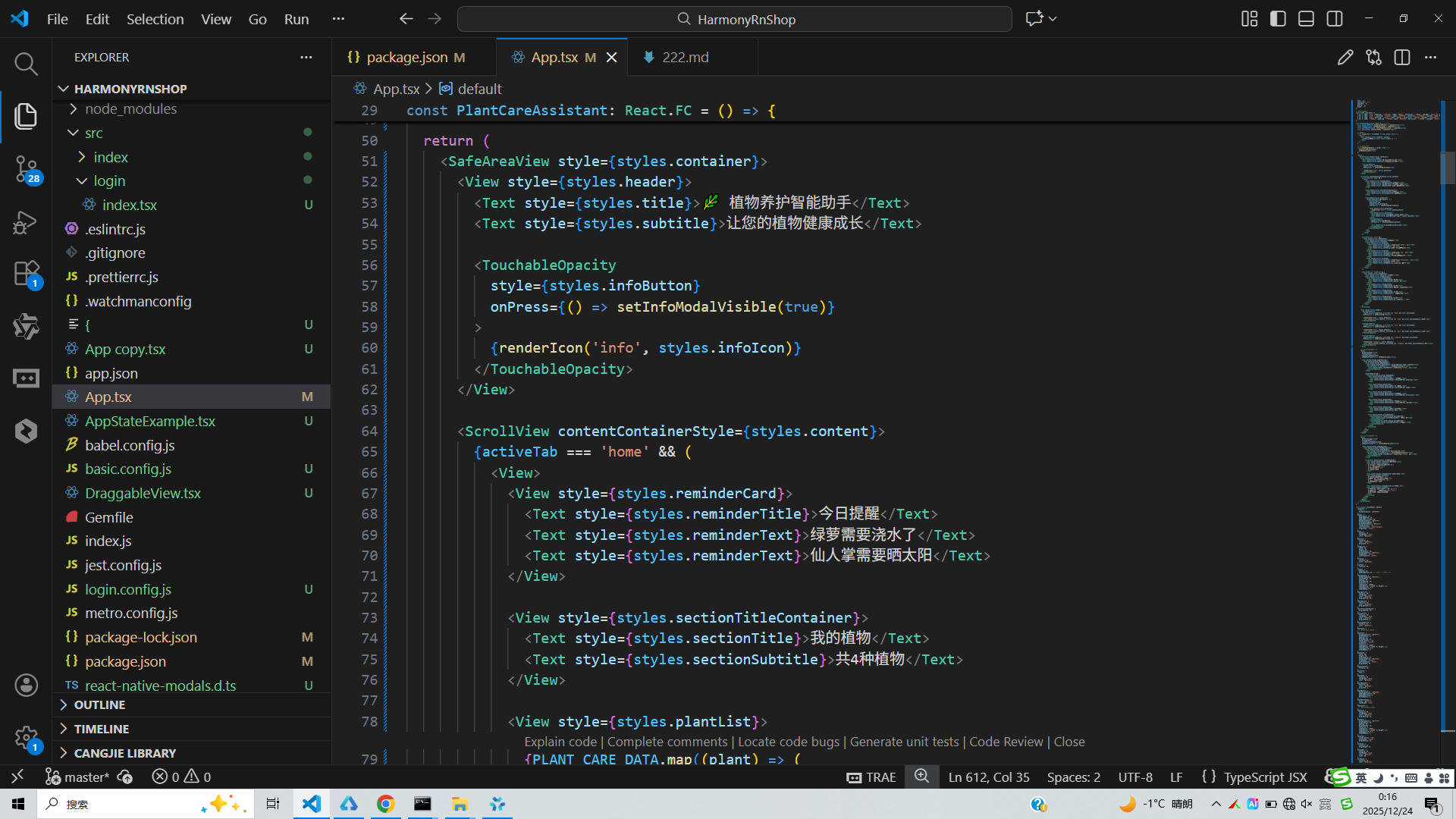
这段代码实现了一个植物养护助手的React Native组件,采用函数式组件和Hooks管理状态。通过SafeAreaView确保内容在安全区域内显示,使用ScrollView提供滚动支持。组件包含主页、养护指南和养护日程三个主要功能模块,通过TouchableOpacity实现用户交互点击事件。图标渲染通过预定义的ICONS对象映射字符实现,模态框用于显示植物详情信息。整体采用分层架构设计,将UI渲染、状态管理和业务逻辑分离。
在鸿蒙系统环境下,该组件的核心架构思想可以无缝迁移至ArkTS开发框架。鸿蒙的ArkUI框架支持声明式UI编程范式,其状态管理机制(@State, @Prop, @Link等装饰器)与React Hooks概念相似但功能更强大。当用户点击植物卡片时,selectedPlant状态更新会触发本地UI重渲染,还可通过@Link装饰器将状态变化同步到其他关联设备,实现跨设备植物养护信息实时共享。这种分布式状态同步依托于鸿蒙的分布式数据管理(DDM)和分布式软总线(DSoftBus)技术,在不同设备间建立高带宽、低延迟通信通道。
鸿蒙系统的方舟编译器(ArkCompiler)能够对这类组件进行深度优化。编译阶段,方舟编译器分析组件状态依赖关系和渲染树结构,生成高效的中间表示(IR),运行时通过JIT和AOT结合优化JavaScript/TypeScript代码执行。对于频繁状态更新操作(如切换Tab页),方舟编译器利用PGO技术根据实际运行时数据优化渲染路径,减少不必要的虚拟DOM计算和真实DOM操作。鸿蒙的多线程渲染架构将UI渲染任务分配到独立UI线程,与JavaScript执行线程解耦,确保复杂植物信息渲染场景下保持流畅用户体验。
采用函数式组件和Hooks管理状态。通过SafeAreaView确保内容在安全区域内显示,使用ScrollView提供滚动支持。组件包含主页、养护指南和养护日程三个主要功能模块,通过TouchableOpacity实现用户交互点击事件。图标渲染通过预定义的ICONS对象映射字符实现,模态框用于显示植物详情信息。整体采用分层架构设计,将UI渲染、状态管理和业务逻辑分离。
在鸿蒙系统环境下,该组件的核心架构思想可以无缝迁移至ArkTS开发框架。鸿蒙的ArkUI框架支持声明式UI编程范式,其状态管理机制(@State, @Prop, @Link等装饰器)与React Hooks概念相似但功能更强大。当用户点击植物卡片时,selectedPlant状态更新会触发本地UI重渲染,还可通过@Link装饰器将状态变化同步到其他关联设备,实现跨设备植物养护信息实时共享。这种分布式状态同步依托于鸿蒙的分布式数据管理(DDM)和分布式软总线(DSoftBus)技术,在不同设备间建立高带宽、低延迟通信通道。
鸿蒙系统的方舟编译器(ArkCompiler)能够对这类组件进行深度优化。编译阶段,方舟编译器分析组件状态依赖关系和渲染树结构,生成高效的中间表示(IR),运行时通过JIT和AOT结合优化JavaScript/TypeScript代码执行。对于频繁状态更新操作(如切换Tab页),方舟编译器利用PGO技术根据实际运行时数据优化渲染路径,减少不必要的虚拟DOM计算和真实DOM操作。鸿蒙的多线程渲染架构将UI渲染任务分配到独立UI线程,与JavaScript执行线程解耦,确保复杂植物信息渲染场景下保持流畅用户体验。
打包
接下来通过打包命令npn run harmony将reactNative的代码打包成为bundle,这样可以进行在开源鸿蒙OpenHarmony中进行使用。

打包之后再将打包后的鸿蒙OpenHarmony文件拷贝到鸿蒙的DevEco-Studio工程目录去:

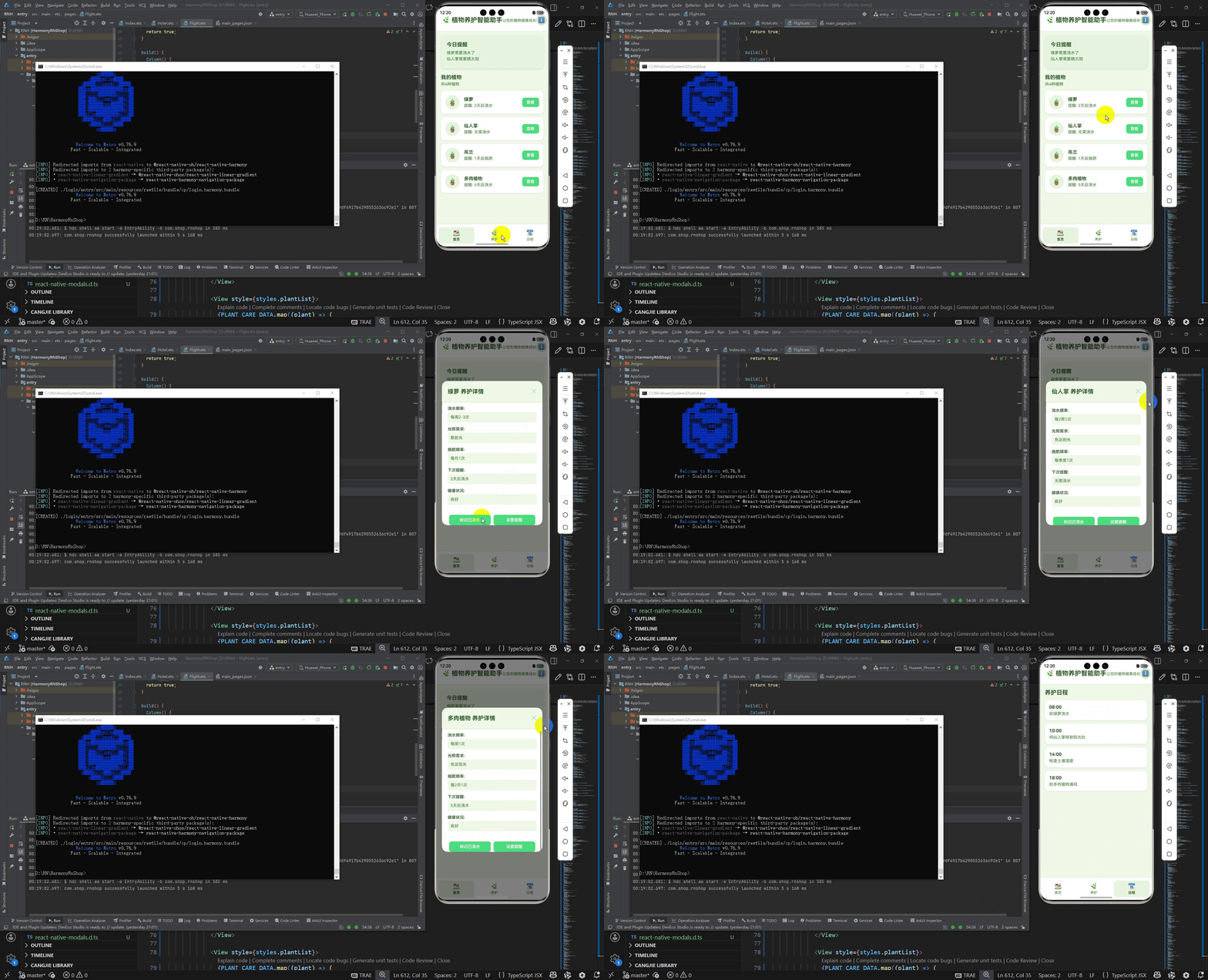
最后运行效果图如下显示:
欢迎大家加入开源鸿蒙跨平台开发者社区,一起共建开源鸿蒙跨平台生态。

作为“人工智能6S店”的官方数字引擎,为AI开发者与企业提供一个覆盖软硬件全栈、一站式门户。
更多推荐

 9
9 0
0- 0


 已为社区贡献17条内容

所有评论(0)