
鸿蒙学习实战之路-图文混排全攻略
·
鸿蒙学习实战之路-图文混排全攻略
最近好多朋友问我:“西兰花啊,在鸿蒙里怎么让文字和图片混着排啊?像淘宝商品详情那种,有图有字还能各种样式的?” 害,这问题可问对人了!今天我就手把手带你玩转鸿蒙里的图文混排,从基础到进阶,全程代码可运行,看完你也能做出漂亮的商品详情页~
一、基础玩法:用 Span 和 ImageSpan 实现图文混排
咱们先从简单的来,就像做番茄炒蛋,先把鸡蛋炒好~ 用 Span 和 ImageSpan 可以轻松实现图片和文字的混合排列,特别适合做商品价格展示这种场景。
代码示例
Text() {
  // 替换为任意图片资源
  ImageSpan($r('app.media.hot_sale'))
    .width(50)
    .height(30)
    .borderRadius(5)
    .verticalAlign(ImageSpanAlignment.FOLLOW_PARAGRAPH)
  Span('惊喜价 ¥1299')
    .fontSize(25)
    .fontColor(Color.Red)
  Span('1599')
    .decoration({
      type: TextDecorationType.LineThrough,
      color: Color.Grey,
      style: TextDecorationStyle.SOLID
    })
    .fontSize(16)
}.textVerticalAlign(TextVerticalAlign.CENTER)
代码解析
- ImageSpan:就像 Vue 的 v-html 里插图片,这里用 ImageSpan 把图片塞到文字里
- verticalAlign:设置图片的垂直对齐方式,FOLLOW_PARAGRAPH 表示跟着段落走
- Span:文本块,可以单独设置样式,比如这里的红色大字体和灰色删除线
- textVerticalAlign:整个 Text 组件的垂直对齐,CENTER 让内容居中显示
效果展示

🥦 西兰花小贴士:
ImageSpan 的尺寸别设太大,不然会把文字挤变形哦!就像炒菜别放太多盐,适量就好~
二、进阶玩法:用属性字符串实现图文混排
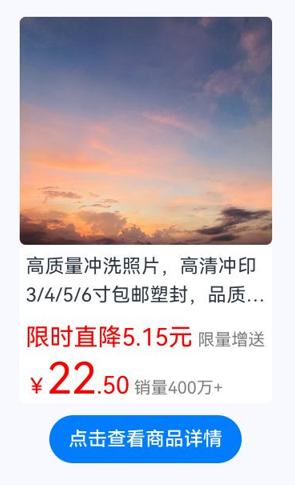
如果说 Span 是番茄炒蛋,那属性字符串就是佛跳墙——更复杂但更强大!适合做那种图文并茂的商品详情页。
代码示例
// xxx.ets
import { image } from '@kit.ImageKit';
import { LengthMetrics } from '@kit.ArkUI';

@Entry
@Component
struct styled_string_demo {
  @State message: string = 'Hello World';
  imagePixelMap: image.PixelMap | undefined = undefined;
  @State imagePixelMap3: image.PixelMap | undefined = undefined;
  mutableStr: MutableStyledString = new MutableStyledString('123');
  controller: TextController = new TextController();
  mutableStr2: MutableStyledString = new MutableStyledString('This is set decoration line style to the mutableStr2', [{
    start: 0,
    length: 15,
    styledKey: StyledStringKey.DECORATION,
    styledValue: new DecorationStyle({
      type: TextDecorationType.Overline,
      color: Color.Orange,
      style: TextDecorationStyle.DOUBLE
    })
  }]);

  async aboutToAppear() {
    console.info("aboutToAppear initial imagePixelMap");
    // 替换为任意图片资源
    this.imagePixelMap = await this.getPixmapFromMedia($r('app.media.sky'));
  }

  private async getPixmapFromMedia(resource: Resource) {
    let unit8Array = await this.getUIContext().getHostContext()?.resourceManager?.getMediaContent(resource.id);
    let imageSource = image.createImageSource(unit8Array?.buffer?.slice(0, unit8Array?.buffer?.byteLength));
    let createPixelMap: image.PixelMap = await imageSource.createPixelMap({
      desiredPixelFormat: image.PixelMapFormat.RGBA_8888
    });
    await imageSource.release();
    return createPixelMap;
  }

  leadingMarginValue: ParagraphStyle = new ParagraphStyle({
    leadingMargin: LengthMetrics.vp(5),
    maxLines: 2,
    overflow: TextOverflow.Ellipsis,
    textVerticalAlign: TextVerticalAlign.BASELINE
  });
  // 行高样式对象
  lineHeightStyle1: LineHeightStyle = new LineHeightStyle(new LengthMetrics(24));
  // Bold样式
  boldTextStyle: TextStyle = new TextStyle({ fontWeight: FontWeight.Bold });
  // 创建含段落样式的对象paragraphStyledString1
  paragraphStyledString1: MutableStyledString = new MutableStyledString("\n高质量冲洗照片,高清冲印3/4/5/6寸包邮塑封,品质保证,", [{
    start: 0,
    length: 28,
    styledKey: StyledStringKey.PARAGRAPH_STYLE,
    styledValue: this.leadingMarginValue
  }, {
    start: 11,
    length: 4,
    styledKey: StyledStringKey.LINE_HEIGHT,
    styledValue: this.lineHeightStyle1
  }]);
  paragraphStyledString2: MutableStyledString = new MutableStyledString("\n限时直降5.15元 限量增送", [{
    start: 0,
    length: 5,
    styledKey: StyledStringKey.PARAGRAPH_STYLE,
    styledValue: this.leadingMarginValue
  }, {
    start: 0,
    length: 4,
    styledKey: StyledStringKey.LINE_HEIGHT,
    styledValue: new LineHeightStyle(new LengthMetrics(40))
  }, {
    start: 0,
    length: 9,
    styledKey: StyledStringKey.FONT,
    styledValue: this.boldTextStyle
  }, {
    start: 1,
    length: 9,
    styledKey: StyledStringKey.FONT,
    styledValue: new TextStyle({ fontSize: LengthMetrics.vp(20), fontColor: Color.Red })
  }, {
    start: 11,
    length: 4,
    styledKey: StyledStringKey.FONT,
    styledValue: new TextStyle({ fontColor: Color.Grey, fontSize: LengthMetrics.vp(14) })
  }]);
  paragraphStyledString3: MutableStyledString = new MutableStyledString("\n¥22.50 销量400万+", [{
    start: 0,
    length: 15,
    styledKey: StyledStringKey.PARAGRAPH_STYLE,
    styledValue: this.leadingMarginValue
  }, {
    start: 0,
    length: 7,
    styledKey: StyledStringKey.LINE_HEIGHT,
    styledValue: new LineHeightStyle(new LengthMetrics(40))
  }, {
    start: 0,
    length: 7,
    styledKey: StyledStringKey.FONT,
    styledValue: this.boldTextStyle
  }, {
    start: 1,
    length: 1,
    styledKey: StyledStringKey.FONT,
    styledValue: new TextStyle({ fontSize: LengthMetrics.vp(18), fontColor: Color.Red })
  }, {
    start: 2,
    length: 2,
    styledKey: StyledStringKey.FONT,
    styledValue: new TextStyle({ fontSize: LengthMetrics.vp(36), fontColor: Color.Red })
  }, {
    start: 4,
    length: 3,
    styledKey: StyledStringKey.FONT,
    styledValue: new TextStyle({ fontColor: Color.Grey, fontSize: LengthMetrics.vp(14) })
  }]);

  build() {
    Row() {
      Column({ space: 10 }) {
        Text(undefined, { controller: this.controller })
          .copyOption(CopyOptions.InApp)
          .draggable(true)
          .backgroundColor('#FFFFFF')
          .borderRadius(5)
          .width(210)

        Button('点击查看商品详情')
          .onClick(() => {
            if (this.imagePixelMap !== undefined) {
              this.mutableStr = new MutableStyledString(new ImageAttachment({
                value: this.imagePixelMap,
                size: { width: 210, height: 190 },
                verticalAlign: ImageSpanAlignment.BASELINE,
                objectFit: ImageFit.Fill,
                layoutStyle: {
                  borderRadius: LengthMetrics.vp(5)
                }
              }));
              this.paragraphStyledString1.appendStyledString(this.paragraphStyledString2);
              this.paragraphStyledString1.appendStyledString(this.paragraphStyledString3);
              this.mutableStr.appendStyledString(this.paragraphStyledString1);
              this.controller.setStyledString(this.mutableStr);
            }
          })
      }
      .width('100%')
    }
    .height('100%')
    .backgroundColor('#F8F8FF')
  }
}
代码解析
- MutableStyledString:可变的属性字符串,就像 CSS 的 style 标签,可以给不同位置的文字设置不同样式
- ImageAttachment:把图片附件到字符串里,比 ImageSpan 更灵活
- StyledStringKey:样式的键,比如 PARAGRAPH_STYLE(段落样式)、FONT(字体样式)、LINE_HEIGHT(行高)
- TextController:控制 Text 组件的内容,点击按钮时动态更新
效果展示
🥦 西兰花警告:
使用属性字符串时要注意内存管理,图片用完记得释放资源!我有个朋友就是因为没释放资源,导致应用越用越卡,debug 了两小时才找到原因!
三、两种方法对比
| 方法 | 适用场景 | 复杂度 | 灵活性 |
|---|---|---|---|
| Span + ImageSpan | 简单的图文混排(如价格展示) | ⭐⭐ | ⭐⭐⭐ |
| 属性字符串 | 复杂的图文混排(如商品详情) | ⭐⭐⭐⭐ | ⭐⭐⭐⭐⭐ |
四、官方文档推荐
官方文档是个好东西!说三遍!遇到问题先查官方文档:
总结
今天咱们学会了鸿蒙里的两种图文混排方法:
- 基础版:Span + ImageSpan,适合简单场景
- 进阶版:属性字符串,适合复杂场景
是不是超简单?就像炒菜一样,掌握了基本方法,想怎么发挥就怎么发挥!
📚 推荐资料:
- 官方入门教程:开发者学堂
我是盐焗西兰花,
不教理论,只给你能跑的代码和避坑指南。
下期见!🥦
需要参加鸿蒙认证的请点击 鸿蒙认证链接

作为“人工智能6S店”的官方数字引擎,为AI开发者与企业提供一个覆盖软硬件全栈、一站式门户。
更多推荐

 28
28 0
0- 0


 已为社区贡献89条内容

所有评论(0)