
鸿蒙基础容器布局
布局
布局概述
布局指用特定的组件或者属性来管理用户页面所放置UI组件的大小和位置。在实际开发过程中,需要遵守一下流程保证整体的布局效果:
- 确定页面的布局结构
- 分析页面的元素结构
- 选用适合的布局容器组件或属性控制页面中各个元素的位置和大小约束
布局结构
布局的结构通常是分层级的,代表了用户界面中的整体架构。一个常见的页面结构如下
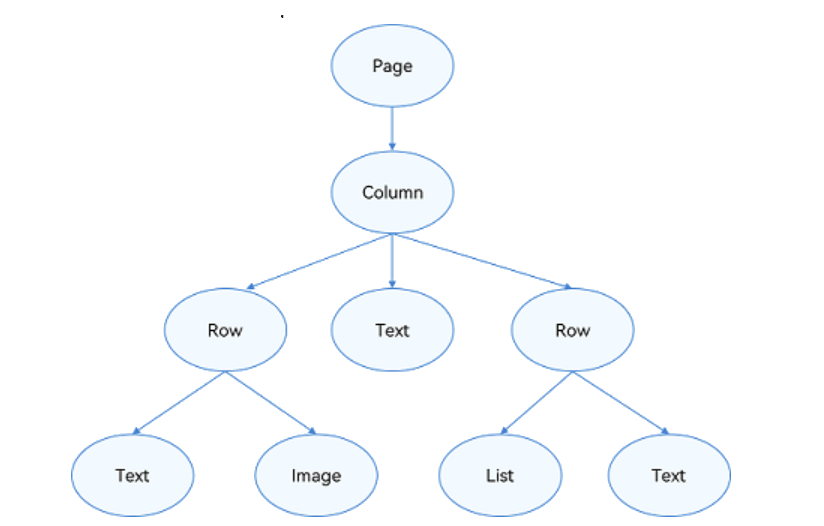
为实现上述效果,开发者需要在页面中声明对应的元素。其中,Page表示页面的根节点,Column/Row等元素为系统组件。针对不同页面结构,ArkUI提供了不同的布局组件来帮助开发者实现对应的效果。声明式UI提供了10种常见布局,开发者可根据实际场景选择合适的布局进行页面开发
布局组件
布局
线性布局(Row/Column)
层叠布局(Stack)
弹性布局(Flex)
相对布局(RelativeContainer)
栅格布局(GridRow/GridCol)
媒体查询(@ohos.mediaQuery)
列表(List)
网格(Grid)
轮播(swiper)
选项卡(Tabs)
| 布局 | 应用场景 |
|---|---|
| 线性布局(Row/Column) | 如果布局内元素超过一个,且能够以某种方式线性排列时优先考虑此布局 |
| 层叠布局(Stack) | 组件需要有堆叠效果时优先考虑此布局,层叠布局的堆奢效果不会占 或影响其他同容器内子组件的布局空间。例如:Panel作为子组件弹出时将其他组件覆盖更为合理,则优先考虑在外层使 堆叠布局 |
| 弹性布局(Flex) | 弹性布局是与线性布局类似的布局 式。区别在于弹性布局默认能够使了组件压缩或拉伸。在 组件需要计算拉伸或压缩比例时优先使 此布局,可使得多个容器内子组件能有更好的视觉上的填充容器效果 |
| 相对布局(RelativeContainer) | 相对布局是在二维空间中的布局方式,不需要遵循线性布局的规则,布局方式更为 由。通过在 组件上设置锚点(AlignRules)使子组件能够将自己在横轴、纵轴中的位置与容器或容器内其他子组件的位置对齐。设置的锚点规则可以天然支持子元素压缩、拉伸,堆叠或形成多行效果。在页面元素分布复杂或通过线性布局会使容器嵌套层数过深时推荐使用 |
| 栅格布局(GridRow/GridCol) | 相对布局是在二维空间中的布局方式,不需要遵循线性布局的规则,布局方式更为 由。通过在 组件上设置锚点(AlignRules)使子组件能够将自己在横轴、纵轴中的位置与容器或容器内其他子组件的位置对齐。设置的锚点规则可以天然支持子元素压缩、拉伸,堆叠或形成多行效果。在页面元素分布复杂或通过线性布局会使容器嵌套层数过深时推荐使用 |
| 媒体查询(@ohos.mediaQuery) | 媒体查询可根据不同设备类型或同设备不同状态修改应用的样式。例如根据设备和应用的不同属性信息设计不同的布局,以及屏幕发生动态改变时更新应用的页面布局 |
| 列表(List) | 使用列表可以轻松高效地显示结构化、可滚动的信息。在Arku中,列表具有垂直和水平布局能力和自适应交叉轴方向上排列个数的布局镜力,超出屏幕时可以滚动。列表适合用于星现同类数据类型或数据类型集,例如图片和文本。 |
| 网格(Grid) | 网格布局具有较强的页面均分能力,子组占比控制能力,是一种重要自适应布局。网格布局可以控制元素所占的网格数量、设置子组件横跨几行或者几列,当网格容器尺寸发生变化时,所有子组件以及间距等比例调整。推荐在需要按照固定比例或者均匀分配空间的布局场景下使用,例如计算器、相册、日历等 |
| 轮播(swiper) | 轮播组件通常用于实现广告轮播、图片览可滚动应用等。 |
| 选项卡(Tabs) | 选项卡可以在一个页面内快速实现视图内容的切换,一方面提升查找信息的效率,另一方面精简用户单次获取到的信息量。 |
线性布局(Linearlayout)是开发中最常用的布局,通过线性容器Row和Column构建。线性布局是其他布局的基础,其子元素在
线性方向上(水平方向和垂直方向)依次排列。线性布局的排列方向由所选容器组件决定,Column容器内子元素按照垂直方向排
列,Row容器内子元素按照水平方向排列。根据不同的排列方向,开发者可选择使用Row或Column容器创建线性布局。
Row容器内子元素排列
build() {
    Row(){
        Row().width('20%').height(400).backgroundColor(Color.Green)
        Row().width('20%').height(400).backgroundColor(Color.Yellow)
        Row().width('20%').height(400).backgroundColor(Color.Green)
        Row().width('20%').height(400).backgroundColor(Color.Yellow)
        Row().width('20%').height(400).backgroundColor(Color.Green)
    }
}
Column容器内子元素排列
build() {
    Column(){
        Column().width('100%').height(50).backgroundColor(Color.Green)
        Column().width('100%').height(50).backgroundColor(Color.Yellow)
        Column().width('100%').height(50).backgroundColor(Color.Green)
        Column().width('100%').height(50).backgroundColor(Color.Yellow)
        Column().width('100%').height(50).backgroundColor(Color.Green)
    }
}
布局子元素在排列方向上的间距
在布局容器内,可以通过space属性设置排列方向上的子元素的间距,使各个元素在排列方向上有等间距效果
Column({space: 10})
在布局容器内,可以通过alignItems属性设置子元素在交叉轴(排列方向的垂直方向)上的对齐方式。且在各类尺寸屏幕中,表现一致。其中,交叉轴为垂直方向时,取值为VerticalAlign类型,水平方向取值为HorizontalAlign
Column容器内子元素在水平方向上的排列
HorizontalAlign属性取值:Start、Center、End
Column({}) {
    Column()
        .width('80%').height(50).backgroundColor(0xF5DEB3)

    Column()
        .width('80%').height(50).backgroundColor(0xD2B48C)

    Column()
        .width('80%').height(50).backgroundColor(0xF5DEB3)

}.width('100%').alignItems(HorizontalAlign.Start).backgroundColor('rgb(242,242,242)')
Row容器内子元素在垂直方向上的排列
VerticalAlign属性取值:Top、Center、Bottom
Row({}) {
    Column()
        .width('20%').height(30).backgroundColor(0xF5DEB3)

    Column()
        .width('20%').height(30).backgroundColor(0xD2B48C)

    Column()
        .width('20%').height(30).backgroundColor(0xF5DEB3)

}.width('100%').height(200).alignItems(VerticalAlign.Top).backgroundColor('rgb(242,242,242)')
布局子元素在主轴上的排列方式
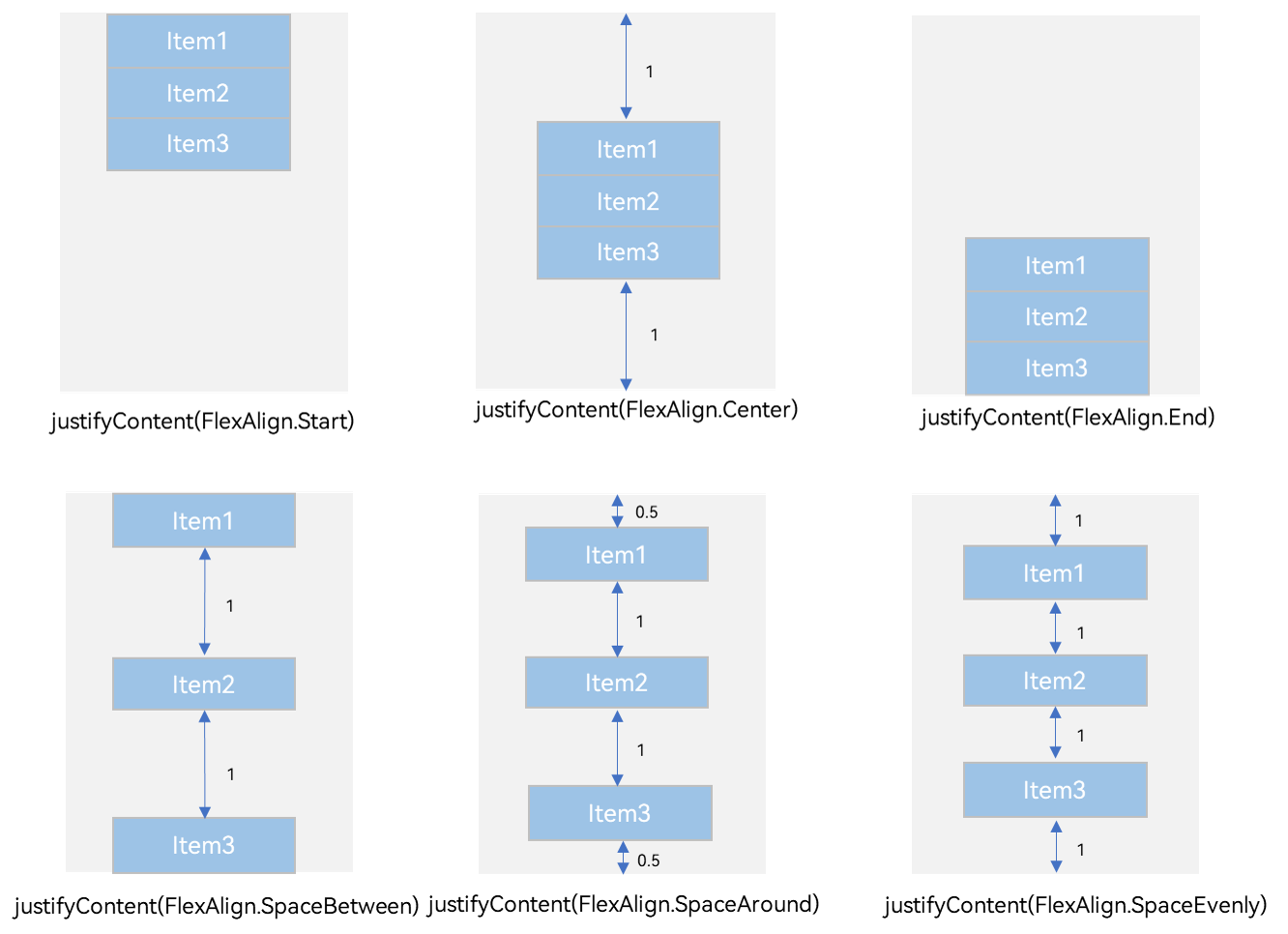
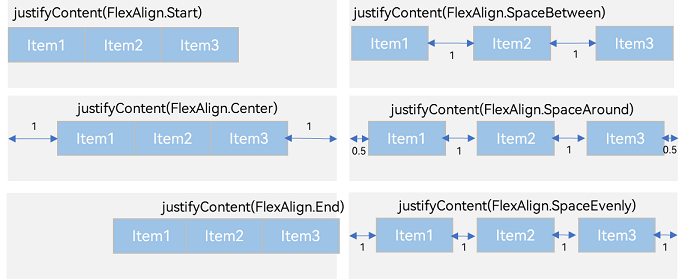
在布局容器内,可以通过justifyContent属性设置子元素在容器主轴上的排列方式。可以从主轴起始位置开始排布,也可以从主轴结束位置开始排布,或者均匀分割主轴的空间。
Column容器内子元素在垂直方向上的排列
Column({}) {
    Column()
        .width('80%').height(50).backgroundColor(0xF5DEB3)

    Column()
        .width('80%').height(50).backgroundColor(0xD2B48C)

    Column()
        .width('80%').height(50).backgroundColor(0xF5DEB3)

}.width('100%').height(300).backgroundColor('rgb(242,242,242)').justifyContent(FlexAlign.Start)
Row容器内子元素在水平方向上的排列
Row({}) {
    Column()
        .width('20%').height(30).backgroundColor(0xF5DEB3)

Column()
    .width('20%').height(30).backgroundColor(0xD2B48C)

Column()
    .width('20%').height(30).backgroundColor(0xF5DEB3)

}.width('100%').height(200).backgroundColor('rgb(242,242,242)').justifyContent(FlexAlign.Start)
自适应缩放
自适应缩放是指子组件随容器尺寸的变化而按照预设的比例自动调整尺寸,适应各种不同大小的设备。在线性布局中,可以使用以下两种方法实现自适应缩放。
-
父容器尺寸确定时,使用layoutWeight属性设置子组件和兄弟元素在主轴上的权重,忽略元素本身尺寸设置,使它们在任意尺寸的设备下自适应占满剩余空间
-
父容器尺寸确定时,使用百分比设置子组件和兄弟元素的宽度,使他们在任意尺寸的设备下保持固定的自适应占比
  Row() {
      Column() {
          Text('layoutWeight(1)')
              .textAlign(TextAlign.Center)
      }.layoutWeight(1).backgroundColor(0xF5DEB3).height('100%')

      Column() {
          Text('layoutWeight(2)')
              .textAlign(TextAlign.Center)
      }.layoutWeight(2).backgroundColor(0xD2B48C).height('100%')

      Column() {
          Text('layoutWeight(3)')
              .textAlign(TextAlign.Center)
      }.layoutWeight(3).backgroundColor(0xF5DEB3).height('100%')

  }.height('30%')
    Row() {
        Column() {
            Text('layoutWeight(1)')
                .textAlign(TextAlign.Center)
        }.width("20%").backgroundColor(0xF5DEB3).height('100%')

        Column() {
            Text('layoutWeight(2)')
            .textAlign(TextAlign.Center)
        }.width("40%").backgroundColor(0xD2B48C).height('100%')

        Column() {
            Text('layoutWeight(3)')
            .textAlign(TextAlign.Center)
        }.width("40%").backgroundColor(0xF5DEB3).height('100%')

    }.height('30%')
自适应延伸
自适应延伸是指在不同尺寸设备下,当页面的内容超出屏幕大小而无法完全显示时,可以通过滚动条进行拖动展示。这种方法适用于线性布局中内容无法一屏展示的场景。通常有以下两种实现方式
-
在List中添加滚动条:当List子项过多一屏放不下时,可以将每一项子元素放置在不同的组件中,通过滚动条进行拖动展示。可以通过scrollBar属性设置滚动条的常驻状态,edgeEffect属性设置拖动到内容最末端的回弹效果。
-
使用Scroll组件:在线性布局中,开发者可以进行垂直方向或者水平方向的布局。当一屏无法完全显示时,可以在Column或Row组件的外层包裹一个可滚动的容器组件Scroll来实现可滑动的线性布局。
垂直方向布局中使用Scroll组件
@Entry
@Component
struct ScrollExample {
    scroller:Scroll = new Scroll()
    private arr:number[] = [0,1,2,3,4,5,6,7,8,9]

    build() {
        Scroll() {
            Column() {
                ForEach(this.arr, item => {
                    Text(item.toString())
                        .width('90%')
                        .height(150)
                        .backgroundColor(0xFFFFFF)
                        .borderRadius(15)
                        .fontSize(16)
                        .textAlign(TextAlign.Center)
                        .margin({top: 10})
                }, item=> item)
            }
            .width('100%')
        }
        .backgroundColor(0xDCDCDC)
        .scrollable(ScrollDirection.Vertical)// 滚动方向为垂直放向
        .scrollBar(BarState.On)// 滚动条常驻
        .scrollBarColor(Color.Gray)// 滚动条颜色
        .scrollBarWidth(10)// 滚动条宽度
        .edgeEffect(EdgeEffect.Spring)// 滚动到边沿后回弹
    }
}
水平方向布局中使用Scroll组件
@Entry
@Component
    struct ScrollExample {
        scroller: Scroller = new Scroller();
        private arr: number[] = [0, 1, 2, 3, 4, 5, 6, 7, 8, 9];

        build() {
            Scroll(this.scroller) {
            Row() {
                ForEach(this.arr, (item) => {
                    Text(item.toString())
                        .height('90%')
                        .width(150)
                        .backgroundColor(0xFFFFFF)
                        .borderRadius(15)
                        .fontSize(16)
                        .textAlign(TextAlign.Center)
                        .margin({ left: 10 })
                    })
                }.height('100%')
        }
        .backgroundColor(0xDCDCDC)
        .scrollable(ScrollDirection.Horizontal) // 滚动方向为水平方向
        .scrollBar(BarState.On) // 滚动条常驻显示
        .scrollBarColor(Color.Gray) // 滚动条颜色
        .scrollBarWidth(10) // 滚动条宽度
        .edgeEffect(EdgeEffect.Spring) // 滚动到边沿后回弹
    }
}
网格(一)
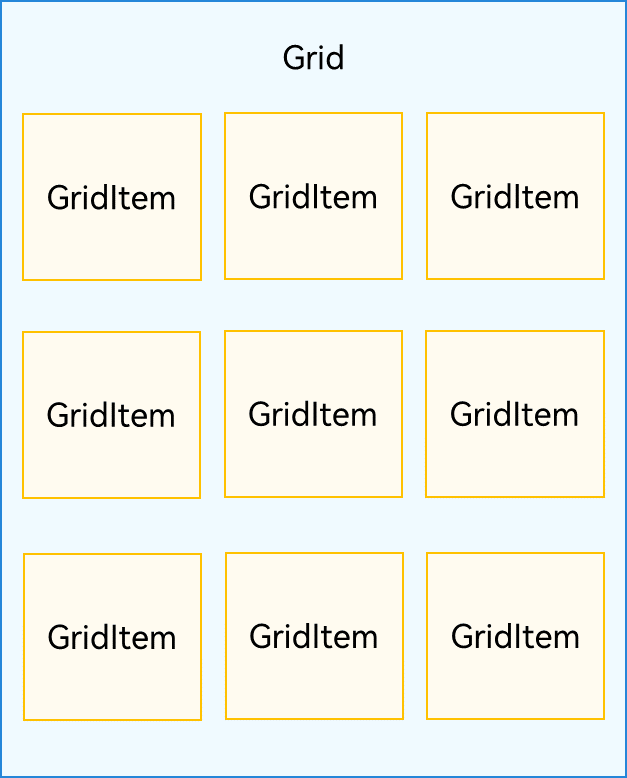
网格布局是由“行”和“列”分割的单元格所组成,通过指定“项目”所在的单元格做出各种各样的布局。网格布局具有较强的页面均分能力,子组件占比控制能力,是一种重要自适应布局,其使用场景有九宫格图片展示、日历、计算器等
ArkUI提供了Grid容器组件和子组件GridItem,用于构建网格布局。Grid用于设置网格布局相关参数,GridItem定义子组件相关特征。Grid组件支持使用条件渲染、循环渲染、懒加载等渲染控制方式生成子组件
温习提示
Grid的子组件必须时GridItem组件
build() {
    Row() {
        Grid(){
            GridItem().backgroundColor(Color.Red)
            GridItem().backgroundColor(Color.Black)
            GridItem().backgroundColor(Color.Blue)
            GridItem().backgroundColor(Color.Grey)
            GridItem().backgroundColor(Color.Pink)
            GridItem().backgroundColor(Color.Yellow)
            GridItem().backgroundColor(Color.Green)
            GridItem().backgroundColor(Color.Black)
            GridItem().backgroundColor(Color.Orange)
        }
        .rowsTemplate('1fr 1fr 1fr')
        .columnsTemplate('1fr 2fr 1fr')
    }
    .height(300)
    .width("100%")
}
网格(二)
网格布局是一种二维布局。Grid组件支持自定义行列数和每行每列尺寸占比、设置子组件横跨几行或者几列,同时提供了垂直和水平布局能力。当网格容器组件尺寸发生变化时,所有子组件以及间距会等比例调整,从而实现网格布局的自适应能力。根据Grid的这些布局能力,可以构建出不同样式的网格布局
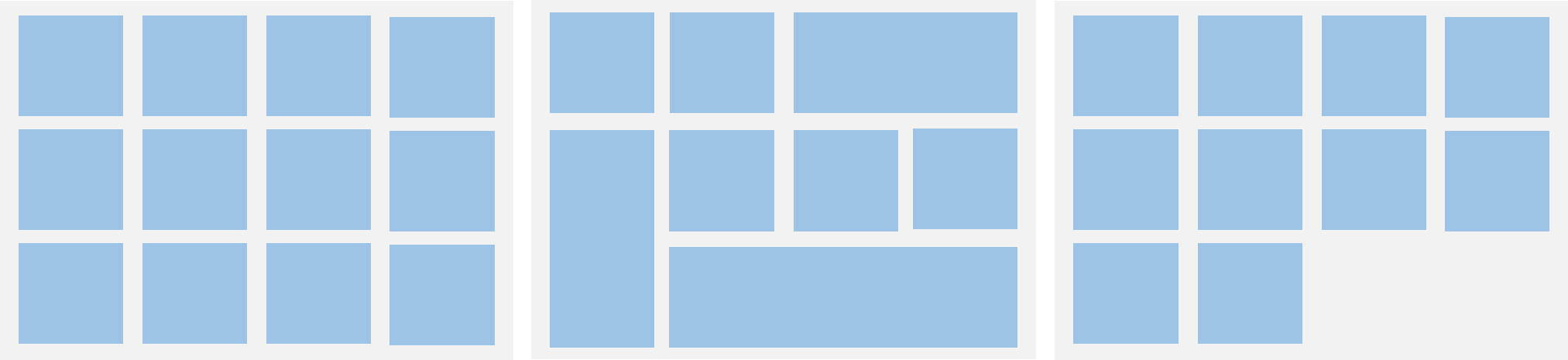
build() {
    Row() {
        Grid(){
            GridItem().backgroundColor(Color.Red)
            GridItem().backgroundColor(Color.Black)
            GridItem().backgroundColor(Color.Blue).columnStart(3).columnEnd(4)
            GridItem().backgroundColor(Color.Pink).rowStart(2).rowEnd(3)
            GridItem().backgroundColor(Color.Green)
            GridItem().backgroundColor(Color.Black)
            GridItem().backgroundColor(Color.Orange)
            GridItem().backgroundColor(Color.Blue).columnStart(2).columnEnd(4)

        }
        .rowsTemplate('1fr 1fr 1fr')
        .columnsTemplate('1fr 1fr 1fr 1fr')
    }
    .height(300)
    .width("100%")
}
设置主轴方向
使用Grid构建网格布局时,若没有设置行列数量与占比,可以通过layoutDirection可以设置网格布局的主轴方向,决定子组件的排列方式。此时可以结合minCount和maxCount属性来约束主轴方向上的网格数量
温馨提示
当Grid组件设置了rowsTemplate或columnsTemplate时,Grid的layoutDirection、maxCount、minCount、cellLength属性不生效
build() {
    Row() {
        Grid(){`
            GridItem(){
                Text("1").fontSize(30)
            }
            .backgroundColor(Color.Red)
            .width("33.33%")
            .height("33.33%")


            GridItem(){
                Text("2").fontSize(30)
            }
            .backgroundColor(Color.Black)
            .width("33.33%")
            .height("33.33%")


            GridItem(){
                Text("3").fontSize(30)
            }
            .backgroundColor(Color.Blue)
            .width("33.33%")
            .height("33.33%")


            GridItem(){
                Text("4").fontSize(30)
            }
            .backgroundColor(Color.Pink)
            .width("33.33%")
            .height("33.33%")
            GridItem(){
                Text("5").fontSize(30)
            }
            .backgroundColor(Color.Green)
            .width("33.33%")
            .height("33.33%")


            GridItem(){
                Text("6").fontSize(30)
            }
            .backgroundColor(Color.Black)
            .width("33.33%")
            .height("33.33%")

            GridItem(){
                Text("7").fontSize(30)
            }
            .backgroundColor(Color.Orange)
            .width("33.33%")
            .height("33.33%")


            GridItem(){
                Text("8").fontSize(30)
            }
            .backgroundColor(Color.Blue)
            .width("33.33%")
            .height("33.33%")

            GridItem(){
                Text("9").fontSize(30)
            }
            .backgroundColor(Color.Orange)
            .width("33.33%")
            .height("33.33%")
        }
        .maxCount(3)
        .layoutDirection(GridDirection.Column)
    }
    .height(300)
    .width("100%")
}
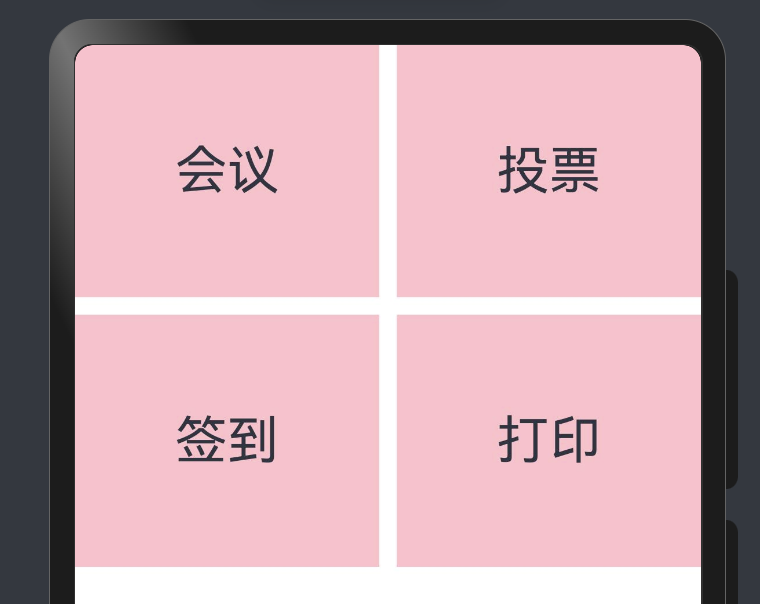
在网格布局中显示数据
@Entry
@Component
struct Index {

    @State services: Array<string> = ['会议', '投票', '签到', '打印']
    build() {
        Row() {
            Grid(){
                ForEach(this.services, service => {
                    GridItem() {
                        Text(service).fontSize(30)
                    }.backgroundColor(Color.Gray)
                }, service => service)
            }
            .columnsTemplate('1fr 1fr')
            .rowsTemplate('1fr 1fr')
            .columnsGap(10)
            .rowsGap(10)
        }
        .height(300)
        .width("100%")
    }
}
构建可滚动的网格布局
如果Grid组件设置了宽高属性,则其尺寸为设置值。如果没有设置宽高属性,Grid组件的尺寸默认适应其父组件的尺寸
Grid组件根据行列数量与占比属性的设置,可以分为三种布局情况:
-
行、列数量与占比同时设置:Grid只展示固定行列数的元素,其余元素不展示,且Grid不可滚动。(推荐使用该种布局方式)
-
只设置行、列数量与占比中的一个:元素按照设置的方向进行排布,超出的元素可通过滚动的方式展示。
-
行列数量与占比都不设置:元素在布局方向上排布,其行列数由布局方向、单个网格的宽高等多个属性共同决定。超出行列容纳范围的元素不展示,且Grid不可滚动。
  build() {
      Column({ space: 5 }) {
          Grid(){
              GridItem(){
                  Text("1").fontSize(30)
              }
              .backgroundColor(Color.Red)
              .width("33.33%")
              .height("33.33%")

              GridItem(){
                  Text("2").fontSize(30)
              }
              .backgroundColor(Color.Black)
              .width("33.33%")
              .height("33.33%")

              GridItem(){
                  Text("3").fontSize(30)
              }
              .backgroundColor(Color.Blue)
              .width("33.33%")
              .height("33.33%")

              GridItem(){
                  Text("4").fontSize(30)
              }
              .backgroundColor(Color.Pink)
              .width("33.33%")
              .height("33.33%")

              GridItem(){
                  Text("5").fontSize(30)
              }
              .backgroundColor(Color.Green)
              .width("33.33%")
              .height("33.33%")

              GridItem(){
                  Text("6").fontSize(30)
              }
              .backgroundColor(Color.Black)
              .width("33.33%")
              .height("33.33%")

              GridItem(){
                  Text("7").fontSize(30)
              }
              .backgroundColor(Color.Orange)
              .width("33.33%")
              .height("33.33%")

              GridItem(){
                  Text("8").fontSize(30)
              }
              .backgroundColor(Color.Blue)
              .width("33.33%")
              .height("33.33%")

              GridItem(){
                  Text("9").fontSize(30)
              }
              .backgroundColor(Color.Orange)
              .width("33.33%")
              .height("33.33%")

              GridItem(){
                  Text("10").fontSize(30)
              }
              .backgroundColor(Color.Blue)
          }
          .rowsTemplate('1fr 1fr')
          // .columnsTemplate('1fr 1fr')
      }
      .height(300)
      .width("100%")
  }
Flex
ArkUI 开发框架为了方便开发者实现灵活的页面布局方式,提供了弹性布局
Flex ,它用来为盒装模型提供最大的灵活性。
Flex 和 Row,Column 组件一样,也有主轴和纵轴之分。
interface FlexInterface {
    (value?: FlexOptions): FlexAttribute;
}

declare interface FlexOptions {
    direction?: FlexDirection;
    wrap?: FlexWrap;
    justifyContent?: FlexAlign;
    alignItems?: ItemAlign;
    alignContent?: FlexAlign;
}

Flex({direction:FlexDirection.Row}){
  Text("Text1")
    .fontSize(16)
    .padding(10)
    .backgroundColor("#aabbcc")

  Text("Text2")
    .fontSize(16)
    .padding(10)
    .backgroundColor("#bbaacc")

  Text("Text3")
    .fontSize(16)
    .padding(10)
    .backgroundColor("#ccaabb")

  Text("Text4")
    .fontSize(16)
    .padding(10)
    .backgroundColor("#abcabc")
}
.width("100%")
.height(60)
.backgroundColor(Color.Pink)
RowReverse:子组件水平排列,即主轴为水平方向纵轴为竖直方向,子组件由右向左排列
Flex({direction:FlexDirection.RowReverse}){
  Text("Text1")
    .fontSize(16)
    .padding(10)
    .backgroundColor("#aabbcc")

  Text("Text2")
    .fontSize(16)
    .padding(10)
    .backgroundColor("#bbaacc")

  Text("Text3")
    .fontSize(16)
    .padding(10)
    .backgroundColor("#ccaabb")

  Text("Text4")
    .fontSize(16)
    .padding(10)
    .backgroundColor("#abcabc")
}
.width("100%")
.height(60)
.backgroundColor(Color.Pink)
样例运行结果如下图所示:

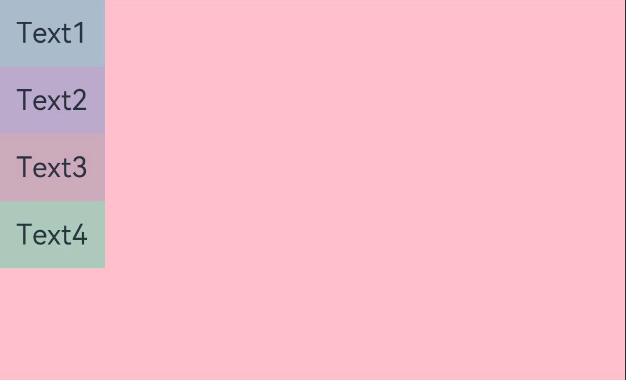
Column:子组件垂直排列,即主轴为垂直方向,起点在上边,子组件由上到下排列。
Flex({direction:FlexDirection.Column}){
  Text("Text1")
    .fontSize(16)
    .padding(10)
    .backgroundColor("#aabbcc")

  Text("Text2")
    .fontSize(16)
    .padding(10)
    .backgroundColor("#bbaacc")

  Text("Text3")
    .fontSize(16)
    .padding(10)
    .backgroundColor("#ccaabb")

  Text("Text4")
    .fontSize(16)
    .padding(10)
    .backgroundColor("#abcabc")
}
.width("100%")
.height("220")
.backgroundColor(Color.Pink)
样例运行结果如下图所示:
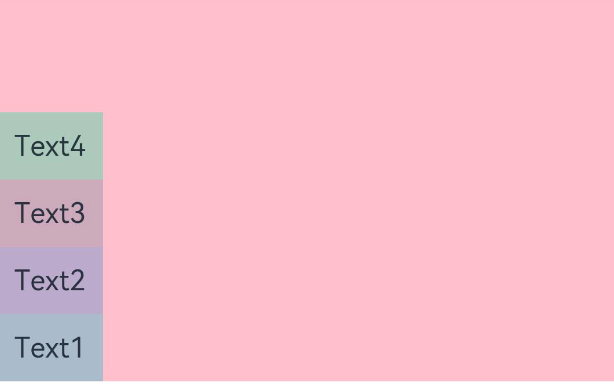
ColumnReverse:子组件竖直排列,即主轴为垂直方向,起点在下边,子组件由下到上排列。
Flex({direction:FlexDirection.ColumnReverse}){
  Text("Text1")
    .fontSize(16)
    .padding(10)
    .backgroundColor("#aabbcc")

  Text("Text2")
    .fontSize(16)
    .padding(10)
    .backgroundColor("#bbaacc")

  Text("Text3")
    .fontSize(16)
    .padding(10)
    .backgroundColor("#ccaabb")

  Text("Text4")
    .fontSize(16)
    .padding(10)
    .backgroundColor("#abcabc")
}
.width("100%")
.height("220")
.backgroundColor(Color.Pink)
样例运行结果如下图所示:
wrap:设置子组件是单行/列还是多行/列排序,FlexWrap提供了以下三种类型:
- NoWrap(默认值):子组件单行/列排序,子组件不允许超出容器
Flex({direction:FlexDirection.Row, wrap:FlexWrap.NoWrap}){
  Text("Text1")
    .fontSize(16)
    .padding(10)
    .backgroundColor("#aabbcc")

  Text("Text2")
    .fontSize(16)
    .padding(10)
    .backgroundColor("#bbaacc")

  Text("Text3")
    .fontSize(16)
    .padding(10)
    .backgroundColor("#ccaabb")

  Text("Text4")
    .fontSize(16)
    .padding(10)
    .backgroundColor("#abcabc")

  Text("Text5")
    .fontSize(16)
    .padding(10)
    .backgroundColor("#cabcab")

  Text("Text6")
    .fontSize(16)
    .padding(10)
    .backgroundColor("#aabbcc")
}
.width("100%")
.height(60)
.backgroundColor(Color.Pink)
-
Wrap:子组件多行/列排序,子组件允许超出容器
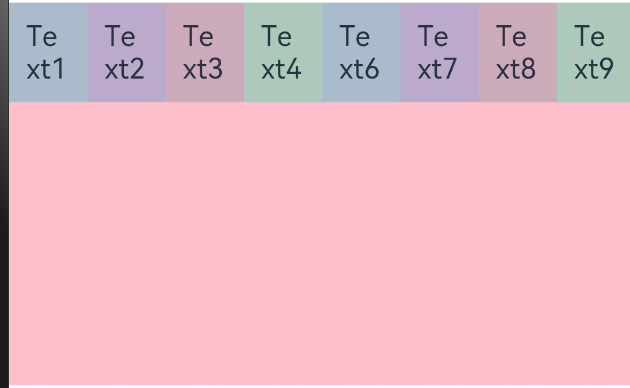
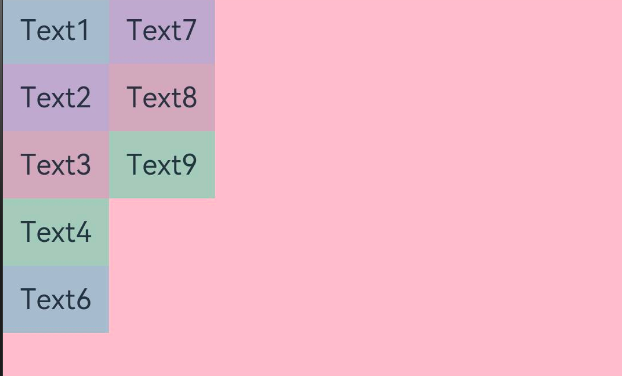
-
WrapReverse:子组件反向多行/列排序,子组件允许超出容器
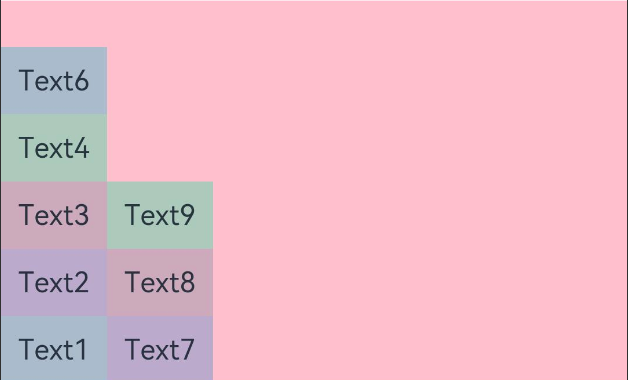
Flex({direction:FlexDirection.Column, wrap:FlexWrap.WrapReverse}){
  Text("Text1")
    .fontSize(16)
    .padding(10)
    .backgroundColor("#aabbcc")

  Text("Text2")
    .fontSize(16)
    .padding(10)
    .backgroundColor("#bbaacc")

  Text("Text3")
    .fontSize(16)
    .padding(10)
    .backgroundColor("#ccaabb")

  Text("Text4")
    .fontSize(16)
    .padding(10)
    .backgroundColor("#abcabc")

  Text("Text5")
    .fontSize(16)
    .padding(10)
    .backgroundColor("#cabcab")

  Text("Text6")
    .fontSize(16)
    .padding(10)
    .backgroundColor("#aabbcc")

  Text("Text7")
    .fontSize(16)
    .padding(10)
    .backgroundColor("#bacbac")

  Text("Text8")
    .fontSize(16)
    .padding(10)
    .backgroundColor("#bcabca")

  Text("Text9")
    .fontSize(16)
    .padding(10)
    .backgroundColor("#bcabca")
}
.width("100%")
.height(220)
.backgroundColor(Color.Pink)
JustifyContent:设置子组件在主轴方向的对齐方式,FlexAlign提供了以下6种对齐方式:
Flex({direction: FlexDirection.Row, justifyContent: FlexAlign.Start}) {
    Text('Text1')
      .fontSize(16)
      .padding(10)
      .backgroundColor("#aabbcc")
    Text('Text2')
      .fontSize(16)
      .padding(10)
      .backgroundColor("#bbaacc")
    Text('Text3')
      .fontSize(16)
      .padding(10)
      .backgroundColor("#ccaabb")
    Text('Text4')
      .fontSize(16)
      .padding(10)
      .backgroundColor("#abcabc")
    }
    .width('100%')
    .height(60)
    .backgroundColor(Color.Pink)
-
Start(默认值):元素在主轴方向首端对齐, 第一个元素与行首对齐,同时后续的元素与前一个对齐。

-
Center:元素在主轴方向中心对齐,第一个元素与行首的距离与最后一个元素与行尾距离相同。

-
End:元素在主轴方向尾部对齐, 最后一个元素与行尾对齐,其他元素与后一个对齐。

-
SpaceBetween: Flex 主轴方向均匀分配弹性元素,相邻元素之间距离相同。 第一个元素与行首对齐,最后一个元素与行尾对齐。

-
SpaceAround: Flex 主轴方向均匀分配弹性元素,相邻元素之间距离相同。 第一个元素到行首的距离和最后一个元素到行尾的距离时相邻元素之间距离的一半。

-
SpaceEvenly: Flex 主轴方向元素等间距布局, 相邻元素之间的间距、第一个元素与行首的间距、最后一个元素到行尾的间距都完全一样。

alignItems:设置子组件在纵轴方向上的排列方式, ItemAlign 定义了以下 6 种排列方式:
Flex({direction: FlexDirection.Row, justifyContent: FlexAlign.Start, alignItems: ItemAlign.Auto}) {
    Text('Text1')
      .fontSize(16)
      .size({width: 50, height: 20})
      .backgroundColor("#aabbcc")
    Text('Text2')
      .fontSize(16)
      .size({width: 60, height: 30})
      .backgroundColor("#bbaacc")
    Text('Text3')
      .fontSize(16)
      .size({width: 70, height: 40})
      .backgroundColor("#ccaabb")
    Text('Text4')
      .fontSize(16)
      .size({width: 80, height: 50})
      .backgroundColor("#abcabc")
    }
    .width('100%')
    .height(60)
    .backgroundColor(Color.Pink)
-
Auto:自动布局

-
Start:起始对齐,简单样例如下所示:

-
Center:居中对齐,简单样例如下所示:

-
End:末尾对齐,简单样例如下所示:

-
Baseline:交叉轴方向文本基线对齐,简单样例如下所示:

-
Stretch:交叉轴方向拉伸填充,在未设置尺寸时,拉伸到容器尺寸。

子元素设置交叉轴对齐alignSelf
Flex({ direction: FlexDirection.Row, alignItems: ItemAlign.Center }) { // 容器组件设置子元素居中
    Text('alignSelf Start')
      .width('25%')
      .height(80)
      .alignSelf(ItemAlign.Start)
      .backgroundColor(0xF5DEB3)
    Text('alignSelf Baseline')
      .alignSelf(ItemAlign.Baseline)
      .width('25%')
      .height(80)
      .backgroundColor(0xD2B48C)
    Text('alignSelf Baseline')
      .width('25%')
      .height(100)
      .backgroundColor(0xF5DEB3)
      .alignSelf(ItemAlign.Baseline)
    Text('no alignSelf')
      .width('25%')
      .height(100)
      .backgroundColor(0xD2B48C)
    Text('no alignSelf')
      .width('25%')
      .height(100)
      .backgroundColor(0xF5DEB3)
    }
    .width('90%')
    .height(220)
    .backgroundColor(0xAFEEEE)
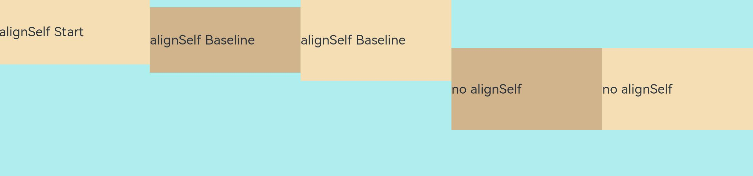
Flex容器中alignItems设置交叉轴子元素的对齐方式为居中,子元素自身设置了alignSelf属性的情况,覆盖父组件的alignItems值,表现为alignSelf的定义。
alignContent:当纵轴有额外的空间时,多行内容的对齐方式。该属性仅在 wrap 属性为 Wrap 或者 WrapReverse 时才生效,FlexAlign 定义了以下 6 种对齐方式:
-
Start(默认值):设置子组件在纵轴方向首部对齐。
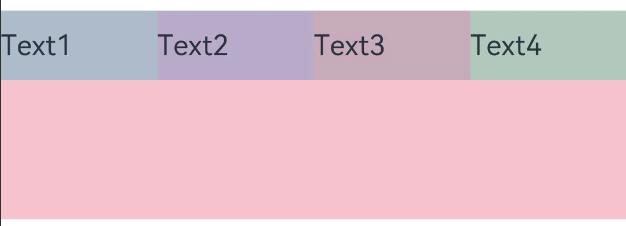
-
Center:设置子组件在纵轴方向居中对齐。
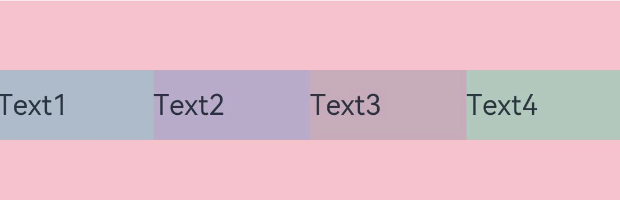
-
End:设置子组件在纵轴方向尾部对齐。
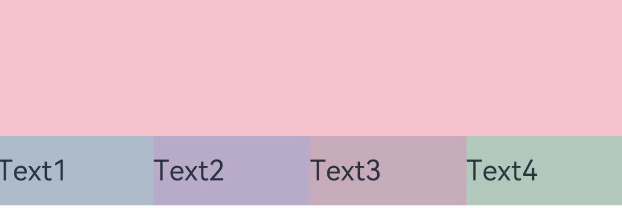
-
SpaceBetween:设置子组件在纵轴方向等间距布局。
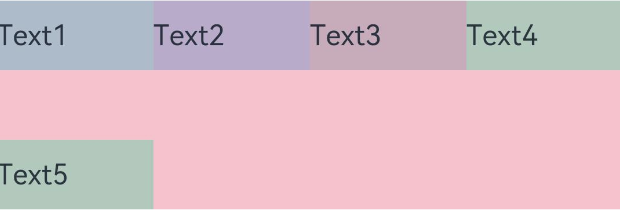
-
SpaceAround:设置子组件在纵轴方向间距布局,并且首尾子组件到 Flex 的间距是子组件间距的一半。
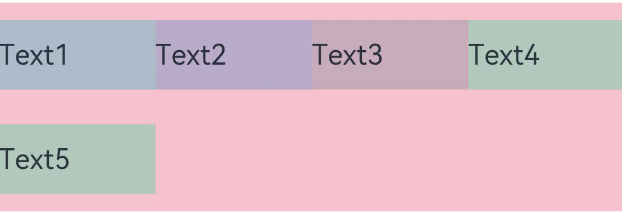
-
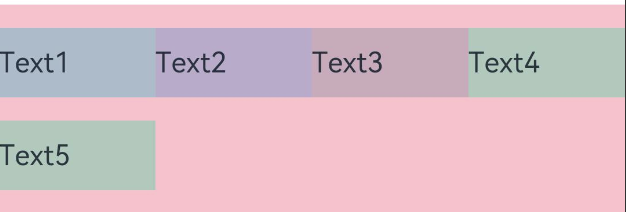
SpaceEvenly:设置子组件在纵轴方向等间距布局,并且首尾子组件到
Flex 的间距子组件之间的间距都相等。
SideBarContainer(侧边栏)
SideBarContainer 表示侧边栏容器,它可以添加两个子组件,第一个子组件表示侧边栏,第二个子组件表示内容区,简单介绍一下 SideBarContainer 的简单使用。
SideBarContainer定义介绍
interface SideBarContainerInterface {
    (type?: SideBarContainerType): SideBarContainerAttribute;
}
-
type:设置侧边栏的显示类型,SideBarContainerType定义了以下两种类型:
-
Embed:侧边栏嵌入到组件内,侧边栏和内容区并列显示。
-
Overlay:侧边栏覆盖在内容区上面
-
Auto:自动选择嵌入或覆盖
-
简单样例如下所示:
SideBarContainer(SideBarContainerType.Embed){
  Column(){
    Text("侧边栏区域")
      .width("100%")
      .height("100%")
      .fontSize(30)
      .textAlign(TextAlign.Center)
  }
  .width(10)
  .height("100%")
  .backgroundColor("#aabbcc")


  Column(){
    Text("内容区域")
      .width("100%")
      .height("100%")
      .fontSize(30)
      .textAlign(TextAlign.Center)
  }
  .width("100%")
  .height("100%")
  .backgroundColor("#bbccaa")
}
.width("100%")
.height("100%")
样例运行结构如图所示:
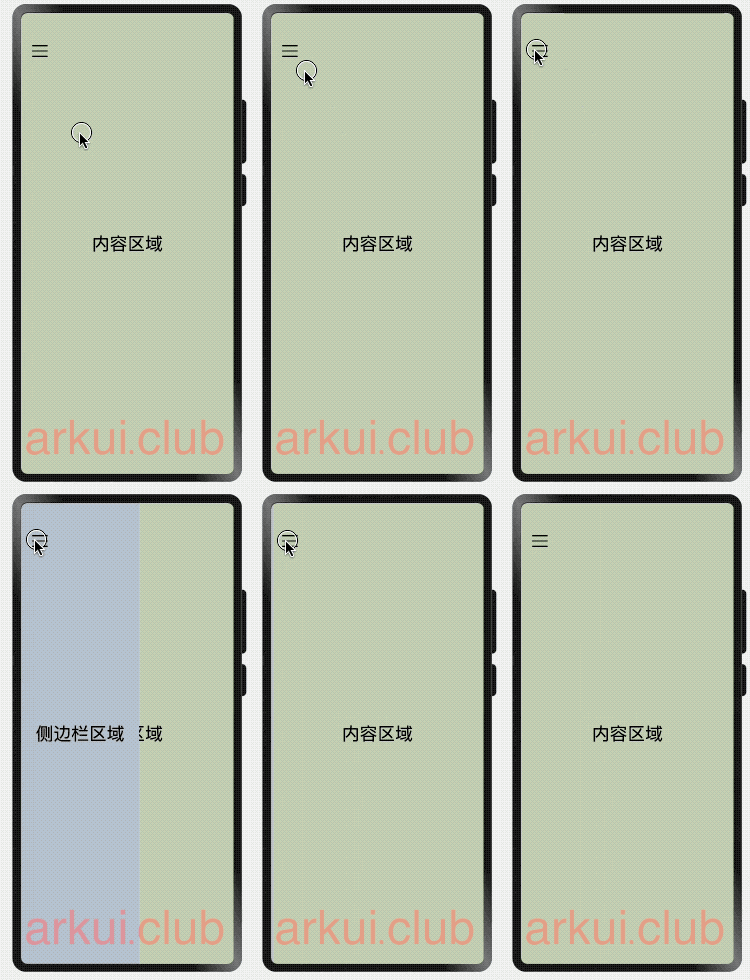
SideBarContainer属性介绍
declare class SideBarContainerAttribute extends CommonMethod<SideBarContainerAttribute> {

    showSideBar(value: boolean): SideBarContainerAttribute;

    controlButton(value: ButtonStyle): SideBarContainerAttribute;

    showControlButton(value: boolean): SideBarContainerAttribute;

    sideBarWidth(value: number): SideBarContainerAttribute;

    minSideBarWidth(value: number): SideBarContainerAttribute;

    maxSideBarWidth(value: number): SideBarContainerAttribute;

    autoHide(value: boolean): SideBarContainerAttribute;

    sideBarPosition(value: SideBarPosition): SideBarContainerAttribute;

    divider(value: DividerStyle | null): SideBarContainerAttribute;

    minContentWidth(value: Dimension): SideBarContainerAttribute;
}
declare interface ButtonStyle {
    left?: number;
    top?: number;
    width?: number;
    height?: number;
    icons?: {
        shown: string | PixelMap | Resource;
        hidden: string | PixelMap | Resource;
        switching?: string | PixelMap | Resource;
    };
}
- showSideBar:设置是否显示侧边栏,默认为 true 表示显示侧边栏。
- showControlButton:是否显示控制按钮,默认为 true 表示显示控制按钮。
- controlButton:设置侧边栏控制按钮的属性, ButtonStyle 参数说明如下:
- left:设置侧边栏控制按钮距离容器左界限的间距。
- top:设置侧边栏控制按钮距离容器上界限的间距。
- width:设置侧边栏控制按钮的宽度。
- height:设置侧边栏控制按钮的高度。
- icons:设置侧边栏控制按钮的图标:
- shown:设置侧边栏显示时控制按钮的图标。
- hidden:设置侧边栏隐藏时控制按钮的图标。
- switching:设置侧边栏显示和隐藏状态切换时控制按钮的图标。
- sideBarWidth:设置侧边栏的宽度,默认为 200 。
- minSideBarWidth:设置侧边栏最小宽度,默认为 200。
- maxSideBarWidth:设置侧边栏最大宽度,默认为 280。
SideBarContainer(SideBarContainerType.Overlay) { // 设置侧边栏样式为悬浮态
  Column() {                                     // 第一个子组件为侧边栏视图
    Text("侧边栏区域")
      .width("100%")
      .height("100%")
      .fontSize(30)
      .textAlign(TextAlign.Center)
  }
  .width(10)
  .height("100%")
  .backgroundColor("#aabbcc")


  Column() {                                     // 第二个子组件为内容区视图
    Text("内容区域")
      .width("100%")
      .height("100%")
      .fontSize(30)
      .textAlign(TextAlign.Center)
  }
  .width("100%")
  .height("100%")
  .backgroundColor("#bbccaa")
}
.width('100%')
.height('100%')
.sideBarWidth(150)                               // 设置侧边栏宽度为150
.minSideBarWidth(100)                            // 设置侧边栏最小宽度为100
.maxSideBarWidth(200)                            // 设置侧边栏最大宽度为200
.controlButton({                                 // 设置侧边栏控制按钮的样式
  width: 30,                                     // 设置侧边栏控制按钮宽度为30
  height: 30,                                    // 设置侧边栏控制按钮高度为30
  top: 15,                                       // 设置侧边栏控制按钮距离容器顶部为15
  icons: {                                       // 设置侧边栏控制按钮图片
    shown: $r("app.media.icon_back"),            // 设置侧边栏显示时控制按钮的图标。
    hidden: $r("app.media.icon_menu"),           // 设置侧边栏隐藏时控制按钮的图标。
    switching: $r("app.media.icon_back")         // 设置侧边栏显示和隐藏状态切换时控制按钮的图标。
  }
})
样例运行结果如下图所示:
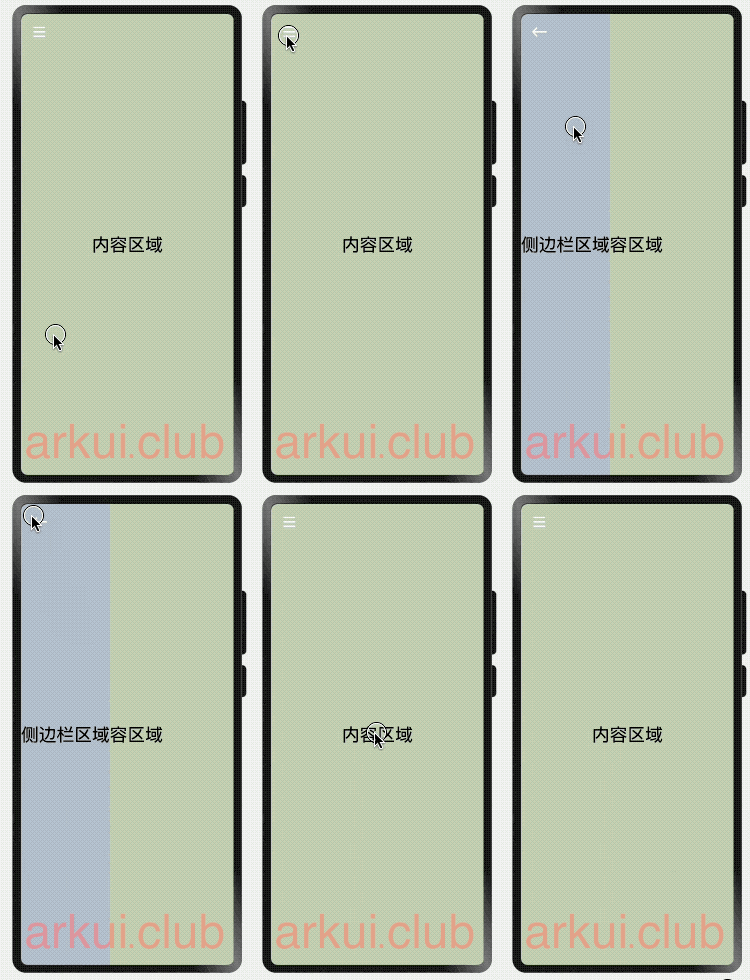
SideBarContainer事件介绍
declare class SideBarContainerAttribute extends CommonMethod<SideBarContainerAttribute> {
    onChange(callback: (value: boolean) => void): SideBarContainerAttribute;
}
- onChange:当侧边栏的状态在显示和隐藏之间切换时触发回调, value 为 true 表示菜单栏显示显示,false表示菜单栏隐藏。
RelativeContainer(相对布局容器)
在应用的开发过程中,经常需要设计复杂界面,此时涉及到多个相同或不同组件之间的嵌套。如果布局组件嵌套深度过深,或者嵌套组件数过多,会带来额外的开销。如果在布局的方式上进行优化,就可以有效的提升性能,减少时间开销。
RelativeContainer为采用相对布局的容器,支持容器内部的子元素设置相对位置关系,适用于界面复杂场景的情况,对多个子组件进行对齐和排列。子元素支持指定兄弟元素作为锚点,也支持指定父容器作为锚点,基于锚点做相对位置布局。下图是一个RelativeContainer的概念图,图中的虚线表示位置的依赖关系。
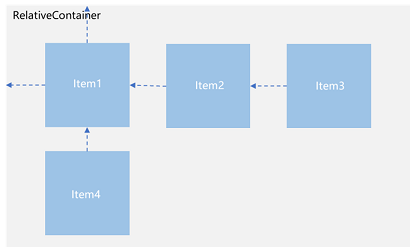
子元素并不完全是上图中的依赖关系。比如,Item4可以以Item2为依赖锚点,也可以以RelativeContainer父容器为依赖锚点。
- 锚点:通过锚点设置当前元素基于哪个元素确定位置。
- 对齐方式:通过对齐方式,设置当前元素是基于锚点的上中下对齐,还是基于锚点的左中右对齐。
锚点设置
锚点设置是指设置子元素相对于父元素或兄弟元素的位置依赖关系。在水平方向上,可以设置left、middle、right的锚点。在竖直方向上,可以设置top、center、bottom的锚点。
为了明确定义锚点,必须为RelativeContainer及其子元素设置ID,用于指定锚点信息。ID默认为“container”, 其余子元素的ID通过id属性设置。未设置ID的子元素在RelativeContainer中不会显示。(新版本回显示,但是不能当做描点)
RelativeContainer定义介绍
interface RelativeContainerInterface {
    (): RelativeContainerAttribute;
}

declare class RelativeContainerAttribute extends CommonMethod<RelativeContainerAttribute> {
}
RelativeContainer 默认构造方法无需任何额外参数,也没有定义额外的属性方法,简单样例如下所示:
Column({space: 10}) {
  RelativeContainer() {
    Text("text1")
      .fontSize(25)
      .width(160)
      .height(150)
      .id("text1")  // 必须添加 id,否则不显示
      .textAlign(TextAlign.End)
      .backgroundColor("#ccaabb")

    Text("text2")
      .fontSize(25)
      .width(90)
      .id("text2")  // 必须添加 id,否则不显示
      .textAlign(TextAlign.Start)
      .backgroundColor("#bbccaa")

    Text("text3")
      .fontSize(25)
      .width(90)
      .margin({top: 50})
        // .id("text3")  // 注释掉id,组件不显示
      .textAlign(TextAlign.Start)
      .backgroundColor("#bbccaa")
  }
  .width("100%")
  .height(190)
  .backgroundColor(Color.Pink)

}
.width("100%")
.height("100%")
.backgroundColor("#aabbcc")
.padding(10)
样例运行结果如下图所示:
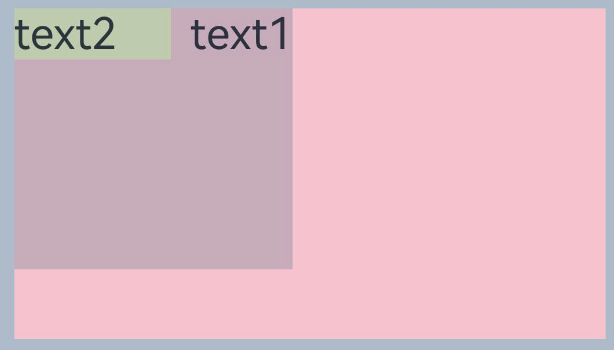
可知 RelativeContainer 在默认情况下,子组件是按照堆叠排列并沿着自身左上角对齐。
RelativeContainer 对齐介绍
RelativeContainer 对子组件的对齐方式分为水平方向和竖直方向:
-
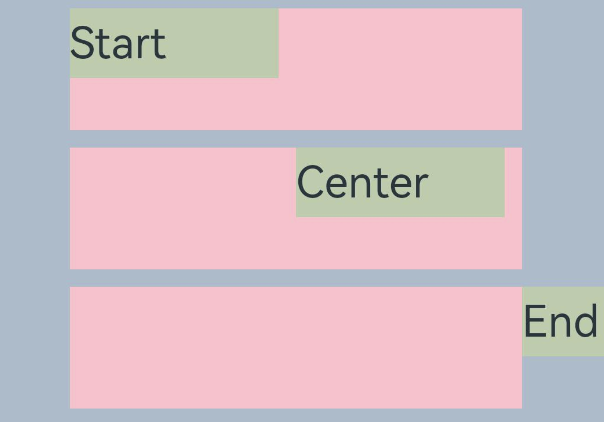
设置水平方向对齐RelativeContainer 的子组件在水平方向对齐方式为left、middle和right,分别说明如下:
- left: 设置子组件在水平方向上 左边框 的对齐方式,可选值说明如下:
- HorizontalAlign.Start: 设置子组件左边框相对锚点组件的左边框位置对齐。
- HorizontalAlign.Center: 设置子组件左边框相对锚点组件的中间位置对齐。
- HorizontalAlign.End: 设置子组件左边框相对锚点组件的右边框位置对齐。
- left: 设置子组件在水平方向上 左边框 的对齐方式,可选值说明如下:
Column({space: 10}) {
  RelativeContainer() {
    Text("Start")
      .fontSize(25)
      .width(120)
      .height(40)
      .backgroundColor("#bbccaa")
      .alignRules({
        left:{anchor:"__container__", align:HorizontalAlign.Start}
      })
      .id("test")  // 必须添加 id,否则不显示
  }
  .width("100%")
  .height(70)
  .backgroundColor(Color.Pink)


  RelativeContainer() {
    Text("Center")
      .fontSize(25)
      .width(120)
      .height(40)
      .backgroundColor("#bbccaa")
      .alignRules({
        left:{anchor:"__container__", align:HorizontalAlign.Center}
      })
      .id("test")  // 必须添加 id,否则不显示
  }
  .width("100%")
  .height(70)
  .backgroundColor(Color.Pink)


  RelativeContainer() {
    Text("End")
      .fontSize(25)
      .width(120)
      .height(40)
      .backgroundColor("#bbccaa")
      .alignRules({
        left:{anchor:"__container__", align:HorizontalAlign.End}
      })
      .id("test")  // 必须添加 id,否则不显示
  }
  .width("100%")
  .height(70)
  .backgroundColor(Color.Pink)
}
.width("100%")
.height("100%")
.backgroundColor("#aabbcc")
.padding(10)
样例运行结果如下图所示:
官方推荐写法:
let AlignRus:Record<string,Record<string,string|VerticalAlign|HorizontalAlign>> = {
'top': { 'anchor': '__container__', 'align': VerticalAlign.Top },
'left': { 'anchor': '__container__', 'align': HorizontalAlign.Start }
}

let lefts: Record<string,string|VerticalAlign|HorizontalAlign> = {
'anchor': '__container__', 'align': HorizontalAlign.Start
}

let Mleft:Record<string,number> = { 'left': 20 }

let BWC:Record<string,number|string> = { 'width': 2, 'color': '#6699FF' }
- middle: 设置子组件在水平方向上 中间点 的齐方式,可选值说明如下:
- HorizontalAlign.Start: 设置子组件中间点相对锚点组件的做边框位置对齐。
- HorizontalAlign.Center: 设置子组件中间点相对锚点组件的中间点位置对齐。
- HorizontalAlign.End: 设置子组件中间点相对锚点组件的右边框位置对齐。
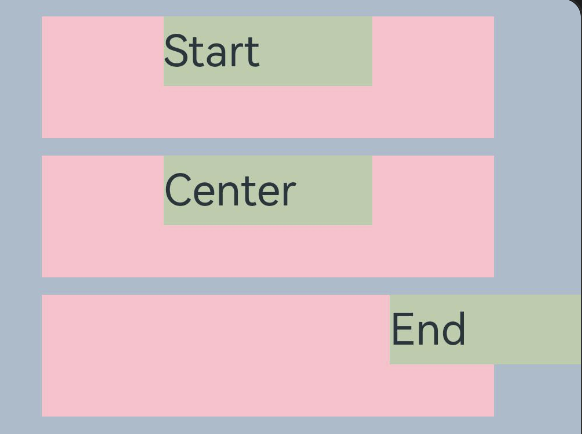
- right: 设置子组件在水平方向上 右边框 的齐方式,可选值说明如下:
- HorizontalAlign.Start: 设置子组件右边框相对锚点组件的左边框位置对齐。
- HorizontalAlign.Center: 设置子组件右边框相对锚点组件的中间点位置对齐。
- HorizontalAlign.End: 设置子组件右边框相对锚点组件的右边框位置对齐。
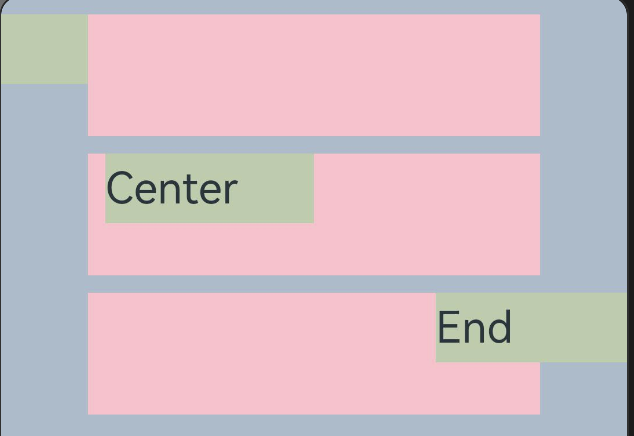
-
设置竖直方向对齐RelativeContainer 的子组件在竖直方向对齐配置分为:top、center 和 bottom,分别说明如下:
-
top: 设置子组件在竖直方向上 上边框 的对齐方式,可选值说明如下:
- VerticalAlign.Top: 设置子组件上边框相对锚点组件的上边框位置对齐。
- VerticalAlign.Center: 设置子组件上边框相对锚点组件的中间点位置对齐。
- VerticalAlign.Bottom: 设置子组件上边框相对锚点组件的下边框位置对齐。
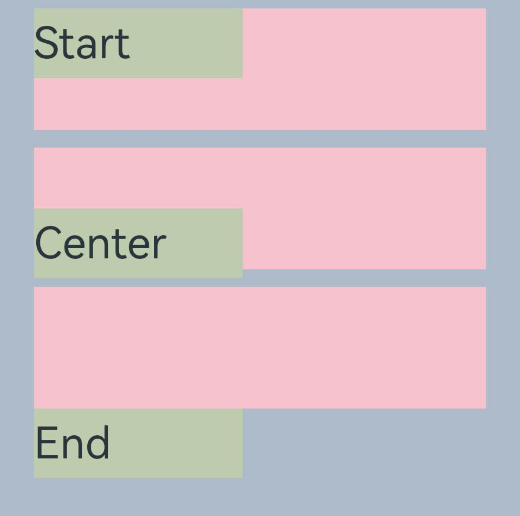
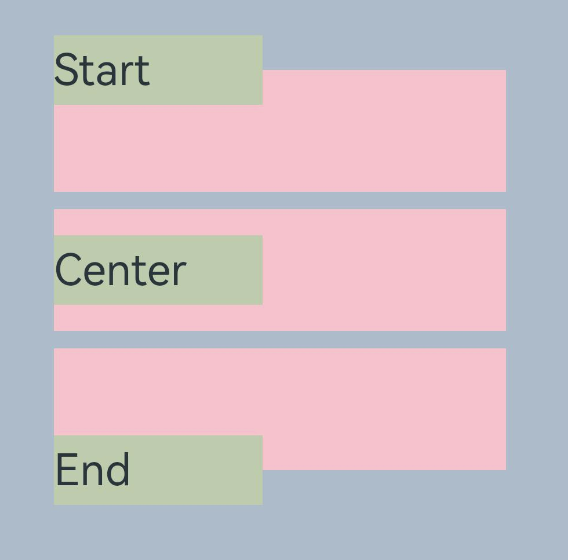
- center: 设置子组件在竖直方向上 中间点 的对齐方式,可选值说明如下:
- VerticalAlign.Top: 设置子组件中间点相对锚点组件的上边框位置对齐。
- VerticalAlign.Center: 设置子组件中间点相对锚点组件的中间点位置对齐。
- VerticalAlign.Bottom: 设置子组件中间点相对锚点组件的下边框位置对齐。
- bottom: 设置子组件在竖直方向上 下边框 的对齐方式,可选值说明如下:
- VerticalAlign.Top: 设置子组件下边框相对锚点组件的上边框位置对齐。
- VerticalAlign.Center: 设置子组件下边框相对锚点组件的中间点位置对齐。
- VerticalAlign.Bottom: 设置子组件下边框相对锚点组件的下边框位置对齐。
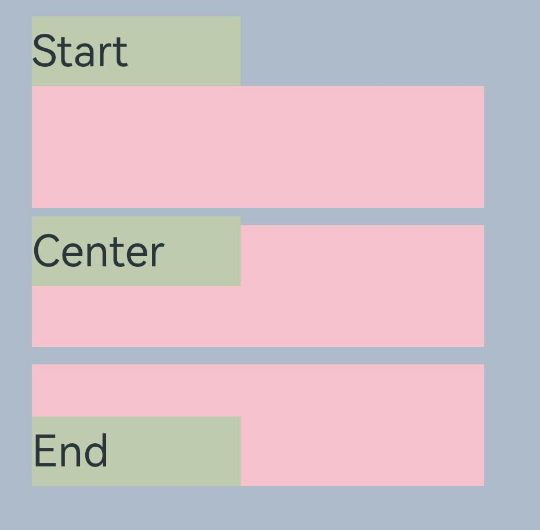
注意事项:
- 子组件可以将容器或者其他子组件设为锚点:
- 参与相对布局的容器内组件必须设置id,不设置id的组件不显示,容器id固定为 container。
- 此子组件某一方向上的三个位置可以将容器或其他子组件的同方向三个位置为锚点,同方向上两个以上位置设置锚点以后会跳过第三个。
- 前端页面设置的子组件尺寸大小不会受到相对布局规则的影响。子组件某个方向上设置两个或以上alignRules时不建议设置此方向尺寸大小。
- 对齐后需要额外偏移可设置offset。
- 特殊情况
- 互相依赖,环形依赖时容器内子组件全部不绘制。
- 同方向上两个以上位置设置锚点但锚点位置逆序时此子组件大小为0,即不绘制。
样例
Column() {
  RelativeContainer() {
    Row()
      .width(100)
      .height(100)
      .backgroundColor("#FF3333")
      .alignRules({
        top: {
          anchor: "__container__",
          align: VerticalAlign.Top
        },
        left: {
          anchor: "__container__",
          align: HorizontalAlign.Start
        }
      })
      .id("row1")

    Row()
      .width(100)
      .height(100)
      .backgroundColor("#FFCC00")
      .alignRules({
        top: {
          anchor: "__container__",
          align: VerticalAlign.Top
        },
        right: {
          anchor: "__container__",
          align: HorizontalAlign.End
        }
      })
      .id("row2")

    Row().height(100)
      .backgroundColor("#FF6633")
      .alignRules({
        top: {
          anchor: "row1",
          align: VerticalAlign.Bottom
        },
        left: {
          anchor: "row1",
          align: HorizontalAlign.End
        },
        right: {
          anchor: "row2",
          align: HorizontalAlign.Start
        }
      })
      .id("row3")

    Row()
      .backgroundColor("#FF9966")
      .alignRules({
        top: {
          anchor: "row3",
          align: VerticalAlign.Bottom
        },
        bottom: {
          anchor: "__container__",
          align: VerticalAlign.Bottom
        },
        left: {
          anchor: "__container__",
          align: HorizontalAlign.Start
        },
        right: {
          anchor: "row1",
          align: HorizontalAlign.End
        }
      })
      .id("row4")

    Row()
      .backgroundColor("#FF66FF")
      .alignRules({
        top: {
          anchor: "row3",
          align: VerticalAlign.Bottom
        },
        bottom: {
          anchor: "__container__",
          align: VerticalAlign.Bottom
        },
        left: {
          anchor: "row2",
          align: HorizontalAlign.Start
        },
        right: {
          anchor: "__container__",
          align: HorizontalAlign.End
        }
      })
      .id("row5")
  }
  .width(300)
  .height(300)
  .border({ width: 3, color: "#6699FF" })
}
.height('100%')
.width("100%")
.padding(10)
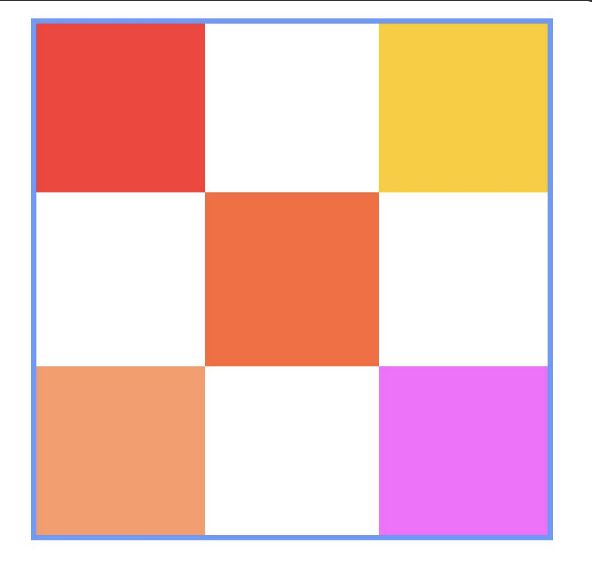
List(列表)
概述
列表是一种复杂的容器,当列表项达到一定数量,内容超过屏幕大小时,可以自动提供滚动功能。他适合用于呈现同类数据类型或数据类型集,例如图片和文本。在列表中显示数据集合是许多应用程序中的常见要求(如通讯录、音乐列表、购物清单等)。
使用列表可以轻松高效地显示结构化、可滚动的信息。通过在List组件中按垂直或者水平方向线性排列子组件ListItemGroup或ListItem,为列表中的行或列提供单个视图,或使用循环渲染迭代一组或列,或混合任意数量的单个视图和ForEach结构,构建一个列表。List组件支持使用条件渲染、循环渲染、懒加载等渲染方式生成子组件
布局与约束
列表作为一个容器,会自动按其滚动方向排列子组件,向列表中添加组件或从列表中移除组件会重新排列子组件。
如下图所示,在垂直列表中,List按垂直方向自动排列ListItemGroup或ListItem。
ListItemGroup用于列表数据的分组展示,其子组件也是ListItem。ListItem表示单个列表项,可以包含单个子组件。List、ListItemGroup和ListItem组件关系
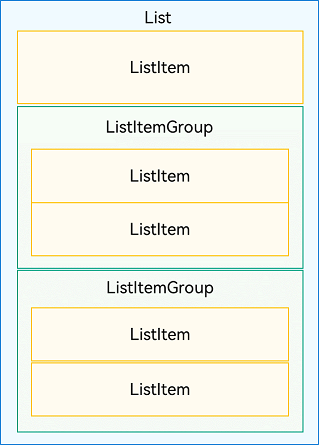
List的子组件必须是ListItemGroup或ListItem,ListItem和ListItemGroup必须配合List来使用。
布局
List除了提供垂直和水平布局能力、超出屏幕时可以滚动的自适应延伸能力之外,还提供了自适应交叉轴方向上排列个数的布局能力。
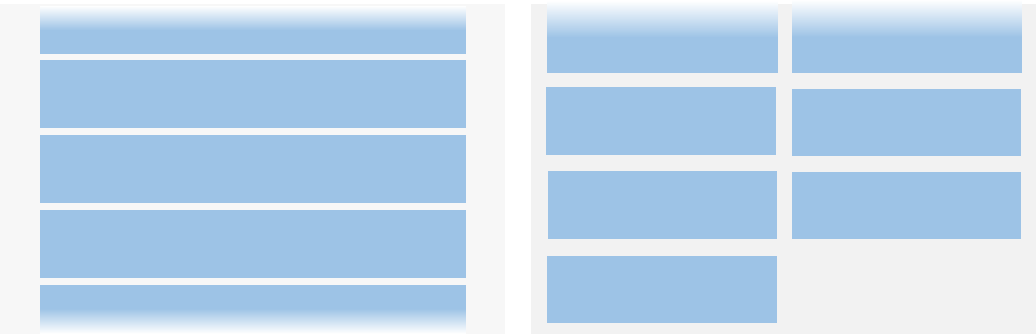
利用垂直布局能力可以构建单列或者多列垂直滚动列表,如下图所示。
垂直滚动列表(左:单列;右:多列)
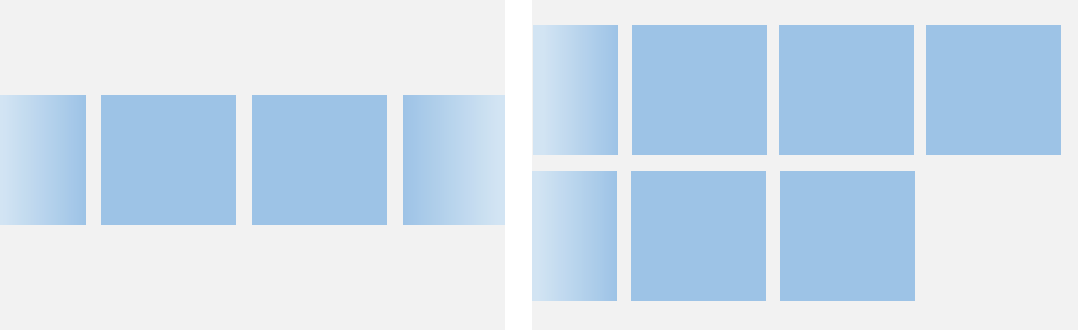
利用水平布局能力可以是构建单行或多行水平滚动列表
Grid和WaterFlow也可以实现单列、多列布局,如果布局每列等宽,且不需要跨行跨列布局,相比Gird和WaterFlow,则更推荐使用List。
设置主轴方向
List组件主轴默认是垂直方向,即默认情况下不需要手动设置List方向,就可以构建一个垂直滚动列表。
若是水平滚动列表场景,将List的listDirection属性设置为Axis.Horizontal即可实现。listDirection默认为Axis.Vertical,即主轴默认是垂直方向。
List() {
  // ...
}
.listDirection(Axis.Horizontal)
设置交叉轴布局
List组件的交叉轴布局可以通过lanes和alignListItem属性进行设置,lanes属性用于确定交叉轴排列的列表项数量,alignListItem用于设置子组件在交叉轴方向的对齐方式。
List组件的lanes属性通常用于在不同尺寸的设备自适应构建不同行数或列数的列表,即一次开发、多端部署的场景,例如歌单列表。lanes属性的取值类型是"number | LengthConstrain",即整数或者LengthConstrain类型。以垂直列表为例,如果将lanes属性设为2,表示构建的是一个两列的垂直列表。lanes的默认值为1,即默认情况下,垂直列表的列数是1。
List() {
  // ...
}
.lanes(2)
当其取值为LengthConstrain类型时,表示会根据LengthConstrain与List组件的尺寸自适应决定行或列数。
@Entry
@Component
struct EgLanes {
    @State egLanes: LengthConstrain = { minLength: 200, maxLength: 300 }
    build() {
      List() {
        // ...
      }
      .lanes(this.egLanes)
    }
}
例如,假设在垂直列表中设置了lanes的值为{ minLength: 200, maxLength: 300 }。此时,
- 当List组件宽度为300vp时,由于minLength为200vp,此时列表为一列。
- 当List组件宽度变化至400vp时,符合两倍的minLength,则此时列表自适应为两列。
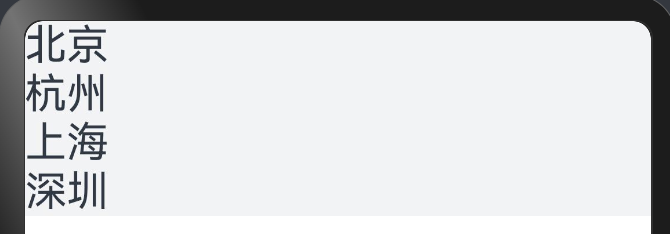
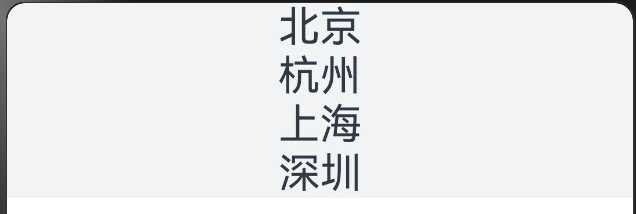
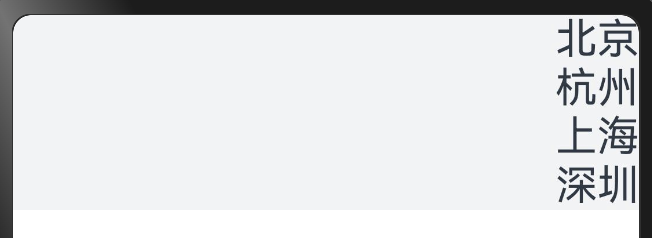
同样以垂直列表为例,当alignListItem属性设置为ListItemAlign.Center表示列表项在水平方向上居中对齐。alignListItem的默认值是ListItemAlign.Start,即列表项在列表交叉轴方向上默认按首部对齐。
List() {
// ...
}
.alignListItem(ListItemAlign.Center)
ListItemAlign.Start
ListItemAlign.Center
ListItemAlign.End
在列表中显示数据
列表视图垂直或水平显示项目集合,在行或列超出屏幕时提供滚动功能,使其适合显示大型数据集合。在最简单的列表形式中,List静态地创建其列表项ListItem的内容。
城市列表
@Entry
@Component
struct CityList {
    build() {
      List() {
        ListItem() {
          Text('北京').fontSize(24)
        }

        ListItem() {
          Text('杭州').fontSize(24)
        }

        ListItem() {
          Text('上海').fontSize(24)
        }
    }
    .backgroundColor('#FFF1F3F5')
    .alignListItem(ListItemAlign.Center)
    }
}
设置内容间距
在列表项之间添加间距,可以使用space参数。例如,在每个列表项之间沿主轴方向添加10vp的间距:
List({ space: 10 }) {
// ...
}
添加分隔线
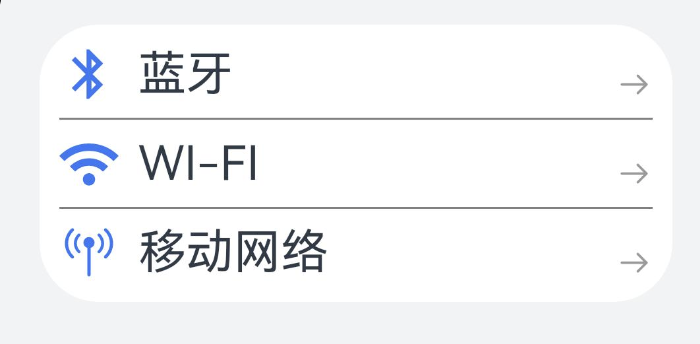
分隔线用来将界面元素隔开,使单个元素更加容易识别。如下图所示,当列表项左边有图标(如蓝牙图标),由于图标本身就能很好的区分,此时分隔线从图标之后开始显示即可。
- divider:设置分割线样式,默认无分割线,分割线样式说明如下:
- strokeWidth:分割线的宽度
- color:分割线的颜色
- startMargin:分割线距离列表侧边起始端的距离。
- endMargin:分割线距离列表侧边结束端的距离。
Column(){
  //space内间距
  List({space: 15}) {
    ListItem() {
      Row(){
        Image($r('app.media.bluetooth_icon'))
          .width(30).height(30)
        Text('蓝牙').fontSize(24).margin({left: 10})
        Blank()
        Image($r('app.media.right_arrow_icon'))
          .width(20)
          .height(30)
          .objectFit(ImageFit.Contain)
      }
      .width('100%')
    }

    ListItem() {
      Row(){
        Image($r('app.media.wifi_icon'))
          .width(30).height(30)
        Text('WI-FI').fontSize(24).margin({left: 10})
        Blank()
        Image($r('app.media.right_arrow_icon'))
          .width(20)
          .height(30)
          .objectFit(ImageFit.Contain)
      }
      .width('100%')
    }

    ListItem() {
      Row(){
        Image($r('app.media.mobile_network_icon'))
          .width(30).height(30)
        Text('移动网络')
          .fontSize(24)
          .margin({left: 10})
        Blank()
        Image($r('app.media.right_arrow_icon'))
          .width(20)
          .height(30)
          .objectFit(ImageFit.Contain)
      }
      .width('100%')
    }
  }
  .padding(10)
  .backgroundColor('#ffffffff')
  .alignListItem(ListItemAlign.Start)
  .borderRadius(30)
  .divider({
    strokeWidth: 1,
    color: Color.Gray,
  })
}
.width('100%')
.height('100%')
//内边居
.padding(20)
.backgroundColor('#FFF1F3F5')
添加滚动条
在使用List组件时,可通过scrollBar属性控制列表滚动条的显示。scrollBar的取值类型为BarState,当取值为BarState.Auto表示按需显示滚动条。此时,当触摸到滚动条区域时显示控件,可上下拖拽滚动条快速浏览内容,拖拽时会变粗。若不进行任何操作,2秒后滚动条自动消失。
scrollBar属性API version 9及以下版本默认值为BarState.Off,从API version 10版本开始默认值为BarState.Auto。
List() {
// ...
}
.scrollBar(BarState.Auto)
支持分组列表
在列表中支持数据的分组展示,可以使列表显示结构清晰,查找方便,从而提高使用效率。分组列表在实际应用中十分常见,如下图所示联系人列表。
在List组件中可以直接使用一个或者多个ListItemGroup组件,ListItemGroup的宽度默认充满List组件。在初始化ListItemGroup时,可通过header参数设置列表分组的头部组件。
@Entry
@Component
struct ContactsList {

    @Builder itemHead(text: string) {
    // 列表分组的头部组件,对应联系人分组A、B等位置的组件
        Text(text)
          .fontSize(20)
          .backgroundColor('#fff1f3f5')
          .width('100%')
          .padding(5)
    }

    build() {
        List() {
            ListItemGroup({ header: this.itemHead('A') }) {
            // 循环渲染分组A的ListItem
            }

            ListItemGroup({ header: this.itemHead('B') }) {
                // 循环渲染分组B的ListItem
            }
        }
    }
}
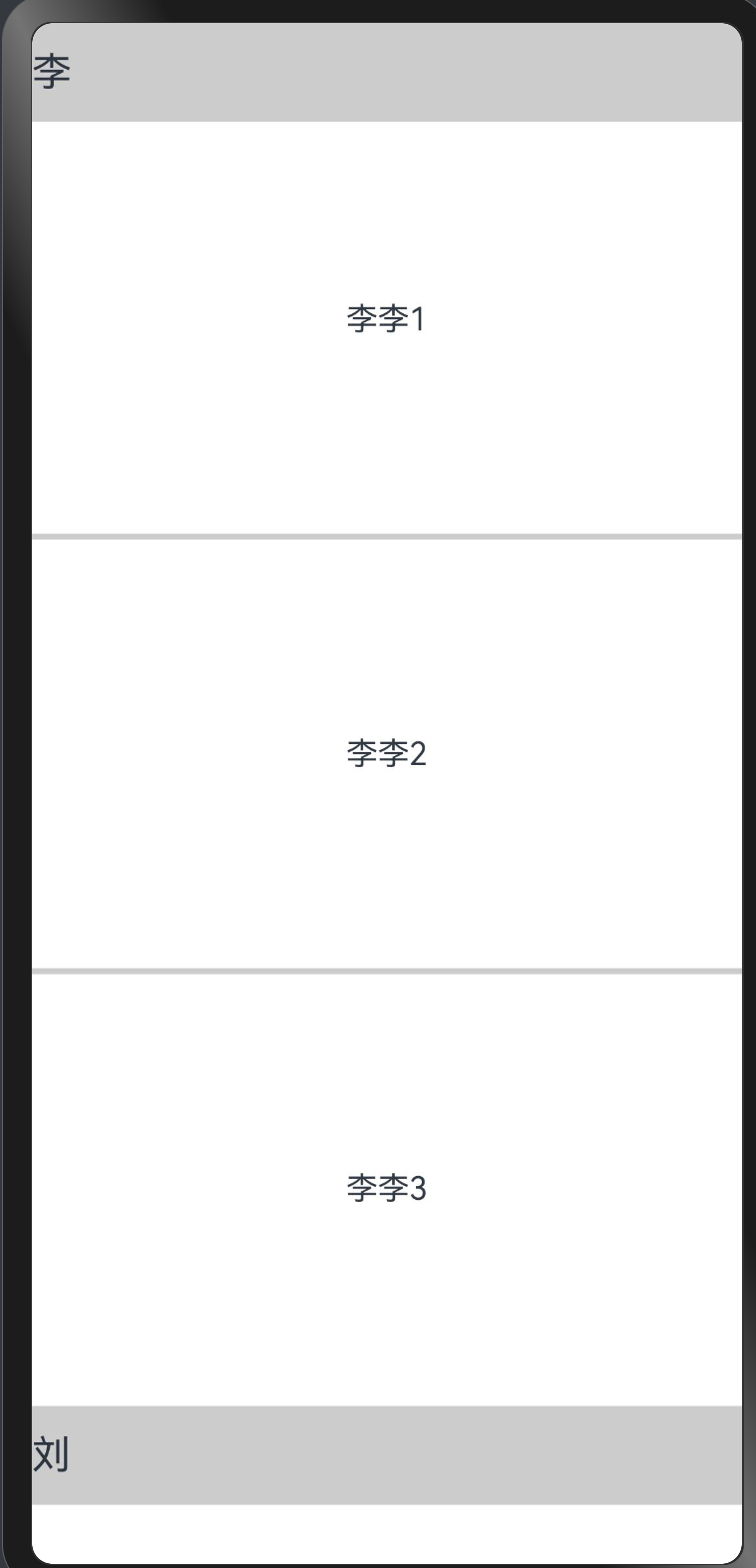
添加粘性标题
粘性标题是一种常见的标题模式,常用于定位字母列表的头部元素。如下图所示,在联系人列表中滚动A部分时,B部分开始的头部元素始终处于A的下方。而在开始滚动B部分时,B的头部会固定在屏幕顶部,直到所有B的项均完成滚动后,才被后面的头部替代。
粘性标题不仅有助于阐明列表中数据的表示形式和用途,还可以帮助用户在大量信息中进行数据定位,从而避免用户在标题所在的表的顶部与感兴趣区域之间反复滚动。
@Entry
@Component
struct TestPage {
//设置头部
@Builder
HeaderTitle(title: string) {
    Text(title)
    .fontSize(20)
    .height(50)
    .backgroundColor('#ccc')
    .width('100%')
}

//删除
@Builder
delButton() {
    Button("删除")
}

build() {
    Column() {
    List({ space: 10 }) {
        ListItemGroup({ header: this.HeaderTitle("李"), space: 20 }) {
        ListItem() {
            Text("李李1")
        }
        .width('100%')
        .height(200)
        //设置侧滑删除
        .swipeAction({ end: this.delButton() })
        ListItem() {
            Text("李李2")
        }
        .width('100%')
        .height(200)

        ListItem() {
            Text("李李3")
        }
        .width('100%')
        .height(200)
        }
        .width("100%")
        //间隔线
        .divider({ strokeWidth: 3, color: "#ccc" })

        ListItemGroup({ header: this.HeaderTitle("刘") }) {
        ListItem() {
            Text("刘刘1")
        }
        .width('100%')
        .height(300)

        ListItem() {
            Text("刘刘2")
        }
        .width('100%')
        .height(300)

        ListItem() {
            Text("刘刘3")
        }
        .width('100%')
        .height(300)
        }
        .width("100%")
        .divider({ strokeWidth: 3, color: "#ccc" })

    }
    //设置粘性标题
    .sticky(StickyStyle.Header)
    .width("100%")
    //对齐方式
    .alignListItem(ListItemAlign.Center)
    //滚动方向
    .listDirection(Axis.Vertical)
    //设置滚动条
    .scrollBar(BarState.Auto)
    }
    .width("100%")
    .height("100%")
}
}
控制滚动位置
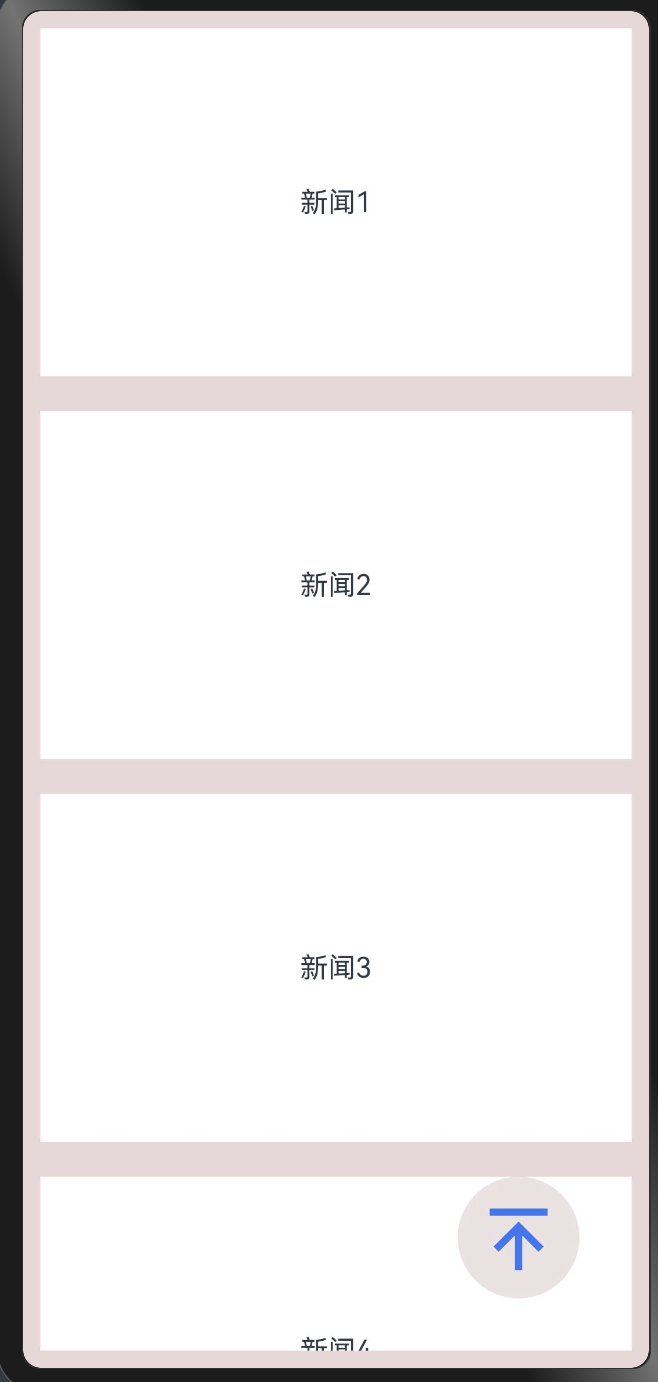
List组件初始化时,可以通过scroller参数绑定一个Scroller对象,进行列表的滚动控制。例如,用户在新闻应用中,点击新闻页面底部的返回顶部按钮时,就可以通过Scroller对象的scrollToIndex方法使列表滚动到指定的列表项索引位置。
首先,需要创建一个Scroller的对象listScroller。
private listScroller: Scroller = new Scroller();
然后,通过将listScroller用于初始化List组件的scroller参数,完成listScroller与列表的绑定。在需要跳转的位置指定scrollToIndex的参数为0,表示返回列表顶部。
@Entry
@Component
struct BackToTopPage {
private listScroller: Scroller = new Scroller();

build() {
    //设置Alignment.Bottom底部
    Stack({alignContent: Alignment.BottomEnd}) {
    //将listScroller用于初始化List组件的scroller参数,完成listScroller与列表的绑定。
    List({ space: 20, scroller: this.listScroller }) {
        ListItem() {
        Text("新闻1")
        }
        .height(200)
        .width('100%')
        .backgroundColor(Color.White)

        ListItem() {
        Text("新闻2")
        }
        .height(200)
        .width('100%')
        .backgroundColor(Color.White)

        ListItem() {
        Text("新闻3")
        }
        .height(200)
        .width('100%')
        .backgroundColor(Color.White)
        ListItem() {
        Text("新闻4")
        }
        .height(200)
        .width('100%')
        .backgroundColor(Color.White)
        ListItem() {
        Text("新闻5")
        }
        .height(200)
        .width('100%')
        .backgroundColor(Color.White)
        ListItem() {
        Text("新闻6")
        }
        .height(200)
        .width('100%')
        .backgroundColor(Color.White)
    }
    Image($r('app.media.back_top_icon'))
        .width(70)
        .height(70)
        .backgroundColor('#ffece2e2')
        .padding(10)
        .margin({
        bottom: 30,
        right: 30
        })
        .borderRadius(50)
        //点击事件
        .onClick(() => {
        this.listScroller.scrollToIndex(0)
        })
    }
    .padding(10)
    .width('100%')
    .height('100%')
    .backgroundColor("#ffe9d7d7")
}
Tabs
Tabs组件是一种常见的用户界面(UI)组件,它是一个可以容纳多个选项卡的容器组件。每个选项卡通常包含一个面板和一个标签,用户可以通过点击标签来切换面板。Tabs组件通常用于展示多个相关但又不需要同时展示的数据集合或功能集合,以提高页面的可维护性和可用性。
interface TabsInterface {
    (value?: {
        barPosition?: BarPosition;
        index?: number;
        controller?: TabsController;
    }): TabsAttribute;
}

declare enum BarPosition {
  Start,
  End
}
- barPosition:指定页签位置来创建 Tabs 容器组件, BarPosition 定义了以下两种类型:
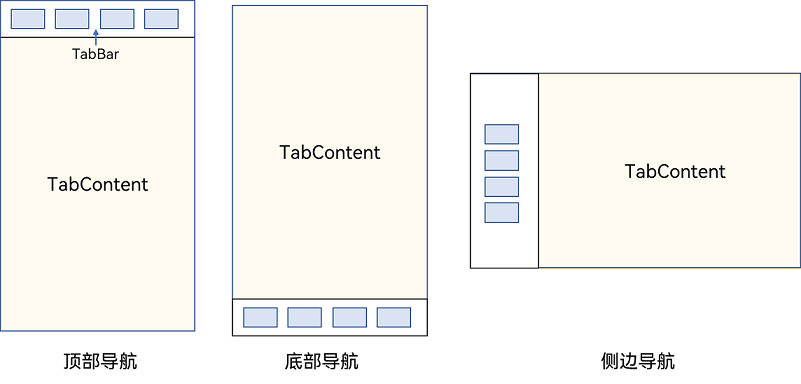
- Start(默认值):当 vertical 属性方法设置为 true 时,页签位于容器左侧; vertical 属性方法设置为 false 时,页签位于容器顶部。
- End: vertical 属性方法设置为 true 时,页签位于容器右侧; vertical 属性方法设置为 false 时,页签位于容器底部。
- index:指定初次初始页签索引,默认值为 0 。
- controller:设置 Tabs 控制器。
Tabs 组件的主要功能包括:
1.切换选项卡:用户可以通过点击标签来切换显示面板。
2.激活状态:当前选中的标签会呈现激活状态,以便用户清楚地知道他们当前所在的选项卡。
3.自定义选项卡内容:用户可以通过自定义选项卡内容(例如图片、文本、图标等)来增强页面的可读性和可用性。
4.加载延迟:如果页面需要加载大量数据或内容,Tabs 组件可以通过延迟加载未激活的面板来提升页面性能。
1.基本布局
Tabs 使用花括号包裹 TabContent,每一个 TabContent 对应一个 tabBar
@Entry
@Component
struct NavigationExample {
  private arr: number[] = [1, 2, 3];

  build() {
    Column() {
      Tabs() {
        TabContent() {
          Text('首页的内容').fontSize(30)
        }
        .tabBar('首页')

        TabContent() {
          Text('推荐的内容').fontSize(30)
        }
        .tabBar('推荐')

        TabContent() {
          Text('发现的内容').fontSize(30)
        }
        .tabBar('发现')

        TabContent() {
          Text('我的内容').fontSize(30)
        }
        .tabBar("我的")
      }
    }
    .height('100%')
    .width('100%')
    .backgroundColor('#F1F3F5')
  }
}
2.导航位置
2.1底部导航
BarPosition.End设置底部导航
@Entry
@Component
struct NavigationExample {
  private arr: number[] = [1, 2, 3];

  build() {
    Column() {
      Tabs({ barPosition: BarPosition.End }) {
        TabContent() {
          Text('首页的内容').fontSize(30)
        }
        .tabBar('首页')

        TabContent() {
          Text('推荐的内容').fontSize(30)
        }
        .tabBar('推荐')

        TabContent() {
          Text('发现的内容').fontSize(30)
        }
        .tabBar('发现')

        TabContent() {
          Text('我的内容').fontSize(30)
        }
        .tabBar("我的")
      }
    }
    .height('100%')
    .width('100%')
    .backgroundColor('#F1F3F5')
  }
}
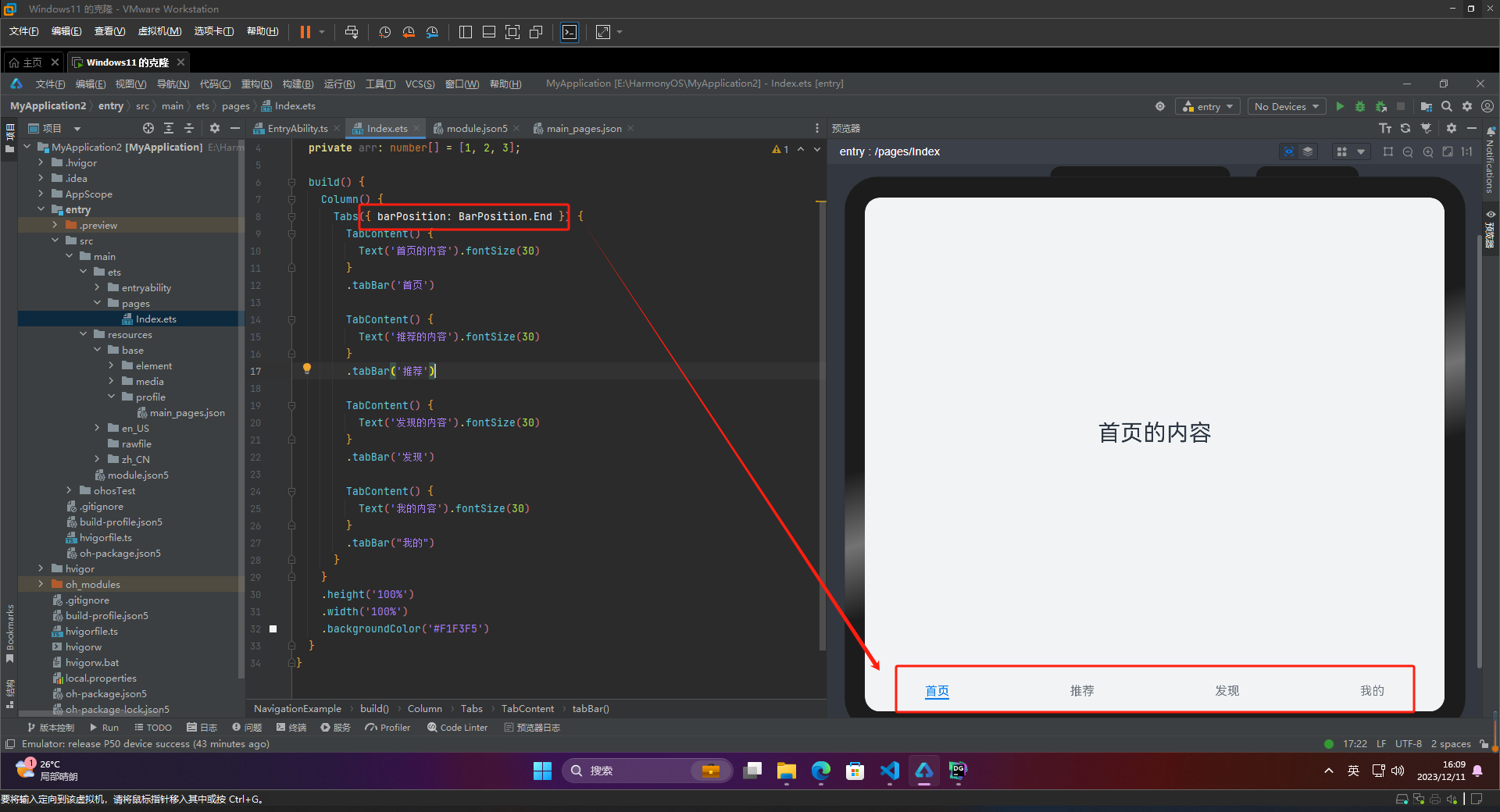
2.2 顶部导航
BarPosition.Start 设置顶部导航
@Entry
@Component
struct NavigationExample {
  private arr: number[] = [1, 2, 3];

  build() {
    Column() {
      Tabs({ barPosition: BarPosition.Start  }) {
          ....
        }
    .height('100%')
    .width('100%')
    .backgroundColor('#F1F3F5')
  }
}
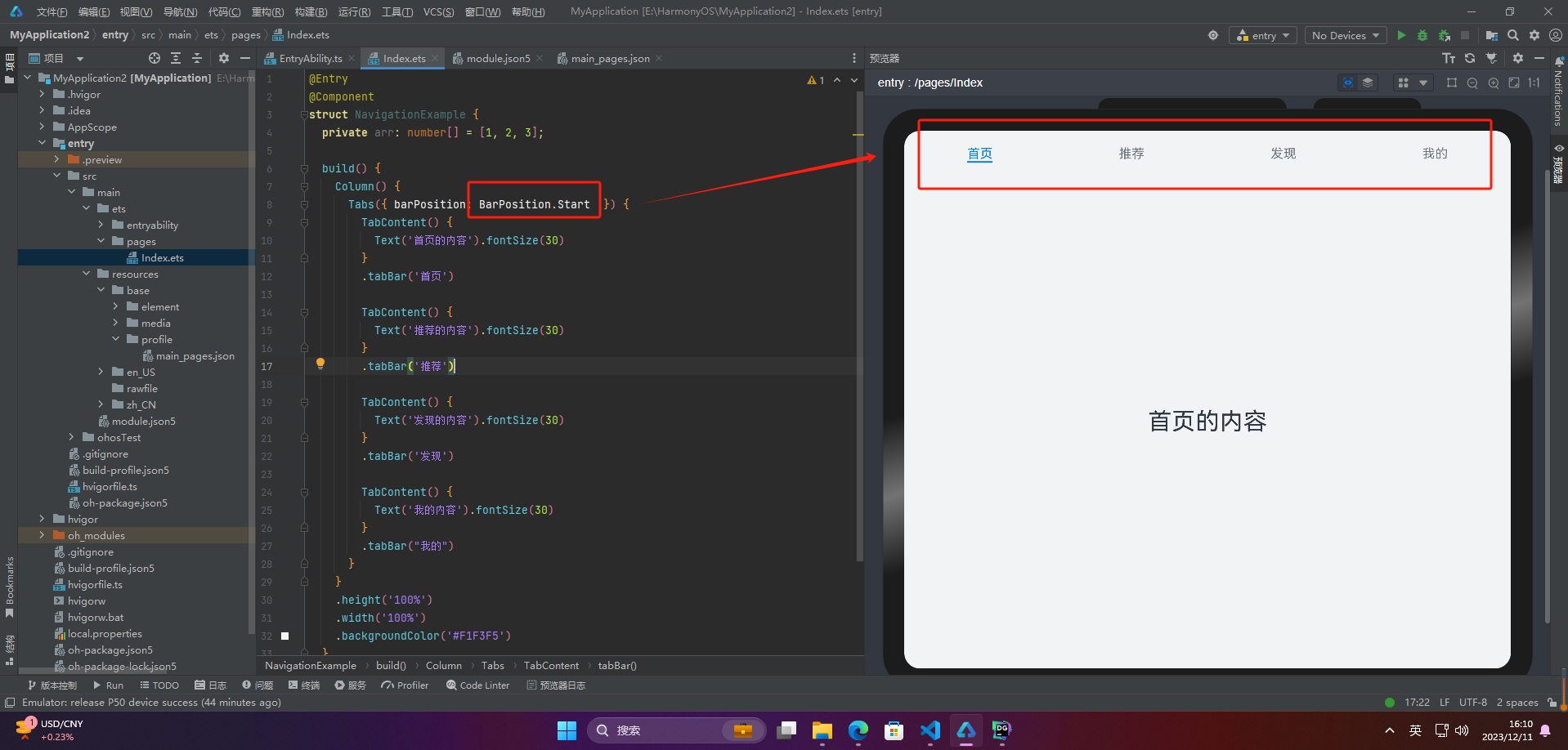
2.3 侧边导航
实现侧边导航栏需要设置 Tabs 的属性 vertical 为 true
-
vertical 为 false 时,tabbar 宽度会默认撑满屏幕的宽度,需要设置 barWidth 为合适值。
-
vertical 为 true 时,tabbar 的高度会默认实际内容高度,需要设置 barHeight 为合适值。
@Entry
@Component
struct NavigationExample {
  private arr: number[] = [1, 2, 3];

  build() {
    Column() {
      Tabs({ barPosition: BarPosition.Start  }) {
        ....
      }.vertical(true)
      .barWidth(100)
      .barHeight(200)
    }
    .height('100%')
    .width('100%')
    .backgroundColor('#F1F3F5')
  }
}
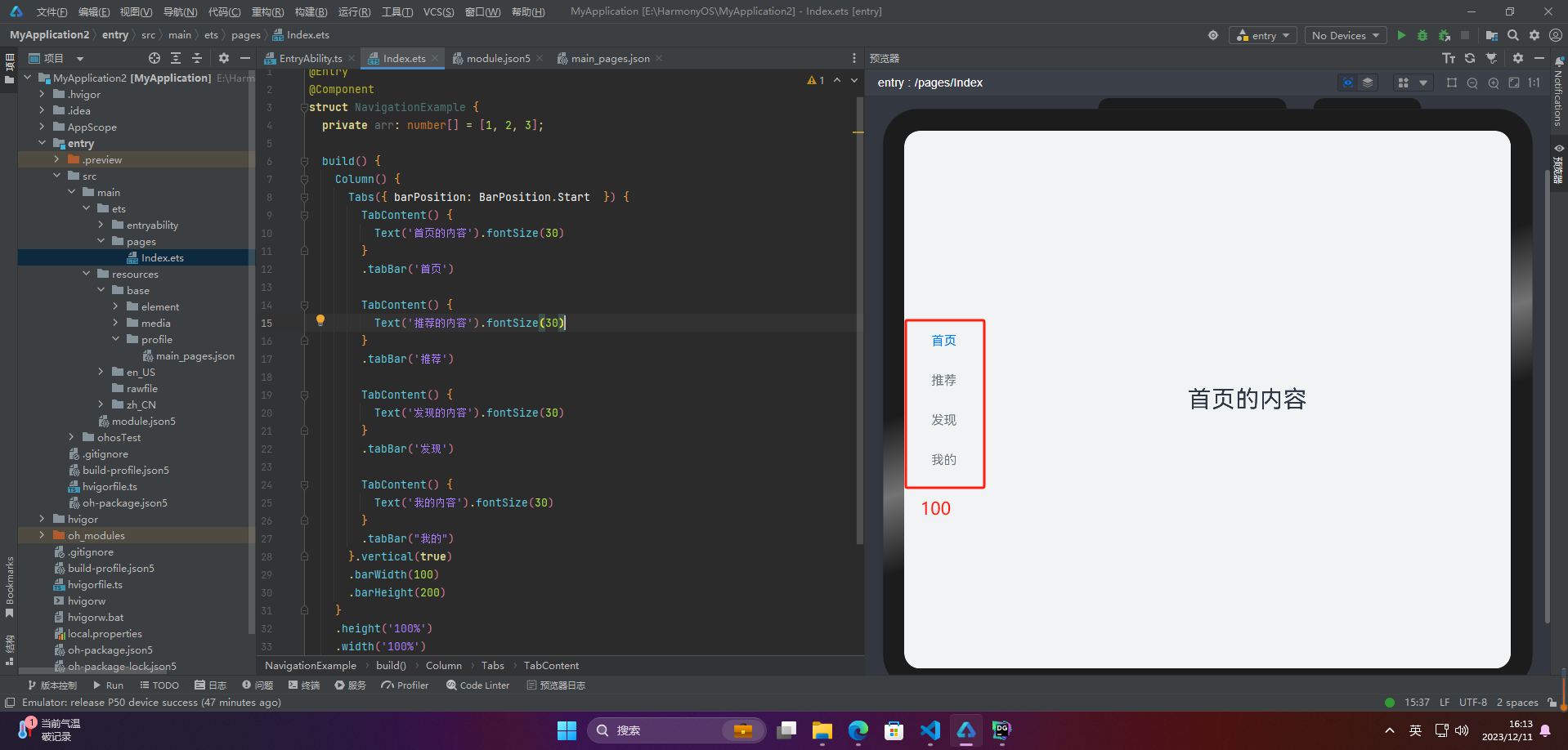
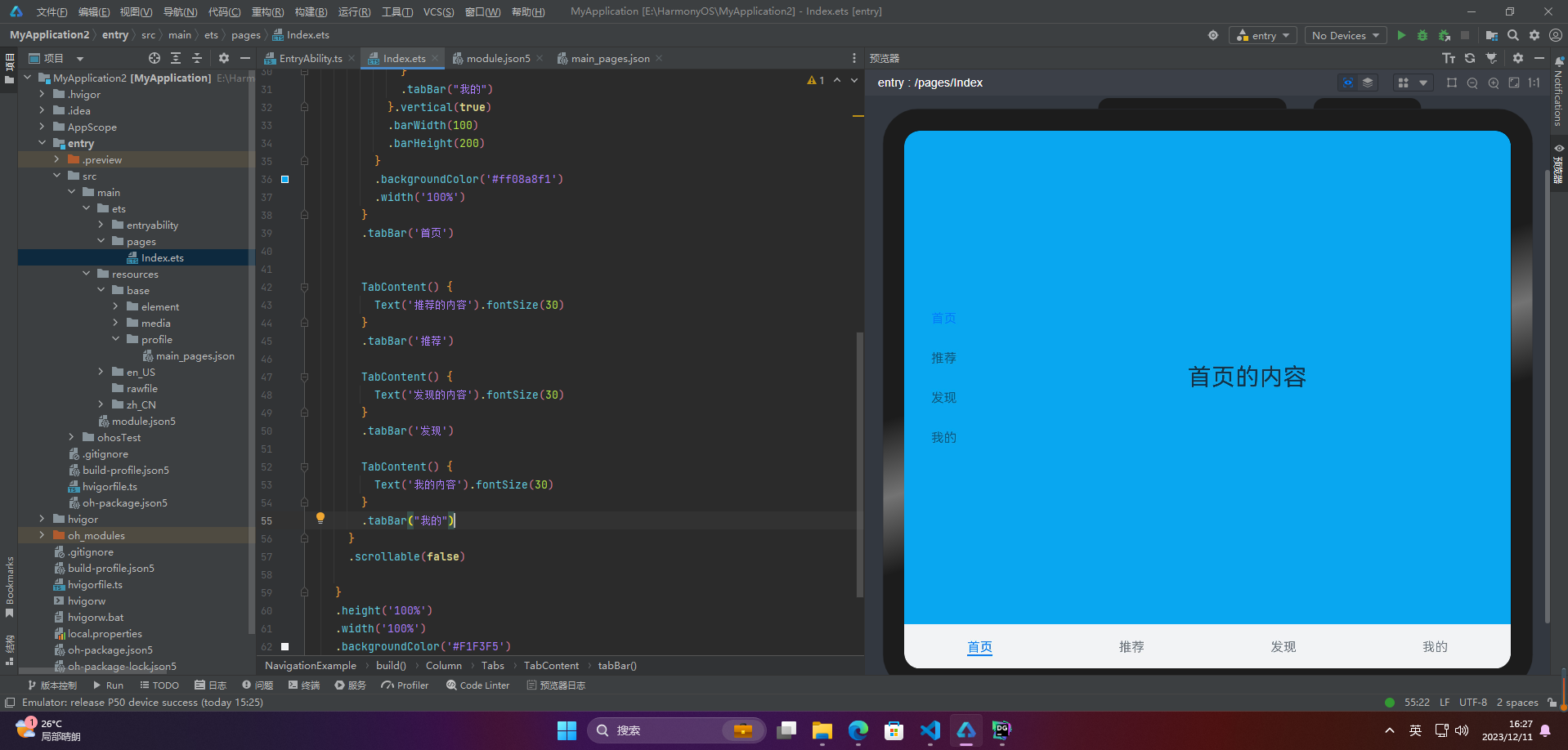
3.导航效果
3.1 限制导航栏的滑动切换
在某些需要进行多级分类的页面上,如同时存在底部导航栏和顶部导航栏时,因为默认情况下导航栏都支持滑动切换,所以当底部导航栏的滑动效果与顶部导航栏出现冲突时,需要限制底部导航栏的滑动,以避免给用户带来不好的体验。
@Entry
@Component
struct NavigationExample {
  private arr: number[] = [1, 2, 3];

  build() {
    Column() {
      Tabs({ barPosition: BarPosition.End }) {
        TabContent(){
          Column(){

            Tabs({ barPosition: BarPosition.Start  }) {
              TabContent() {
                Text('首页的内容').fontSize(30)
              }
              .tabBar('首页')

              TabContent() {
                Text('推荐的内容').fontSize(30)
              }
              .tabBar('推荐')

              TabContent() {
                Text('发现的内容').fontSize(30)
              }
              .tabBar('发现')

              TabContent() {
                Text('我的内容').fontSize(30)
              }
              .tabBar("我的")
            }.vertical(true)
            .barWidth(100)
            .barHeight(200)
          }
          .backgroundColor('#ff08a8f1')
          .width('100%')
        }
        .tabBar('首页')
        TabContent() {
          Text('推荐的内容').fontSize(30)
        }
        .tabBar('推荐')

        TabContent() {
          Text('发现的内容').fontSize(30)
        }
        .tabBar('发现')

        TabContent() {
          Text('我的内容').fontSize(30)
        }
        .tabBar("我的")
      }
      .scrollable(false)

    }
    .height('100%')
    .width('100%')
    .backgroundColor('#F1F3F5')
  }
}


       ....
        }.vertical(true)
        .barWidth(100)
        .barHeight(200)
      }
      .height('100%')
      .width('100%')
      .backgroundColor('#F1F3F5')
    }
  }
[外链图片转存中…(img-1n9h1Lb6-1765712766061)]
3.导航效果
3.1 限制导航栏的滑动切换
在某些需要进行多级分类的页面上,如同时存在底部导航栏和顶部导航栏时,因为默认情况下导航栏都支持滑动切换,所以当底部导航栏的滑动效果与顶部导航栏出现冲突时,需要限制底部导航栏的滑动,以避免给用户带来不好的体验。
@Entry
@Component
struct NavigationExample {
  private arr: number[] = [1, 2, 3];

  build() {
    Column() {
      Tabs({ barPosition: BarPosition.End }) {
        TabContent(){
          Column(){

            Tabs({ barPosition: BarPosition.Start  }) {
              TabContent() {
                Text('首页的内容').fontSize(30)
              }
              .tabBar('首页')

              TabContent() {
                Text('推荐的内容').fontSize(30)
              }
              .tabBar('推荐')

              TabContent() {
                Text('发现的内容').fontSize(30)
              }
              .tabBar('发现')

              TabContent() {
                Text('我的内容').fontSize(30)
              }
              .tabBar("我的")
            }.vertical(true)
            .barWidth(100)
            .barHeight(200)
          }
          .backgroundColor('#ff08a8f1')
          .width('100%')
        }
        .tabBar('首页')
        TabContent() {
          Text('推荐的内容').fontSize(30)
        }
        .tabBar('推荐')

        TabContent() {
          Text('发现的内容').fontSize(30)
        }
        .tabBar('发现')

        TabContent() {
          Text('我的内容').fontSize(30)
        }
        .tabBar("我的")
      }
      .scrollable(false)

    }
    .height('100%')
    .width('100%')
    .backgroundColor('#F1F3F5')
  }
}

作为“人工智能6S店”的官方数字引擎,为AI开发者与企业提供一个覆盖软硬件全栈、一站式门户。
更多推荐

 30
30 0
0- 0


 已为社区贡献2条内容

所有评论(0)