
【开源鸿蒙跨平台开发学习笔记】开源鸿蒙-基于React搭建GitCode口袋工具-1
本文参考大佬文章
https://blog.csdn.net/qq_74796274/article/details/155233763?spm=1001.2014.3001.5502
一、React鸿蒙编译开发
1.1创建文件夹及相关文件
需要用到的文件夹:"AwesomePorject"。这个文件是我们从搭建React鸿蒙的环境得到的。如果不知道怎么搭建React鸿蒙环境的,可以查看下述链接。我们可以在vscode、trae、cursor打开该文件(注:DevEco Stduio无法打开这个文件)。本篇文章使用vscode,需要自己新建src文件夹,然后再在文件夹下新建"api"、"assets"、"components"等文件夹。
各文件夹的作用如下:
搭建React鸿蒙环境可以看下面这篇文章
https://blog.csdn.net/2501_93826986/article/details/155494026
api:存放接口请求相关代码(比如封装的 HTTP 请求函数、接口地址配置等),负责和后端交互。
assets:存放静态资源(图片、字体、样式文件等),统一管理项目中的素材。
components:存放通用组件(比如按钮、导航栏、弹窗等可复用的 UI 组件),实现组件的复用性。
hooks:存放自定义 Hook(比如封装的状态管理 Hook、请求 Hook 等),复用逻辑代码。
navigation:存放路由 / 导航配置代码(比如页面跳转规则、导航栏配置),管理页面之间的跳转关系。
screens:存放页面级组件(即项目的各个页面,比如首页、设置页),对应项目的不同功能页面。
store:存放状态管理相关代码(比如 Redux、MobX 或 Context API 的配置),管理全局共享状态。
types:存放 TypeScript 类型定义文件(比如接口返回数据的类型、组件 Props 的类型),提升代码的类型安全性。
utils:存放工具函数(比如时间格式化、数据处理、本地存储等通用工具方法),复用工具类逻辑。
如下图所所示所有文件夹创建完毕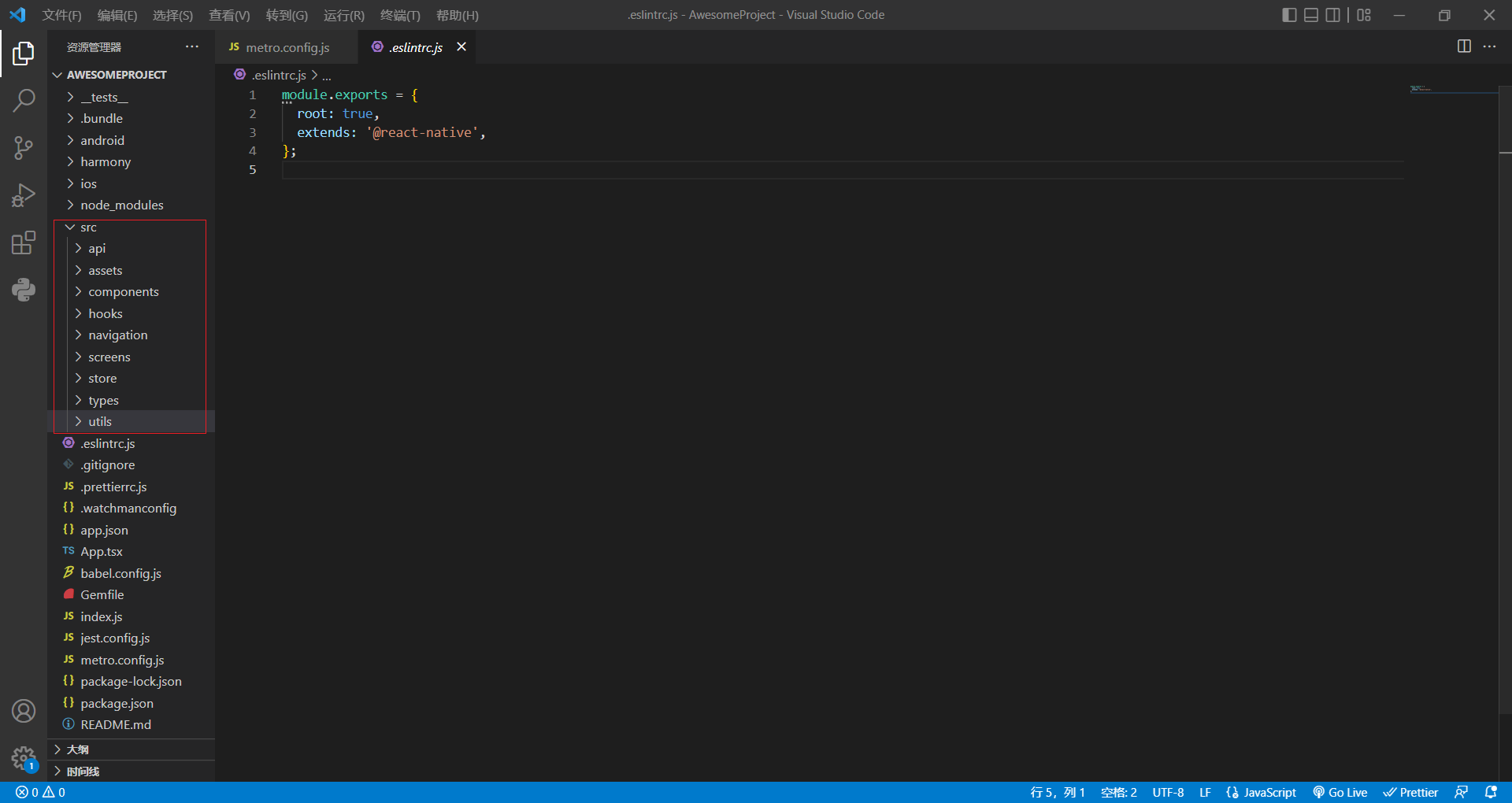
在components文件夹下,新建BottomTab.tsx文件
BottomTab.tsx内容如下
import React from 'react';
import {View, Pressable, Text, StyleSheet} from 'react-native';

export interface TabItem {
  key: string;
  title: string;
}

export interface BottomTabBarProps {
  tabs: TabItem[];
  activeKey: string;
  onTabPress: (key: string) => void;
}

export function BottomTabBar({tabs, activeKey, onTabPress}: BottomTabBarProps) {
  return (
    <View style={styles.tabBar}>
      {tabs.map(tab => {
        const isActive = tab.key === activeKey;
        return (
          <Pressable
            key={tab.key}
            onPress={() => onTabPress(tab.key)}
            style={[styles.tabItem, isActive ? styles.tabItemActive : null]}
          >
            <Text style={[styles.tabText, isActive ? styles.tabTextActive : null]}>
              {tab.title}
            </Text>
          </Pressable>
        );
      })}
    </View>
  );
}

const styles = StyleSheet.create({
  tabBar: {
    flexDirection: 'row',
    borderTopWidth: 1,
    borderTopColor: '#E5E7EB',
    backgroundColor: '#F9FAFB',
  },
  tabItem: {flex: 1, paddingVertical: 12, alignItems: 'center'},
  tabItemActive: {backgroundColor: '#EEF2FF'},
  tabText: {fontSize: 14, color: '#374151'},
  tabTextActive: {color: '#1F2937', fontWeight: '600'},
});
在navigation文件夹下,新建AppRoot.tsx文件
AppRoot.tsx内容如下
import React, {useMemo, useState} from 'react';
import {SafeAreaView, View, StyleSheet} from 'react-native';
import {BottomTabBar, TabItem} from '../components/BottomTab';
import HomeScreen from '../screens/HomeScreen'; // 移除大括号
import ExploreScreen from '../screens/ExploreScreen'; // 移除大括号
import SettingsScreen from '../screens/SettingsScreen'; // 移除大括号

export function AppRoot() {
  const tabs: TabItem[] = [
    {key: 'home', title: '首页'},
    {key: 'explore', title: '探索'},
    {key: 'settings', title: '设置'},
  ];
  const [activeKey, setActiveKey] = useState(tabs[0].key);

  const ActiveComponent = useMemo(() => {
    if (activeKey === 'home') return HomeScreen;
    if (activeKey === 'explore') return ExploreScreen;
    if (activeKey === 'settings') return SettingsScreen;
    return HomeScreen;
  }, [activeKey]);

  return (
    <SafeAreaView style={styles.container}>
      <View style={styles.content}>
        <ActiveComponent />
      </View>
      <BottomTabBar tabs={tabs} activeKey={activeKey} onTabPress={setActiveKey} />
    </SafeAreaView>
  );
}

const styles = StyleSheet.create({
  container: {flex: 1, backgroundColor: '#FFFFFF'},
  content: {flex: 1, alignItems: 'center', justifyContent: 'center'},
});
在screens文件夹下新建ExploreScreen.tsx、HomeScreen.tsx、SettingsScreen.tsx三个文件
ExploreScreen.tsx内容如下
// ../screens/ExploreScreen.js
import React from 'react';
import { View, Text, StyleSheet } from 'react-native';

export function ExploreScreen() {
  return (
    <View style={styles.container}>
      <Text>探索</Text>
    </View>
  );
}

const styles = StyleSheet.create({
  container: {
    flex: 1,
    alignItems: 'center',
    justifyContent: 'center',
  },
});
HomeScreen.tsx内容如下
import React from 'react';
import {View, Text, StyleSheet} from 'react-native';

interface HomeScreenProps {}

export function HomeScreen(_: HomeScreenProps) {
  return (
    <View style={styles.container}>
      <Text style={styles.title}>Hello World</Text>
      <Text style={styles.subTitle}>React Native + Harmony</Text>
    </View>
  );
}

const styles = StyleSheet.create({
  container: {alignItems: 'center', justifyContent: 'center'},
  title: {fontSize: 22, fontWeight: '700', color: '#111827'},
  subTitle: {marginTop: 8, fontSize: 16, color: '#374151'},
});
SettingsScreen.tsx内容如下
import React from 'react';
import {View, Text, StyleSheet} from 'react-native';

interface SettingsScreenProps {}

export function SettingsScreen(_: SettingsScreenProps) {
  return (
    <View style={styles.container}>
      <Text style={styles.title}>设置</Text>
      <Text style={styles.subTitle}>基础示例页面</Text>
    </View>
  );
}

const styles = StyleSheet.create({
  container: {alignItems: 'center', justifyContent: 'center'},
  title: {fontSize: 20, fontWeight: '600', color: '#111827'},
  subTitle: {marginTop: 8, fontSize: 14, color: '#4B5563'},
});
1.2 鸿蒙编译开发
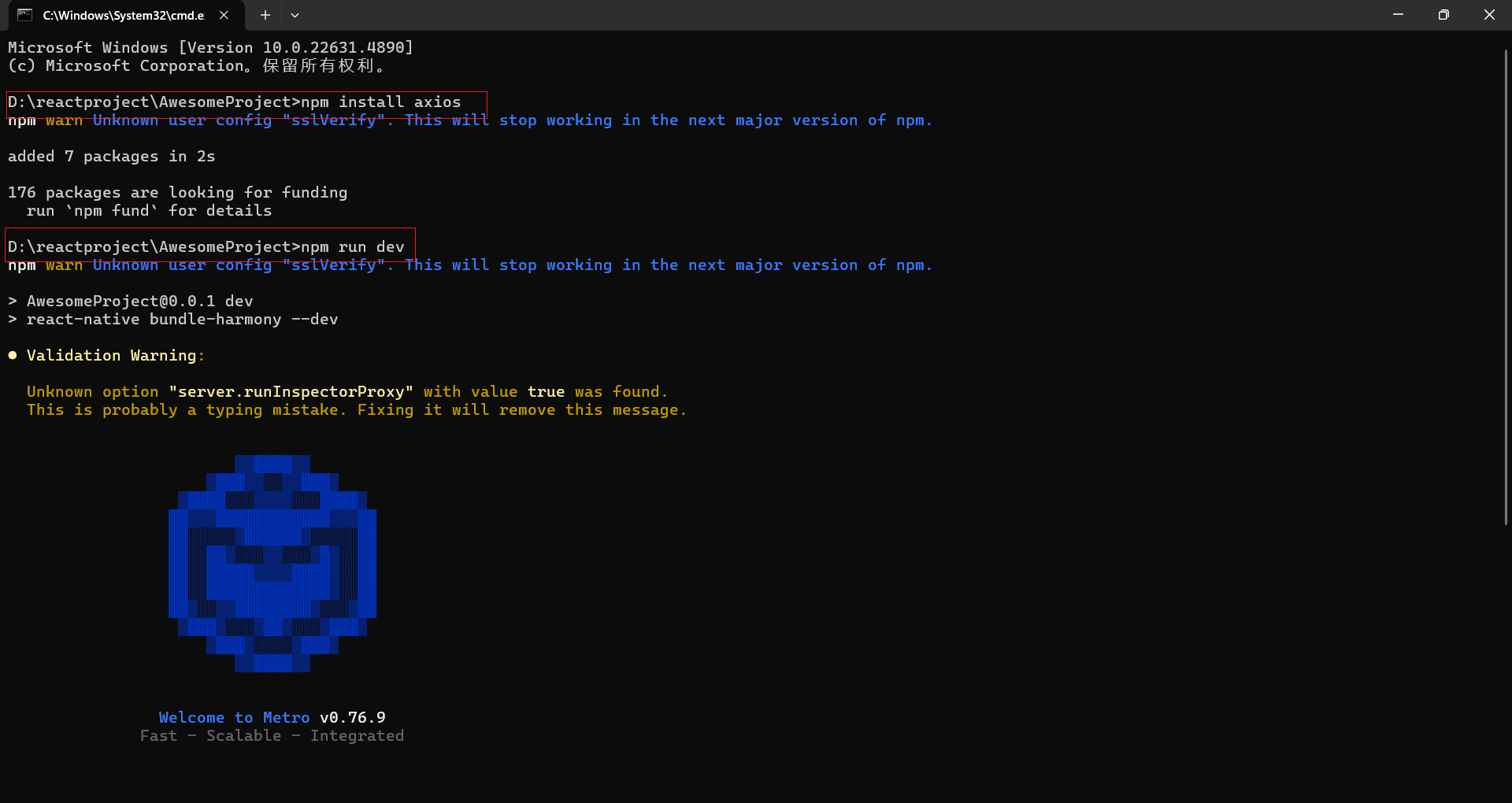
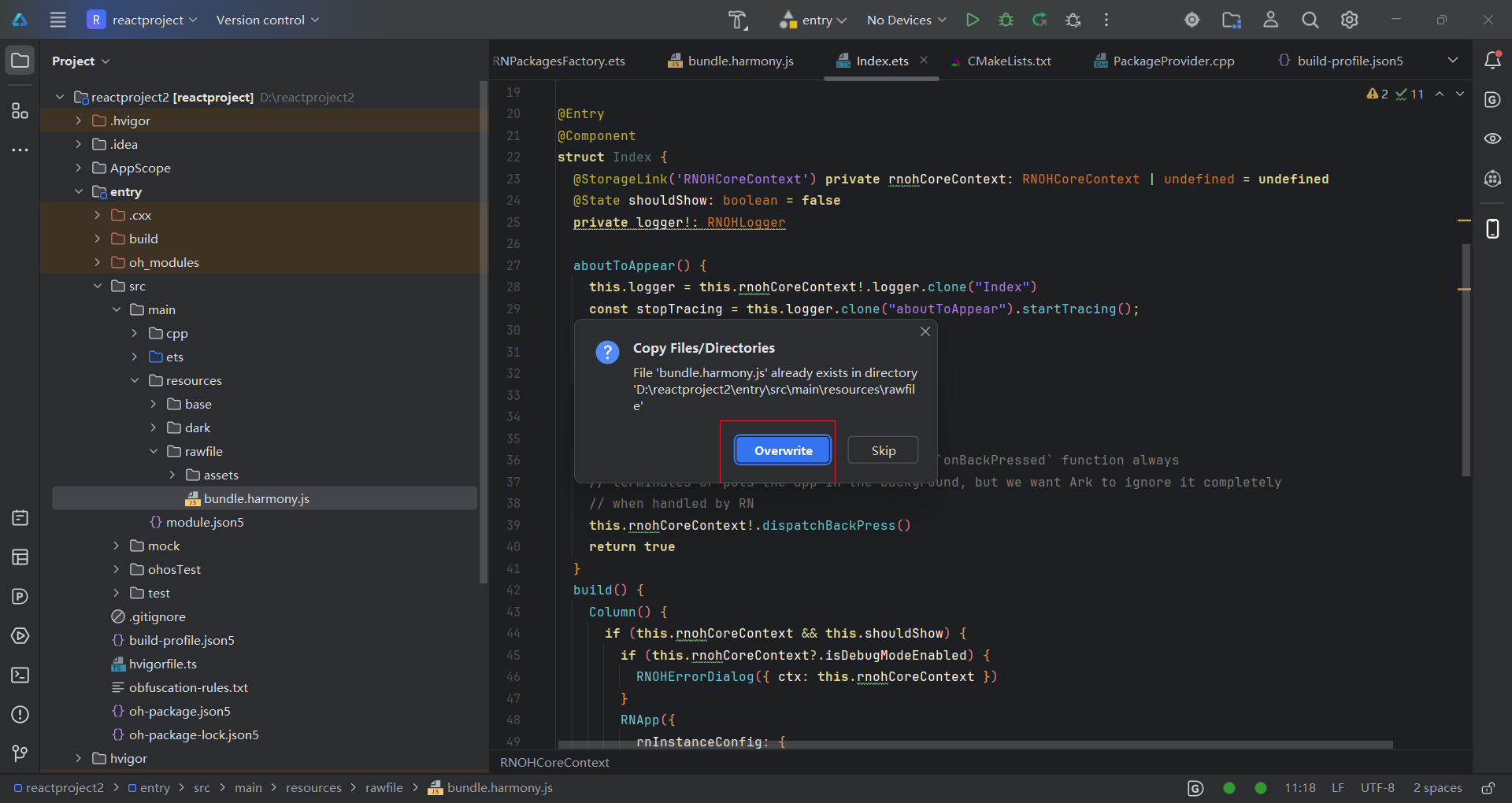
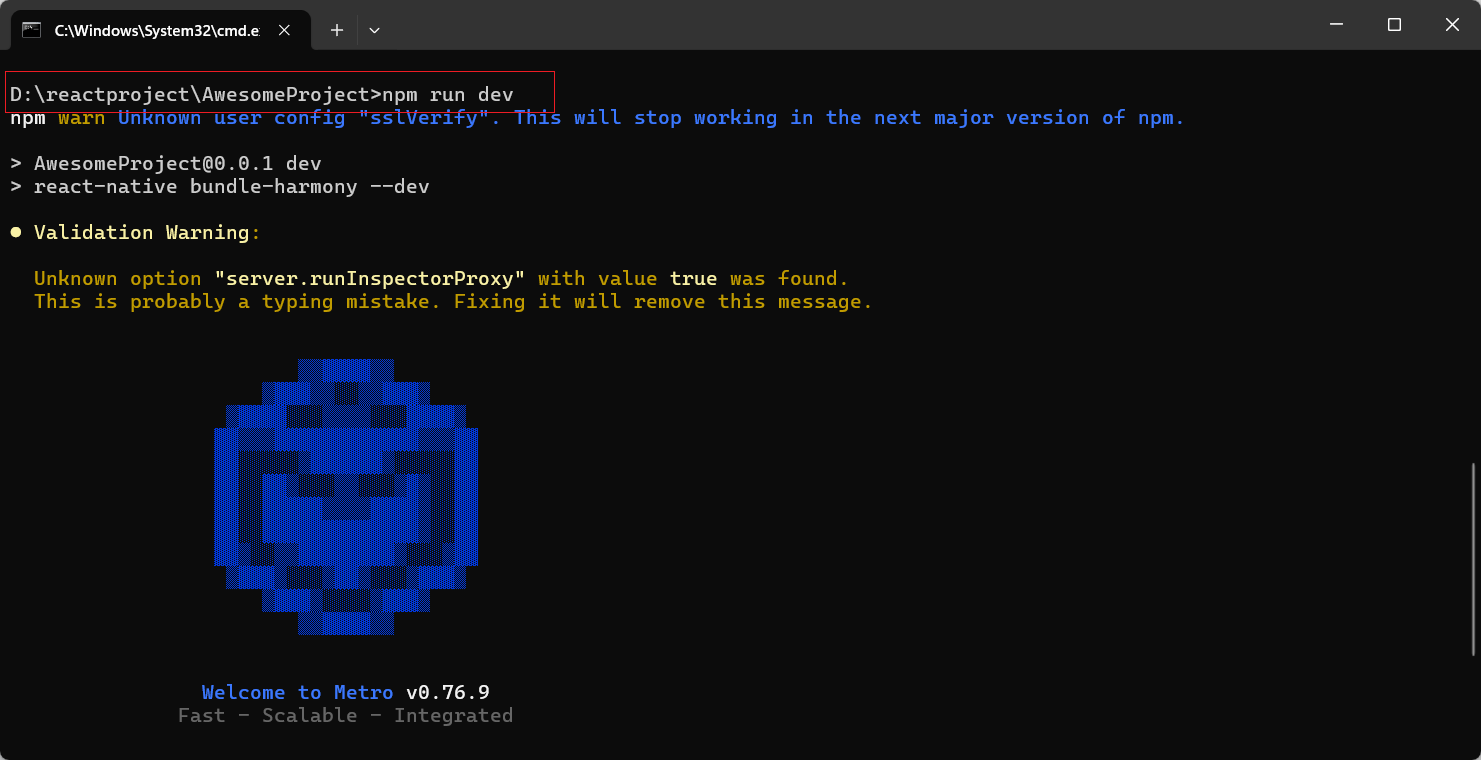
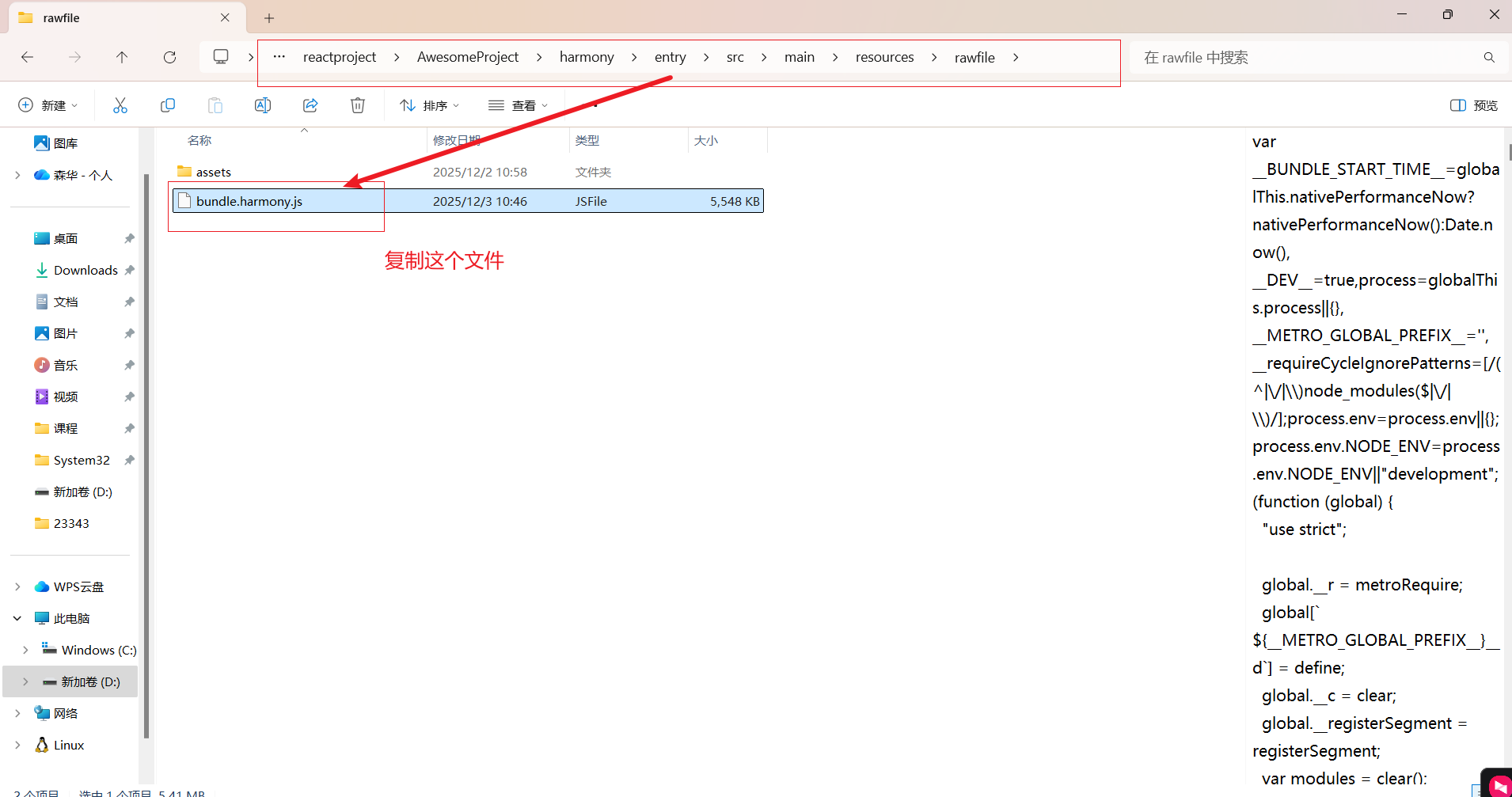
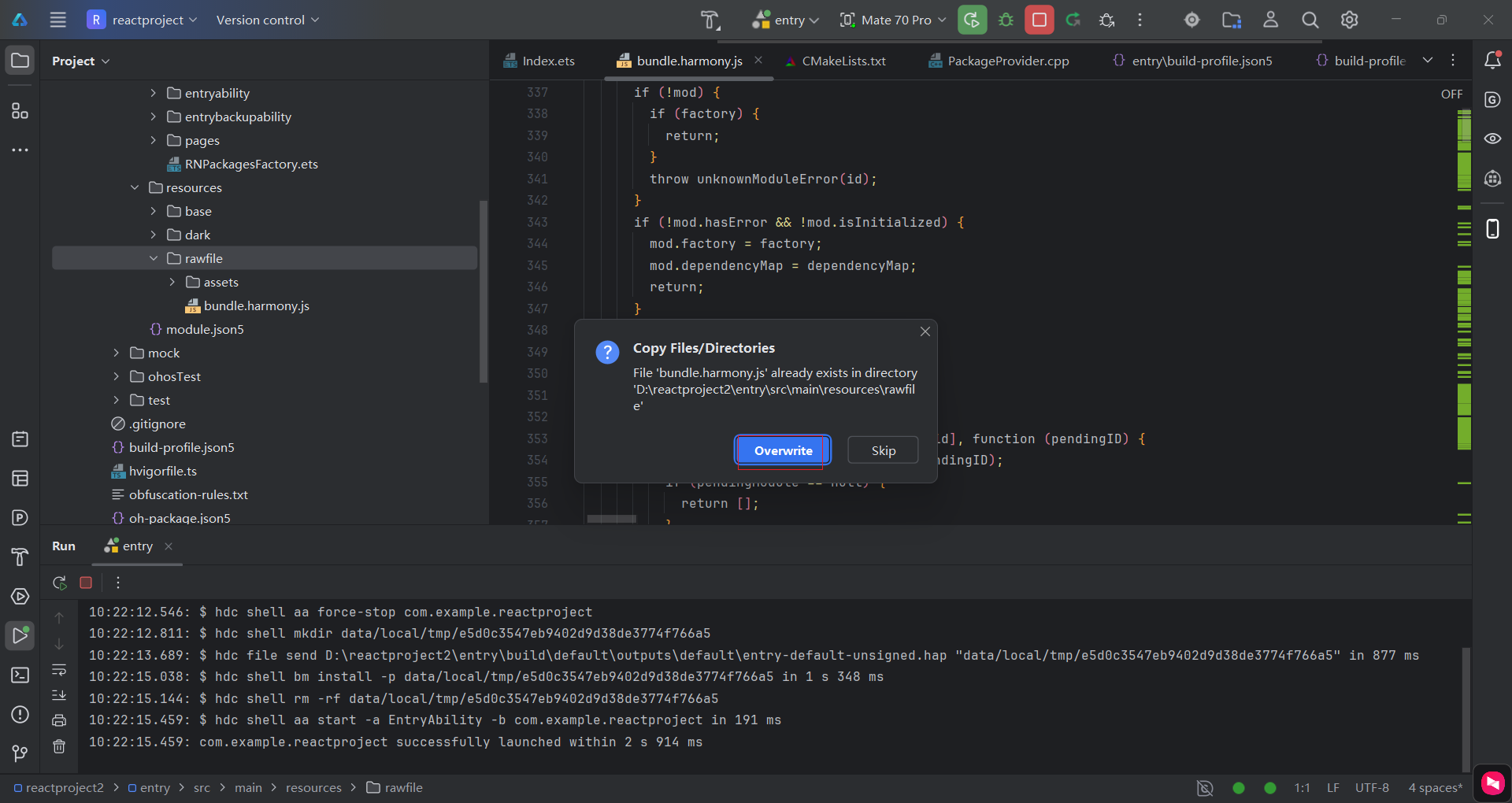
完成上述步骤后,还需要在App.tsx配置入口文件。新建终端后,执行"npm install axios"命令。再执行"npm run dev"编译代码。编译代码后我们需要用到harmony\entry\src\main\resources\rawfile\assets文件夹下的"bundle.harmony.js"文件。复制"bundle.harmony.js"文件到DevEco Studio的rawfile\assets文件夹下,然后选择"Overwrite"覆盖原来的文件。最后运行查看我们在React编写的代码,可以看到我们上面编写的代码已经运行成功了。
替换App.tsx内容
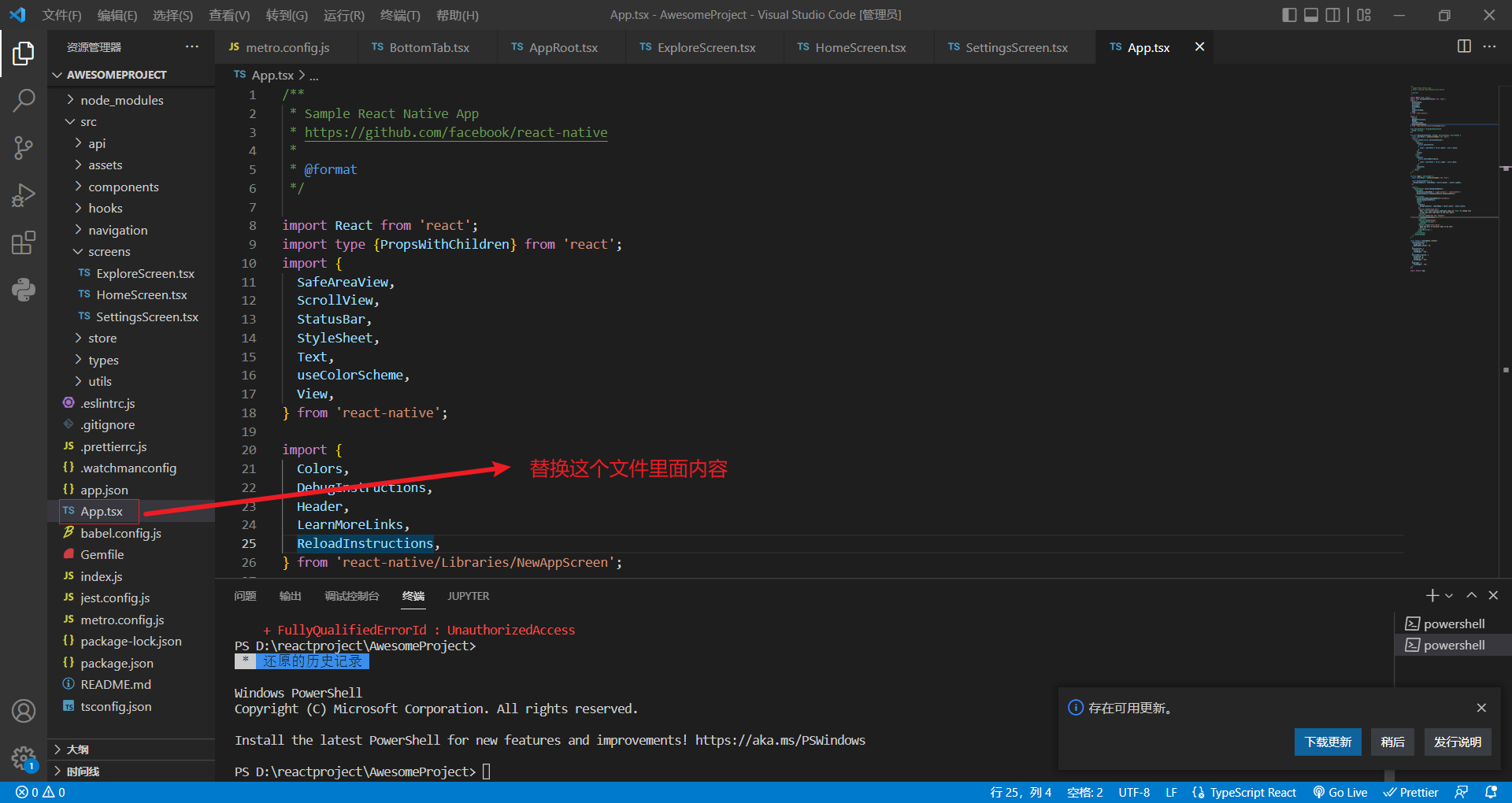
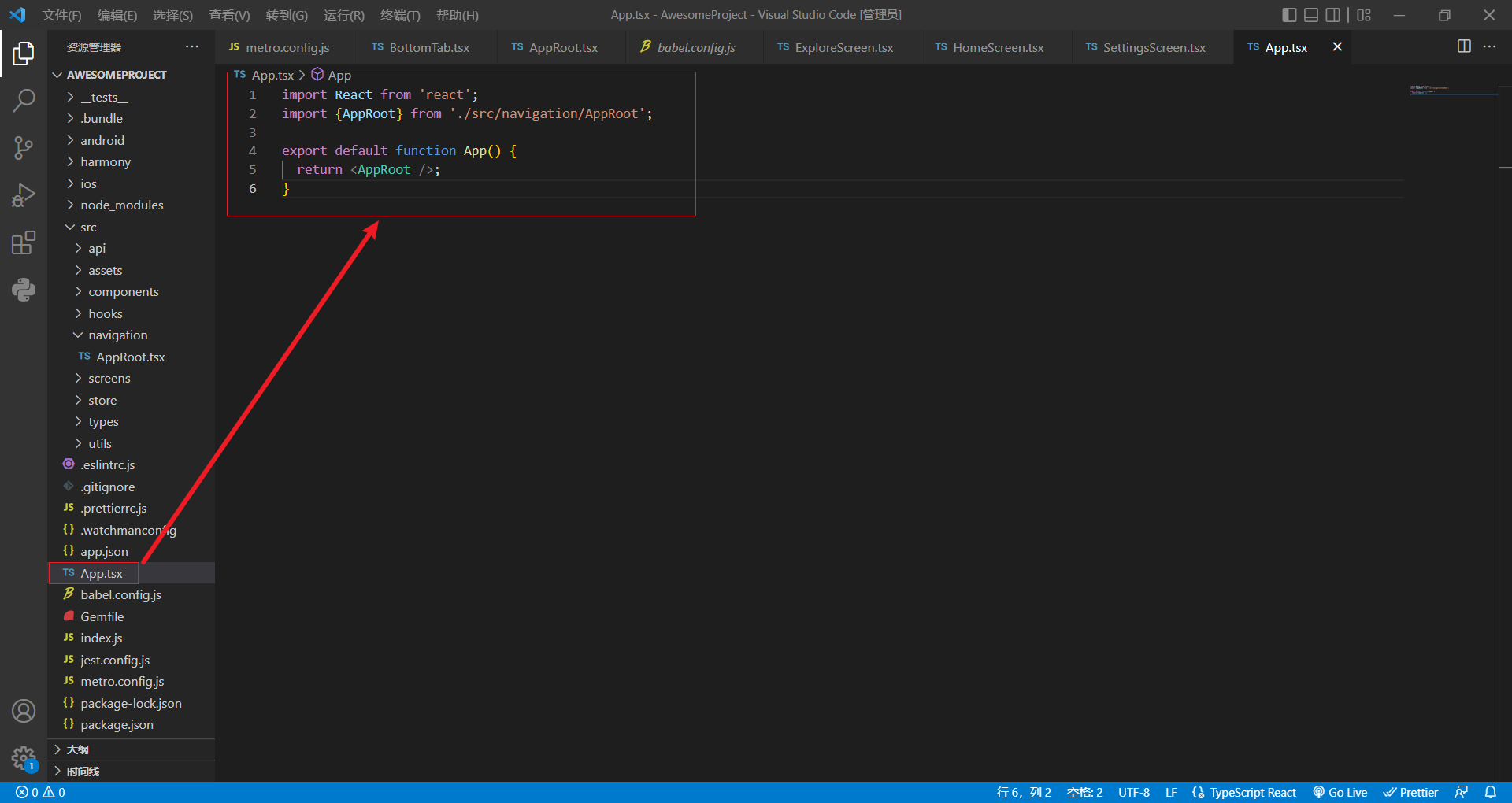
替换内容如下
import React from 'react';
import {AppRoot} from './src/navigation/AppRoot';

export default function App() {
  return <AppRoot />;
}
替换后
新建终端后,执行"npm install axios"命令,再执行"npm run dev"编译代码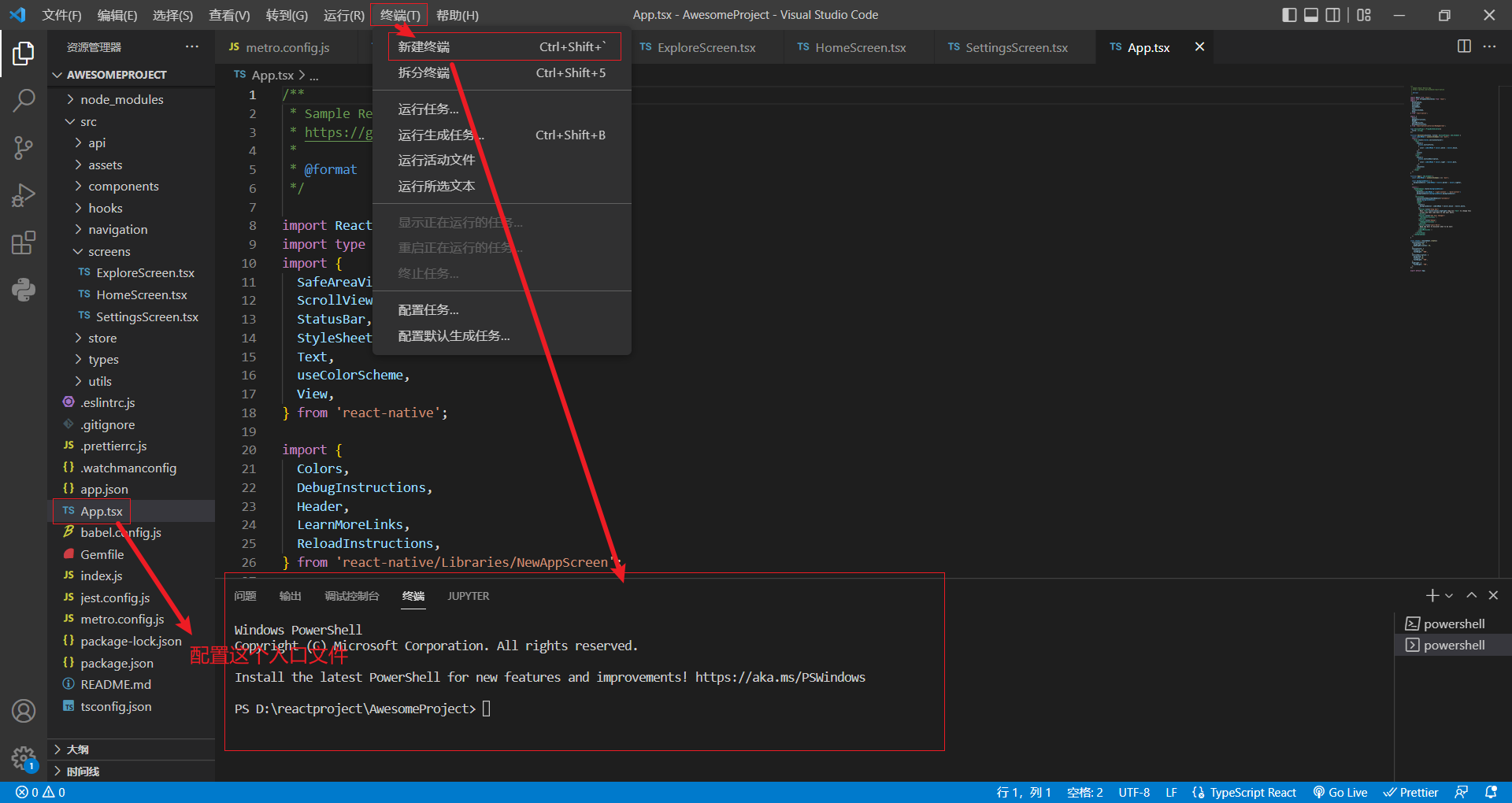
打开AwesomeProject目录终端执行下面两条命令
npm install axios
npm run dev
复制harmony\entry\src\main\resources\rawfile\assets文件夹下的"bundle.harmony.js"文件到DevEco Studio的rawfile\assets文件夹下,然后选择"Overwrite"覆盖原来的文件。
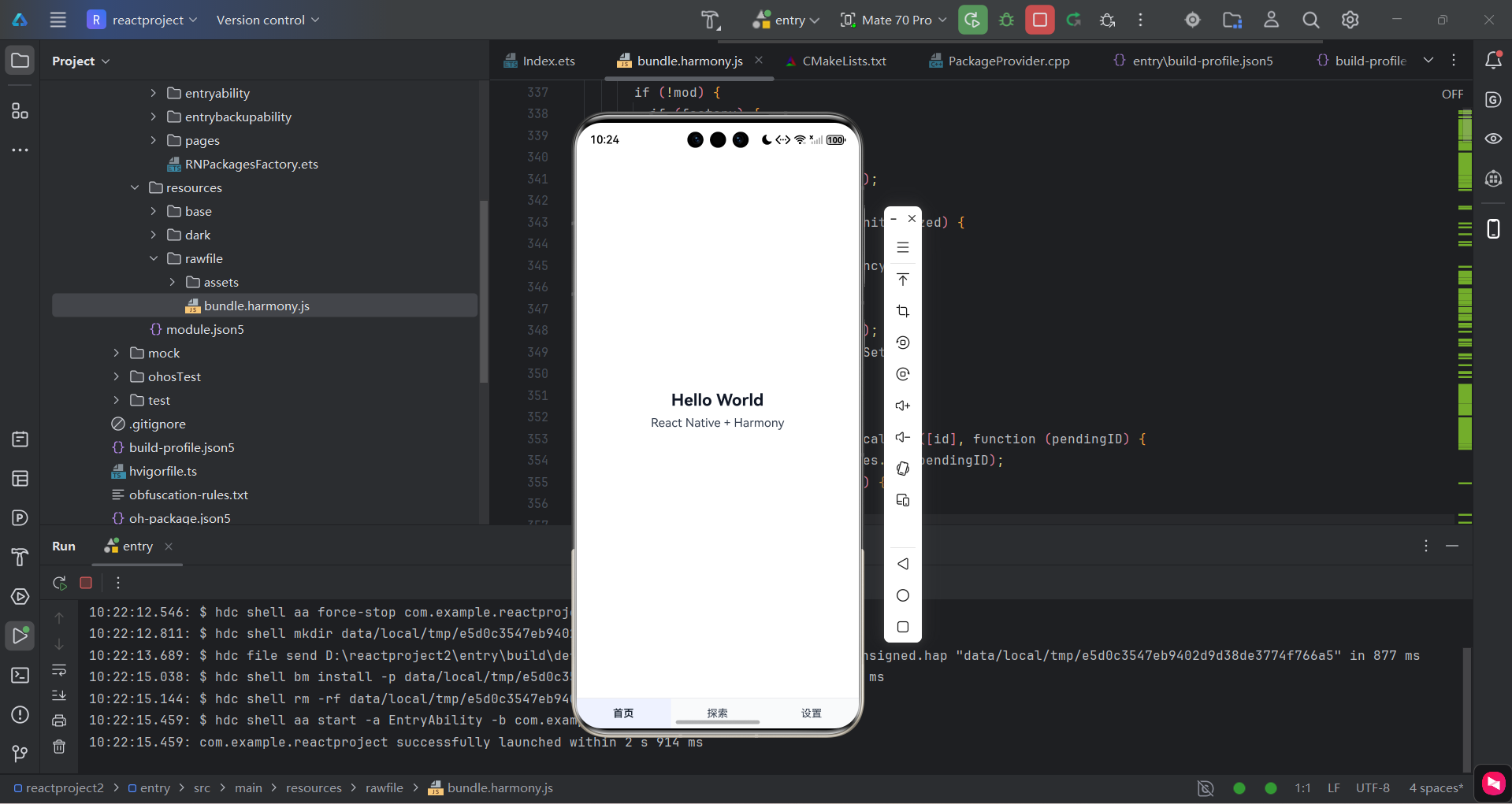
覆盖完之后打开手机模拟器,运行一下项目
项目运行成功
二、请求接口
2.1设置令牌
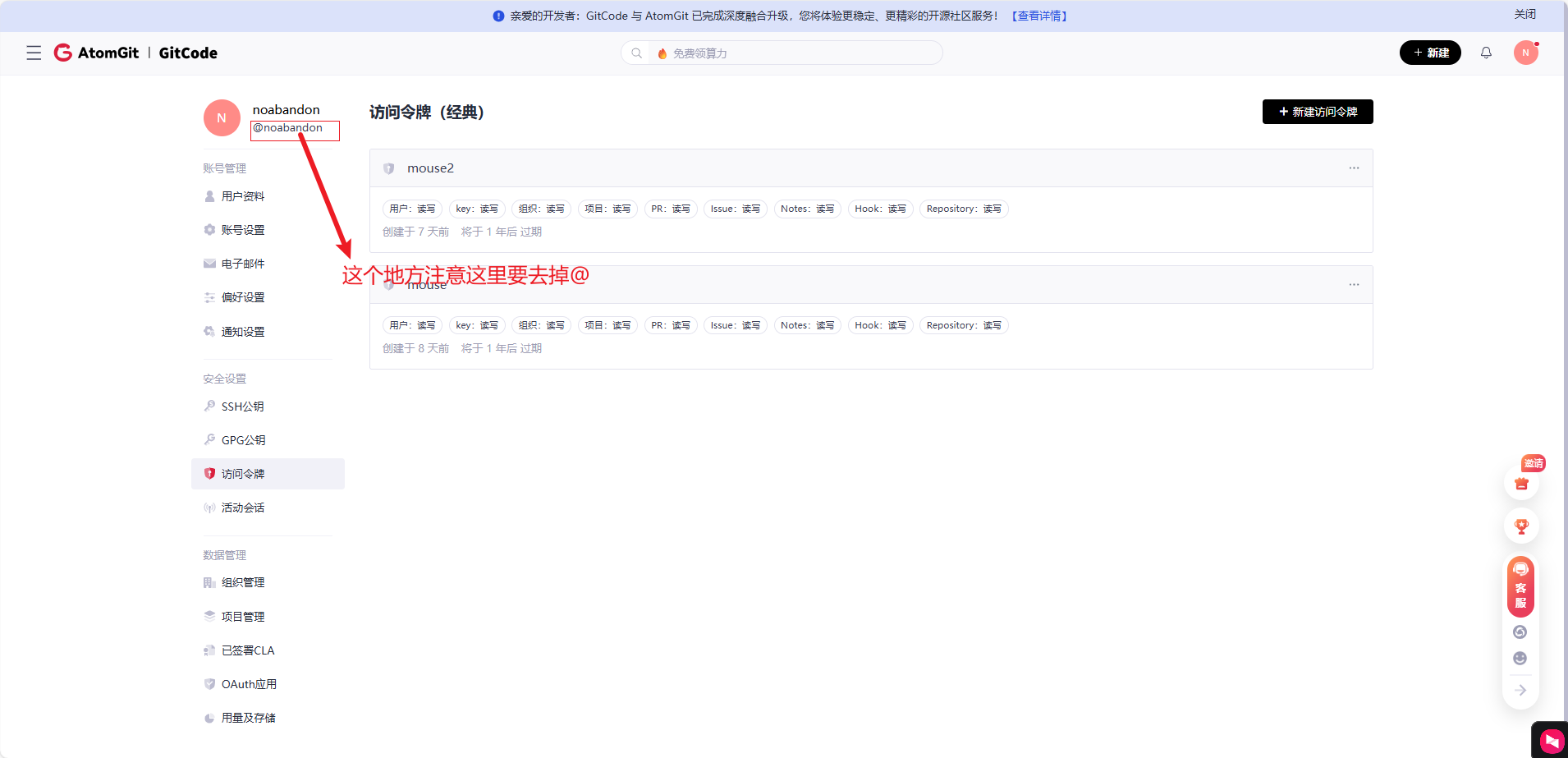
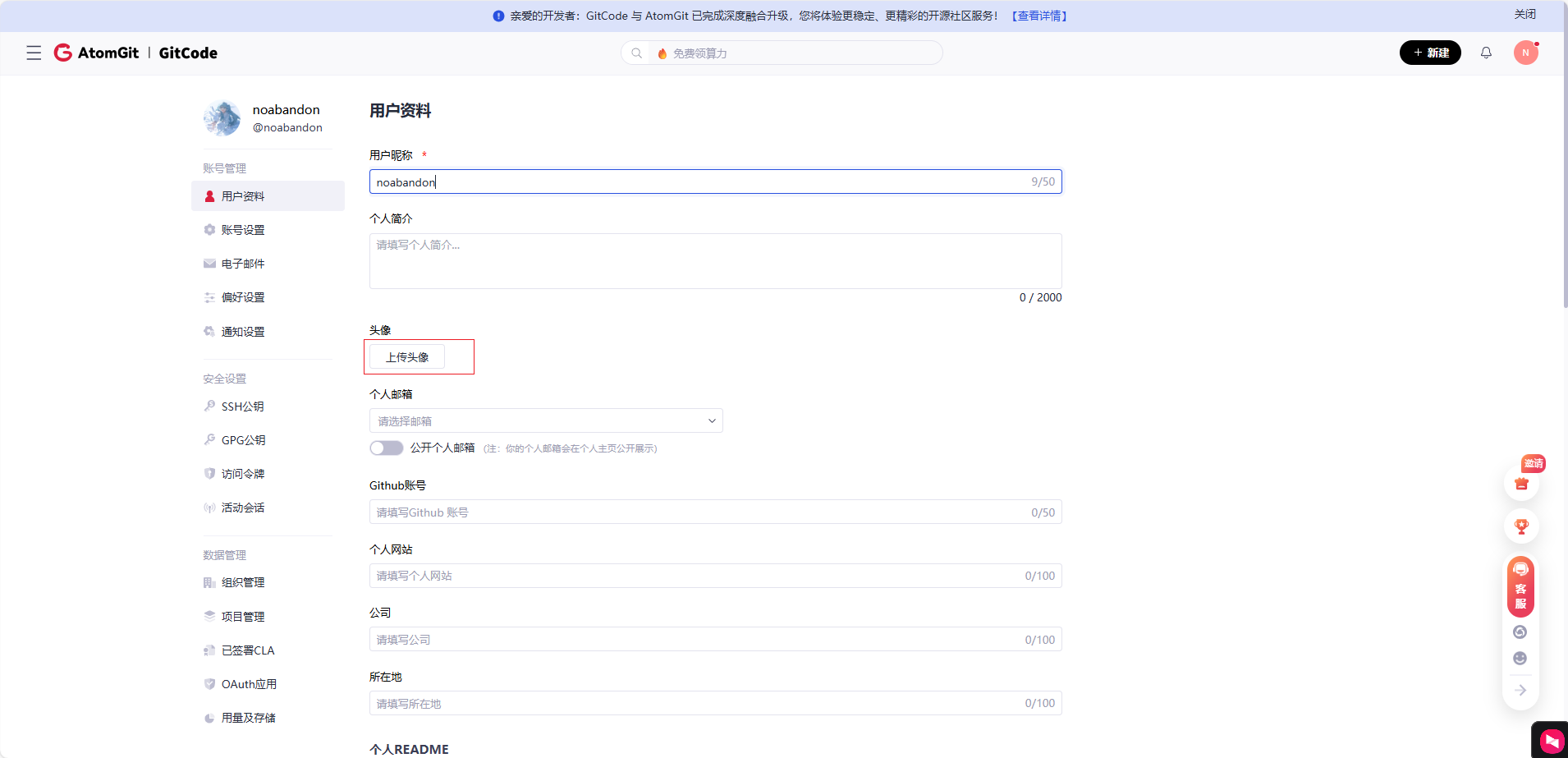
点击下面链接
https://gitcode.com/setting/token-classic
进入到下面这界面
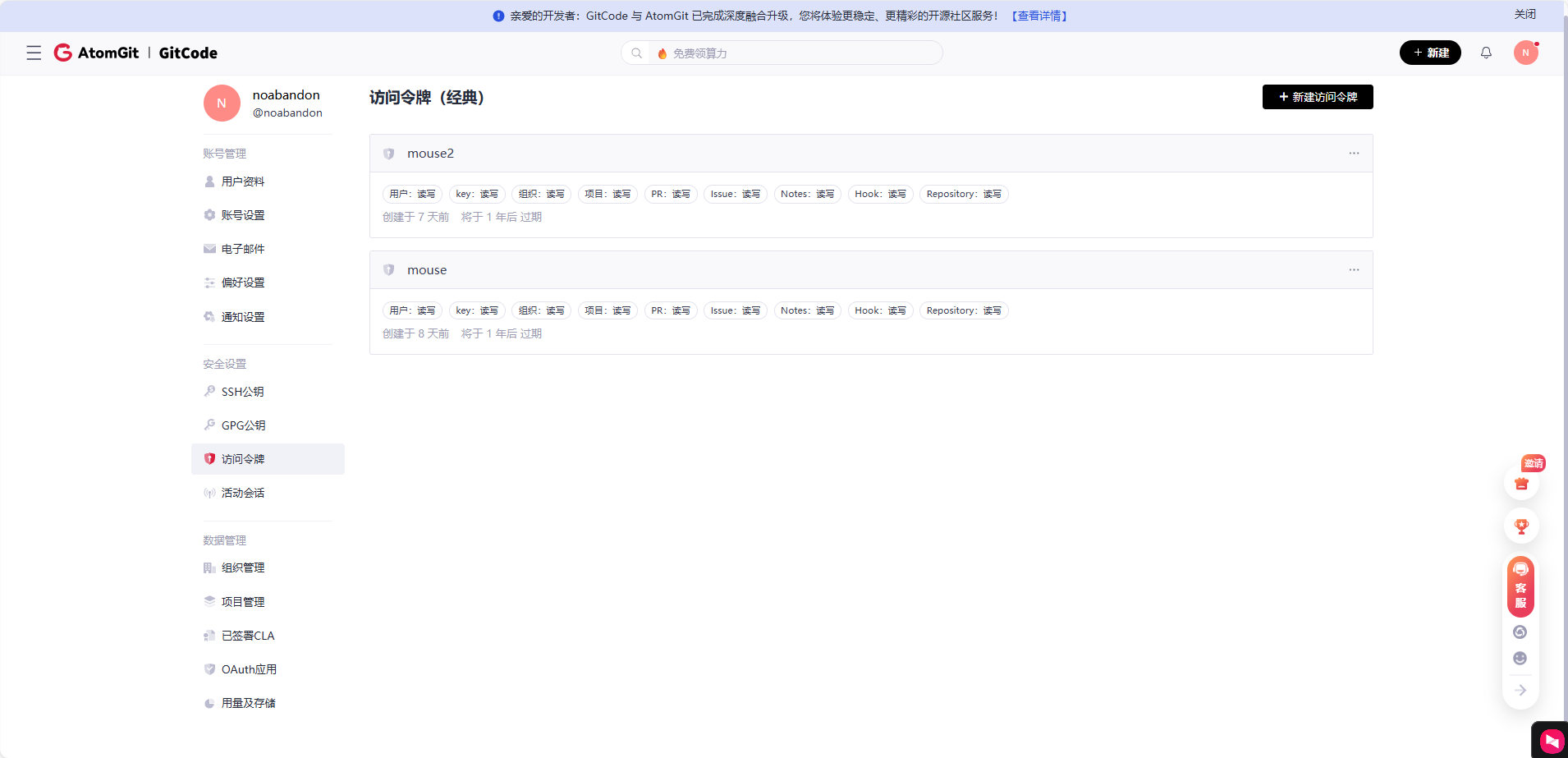
"noabandon"是我在Gitcode的id,可以改成你自己的,可以在上面这个网址查看。注意去掉@,去掉代码不会报错,但是接口访问会返回404.
2.2改写代码
更改src/navigation文件夹下的"AppRoot.tsx"文件:
import React, {useMemo, useState} from 'react';
import {SafeAreaView, View, StyleSheet} from 'react-native';
import {BottomTabBar, TabItem} from '../components/BottomTabBar';
import {HomeScreen} from '../screens/HomeScreen';
import {ExploreScreen} from '../screens/ExploreScreen'; // 1. 导入探索页面
import {SettingsScreen} from '../screens/SettingsScreen';

export function AppRoot() {
  const tabs: TabItem[] = [
    {key: 'home', title: '首页'},
    {key: 'explore', title: '探索'},
    {key: 'settings', title: '设置'},
  ];
  const [activeKey, setActiveKey] = useState(tabs[0].key);

  const ActiveComponent = useMemo(() => {
    if (activeKey === 'home') return HomeScreen;
    if (activeKey === 'explore') return ExploreScreen;
    if (activeKey === 'settings') return SettingsScreen;
    return HomeScreen;
  }, [activeKey]);

  return (
    <SafeAreaView style={styles.container}>
      <View style={styles.content}>
        <ActiveComponent />
      </View>
      <BottomTabBar tabs={tabs} activeKey={activeKey} onTabPress={setActiveKey} />
    </SafeAreaView>
  );
}

const styles = StyleSheet.create({
  container: {flex: 1, backgroundColor: '#FFFFFF'},
  content: {flex: 1, alignItems: 'center', justifyContent: 'center'},
});
更改src/types/文件夹下的"user.tsx"文件,如果没有就新建一个:
export interface UserProfile {
  login: string;
  name?: string;
  type?: string;
  followers?: number;
  following?: number;
  avatar_url?: string;
  html_url?: string;
  bio?: string;
  [key: string]: unknown;
}
更改src/api文件夹下的"user.tsx"文件没有就新建:
import axios from 'axios';
import {UserProfile} from '../types/user';

const BASE_URL = 'https://api.gitcode.com/api/v5/users';

export async function fetchUserProfile(username: string): Promise<UserProfile> {
  const res = await axios.get<UserProfile>(`${BASE_URL}/${encodeURIComponent(username)}`, {timeout: 10000});
  return res.data;
}
更改src/api文件夹下的"index.tsx"文件没有就新建:
export * from './user';更改src/screens文件夹下的"ExploreScreen.tsx"文件:
注意
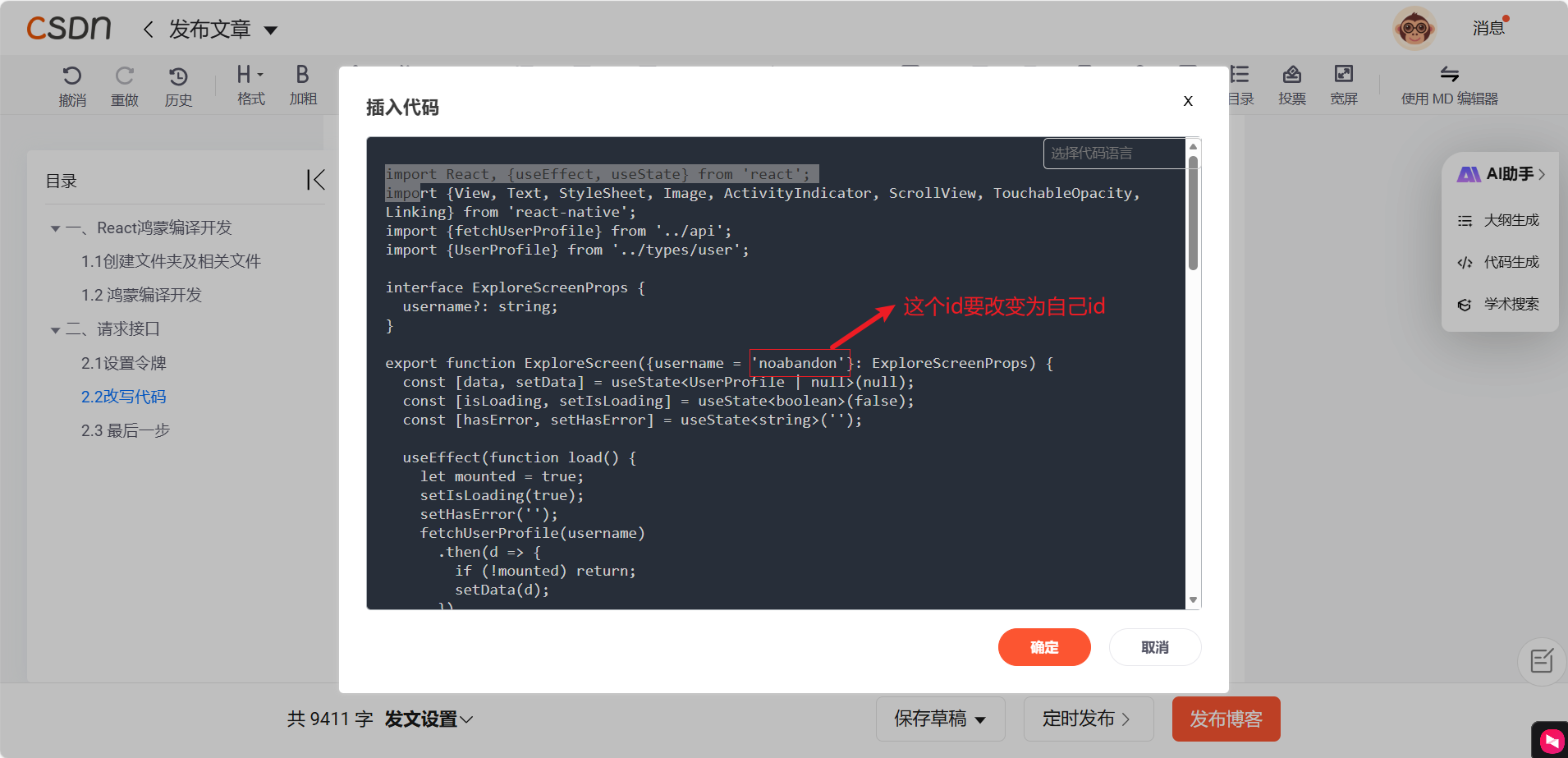
更换代码内容如下
import React, {useEffect, useState} from 'react';
import {View, Text, StyleSheet, Image, ActivityIndicator, ScrollView, TouchableOpacity, Linking} from 'react-native';
import {fetchUserProfile} from '../api';
import {UserProfile} from '../types/user';

interface ExploreScreenProps {
  username?: string;
}

export function ExploreScreen({username = 'noabandon'}: ExploreScreenProps) {
  const [data, setData] = useState<UserProfile | null>(null);
  const [isLoading, setIsLoading] = useState<boolean>(false);
  const [hasError, setHasError] = useState<string>('');

  useEffect(function load() {
    let mounted = true;
    setIsLoading(true);
    setHasError('');
    fetchUserProfile(username)
      .then(d => {
        if (!mounted) return;
        setData(d);
      })
      .catch(e => {
        if (!mounted) return;
        setHasError(String(e?.message || e));
      })
      .finally(() => {
        if (!mounted) return;
        setIsLoading(false);
      });
    return function cleanup() {
      mounted = false;
    };
  }, [username]);

  if (isLoading) {
    return (
      <View style={styles.center}>
        <ActivityIndicator />
        <Text style={styles.loadingText}>加载中</Text>
      </View>
    );
  }

  if (hasError) {
    return (
      <View style={styles.center}>
        <Text style={styles.errorText}>请求失败:{hasError}</Text>
      </View>
    );
  }

  if (!data) {
    return (
      <View style={styles.center}>
        <Text style={styles.errorText}>暂无数据</Text>
      </View>
    );
  }

  return (
    <ScrollView contentContainerStyle={styles.scrollContent} style={styles.scroll}>
      <Image source={{uri: data.avatar_url}} style={styles.avatar} />
      <Text style={styles.title}>{data.name || data.login}</Text>
      <Text style={styles.subtitle}>类型:{data.type}</Text>
      <Text style={styles.subtitle}>粉丝:{data.followers},关注:{data.following}</Text>
      {Boolean(data.bio) && <Text style={styles.bio}>{data.bio}</Text>}
      <TouchableOpacity onPress={() => Linking.openURL(String(data.html_url))} style={styles.linkButton} activeOpacity={0.9}>
        <Text style={styles.linkText}>打开主页</Text>
      </TouchableOpacity>
    </ScrollView>
  );
}

const styles = StyleSheet.create({
  center: {flex: 1, alignItems: 'center', justifyContent: 'center', backgroundColor: '#FFFFFF'},
  loadingText: {marginTop: 8, fontSize: 14, color: '#666'},
  errorText: {fontSize: 14, color: '#d00'},
  scroll: {flex: 1, backgroundColor: '#FFFFFF'},
  scrollContent: {alignItems: 'center', paddingVertical: 24},
  avatar: {width: 120, height: 120, borderRadius: 60, backgroundColor: '#eee'},
  title: {marginTop: 16, fontSize: 24, fontWeight: '700'},
  subtitle: {marginTop: 8, fontSize: 16, color: '#666'},
  bio: {marginTop: 12, fontSize: 14, color: '#333', paddingHorizontal: 24, textAlign: 'center'},
  linkButton: {marginTop: 16, paddingHorizontal: 16, paddingVertical: 10, borderRadius: 6, backgroundColor: '#007aff'},
  linkText: {color: '#fff', fontSize: 14, fontWeight: '600'},
});
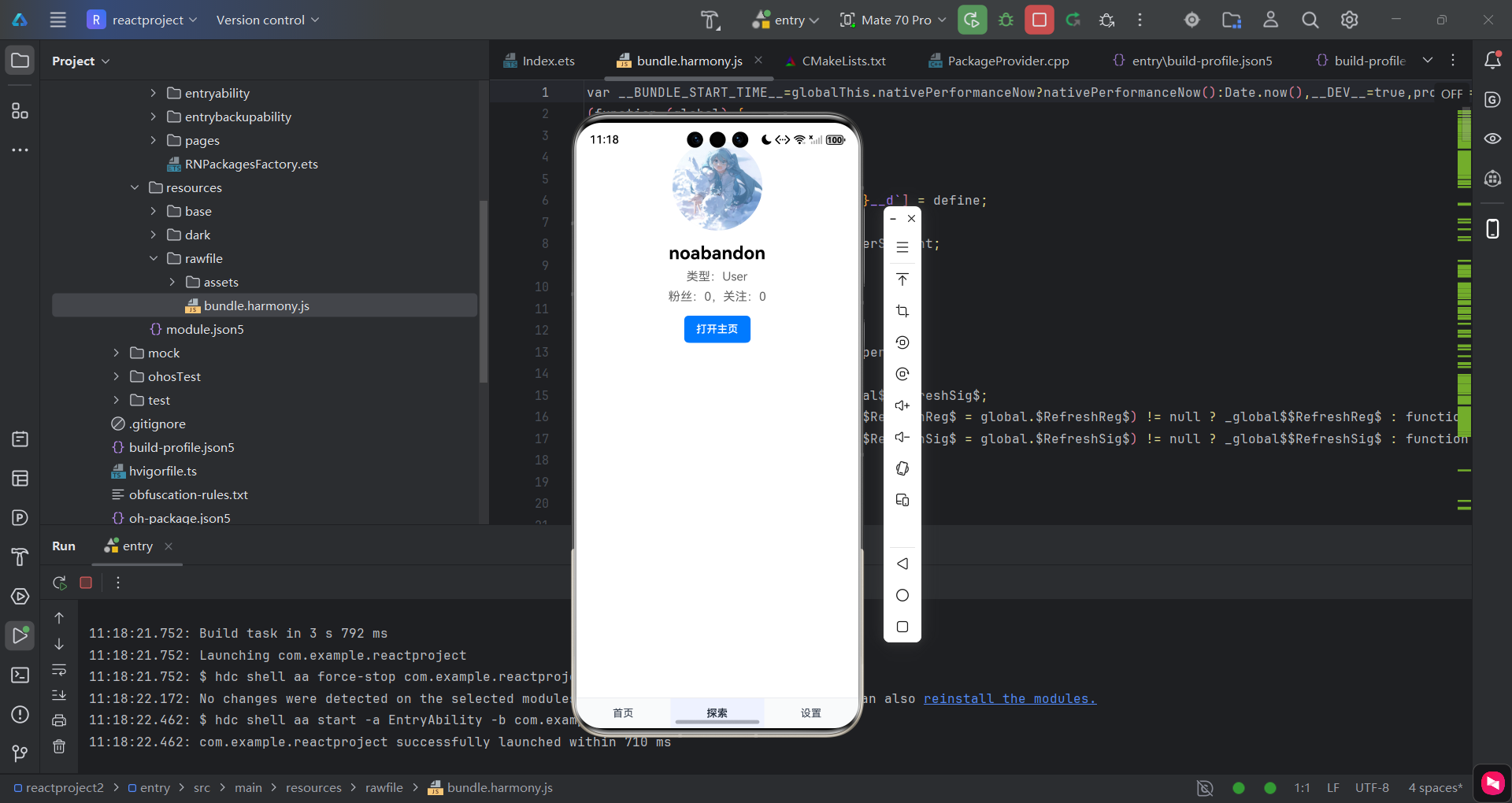
完成上述步骤后,同样在终端输入"npm run dev"编译,将得到的"bundle.harmony.js"文件,覆盖DevEco Studio之前的文件。
 2.3 最后一步
选择框住的运行按钮,重新编译运行即可,可以看到,我们已经成功获取到了数据。注意,如果没在gitcode的网站上设置头像
 运行成功
运行成功

作为“人工智能6S店”的官方数字引擎,为AI开发者与企业提供一个覆盖软硬件全栈、一站式门户。
更多推荐

 10
10 0
0- 0


 已为社区贡献7条内容

所有评论(0)