
Qt for HarmonyOS ListWidget 组件开源鸿蒙开发实践
本文介绍了一个基于HarmonyOS平台的Qt开发项目,主要实现了一个包含列表组件(ListView/GridView)的应用程序。项目支持列表和图
📋 项目概述
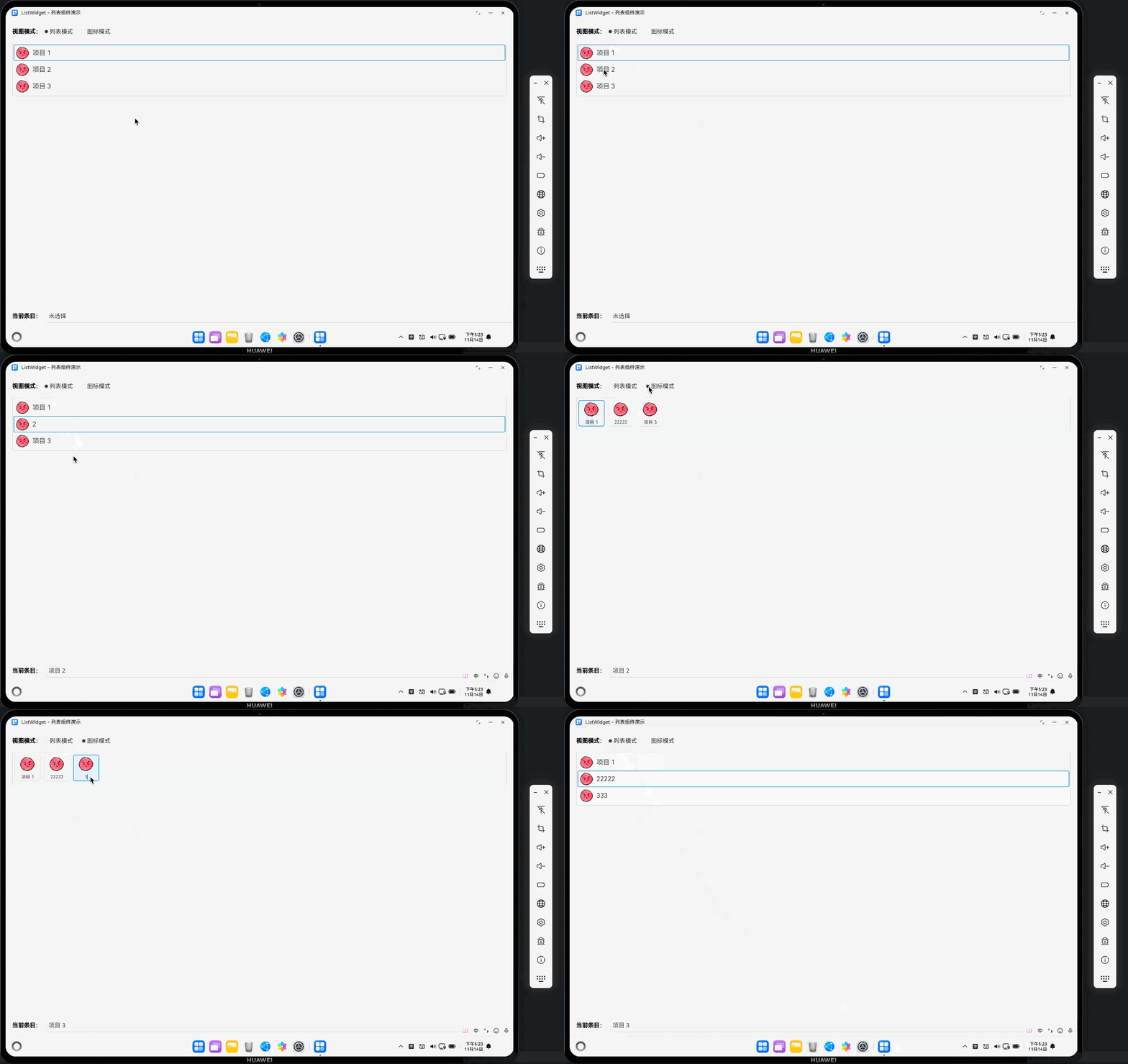
本文档基于一个完整的 ListWidget 项目,详细介绍了如何在 HarmonyOS 平台上使用 Qt 开发包含列表组件(ListView/GridView)的应用程序。项目实现了列表模式和图标模式的切换、列表项的添加、插入、删除、编辑等功能,展示了 Qt Quick Controls 2.15 在 HarmonyOS 平台上的实际应用。
项目地址:https://gitcode.com/szkygc/HarmonyOs_PC-PGC/blob/main/ListWidget
项目功能
- ✅ 列表模式(ListView)和图标模式(GridView)切换
- ✅ 列表项添加、插入、删除功能
- ✅ 双击列表项进行编辑
- ✅ 当前选中项显示
- ✅ 交替行颜色显示
- ✅ 图片资源加载和错误处理
- ✅ 完整的触摸交互支持
- ✅ 响应式布局,适配不同屏幕尺寸
原始项目对比
原始项目(Qt Widgets):
- 使用
QWidget+QListWidget+QLineEdit+QPushButton - 使用
.ui文件定义界面 - C++ 代码处理信号槽连接
- 支持列表模式和图标模式切换
HarmonyOS 适配版本(Qt Quick):
- 使用
ApplicationWindow+ListView/GridView+TextInput+Button - 使用 QML 声明式语法
- JavaScript 处理逻辑和事件绑定
- 使用
ScrollView避免内容截断 - 手动实现 placeholder 效果(
TextInput不支持)
🎯 核心技术要点
1. HarmonyOS 入口函数:qtmain()
⚠️ 关键要点:HarmonyOS 真机上必须使用 qtmain() 而不是 main()!
// ✅ 正确写法
extern "C" int qtmain(int argc, char **argv)
{
    // Qt 应用作为共享库加载,生命周期由 HarmonyOS 管理
    QGuiApplication app(argc, argv);
    QQmlApplicationEngine engine;
    engine.load(QUrl(QStringLiteral("qrc:/main.qml")));
    return app.exec();  // ⚠️ 重要:必须调用 exec() 启动事件循环
}

// ❌ 错误写法(桌面应用方式)
int main(int argc, char *argv[])
{
    // 这种方式在 HarmonyOS 上会导致应用无法正常启动
}
原因说明:
- HarmonyOS 将 Qt 应用作为共享库(.so)加载
- 应用生命周期由 HarmonyOS 的 Ability 管理
qtmain()是 HarmonyOS Qt 插件的标准入口点
2. OpenGL ES 表面格式配置
⚠️ 关键要点:必须在创建 QGuiApplication 之前配置 QSurfaceFormat!
// Step 1: 配置 OpenGL ES 表面格式(必须在创建应用之前!)
QSurfaceFormat format;

// 设置 Alpha 通道(透明度)
format.setAlphaBufferSize(8);      // 8 位 Alpha 通道

// 设置颜色通道(RGBA 32 位真彩色)
format.setRedBufferSize(8);        // 8 位红色通道
format.setGreenBufferSize(8);      // 8 位绿色通道
format.setBlueBufferSize(8);       // 8 位蓝色通道

// 设置深度和模板缓冲区
format.setDepthBufferSize(24);     // 24 位深度缓冲
format.setStencilBufferSize(8);    // 8 位模板缓冲

// 指定渲染类型为 OpenGL ES(HarmonyOS要求)
format.setRenderableType(QSurfaceFormat::OpenGLES);

// 指定 OpenGL ES 版本为 3.0(推荐)
format.setVersion(3, 0);

// ⚠️ 关键:必须在创建 QGuiApplication 之前设置默认格式!
QSurfaceFormat::setDefaultFormat(format);

// Step 2: 创建 Qt 应用实例(必须在设置格式之后)
QCoreApplication::setAttribute(Qt::AA_UseOpenGLES);
QCoreApplication::setAttribute(Qt::AA_ShareOpenGLContexts);
QGuiApplication app(argc, argv);
配置说明:
- OpenGL ES 3.0:HarmonyOS 推荐使用 OpenGL ES 3.0
- RGBA 8-8-8-8:32 位真彩色,支持透明度
- 深度缓冲 24 位:用于 3D 渲染和层级管理
- 模板缓冲 8 位:用于复杂图形效果
3. QML ListView 和 GridView 组件使用
3.1 ListView(列表模式)
ListView {
    id: listView
    anchors.fill: parent
    anchors.margins: 15
    visible: isListMode
    model: listModel
    spacing: 2
    clip: true

    delegate: Rectangle {
        id: listItemDelegate
        width: listView.width
        height: 100  // 确保触摸区域足够大
        color: index % 2 === 0 ? "#FFFFFF" : "#F8F8F8"  // 交替行颜色
        border.color: listItemDelegate.ListView.isCurrentItem ? "#0078D4" : "transparent"
        border.width: listItemDelegate.ListView.isCurrentItem ? 3 : 0
        radius: 8

        Row {
            anchors.fill: parent
            anchors.margins: 15
            spacing: 20

            // 图标
            Image {
                width: 80
                height: 80
                source: iconSource || ""
                fillMode: Image.PreserveAspectFit
                asynchronous: true

                // 图片加载失败时的占位符
                Rectangle {
                    anchors.fill: parent
                    color: "#E0E0E0"
                    visible: parent.status === Image.Error || parent.status === Image.Null
                    radius: 5

                    Text {
                        anchors.centerIn: parent
                        text: "📷"
                        font.pixelSize: 30
                        color: "#999999"
                    }
                }
            }

            // 文本(可编辑)
            TextInput {
                id: listItemText
                width: parent.width - 120
                height: parent.height
                verticalAlignment: TextInput.AlignVCenter
                font.pixelSize: 40
                color: "#333333"
                text: model.text || ""
                selectByMouse: true
                readOnly: !isEditing

                property bool isEditing: false

                onEditingFinished: {
                    if (isEditing) {
                        listModel.setProperty(index, "text", text)
                        isEditing = false
                    }
                }
            }
        }

        MouseArea {
            anchors.fill: parent
            onClicked: {
                currentIndex = index
                currentItemText = model.text || ""
                listView.currentIndex = index
            }

            onDoubleClicked: {
                listItemText.isEditing = true
                listItemText.forceActiveFocus()
                listItemText.selectAll()
            }
        }
    }

    highlight: Rectangle {
        color: "#E3F2FD"
        radius: 8
    }
}
3.2 GridView(图标模式)
GridView {
    id: gridView
    anchors.fill: parent
    anchors.margins: 15
    visible: !isListMode
    model: listModel
    cellWidth: 180
    cellHeight: 180
    clip: true

    delegate: Rectangle {
        id: gridItemDelegate
        width: gridView.cellWidth - 20
        height: gridView.cellHeight - 20
        color: gridItemDelegate.GridView.isCurrentItem ? "#E3F2FD" : "#FFFFFF"
        border.color: gridItemDelegate.GridView.isCurrentItem ? "#0078D4" : "#CCCCCC"
        border.width: gridItemDelegate.GridView.isCurrentItem ? 3 : 1
        radius: 12

        Column {
            anchors.fill: parent
            anchors.margins: 10
            spacing: 10

            // 图标
            Image {
                width: parent.width
                height: parent.height - 60
                source: iconSource || ""
                fillMode: Image.PreserveAspectFit
                asynchronous: true

                // 图片加载失败时的占位符
                Rectangle {
                    anchors.fill: parent
                    color: "#E0E0E0"
                    visible: parent.status === Image.Error || parent.status === Image.Null
                    radius: 5

                    Text {
                        anchors.centerIn: parent
                        text: "📷"
                        font.pixelSize: 40
                        color: "#999999"
                    }
                }
            }

            // 文本(可编辑)
            Item {
                width: parent.width
                height: 60

                // 显示模式下的 Text
                Text {
                    id: gridItemText
                    anchors.fill: parent
                    horizontalAlignment: Text.AlignHCenter
                    verticalAlignment: Text.AlignVCenter
                    font.pixelSize: 32
                    color: "#333333"
                    text: model.text || ""
                    elide: Text.ElideRight
                    visible: !gridItemTextInput.isEditing  // ⚠️ 编辑时隐藏,避免重复显示
                }

                // 编辑模式下的 TextInput
                TextInput {
                    id: gridItemTextInput
                    anchors.fill: parent
                    horizontalAlignment: TextInput.AlignHCenter
                    verticalAlignment: TextInput.AlignVCenter
                    font.pixelSize: 32
                    color: "#333333"
                    visible: isEditing
                    selectByMouse: true

                    property bool isEditing: false

                    onEditingFinished: {
                        if (isEditing) {
                            listModel.setProperty(index, "text", text)
                            isEditing = false
                        }
                    }
                }
            }
        }

        MouseArea {
            anchors.fill: parent
            onClicked: {
                currentIndex = index
                currentItemText = model.text || ""
                gridView.currentIndex = index
            }

            onDoubleClicked: {
                gridItemTextInput.isEditing = true
                gridItemTextInput.text = model.text || ""
                gridItemTextInput.forceActiveFocus()
                gridItemTextInput.selectAll()
            }
        }
    }

    highlight: Rectangle {
        color: "#E3F2FD"
        radius: 12
    }
}
4. ListModel 数据管理
4.1 ListModel 定义
ListModel {
    id: listModel

    // 初始化示例数据
    ListElement { text: "项目 1"; iconSource: "qrc:/img/1.png" }
    ListElement { text: "项目 2"; iconSource: "qrc:/img/1.png" }
    ListElement { text: "项目 3"; iconSource: "qrc:/img/1.png" }
}
4.2 动态添加项
function addItem() {
    var inputText = inputField.text.trim()
    if (inputText === "") {
        return
    }

    try {
        listModel.append({
            text: inputText,
            iconSource: "qrc:/img/1.png"
        })
        inputField.text = ""
    } catch (e) {
        console.error("添加项失败:", e)
    }
}
4.3 插入项
function insertItem() {
    var inputText = inputField.text.trim()
    if (inputText === "") {
        return
    }

    if (currentIndex < 0 || currentIndex >= listModel.count) {
        addItem()  // 无效索引时改为添加
        return
    }

    try {
        listModel.insert(currentIndex, {
            text: inputText,
            iconSource: "qrc:/img/1.png"
        })
        inputField.text = ""
    } catch (e) {
        console.error("插入项失败:", e)
    }
}
4.4 删除项
function deleteItem() {
    if (currentIndex < 0 || currentIndex >= listModel.count) {
        return
    }

    try {
        if (currentIndex >= 0 && currentIndex < listModel.count) {
            listModel.remove(currentIndex)
            currentIndex = -1
            currentItemText = ""
        }
    } catch (e) {
        console.error("删除项失败:", e)
    }
}
4.5 编辑项
// 在 delegate 中
TextInput {
    id: listItemText
    property bool isEditing: false
    readOnly: !isEditing

    onEditingFinished: {
        if (isEditing) {
            try {
                if (index >= 0 && index < listModel.count) {
                    listModel.setProperty(index, "text", text)
                }
            } catch (e) {
                console.error("编辑失败:", e)
            }
            isEditing = false
        }
    }
}

// 双击进入编辑模式
MouseArea {
    onDoubleClicked: {
        listItemText.isEditing = true
        listItemText.forceActiveFocus()
        listItemText.selectAll()
    }
}
5. ScrollView 避免内容截断
⚠️ 关键要点:使用 ScrollView 包装列表视图区域,避免底部内容被截断!
// ✅ 正确:使用 ScrollView 包装
ScrollView {
    width: parent.width
    height: parent.height - 400  // 为底部控件预留空间
    clip: true

    Rectangle {
        width: parent.width
        height: isListMode ? listView.contentHeight + 20 : gridView.contentHeight + 20
        color: "white"
        border.color: "#CCCCCC"
        border.width: 2
        radius: 10

        ListView {
            id: listView
            anchors.fill: parent
            anchors.margins: 15
            // ...
        }

        GridView {
            id: gridView
            anchors.fill: parent
            anchors.margins: 15
            // ...
        }
    }
}

// ❌ 错误:直接使用固定高度,可能导致截断
Rectangle {
    width: parent.width
    height: parent.height - 300  // 固定高度可能不够
    // ...
}
6. TextInput placeholder 手动实现
⚠️ 关键要点:TextInput 不支持 placeholderText 属性,需要手动实现!
Rectangle {
    width: parent.width
    height: 80
    color: "white"
    border.color: inputField.activeFocus ? "#0078D4" : "#CCCCCC"
    border.width: inputField.activeFocus ? 3 : 2
    radius: 10

    TextInput {
        id: inputField
        anchors.fill: parent
        anchors.margins: 15
        verticalAlignment: TextInput.AlignVCenter
        font.pixelSize: 36
        color: "#333333"
        selectByMouse: true

        Keys.onReturnPressed: {
            addItem()
        }
    }

    // 手动实现 placeholder 效果
    Text {
        anchors.fill: inputField
        anchors.margins: 15
        verticalAlignment: Text.AlignVCenter
        font.pixelSize: 36
        color: "#999999"
        text: "请输入项目名称"
        visible: !inputField.activeFocus && inputField.text === ""  // 无焦点且为空时显示
    }
}
7. Image 组件错误处理
⚠️ 关键要点:图片资源可能不存在,必须添加错误处理,避免应用崩溃!
Image {
    width: 80
    height: 80
    source: iconSource || ""  // 避免 undefined
    fillMode: Image.PreserveAspectFit
    asynchronous: true  // 异步加载,避免阻塞 UI

    // 图片加载失败时的占位符
    Rectangle {
        anchors.fill: parent
        color: "#E0E0E0"
        visible: parent.status === Image.Error || parent.status === Image.Null
        radius: 5

        Text {
            anchors.centerIn: parent
            text: "📷"
            font.pixelSize: 30
            color: "#999999"
        }
    }

    onStatusChanged: {
        if (status === Image.Error) {
            console.log("图片加载失败:", iconSource)
        }
    }
}
8. ⚠️ 关键配置:deviceTypes 必须包含 “2in1”
这是本文档最重要的发现!
在 entry/src/main/module.json5 文件中,deviceTypes 必须包含 "2in1":
{
  "module": {
    "name": "entry",
    "type": "entry",
    "deviceTypes": [
      "default",
      "tablet",
      "2in1"  // ⚠️ 必须添加!否则打包会失败
    ],
    // ...
  }
}
错误信息:
hvigor ERROR: Failed :entry:default@PackageHap...
Ohos BundleTool [Error]: 10011001 Parse and check args invalid in hap mode.
Error Message: --json-path must be the config.json file or module.json file.
原因分析:
- HarmonyOS PC 设备(如 MateBook)被识别为
"2in1"设备类型 - 如果
deviceTypes中缺少"2in1",打包工具无法正确识别配置文件路径 - 这会导致打包失败,即使应用能在真机上运行
最佳实践:
"deviceTypes": [
  "default",   // 手机
  "tablet",    // 平板
  "2in1"       // ⚠️ PC/2合1设备(必须添加!)
]
🐛 常见问题与解决方案
问题 1:应用闪退 - placeholderText 错误
症状:
qrc:/main.qml:506:21: Cannot assign to non-existent property "placeholderText"
原因:TextInput 不支持 placeholderText 属性,只有 TextField 才支持。
解决方案:
// ❌ 错误:TextInput 不支持 placeholderText
TextInput {
    placeholderText: "请输入项目名称"  // 会导致编译错误
}

// ✅ 正确:手动实现 placeholder
TextInput {
    id: inputField
    // ...
}

Text {
    text: "请输入项目名称"
    visible: !inputField.activeFocus && inputField.text === ""
}
问题 2:图标模式编辑时出现重复显示
症状:双击图标模式的列表项进行编辑时,文本和输入框同时显示,出现重复。
原因:Text 和 TextInput 同时可见,没有在编辑时隐藏 Text。
解决方案:
// ✅ 正确:编辑时隐藏 Text
Item {
    width: parent.width
    height: 60

    Text {
        id: gridItemText
        visible: !gridItemTextInput.isEditing  // ⚠️ 编辑时隐藏
        text: model.text || ""
    }

    TextInput {
        id: gridItemTextInput
        visible: isEditing  // 只在编辑时显示
        property bool isEditing: false
    }
}

// ❌ 错误:Text 和 TextInput 都可见
Text {
    text: model.text
    // 没有 visible 控制
}
TextInput {
    visible: isEditing
    // 编辑时两者都显示,导致重复
}
问题 3:底部内容被截断
症状:列表项较多时,底部的输入框和按钮被截断,无法看到或操作。
原因:列表视图区域使用固定高度,没有滚动功能。
解决方案:
// ✅ 正确:使用 ScrollView 包装
ScrollView {
    width: parent.width
    height: parent.height - 400  // 为底部控件预留空间
    clip: true

    Rectangle {
        width: parent.width
        height: isListMode ? listView.contentHeight + 20 : gridView.contentHeight + 20
        // 动态计算高度
        // ...
    }
}

// ❌ 错误:固定高度,无法滚动
Rectangle {
    width: parent.width
    height: parent.height - 300  // 固定高度,内容多时会截断
    // ...
}
问题 4:图片加载失败导致应用崩溃
症状:应用启动时闪退,日志显示图片加载错误。
原因:图片资源不存在或路径错误,Image 组件没有错误处理。
解决方案:
// ✅ 正确:添加错误处理和占位符
Image {
    source: iconSource || ""  // 避免 undefined
    asynchronous: true

    Rectangle {
        anchors.fill: parent
        visible: parent.status === Image.Error || parent.status === Image.Null
        // 显示占位符
    }

    onStatusChanged: {
        if (status === Image.Error) {
            console.log("图片加载失败:", iconSource)
        }
    }
}

// ❌ 错误:没有错误处理
Image {
    source: iconSource  // 如果 iconSource 为空或路径错误,可能导致崩溃
}
问题 5:列表项编辑时索引越界
症状:编辑列表项时应用崩溃,日志显示索引越界错误。
原因:编辑时没有检查索引有效性,可能在删除操作后索引失效。
解决方案:
// ✅ 正确:添加索引检查
onEditingFinished: {
    if (isEditing) {
        try {
            if (index >= 0 && index < listModel.count) {
                listModel.setProperty(index, "text", text)
            } else {
                console.warn("无效的索引,无法编辑")
            }
        } catch (e) {
            console.error("编辑失败:", e)
        }
        isEditing = false
    }
}

// ❌ 错误:直接使用索引,可能越界
onEditingFinished: {
    listModel.setProperty(index, "text", text)  // 没有检查索引
}
💡 最佳实践
1. ListView/GridView 切换
// 使用属性控制显示
property bool isListMode: true

ListView {
    visible: isListMode
    // ...
}

GridView {
    visible: !isListMode
    // ...
}

// RadioButton 切换
RadioButton {
    text: "列表模式"
    checked: isListMode
    onCheckedChanged: {
        if (checked) isListMode = true
    }
}

RadioButton {
    text: "图标模式"
    checked: !isListMode
    onCheckedChanged: {
        if (checked) isListMode = false
    }
}
2. 列表项编辑模式管理
// ✅ 正确:使用 Item 包装,控制显示/隐藏
Item {
    Text {
        visible: !textInput.isEditing
        text: model.text
    }

    TextInput {
        id: textInput
        visible: isEditing
        property bool isEditing: false

        onEditingFinished: {
            if (isEditing) {
                listModel.setProperty(index, "text", text)
                isEditing = false
            }
        }
    }
}

// 双击进入编辑模式
MouseArea {
    onDoubleClicked: {
        textInput.isEditing = true
        textInput.forceActiveFocus()
        textInput.selectAll()
    }
}
3. ListModel 操作保护
// 所有 ListModel 操作都应该添加 try-catch
function addItem() {
    try {
        listModel.append({ text: inputText, iconSource: "qrc:/img/1.png" })
    } catch (e) {
        console.error("添加项失败:", e)
    }
}

function deleteItem() {
    try {
        if (currentIndex >= 0 && currentIndex < listModel.count) {
            listModel.remove(currentIndex)
        }
    } catch (e) {
        console.error("删除项失败:", e)
    }
}
4. 图片资源管理
// 始终使用 || "" 避免 undefined
Image {
    source: iconSource || ""
    asynchronous: true

    // 添加占位符
    Rectangle {
        visible: parent.status === Image.Error || parent.status === Image.Null
        // ...
    }
}
5. 响应式布局
// 使用 Screen 获取实际屏幕尺寸
ApplicationWindow {
    width: Screen.width > 0 ? Screen.width : 800
    height: Screen.height > 0 ? Screen.height : 600
}

// 使用 ScrollView 避免截断
ScrollView {
    height: parent.height - 400  // 动态计算高度
    // ...
}
6. 触摸优化
// 确保触摸区域足够大
delegate: Rectangle {
    height: 100  // 至少 80-100px,便于触摸操作
    // ...
}

// GridView 单元格大小
GridView {
    cellWidth: 180
    cellHeight: 180
    // ...
}
📊 项目结构
ListWidget/
├── AppScope/
│   └── app.json5              # 应用配置
├── entry/
│   ├── build-profile.json5    # 构建配置
│   ├── src/
│   │   ├── main/
│   │   │   ├── cpp/
│   │   │   │   ├── main.cpp   # C++ 入口(qtmain)
│   │   │   │   ├── main.qml   # QML UI
│   │   │   │   ├── qml.qrc    # 资源文件(包含图片)
│   │   │   │   └── CMakeLists.txt
│   │   │   ├── resources/
│   │   │   │   └── base/
│   │   │   │       └── media/
│   │   │   │           └── 1.png  # 图片资源
│   │   │   ├── module.json5   # ⚠️ 必须包含 "2in1"
│   │   │   └── ets/           # ArkTS 代码
│   │   └── ohosTest/
│   └── libs/                   # Qt 库文件
└── build-profile.json5        # 根构建配置
🔧 构建配置要点
CMakeLists.txt
cmake_minimum_required(VERSION 3.5.0)
project(ListWidget)

set(CMAKE_AUTOMOC ON)
set(CMAKE_AUTOUIC ON)
set(CMAKE_AUTORCC ON)

list(APPEND CMAKE_FIND_ROOT_PATH ${QT_PREFIX})

find_package(QT NAMES Qt5 Qt6 REQUIRED COMPONENTS Core Widgets)
find_package(Qt${QT_VERSION_MAJOR} REQUIRED COMPONENTS
    Concurrent Gui Network Qml Quick QuickControls2
    Widgets QuickTemplates2 QmlWorkerScript)

add_library(entry SHARED main.cpp qml.qrc)

target_link_libraries(entry PRIVATE
    Qt${QT_VERSION_MAJOR}::Concurrent
    Qt${QT_VERSION_MAJOR}::Core
    Qt${QT_VERSION_MAJOR}::Gui
    Qt${QT_VERSION_MAJOR}::Qml
    Qt${QT_VERSION_MAJOR}::Quick
    Qt${QT_VERSION_MAJOR}::Widgets
    Qt${QT_VERSION_MAJOR}::QuickControls2
    Qt${QT_VERSION_MAJOR}::QuickTemplates2
    Qt${QT_VERSION_MAJOR}::QmlWorkerScript
    Qt${QT_VERSION_MAJOR}::QOpenHarmonyPlatformIntegrationPlugin  # HarmonyOS 插件
)
qml.qrc(资源文件)
<?xml version="1.0" encoding="UTF-8"?>
<RCC>
    <qresource prefix="/">
        <file>main.qml</file>
        <file alias="img/1.png">../resources/base/media/1.png</file>
    </qresource>
</RCC>
build-profile.json5
{
  "apiType": "stageMode",
  "buildOption": {
    "externalNativeOptions": {
      "path": "./src/main/cpp/CMakeLists.txt",
      "arguments": "-DQT_PREFIX=/path/to/QtForOpenHarmony",
      "abiFilters": ["arm64-v8a"]
    }
  }
}
📚 参考资源
🎉 总结
通过本项目的开发实践,我们总结了以下关键要点:
- ✅ 必须使用
qtmain()作为入口函数,而不是main() - ✅ OpenGL ES 配置必须在创建应用之前完成
- ✅
deviceTypes必须包含"2in1",否则打包会失败 - ✅
TextInput不支持placeholderText,需要手动实现 placeholder 效果 - ✅ 使用
ScrollView包装列表视图,避免内容截断 - ✅ 编辑模式要控制 Text 和 TextInput 的显示,避免重复显示
- ✅ 图片资源必须添加错误处理,避免加载失败导致崩溃
- ✅ 所有 ListModel 操作都要添加索引检查和异常处理
- ✅ 使用
asynchronous: true异步加载图片,避免阻塞 UI - ✅ 确保触摸区域足够大(至少 80-100px),提升用户体验
这些经验对于在 HarmonyOS 平台上开发 Qt 应用至关重要,特别是涉及列表展示、数据编辑和资源管理的场景。希望本文档能帮助开发者避免常见陷阱,快速上手 Qt for HarmonyOS 开发。

作为“人工智能6S店”的官方数字引擎,为AI开发者与企业提供一个覆盖软硬件全栈、一站式门户。
更多推荐

 50
50 0
0- 0


 已为社区贡献15条内容

所有评论(0)