
液化效果二维码生成实现方案
先看效果,由于二维码图片会违规,所以打了马赛克

前言
由于最近在做一个鸿蒙版的二维码生成的功能,就想参考草料二维码来实现,但是鸿蒙上面的生态实在一言难尽,对于各种二维码的形态控制没有一个成熟的框架,就只能自己实现,我基于qrcode-generator的ts版本的二维码生成转换了一个ets版本的二维码生成插件,对于二维码码块形状像传统的正方块(矩形)、圆形、三角形、星形等这种每个块都是独立形状的就比较好实现,因为二维码的生成无非就是借助成熟框架生成对应的点阵信息,一般都是以长度一样的二维数组来表示每个点阵的中每个块应该显示什么,为true的就显示黑块(或者其他颜色),为false的就不需要显示,然后将固定形状绘制在Canvas上面。但是我想实现草料二维码或者联图的液态效果,本来想看下源码怎么实现的,但是草料和其他大部分网站的二维码都是在后端生成的,然后将二维码的图片返回给前端的,而联图监听了浏览器的F12,提示抄袭可耻…。这本身从原理上不过是几个小时搞定的问题,为此我以自己的方式将液化效果实现出来了,并且不像图联有毛刺的问题,也为了让更多的人知道那种液化效果的实现方式,故写了本篇博客,希望能帮助到有需要的人。
液化效果如下图(下面将介绍具体原理):

实现原理
通过现有液化效果的二维码的效果我们可以观测到几种形态:
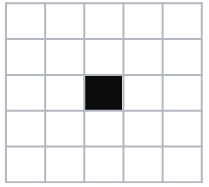
- 孤立点位(与他相邻的八个矩形都是空的)
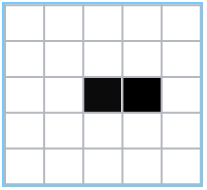
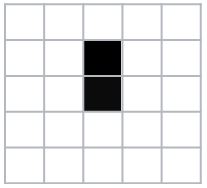
- 两个相邻的块(纵向相邻、横向相邻)
3.纵向与横向相交所呈现的夹角
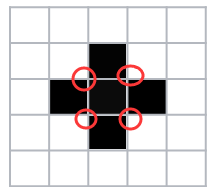
可以看到实际上大体上可以分为这几种图像,当然还有L形的,都可以统一归为横向与纵向夹角,如果要实现液化效果无非就是将孤立的点设置为圆角;将相交的点设置反向的圆角,通过一定的弧度连起来进行填充;我以液化效果最极端的方式进行分析,每个码块都是圆形的情况来实现液化,那么带圆角的正方块就同样能实现了。
如下图,所有的码块都是圆形来填充(注:此处是模拟的二维码,扫不出来结果):
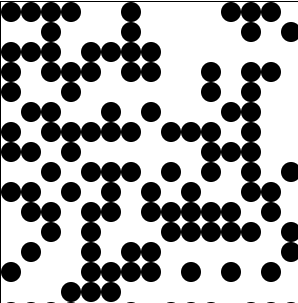
如何将上面的圆形平滑的连接在一起,就是我们液化的目标,首先解决最简单的问题,如何让两个横向和纵向的码块相交的边填充,有两种方案,①第一种是判断右侧需要填充,那么就画一个只有左侧带圆角的图形,如果左侧的点需要填充,右侧不需要,则画一个右侧带圆的图形 如: ,②判断当前码块是否需要填充,如果需要填充且右侧也需要填充,那么直接在两个码块中间画一个正方形
 如图所示,蓝色的部分为矩形部分,将空白区域填充就解决了这个问题,这种方案更简单,所以我采纳了此方案;同理纵向的填充可以判断当前块如果需要填充且正下方的点也需要填充,那么就在他们中间填充正方块,如
 就为纵向填充效果
经过上面的处理可以得到如下结果
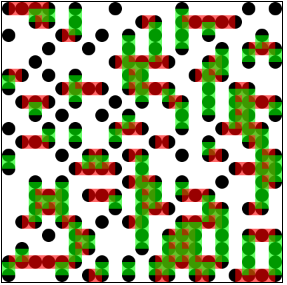
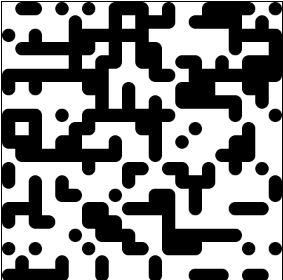
此部的代码如下,我是模拟生成的二维码点阵,并非真实二维码做示例
<!DOCTYPE html>
<html>
<head>
    <meta charset="UTF-8">
    <title>Canvas</title>
    <style>
        canvas {
            border: 1px solid black;
        }
    </style>
</head>
<body>

<canvas id="gridCanvas" width="420" height="420"></canvas>

<script>
    const canvas = document.getElementById('gridCanvas');
    const ctx = canvas.getContext('2d');

    const size = 21;
    const cellSize = 20;

    // 创建并初始化21*21的数组,随机填充0和1
    let array = Array.from({length: size}, () =>
        Array.from({length: size}, () => Math.random() >= 0.5 ? 1 : 0)
    );

    // 在canvas上绘制
    for (let row = 0; row < size; row++) {
        for (let col = 0; col < size; col++) {
            var topCell = row - 1;
            var bottom = row + 1;
            var left = col - 1;
            var right = col + 1;
			var radian = 0.5;
            if (array[row][col] === 1) {
                ctx.fillStyle = 'black';
                ctx.beginPath();
                ctx.arc(col * cellSize + cellSize / 2, row * cellSize + cellSize / 2, cellSize / 2, 0, 2 * Math.PI);
                ctx.fill();
                if(left >=0 && array[row][left] === 1 && array[row][col] === 1) {
                    ctx.fillStyle='#FF000099'
                    ctx.fillRect(col * cellSize - cellSize/2, row * cellSize, cellSize, cellSize);
                }

                if(topCell >=0 && array[topCell][col] === 1) {
                    ctx.fillStyle='#00FF0099'
                    ctx.fillRect(col * cellSize, row * cellSize - cellSize/2, cellSize, cellSize);
                }
            }
        }
    }
</script>

</body>
</html>
处理夹角处的弧度问题
处理夹角处的弧度是稍微复杂一点点,因为要分为四个方向的夹角来进行处理,如图所示的四个夹角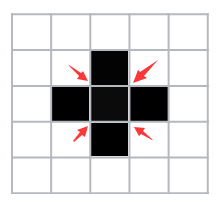
处理分为四步
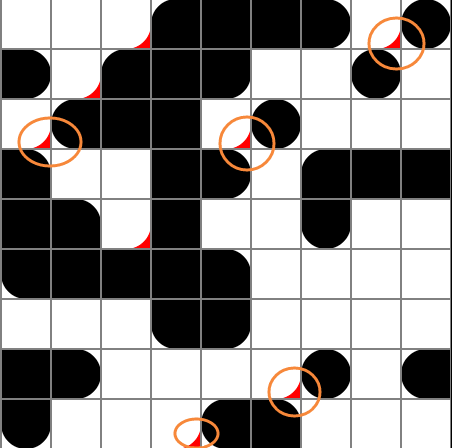
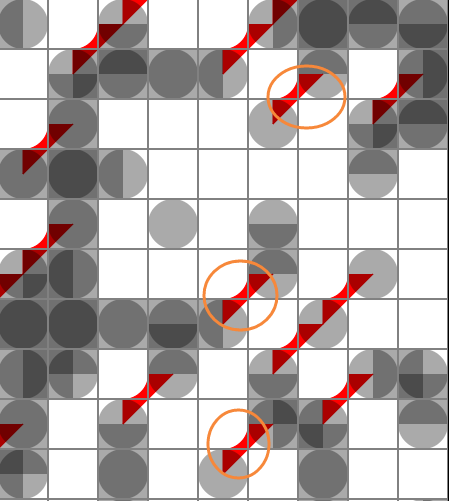
- 左上夹角,如果当前块不需要填充的情况,判断右侧和下侧是否需要填充,如果需要填充则表明此块需要进行弧度处理,此处以弧度都为圆的半径做讲解,那么我们需要使用Canvas以空白块的中央位置画一个0°-90°的圆弧,然后如何填充呢,因为圆形矩阵里面我们需要保证产生夹角的块空缺的部分也需要填充,所以我填充的区域就不可能只是空白块这一部分区域,如下图,只填充空白块区域,那么我还需要额外进行处理,
所以最好的方式是将此填充延伸到相邻两个需要填充块的中心,如下图所示
那么我们现在以同样的方式来处理剩余的三个夹角,通过处理后我们可以得到如下图
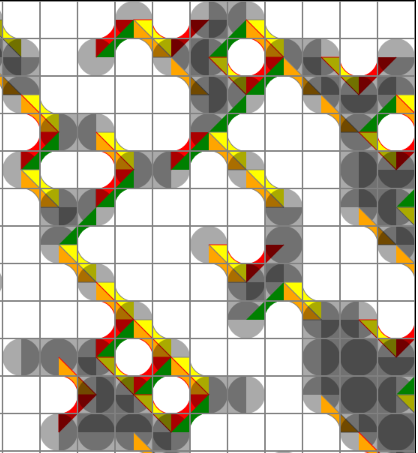 由于我为了让大家能更加明显的看到效果,每个图形都加上了颜色,并把圆形做了透明绘制,下方将给显示同一种颜色的效果
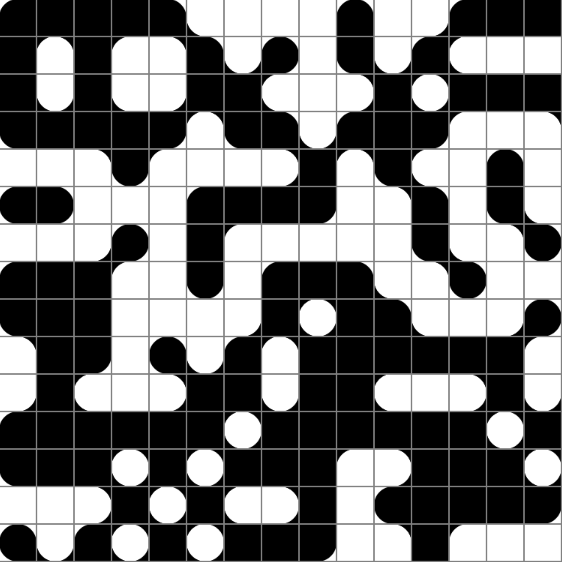
按理说到这一步基本上实现了所有效果,上方的液化效果是因为我把图像画得比较大,所以比较清晰,下面我上一个点阵小一点的格子图
点击右侧运行即可看每个模块的效果
<!DOCTYPE html>
<html lang="en">
<head>
    <meta charset="UTF-8">
    <style>
        body {
            margin: 0;
            padding: 20px;
            display: flex;
            justify-content: center;
            align-items: center;
            min-height: 100vh;
            background-color: #f5f5f5;
            font-family: Arial, sans-serif;
        }
        .container {
            text-align: center;
        }
        canvas {
            border: 2px solid #333;
            box-shadow: 0 4px 12px rgba(0,0,0,0.1);
            background-color: white;
        }
        h1 {
            color: #333;
            margin-bottomRow: 20px;
        }
        .info {
            margin-top: 15px;
            color: #666;
            font-size: 14px;
        }
    </style>
</head>
<body>
    <div class="container">
        <h1>Canvas液化二维码</h1>
        <canvas id="gridCanvas" width="420" height="420"></canvas>
        <div class="info">单元格尺寸: 21×21 | 单元格大小: 20×20 px</div>
    </div>

    <script>
        const canvas = document.getElementById('gridCanvas');
        const ctx = canvas.getContext('2d');

        const size = 21;
        const cellSize = 20;

        // 创建并初始化21*21的数组,随机填充0和1
        let array = Array.from({length: size}, () =>
            Array.from({length: size}, () => Math.random() >= 0.5 ? 1 : 0)
        );

        // 绘制网格线
        function drawGrid() {
            ctx.strokeStyle = '#e0e0e0';
            ctx.lineWidth = 1;

            // 绘制垂直线
            for (let x = 0; x <= size; x++) {
                ctx.beginPath();
                ctx.moveTo(x * cellSize, 0);
                ctx.lineTo(x * cellSize, size * cellSize);
                ctx.stroke();
            }

            // 绘制水平线
            for (let y = 0; y <= size; y++) {
                ctx.beginPath();
                ctx.moveTo(0, y * cellSize);
                ctx.lineTo(size * cellSize, y * cellSize);
                ctx.stroke();
            }
        }

        // 绘制单元格内容
        function drawCells() {
            for (let row = 0; row < size; row++) {
                for (let col = 0; col < size; col++) {
                    const topRow = row - 1;
                    const bottomRow = row + 1;
                    const leftCol = col - 1;
                    const rightCol = col + 1;

                    if (array[row][col] === 1) {
                        // 绘制圆形
                        ctx.fillStyle = 'black';
                        ctx.beginPath();
                        ctx.arc(col * cellSize + cellSize / 2, row * cellSize + cellSize / 2, cellSize / 2, 0, 2 * Math.PI);
                        ctx.fill();

                        // 绘制水平连接
                        if (leftCol >= 0 && array[row][leftCol] === 1) {
                            ctx.fillStyle = 'black';
                            ctx.fillRect(col * cellSize - cellSize/2, row * cellSize, cellSize, cellSize);
                        }

                        // 绘制垂直连接
                        if (topRow >= 0 && array[topRow][col] === 1) {
                            ctx.fillStyle = 'black';
                            ctx.fillRect(col * cellSize, row * cellSize - cellSize/2, cellSize, cellSize);
                        }
                    }
                    else if (array[row][col] === 0) {
						ctx.strokeStyle = 'black';
                        // 绘制角落连接
                        if (topRow >= 0 && leftCol >= 0 && array[topRow][col] === 1 && array[row][leftCol] === 1) {
                            ctx.beginPath();
                            ctx.fillStyle = 'black';
                            ctx.arc((col * cellSize) + (cellSize / 2), (row * cellSize) + (cellSize / 2), cellSize / 2, Math.PI, 1.5 * Math.PI);
                            ctx.lineTo(col * cellSize + cellSize / 2, row * cellSize - cellSize / 2);
                            ctx.lineTo(col * cellSize - cellSize / 2, row * cellSize + cellSize / 2);
                            ctx.fill();
                        }

                        if (rightCol <= size - 1 && bottomRow <= size - 1 && array[row][rightCol] === 1 && array[bottomRow][col] === 1) {
                            ctx.beginPath();
                            ctx.fillStyle = 'black';
                            ctx.arc((col * cellSize) + (cellSize / 2), (row * cellSize) + (cellSize / 2), cellSize / 2, 0, 0.5 * Math.PI);
                            ctx.lineTo(col * cellSize + cellSize / 2, bottomRow * cellSize + cellSize / 2);
                            ctx.lineTo(rightCol * cellSize + cellSize / 2, row * cellSize + cellSize / 2);
                            ctx.fill();

                        }

                        if (rightCol <= size - 1 && topRow >= 0 && array[row][rightCol] === 1 && array[topRow][col] === 1) {
                            ctx.beginPath();
                            ctx.fillStyle = 'black';
                            ctx.arc((col * cellSize) + (cellSize / 2), (row * cellSize) + (cellSize / 2), cellSize / 2, -0.5 * Math.PI, 0);
                            ctx.lineTo(col * cellSize + 1.5 * cellSize, (row * cellSize) + (cellSize / 2));
                            ctx.lineTo((col * cellSize) + (cellSize / 2), row * cellSize - cellSize / 2);
                            ctx.fill();
                        }

                        if (leftCol >= 0 && bottomRow <= size - 1 && array[bottomRow][col] === 1 && array[row][leftCol] === 1) {
                            ctx.beginPath();
                            ctx.fillStyle = 'black';
                            ctx.arc((col * cellSize) + (cellSize / 2), (row * cellSize) + (cellSize / 2), cellSize / 2, 0.5 * Math.PI, Math.PI);
                            ctx.lineTo(col * cellSize - cellSize / 2, (row * cellSize) + (cellSize / 2));
                            ctx.lineTo(col * cellSize + cellSize / 2, bottomRow * cellSize + cellSize / 2);
                            ctx.fill();


                        }
						ctx.stroke()
                    }
                }
            }
        }

        // 绘制边框
        function drawBorder() {
            ctx.strokeStyle = '#333';
            ctx.lineWidth = 2;
            ctx.strokeRect(0, 0, size * cellSize, size * cellSize);
        }

        // 执行绘制
        drawGrid();
        drawCells();
        drawBorder();
    </script>
</body>
</html>
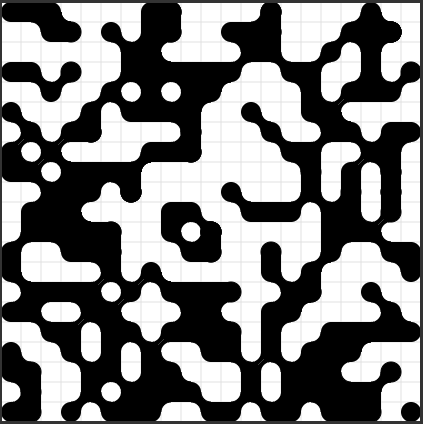
可以看到上面有很多的毛刺,这是什么原因导致的呢(注:可以去看联图网的旧版二维码,也是这种,看上去有马赛克),因为在绘制弧线的时候我们使用Canvas的arc绘制,默认会绘制1px的线,这个线实际上是画在了空白块上面,现在唯一需要做的就是如何去删除这个线,熟悉Canvas的就知道了如果我只调用Canvas的fill函数进行填充,不调用Canvas的stroke函数,那么线路径线就不会画出来了(即将drawCells函数里面的ctx.stroke()去掉),那么我们来试一下,下面看截图!
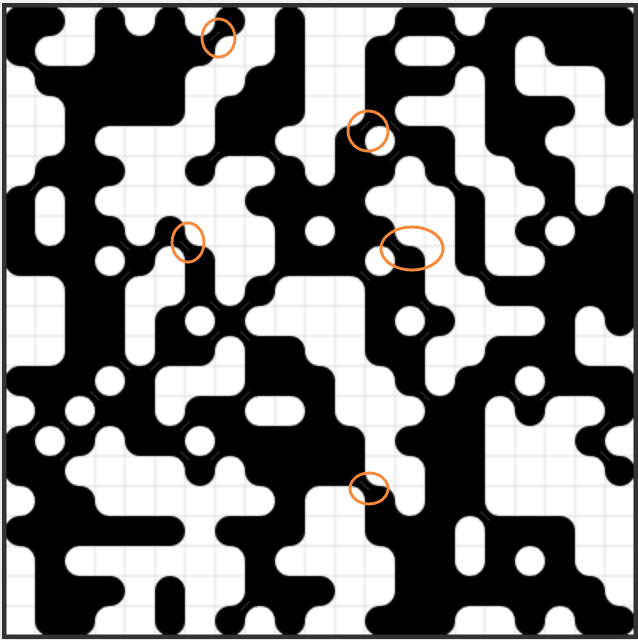
现在已经非常光滑了,但是产生了新的问题,可以看到产生了很明显的1px的细线,因为我们在进行夹角处理的时候需要进行调用Canvas的stroke函数才能填充掉这一块区域。其实处理这种问题有两种方案,一种是将弧度绘制的半径变大,使他略微大于矩阵格子的半径,那么弧度的边缘就可以挤到相邻实框里面
<!DOCTYPE html>
<html lang="en">
<head>
    <meta charset="UTF-8">
    <style>
        body {
            margin: 0;
            padding: 20px;
            display: flex;
            justify-content: center;
            align-items: center;
            min-height: 100vh;
            background-color: #f5f5f5;
            font-family: Arial, sans-serif;
        }
        .container {
            text-align: center;
        }
        canvas {
            border: 2px solid #333;
            box-shadow: 0 4px 12px rgba(0,0,0,0.1);
            background-color: white;
        }
        h1 {
            color: #333;
            margin-bottomRow: 20px;
        }
        .info {
            margin-top: 15px;
            color: #666;
            font-size: 14px;
        }
    </style>
</head>
<body>
    <div class="container">
        <h1>Canvas液化二维码</h1>
        <canvas id="gridCanvas" width="420" height="420"></canvas>
        <div class="info">单元格尺寸: 21×21 | 单元格大小: 20×20 px</div>
    </div>

    <script>
        const canvas = document.getElementById('gridCanvas');
        const ctx = canvas.getContext('2d');

        const size = 21;
        const cellSize = 20;

        // 创建并初始化21*21的数组,随机填充0和1
        let array = Array.from({length: size}, () =>
            Array.from({length: size}, () => Math.random() >= 0.5 ? 1 : 0)
        );

        // 绘制网格线
        function drawGrid() {
            ctx.strokeStyle = '#e0e0e0';
            ctx.lineWidth = 1;

            // 绘制垂直线
            for (let x = 0; x <= size; x++) {
                ctx.beginPath();
                ctx.moveTo(x * cellSize, 0);
                ctx.lineTo(x * cellSize, size * cellSize);
                ctx.stroke();
            }

            // 绘制水平线
            for (let y = 0; y <= size; y++) {
                ctx.beginPath();
                ctx.moveTo(0, y * cellSize);
                ctx.lineTo(size * cellSize, y * cellSize);
                ctx.stroke();
            }
        }

        // 绘制单元格内容
        function drawCells() {
            for (let row = 0; row < size; row++) {
                for (let col = 0; col < size; col++) {
                    const topRow = row - 1;
                    const bottomRow = row + 1;
                    const leftCol = col - 1;
                    const rightCol = col + 1;

                    if (array[row][col] === 1) {
                        // 绘制圆形
                        ctx.fillStyle = 'black';
                        ctx.beginPath();
                        ctx.arc(col * cellSize + cellSize / 2, row * cellSize + cellSize / 2, cellSize / 2, 0, 2 * Math.PI);
                        ctx.fill();

                        // 绘制水平连接
                        if (leftCol >= 0 && array[row][leftCol] === 1) {
                            ctx.fillStyle = 'black';
                            ctx.fillRect(col * cellSize - cellSize/2, row * cellSize, cellSize, cellSize);
                        }

                        // 绘制垂直连接
                        if (topRow >= 0 && array[topRow][col] === 1) {
                            ctx.fillStyle = 'black';
                            ctx.fillRect(col * cellSize, row * cellSize - cellSize/2, cellSize, cellSize);
                        }
                    }
                    else if (array[row][col] === 0) {
						ctx.strokeStyle = 'black';
                        // 绘制角落连接
                        if (topRow >= 0 && leftCol >= 0 && array[topRow][col] === 1 && array[row][leftCol] === 1) {
                            ctx.beginPath();
                            ctx.fillStyle = 'black';
                            ctx.arc((col * cellSize) + (cellSize / 2), (row * cellSize) + (cellSize / 2), cellSize / 2, Math.PI, 1.5 * Math.PI);
                            ctx.lineTo(col * cellSize + cellSize / 2, row * cellSize - cellSize / 2);
                            ctx.lineTo(col * cellSize - cellSize / 2, row * cellSize + cellSize / 2);
                            ctx.fill();
                        }

                        if (rightCol <= size - 1 && bottomRow <= size - 1 && array[row][rightCol] === 1 && array[bottomRow][col] === 1) {
                            ctx.beginPath();
                            ctx.fillStyle = 'black';
                            ctx.arc((col * cellSize) + (cellSize / 2), (row * cellSize) + (cellSize / 2), cellSize / 2, 0, 0.5 * Math.PI);
                            ctx.lineTo(col * cellSize + cellSize / 2, bottomRow * cellSize + cellSize / 2);
                            ctx.lineTo(rightCol * cellSize + cellSize / 2, row * cellSize + cellSize / 2);
                            ctx.fill();
							/*
							 由于角落连线使用stroke绘制后连接处会出现明显的接线痕迹,可以考虑两种情况处理此问题,一种是增加圆弧的半径,一种是直接不画轨迹线,只进行填充
							 此处是处理45度方向倾斜角的实线空缺
							*/
							ctx.beginPath();
							ctx.lineTo(col * cellSize + cellSize / 2, bottomRow * cellSize + cellSize / 2);
							ctx.lineTo(rightCol * cellSize + cellSize / 2, row * cellSize + cellSize / 2);
							ctx.stroke()
							ctx.closePath()
                        }

                        if (rightCol <= size - 1 && topRow >= 0 && array[row][rightCol] === 1 && array[topRow][col] === 1) {
                            ctx.beginPath();
                            ctx.fillStyle = 'black';
                            ctx.arc((col * cellSize) + (cellSize / 2), (row * cellSize) + (cellSize / 2), cellSize / 2, -0.5 * Math.PI, 0);
                            ctx.lineTo(col * cellSize + 1.5 * cellSize, (row * cellSize) + (cellSize / 2));
                            ctx.lineTo((col * cellSize) + (cellSize / 2), row * cellSize - cellSize / 2);
                            ctx.fill();
                        }

                        if (leftCol >= 0 && bottomRow <= size - 1 && array[bottomRow][col] === 1 && array[row][leftCol] === 1) {
                            ctx.beginPath();
                            ctx.fillStyle = 'black';
                            ctx.arc((col * cellSize) + (cellSize / 2), (row * cellSize) + (cellSize / 2), cellSize / 2, 0.5 * Math.PI, Math.PI);
                            ctx.lineTo(col * cellSize - cellSize / 2, (row * cellSize) + (cellSize / 2));
                            ctx.lineTo(col * cellSize + cellSize / 2, bottomRow * cellSize + cellSize / 2);
                            ctx.fill();

							/*
							 由于角落连线使用stroke绘制后连接处会出现明显的接线痕迹,可以考虑两种情况处理此问题,一种是增加圆弧的半径,一种是直接不画轨迹线,只进行填充
							 此处是处理135度方向倾斜角的实线空缺
							*/
							ctx.beginPath();
							ctx.lineTo(col * cellSize - cellSize / 2, (row * cellSize) + (cellSize / 2));
							ctx.lineTo(col * cellSize + cellSize / 2, bottomRow * cellSize + cellSize / 2);
							ctx.stroke()
							ctx.closePath()
                        }
                    }
                }
            }
        }

        // 绘制边框
        function drawBorder() {
            ctx.strokeStyle = '#333';
            ctx.lineWidth = 2;
            ctx.strokeRect(0, 0, size * cellSize, size * cellSize);
        }

        // 执行绘制
        drawGrid();
        drawCells();
        drawBorder();
    </script>
</body>
</html>
我在上面的代码中增加了下面两段填充空白区域的线,以此解决了此问题
ctx.beginPath();
ctx.lineTo(col * cellSize + cellSize / 2, bottomRow * cellSize + cellSize / 2);
ctx.lineTo(rightCol * cellSize + cellSize / 2, row * cellSize + cellSize / 2);
ctx.stroke()
ctx.closePath()

ctx.beginPath();
ctx.lineTo(col * cellSize - cellSize / 2, (row * cellSize) + (cellSize / 2));
ctx.lineTo(col * cellSize + cellSize / 2, bottomRow * cellSize + cellSize / 2);
ctx.stroke()
ctx.closePath()
以下是增加弧度的半径,达到效果,两种方式都可以解决,我采用的是上面的方式实现
// 圆角的弧度需要增加的半径
var radian = 0.5
ctx.arc(col*cellSize+cellSize/2,(row*cellSize)+(cellSize/2), radian + cellSize/2,Math.PI, 1.5*Math.PI);
完整的代码
<!DOCTYPE html>
<html lang="en">
<head>
    <meta charset="UTF-8">
    <style>
        body {
            margin: 0;
            padding: 20px;
            display: flex;
            justify-content: center;
            align-items: center;
            min-height: 100vh;
            background-color: #f5f5f5;
            font-family: Arial, sans-serif;
        }
        .container {
            text-align: center;
        }
        canvas {
            border: 2px solid #333;
            box-shadow: 0 4px 12px rgba(0,0,0,0.1);
            background-color: white;
        }
        h1 {
            color: #333;
            margin-bottomRow: 20px;
        }
        .info {
            margin-top: 15px;
            color: #666;
            font-size: 14px;
        }
    </style>
</head>
<body>
    <div class="container">
        <h1>Canvas液化二维码</h1>
        <canvas id="gridCanvas" width="420" height="420"></canvas>
        <div class="info">单元格尺寸: 21×21 | 单元格大小: 20×20 px</div>
    </div>

    <script>
        const canvas = document.getElementById('gridCanvas');
        const ctx = canvas.getContext('2d');

        const size = 21;
        const cellSize = 20;

        // 创建并初始化21*21的数组,随机填充0和1
        let array = Array.from({length: size}, () =>
            Array.from({length: size}, () => Math.random() >= 0.5 ? 1 : 0)
        );

        // 绘制网格线
        function drawGrid() {
            ctx.strokeStyle = '#e0e0e0';
            ctx.lineWidth = 1;

            // 绘制垂直线
            for (let x = 0; x <= size; x++) {
                ctx.beginPath();
                ctx.moveTo(x * cellSize, 0);
                ctx.lineTo(x * cellSize, size * cellSize);
                ctx.stroke();
            }

            // 绘制水平线
            for (let y = 0; y <= size; y++) {
                ctx.beginPath();
                ctx.moveTo(0, y * cellSize);
                ctx.lineTo(size * cellSize, y * cellSize);
                ctx.stroke();
            }
        }

        // 绘制单元格内容
        function drawCells() {
            for (let row = 0; row < size; row++) {
                for (let col = 0; col < size; col++) {
                    const topRow = row - 1;
                    const bottomRow = row + 1;
                    const leftCol = col - 1;
                    const rightCol = col + 1;

                    if (array[row][col] === 1) {
                        // 绘制圆形
                        ctx.fillStyle = 'black';
                        ctx.beginPath();
                        ctx.arc(col * cellSize + cellSize / 2, row * cellSize + cellSize / 2, cellSize / 2, 0, 2 * Math.PI);
                        ctx.fill();

                        // 绘制水平连接
                        if (leftCol >= 0 && array[row][leftCol] === 1) {
                            ctx.fillStyle = 'black';
                            ctx.fillRect(col * cellSize - cellSize/2, row * cellSize, cellSize, cellSize);
                        }

                        // 绘制垂直连接
                        if (topRow >= 0 && array[topRow][col] === 1) {
                            ctx.fillStyle = 'black';
                            ctx.fillRect(col * cellSize, row * cellSize - cellSize/2, cellSize, cellSize);
                        }
                    }
                    else if (array[row][col] === 0) {
						ctx.strokeStyle = 'black';
                        // 绘制角落连接
                        if (topRow >= 0 && leftCol >= 0 && array[topRow][col] === 1 && array[row][leftCol] === 1) {
                            ctx.beginPath();
                            ctx.fillStyle = 'black';
                            ctx.arc((col * cellSize) + (cellSize / 2), (row * cellSize) + (cellSize / 2), cellSize / 2, Math.PI, 1.5 * Math.PI);
                            ctx.lineTo(col * cellSize + cellSize / 2, row * cellSize - cellSize / 2);
                            ctx.lineTo(col * cellSize - cellSize / 2, row * cellSize + cellSize / 2);
                            ctx.fill();
                        }

                        if (rightCol <= size - 1 && bottomRow <= size - 1 && array[row][rightCol] === 1 && array[bottomRow][col] === 1) {
                            ctx.beginPath();
                            ctx.fillStyle = 'black';
                            ctx.arc((col * cellSize) + (cellSize / 2), (row * cellSize) + (cellSize / 2), cellSize / 2, 0, 0.5 * Math.PI);
                            ctx.lineTo(col * cellSize + cellSize / 2, bottomRow * cellSize + cellSize / 2);
                            ctx.lineTo(rightCol * cellSize + cellSize / 2, row * cellSize + cellSize / 2);
                            ctx.fill();
							/*
							 由于角落连线使用stroke绘制后连接处会出现明显的接线痕迹,可以考虑两种情况处理此问题,一种是增加圆弧的半径,一种是直接不画轨迹线,只进行填充
							 此处是处理45度方向倾斜角的实线空缺
							*/
							ctx.beginPath();
							ctx.lineTo(col * cellSize + cellSize / 2, bottomRow * cellSize + cellSize / 2);
							ctx.lineTo(rightCol * cellSize + cellSize / 2, row * cellSize + cellSize / 2);
							ctx.stroke()
							ctx.closePath()
                        }

                        if (rightCol <= size - 1 && topRow >= 0 && array[row][rightCol] === 1 && array[topRow][col] === 1) {
                            ctx.beginPath();
                            ctx.fillStyle = 'black';
                            ctx.arc((col * cellSize) + (cellSize / 2), (row * cellSize) + (cellSize / 2), cellSize / 2, -0.5 * Math.PI, 0);
                            ctx.lineTo(col * cellSize + 1.5 * cellSize, (row * cellSize) + (cellSize / 2));
                            ctx.lineTo((col * cellSize) + (cellSize / 2), row * cellSize - cellSize / 2);
                            ctx.fill();
                        }

                        if (leftCol >= 0 && bottomRow <= size - 1 && array[bottomRow][col] === 1 && array[row][leftCol] === 1) {
                            ctx.beginPath();
                            ctx.fillStyle = 'black';
                            ctx.arc((col * cellSize) + (cellSize / 2), (row * cellSize) + (cellSize / 2), cellSize / 2, 0.5 * Math.PI, Math.PI);
                            ctx.lineTo(col * cellSize - cellSize / 2, (row * cellSize) + (cellSize / 2));
                            ctx.lineTo(col * cellSize + cellSize / 2, bottomRow * cellSize + cellSize / 2);
                            ctx.fill();

							/*
							 由于角落连线使用stroke绘制后连接处会出现明显的接线痕迹,可以考虑两种情况处理此问题,一种是增加圆弧的半径,一种是直接不画轨迹线,只进行填充
							 此处是处理135度方向倾斜角的实线空缺
							*/
							ctx.beginPath();
							ctx.lineTo(col * cellSize - cellSize / 2, (row * cellSize) + (cellSize / 2));
							ctx.lineTo(col * cellSize + cellSize / 2, bottomRow * cellSize + cellSize / 2);
							ctx.stroke()
							ctx.closePath()
                        }
                    }
                }
            }
        }

        // 绘制边框
        function drawBorder() {
            ctx.strokeStyle = '#333';
            ctx.lineWidth = 2;
            ctx.strokeRect(0, 0, size * cellSize, size * cellSize);
        }

        // 执行绘制
        drawGrid();
        drawCells();
        drawBorder();
    </script>
</body>
</html>
自定义圆角液化效果如下
在纯圆的情况下我写了一个可以调整圆角的实现方式【注:我此处实现方案是模拟生成的二维码】,如果需要真实二维码效果直接翻至最下面
<!DOCTYPE html>
<html lang="zh-CN">
<head>
<meta charset="UTF-8">
<meta name="viewport" content="width=device-width, initial-scale=1.0">
<title>液化二维码圆角正方形</title>
<style>
* {
margin: 0;
padding: 0;
box-sizing: border-box;
}
body {
background: linear-gradient(135deg, #1a2a6c, #b21f1f, #fdbb2d);
min-height: 100vh;
display: flex;
justify-content: center;
align-items: center;
padding: 20px;
}
.container {
background-color: rgba(255, 255, 255, 0.95);
border-radius: 20px;
box-shadow: 0 10px 30px rgba(0, 0, 0, 0.2);
padding: 30px;
max-width: 900px;
width: 100%;
}
header {
text-align: center;
margin-bottom: 30px;
}
h1 {
color: #2c3e50;
font-size: 2.5rem;
margin-bottom: 10px;
}
.subtitle {
color: #7f8c8d;
font-size: 1.1rem;
}
.content {
display: flex;
flex-wrap: wrap;
gap: 30px;
}
.canvas-container {
flex: 1;
min-width: 420px;
text-align: center;
}
canvas {
background-color: #fff;
border-radius: 10px;
box-shadow: 0 5px 15px rgba(0, 0, 0, 0.1);
margin-bottom: 15px;
}
.controls {
flex: 1;
min-width: 300px;
display: flex;
flex-direction: column;
gap: 20px;
}
.control-group {
background-color: #f8f9fa;
padding: 20px;
border-radius: 10px;
box-shadow: 0 3px 10px rgba(0, 0, 0, 0.05);
}
h2 {
color: #2c3e50;
margin-bottom: 15px;
font-size: 1.3rem;
}
.slider-container {
margin-bottom: 15px;
}
label {
display: block;
margin-bottom: 8px;
font-weight: 600;
color: #34495e;
}
.slider-with-value {
display: flex;
align-items: center;
gap: 15px;
}
input[type="range"] {
flex: 1;
height: 8px;
border-radius: 5px;
background: #e0e0e0;
outline: none;
-webkit-appearance: none;
}
input[type="range"]::-webkit-slider-thumb {
-webkit-appearance: none;
width: 20px;
height: 20px;
border-radius: 50%;
background: #3498db;
cursor: pointer;
box-shadow: 0 2px 5px rgba(0, 0, 0, 0.2);
}
.value-display {
width: 60px;
text-align: center;
font-weight: bold;
color: #2c3e50;
background: #e8f4fc;
padding: 5px 10px;
border-radius: 5px;
}
.color-controls {
display: flex;
gap: 15px;
flex-wrap: wrap;
}
.color-control {
flex: 1;
min-width: 120px;
}
input[type="color"] {
width: 100%;
height: 40px;
border: none;
border-radius: 5px;
cursor: pointer;
background: transparent;
}
.buttons {
display: flex;
gap: 15px;
margin-top: 10px;
}
button {
flex: 1;
padding: 12px;
border: none;
border-radius: 8px;
font-weight: 600;
font-size: 1rem;
cursor: pointer;
transition: all 0.3s ease;
box-shadow: 0 4px 6px rgba(0, 0, 0, 0.1);
}
#downloadBtn {
background: linear-gradient(to right, #2ecc71, #1abc9c);
color: white;
}
#resetBtn {
background: linear-gradient(to right, #e74c3c, #e67e22);
color: white;
}
#randomizeBtn {
background: linear-gradient(to right, #9b59b6, #8e44ad);
color: white;
}
button:hover {
transform: translateY(-2px);
box-shadow: 0 6px 8px rgba(0, 0, 0, 0.15);
}
.info {
margin-top: 20px;
padding: 15px;
background-color: #e8f4fc;
border-radius: 10px;
border-left: 4px solid #3498db;
}
.info p {
color: #2c3e50;
line-height: 1.5;
}
.info strong {
color: #2980b9;
}
</style>
</head>
<body>
<div class="container">
<header>
<h1>液化二维码圆角正方形</h1>
<p class="subtitle">调整圆角半径,从正方形到圆形</p>
</header>
<div class="content">
<div class="canvas-container">
<canvas id="gridCanvas" width="420" height="420">
您的浏览器不支持 HTML5 canvas 标签。
</canvas>
<p>当前形状: <span id="shapeType">圆角正方形</span></p>
</div>
<div class="controls">
<div class="control-group">
<h2>形状控制</h2>
<div class="slider-container">
<label for="cornerSlider">圆角半径:</label>
<div class="slider-with-value">
<input type="range" id="cornerSlider" min="0" max="100" value="20">
<span id="cornerValue" class="value-display">20%</span>
</div>
<div id="radiusPercentage" style="margin-top: 5px; font-size: 0.9rem; color: #7f8c8d;"></div>
</div>
</div>
<div class="control-group">
<h2>颜色设置</h2>
<div class="color-controls">
<div class="color-control">
<label for="fillColor">填充颜色:</label>
<input type="color" id="fillColor" value="#3498db">
</div>
<div class="color-control">
<label for="strokeColor">边框颜色:</label>
<input type="color" id="strokeColor" value="#2c3e50">
</div>
</div>
</div>
<div class="buttons">
<button id="randomizeBtn">随机生成</button>
<button id="downloadBtn">下载图像</button>
<button id="resetBtn">重置设置</button>
</div>
</div>
</div>
<div class="info">
<p><strong>使用说明:</strong> 调整圆角半径滑块,当圆角半径达到单元格边长的一半时,正方形将变为圆形。您还可以调整填充颜色和边框颜色。</p>
</div>
</div>
<script>
const canvas = document.getElementById('gridCanvas');
const ctx = canvas.getContext('2d');
const size = 21;
const cellSize = 20;
// 获取控制元素
const cornerSlider = document.getElementById('cornerSlider');
const cornerValue = document.getElementById('cornerValue');
const radiusPercentage = document.getElementById('radiusPercentage');
const fillColor = document.getElementById('fillColor');
const strokeColor = document.getElementById('strokeColor');
const downloadBtn = document.getElementById('downloadBtn');
const resetBtn = document.getElementById('resetBtn');
const randomizeBtn = document.getElementById('randomizeBtn');
const shapeType = document.getElementById('shapeType');
// 初始值
let cornerRadius = 20;
let fill = '#3498db';
let stroke = '#2c3e50';
// 创建并初始化21*21的数组,随机填充0和1
let array = Array.from({length: size}, () =>
Array.from({length: size}, () => Math.random() >= 0.5 ? 1 : 0)
);
// 绘制网格线
function drawGrid() {
ctx.strokeStyle = '#e0e0e0';
ctx.lineWidth = 1;
// 绘制垂直线
for (let x = 0; x <= size; x++) {
ctx.beginPath();
ctx.moveTo(x * cellSize, 0);
ctx.lineTo(x * cellSize, size * cellSize);
ctx.stroke();
}
// 绘制水平线
for (let y = 0; y <= size; y++) {
ctx.beginPath();
ctx.moveTo(0, y * cellSize);
ctx.lineTo(size * cellSize, y * cellSize);
ctx.stroke();
}
}
// 绘制圆角正方形
function drawRoundedSquare(x, y, size, radius) {
ctx.beginPath();
ctx.moveTo(x + radius, y);
ctx.lineTo(x + size - radius, y);
ctx.arcTo(x + size, y, x + size, y + radius, radius);
ctx.lineTo(x + size, y + size - radius);
ctx.arcTo(x + size, y + size, x + size - radius, y + size, radius);
ctx.lineTo(x + radius, y + size);
ctx.arcTo(x, y + size, x, y + size - radius, radius);
ctx.lineTo(x, y + radius);
ctx.arcTo(x, y, x + radius, y, radius);
ctx.closePath();
}
// 绘制单元格内容
function drawCells() {
// 计算最大圆角半径(单元格边长的一半)
const maxRadius = cellSize / 2;
// 根据滑块值计算实际圆角半径(百分比)
const actualRadius = (cornerRadius / 100) * maxRadius;
// 更新显示百分比
const percentage = Math.round((actualRadius / maxRadius) * 100);
radiusPercentage.textContent = `圆角半径: ${percentage}% (最大: ${Math.round(maxRadius)}px)`;
// 更新形状类型显示
if (percentage === 0) {
shapeType.textContent = "正方形";
} else if (percentage === 100) {
shapeType.textContent = "圆形";
} else {
shapeType.textContent = "圆角正方形";
}
for (let row = 0; row < size; row++) {
for (let col = 0; col < size; col++) {
const topRow = row - 1;
const bottomRow = row + 1;
const leftCol = col - 1;
const rightCol = col + 1;
if (array[row][col] === 1) {
// 绘制圆角正方形
ctx.fillStyle = fill;
drawRoundedSquare(
col * cellSize,
row * cellSize,
cellSize,
actualRadius
);
ctx.fill();
// 绘制水平连接
if (leftCol >= 0 && array[row][leftCol] === 1) {
ctx.fillStyle = fill;
ctx.fillRect(col * cellSize - cellSize/2, row * cellSize, cellSize, cellSize);
}
// 绘制垂直连接
if (topRow >= 0 && array[topRow][col] === 1) {
ctx.fillStyle = fill;
ctx.fillRect(col * cellSize, row * cellSize - cellSize/2, cellSize, cellSize);
}
}
else if (array[row][col] === 0) {
ctx.strokeStyle = fill;
// 绘制角落连接
if (topRow >= 0 && leftCol >= 0 && array[topRow][col] === 1 && array[row][leftCol] === 1) {
ctx.beginPath();
ctx.fillStyle = fill;
ctx.arc(col * cellSize + actualRadius, row * cellSize + actualRadius, actualRadius, Math.PI, 1.5 * Math.PI);
ctx.lineTo(col * cellSize + cellSize / 2, row * cellSize - cellSize / 2);
ctx.lineTo(col * cellSize - cellSize / 2, row * cellSize + cellSize / 2);
ctx.fill();
}
if (rightCol <= size - 1 && bottomRow <= size - 1 && array[row][rightCol] === 1 && array[bottomRow][col] === 1) {
ctx.beginPath();
ctx.fillStyle = fill;
ctx.arc(rightCol * cellSize - actualRadius, bottomRow * cellSize - actualRadius, actualRadius, 0, 0.5 * Math.PI);
ctx.lineTo(col * cellSize + cellSize / 2, bottomRow * cellSize + cellSize / 2);
ctx.lineTo(rightCol * cellSize + cellSize / 2, row * cellSize + cellSize / 2);
ctx.fill();
ctx.beginPath();
ctx.lineTo(col * cellSize + cellSize / 2, bottomRow * cellSize + cellSize / 2);
ctx.lineTo(rightCol * cellSize + cellSize / 2, row * cellSize + cellSize / 2);
ctx.stroke()
ctx.closePath()
}
if (rightCol <= size - 1 && topRow >= 0 && array[row][rightCol] === 1 && array[topRow][col] === 1) {
ctx.beginPath();
ctx.fillStyle = fill;
ctx.arc(rightCol * cellSize - actualRadius, row * cellSize + actualRadius, actualRadius, -0.5 * Math.PI, 0);
ctx.lineTo(col * cellSize + 1.5 * cellSize, row * cellSize + cellSize / 2);
ctx.lineTo(col * cellSize + cellSize / 2, row * cellSize - cellSize / 2);
ctx.fill();
}
if (leftCol >= 0 && bottomRow <= size - 1 && array[bottomRow][col] === 1 && array[row][leftCol] === 1) {
ctx.beginPath();
ctx.fillStyle = fill;
ctx.arc(col * cellSize + actualRadius, bottomRow * cellSize - actualRadius, actualRadius, 0.5 * Math.PI, Math.PI);
ctx.lineTo(col * cellSize - cellSize / 2, row * cellSize + cellSize / 2);
ctx.lineTo(col * cellSize + cellSize / 2, bottomRow * cellSize + cellSize / 2);
ctx.fill();
ctx.beginPath();
ctx.lineTo(col * cellSize - cellSize / 2, row * cellSize + cellSize / 2);
ctx.lineTo(col * cellSize + cellSize / 2, bottomRow * cellSize + cellSize / 2);
ctx.stroke()
ctx.closePath()
}
}
}
}
}
// 绘制边框
function drawBorder() {
ctx.strokeStyle = stroke;
ctx.lineWidth = 2;
ctx.strokeRect(0, 0, size * cellSize, size * cellSize);
}
// 执行绘制
function drawAll() {
ctx.clearRect(0, 0, canvas.width, canvas.height);
drawGrid();
drawCells();
drawBorder();
}
// 初始化绘制
drawAll();
// 事件监听器
cornerSlider.addEventListener('input', function() {
cornerRadius = parseInt(this.value);
cornerValue.textContent = cornerRadius + '%';
drawAll();
});
fillColor.addEventListener('input', function() {
fill = this.value;
drawAll();
});
strokeColor.addEventListener('input', function() {
stroke = this.value;
drawAll();
});
downloadBtn.addEventListener('click', function() {
const link = document.createElement('a');
link.download = 'liquid-qr-rounded-square.png';
link.href = canvas.toDataURL();
link.click();
});
resetBtn.addEventListener('click', function() {
cornerSlider.value = 20;
fillColor.value = '#3498db';
strokeColor.value = '#2c3e50';
cornerRadius = 20;
fill = '#3498db';
stroke = '#2c3e50';
cornerValue.textContent = '20%';
drawAll();
});
randomizeBtn.addEventListener('click', function() {
array = Array.from({length: size}, () =>
Array.from({length: size}, () => Math.random() >= 0.5 ? 1 : 0)
);
drawAll();
});
</script>
</body>
</html>
真实二维码生成展示【注:如果只想要结果,直接看此处】
前面我所实现的代码均为模拟生成二维码点阵信息,下面是使用qrcode-generator插件生成的真实二维码点阵信息,如果需要实现真实的二维码液化效果,请参考下面(请自行将代码复制到自己电脑运行)
<!DOCTYPE html>
<html lang="zh-CN">
<head>
<meta charset="UTF-8">
<meta name="viewport" content="width=device-width, initial-scale=1.0">
<script src="https://cdn.jsdelivr.net/npm/qrcode-generator@1.4.4/qrcode.js"></script>
<title>液化二维码圆角正方形</title>
<style>
* {
margin: 0;
padding: 0;
box-sizing: border-box;
}
body {
background: linear-gradient(135deg, #1a2a6c, #b21f1f, #fdbb2d);
min-height: 100vh;
display: flex;
justify-content: center;
align-items: center;
padding: 20px;
}
.container {
background-color: rgba(255, 255, 255, 0.95);
border-radius: 20px;
box-shadow: 0 10px 30px rgba(0, 0, 0, 0.2);
padding: 30px;
width: 100%;
}
header {
text-align: center;
margin-bottom: 30px;
}
h1 {
color: #2c3e50;
font-size: 2.5rem;
margin-bottom: 10px;
}
.subtitle {
color: #7f8c8d;
font-size: 1.1rem;
}
.content {
display: flex;
flex-wrap: wrap;
gap: 30px;
}
.canvas-container {
flex: 1;
min-width: 420px;
text-align: center;
}
canvas {
background-color: #fff;
border-radius: 10px;
box-shadow: 0 5px 15px rgba(0, 0, 0, 0.1);
margin-bottom: 15px;
}
.controls {
flex: 1;
min-width: 300px;
display: flex;
flex-direction: column;
gap: 20px;
}
.control-group {
background-color: #f8f9fa;
padding: 20px;
border-radius: 10px;
box-shadow: 0 3px 10px rgba(0, 0, 0, 0.05);
}
h2 {
color: #2c3e50;
margin-bottom: 15px;
font-size: 1.3rem;
}
.slider-container {
margin-bottom: 15px;
}
textarea {
width: 100%;
}
label {
display: block;
margin-bottom: 8px;
font-weight: 600;
color: #34495e;
}
.slider-with-value {
display: flex;
align-items: center;
gap: 15px;
}
input[type="range"] {
flex: 1;
height: 8px;
border-radius: 5px;
background: #e0e0e0;
outline: none;
-webkit-appearance: none;
}
input[type="range"]::-webkit-slider-thumb {
-webkit-appearance: none;
width: 20px;
height: 20px;
border-radius: 50%;
background: #3498db;
cursor: pointer;
box-shadow: 0 2px 5px rgba(0, 0, 0, 0.2);
}
.value-display {
width: 60px;
text-align: center;
font-weight: bold;
color: #2c3e50;
background: #e8f4fc;
padding: 5px 10px;
border-radius: 5px;
}
.color-controls {
display: flex;
gap: 15px;
flex-wrap: wrap;
}
.color-control {
flex: 1;
min-width: 120px;
}
input[type="color"] {
width: 100%;
height: 40px;
border: none;
border-radius: 5px;
cursor: pointer;
background: transparent;
}
.buttons {
display: flex;
gap: 15px;
margin-top: 10px;
}
button {
flex: 1;
padding: 12px;
border: none;
border-radius: 8px;
font-weight: 600;
font-size: 1rem;
cursor: pointer;
transition: all 0.3s ease;
box-shadow: 0 4px 6px rgba(0, 0, 0, 0.1);
}
#downloadBtn {
background: linear-gradient(to right, #2ecc71, #1abc9c);
color: white;
}
#resetBtn {
background: linear-gradient(to right, #e74c3c, #e67e22);
color: white;
}
button:hover {
transform: translateY(-2px);
box-shadow: 0 6px 8px rgba(0, 0, 0, 0.15);
}
.info {
margin-top: 20px;
padding: 15px;
background-color: #e8f4fc;
border-radius: 10px;
border-left: 4px solid #3498db;
}
.info p {
color: #2c3e50;
line-height: 1.5;
}
.info strong {
color: #2980b9;
}
</style>
</head>
<body>
<div class="container">
<header>
<h1>液化二维码圆角正方形</h1>
<p class="subtitle">调整圆角半径,从正方形到圆形</p>
</header>
<div class="content">
<div class="canvas-container">
<canvas id="gridCanvas" width="600" height="600">
您的浏览器不支持 HTML5 canvas 标签。
</canvas>
<p>当前形状: <span id="shapeType">圆角正方形</span></p>
</div>
<div class="controls">
<div class="control-group">
<h2>二维码内容</h2>
<div class="slider-container">
<textarea name="content" id="contentId" rows="6" cols="50" >hello aa</textarea>
</div>
<div style="color: orangered;">失去焦点自动更新</div>
</div>
<div class="control-group">
<h2>形状控制</h2>
<div class="slider-container">
<label for="cornerSlider">圆角半径:</label>
<div class="slider-with-value">
<input type="range" id="cornerSlider" min="0" max="100" value="20">
<span id="cornerValue" class="value-display">20%</span>
</div>
<div id="radiusPercentage" style="margin-top: 5px; font-size: 0.9rem; color: #7f8c8d;"></div>
</div>
</div>
<div class="control-group">
<h2>颜色设置</h2>
<div class="color-controls">
<div class="color-control">
<label for="fillColor">填充颜色:</label>
<input type="color" id="fillColor" value="#3498db">
</div>
<div class="color-control">
<label for="strokeColor">边框颜色:</label>
<input type="color" id="strokeColor" value="#2c3e50">
</div>
</div>
</div>
<div class="buttons">
<button id="downloadBtn">下载图像</button>
<button id="resetBtn">重置设置</button>
</div>
</div>
</div>
<div class="info">
<p><strong>使用说明:</strong> 调整圆角半径滑块,当圆角半径达到单元格边长的一半时,正方形将变为圆形。您还可以调整填充颜色和边框颜色。</p>
</div>
</div>
<script>
const canvas = document.getElementById('gridCanvas');
const ctx = canvas.getContext('2d');
const cellSize = 20;
let size;
// 获取控制元素
const cornerSlider = document.getElementById('cornerSlider');
const cornerValue = document.getElementById('cornerValue');
const radiusPercentage = document.getElementById('radiusPercentage');
const fillColor = document.getElementById('fillColor');
const strokeColor = document.getElementById('strokeColor');
const downloadBtn = document.getElementById('downloadBtn');
const resetBtn = document.getElementById('resetBtn');
const shapeType = document.getElementById('shapeType');
// 初始值
let cornerRadius = 20;
let fill = '#3498db';
let stroke = '#2c3e50';
// 创建并初始化21*21的数组,随机填充0和1
generatorGrid()
function generatorGrid() {
// 生成 QR 码对象
const typeNumber = 0; // 自动选择版本(1-40),0 表示自动
const errorCorrectionLevel = 'M'; // 纠错等级:'L', 'M', 'Q', 'H'
const qrCode = qrcode(typeNumber, errorCorrectionLevel);
const data = document.querySelector("#contentId").value;
qrCode.addData(data);
qrCode.make();
// 获取点阵(模块矩阵)
const modules = qrCode.getModuleCount(); // 获取尺寸(n x n)
const matrix = [];
for (let row = 0; row < modules; row++) {
const rowData = [];
for (let col = 0; col < modules; col++) {
rowData.push(qrCode.isDark(row, col)); // true 表示黑色模块
}
matrix.push(rowData);
}
size = matrix.length;
array = matrix
const canvasDom = document.querySelector("#gridCanvas")
canvasDom.width = cellSize * size
canvasDom.height = cellSize * size
}
// 绘制网格线
function drawGrid() {
ctx.strokeStyle = '#e0e0e0';
ctx.lineWidth = 1;
// 绘制垂直线
for (let x = 0; x <= size; x++) {
ctx.beginPath();
ctx.moveTo(x * cellSize, 0);
ctx.lineTo(x * cellSize, size * cellSize);
ctx.stroke();
}
// 绘制水平线
for (let y = 0; y <= size; y++) {
ctx.beginPath();
ctx.moveTo(0, y * cellSize);
ctx.lineTo(size * cellSize, y * cellSize);
ctx.stroke();
}
}
// 绘制圆角正方形
function drawRoundedSquare(x, y, size, radius) {
ctx.beginPath();
ctx.moveTo(x + radius, y);
ctx.lineTo(x + size - radius, y);
ctx.arcTo(x + size, y, x + size, y + radius, radius);
ctx.lineTo(x + size, y + size - radius);
ctx.arcTo(x + size, y + size, x + size - radius, y + size, radius);
ctx.lineTo(x + radius, y + size);
ctx.arcTo(x, y + size, x, y + size - radius, radius);
ctx.lineTo(x, y + radius);
ctx.arcTo(x, y, x + radius, y, radius);
ctx.closePath();
}
// 绘制单元格内容
function drawCells() {
// 计算最大圆角半径(单元格边长的一半)
const maxRadius = cellSize / 2;
// 根据滑块值计算实际圆角半径(百分比)
const actualRadius = (cornerRadius / 100) * maxRadius;
// 更新显示百分比
const percentage = Math.round((actualRadius / maxRadius) * 100);
radiusPercentage.textContent = `圆角半径: ${percentage}% (最大: ${Math.round(maxRadius)}px)`;
// 更新形状类型显示
if (percentage === 0) {
shapeType.textContent = "正方形";
} else if (percentage === 100) {
shapeType.textContent = "圆形";
} else {
shapeType.textContent = "圆角正方形";
}
for (let row = 0; row < size; row++) {
for (let col = 0; col < size; col++) {
const topRow = row - 1;
const bottomRow = row + 1;
const leftCol = col - 1;
const rightCol = col + 1;
if (array[row][col]) {
// 绘制圆角正方形
ctx.fillStyle = fill;
drawRoundedSquare(
col * cellSize,
row * cellSize,
cellSize,
actualRadius
);
ctx.fill();
// 绘制水平连接
if (leftCol >= 0 && array[row][leftCol]) {
ctx.fillStyle = fill;
ctx.fillRect(col * cellSize - cellSize/2, row * cellSize, cellSize, cellSize);
}
// 绘制垂直连接
if (topRow >= 0 && array[topRow][col]) {
ctx.fillStyle = fill;
ctx.fillRect(col * cellSize, row * cellSize - cellSize/2, cellSize, cellSize);
}
}
else if (!array[row][col]) {
ctx.strokeStyle = fill;
// 绘制角落连接
if (topRow >= 0 && leftCol >= 0 && array[topRow][col] && array[row][leftCol]) {
ctx.beginPath();
ctx.fillStyle = fill;
ctx.arc(col * cellSize + actualRadius, row * cellSize + actualRadius, actualRadius, Math.PI, 1.5 * Math.PI);
ctx.lineTo(col * cellSize + cellSize / 2, row * cellSize - cellSize / 2);
ctx.lineTo(col * cellSize - cellSize / 2, row * cellSize + cellSize / 2);
ctx.fill();
}
if (rightCol <= size - 1 && bottomRow <= size - 1 && array[row][rightCol] && array[bottomRow][col]) {
ctx.beginPath();
ctx.fillStyle = fill;
ctx.arc(rightCol * cellSize - actualRadius, bottomRow * cellSize - actualRadius, actualRadius, 0, 0.5 * Math.PI);
ctx.lineTo(col * cellSize + cellSize / 2, bottomRow * cellSize + cellSize / 2);
ctx.lineTo(rightCol * cellSize + cellSize / 2, row * cellSize + cellSize / 2);
ctx.fill();
ctx.beginPath();
ctx.lineTo(col * cellSize + cellSize / 2, bottomRow * cellSize + cellSize / 2);
ctx.lineTo(rightCol * cellSize + cellSize / 2, row * cellSize + cellSize / 2);
ctx.stroke()
ctx.closePath()
}
if (rightCol <= size - 1 && topRow >= 0 && array[row][rightCol] && array[topRow][col]) {
ctx.beginPath();
ctx.fillStyle = fill;
ctx.arc(rightCol * cellSize - actualRadius, row * cellSize + actualRadius, actualRadius, -0.5 * Math.PI, 0);
ctx.lineTo(col * cellSize + 1.5 * cellSize, row * cellSize + cellSize / 2);
ctx.lineTo(col * cellSize + cellSize / 2, row * cellSize - cellSize / 2);
ctx.fill();
}
if (leftCol >= 0 && bottomRow <= size - 1 && array[bottomRow][col] && array[row][leftCol]) {
ctx.beginPath();
ctx.fillStyle = fill;
ctx.arc(col * cellSize + actualRadius, bottomRow * cellSize - actualRadius, actualRadius, 0.5 * Math.PI, Math.PI);
ctx.lineTo(col * cellSize - cellSize / 2, row * cellSize + cellSize / 2);
ctx.lineTo(col * cellSize + cellSize / 2, bottomRow * cellSize + cellSize / 2);
ctx.fill();
ctx.beginPath();
ctx.lineTo(col * cellSize - cellSize / 2, row * cellSize + cellSize / 2);
ctx.lineTo(col * cellSize + cellSize / 2, bottomRow * cellSize + cellSize / 2);
ctx.stroke()
ctx.closePath()
}
}
}
}
}
// 绘制边框
function drawBorder() {
ctx.strokeStyle = stroke;
ctx.lineWidth = 2;
ctx.strokeRect(0, 0, size * cellSize, size * cellSize);
}
// 执行绘制
function drawAll() {
ctx.clearRect(0, 0, canvas.width, canvas.height);
drawGrid();
drawCells();
drawBorder();
}
// 初始化绘制
drawAll();
// 事件监听器
cornerSlider.addEventListener('input', function() {
cornerRadius = parseInt(this.value);
cornerValue.textContent = cornerRadius + '%';
drawAll();
});
fillColor.addEventListener('input', function() {
fill = this.value;
drawAll();
});
strokeColor.addEventListener('input', function() {
stroke = this.value;
drawAll();
});
downloadBtn.addEventListener('click', function() {
const link = document.createElement('a');
link.download = 'liquid-qr-rounded-square.png';
link.href = canvas.toDataURL();
link.click();
});
resetBtn.addEventListener('click', function() {
cornerSlider.value = 20;
fillColor.value = '#3498db';
strokeColor.value = '#2c3e50';
cornerRadius = 20;
fill = '#3498db';
stroke = '#2c3e50';
cornerValue.textContent = '20%';
drawAll();
});
document.querySelector("#contentId").onchange = (value) => {
generatorGrid()
drawAll();
}
</script>
</body>
</html>


作为“人工智能6S店”的官方数字引擎,为AI开发者与企业提供一个覆盖软硬件全栈、一站式门户。
更多推荐



 7
7 0
0- 0


 已为社区贡献1条内容

所有评论(0)